
UiPath UiPath-ADAv1 Practice Exams
Last updated on Oct 22,2026- Exam Code: UiPath-ADAv1
- Exam Name: UiPath Automation Developer Associate v1 Exam
- Certification Provider: UiPath
- Latest update: Oct 22,2026
A developer configured the properties for a Click activity as shown below:
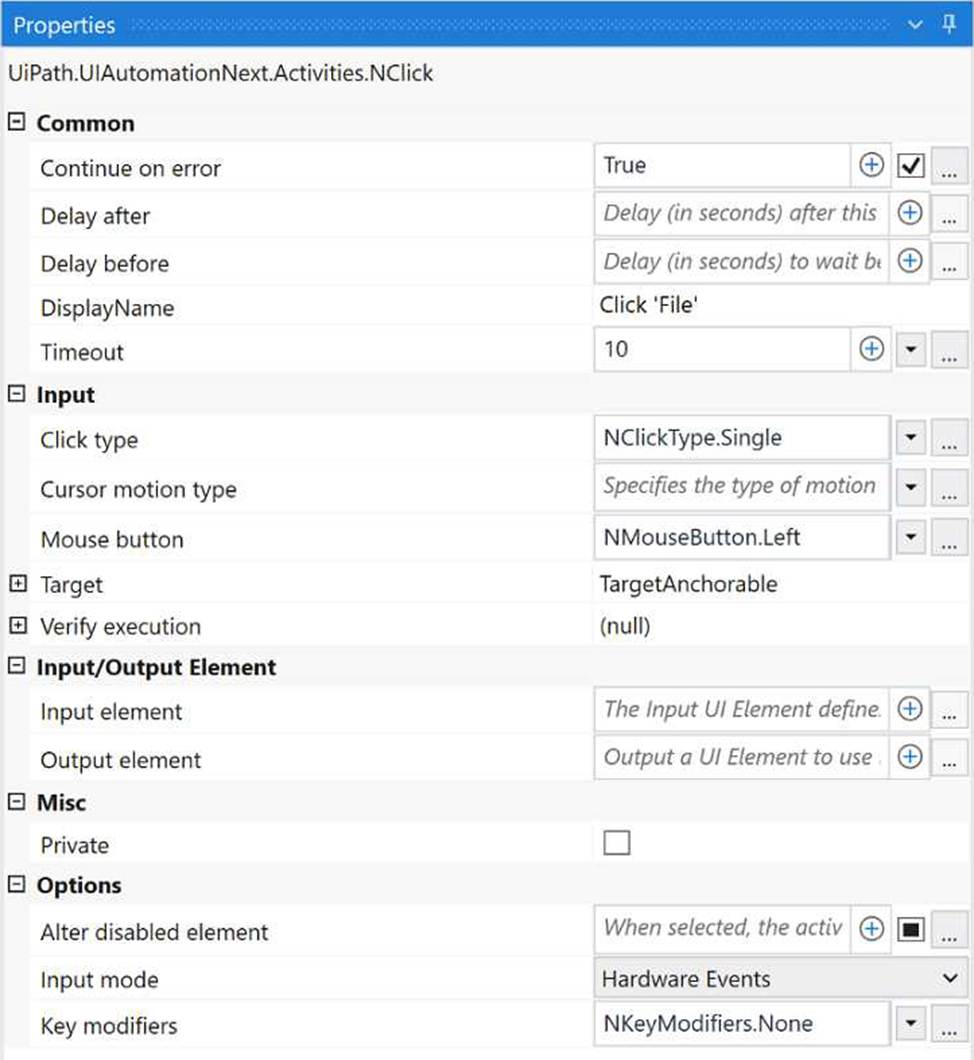
What happens if the activity cannot find its target at runtime?
- A . An exception is thrown after 10 seconds.
- B . The next activity is executed after 10 seconds.
- C . The next activity is executed after 10 milliseconds.
- D . An exception is thrown after 10 milliseconds.
A
Explanation:
If the activity cannot find its target at runtime, an exception is thrown after 10 seconds. This is because the “ContinueOnError” property is set to “False” and the “DelayAfter” property is set to “10” seconds. The “ContinueOnError” property determines whether the automation should continue even when the activity fails, and the “DelayAfter” property specifies the amount of time (in milliseconds) to wait before moving to the next activity. (UiPath Automation Developer study guide)
References:
Click
Common Properties
During which stage does an automation developer have the least contribution and responsibility?
- A . In the Discovery and Kickoff, Process Analysis, and Solution Design stages.
- B . In the Development and Unit Testing, Integration and UAT, and Deployment and Hypercare stages.
- C . In the Solution Design, Development and Unit Testing, and Deployment and Hypercare stages.
- D . In the Discovery and Kickoff, Development and Unit Testing, and Deployment and Hypercare stages.
A
Explanation:
According to the UiPath Automation Implementation Methodology, the automation lifecycle consists of six stages: Discovery and Kickoff, Process Analysis, Solution Design, Development and Unit Testing, Integration and UAT, and Deployment and Hypercare. The automation developer has the least contribution and responsibility in the first three stages, as they are mainly focused on identifying, analyzing, and designing the automation solution. The automation developer’s role is more prominent in the last three stages, as they are responsible for developing, testing, deploying, and monitoring the automation projects and components.
References: Automation Lifecycle – Standalone, Automation Developer
You are invoking a workflow file called "SecondaryWorkflow.xaml" from "PrimaryWorkflow.xamr.
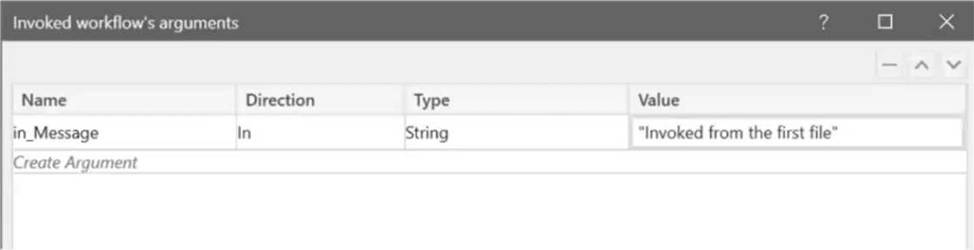
The following shows the Import Arguments panel of the Invoke Workflow File activity:
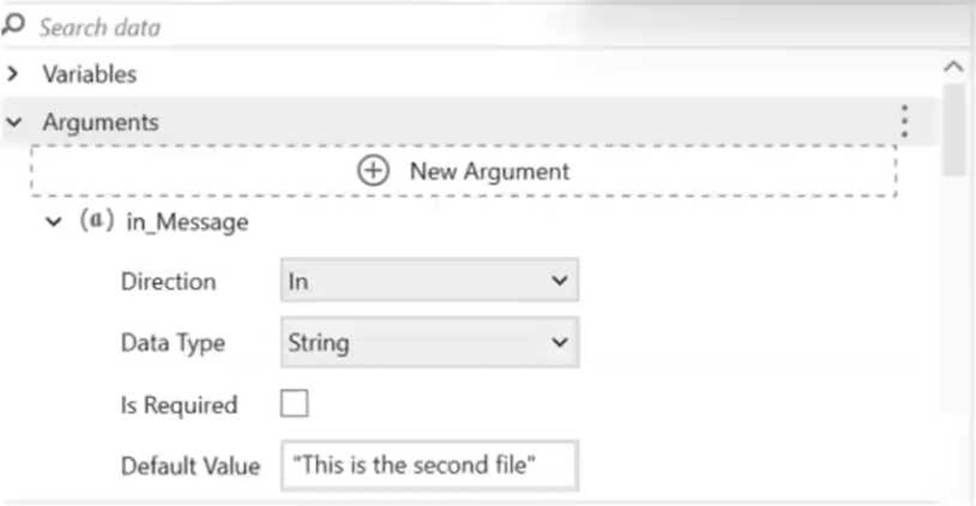
In addition, the following reflects the Arguments panel in ”SecondaryWorkflow.xaml":
You use a Log Message activity in “SecondaryWorkflow.xamr to print the value of the argument “in_Message".
What is the expected result of executing "PrimaryWorkflow.xaml"?
- A . Log message "This is the second file".
- B . Log message "Invoked from the first file".
- C . A System.ArgumentException is thrown at the Invoke Workflow File activity.
- D . The Log Message activity displays an empty string.
B
Explanation:
In the given scenario, the "SecondaryWorkflow.xaml" is invoked from "PrimaryWorkflow.xaml" with an argument "in_Message". The Import Arguments panel of the Invoke Workflow File activity in "PrimaryWorkflow.xaml" is showing that the value "Invoked from the first file" is passed to "SecondaryWorkflow.xaml". Since the "SecondaryWorkflow.xaml" has an argument "in_Message" with the default value "This is the second file", this default value is overridden by the value provided during the invoke action. Therefore, when the Log Message activity in "SecondaryWorkflow.xaml" is executed, it will log "Invoked from the first file", making option B correct.
Reference: UiPath Studio Guide: Invoking a Workflow
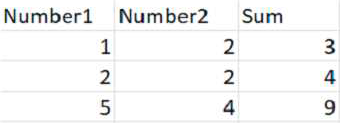
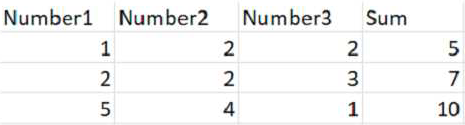
Consider testing a workflow that computes the sum of two numbers having the data driven test data from the Excel file below:
Expanding the functionality of the workflow to compute the sum of three numbers, the data needs to be updated as well to accommodate the new scenario:
What are steps to do that?
- A . Click Right on the Test Case and select Update Test Data.
- B . Click Right on the Test Case and select Add Test Data.
- C . Click Right on the Test Case and select Remove Test Data.
- D . Click Right on the Test Case and select Refresh Test Data.
A
Explanation:
To update the data to accommodate the new scenario, you need to modify the Excel file that contains the test data and then refresh the test case to reflect the changes. The steps are as follows: Open the Excel file that has the test data for the workflow. It should have four columns: Number1, Number2, Sum, and Result.
Add a new column after Number2 and name it Number3. This column will store the third number for the sum operation.
Update the existing rows in the Excel file to include a value for Number3 and adjust the value of Sum accordingly. For example, if Number1 is 1, Number2 is 2, and Number3 is 3, then Sum should be 6. Save and close the Excel file.
In UiPath Studio, right click on the test case that uses the Excel file as the test data source and select Update Test Data. This will open a window where you can edit the test data settings.
In the Update Test Data window, make sure that the Excel file path is correct and that the sheet name is selected. You can also change the name and description of the test data if you want. Click OK to save the changes and close the window.
Right click on the test case again and select Refresh Test Data. This will reload the test data from the Excel file and update the test case accordingly.
You have successfully updated the test data to compute the sum of three numbers instead of two. You can now run or debug your test case with data variations1.
A developer needs to create an unattended automation process that extracts the information from emails from a centralized mailbox. The developer needs to use the mail folder, port, server, username, and password values, with no email client accessible on the unattended machine.
Which activity should the developer use to fetch unread emails with the subject "Email for Robot"?
- A . Save Mail Message
- B . Get Outlook Mail Messages
- C . Save Outlook Mail Message
- D . Get IMAP Mail Messages
D
Explanation:
For an unattended automation process that extracts information from emails on an unattended machine without an email client, the "Get IMAP Mail Messages" activity should be used. This activity allows the developer to fetch emails from an IMAP server using the mail folder, port, server, username, and password, which are suitable for scenarios where email clients are not accessible.
Reference: UiPath Activities Guide: Get IMAP Mail Messages
What will be the outcome when executing a Try Catch activity with a sequence placed within the Try section and no Catches section present?
- A . In case of an exception, a System Exception will be caught by default.
- B . Due to a validation error, the workflow will not execute.
- C . Process execution will terminate only if the sequence throws an exception.
- D . The sequence will result in a runtime error.
B
Explanation:
According to the UiPath documentation, the Try Catch activity requires at least one catch to be added1. If there is no catch defined for the Try Catch activity, the workflow will not pass the validation and will not execute. The validation error message will say: “Try Catch: At least one catch must be added to the Try Catch activity.” Therefore, the outcome of executing a Try Catch activity with a sequence placed within the Try section and no Catches section present will be a validation error.
References: Activities – Try Catch
A developer wants to add items to a list of strings using the Invoke Method activity.
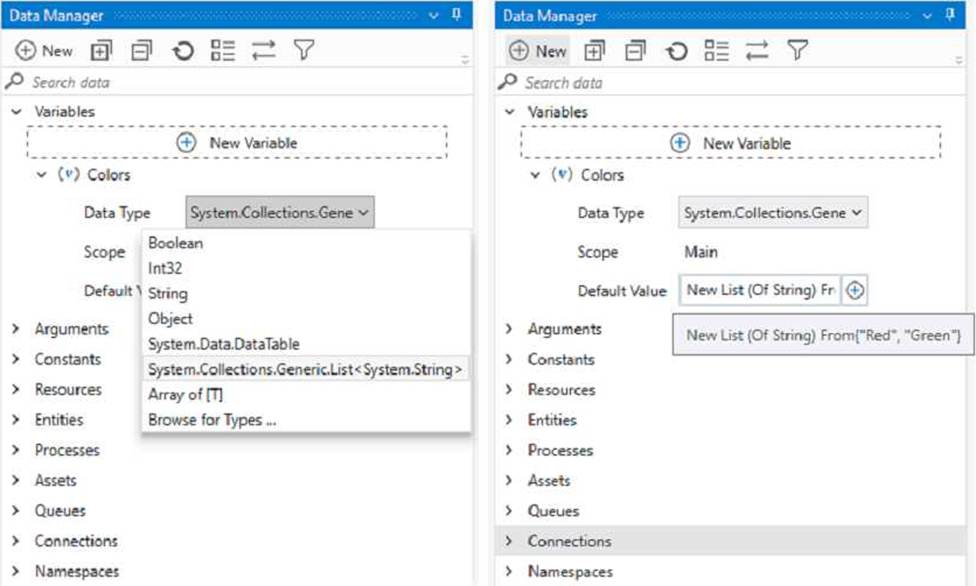
The list is declared as follows:
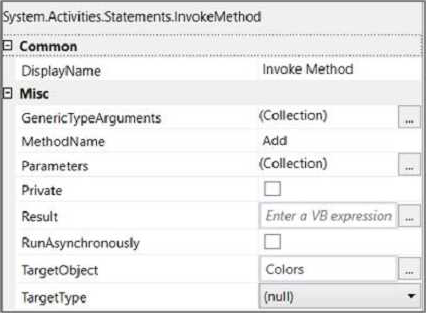
The Invoke Method includes the following properties:
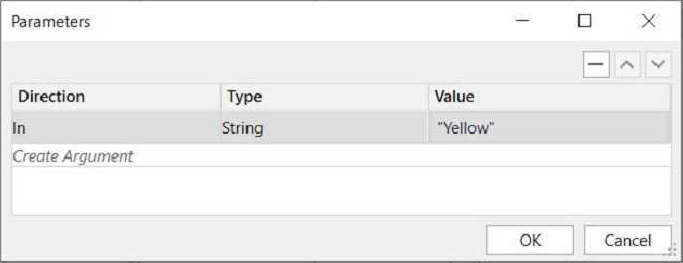
The Parameters property is as follows:
Based on the exhibits, what is the outcome of this Invoke Method activity?
- A . Invoke Method activity will throw an error.
- B . Colors will contain items in the following order: "Yellow", "Red", "Green".
- C . olors will contain items in the following order: "Red", "Green", "Yellow".
- D . Colors will contain items in the following order: "Red", "Green".
C
Explanation:
The Invoke Method activity is used to execute a method of a class or an object1. In this case, the developer wants to add items to a list of strings using the Add method of the List class2. The list is declared as Colors and initialized with two items: “Red” and “Green”.
The Invoke Method activity has the following properties:
TargetObject: Colors (the list variable)
MethodName: Add (the method of the List class)
Parameters: Direction – In, Type – String, Value – “Yellow” (the item to be added to the list)
Based on these properties, the Invoke Method activity will add the string “Yellow” to the end of the Colors list. Therefore, the outcome of this Invoke Method activity is that Colors will contain items in the following order: “Red”, “Green”, “Yellow”.
Option A is incorrect because the Invoke Method activity will not throw an error, as the properties are configured correctly. Option B is incorrect because the order of the items in the list will not change, as the Add method appends the item to the end of the list. Option D is incorrect because the list will have three items, not two, as the Add method does not overwrite any existing item.
Reference: Invoke Method activity documentation from UiPath
List<T>.Add(T) Method documentation from Microsoft
A developer wants to add items to a list of strings using the Invoke Method activity.
The list is declared as follows:
The Invoke Method includes the following properties:
The Parameters property is as follows:
Based on the exhibits, what is the outcome of this Invoke Method activity?
- A . Invoke Method activity will throw an error.
- B . Colors will contain items in the following order: "Yellow", "Red", "Green".
- C . olors will contain items in the following order: "Red", "Green", "Yellow".
- D . Colors will contain items in the following order: "Red", "Green".
C
Explanation:
The Invoke Method activity is used to execute a method of a class or an object1. In this case, the developer wants to add items to a list of strings using the Add method of the List class2. The list is declared as Colors and initialized with two items: “Red” and “Green”.
The Invoke Method activity has the following properties:
TargetObject: Colors (the list variable)
MethodName: Add (the method of the List class)
Parameters: Direction – In, Type – String, Value – “Yellow” (the item to be added to the list)
Based on these properties, the Invoke Method activity will add the string “Yellow” to the end of the Colors list. Therefore, the outcome of this Invoke Method activity is that Colors will contain items in the following order: “Red”, “Green”, “Yellow”.
Option A is incorrect because the Invoke Method activity will not throw an error, as the properties are configured correctly. Option B is incorrect because the order of the items in the list will not change, as the Add method appends the item to the end of the list. Option D is incorrect because the list will have three items, not two, as the Add method does not overwrite any existing item.
Reference: Invoke Method activity documentation from UiPath
List<T>.Add(T) Method documentation from Microsoft
HOTSPOT
A developer is using a Type into activity to enter details into a web form The developer notices that the selector for the text field is unreliable. The selector that is shown in the exhibit currently targets both a text label and a text field at runtime Only one additional Property needs to be clicked to ensure the selector targets only the First Name text field at runtime.
Instructions: Click the additional Property checkbox in the following Ul Explorer "Unselected Items" column that should be used for the First Name text field.
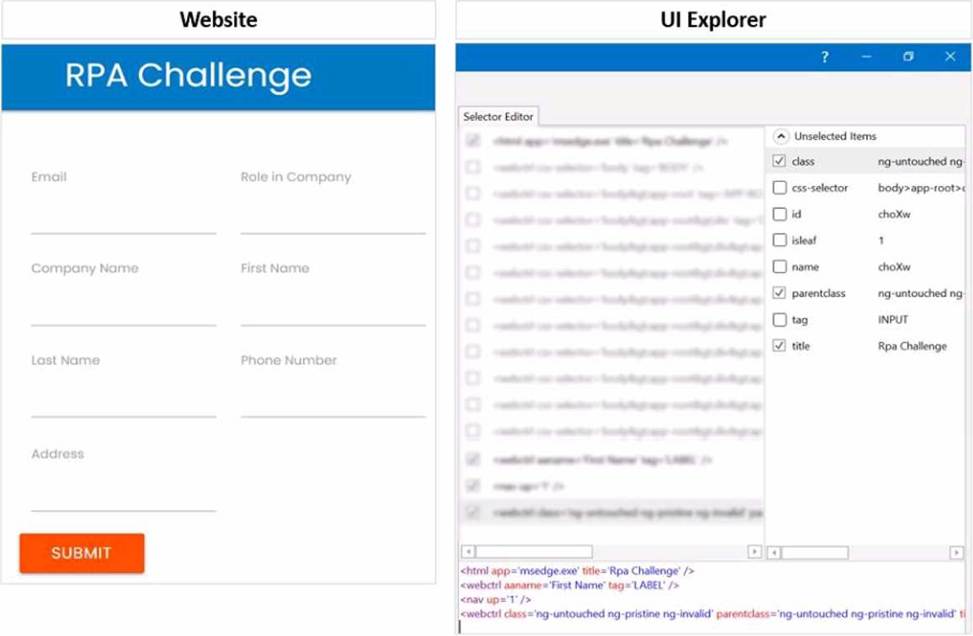
To ensure the selector targets only the First Name text field at runtime, you need to click the additional Property checkbox for ID in the UI Explorer Unselected Items column. This will add the ID attribute to the selector, which is a unique identifier for the text field element. The ID attribute has the value “firstname” for the First Name text field, as shown in the image. This will make the selector more reliable and specific, and avoid targeting the text label or other elements with the same class or tag.
https://docs.uipath.com/de/studio/standalone/2021.10/user-guide/uipath-explorer
What describes how the Excel Application Scope activity interacts with a Microsoft Excel file?
- A . Works only with xls files and Excel does not need to be installed
- B . Works with xlsx files and Excel does not need to be installed
- C . Works only with xlsm files and Excel must be installed
- D . Works with xls and xlsm files and Excel must be installed
D
Explanation:
The Excel Application Scope activity interacts with a Microsoft Excel file in the following way: it works with xls and xlsm files and Excel must be installed. The Excel Application Scope activity opens an Excel workbook and provides a scope for Excel activities. When the execution of this activity ends, the specified workbook and the Excel application are closed2. The Excel Application Scope activity can work with xls (Excel 97-2003 Workbook) and xlsm (Excel Macro-Enabled Workbook) file formats3. However, the Excel Application Scope activity requires Microsoft Excel to be installed on the machine where the automation is running, as it uses the Excel interop assembly4. Therefore, the Excel Application Scope activity cannot work with xlsx (Excel Workbook) files or without Excel installed.
References: Excel Application Scope, File formats that are supported in Excel, and Excel Application Scope – UiPath Activities Guide from UiPath documentation and Microsoft support.