
UiPath UiPath-ADAv1 Practice Exams
Last updated on Oct 22,2026- Exam Code: UiPath-ADAv1
- Exam Name: UiPath Automation Developer Associate v1 Exam
- Certification Provider: UiPath
- Latest update: Oct 22,2026
What is the default priority value for the Job Priority field in UiPath Orchestrator when starting a job manually?
- A . Medium
- B . Low
- C . Inherited
- D . High
A
Explanation:
The Job Priority field in UiPath Orchestrator is used to specify the priority of a job when it is added to a queue of pending jobs on the same robot. The priority can be set to Low, Medium, High, or Inherited. The Inherited option means that the priority is inherited from the trigger that started the job. When starting a job manually, the default priority value is Medium, which means that the job will be executed after any high-priority jobs and before any low-priority jobs in the queue. (UiPath Orchestrator documentation1)
References:
1: Starting a Job – UiPath Orchestrator.
What happens to existing project dependencies in UiPath Studio when converting a Windows-Legacy project to Windows?
- A . Project dependencies are updated to the highest available version.
- B . Project dependencies are completely removed.
- C . Project dependencies remain unchanged.
- D . Project dependencies are marked as unresolved.
A
Explanation:
When converting a Windows-Legacy project to Windows, the project dependencies are automatically updated to the highest available version that is compatible with the Windows target framework. This is done to ensure that the project can use the latest features and improvements of the activities packages, as well as to avoid potential issues or conflicts with the legacy versions. The updated dependencies are reflected in the project.json file and the Manage Packages window of the project. The developer can also manually update the dependencies to a specific version if needed..
References: Deprecation of the Windows-Legacy Compatibility – UiPath Studio Convert Windows Project to Windows-Legacy – UiPath Community Forum
A developer wants to design a complex business process using UiPath Studio. The workflow type needs to present multiple branches between Ul activities.
Which recommended type of workflow meets the requirement?
- A . Global Exception Handler
- B . Flowchart
- C . Sequence
- D . State Machine
B
Explanation:
The recommended type of workflow for designing a complex business process using UiPath Studio is Flowchart. Flowcharts are suitable for a more complex business logic, as they enable you to integrate decisions and connect activities in a more diverse manner, through multiple branching logic operators. Flowcharts can also be used as a part of other diagrams, such as Sequences or State Machines3. Flowcharts provide a clear and visual representation of the flow of the process, as well as the possible outcomes and exceptions. Flowcharts can also be easily modified and expanded, as new activities and branches can be added or removed4.
References: Flowchart and Understanding the Concept of Workflow of UiPath from UiPath documentation and Medium.
What is the use of job priorities in unattended automations within UiPath Orchestrator?
- A . To determine which processes should be executed first when dealing with multiple jobs.
- B . To sort and organize tasks within a folder.
- C . To create job dependencies that must be completed before new job execution.
- D . To determine machine resource allocation among processes.
A
Explanation:
Job priorities in unattended automations are used to assign different levels of importance to the processes that are triggered by the Orchestrator1. The job priority can be set as High, Normal, or Low when creating or editing a trigger2. The Orchestrator will execute the jobs based on their priority and the availability of robots3. This feature helps to optimize the performance and efficiency of unattended automations.
https://forum.uipath.com/t/priority-levels-jobs-and-queue-items/273883
Close the Web Browser.
In accordance with UiPath best practices, which section of the Try Catch activity ensures that Step 4 (closing the web browser) is executed regardless of any exceptions occurring in Step 2 (data scraping) or Step 3 (storing data in Microsoft Excel)?
- A . Try Block
- B . Business Exception Catch Block
- C . Finally Block
- D . Application Exception Catch Block
C
Explanation:
In UiPath best practices, to ensure that an action is executed regardless of any exceptions, you should place such steps in the "Finally" block of the Try Catch activity. The "Finally" block is designed to run after the "Try" and any "Catch" blocks have completed, whether an exception was thrown or not. This ensures that step 4 (closing the web browser) is executed even if exceptions occur in steps 2 (data scraping) or 3 (storing data in Microsoft Excel). Therefore, the correct answer is C.
Reference: UiPath Studio Guide: Exception Handling
DRAG DROP
How should the computation of the signature be done for client apps that receive Orchestrator requests and need to check their authenticity?
Instructions: Drag the Description found on the left and drop on the correct Step Sequence found on the right.
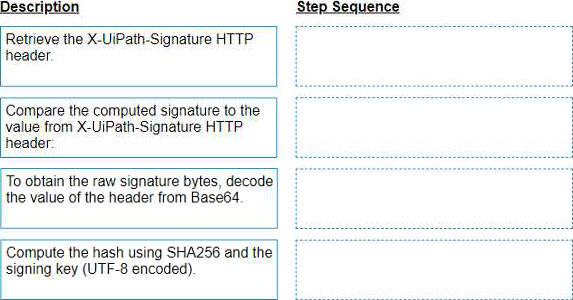
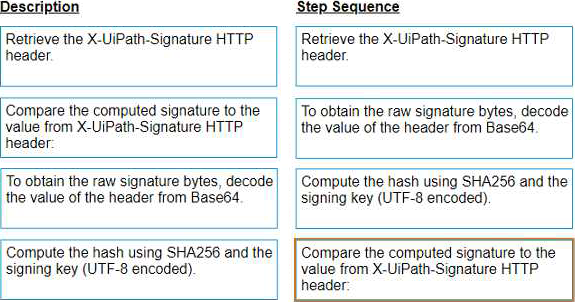
Explanation:
The correct sequence for the computation of the signature for client apps that receive Orchestrator requests and need to check their authenticity is:
Retrieve the X-UiPath-Signature HTTP header. This header contains the signature of the request body, encoded in Base64. (UiPath Orchestrator documentation1)
To obtain the raw signature bytes, decode the value of the header from Base64. You can use any tool or library that supports Base64 decoding. (UiPath Orchestrator documentation1)
Compute the hash using SHA256 and the signing key (UTF-8 encoded). The signing key is a secret value that is shared between Orchestrator and the client app. You can use any tool or library that supports SHA256 hashing. (UiPath Orchestrator documentation1)
Compare the computed signature to the value from X-UiPath-Signature HTTP header. If they match, then the request is authentic and has not been tampered with. If they do not match, then the request is invalid and should be rejected. (UiPath Orchestrator documentation1).
References:1: Webhooks – UiPath Orchestrator.
Which of the following statements is true about Global Constants?
- A . Global Constants can be created only from the Data Manager panel.
- B . Global Constants values can be modified during the automation execution.
- C . Global Constants have a Direction property (In/Out).
- D . Global Constants can be created from the Data Manager panel and from the Variables panel.
D
Explanation:
Global Constants are a type of variables that can store data in a central location that can be accessed by all workflows and activities in a project. Unlike Global Variables, Global Constants have a fixed value that cannot be modified during the automation execution. Global Constants can be created from two places in UiPath Studio: the Data Manager panel and the Variables panel. The Data Manager panel is a new feature in UiPath 2022.10 that allows the developer to manage all the data elements of a project, such as variables, arguments, data types, and data sources. The Variables panel is a classic feature that allows the developer to create and edit variables for a specific workflow. To create a Global Constant from the Data Manager panel, the developer needs to select the Constants tab, click on the New Constant button, and fill in the required fields, such as name, type, value, and description. To create a Global Constant from the Variables panel, the developer needs to select the Global scope, click on the Create Variable button, and fill in the required fields, such as name, type, value, and description. In both cases, the developer needs to make sure that the Is Constant option is checked, which indicates that the variable is a constant and cannot be changed..
References: Global Variables and Constants – UiPath Community Forum Data Manager – UiPath Studio Variables Panel – UiPath Studio
To retrieve all Outlook emails with the word "UiPath" in the subject, which filtering property and filter schema should a developer use?
- A . Property: FilterByMessagelds
Schema: "@SQL=""urn:schemas:httpmail:subject"" like ‘UiPath%"" - B . Property: Filter
Schema: "@SQL=""urn:schemas:httpmail:subject"" like ‘%UiPath%"" - C . Property: Filter
Schema: "@SQL=""urn:schemas:httpmail:subject"" like ‘UiPath%"" - D . Property: FilterByMessagelds
Schema: "@SQL=""urn:schemas:httpmail:subject"" like ‘%UiPath%""
B
Explanation:
To retrieve all Outlook emails with the word “UiPath” in the subject, a developer should use the Filter property and the filter schema “@SQL=”“urn:schemas:httpmail:subject”" like ‘%UiPath%’“. The Filter property allows developers to specify a DASL query that filters the emails based on various criteria, such as subject, sender, date, etc. The filter schema “@SQL=”“urn:schemas:httpmail:subject”” like ‘%UiPath%’" uses the SQL dialect of DASL to search for emails that have the word “UiPath” anywhere in the subject. The “%” symbol is a wildcard that matches any character or string. (UiPath Automation Developer study guide).
References: Get Outlook Mail Messages
Chapter 11: Searching Outlook Data | Microsoft Learn
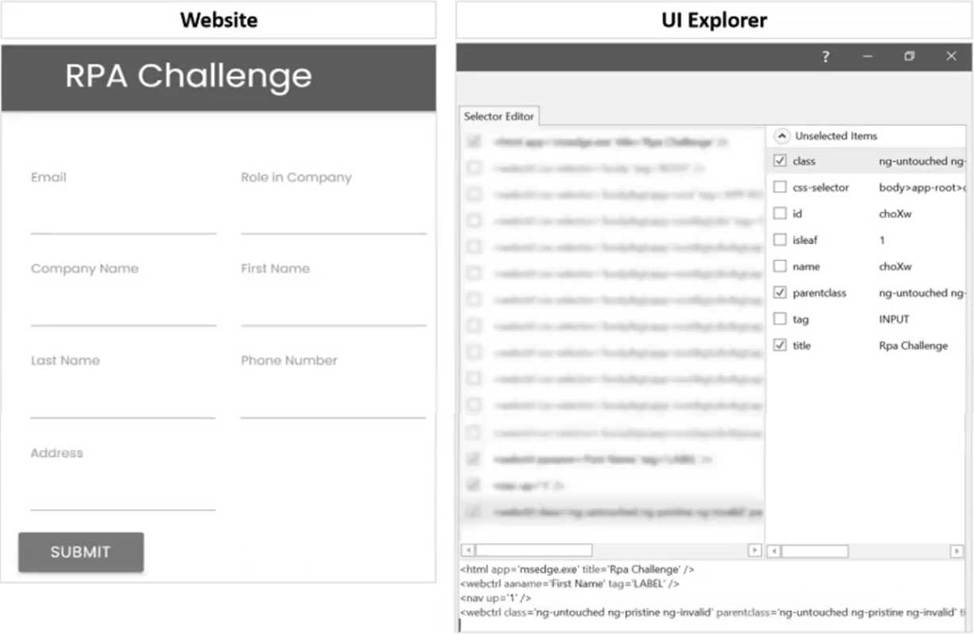
In order to make the selector specifically target the "First Name" text field during runtime, the developer needs to select one additional Property checkbox from the Unselected Items column in the UI Explorer.
Which is the additional Property checkbox in the following UI Explorer "Unselected Items" column that should be used for the First Name text field.
- A . tag
- B . id
- C . isleaf
- D . name
B
Explanation:
To make a selector specifically target the "First Name" text field during runtime in the UI Explorer, the property that uniquely identifies the "First Name" field should be used. Based on the information
provided, the most suitable property to use is the "id" as it is likely to be unique for each field in a form, which helps in precisely identifying the UI element.
Reference: UiPath Studio Guide: Selectors
DRAG DROP
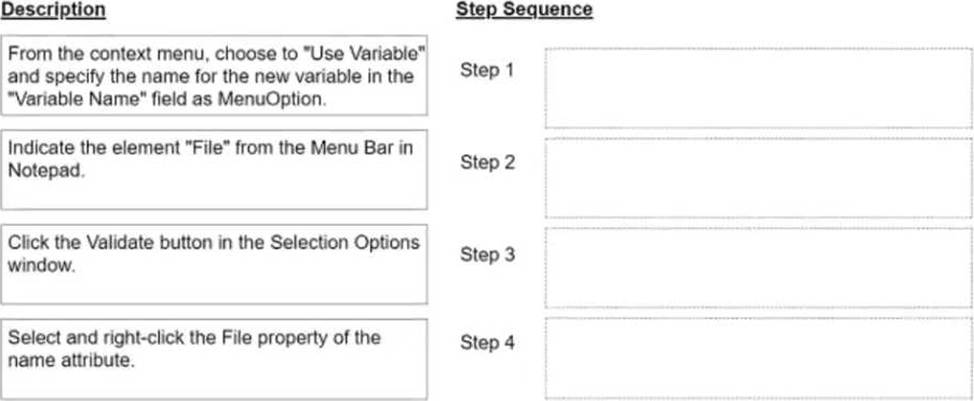
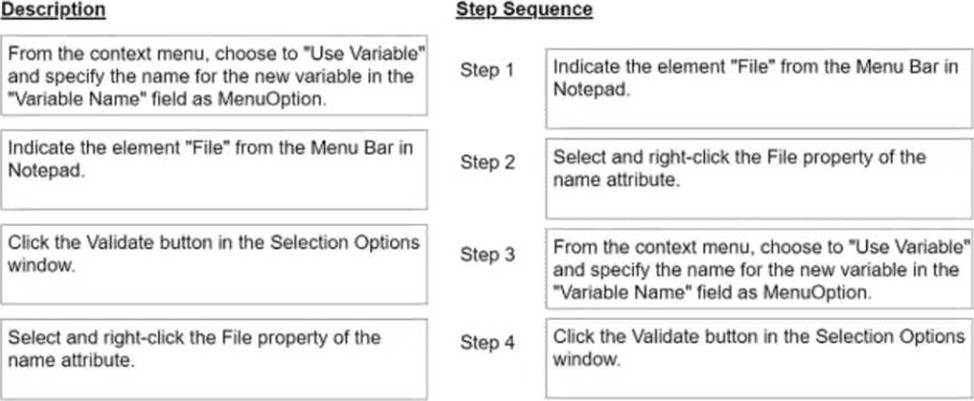
A developer aims to set up a single Click activity that can click on all menu items within the Notepad application’s Menu Bar.
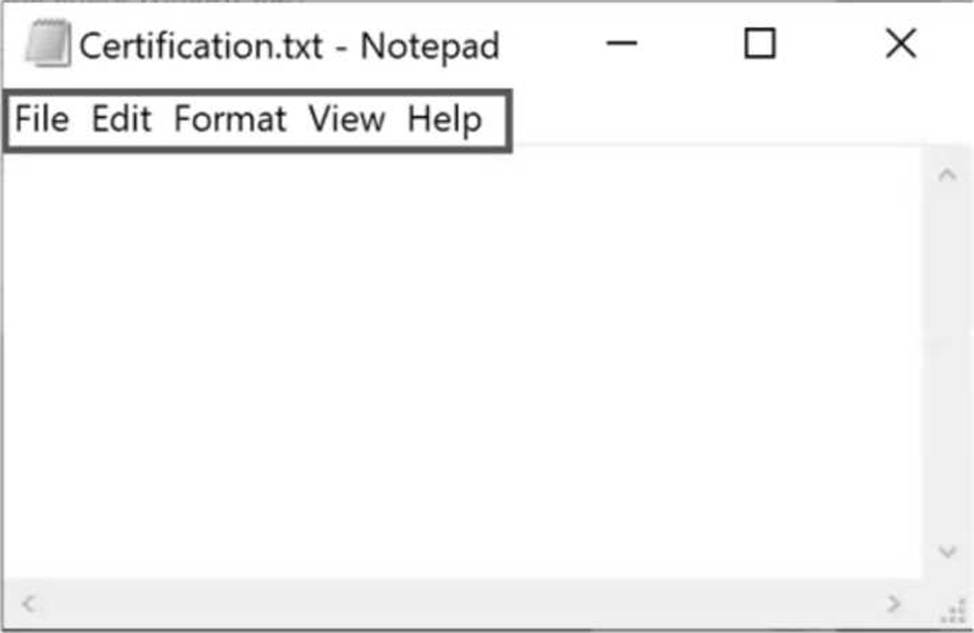
Referring to the exhibit, what is the proper order of steps to update the dynamic variable?
Instructions: Drag the Description found on the left and drop on the correct Step Sequence found on the right.
Explanation:
STEP 1: Indicate the element "File" from the Menu Bar in Notepad.
STEP 2: Select and right-click the File property of the name attribute.
STEP 3: From the context menu, choose to "Use Variable" and specify the name for the new variable in the "Variable Name" field as MenuOption.
STEP 4: Click the Validate button in the Selection Options window.