
UiPath UiPath-ADAv1 Practice Exams
Last updated on Oct 22,2026- Exam Code: UiPath-ADAv1
- Exam Name: UiPath Automation Developer Associate v1 Exam
- Certification Provider: UiPath
- Latest update: Oct 22,2026
A developer configured the properties for a Click activity on an element inside a web page as shown in the following exhibit.
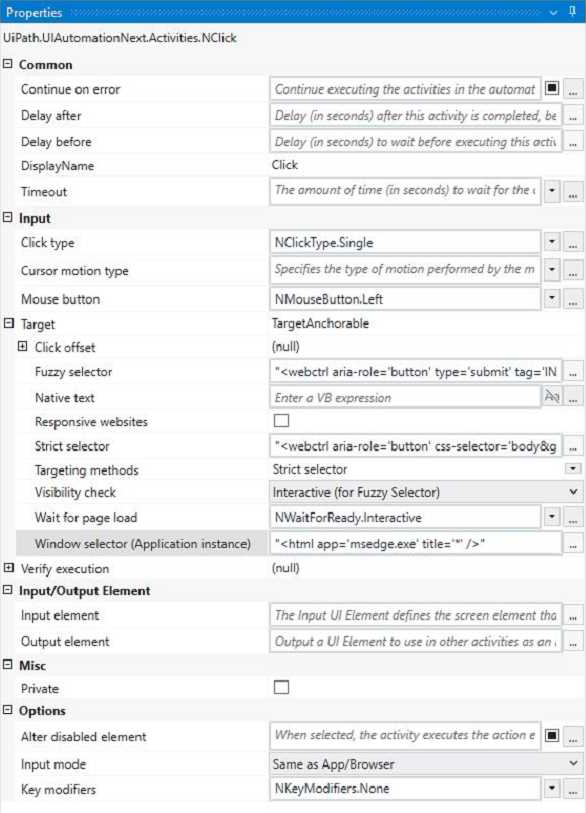
An animation on the web page never completely loads but the element indicated in the Click activity does load within the specified timeout duration.
What occurs when this Click activity executes?
- A . Element is clicked once the element is fully loaded.
- B . Timeout error occurs without clicking on the element.
- C . Waits 10 seconds before clicking on the element.
- D . Continues to the next activity after 30 seconds without clicking on the element.
A
Explanation:
The Click activity is used to simulate a mouse click on a specified UI element, such as a button or a link1. It has several properties that can be configured to customize its behavior, such as the input method, the click type, the timeout, and the wait for ready1.
The input method determines how the click is performed. It can be Default, Simulate, or Window Messages. The Default method uses the hardware driver to simulate the click, and it requires the target element to be visible and in focus. The Simulate and Window Messages methods use the technology of the target application to inject the click, and they can work in the background, even if the target element is hidden or minimized2.
The click type determines which mouse button is used for the click. It can be Single, Double, Down, or Up. The Single and Double types perform a single or double click using the left mouse button. The Down and Up types perform a press or release action using any mouse button1.
The timeout determines how long the activity waits for the target element to appear before throwing an error. It is measured in milliseconds, and it has a default value of 30000 (30 seconds). If the timeout is exceeded, the activity fails with a TimeoutException1.
The wait for ready determines when the activity executes. It can be None, Interactive, or Complete. The None option executes the activity immediately. The Interactive option executes the activity after the target element is loaded. The Complete option executes the activity after the target application is loaded1.
In your case, you have configured the properties for the Click activity as follows:
Input method: Simulate
Click type: Single
Timeout: 30000
Wait for ready: Complete
This means that the Click activity will use the Simulate method to perform a single click on the target element in the background, after waiting for 30 seconds or until the target application is fully loaded, whichever comes first.
Since you have mentioned that an animation on the web page never completely loads but the element indicated in the Click activity does load within the specified timeout duration, what occurs when this Click activity executes is:
Element is clicked once the element is fully loaded.
This is because the Simulate method can work in the background, even if the web page is hidden or minimized, and it does not depend on the animation to complete. The Complete option for wait for ready ensures that the Click activity waits until the target element is loaded before clicking on it. The timeout value of 30000 does not affect this scenario, because it is not exceeded. Therefore, option A is correct.
Reference:
Click – UiPath Documentation Portal.
What are different Input methods in UiPath – UiPath Community Forum.
A developer configured the properties for a Click activity on an element inside a web page as shown in the following exhibit.
An animation on the web page never completely loads but the element indicated in the Click activity does load within the specified timeout duration.
What occurs when this Click activity executes?
- A . Element is clicked once the element is fully loaded.
- B . Timeout error occurs without clicking on the element.
- C . Waits 10 seconds before clicking on the element.
- D . Continues to the next activity after 30 seconds without clicking on the element.
A
Explanation:
The Click activity is used to simulate a mouse click on a specified UI element, such as a button or a link1. It has several properties that can be configured to customize its behavior, such as the input method, the click type, the timeout, and the wait for ready1.
The input method determines how the click is performed. It can be Default, Simulate, or Window Messages. The Default method uses the hardware driver to simulate the click, and it requires the target element to be visible and in focus. The Simulate and Window Messages methods use the technology of the target application to inject the click, and they can work in the background, even if the target element is hidden or minimized2.
The click type determines which mouse button is used for the click. It can be Single, Double, Down, or Up. The Single and Double types perform a single or double click using the left mouse button. The Down and Up types perform a press or release action using any mouse button1.
The timeout determines how long the activity waits for the target element to appear before throwing an error. It is measured in milliseconds, and it has a default value of 30000 (30 seconds). If the timeout is exceeded, the activity fails with a TimeoutException1.
The wait for ready determines when the activity executes. It can be None, Interactive, or Complete. The None option executes the activity immediately. The Interactive option executes the activity after the target element is loaded. The Complete option executes the activity after the target application is loaded1.
In your case, you have configured the properties for the Click activity as follows:
Input method: Simulate
Click type: Single
Timeout: 30000
Wait for ready: Complete
This means that the Click activity will use the Simulate method to perform a single click on the target element in the background, after waiting for 30 seconds or until the target application is fully loaded, whichever comes first.
Since you have mentioned that an animation on the web page never completely loads but the element indicated in the Click activity does load within the specified timeout duration, what occurs when this Click activity executes is:
Element is clicked once the element is fully loaded.
This is because the Simulate method can work in the background, even if the web page is hidden or minimized, and it does not depend on the animation to complete. The Complete option for wait for ready ensures that the Click activity waits until the target element is loaded before clicking on it. The timeout value of 30000 does not affect this scenario, because it is not exceeded. Therefore, option A is correct.
Reference:
Click – UiPath Documentation Portal.
What are different Input methods in UiPath – UiPath Community Forum.
A developer is automating an invoice process for the finance department using a Dispatcher and Performer model with access to Orchestrator. New invoices are stored in a shared folder each morning Each invoice needs to be processed separately in the finance system as a single unit of work After each invoice is processed in the finance system, a unique output ID must be emailed to the finance team’s email address.
How should the developer store the relevant data in Orchestrator?
- A . Upload individual invoice data and the finance team’s email address as Specific Data in Queue Items
- B . Upload the finance team’s email address as Specific Data in Queue Items Create an asset for each individual invoice data field
- C . Create an asset for each piece of invoice data as well as for the finance team’s email address
- D . Upload individual invoice data as Specific Data in Queue Items Create an asset for the finance team’s email address
D
Explanation:
The developer should store the relevant data in Orchestrator as follows:
Upload individual invoice data as Specific Data in Queue Items. The Specific Data is a collection of key-value pairs that can store additional information for each queue item, such as the invoice number, date, amount, etc. The Specific Data can be added to the queue items using the Add Queue Item activity in the Dispatcher workflow. The Specific Data can be retrieved from the queue items using the Get Transaction Item activity in the Performer workflow. The Specific Data can be used to process each invoice separately in the finance system as a single unit of work3.
Create an asset for the finance team’s email address. An asset is a global variable that can store a specific value, such as a text, a number, a boolean, or a credential. An asset can be created and managed in Orchestrator, and accessed by the robots using the Get Asset activity. An asset can be used to store a value that is common for all the queue items, such as the finance team’s email address. The asset can be used to email the unique output ID to the finance team after each invoice is processed in the finance system4.
References: About Queues and Transactions and About Assets from UiPath documentation.
Which activity should be used to iterate through all the files in a local folder?
- A . For Each File in Folder
- B . For Each File Info
- C . For Each Row in Datatable
- D . Do For Each File
A
Explanation:
The "For Each File in Folder" activity is the appropriate choice for iterating through all the files in a local folder in UiPath. This activity allows you to specify the folder path and then iterates through each file within that folder, performing actions on each file as needed. Options B, C, and D are not standard UiPath activities for this purpose.
Reference: UiPath Activities Guide: For Each File in Folder
Which of the following is a characteristic of source control in UiPath Studio?
- A . Connects the files in a single Studio project to different GIT remote repositories.
- B . Shows the history for all versions of a file in a Studio project.
- C . Analizes each file in a Studio project before publishing a package.
- D . Connects a single Studio project to multiple GIT remote repositories at the same time.
B
Explanation:
Source control in UiPath Studio, particularly with GIT integration, allows users to track changes and view the history for all versions of a file within a Studio project. This is a crucial feature for understanding the development and changes made over time, making option B correct. It is not possible to connect the files in a single Studio project to different GIT remote repositories (option A) or multiple GIT remote repositories at the same time (option D). Analyzing each file before publishing a package is not a characteristic of source control but part of the publishing process.
Reference: UiPath Studio Guide: Version Control Systems Integration
What method can be used to change the index of an existing column in a datatable?
- A . Setlndex
- B . MoveAt
- C . SetColumnIndex
- D . SetOrdinal
D
Explanation:
The SetOrdinal method of the DataColumn class can be used to change the index or position of an existing column in a datatable. The method takes an integer argument that specifies the new ordinal or position of the column. For example, to move the first column to the last position, one can use: yourDataTable.Columns(0).SetOrdinal(yourDataTable.Columns.Count – 1). (UiPath Automation
Developer study guide)
References:
DataColumn.SetOrdinal Method
How to move Column from Index 0 to Index 10 in datatable
What are the components of a process?
- A . Procedures, Dependencies, Variations, Resources.
- B . Compliance, Operational Needs, Risk Management, Improvement.
- C . Inputs, Process Flows, Source Applications, Outputs.
- D . Technical Skills, Business Processes, Decision Points.
C
Explanation:
The components of a process typically include "Inputs, Process Flows, Source Applications, Outputs". This refers to what the process takes as input (data/files), the sequence of steps or activities that define the process (process flows), the applications involved in the process (source applications), and what the process produces or affects (outputs).
Reference: UiPath Studio Guide: Project Organization Best Practices
What is a pre-requisite for running InitAllApplications TestCase?
- A . Invoke CloseAllApplications XAML file in Given.
- B . Invoke KillAllProcesses XAML file in Given.
- C . Invoke InitAllSettings XAML file in Given.
- D . Invoke SetTransactionStatus XAML file in Given.
C
Explanation:
The InitAllApplications TestCase is used to test the initialization of all the applications that are required for the automation process1. The pre-requisite for running this TestCase is to invoke the InitAllSettings XAML file in the Given section of the TestCase2. The InitAllSettings file is responsible for reading the configuration data from the Config.xlsx file and storing it in a dictionary variable3. This data is then used by the InitAllApplications file to open and log in to the applications using the credentials and URLs from the dictionary variable4.
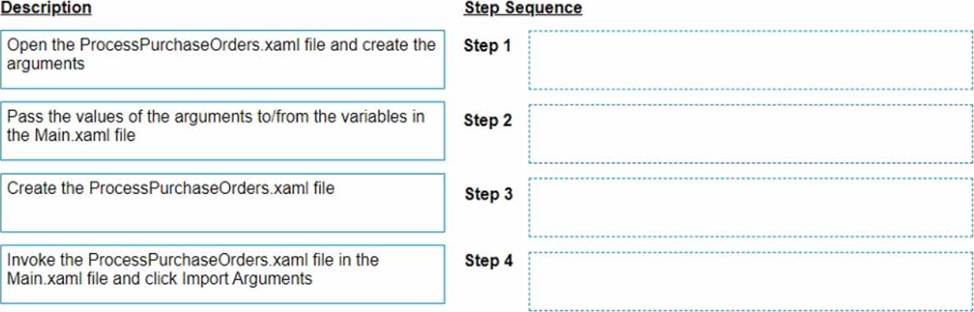
DRAG DROP
A developer wants to invoke a workflow in Main xaml called ProcessPurchaseOrders.xamI. Data needs to be passed to and from the invoked workflow.
What is the correct sequence of steps the developer needs to perform?
Instructions: Drag the Description found on the left and drop on the correct Step found on the right
Explanation:
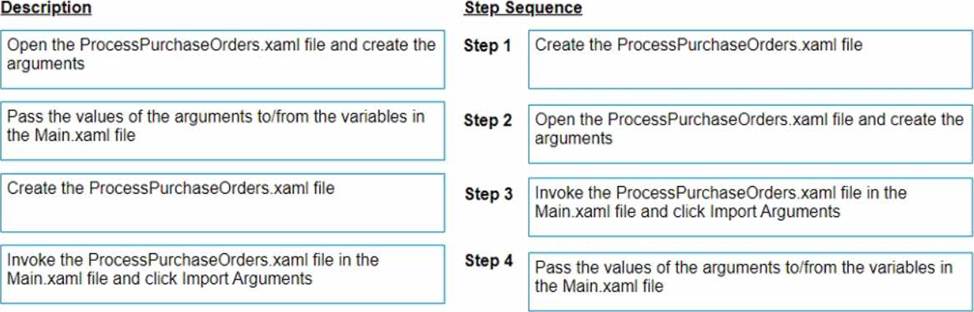
The correct sequence of steps the developer needs to perform is:
Step 1 = Create the ProcessPurchaseOrders.xaml file
Step 2 = Open the ProcessPurchaseOrders.xaml file and create the arguments
Step 3 = Invoke the ProcessPurchaseOrders.xaml file in the Main.xaml file and click Import Arguments
Step 4 = Pass the values of the arguments to/from the variables in the Main.xaml file
This sequence will ensure that the developer can create a reusable workflow, invoke it from the main workflow, and pass data between them using arguments. https://forum.uipath.com/t/import-arguments-in-invoke-workflow-file/1923
https://forum.uipath.com/t/pass-arguments-invoke/132595
What are the primary functions of the UiPath Integration Service?
- A . Automates Ul design, manages API connections, provides limited activities and events, simplifies automation design.
- B . Enables automation with API integration, manages connections with user-provided authentication, kicks off automations based on application-specific triggers, simplifies automation design with the help of third-party libraries.
- C . Enables automation with a library of connectors, manages connections easily with standardized authentication, kicks off automations with server-side triggers or events, provides curated activities and events, simplifies automation design.
- D . Enables automation with UI components, manages API keys, kicks off automations with client-side triggers, provides curated events.
C
Explanation:
UiPath Integration Service is a new feature that allows developers to create and manage integrations with various applications and systems using UI and API automation. It offers a library of connectors that simplify the authentication and connection process, as well as activities and events that enable data exchange and automation triggering. It also supports server-side triggers that can start automations based on events from other systems. (UiPath Automation Developer study guide).
References:Introducing UiPath Integration Service
UiPath Integration Service