
UiPath UiPath-ADAv1 Practice Exams
Last updated on Oct 22,2026- Exam Code: UiPath-ADAv1
- Exam Name: UiPath Automation Developer Associate v1 Exam
- Certification Provider: UiPath
- Latest update: Oct 22,2026
Which of the following statements correctly describes the characteristics of Unattended Automation?
- A . Unattended Automations are automations that run under human supervision and are typically used for tasks requiring a clear audit chain.
- B . Unattended Automations are automations intended for more complex and highly repetitive tasks, usually performed in batches, and can be decided based on predefined rules.
- C . Unattended Automations are intended for smaller, fragmented tasks and run with user supervision, requiring the user’s credentials for access.
- D . Unattended Automation are automations that run under human supervision and, because of this, are best suited for small tasks.
B
Explanation:
Unattended Automations are intended for complex, highly repetitive tasks that are usually performed in batches. They can operate without human supervision and decisions can be made based on predefined rules. These tasks can run on virtual environments and do not require human input once started.
Reference: UiPath Studio Guide: Unattended Automation
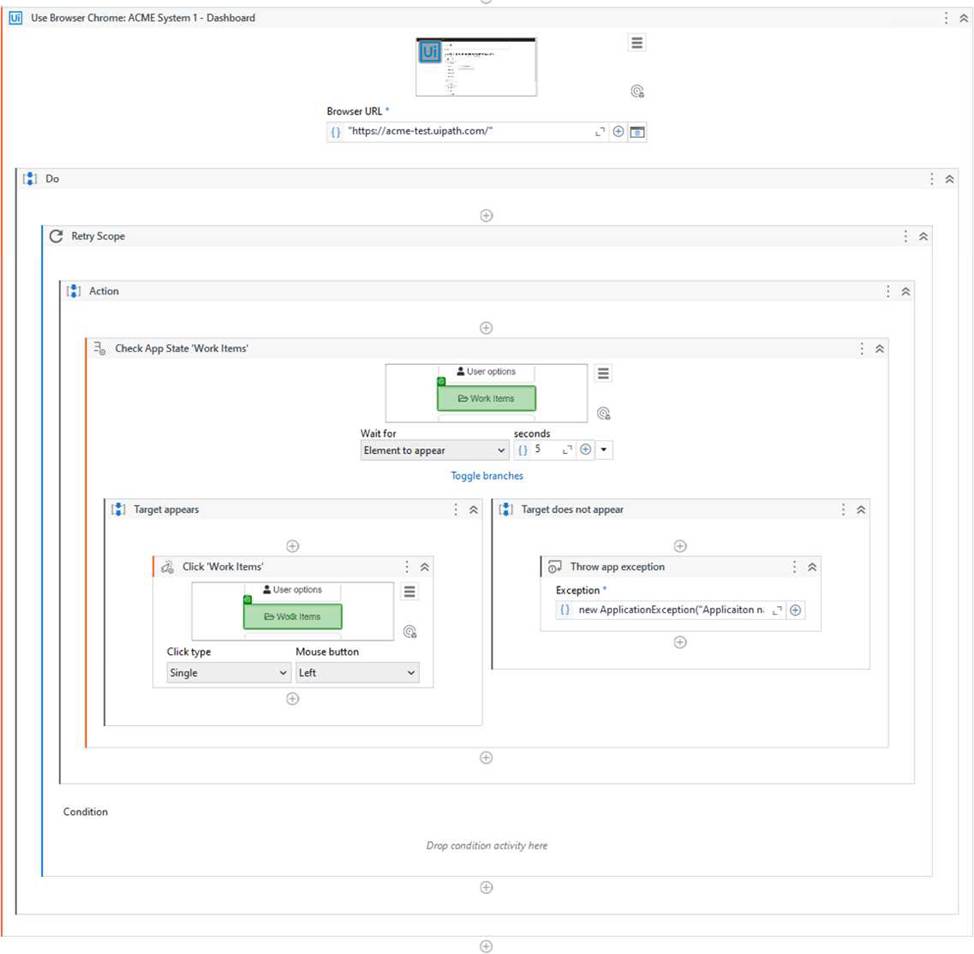
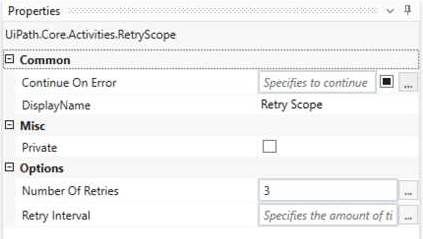
What happens after executing the given sequence if the Work Items button appears on the screen after 8 seconds and the Retry Scope activity has the properties as shown in the picture?
- A . The Work Items button is being clicked.
- B . An exception is being thrown.
- C . Nothing happens.
- D . The Work Items button is being highlighted.
A
Explanation:
The Retry Scope activity is used to retry the execution of a specific part of the automation in case of an error. In this case, the properties of the Retry Scope activity are set to retry 3 times with an interval of 8 seconds. Therefore, if the Work Items button appears on the screen after 8 seconds, the activity will click on the button.
References: [Activities – Retry Scope]
A developer implemented a process using the Robotic Enterprise Framework and an Orchestrator queue. The MaxRetryNumber from the "Config.xlsx" file is set to "1" and the Max # of retries from the Queue settings from Orchestrator is set to "2". At runtime, the first transaction item throws a Business Exception.
How many times will the transaction be retried?
- A . The transaction will be retried only one time.
- B . The transaction will not be retried.
- C . The transaction will be retried 2 times.
- D . The transaction will be retried multiple times, until it will be processed successfully.
B
Explanation:
The Robotic Enterprise Framework (REF) is a template that provides a structured and consistent way to develop automation processes. The REF uses an Orchestrator queue to store and process the transaction items, which are the units of work for the process. The REF also handles different types of exceptions that may occur during the execution of the process, such as system exceptions and business exceptions. A system exception is an error that prevents the normal execution of the process, such as a network failure or an application crash. A business exception is an error that is related to the business logic or rules of the process, such as an invalid input or an incorrect output.
The REF has different mechanisms to deal with these exceptions, such as retrying, logging, and updating the status of the transaction items.
The MaxRetryNumber from the “Config.xlsx” file is a parameter that specifies how many times the REF will retry a transaction item when a system exception occurs. The Max # of retries from the Queue settings from Orchestrator is a parameter that specifies how many times Orchestrator will retry a transaction item when it changes to Failed status due to any exception. These two parameters are independent of each other and have different effects on the retry mechanism.
In this case, the first transaction item throws a business exception, which means that there is something wrong with the data or the logic of the process. The REF will not retry a transaction item when a business exception occurs, because it assumes that retrying will not solve the problem.
Instead, the REF will log the exception, update the status of the transaction item to Failed, and move on to the next transaction item. Orchestrator will also not retry a transaction item when it changes to Failed status due to a business exception, because it respects the decision of the REF. Therefore, the transaction will not be retried at all.
References:
1: Robotic Enterprise Framework Template – UiPath Studio.
HOTSPOT
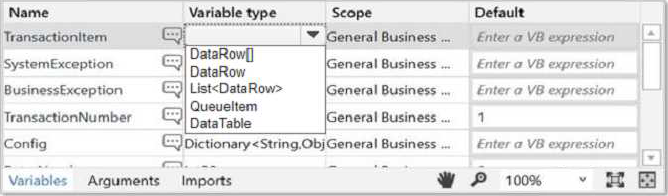
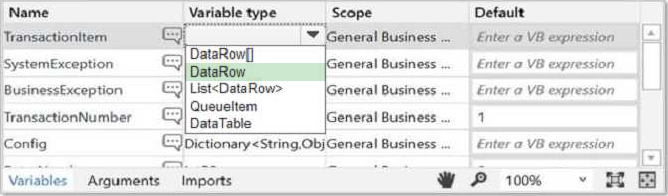
A developer aims to employ the REFramework for automating a business process that involves a TransactionData collection (DataTable) comprising vendor names and addresses.
Instructions: Choose the appropriate variable type for the Transactionltem from the provided drop-down list in the following exhibit.
Explanation:
DataRow
The REFramework is a template that provides a robust and scalable structure for building automation projects. It uses the concept of TransactionData and TransactionItem to handle the input data and process it in a loop1. The TransactionData is a collection of items that need to be processed, and the TransactionItem is a single item from that collection that is assigned to the robot in each iteration2. The type of the TransactionItem variable depends on the type of the TransactionData variable. By default, the REFramework uses QueueItem as the type for both variables, assuming that the input data comes from an Orchestrator queue3. However, if the input data comes from a different source, such as an Excel file, a web page, or a SAP application, then the type of both variables needs to be changed accordingly4.
In your case, since the input data is a DataTable that contains vendor names and addresses, the appropriate type for the TransactionItem variable is DataRow. A DataRow represents a single row in a DataTable, and it can store multiple values in its columns. By using DataRow as the type for the TransactionItem variable, you can access and manipulate the vendor information in each iteration of the process.
Reference: REFramework Documentation – UiPath Documentation Portal.
ReFramework – TransactionItem type – Help – UiPath Community Forum.
ReFramework for Tabular Data – RPA Component – UiPath Marketplace.
Transaction Item variable type – Studio – UiPath Community Forum.
[DataRow Class (System.Data) | Microsoft Docs].
During a code review, a developer discovered that the variable names did not follow best practices in an automation project.
What happens when the developer updates the names of the variables in the Variables panel?
- A . Only String variable names are automatically updated in the activities in the current file
- B . Variable names are updated in the panel but must be manually updated in all Ul Automation activities that use them
- C . All variable names are automatically updated in the activities in the current file
- D . Variable names are updated in the panel but must be manually updated in all Image activities that use them
C
Explanation:
The Variables panel is a panel in UiPath Studio that allows you to create and manage variables in a workflow file. You can change the name, type, scope, and default value of a variable in the Variables panel. When you update the name of a variable in the Variables panel, all the activities that use that variable in the current file are automatically updated with the new name. This ensures that the variable references are consistent and valid throughout the workflow. However, if the variable is used in other workflow files, such as invoked workflows or libraries, you need to manually update the name in those files as well. Therefore, the answer is C. All variable names are automatically updated in the activities in the current file.
References: Managing Variables, Variables
Arguments and Variables Information log entry – show values of the variables and arguments that are used.
- A . Critical
- B . Trace
- C . Verbose
- D . Information
C
Explanation:
The Verbose logging level includes all the information that is logged by the other levels, plus the values of the variables and arguments that are used in the process1.
By default, the Verbose level includes the following log entries2:
Execution Started
Execution Ended
Transaction Started
Transaction Ended
Activity Information
Arguments and Variables Information
https://docs.uipath.com/robot/standalone/2023.4/user-guide/logging-and-log-levels
A developer wants to extract hidden text from a pdf file.
Which output method(s) should be used?
- A . FullText and Native
- B . Native only
- C . OCR
- D . FullText only
D
Explanation:
To extract hidden text from a pdf file, the output method that should be used is FullText only. The FullText output method is one of the options available in the Read PDF Text activity, which reads all the characters from a specified pdf file and stores them in a string variable3. The FullText output method extracts the text from the pdf file as it is, without keeping the formatting or the position of the text. The FullText output method can also extract the hidden text from the pdf file, which is the text that is not visible on the screen, but can be copied and pasted into another application4. For example, the hidden text can be the metadata, comments, or annotations of the pdf file. The FullText output method is suitable for extracting hidden text from a pdf file, as it does not depend on the visibility or the layout of the text. The other output methods, such as Native or OCR, are not suitable for extracting hidden text from a pdf file, as they rely on the appearance or the position of the text on the screen. The Native output method preserves the formatting and the position of the text, but it cannot extract the text that is not visible or selectable5. The OCR output method converts the text from the pdf file into an image and then extracts the text from the image, but it cannot extract the text that is not displayed or recognized by the OCR engine6.
References: Read PDF Text, Extracting Hidden Text from PDF, Native, and OCR from UiPath documentation and forum.
Which activity is used to archive a set of files and send them as an attachment in an email?
- A . Create Folder
- B . Archive Files
- C . Compress/Zip Files
- D . Create File
C
Explanation:
The Compress/Zip Files activity is used to archive a set of files and send them as an attachment in an email. This activity allows the developer to specify the source folder that contains the files to be archived, the destination folder where the compressed file will be created, and the name of the compressed file. The activity also supports various compression formats, such as zip, tar, gz, bz2, xz, and 7z. The compressed file can then be attached to an email using the AttachmentsCollection property of the Send Mail activity. This way, the developer can reduce the size and number of the files to be sent, as well as protect them with a password if needed..
References: Compress/Zip Files – UiPath Activities
Send Mail – UiPath Activities
How to send multiple files in one attachment in uipath – UiPath Community Forum
A developer needs to create an array of folder names from the String variable. FilePath = "C:\Users\UiPathRobot\Documents\Technologies".
Based on best practice, which method will return an array of only the folder names?
- A . Split(FilePath/V)
- B . Spht(FilePath,"": StnngSplitOptions.RemoveEmptyEntries)
- C . SplitfV, FilePath. StringSplitOptions RemoveEmptyEntries)
- D . SplitfV’, FilePath)
B
Explanation:
To create an array of folder names from the String variable FilePath, the method that will return an array of only the folder names is:
Split(FilePath,"").StringSplitOptions.RemoveEmptyEntries
This method uses the String.Split method, which returns an array of strings that are separated by a specified delimiter. The delimiter in this case is the backslash character ("") which is used to separate the folder names in the file path. The StringSplitOptions.RemoveEmptyEntries option is used to remove any empty entries from the resulting array, such as the one before the first backslash or after the last backslash1. For example, if the FilePath variable has the value: FilePath = “C:UsersUiPathRobotDocumentsTechnologies”
Then the method Split(FilePath,"").StringSplitOptions.RemoveEmptyEntries will return an array of four strings:
{“C”, “Users”, “UiPathRobot”, “Documents”, “Technologies”}
These are the folder names in the file path, without any empty entries.
References: String.Split Method from UiPath documentation.
DRAG DROP
What are the steps to publish a project from UiPath Studio?
Instructions: Drag the Description found on the "Left" and drop on the correct Step Sequence found on the "Right".
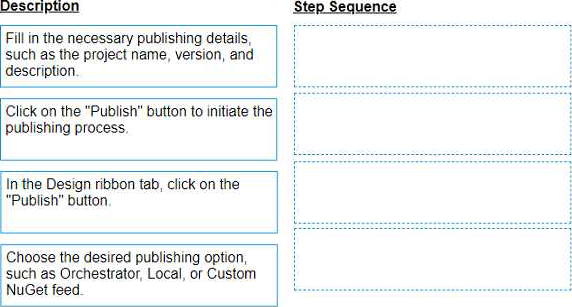
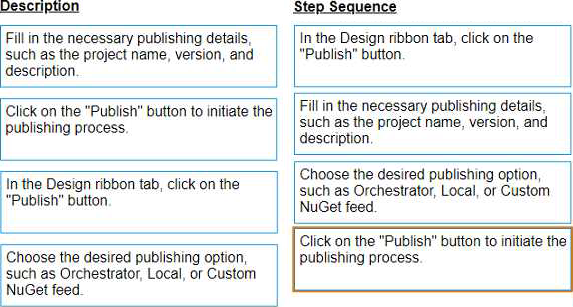
Explanation:
The steps to publish a project from UiPath Studio are:
In the Design ribbon tab, click on the “Publish” button. The Publish Project window opens. (UiPath Studio documentation1)
Fill in the necessary publishing details, such as the project name, version, and description. You can also add release notes and select the environment where the project will run. (UiPath Studio documentation1)
Choose the desired publishing option, such as Orchestrator, Local, or Custom NuGet feed. Depending on your choice, you may need to provide additional information, such as the Orchestrator URL, the local folder path, or the custom feed URL. (UiPath Studio documentation1)
Click on the “Publish” button to initiate the publishing process. A confirmation message will appear when the project is successfully published. (UiPath Studio documentation1)
Short Explanation
Publishing a project from UiPath Studio means creating a package that contains all the files and dependencies required to run the automation process. The package can be deployed to different locations, such as Orchestrator, a local machine, or a custom NuGet feed. Publishing a project from UiPath Studio involves four main steps: clicking on the Publish button, filling in the publishing details, choosing the publishing option, and confirming the publishing process. (UiPath Automation Developer study guide2)
References:
1: Publishing Projects from Studio – UiPath Studio.
2: UiPath Certified Automation Developer – Learning Plan.