
UiPath UiPath-ADAv1 Practice Exams
Last updated on Oct 21,2026- Exam Code: UiPath-ADAv1
- Exam Name: UiPath Automation Developer Associate v1 Exam
- Certification Provider: UiPath
- Latest update: Oct 21,2026
DRAG DROP
What is the correct sequence of steps to install a new Activities package in UiPath Studio 2021 10?
Instructions:
Drag the Description found on the left and drop on the correct Step found on the right.
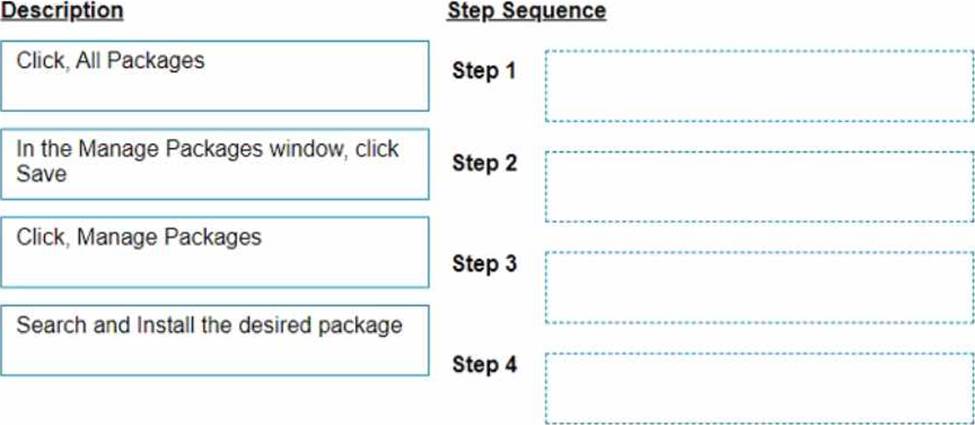
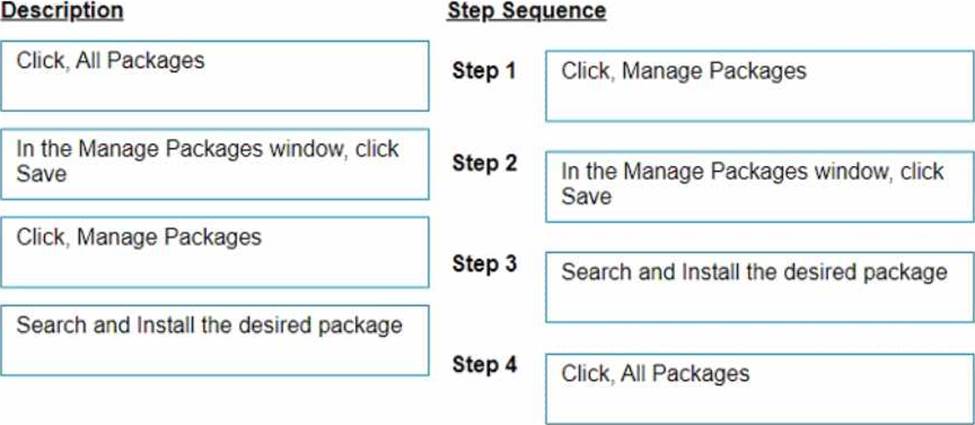
Explanation:
Click, Manage Packages
In the Manage Packages window, click Save
Search and Install the desired package
Click, All Packages
The correct sequence of steps to install a new Activities package in UiPath Studio 2021 10 is:
Click Manage Packages in the ribbon.
In the Manage Packages window, click All Packages in the left panel.
Search for the desired package in the search box and select it from the list.
Click Install and then Save to complete the installation.
Comprehensive and Detailed Explanation
To install a new Activities package in UiPath Studio 2021 10, you need to follow these steps:
Click Manage Packages in the ribbon. This will open the Manage Packages window, where you can browse, install, update, or remove packages from your project.
In the Manage Packages window, click All Packages in the left panel. This will display all the available packages from the official UiPath feed, as well as any other feeds that you have configured in the Settings tab.
Search for the desired package in the search box and select it from the list. You can also filter the packages by category, compatibility, or source. You can see the package details, such as version, description, dependencies, and release notes, in the right panel.
Click Install and then Save to complete the installation. The package will be added to your project dependencies and downloaded to the local cache. You can also choose to install a specific version of the package by clicking on the version number and selecting from the drop-down list.
References: Managing Packages
Installing and Updating Packages
DRAG DROP
What is the correct sequence of steps to install a new Activities package in UiPath Studio 2021 10?
Instructions:
Drag the Description found on the left and drop on the correct Step found on the right.
Explanation:
Click, Manage Packages
In the Manage Packages window, click Save
Search and Install the desired package
Click, All Packages
The correct sequence of steps to install a new Activities package in UiPath Studio 2021 10 is:
Click Manage Packages in the ribbon.
In the Manage Packages window, click All Packages in the left panel.
Search for the desired package in the search box and select it from the list.
Click Install and then Save to complete the installation.
Comprehensive and Detailed Explanation
To install a new Activities package in UiPath Studio 2021 10, you need to follow these steps:
Click Manage Packages in the ribbon. This will open the Manage Packages window, where you can browse, install, update, or remove packages from your project.
In the Manage Packages window, click All Packages in the left panel. This will display all the available packages from the official UiPath feed, as well as any other feeds that you have configured in the Settings tab.
Search for the desired package in the search box and select it from the list. You can also filter the packages by category, compatibility, or source. You can see the package details, such as version, description, dependencies, and release notes, in the right panel.
Click Install and then Save to complete the installation. The package will be added to your project dependencies and downloaded to the local cache. You can also choose to install a specific version of the package by clicking on the version number and selecting from the drop-down list.
References: Managing Packages
Installing and Updating Packages
What types of authentication are supported by Connector Builder for Integration Service?
- A . OAuth 2.0 Authorization Code, OAuth 2.0 Client Credentials, SSL, OAuth 2.0 Implicit Grant, LDAP, RADIUS.
- B . OAuth 2.0 Authorization Code, OAuth 2.0 Authorization code with PKCE, OAuth 2.0 Client Credentials, Basic, API Key, Personal Access Token (PAT), No Authentication.
- C . OAuth 2.0 Authorization Code, OAuth 2.0 Authorization code with PKCE, Basic, Windows Authentication, API Key, Kerberos.
- D . OAuth 1.0, OAuth 2.0 Authorization Code, OAuth 2.0 Client Credentials, SAML, JWT, Lightweight Directory Access Protocol.
B
Explanation:
The types of authentication supported by Connector Builder for Integration Service include various OAuth 2.0 flows, Basic authentication, API Key, and Personal Access Token (PAT). The correct option that lists these authentication types is B, which includes OAuth 2.0 Authorization Code, OAuth 2.0 Authorization code with PKCE (Proof Key for Code Exchange), OAuth 2.0 Client Credentials, Basic, API Key, and Personal Access Token (PAT), along with No Authentication.
Reference: UiPath Integration Service Documentation: Authentication Types in Integration Service
What is the role of connections in the UiPath Integration Service?
- A . Connections establish tasks and exchanges between users and external applications using the authentication process of the API provider.
- B . Connections establish tasks and exchanges based on a connector’s compatibility with the external application.
- C . Connections establish tasks and exchanges between users and external applications using the authentication process of the UI automation provider.
- D . Connections establish tasks and exchanges between users and external applications using the server-side triggers.
A
Explanation:
Connections are the core component of the UiPath Integration Service. They enable you to create and manage tasks and exchanges between users and external applications using the authentication process of the API provider. Each connection is associated with a specific connector, which defines the actions and triggers that can be performed on the external application. You can create connections in the Integration Service page of the Automation Cloud portal, and use them in your automation projects in Studio, StudioX, Apps, or Assistant. You can also share connections with other users or groups in your organization using folders and permissions1.
Reference: Integration Service – Connections – UiPath Documentation Portal
Which of the following is a valid area/panel, from the UiPath Studio interface, from where a variable can be created?
- A . Activities Panel
- B . Locals Panel
- C . Data Manager Area
- D . Project Panel
A
Explanation:
Variables can be created from different areas or panels in the UiPath Studio interface, such as the body of an activity, the properties panel, the expression editor, or the variables panel. However, the activities panel is the only one among the given options that is a valid area for creating variables. The activities panel contains a list of activities that can be dragged and dropped to the designer panel to build workflows. By right-clicking a field in an activity and selecting Create Variable from the context menu, or pressing Ctrl+K, a variable can be created and assigned to that field. The variable’s type and scope are automatically determined based on the activity and the container it is part of.
References: Create Variables Tutorial in Studio | UiPath Studio – Managing Variables – UiPath Documentation Portal Managing Variables – UiPath Studio
Which of the following is a valid area/panel, from the UiPath Studio interface, from where a variable can be created?
- A . Activities Panel
- B . Locals Panel
- C . Data Manager Area
- D . Project Panel
A
Explanation:
Variables can be created from different areas or panels in the UiPath Studio interface, such as the body of an activity, the properties panel, the expression editor, or the variables panel. However, the activities panel is the only one among the given options that is a valid area for creating variables. The activities panel contains a list of activities that can be dragged and dropped to the designer panel to build workflows. By right-clicking a field in an activity and selecting Create Variable from the context menu, or pressing Ctrl+K, a variable can be created and assigned to that field. The variable’s type and scope are automatically determined based on the activity and the container it is part of.
References: Create Variables Tutorial in Studio | UiPath Studio – Managing Variables – UiPath Documentation Portal Managing Variables – UiPath Studio
A developer has designed an automation workflow which comprises:
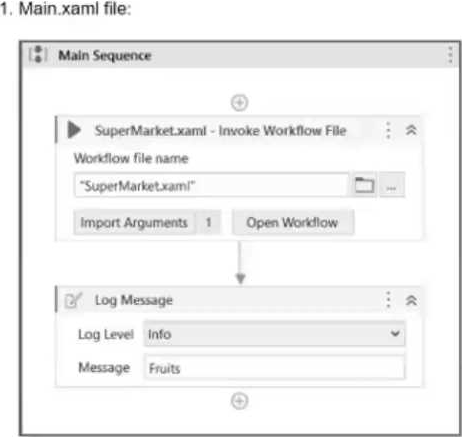
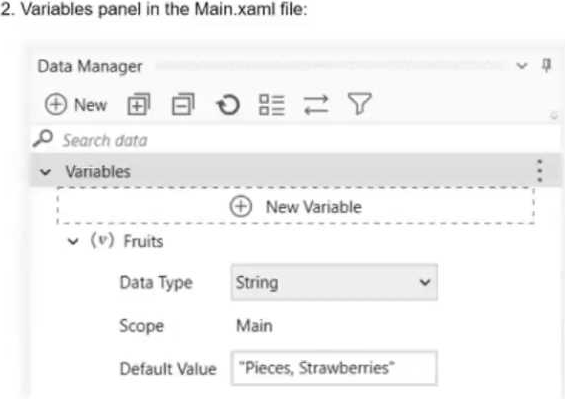
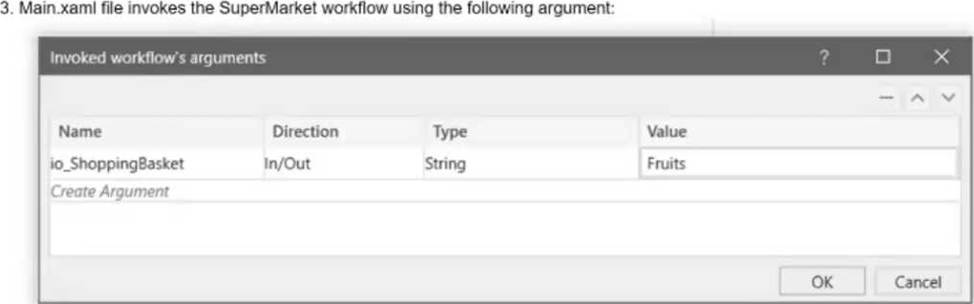
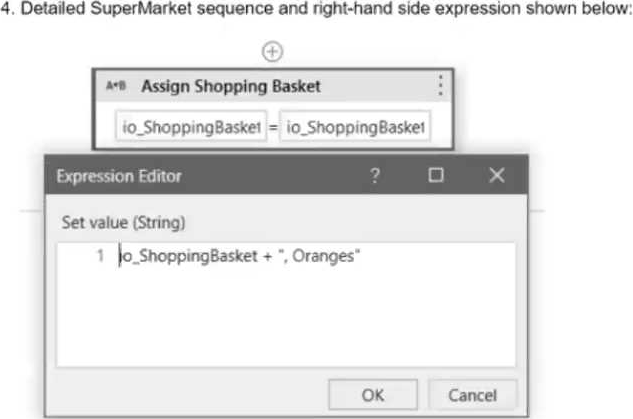
Based on the information shown in the exhibits, what is the output of the Write Line activity in the "Main.xaml" file?
- A . Pieces, Strawberries, Oranges
- B . Oranges
- C . , Oranges
- D . Pieces, Strawberries
A
Explanation:
Based on the information from the exhibits, the "Main.xaml" file has a variable Fruits with a default value "Pieces, Strawberries". This variable is passed as an in/out argument io_ShoppingBasket to the "SuperMarket.xaml" workflow. Inside the "SuperMarket.xaml" workflow, "Oranges" is appended to io_ShoppingBasket. Since io_ShoppingBasket is an in/out argument, the value of Fruits in the "Main.xaml" file will be updated to "Pieces, Strawberries, Oranges". Therefore, the output of the Write Line activity in the "Main.xaml" file will be "Pieces, Strawberries, Oranges".
Reference: UiPath Studio Guide: Arguments
A developer defines new log fields using the Add Log Fields activity. When will the custom log fields
stop being added to the robot execution logs?
- A . When an Exception is caught and handled.
- B . When a Remove Log Fields activity is used to remove them.
- C . When a Log Message activity is executed with Log Level = Warn or higher.
- D . When the first Log Message activity is executed.
B
Explanation:
The Add Log Fields activity adds custom log fields to the Robot Execution Logs for every Log Message execution throughout the entire workflow1. The custom log fields will persist until a Remove Log Fields activity is used to remove them2. The other options are not correct.
Reference: Add Log Fields documentation, Description section
Add log field forum post, Answer by @vvaidya
A developer defines new log fields using the Add Log Fields activity. When will the custom log fields
stop being added to the robot execution logs?
- A . When an Exception is caught and handled.
- B . When a Remove Log Fields activity is used to remove them.
- C . When a Log Message activity is executed with Log Level = Warn or higher.
- D . When the first Log Message activity is executed.
B
Explanation:
The Add Log Fields activity adds custom log fields to the Robot Execution Logs for every Log Message execution throughout the entire workflow1. The custom log fields will persist until a Remove Log Fields activity is used to remove them2. The other options are not correct.
Reference: Add Log Fields documentation, Description section
Add log field forum post, Answer by @vvaidya
Which activity can be used to transition a Background Process to Foreground?
- A . Use Foreground
- B . Activate
- C . Maximize Window
- D . Set Focus
A
Explanation:
The Use Foreground activity can be used to transition a Background Process to Foreground. It allows you to perform UI automation tasks that require user interaction or visibility1. The other activities are not suitable for this purpose.
Reference: Background Process Automation documentation, Transitioning a Background Process to Foreground section