
UiPath UiPath-ADAv1 Practice Exams
Last updated on Oct 22,2026- Exam Code: UiPath-ADAv1
- Exam Name: UiPath Automation Developer Associate v1 Exam
- Certification Provider: UiPath
- Latest update: Oct 22,2026
A developer is building a robot to validate that the birth date is in the correct format within the submitted forms.
Which method or activity is best-suited to validate the format?
- A . String Method: Contains
- B . Activity Replace
- C . String Method: Equals
- D . Activity. Is Match
D
Explanation:
The Is Match activity is used to check if a string matches a given regular expression pattern. The regular expression pattern can be used to validate the format of a string, such as a date. In this case, the developer wants to validate that the birth date is in the correct format, which is dd-MM-yyyy. The regular expression pattern for this format is “d{2}-d{2}-d{4}”, which means two digits, followed by a hyphen, followed by two digits, followed by a hyphen, followed by four digits. The Is Match activity will return True if the input string matches this pattern, and False otherwise. Therefore, the answer is D. Activity. Is Match.
References: Is Match, Regular Expressions
Based on best practices, how can the integer value, Mylnteger be displayed inside a Log Message activity?
- A . "The value is MylntegerToString"
- B . "The value is" = Mylnteger
- C . "The value is " + Mylnteger
- D . "The value is" + MylntegerToString
D
Explanation:
To display the integer value, MyInteger, inside a Log Message activity, the expression that should be used is:
“The value is” + MyInteger.ToString
This expression uses the string concatenation operator (+) to combine the string literal “The value is” with the string representation of the MyInteger variable. The MyInteger variable is an integer type, which cannot be directly concatenated with a string type. Therefore, the ToString method is used to convert the MyInteger variable to a string type3. For example, if the MyInteger variable has the value 42, then the expression “The value is” + MyInteger.ToString will return the string “The value is 42”.
The Log Message activity writes the specified message to the Output panel, the log files, and the Orchestrator logs. The Log Message activity has a property called Message, which is the text to be logged4. The expression can be entered in the Message property of the Log Message activity to display the integer value.
References: String Concatenation, Int32.ToString Method, and Log Message from UiPath documentation.
When should the Show Elements button be used in the Computer Vision wizard?
- A . Highlighting all Ul elements that have been identified by the Computer Vision analysis.
- B . Displaying a list of all available UI elements and their properties.
- C . Activating a real-time view of the target app’s UI during automation.
- D . Filtering out specific UI elements from being processed by the Computer Vision engine.
A
Explanation:
The Show Elements button in the Computer Vision wizard is used to toggle the highlighting of all UI elements that have been detected by the Computer Vision engine on the target application. This helps to visualize the accuracy and scope of the UI element recognition and to select the desired UI element for automation. (UiPath Automation Developer study guide).
References:Computer Vision
Computer Vision Wizard
Which activity should a developer use to add custom information to logs related to transactions for tracing purposes?
- A . Add Log Fields
- B . Update Logs
- C . Add Custom Log
- D . Build Log
A
Explanation:
The Add Log Fields activity allows the developer to add custom information to the logs related to transactions for tracing purposes. The activity adds key-value pairs to the execution context, which are then included in all subsequent logs1. The custom information can be used for filtering, searching, or reporting purposes2.
A developer is building an automation that must interact with a destination remote computer reached by jumping through multiple RDP connections, as described by the following scenario:
– The Robot is installed on Machine A, which connects through RDP to Machine B.
– From Machine B another RDP connection is opened to Machine C, where the automation must be performed.
Which of the following scenarios is appropriate for the developer who wants to use UI Automation activities?
- A . UI Automation can be used and the following are prerequisites:
Machine A – install RDP extension.
Machine B – no requirement.
Machine C – install RemoteRuntime.msi. - B . UI Automation can be used and the following are prerequisites:
Machine A – no requirement.
Machine B – no requirement.
Machine C – install RemoteRuntime.msi. - C . UI Automation can be used and the following are prerequisites:
Machine A – install RDP extension.
Machine B – install RDP extension and RemoteRuntime.msi.
Machine C – install RemoteRuntime.msi. - D . UI Automation can be used and the following are prerequisites:
Machine A – install RDP extension.
Machine B – install RemoteRuntime.msi.
Machine C – install RemoteRuntime.msi.
C
Explanation:
UI Automation is a feature that enables you to automate the interaction with UI elements on remote machines using native selectors. To use UI Automation in a scenario where multiple RDP connections are involved, you need to install the UiPath Windows Remote Desktop extension on the client machines and the UiPath Remote Runtime component on the destination machine. The extension allows you to identify UI elements on the remote desktop and send keyboard and mouse events to them. The Remote Runtime component enables the communication between the extension and the UiPath Robot service. In this case, Machine A and Machine B are client machines, while Machine C is the destination machine. Therefore, you need to install the RDP extension on Machine A and Machine B, and the Remote Runtime component on Machine C. (UiPath Studio documentation1).
References:1: About Native RDP Automation – UiPath Studio.
What is the functionality of the Include Subfolders filter in the Monitoring pages when a modern folder is selected?
- A . It allows you to choose between background and foreground processes for the displayed data.
- B . It allows you to select whether the contents of the selected folder’s subfolders are displayed.
- C . It enables you to sort the displayed data based on job priorities.
- D . It allows you to allocate licenses per machine for the displayed data.
B
Explanation:
The Include Subfolders filter is a toggle button that appears in the Monitoring pages when a modern folder is selected from the Folders drop-down list1. The modern folders are folders that can have subfolders and support role-based access control2. The Include Subfolders filter allows you to choose whether to display the data for the selected folder only, or for the selected folder and all its subfolders3. This filter applies to the Jobs, Queues, Triggers, and Robots pages4. The Include Subfolders filter helps you to monitor and manage the processes and resources across different levels of folders.
https://forum.uipath.com/t/read-all-file-from-sub-folder-and-sub-folder-of-sub-folder/460493
Which of the following workflow names is correct, based on best practices?
- A . Transactionstatus
- B . Workflow1
- C . creation_of_file
- D . ScrapeFilteredStocks
D
Explanation:
The correct workflow name, based on best practices, is ScrapeFilteredStocks. This is because it follows the Pascal Case convention, which means that the first letter of each word is capitalized and there are no spaces or underscores between the words. This convention makes the workflow name easy to read and understand, as well as consistent with the UiPath standards. The other workflow names are incorrect because they either use lower case, snake case, or have no meaningful description. For example, Transactionstatus should be TransactionStatus, Workflow1 should be more descriptive, and creation_of_file should be CreationOfFile..
References: Naming Rules and Best Practices – Studio – UiPath Community Forum Workflow Design – UiPath Studio
A developer has created the following workflow:
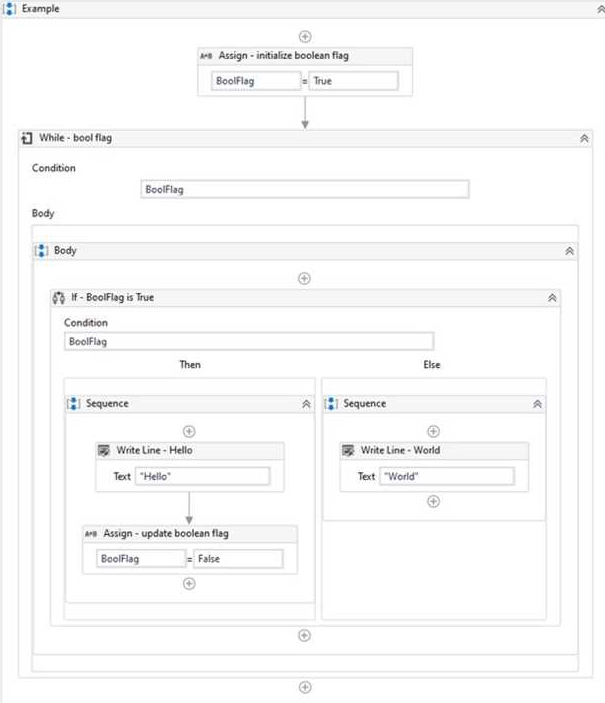
Based on the exhibit, which output is produced in the Output panel?
- A . World Hello
- B . World
- C . Hello World
- D . Hello
C
Explanation:
The output panel will display “Hello World” because the workflow is designed to first display “Hello” and then “World” in the output panel. The workflow starts with an Assign activity that initializes the Boolean flag to True. Then, the While activity checks if the flag is True. If it is, the workflow enters the Body section of the While activity. Inside the Body section, the workflow checks if the flag is True. If it is, the workflow enters the Then section of the If activity and displays “Hello” in the output panel. Then, the Assign activity sets the flag to False. Since the flag is now False, the workflow enters the Else section of the If activity and displays “World” in the output panel. Finally, the workflow exits the While activity since the flag is now False.
References:
[Assign Activity – UiPath Activities]
[While Activity – UiPath Activities]
[If Activity – UiPath Activities]
[Write Line Activity – UiPath Activities]
A developer has extracted the date "08-22-2022" from an invoice and stored it in a variable of type String called ExtractedDate. As part of the process, the developer needs to perform a comparison with a different date.
Which expression should be used to convert ExtractedDate to a DateTime type?
- A . ExtractedDate.Equals("08-22-2022")
- B . DateTime Parse(ExtractedDate)
- C . DateTime.Compare(ExtractedDate:08-22-2022")
- D . ExtractedDate GetType
B
Explanation:
To convert ExtractedDate to a DateTime type, the expression that should be used is:
DateTime.Parse(ExtractedDate)
This expression uses the DateTime.Parse method, which converts a string representation of a date and time to its DateTime equivalent. The DateTime.Parse method can accept different formats of date and time strings, as long as they are supported by the current culture or a specified culture. The DateTime.Parse method returns a DateTime object that represents the date and time value of the string1. For example, if the ExtractedDate variable has the value: ExtractedDate = “08-22-2022”
Then the expression DateTime.Parse(ExtractedDate) will return a DateTime object with the value:
[08/22/2022 12:00:00 AM]
This DateTime object can then be used to perform a comparison with a different date, such as using the DateTime.Compare method or the comparison operators2.
References: DateTime.Parse Method and How to compare dates in UiPath? from UiPath documentation and forum.
Which of the following is an outcome of converting a personal workspace into a folder in UiPath Orchestrator?
- A . The owner of the initial workspace is added by default to the newly created folder and assigned the Folder Administrator role.
- B . The owner of the initial workspace and the admin user are added by default to the newly created folder and assigned the Personal Workspace Administrator role.
- C . The admin user is added by default to the newly created folder with the User Administrator role.
- D . The owner of the initial workspace loses access to the newly created folder and the existing admin users are added by default.
A
Explanation:
A personal workspace in UiPath Orchestrator is a type of modern folder that allows a user to work on their own automation projects without affecting other users or folders1. A personal workspace can be converted into a regular folder by using the Convert to Folder option in the folder settings2. When this happens, the owner of the initial workspace is added by default to the newly created folder and assigned the Folder Administrator role2. This role gives the user full control over the folder and its entities, such as processes, queues, assets, etc3. The other options are incorrect because they do not reflect the actual outcome of converting a personal workspace into a folder.
Reference: Personal Workspaces documentation, Use of UiPath Orchestrator Folder Packages and Workspaces, Folder Roles documentation.