
UiPath UiPath-ADAv1 Practice Exams
Last updated on Oct 22,2026- Exam Code: UiPath-ADAv1
- Exam Name: UiPath Automation Developer Associate v1 Exam
- Certification Provider: UiPath
- Latest update: Oct 22,2026
While working on a project that utilizes Object Repository, you have one linked Ul Element that is used across multiple activities.
What needs to happen to edit a selector for only one activity without modifying it in Object Repository?
- A . Unlink from Object Repository.
- B . Show in Object Repository.
- C . Edit target.
- D . Indicate target on screen.
A
Explanation:
To edit a selector for only one activity without modifying it in the Object Repository, you would need to "Unlink from Object Repository". This allows you to make changes to the selector for that specific activity without affecting the linked UI element in the Object Repository, which might be used by other activities as well. Therefore, the correct answer is A.
Reference: UiPath Studio Guide: Object Repository
In the Robotic Enterprise (RE) Framework, at which point should a developer log a clear message with the Logging Level set to "Information," adhering to the best practices for automating a production-level process?
- A . Whenever an argument or value is used.
- B . Whenever data is fetched from external sources.
- C . Whenever an exception is caught in a Catch block.
- D . Whenever the robot encounters an error on a Queue Item.
C
Explanation:
Logging Level “Information” is used to log general information about the process execution, such as the start and end of a transaction1. When an exception is caught in a Catch block, the developer should log a clear message with this level to indicate the type and source of the error, and the action taken to handle it2.
https://docs.uipath.com/studio/standalone/2023.4/user-guide/logging-levels
Where in the REFramework template project is the "SetTransactionStatus.xaml" invoked?
- A . In the Finally section of the Try Catch activity in the Process Transaction state.
- B . In the Try section of the Try Catch activity in the End Process state.
- C . In the Try and Catches sections of the Try Catch activity in the Process Transaction state.
- D . In the Catches section of the Try Catch activity in the Process Transaction state.
A
Explanation:
The SetTransactionStatus.xaml file is invoked in the Finally section of the Try Catch activity in the Process Transaction state of the REFramework template project. This file is responsible for setting the status of the current transaction item based on the outcome of the process. It also closes all applications that are used by the process and logs relevant information. (UiPath Studio – REFramework – UiPath Academy)
References:
Studio – REFramework – UiPath Documentation Portal
UiPath Studio – REFramework – UiPath Academy
REFramework documentation.pdf – Google Drive
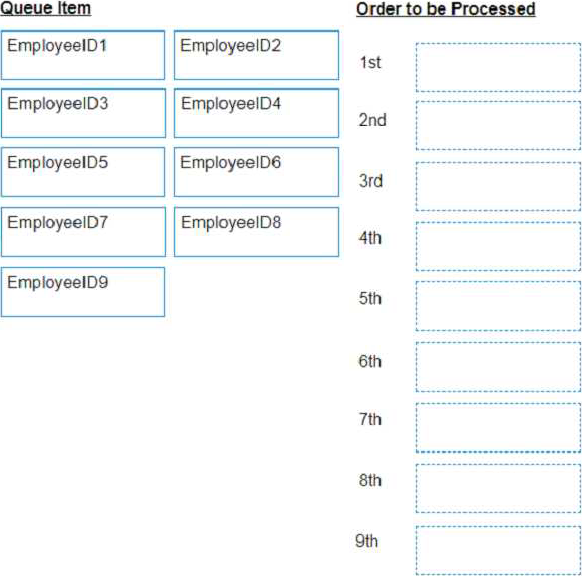
DRAG DROP
The provided exhibit displays the representation of the "Deadline" field using the yyyy-mm-dd format.
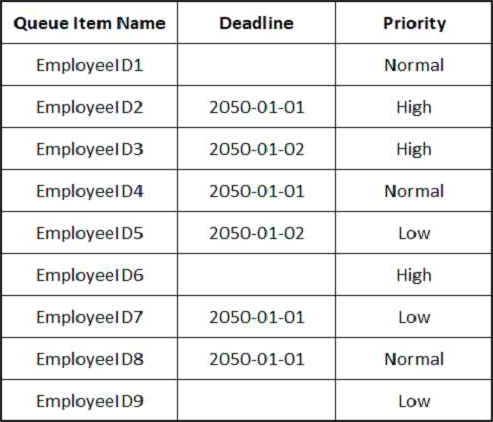
In what order should the Queue Items be processed by a single robot executing a Performer workflow?
Explanation:
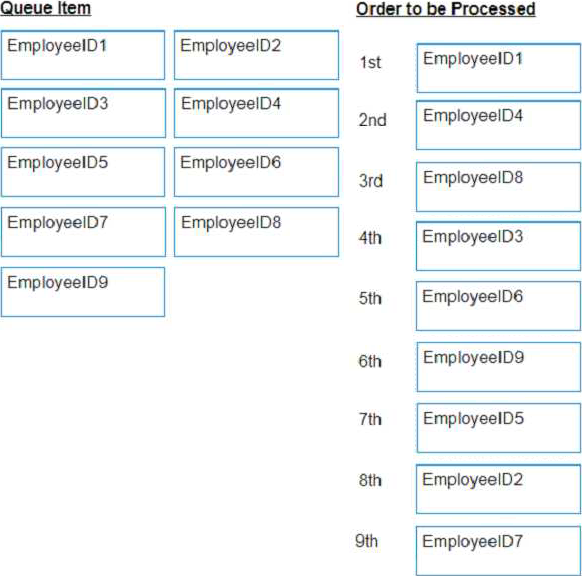
The Queue Items should be processed by a single robot executing a Performer workflow in the following order:
EmployeeID1
EmployeeID4
EmployeeID8
EmployeeID3
EmployeeID6
EmployeeID9
EmployeeID5
EmployeeID2
EmployeeID7
A queue is a container that holds an unlimited number of items that can be processed by a robot1. A queue item can have a deadline and a priority, which affect the order in which the robot retrieves the items from the queue2. The Performer workflow is a part of the REFramework template that processes the queue items using the Get Transaction Item activity3. The order of queue execution is determined by the following rules4:
Items that have a deadline are processed first, in order of priority and according to the set deadline for items with the same priority.
Items that have no deadline are processed next, in order of priority and according to the rule First In, First Out for items with the same priority.
Based on these rules and the exhibit, the order of queue execution is as follows: EmployeeID1 has the earliest deadline (2050-01-01) and high priority, so it is processed first. EmployeeID4 has the same deadline as EmployeeID1, but normal priority, so it is processed second. EmployeeID8 has the same deadline and priority as EmployeeID4, but it was added later to the queue, so it is processed third.
EmployeeID3 has the next earliest deadline (2050-01-02) and high priority, so it is processed fourth. EmployeeID6 has the same deadline as EmployeeID3, but normal priority, so it is processed fifth. EmployeeID9 has the same deadline and priority as EmployeeID6, but it was added later to the queue, so it is processed sixth.
EmployeeID5 has no deadline, but high priority, so it is processed seventh.
EmployeeID2 has no deadline and normal priority, so it is processed eighth.
EmployeeID7 has no deadline and low priority, so it is processed ninth.
Reference:
About Queues and Transactions documentation from UiPath Processing Order documentation from UiPath Performer documentation from UiPath
Order processing queue forum post from UiPath Community
Which of the following functionalities does UiPath Assistant provide?
- A . Developing automation workflows in UiPath Studio.
- B . Running, managing, and organizing automation workflows on the user’s machine.
- C . Scheduling and monitoring robot processes in Orchestrator.
- D . Analyzing processes to determine optimal automation solutions.
B
Explanation:
UiPath Assistant is a desktop tool that enables users to easily access, manage, and run automation workflows on their machines.
It provides the following functionalities:
Viewing all the available automations that the user can run, either from Orchestrator or locally.
Adding automations to the launchpad for quick and easy access.
Creating custom folders and sections to organize the automations according to the user’s preferences.
Running automations with a single click or using keyboard shortcuts.
Launching robot-powered apps and managing action center tasks directly from the assistant.
Customizing the assistant’s appearance, name, and avatar to suit the user’s personality.
Viewing the status and progress of the running automations, as well as the history and logs of the past executions.
Connecting to Orchestrator and synchronizing the automations and settings with the cloud. Accessing the help and feedback options, as well as the interactive guided tour..
References: Software Robot Assistant – Desktop Automation | UiPath Robot – About UiPath Assistant – UiPath Documentation Portal
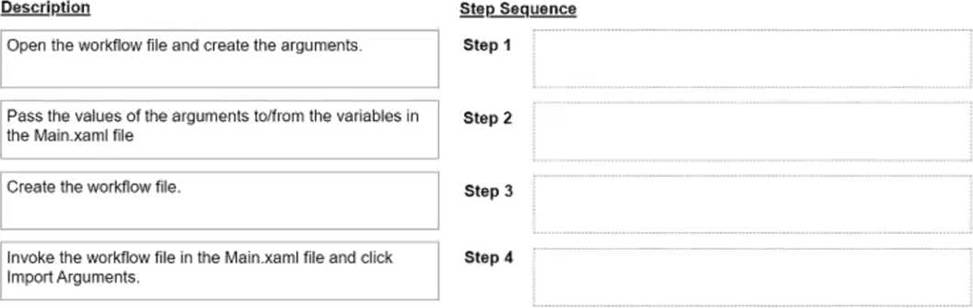
DRAG DROP
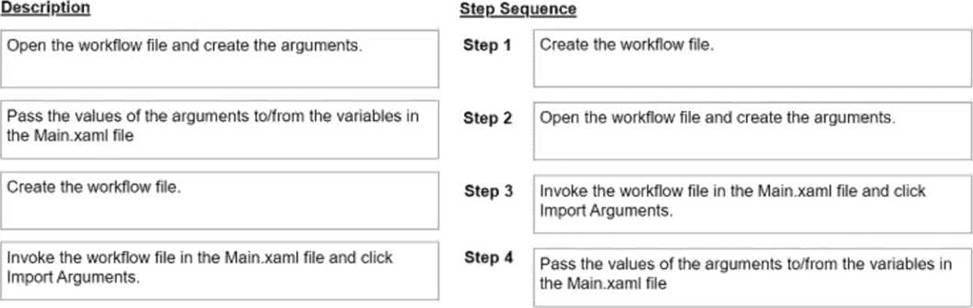
What is the correct sequence of steps to perform when trying to pass and get data from an invoked workflow in Main.xaml?
Instructions: Drag the Description found on the left and drop on the correct Step Sequence found on the right.
What happens when closing a Remote Debugging Connection while a debugging execution is in progress?
- A . Debugging execution stops gracefully, then the connection is closed.
- B . The remote robot continues the execution after Studio closes the connection.
- C . It is not possible to close the connection while debugging is in progress.
- D . Debugging execution ends in exception, then the connection is closed.
D
Explanation:
When you close a Remote Debugging Connection while a debugging execution is in progress, the execution is stopped abruptly and an exception is thrown on the remote robot. The connection is then closed and you are returned to the Studio interface. (Debugging in Studio – UiPath Academy).
References: Studio – Remote Debugging
Debugging in Studio – UiPath Academy
Review the following exhibit.
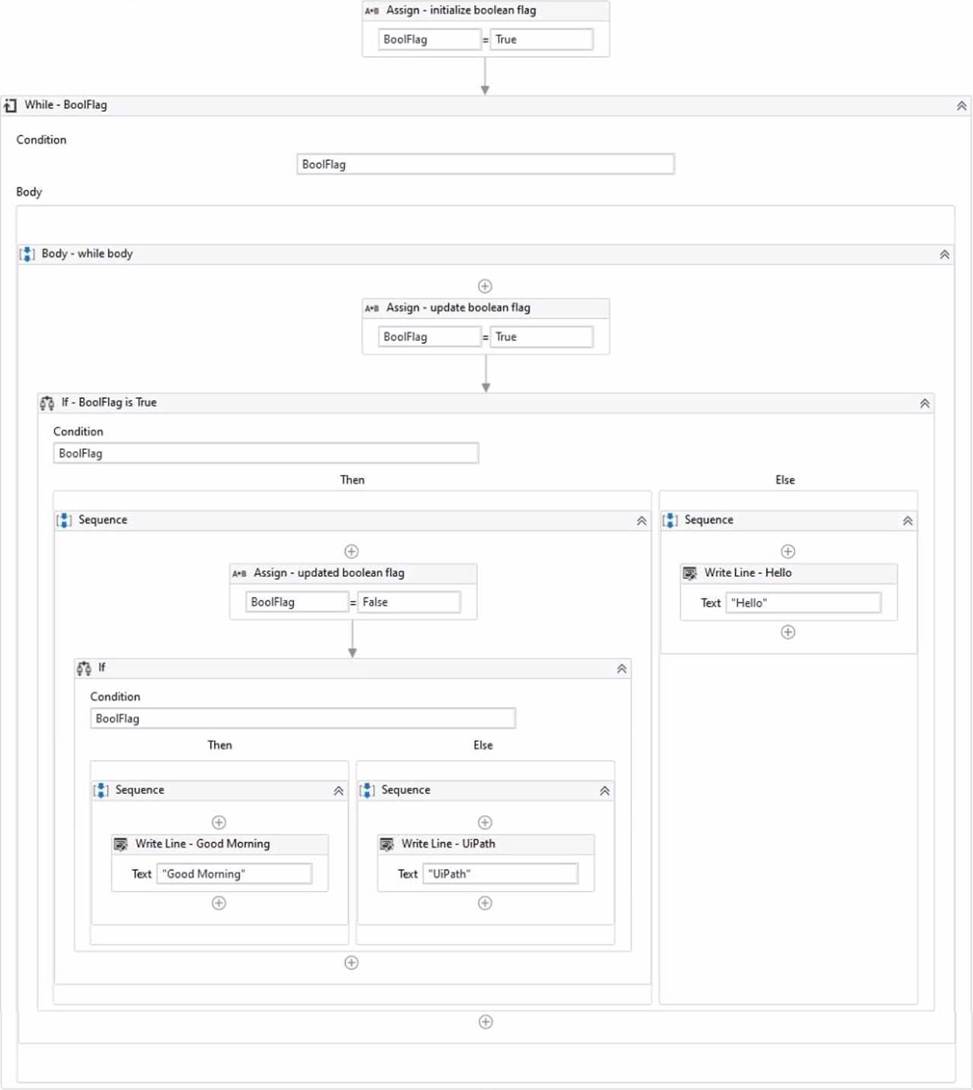
Based on the exhibit, which output is produced in the Output panel?
- A . Hello
- B . Good Morning UiPath
- C . Good Morning
- D . UiPath
C
Explanation:
Based on the exhibit, the output produced in the Output panel is “Good Morning”. This is because the “If” activity checks if the “BoolFlag” variable is True. If it is True, the “Then” branch is executed, which contains a “Write Line” activity with the text “Good Morning”. If the “BoolFlag” variable is False, the “Else” branch is executed, which contains a “Write Line” activity with the text “UiPath”. Since the “BoolFlag” variable is assigned to True in the previous “Assign” activity, the condition of the “If” activity is satisfied, and the “Then” branch is executed. Therefore, the “Write Line” activity writes “Good Morning” to the Output panel4.
References: If and How to put a if condition in assign activity? from UiPath documentation and forum.
Which activity should be used inside a Use Excel File scope to be able to sort a table directly in an ".xlsx" file?
- A . Get Table Range
- B . Sort Data Table
- C . Read Range
- D . Sort Range
D
Explanation:
Within a "Use Excel File" scope, the "Sort Range" activity should be used to sort a table directly in an ".xlsx" file. This activity allows you to specify the range to sort, the field to sort by, and the sort order. The "Sort Data Table" activity (option B) operates on DataTable objects in memory and does not interact directly with Excel files.
Reference: UiPath Activities Guide: Sort Range
In the Output property of all Get Mail activities, what is the supported variable type?
- A . String
- B . List<String>
- C . MailMessage
- D . List<MailMessage>
D
Explanation:
In the Output property of all Get Mail activities, the supported variable type is List<MailMessage>. The Output property is the property that stores the result of the activity in a variable. The Get Mail activities are the activities that retrieve email messages from various mail servers, such as POP3, IMAP, Outlook, or Exchange. The result of the Get Mail activities is a collection of email messages that match the specified criteria, such as the mail folder, the filter, or the top count. The collection of email messages is represented by the List<MailMessage> type, which is a generic list that contains MailMessage objects. A MailMessage object is a class that represents an email message, with properties such as Subject, Body, Attachments, From, To, etc1. For example, if the Get Mail activity is used to retrieve the email messages from the Inbox folder of an Outlook account, the Output property can be configured with a variable of type List<MailMessage>, such as mailList. The mailList variable will store the email messages as a list of MailMessage objects, which can then be accessed or manipulated using other activities, such as For Each, Save Attachments, or Send Mail2.
References: MailMessage Class and Get Outlook Mail Messages from UiPath documentation