
UiPath UiPath-ADAv1 Practice Exams
Last updated on Oct 22,2026- Exam Code: UiPath-ADAv1
- Exam Name: UiPath Automation Developer Associate v1 Exam
- Certification Provider: UiPath
- Latest update: Oct 22,2026
A developer is automating an invoice process for the finance department using a Dispatcher and Performer model with access to Orchestrator. New invoices are added to a shared folder each morning. Each invoice needs to be processed separately in the system, as a single unit of work. After each invoice is processed in the system, the system output ID must be emailed to the finance team email address.
How should the developer store the invoice data in Orchestrator?
- A . Upload individual invoice data as Specific Data in Queue Items and Create an asset for the finance team email address.
- B . Create an asset for each piece of invoice data as well as for the finance team email address.
- C . Upload individual invoice data and the finance team email address as Specific Data in Queue Items.
- D . Upload the finance team email address as Specific Data in Queue Items and Create an asset for each individual invoice data field.
A
Explanation:
This is the best option because it follows the best practices for using queues and assets in Orchestrator. Queues are used to store and process multiple items of data that need to be processed separately, such as invoices. Each invoice can be uploaded as a queue item with the invoice data as Specific Data, which can be accessed and manipulated by the automation process. Assets are used to store and share global information that is constant or rarely changes, such as the finance team email address. An asset can be created for the email address and retrieved by the automation process when needed. The other options are not optimal because they either use assets for data that is not global or constant, or they use queues for data that is not related to the items to be processed.
References: About Queues and Transactions, About Assets
In which situation will a Ul Automation activity generate a partial selector?
- A . When included after a Find Element activity
- B . When included in an Attach Browser activity
- C . When included in an Excel Application Scope activity
- D . When included in a Trigger Scope activity
B
Explanation:
A partial selector is a selector that does not contain the information about the top-level window. A partial selector is usually generated when a UI Automation activity is included in a container activity, such as Attach Browser or Attach Window, that has a full selector of the outer window. This way, the UI Automation activity can use the partial selector relative to the container, instead of the full selector from the root. Therefore, the answer is B. When included in an Attach Browser activity.
References: Full Versus Partial Selectors, Attach Browser
A developer creates a process that uses data from multiple sources and uploads it to an Orchestrator queue. The data originates from emails in different email inboxes and needs to be processed in the same order in which the email was received.
To ensure the Queue Items are processed in the correct order, which property of the Add Queue Item activity should be used?
- A . Postpone
- B . ItemInformation
- C . Reference
- D . Deadline
A
Explanation:
The Postpone property of the Add Queue Item activity allows you to specify a date and time when the queue item becomes available for processing. This can be used to ensure that the queue items are processed in the same order as the emails were received, by setting the Postpone value to the email received date and time. (UiPath Studio – Add Queue Item – UiPath Academy).
References: Studio – Add Queue Item – UiPath Documentation Portal
UiPath Studio – Add Queue Item – UiPath Academy
How to use Postpone property in Add Queue Item activity? – Studio – UiPath Community Forum
A developer needs to prioritize automating several processes.
To help prevent any long-term maintenance, which process attribute should be avoided?
- A . Logical decision points
- B . Repetitive business process
- C . Frequent application changes
- D . High volume work
C
Explanation:
Frequent application changes are a process attribute that should be avoided when prioritizing automating several processes. This is because frequent application changes can cause the automation to break or malfunction, and require constant maintenance and updates. Processes that are stable and consistent are more suitable for automation, as they reduce the risk of errors and rework.
References: Process Selection Criteria and Process Analysis from UiPath documentation.
A developer needs to prioritize automating several processes.
To help prevent any long-term maintenance, which process attribute should be avoided?
- A . Logical decision points
- B . Repetitive business process
- C . Frequent application changes
- D . High volume work
C
Explanation:
Frequent application changes are a process attribute that should be avoided when prioritizing automating several processes. This is because frequent application changes can cause the automation to break or malfunction, and require constant maintenance and updates. Processes that are stable and consistent are more suitable for automation, as they reduce the risk of errors and rework.
References: Process Selection Criteria and Process Analysis from UiPath documentation.
HOTSPOT
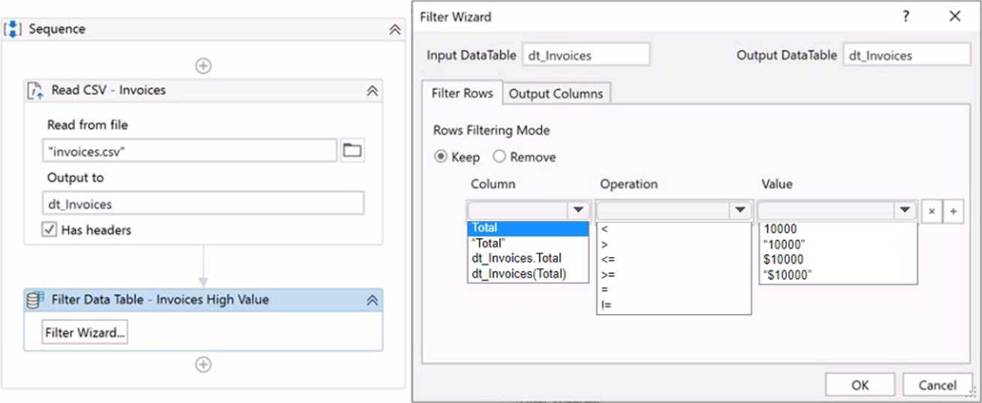
A developer is building a process which reads invoice data from the "mvoices.csv " file that includes a Total column of type Double.
Instructions: Using the drop-down lists shown in the following exhibit, configure the Filter Data Table Wizard to keep all invoices with a Total value that is over 10 000 USD.
Explanation:
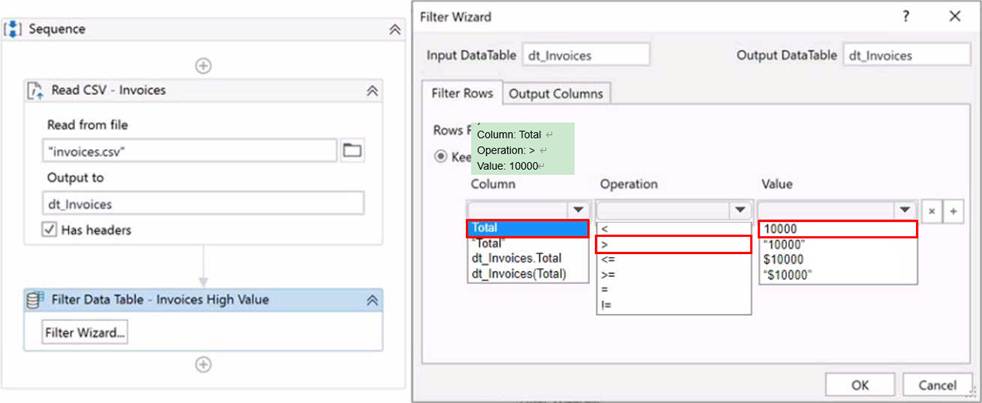
To configure the Filter Data Table Wizard to keep all invoices with a Total value that is over 10 000 USD, you should choose the following options from the drop-down lists:
Column: Total
Operation: >
Value: 10000
The reason for choosing these options is to filter the data table based on the condition that the Total column value is greater than 10000. This will keep only the rows that satisfy this condition and remove the rest. You can learn more about the Filter Data Table activity and how to use it from the following sources:
Four Ways to Filter Data Tables in UiPath Studio | UiPath How to Filter Data Table – Help – UiPath Community Forum Filter Data table with specific column – UiPath Community Forum
A developer is working with a Purchase Order automation process. The number of shipment containers and boxes per container are obtained in two strings, "ShipmentContainers" and "BoxesPerContainer" The task is for the robot to obtain the total number of boxes in all shipment containers in an Int32 variable TotalBoxes.
Which expression should be used for calculating the total number of boxes?
- A . Convert Tolnt32(ShipmentContainers) * Convert Tolnt32(BoxesPerContamer)
- B . ShipmentContainers.Tolnt() * BoxesPerContainer Tolnt()
- C . ShipmentContamersTolnt32() * BoxesPerContainer.Tolnt32()
- D . ShipmentContamers * BoxesPerContainer
A
Explanation:
To calculate the total number of boxes in all shipment containers, the expression that should be used is:
Convert.ToInt32(ShipmentContainers) * Convert.ToInt32(BoxesPerContainer)
This expression converts the two strings, “ShipmentContainers” and “BoxesPerContainer”, into integer values using the Convert.ToInt32 method. This method converts the specified string representation of a 32-bit signed integer to an equivalent integer value1. Then, the expression multiplies the two integer values to obtain the total number of boxes. For example, if “ShipmentContainers” is “5” and “BoxesPerContainer” is “10”, then the expression will return 50 as the total number of boxes.
References: Convert.ToInt32 Method from UiPath documentation.
A developer invoked a workflow file with three arguments, one "ln": one "Out", and one "In/Out".
In the Invoked Workflow’s Arguments window, how can the Value be configured for each argument?
- A . In: Variable or Hard-coded value Out: Variable only
In/Out Variable only - B . In: Variable only Out
Variable only
In/Out: Variable only - C . In: Variable or Hard-coded value Out Variable or Hard-coded value In/Out Hard-coded value only
- D . In: Variable or Hard-coded value Out’ Hard-coded value only In/Out Variable only
A
Explanation:
In the Invoked Workflow’s Arguments window, the Value can be configured for each argument as follows:
In: Variable or Hard-coded value. An In argument is an argument that passes a value from the parent workflow to the child workflow. The Value of an In argument can be configured with a variable that holds the value to be passed, or a hard-coded value that is directly entered in the Value field3. For example, if the In argument is Name and the value to be passed is “John”, the Value can be configured with a variable that contains “John”, such as strName, or a hard-coded value, such as “John”.
Out: Variable only. An Out argument is an argument that passes a value from the child workflow to the parent workflow. The Value of an Out argument can be configured only with a variable that receives the value from the child workflow4. For example, if the Out argument is Result and the value to be passed is the sum of two numbers, the Value can be configured only with a variable that stores the sum, such as intResult.
In/Out: Variable only. An In/Out argument is an argument that passes a value from the parent workflow to the child workflow, and then passes the modified value back to the parent workflow. The Value of an In/Out argument can be configured only with a variable that holds the initial value and receives the modified value5. For example, if the In/Out argument is Counter and the value to be passed is a number that is incremented by one in the child workflow, the Value can be configured only with a variable that contains the initial number and stores the incremented number, such as intCounter.
References: Using Arguments and Arguments from UiPath documentation.
What is a valid way to install a custom activity package in UiPath Studio?
- A . Double-click on the activity in the "Activities" panel of UiPath Studio.
- B . Search for the package in the UiPath Marketplace and then manually install it.
- C . Download the package from an external source and drag it into UiPath Studio.
- D . Go to Package Manager, click on "All Packages," search for the package, and click "Install".
D
Explanation:
A valid way to install a custom activity package in UiPath Studio is to go to the Package Manager, click on "All Packages," search for the package you want to install, and click "Install". This allows you to add custom activities to your project from the managed packages available.
Reference: UiPath Studio Guide: Managing Activities Packages
What role do Triggers play in the UiPath Integration Service?
- A . Manage connections between UiPath Studio and third-party applications.
- B . Provide a mechanism for starting processes on a scheduled basis from Orchestrator.
- C . Assist in the creation of automation projects by providing event-based activities.
- D . Provide a mechanism for subscribing to specific events from third-party applications, automatically starting processes in Orchestrator.
D
Explanation:
Triggers are a feature of UiPath Integration Service that allow you to react to key events in third-party systems, such as data updates, insertions, deletions, or custom events. By configuring triggers, you can start your UiPath processes automatically from Orchestrator when these events occur, enabling near real-time automation workflows across different applications. (UiPath Integration Service documentation1)
References:
1: Integration Service – Triggers – UiPath Documentation Portal