
UiPath UiPath-ADAv1 Practice Exams
Last updated on Oct 22,2026- Exam Code: UiPath-ADAv1
- Exam Name: UiPath Automation Developer Associate v1 Exam
- Certification Provider: UiPath
- Latest update: Oct 22,2026
Based on best practice, which set of features are used before debugging a workflow in UiPath Studio?
- A . Execution Trail and Picture in Picture
- B . Analyze Project and Validate File
- C . Highlight Elements and Focus
- D . Ignore and Restart
B
Explanation:
Based on best practice, the set of features that are used before debugging a workflow in UiPath Studio are Analyze Project and Validate File. Analyze Project is a feature that allows the developer to run the Workflow Analyzer on the entire project or a specific workflow file. The Workflow Analyzer checks the project or the file for potential errors, performance issues, best practices violations, and compliance risks, and generates a report with the analysis results and recommendations1. Validate File is a feature that allows the developer to check the current workflow file for any syntax or semantic errors, such as missing or invalid activities, arguments, variables, or expressions. The Validate File feature also displays the error list and the location of the errors in the workflow file2. By using these features before debugging, the developer can ensure that the workflow is free of any errors or issues that might affect the execution or the quality of the automation.
References: Analyze Project and Validate File from UiPath documentation.
A developer created an automation which scrapes data from PDF reports. The reports have the same structure and the title format is always "Report X – PDF"T where X is a number from 1 to 100. Only one report will be open at a time but other PDF files may be open on the desktop.
What is the recommended method to ensure the selector identifies the correct PDF to use?
- A . Use the * wildcard character in place of the idx attribute value
- B . Use the idx attribute value in the selector to increment for each file
- C . Use the * wildcard character in place of the title attribute value
- D . Use the * wildcard character in place of the "X" in the title attribute value
D
Explanation:
The recommended method to ensure the selector identifies the correct PDF to use is to use the * wildcard character in place of the “X” in the title attribute value. The * wildcard character is a symbol that can replace zero or more characters in a string. It can be used to handle dynamic elements in a selector, such as the title of a PDF file that changes for each report2. For example, if the selector for the PDF file is:
<html title=‘Report X – PDF’ />
Then the selector can be modified as:
<html title=‘Report * – PDF’ />
This selector will match any PDF file that has a title starting with “Report” and ending with “PDF”, regardless of the number in between. This way, the selector can identify the correct PDF file to use, even if other PDF files are open on the desktop, as long as only one report is open at a time.
References: Selectors with Wildcards and Wildcards in selector from UiPath documentation and forum.
HOTSPOT
A developer created three variables used in the workflow shown below:
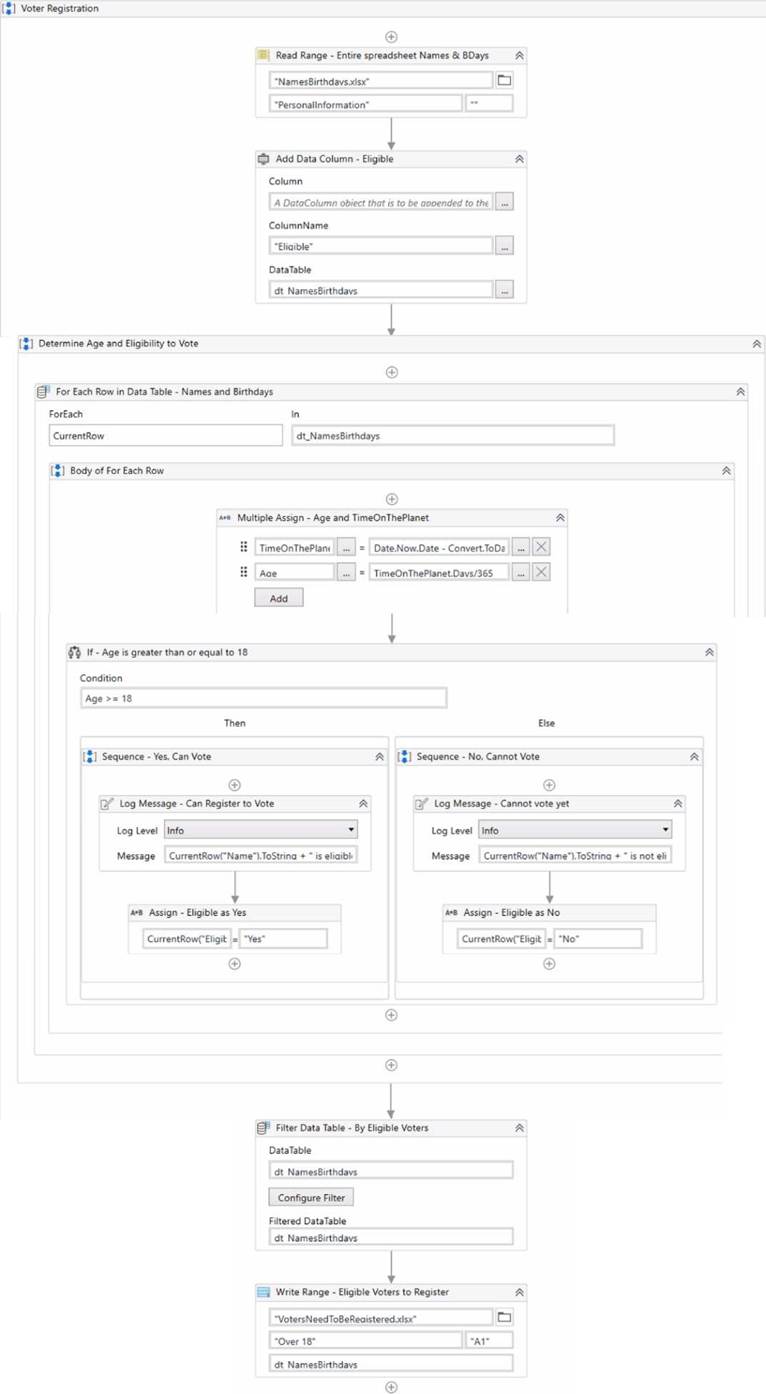
Instructions: Based on best practices, select the correct Scope for each Variable type from the drop-down lists shown in the following exhibit.
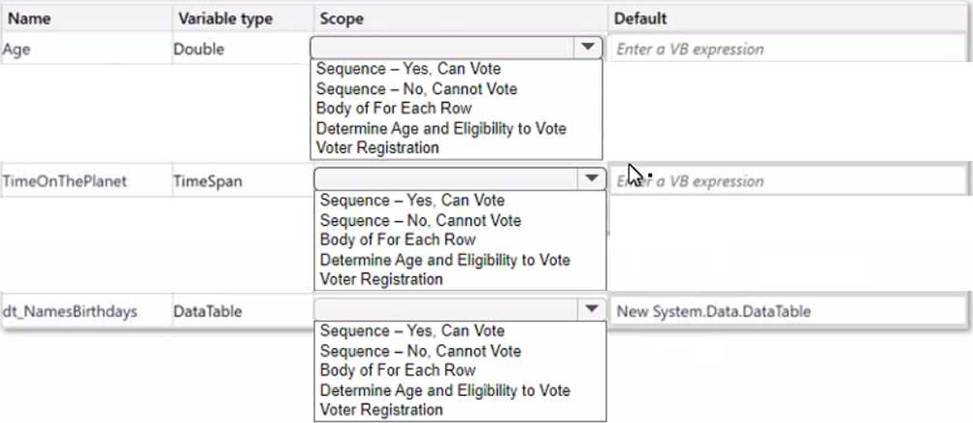
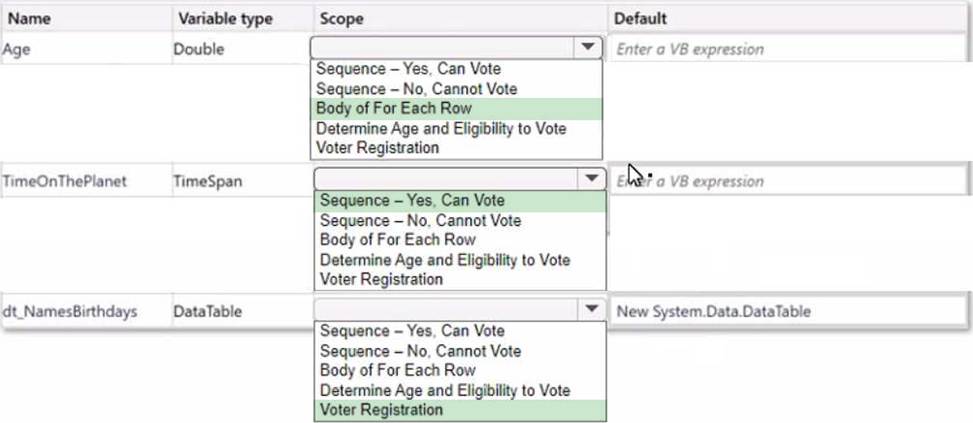
Explanation:
Name = Age Variable type = Double Scope = Body of For Each Row
Name = TimeonThePlanet Variable type = Time Span Scope = Sequence – Yes, Can Vote
Name = dt_NamesBirthdays Variable type = DataTable Scope = Voter Registration
The reason for choosing these scopes is to keep the variables in the innermost scope where they are used and to avoid unnecessary clutter and duplication in the Variables panel. You can learn more about variable scope in UiPath from the following sources:
Variable scope – Studio – UiPath Community Forum
How Variable Scope Works in UiPath – Video Tutorials – UiPath Community Forum How to pass variables as UiPath arguments example – TheServerSide Best Practices: Select Variables scope – UiPath Community Forum
DRAG DROP
A developer loaded an existing workflow that uses Ul Automation in Google Chrome. The Google Chrome extension has not been installed on the developer’s machine.
How should the developer load the Google Chrome extension from UiPath Studio?
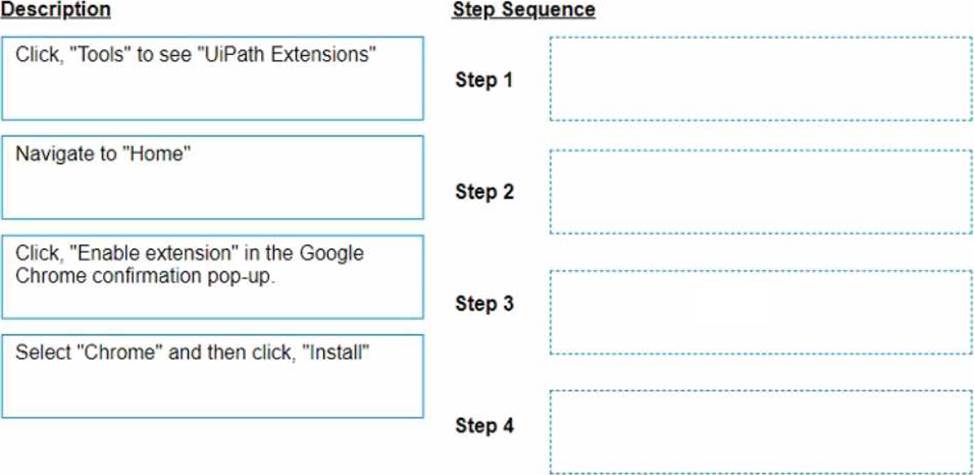
Instructions: Drag the Description found on the left and drop on the correct Step found on the right.
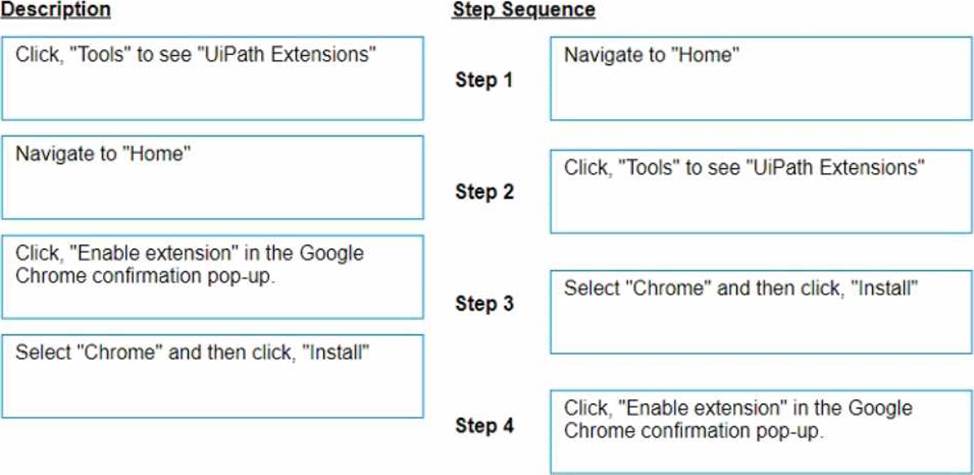
Explanation:
The developer can load the Google Chrome extension from UiPath Studio by following these steps:
Step 1 = Navigate to Home in UiPath Studio. This is the section where you can create, open, or manage your projects.
Step 2 = Click Tools to see UiPath Extensions. This is the section where you can install or update various extensions for different applications or browsers.
Step 3 = Select Chrome and then click Install. This will launch the Chrome browser and redirect you to the Chrome Web Store page for the UiPath extension.
Step 4 = Click Enable extension in the Google Chrome confirmation pop-up. This will add the UiPath extension to your browser and allow you to use UI automation activities in Chrome.
When automating the process of entering values into a web form, requiring each field to be brought to the foreground, which property of the Type Into activity should be adjusted to achieve this?
- A . Delay before
- B . Activate
- C . Selector
- D . Input Element
B
Explanation:
The Activate property of the Type Into activity allows the developer to bring the specified UI element to the foreground and activate it before the text is written1. This property is useful when the web form fields are not visible or focused by default.
What is the main difference between an array and a list in UiPath?
- A . An array is a fixed-size collection of elements of the same type while a list is a dynamic-sized collection of elements of the same type,
- B . An array is a dynamic-sized collection of elements of the same type while a list is a fixed-size collection of elements of the same type.
- C . An array is a fixed-size collection of elements of different types while a list is a dynamic-sized collection of elements of the same type.
- D . An array is a fixed-size collection of elements of the same type while a list is a dynamic-sized collection of elements of different types.
A
Explanation:
The main difference between an array and a list in UiPath (and .NET in general) is that an array is a fixed-size collection of elements of the same type, whereas a list is a dynamic-sized collection, meaning it can grow or shrink in size as needed. Both arrays and lists hold elements of the same type, but lists offer more flexibility in terms of adding or removing elements after the collection has been created.
Reference: UiPath Studio Guide: The Main Data Types in Studio
What is the purpose of credential stores in UiPath Orchestrator?
- A . To store Orchestrator event logs and related data for auditing purposes.
- B . To serve as a centralized location for storing pre-built automation workflows and processes.
- C . To securely store sensitive data such as Robot credentials and Credential Assets for use in automation processes.
- D . To store non-sensitive data and configuration settings for UiPath Studio projects.
C
Explanation:
Credential stores in UiPath Orchestrator are used to securely store sensitive information like Robot credentials and Credential Assets, which are essential for executing automated processes that require login details or other secure data. Orchestrator supports multiple credential stores at the tenant level and provides built-in support for secure stores such as CyberArk and Azure Key Vault. It also allows for the development of plugins for other secure stores if needed. (Orchestrator – Credential Stores – UiPath Academy)
References:
Orchestrator – Credential Stores – UiPath Documentation Portal Credential Stores – UiPath Orchestrator
What is a pre-requisite for running functional test cases in REFramework?
- A . Invoke Process XAML file
- B . Invoke InitAllSettings XAML file
- C . Invoke SetTransactionStatus XAML file
- D . Invoke Main XAML file
B
Explanation:
A pre-requisite for running functional test cases in REFramework is to invoke the InitAllSettings XAML file, which initializes the application, reads the configuration file, and sets the log level. This file is invoked in the Init state of the Main XAML file, which is the entry point of the REFramework. By invoking the InitAllSettings file, you can ensure that the test cases have access to the necessary settings and parameters for the automation project. (UiPath Studio – Testing Frameworks C UiPath Academy)
References:
Studio – Testing Frameworks – UiPath Documentation Portal UiPath Studio – Testing Frameworks – UiPath Academy REFramework documentation.pdf – Google Drive
What are the components that define a state within a State Machine in UiPath Studio?
- A . Activities, Connectors, and Annotations.
- B . Input Arguments, Output Arguments, and Variables.
- C . Sequence, Flowchart, and Transactional Business Process.
- D . Entry, Exit, and Transition Actions with Trigger Conditions.
D
Explanation:
A state in a State Machine is a set of actions that execute while the workflow is in a certain condition1. Each state has three components: Entry, Exit, and Transition Actions2. Entry Actions are executed when the state is entered, Exit Actions are executed when the state is exited, and Transition Actions are executed when a transition is triggered by a condition3.
Reference: State Machines in Studio course, Lesson 1: Introduction to State Machines, Topic:.
What is a State Machine?
State Machine documentation, States section
How does State Machine work? forum post, Answer by @aksh1yadav
Which of the following activities can be used to get the state of a button (enabled/disabled)?
- A . Get Attribute
- B . Check App State
- C . Find Element
- D . Get Text
A
Explanation:
The "Get Attribute" activity can be used to get the state of a button (enabled/disabled). This activity retrieves the value of a specified attribute of a UI element, and the "enabled" attribute can be used to determine if a button is currently enabled or disabled.
Reference: UiPath Activities Guide: Get Attribute