
UiPath UiPath-ADAv1 Practice Exams
Last updated on Oct 22,2026- Exam Code: UiPath-ADAv1
- Exam Name: UiPath Automation Developer Associate v1 Exam
- Certification Provider: UiPath
- Latest update: Oct 22,2026
If you are inserting activities into a Sequence in UiPath Studio, in which panel do the activities appear?
- A . Snippets
- B . Designer
- C . Imports
- D . Outline
B
Explanation:
The Designer panel is the central panel in UiPath Studio, where you can design your automation workflows by dragging and dropping activities. When you insert activities into a Sequence, they appear in the Designer panel as a linear representation that flows from top to bottom. The Snippets panel contains ready-made workflows that you can reuse in your projects. The Imports panel allows you to import namespaces and libraries that you can use in your workflows. The Outline panel shows the hierarchical structure of your project and its components.
References: The User Interface, Sequences
A developer is building a process that types data into input fields using the Hardware Events input
method.
Which property of the Type Into activity should be modified to reduce the pace at which the input string characters are typed into the fields?
- A . Delay before
- B . Alter disabled element
- C . Delay between keys
- D . Delay after
C
Explanation:
The Delay between keys property of the Type Into activity specifies the time (in milliseconds) between each keystroke when using the Hardware Events input method. Increasing this value can slow down the typing speed and reduce the risk of missing or skipping characters. (UiPath Automation Developer study guide)
References:
Type Into
Input Methods
In a UiPath project that uses State Machines, under what circumstances should the Final State activity be used in the project?
- A . When initiating the first state of a state machine.
- B . When marking the successful completion or termination of a state machine’s execution.
- C . When a particular state contains complex conditional logic.
- D . When an intermediary state has multiple possible transitions.
B
Explanation:
The Final State activity is used to indicate the end of a state machine’s execution, either successfully or with an error1. The Final State activity has only one section, Entry, where you can add activities to perform before exiting the state machine2. You can have more than one Final State in a state machine, but you can only create one Initial State3. The Final State activity should be used when you want to mark the completion or termination of a state machine’s execution, not when initiating the first state, handling complex logic, or having multiple transitions.
https://docs.uipath.com/activities/other/latest/workflow/final-state
A developer executes the following workflow in Debug mode with "Continue on Exception " enabled.
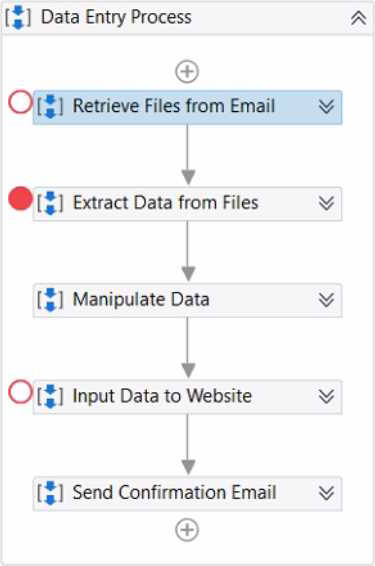
How many times will the workflow pause the execution?
- A . 0
- B . 1
- C . 2
- D . 3
B
Explanation:
The workflow will pause the execution only once when it is executed in Debug mode with “Continue on Exception” enabled. Debug mode is a mode of execution that allows the developer to test and troubleshoot the workflow by using various debugging tools, such as breakpoints, step actions, and output messages4. “Continue on Exception” is a debugging option that enables the execution to continue even if an exception is encountered, without displaying the error message or stopping at the faulty activity5. In the workflow, there are two activities that can throw exceptions: the “Throw” activity, which throws a custom exception with the message “This is an exception”, and the “Write Line” activity, which writes the value of the “Var” variable to the Output panel. The “Var” variable is not initialized, so it has a null value by default. When the “Write Line” activity tries to write the null value, it throws a NullReferenceException, as explained in the previous question. However, since the “Continue on Exception” option is enabled, the execution does not stop at the “Write Line” activity, but continues to the next activity, which is the “Throw” activity. The “Throw” activity throws the custom exception, which is caught by the “Catch” section of the “Try Catch” activity. The “Catch” section contains a “Log Message” activity, which writes the exception message to the Output panel. The execution then moves to the “Finally” section, which contains a “Write Line” activity with the text “This is the end”. The workflow then ends successfully. The only time the execution pauses is when it reaches the breakpoint that is set at the “Throw” activity. A breakpoint is a debugging tool that allows the developer to pause the execution at a specific activity and inspect the values of the variables and arguments, as well as the output messages6. The developer can then resume the execution by using the step actions or the continue button7. Therefore, the workflow will pause the execution only once at the breakpoint, and not at the exceptions, as they are ignored by the “Continue on Exception” option.
References: Debugging a Workflow, Debugging Actions, Breakpoints, and Continue on Exception from UiPath documentation.
What is the default URL of the OCR server that runs the Computer Vision service?
- A . https://server.uipath.com/
- B . https://cvserver.uipath.com/
- C . https://cv.uipath.com/
- D . https://computervision.uipath.com/
C
Explanation:
The default URL of the OCR server that runs the Computer Vision service is https://cv.uipath.com/. This is the endpoint of the UiPath Computer Vision Cloud service, which provides OCR capabilities for document understanding and UI automation1.
The other options are not valid URLs for the OCR server.
Reference: Document Understanding – UiPath.DocumentUnderstanding.OCR.LocalServer Activities documentation, Introduction section
When should a static selector be used versus a dynamic selector’?
- A . When a standard selector contains a tag value that changes for each execution
- B . When all the attributes or tags remain the same for each execution
- C . When a standard selector contains an attribute value that changes for each execution
- D . When the selector needs to interact with different types of elements on the same page
B
Explanation:
A static selector should be used when all the attributes or tags remain the same for each execution. A static selector is a selector that has fixed values for the attributes or tags of the target element. A static selector can reliably identify the target element as long as the element does not change its properties or position on the screen. A static selector is suitable for simple and stable UI elements that have consistent and unique selectors1. For example, a static selector can be used to click on a button that has the same name and ID every time the automation runs.
References: Static Selectors and Selectors from UiPath documentation.
Which dependencies are automatically installed when a developer starts a blank process in UiPath Studio?
- A . UiPath.Database.Activities and UiPath.Form.Activities.
- B . UiPath.Python.Activities and UiPath.Word.Activities.
- C . UiPath.System.Activities, UiPath.Excel.Activities, UiPath.Mail.Activities, UiPath.UIAutomation.Activities and UiPath. Testing.Activities.
- D . UiPath.PDF.Activities and UiPath. Terminal.Activities.
C
Explanation:
When a developer starts a blank process in UiPath Studio, the following dependencies are automatically installed by default: UiPath.System.Activities, UiPath.Excel.Activities, UiPath.Mail.Activities, UiPath.UIAutomation.Activities and UiPath. Testing.Activities. These dependencies provide the basic activities and packages that are needed for most automation projects, such as working with data types, files, Excel, email, user interface, and testing. The developer can also add or remove other dependencies as needed, depending on the specific requirements of the automation project.
References: Creating a Basic Process, Managing Dependencies.
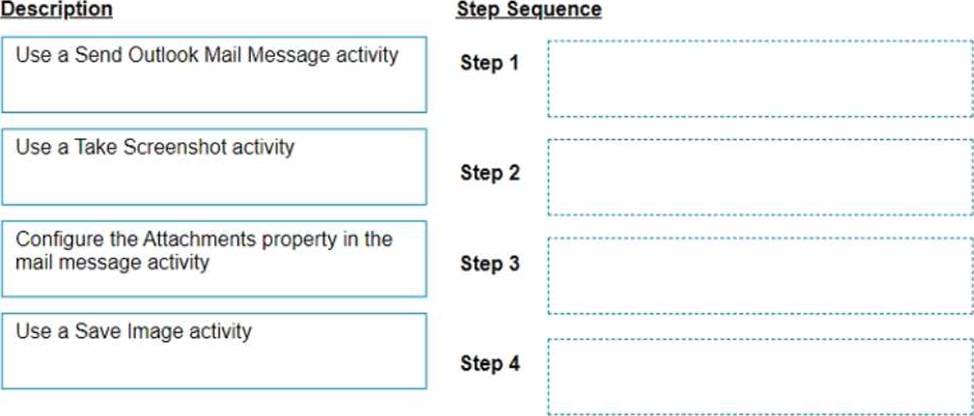
DRAG DROP
A developer needs to take a screenshot of the state of the machine while the robot is running and then send the screenshot as an email.
What is the correct sequence of steps that should be performed?
Instructions: Drag the Description found on the left and drop on the correct Step found on the right.
Explanation:
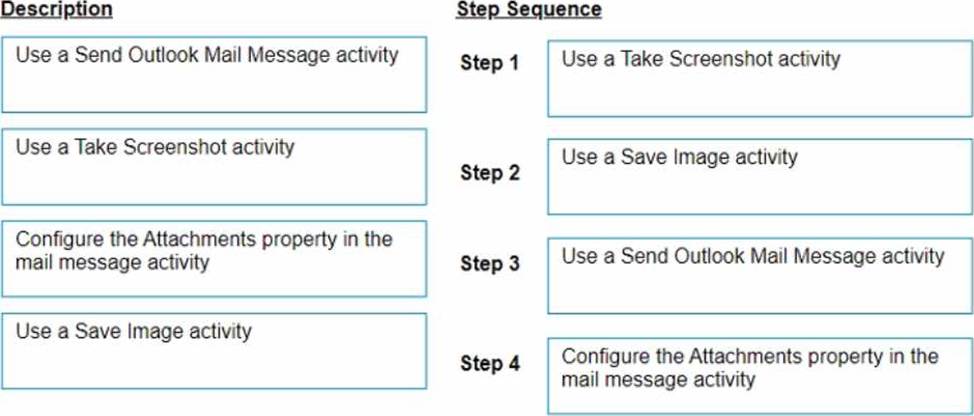
The correct sequence of steps that should be performed is:
Step 1 = Use a Take Screenshot activity to capture the state of the machine. The output is an Image variable, for example img_screenshot.
Step 2 = Use a Save Image activity to save the image to a local file. Supply the FileName (e.g. screenshot.png) and the Image property should be the variable created in step 1.
Step 3 = Use a Send Outlook Mail Message activity to compose and send the email. Configure the Attachments property to include the file path of the image saved in step 2 (e.g. “C:Usersusernamescreenshot.png”).
Step 4 = Optionally, use a Delete File activity to delete the image file from the local drive after sending the email. Supply the Path property with the same file path as in step 3.
For more information on how to use these activities in UiPath Studio 2021 10, you can refer to these documents:
Take Screenshot
Save Image
Send Outlook Mail Message
Delete File
While working in an RPA testing project, you encountered the following activity in one of the workflows included in the project.
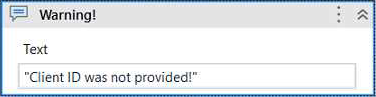
What action can you perform in your mocked file to replace the functionality of the MessageBox with a LogMessage during mock testing?
- A . Remove mock activity.
- B . Synchronize mock.
- C . Surround activity with mock.
- D . Create mock workflow.
C
Explanation:
The Surround activity with mock option is used to create a mock activity that wraps around the original activity in the workflow. The mock activity can have different properties and actions than the original activity, depending on the testing scenario. In this case, the MessageBox activity can be surrounded with a mock activity that has the LogMessage action. This will replace the functionality of the MessageBox with a LogMessage during mock testing, which can be useful for logging the test results without interrupting the workflow execution. (UiPath Studio documentation1)
References:
1: Configuring Activity Project Settings – UiPath Studio.
DRAG DROP
A developer finished creating an automation project in UiPath Studio 2021 10.
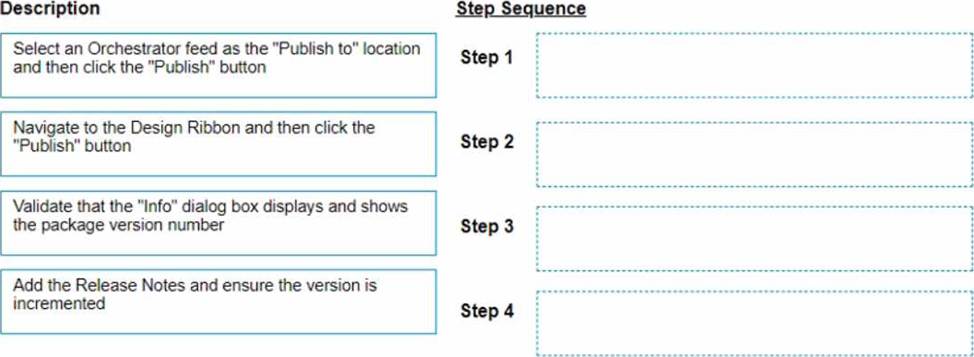
What is the recommended sequence of steps that should be performed to publish the package to Orchestrator 2021.10?
Instructions: Drag the Description found on the left and drop on the correct Step found on the right
Explanation:
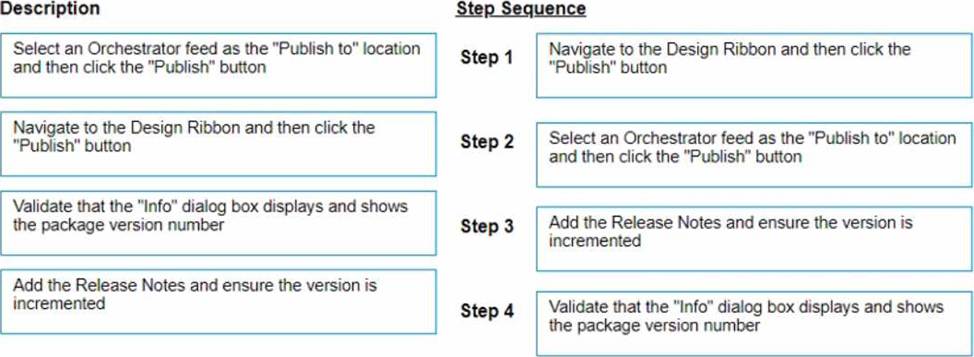
The recommended sequence of steps that should be performed to publish the package to Orchestrator 2021.10 is:
Step 1 = Navigate to the Design Ribbon and then click the “Publish” button
Step 2 = Select an Orchestrator feed as the “Publish to” location and then click the “Publish” button
Step 3 = Add the Release Notes and ensure the version is incremented
Step 4 = Validate that the “Info” dialog box displays and shows the package version number
This sequence will ensure that the developer can publish the automation project to the Orchestrator feed of their choice, add some notes about the changes made, and verify that the package is successfully published with the correct version number. https://docs.uipath.com/orchestrator/standalone/2021.10/user-guide/about-packages