
UiPath UiPath-ADAv1 Practice Exams
Last updated on Oct 22,2026- Exam Code: UiPath-ADAv1
- Exam Name: UiPath Automation Developer Associate v1 Exam
- Certification Provider: UiPath
- Latest update: Oct 22,2026
Where can you find a list of all the activities that support the Windows compatibility?
- A . In the converted project’s settings.
- B . In the Official feed documentation.
- C . In the Activities Guide.
- D . In the Windows-Legacy project configuration.
C
Explanation:
The Activities Guide is a comprehensive documentation of all the official UiPath activity packages that are available on the Official feed. The Activities Guide provides detailed information about each activity, such as the description, properties, examples, and compatibility. The compatibility section indicates which target frameworks are supported by the activity, such as Windows, Windows-Legacy, or Cross-platform. By browsing the Activities Guide, you can find a list of all the activities that support the Windows compatibility, as well as the minimum version required for each activity package.
References:
Activities Guide – UiPath Documentation Portal
Deprecation of the Windows-Legacy Compatibility – UiPath Studio
What is the purpose of the Invoke Code activity in UiPath?
- A . Invokes VB.NET or C# code, optionally passing it a list of input arguments.
- B . Invokes VB.NET or Java code, optionally passing it a list of input arguments.
- C . Invokes VB.NET code, optionally passing it a list of input arguments.
- D . Invokes Java code, optionally passing it a list of input arguments.
A
Explanation:
The Invoke Code activity in UiPath is an activity that allows developers to execute custom code written in VB.NET or C# within a workflow. The activity can accept a list of input arguments and return a list of output arguments, which can be used to exchange data between the code and the workflow. The activity can also access the variables and arguments defined in the current scope of the workflow. The Invoke Code activity can be useful for scenarios where the existing activities do not meet the specific requirements or logic of the automation process. (UiPath Automation Developer study guide)
References:
Invoke Code
How To Use Invoke Code Activity – In UiPath
What status needs to be selected in the Set Transaction Status activity in UiPath Studio so that the respective Queue Item will be retried?
- A . Failed
- B . Retried
- C . Abandoned
- D . Postponed
A
Explanation:
The Set Transaction Status activity is used to mark the result of a queue item processing1. If the queue item fails with an application exception, it can be retried by setting its status to Failed2. The Retried status is automatically assigned by Orchestrator when a retry is triggered3. The Abandoned status is applied when a queue item remains in progress for too long without being processed4. The Postponed status is used to delay the processing of a queue item until a specific date and time.
Reference: Managing Queues in Studio documentation, Step 9: Set Transaction Status section Queue Item Statuses documentation, Retried section
Automation Best Practices documentation, Queue Item Status section
Queue Item Statuses documentation, Abandoned section
Queue Item Statuses documentation, Postponed section
A developer intends to enter text into an input field using a combination of a string and a hotkey. The input action should take place within a hidden or minimized window.
Which input method(s) can be used individually for the Type Into activity?
- A . Simulate only.
- B . Simulate and Window Messages.
- C . Same as App/Browser and Simulate.
- D . Window Messages only.
B
Explanation:
The Type Into activity is used to enter text in a specified UI element, such as a text box. It has three input methods that can be selected from the properties panel: Default, Simulate, and Window Messages1. Each input method has different advantages and limitations, depending on the target application and the automation scenario2.
The Default input method uses the hardware driver to simulate the keystrokes, as if a human user is typing on the keyboard. It is the most reliable and compatible input method, but it requires the target application to be in focus and visible on the screen. It also supports sending special keys, such as Tab or Enter, using brackets [k(enter)] or [k(tab)].
The Simulate input method uses the technology of the target application to directly inject the text into the UI element. It does not rely on the hardware driver, so it can work in the background, even if the target application is hidden or minimized. It also supports sending special keys using brackets [k(enter)] or [k(tab)]. However, it may not be compatible with some applications or UI elements that do not support this method.
The Window Messages input method uses the Windows API to send messages directly to the target application. It can also work in the background, even if the target application is hidden or minimized. It does not support sending special keys using brackets [k(enter)] or [k(tab)], but it can send them using modifiers such as {ENTER} or {TAB}. However, it may not be compatible with some applications or UI elements that do not accept window messages.
Therefore, if a developer intends to enter text into an input field using a combination of a string and a hotkey, and the input action should take place within a hidden or minimized window, they can use either the Simulate or the Window Messages input method individually for the Type Into activity.
They cannot use the Default input method, because it requires the target application to be in focus and visible on the screen. They also cannot use the Same as App/Browser input method, because it is not an option for the Type Into activity.
Reference: Type Into – UiPath Documentation Portal.
What are different Input methods in UiPath – UiPath Community Forum.
In the Catches section of the Try Catch activity a developer selected Argument Exception in the exception handler.
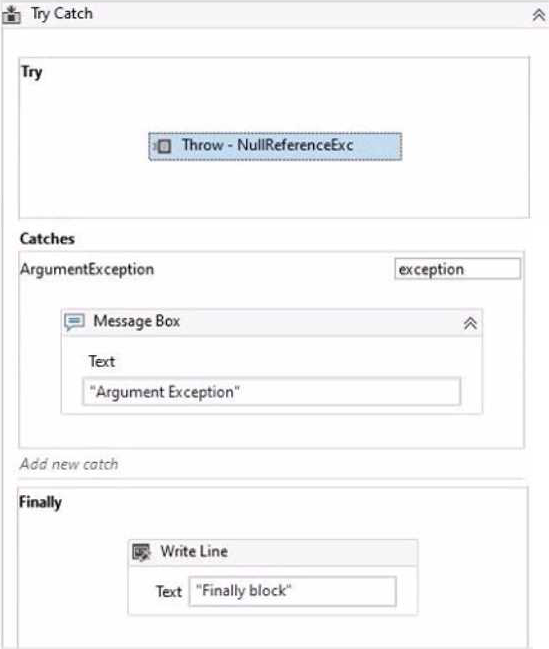
What happens when the activity encounters a NullReferenceException?
- A . The Finally block is not executed and a runtime error occurs.
- B . The Finally block executes and no exception is thrown.
- C . The Catches section catches the exception and the Finally block is executed.
- D . The Catches section catches the exception and the Finally block is skipped.
A
Explanation:
When the activity encounters a NullReferenceException, the Finally block is not executed and a runtime error occurs. This is because the Catches section of the Try Catch activity only handles the ArgumentException type, which is a specific type of exception that occurs when one of the arguments provided to a method is not valid1. A NullReferenceException is a different type of exception that occurs when there is an attempt to dereference a null object reference2. Since the Catches section does not have a handler for the NullReferenceException type, the exception is not caught and the execution is stopped with a runtime error. The Finally block, which contains the activities that are always executed regardless of the outcome of the Try Catch activity, is also skipped3.
References: ArgumentException Class, NullReferenceException Class, and Try Catch from UiPath documentation.
Suppose a developer is working with a 2023 yearly calendar. To expand the calendar into a monthly
view, the developer must always click on the 15th day of the current month and add an event.
The selector for the Event Date Element activity in March is presented as follows:
<wnd app=’applicationframehost.exe’ title=’Month View – Calendar’ /> <uia cls=’Day’ name=’15 March 2023′ />
How should the selector be altered to guarantee that it clicks on the 15th of the ongoing month?
- A . <wnd app=’applicationframehost.exe’ title=’Month View – Calendar’ /> <uia cls=’Day’ name=’15 * 2023′ />
- B . <wnd app=’applicationframehost.exe’ title=’Month View – Calendar’ /> <uia cls=’Day’ name=’15* 20 ?? ‘ />
- C . <wnd app=’applicationframehost.exe’ title=’Month View – Calendar’ /> <uia cls=’Day’ name=’*15*’ />
- D . <wnd app=’applicationframehost.exe’ title=’Month View – Calendar’ /> <uia cls=’Day’ name=’15 ? 20 ?? ‘ />
B
Explanation:
This is the correct option because it uses wildcards to replace the dynamic parts of the selector. Wildcards are symbols that enable you to replace zero or multiple characters in a string. They are useful when dealing with attributes that change dynamically in the selector. There are two types of wildcards: asterisk () and question mark (?). The asterisk () replaces zero or more characters, while the question mark (?) replaces a single character. In this case, the name attribute of the target element changes according to the month, but the day and the year remain constant. Therefore, the selector can be altered by replacing the month name with an asterisk () and the last two digits of the year with two question marks (??). This way, the selector will match any element that has the name starting with 15, followed by any characters, followed by 20, followed by any two characters. For example, the selector will match 15 March 2023, 15 April 2023, 15 May 2023, etc. The other options are incorrect because they either do not use wildcards, or they use them incorrectly. Option A does not replace the last two digits of the year, which may change in the future. Option C replaces too many characters with the asterisk (), which may cause ambiguity or false matches. Option D uses the question mark (?) incorrectly, as it should be used for single characters, not for spaces or multiple characters.
References: Selectors With Wildcards
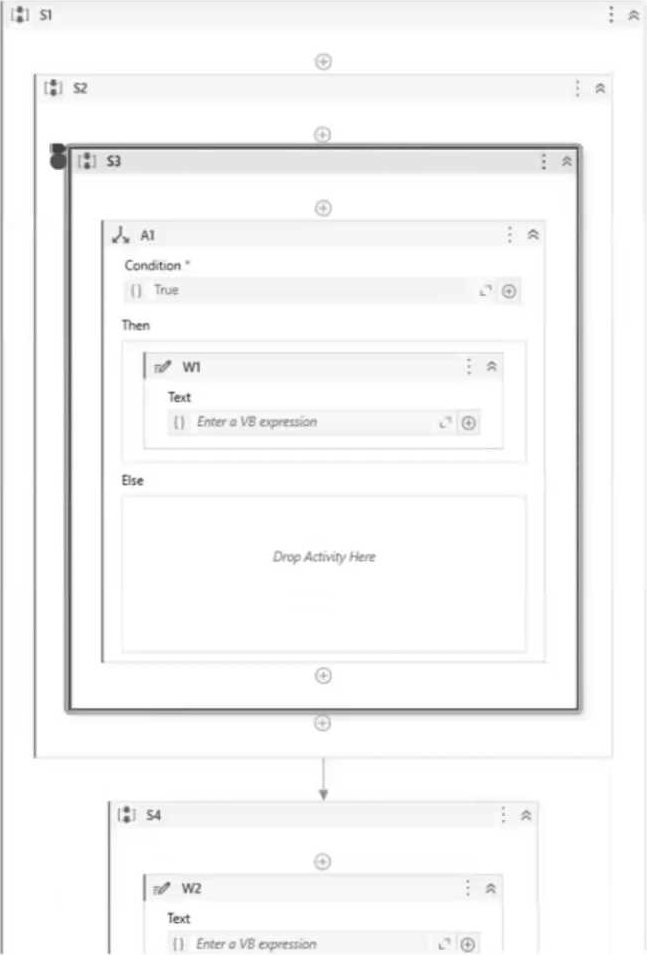
When a developer is examining a suspended state upon reaching a breakpoint, which activity will the Executor be directed to if Step Out is selected from the Debug section in UiPath Studio’s ribbon interface?
- A . W1
- B . S1
- C . A1
- D . S2
B
Explanation:
When a developer selects "Step Out" from the Debug section in UiPath Studio’s ribbon interface while examining a suspended state upon reaching a breakpoint, the executor will be directed to the activity that called the current container (or the next activity in the higher scope). In the context of the provided sequence structure, stepping out from A1 (assuming that’s where the breakpoint is) would go to the next higher scope, which is S2, as it is the sequence that contains A1. Therefore, the correct answer is D (S2 in the image).
Reference: UiPath Studio Guide: Debugging Actions
A user reported unexpected behavior from a process that is in Production. After reviewing the process, a developer noticed that one of the Queue Items that was processed has a status of "Abandoned" in UiPath Orchestrator.
When is a Queue Item moved to an "Abandoned" status in UiPath Orchestrator?
- A . When the item has been manually selected from the Transactions page and marked as "Deleted"
- B . When the item was "In Progress" but the transaction status was never set to "Successful" or "Failed"
- C . When the item did not meet a business or application requirement within the project.
- D . When the item was processed with the Get Transaction Item activity
B
Explanation:
A Queue Item is moved to an “Abandoned” status in UiPath Orchestrator when the item was “In Progress” but the transaction status was never set to “Successful” or “Failed”. This can happen when the item remained in the “In Progress” status for a long period of time (approx. 24 hours) without being processed, or when the Robot that was processing the item encountered an error or was stopped1. The “Abandoned” status indicates that the item was not completed and needs to be retried or deleted. The item can be retried manually from the Transactions page in Orchestrator, or programmatically using the API2. The item can also be deleted manually from the Transactions page, or automatically using the Auto Delete option in the Queue settings3.
References: Queue Item Statuses, Changing the abandon status of Queue Transaction, and About Queues and Transactions from UiPath documentation and forum.
In an RPA Testing project, you created the mock "MySequencemock" for the file "MySequence". You have to update "MySequence" and add a Log Message activity and a Verify Expression activity.
What will happen to "MySequencemock" file when you save the project, assuming that the file is closed?
- A . Only the Log Message activity will be added to the mock file.
- B . Only the Verify Expression activity will be added to the mock file.
- C . The changes made in "MySequence" workflow file are applied to the mock file.
- D . The changes made in "MySequence" workflow file are not applied to the mock file.
D
Explanation:
A mock file is a copy of a workflow file that is used to simulate the behavior of the original workflow without affecting it1. When you create a mock file, the original workflow file is automatically added to the project dependencies, and the mock file is added to the test folder2. If you update the original workflow file, the changes are not reflected in the mock file, unless you manually update the mock file as well3. Therefore, if you add a Log Message activity and a Verify Expression activity to “MySequence” workflow file and save the project, the “MySequencemock” file will remain unchanged.
Reference:
Mock Testing documentation from UiPath
Create Mocks documentation from UiPath
Feature request: Allow to rename Mock files forum post from UiPath Community
A developer wants to create a process that searches for images on a website and then saves the images in a local folder However, the website contains an error. As a result, the process may need to search for an image multiple times in order for it to display.
Which container activity should the developer use to search for an image multiple times?
- A . Attach Browser
- B . On Image Appear
- C . On Element Appear
- D . Retry Scope
D
Explanation:
The container activity that the developer should use to search for an image multiple times is Retry Scope. The Retry Scope activity is used to retry the execution of a set of activities as long as a condition is not met or an error is thrown. The Retry Scope activity has two sections: Action and Condition. The Action section contains the activities that need to be retried, such as searching for an image on a website. The Condition section contains an activity that returns a Boolean value, such as Image Exists, which checks if the image is displayed on the screen. The Retry Scope activity also has two properties: NumberOfRetries and RetryInterval. The NumberOfRetries property specifies how many times the Action section is retried before throwing an error. The RetryInterval property specifies how much time passes between each retry1. By using the Retry Scope activity, the developer can handle the error on the website and search for the image multiple times until it is found or the maximum number of retries is reached.
References: Retry Scope from UiPath documentation.