
UiPath UiPath-ADAv1 Practice Exams
Last updated on Oct 22,2026- Exam Code: UiPath-ADAv1
- Exam Name: UiPath Automation Developer Associate v1 Exam
- Certification Provider: UiPath
- Latest update: Oct 22,2026
A developer wants to add items to a list of strings using the Invoke Method activity.
The list is declared as follows:
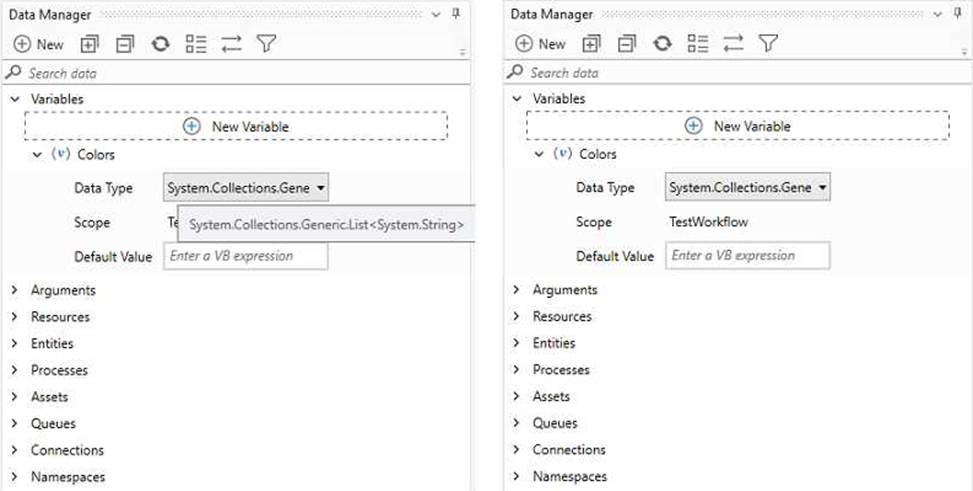
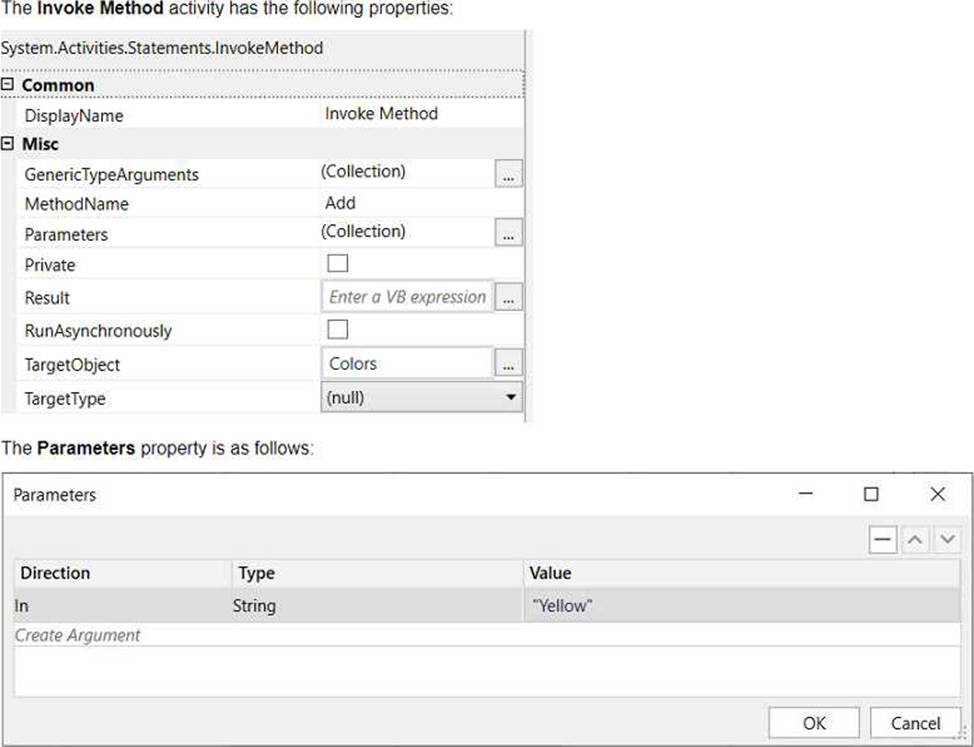
Based on the information shown in the exhibits, what is the outcome of the Invoke Method activity?
- A . Colors will contain an item with the value "Colors: Yellow".
- B . Colors will contain an item with an empty value.
- C . Colors will contain an item with the value "Yellow".
- D . An exception will be thrown.
C
Explanation:
The Invoke Method activity is used to add items to a list of strings. In this case, the list is declared as “Colors”. The outcome of the Invoke Method activity will be that the list “Colors” will contain an item with the value “Yellow”. This is because the TargetObject property is set to “Colors”, which is the list variable, the MethodName property is set to “Add”, which is the method of the list class, and the Parameters property is set to “Yellow”, which is the value to be added to the list. (UiPath Studio documentation1)
References:
1: Invoke Method – UiPath Activities.
What are the differences between the Workbook Write Range and Excel Application Integration Write Range activities in writing a DataTable to an Excel file?
- A . (Excel) Write Datatable to Excel activity only works in the background. (Workbook) Write Range activity requires that the file is not opened by the user before running.
- B . (Excel) Write Datatable to Excel activity only works in the foreground, visible to the user. (Workbook) Write Range activity only works in the background.
- C . (Excel) Write Datatable to Excel activity will create the file in the WorkbookPath property if it does not exist. (Workbook) Write Range activity can only be used when Excel is installed.
- D . (Excel) Write Datatable to Excel activity will execute correctly even if the file is opened by the user before running. (Workbook) Write Range activity will create the file in the WorkbookPath property if it does not exist.
D
Explanation:
The difference between "Workbook Write Range" and "Excel Application Integration Write Range" activities is that the "Excel Application Integration Write Range" (also known as "Excel Write Range") activity can execute correctly even if the Excel file is already opened by the user before running. It interacts with Excel as an application, making it visible and allowing for interaction with the Excel interface. On the other hand, the "Workbook Write Range" activity works in the background, does not require Excel to be installed, and will create the Excel file in the specified path if it does not exist. So, the correct answer is D.
Reference: UiPath Activities Guide: Excel Write Range
UiPath Activities Guide: Workbook Write Range
What are the differences between the Workbook Write Range and Excel Application Integration Write Range activities in writing a DataTable to an Excel file?
- A . (Excel) Write Datatable to Excel activity only works in the background. (Workbook) Write Range activity requires that the file is not opened by the user before running.
- B . (Excel) Write Datatable to Excel activity only works in the foreground, visible to the user. (Workbook) Write Range activity only works in the background.
- C . (Excel) Write Datatable to Excel activity will create the file in the WorkbookPath property if it does not exist. (Workbook) Write Range activity can only be used when Excel is installed.
- D . (Excel) Write Datatable to Excel activity will execute correctly even if the file is opened by the user before running. (Workbook) Write Range activity will create the file in the WorkbookPath property if it does not exist.
D
Explanation:
The difference between "Workbook Write Range" and "Excel Application Integration Write Range" activities is that the "Excel Application Integration Write Range" (also known as "Excel Write Range") activity can execute correctly even if the Excel file is already opened by the user before running. It interacts with Excel as an application, making it visible and allowing for interaction with the Excel interface. On the other hand, the "Workbook Write Range" activity works in the background, does not require Excel to be installed, and will create the Excel file in the specified path if it does not exist. So, the correct answer is D.
Reference: UiPath Activities Guide: Excel Write Range
UiPath Activities Guide: Workbook Write Range
What are the differences between the Workbook Write Range and Excel Application Integration Write Range activities in writing a DataTable to an Excel file?
- A . (Excel) Write Datatable to Excel activity only works in the background. (Workbook) Write Range activity requires that the file is not opened by the user before running.
- B . (Excel) Write Datatable to Excel activity only works in the foreground, visible to the user. (Workbook) Write Range activity only works in the background.
- C . (Excel) Write Datatable to Excel activity will create the file in the WorkbookPath property if it does not exist. (Workbook) Write Range activity can only be used when Excel is installed.
- D . (Excel) Write Datatable to Excel activity will execute correctly even if the file is opened by the user before running. (Workbook) Write Range activity will create the file in the WorkbookPath property if it does not exist.
D
Explanation:
The difference between "Workbook Write Range" and "Excel Application Integration Write Range" activities is that the "Excel Application Integration Write Range" (also known as "Excel Write Range") activity can execute correctly even if the Excel file is already opened by the user before running. It interacts with Excel as an application, making it visible and allowing for interaction with the Excel interface. On the other hand, the "Workbook Write Range" activity works in the background, does not require Excel to be installed, and will create the Excel file in the specified path if it does not exist. So, the correct answer is D.
Reference: UiPath Activities Guide: Excel Write Range
UiPath Activities Guide: Workbook Write Range
Which of the following describes the correct hierarchy of the elements in the Object Repository tree structure?
- A . Screen, Application, Version, UI Element.
- B . Application, Version, Screen, UI Element.
- C . Application, Screen, UI Element, Version.
- D . Version, Application, Screen, UI Element.
B
Explanation:
The Object Repository tree structure follows a hierarchical order that starts with the Application node, which represents the application or system that contains the UI elements to be automated. Under the Application node, there can be one or more Version nodes, which specify the version of the application or system. Each Version node can have one or more Screen nodes, which represent the different screens or windows of the application or system. Finally, each Screen node can have one or more UI Element nodes, which are the individual UI elements that can be used for automation. (UiPath Automation Developer study guide).
References:Object Repository Tree Structure
Object Repository
Which is the recommended variable type for storing password values that are composed solely of
numbers?
- A . SecureString
- B . Int32
- C . String
- D . Int64
A
Explanation:
The recommended variable type for storing password values, even if they are composed solely of numbers, is SecureString. A SecureString is designed to provide a more secure way to handle sensitive information as it keeps the data encrypted in memory, making it less vulnerable to potential risks such as memory dumps compared to regular string types.
Reference: UiPath Activities Guide: SecureString Activities
Which activity is part of the Modern Excel Activities in UiPath Studio?
- A . Write Range
- B . Execute Macro
- C . Read Cell
- D . For Each Excel Row
D
Explanation:
"For Each Excel Row" is an activity that belongs to the Modern Excel Activities package in UiPath Studio. It is used to iterate through each row of an Excel file, allowing for operations to be performed on each row. This activity is part of the modern design experience and offers enhanced capabilities compared to classic Excel activities. Therefore, the correct answer is D.
Reference: UiPath Activities Guide: For Each Excel Row
Which Control Flow activity is suitable for a developer who needs to assess the value of a counter before executing the loop’s body in a workflow?
- A . Do While
- B . Switch
- C . While
- D . If
C
Explanation:
The While activity is a Control Flow activity that enables the developer to execute a specified part of the automation while a condition is met. The condition is evaluated before the loop body is executed, which means that the developer can assess the value of a counter or any other variable before performing the actions inside the loop. This type of activity can be useful to iterate through an array, a list, a data table, or any other collection of data, or to repeat an action until a certain value is reached or changed. The While activity can be found in the Activities panel, under Workflow > Control.
References:
While – UiPath Activities
While Activity – UiPath Studio
UiPath While Loop Tutorial with Examples – RPA Tutorial
A developer wants to run two processes on the same machine, the first process contains only HTTP Request activities and the second one performs UI Automation.
What option needs to be enabled on the first process in order to ensure that the processes can run concurrently on the same machine?
- A . Starts in Background
- B . Attended Automation
- C . Disable Pause
- D . Supports Persistence
A
Explanation:
The Starts in Background option is a property of the process that indicates whether the process can run in parallel with other processes on the same machine. If this option is enabled, the process can run as a background process, meaning that it does not require user interaction or UI automation.
This allows the process to run concurrently with another process that performs UI automation, such as the second process in the question. The Starts in Background option can be configured in the project settings of the process in UiPath Studio, or in the process settings in Orchestrator.
References: Background Process – UiPath Studio
Background Process Automation – UiPath Robot
Managing Processes – UiPath Orchestrator
Which compatibility option should be selected when creating a new project to use .NET 6 with Windows support?
- A . Windows – Legacy
- B . Linux & MacOS
- C . Windows
- D . Cross-platform
C
Explanation:
When creating a new project in UiPath Studio and you want to use .NET 6 with Windows support, you should select the "Windows" compatibility option. This option is designed to work with Windows-specific features and the newer .NET versions, including .NET 6. Hence, the correct answer is C.
Reference: UiPath Studio Guide: Project Compatibility