
Tableau TDS-C01 Practice Exams
Last updated on Oct 21,2026- Exam Code: TDS-C01
- Exam Name: Tableau Desktop Specialist
- Certification Provider: Tableau
- Latest update: Oct 21,2026
Which statement accurately describes a join?
- A . Away to combine multiple Tableau workbooks using similar data sources
- B . A combination of rows appended from different tables that have the same column names
- C . Away to combine table columns in relational databases by using shared values
- D . A combination of columns appended from different tables that have similar values
C
Explanation:
According to the [Tableau Desktop Specialist Exam Guide], a join is a way to combine table columns in relational databases by using shared values. A join can be inner, left, right, or full, depending on how the matching rows are included or excluded.
You can create _______________ for members in a dimension so that their labels appear differently in the view.
- A . parameters
- B . duplicates
- C . copies
- D . aliases
D
Explanation:
You can create aliases (alternate names) for members in a dimension so that their labels appear differently in the view.
Aliases can be created for the members of discrete dimensions only. They cannot be created for continuous dimensions, dates, or measures.
To create an alias:
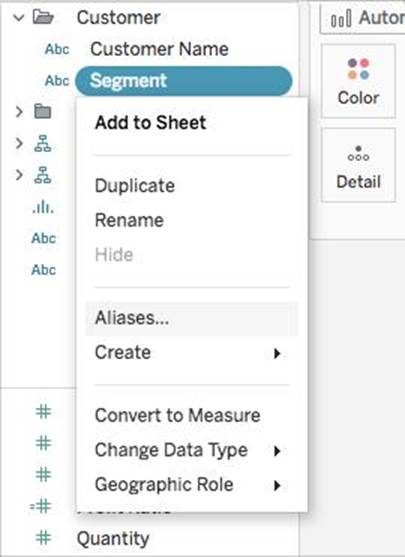
1) In the Data pane, right-click a dimension and select Aliases.
2) In the Edit Aliases dialog box, under Value (Alias), select a member and enter a new name.
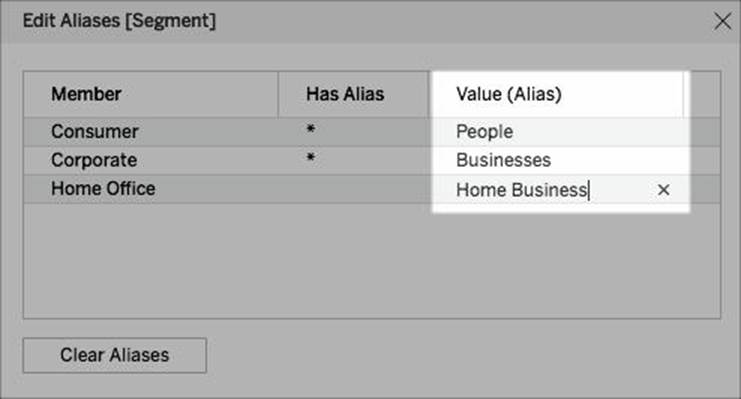
✑ To submit your changes: In Tableau Desktop, click OK.
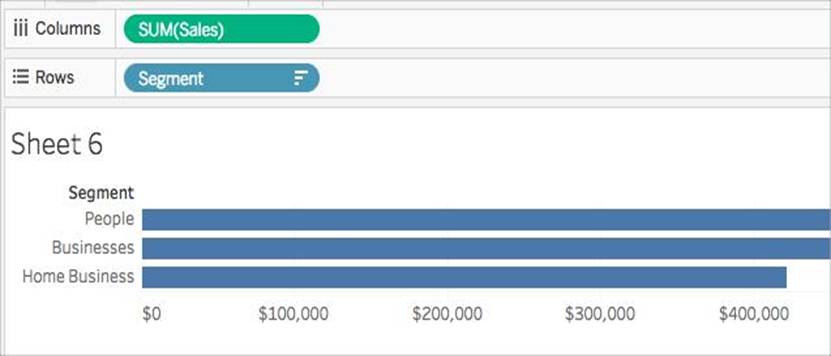
On Tableau Server or Tableau Online, click the X icon in the top-right corner of the dialog box.
When you add the field to the view, the alias names appear as labels in the view. For example:
Reference: https://help.tableau.com/current/pro/desktop/en-us/datafields_fieldproperties_aliases_ex1editing.htm
While borders and background colors let you visually highlight items on a dashboard, _________ lets you precisely space items.
- A . padding
- B . margining
- C . tiling
- D . spacing
A
Explanation:
Padding lets you precisely space items on dashboard, while borders and background colors let you visually highlight them. Inner padding sets the spacing between item contents and the perimeter of the border and background color; outer padding provides additional spacing beyond the border and background color.
Reference: https://help.tableau.com/current/pro/desktop/en-us/dashboards_organize_floatingandtiled.htm
What does the following icon do in Tableau?
Larger image
- A . Create a Story
- B . Create a Story and Dashboard both
- C . Create a Worksheet
- D . Create a Dashboard
D
Explanation:
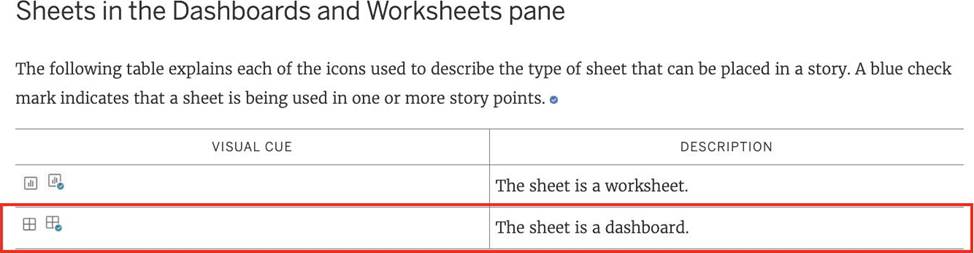
The icon shown is used to add a new Dashboard! From the official documentation:
Reference: https://help.tableau.com/current/pro/desktop/en-us/inspectdata_viewdata.htm
Which of the following are required to create a trend line?
- A . 2 measures on opposing axes, or a date and a measure on opposing axes.
- B . 1 measure, or a date and a dimension on opposing axes.
- C . 1 measure only
- D . 2 dimensions, or a date and a dimension on opposing axes.
A
Explanation:
To create a trend line, we need:
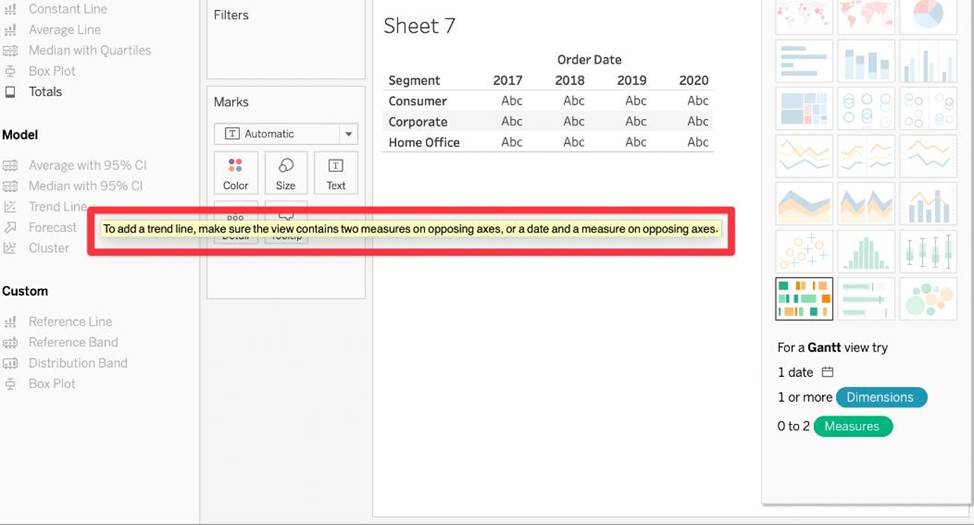
Reference: https://help.tableau.com/current/pro/desktop/en-us/trendlines_add.htm
Question 30: Skipped
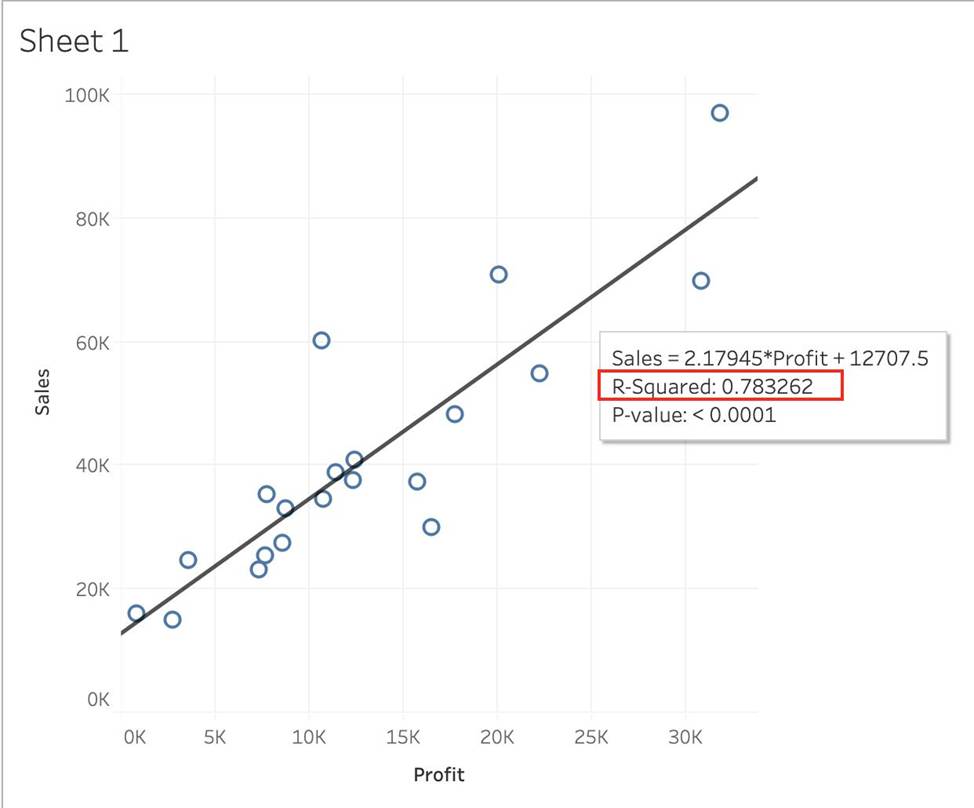
Using the CoffeeChain table, create a scatter plot of Profit (x-axis) vs Sales (y-axis) broken down by State. Add a Linear trend line to the view.
What is its R-squared value?
- A . 0.783262
- B . 0.739284
- C . 0.759329
- D . 0.748472
A
Explanation:
Trend lines have become popular questions in recent Tableau examinations.
Follow along:
1) First drag Sales to the Rows shelf and Profit to the Columns shelf:
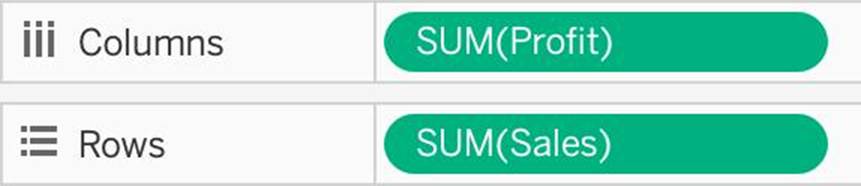
You will only see a single mark since the view is aggregated.
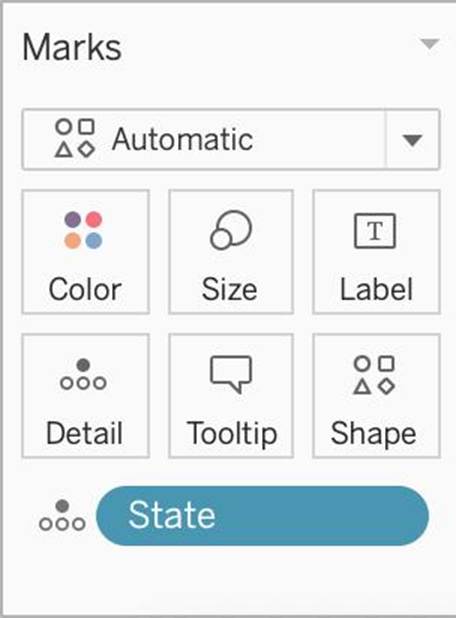
2) Now, break down this view by state. Drag State into Detail on the Marks shelf (or directly to the view):
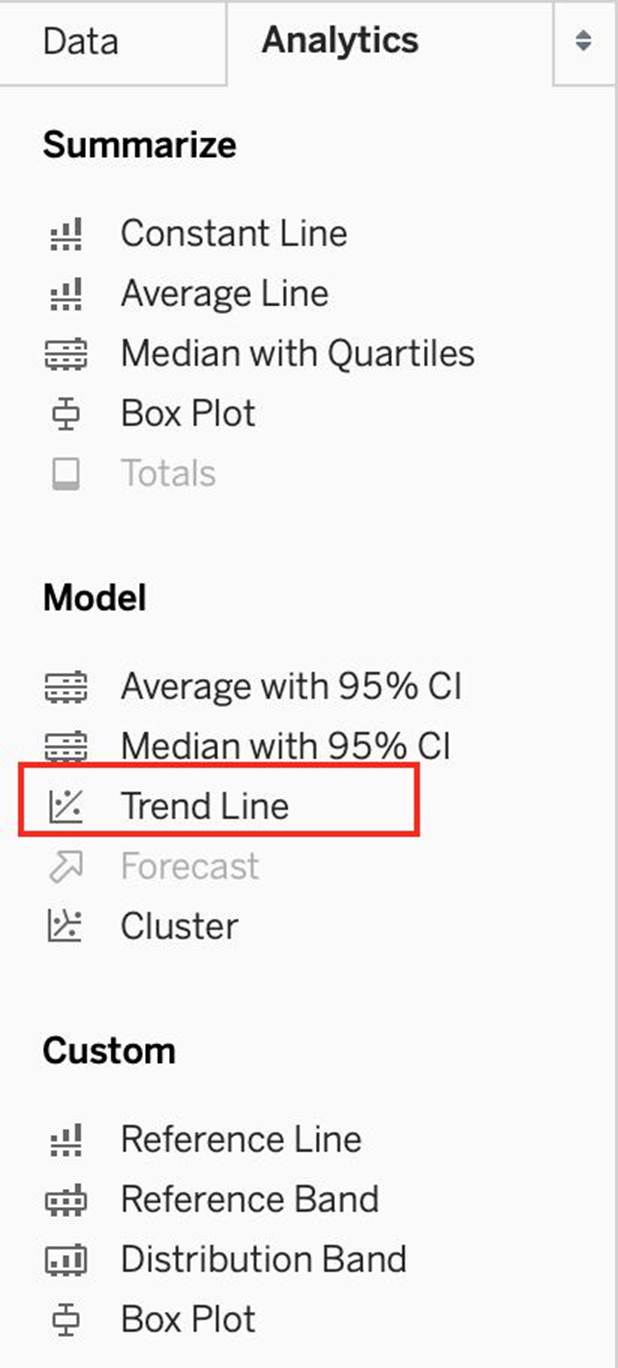
3) Finally, move to the Analytics pane, and drag Trend line to the view.
When you drag it, select the Linear option!:
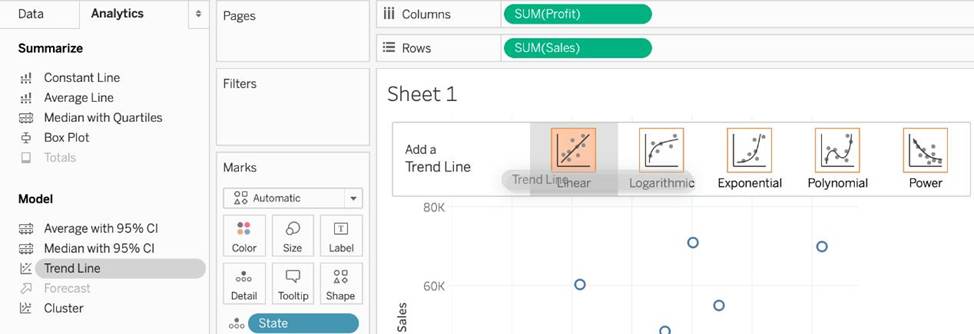
4) The following is our view. Hover over the trend line to see the R-squared value:
When using a Blend, what is the color of tick-mark on the primary and secondary data sources respectively?
- A . Red, Blue
- B . Orange, Blue
- C . Blue, Red
- D . Blue, Orange
D
Explanation:
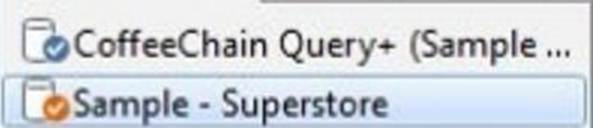
When using a Blend, the primary data source appears with a BLUE tick-mark and the secondary data source appears with a ORANGE tick-mark.
See below:
Reference: https://www.tutorialspoint.com/tableau/tableau_data_blending.htm
Which of the following would you use to connect to multiple tables in a single data source at once?
- A . A Blend
- B . A Hierarchy
- C . A Set
- D . A Join
D
Explanation:
The data that you analyze in Tableau is often made up of a collection of tables that are related by specific fields (that is, columns). Joining is a method for combining data on based on those common fields. The result of combining data using a join is a virtual table that is typically extended horizontally by adding columns of data.
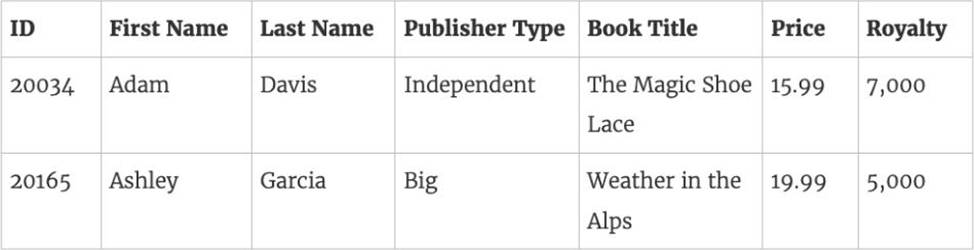
For example, consider the following two tables originating from a single data source:
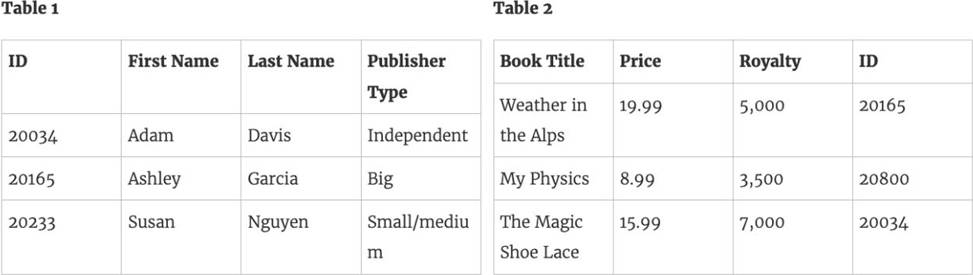
We can combine these 2 tables, simply by joining the tables on ID to answer questions like, "How much was paid in royalties for authors from a given publisher?". By combining tables using a join, you can view and use related data from different tables in your analysis.
Reference: https://help.tableau.com/current/pro/desktop/en-us/joining_tables.htm
A Tableau Data Source File (.tds) contains which of the following?
- A . Default Field Properties
- B . Copy of any local file-based data
- C . Calculated Fields
- D . Data Source Type
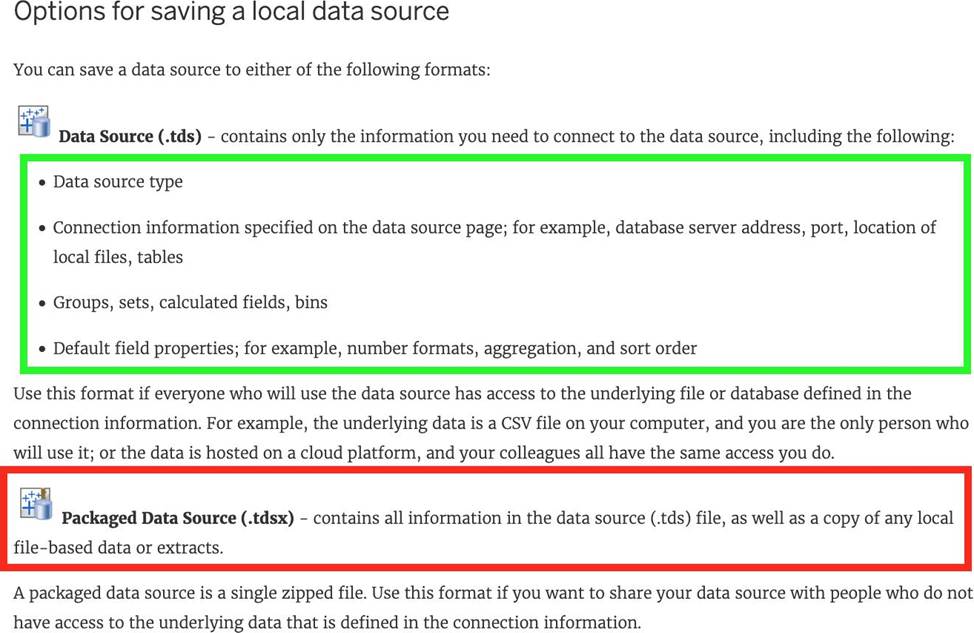
ACD
Explanation:
All are correct, except – Copy of any local file-based data. This is contained in a .tdsx file (Tableau Packaged Data Source)!
According to the official documentation –
Reference: https://help.tableau.com/current/pro/desktop/en-us/export_connection.htm
Skipped
You have just created a histogram and now want to be able to change the size of bins dynamically.
Using which of the following will easily satisfy your requirement?
- A . Sets
- B . Groups
- C . Calculation
- D . Parameters
D
Explanation:
A parameter is a global placeholder value such as a number, date, or string that can replace a constant value in a calculation, filter, or reference line.
For example, you may create a calculated field that returns True if Sales is greater than $500,000 and otherwise returns False. You can replace the constant value of “500000” in the formula with a parameter. Then, using the parameter control, you can dynamically change the threshold in your calculation.
For example –
Reference: https://help.tableau.com/current/pro/desktop/en-us/parameters_create.htm