
Tableau TDS-C01 Practice Exams
Last updated on Oct 21,2026- Exam Code: TDS-C01
- Exam Name: Tableau Desktop Specialist
- Certification Provider: Tableau
- Latest update: Oct 21,2026
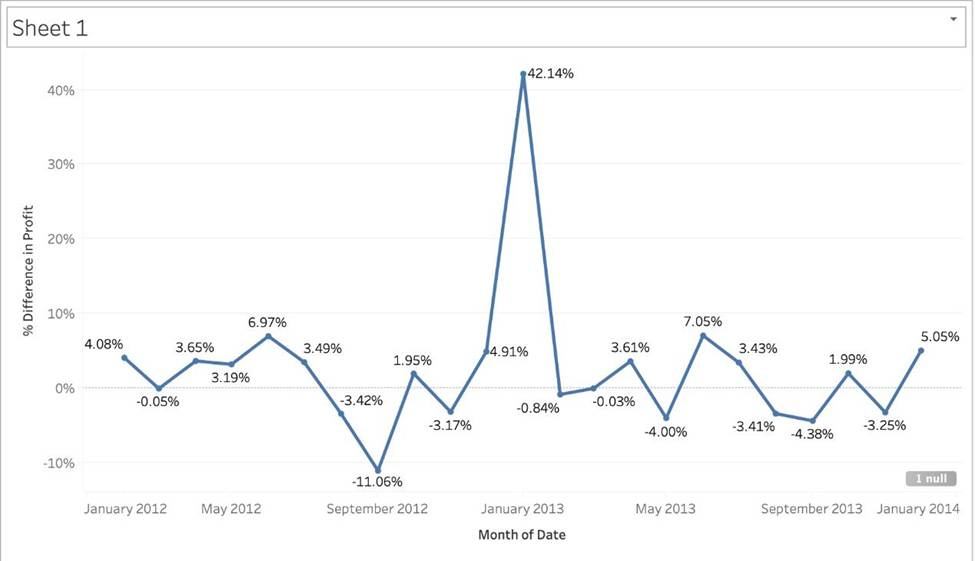
Using the CoffeeChain table, create a chart to see the monthly Percent difference change in Profit, from the beginning of 2012 to the end of 2013.
How many months saw a Negative percent difference in Profit?
- A . 9
- B . 7
- C . 10
- D . 8
C
Explanation:
Follow along to reach the correct answer:
1) First, drag Date to the Column shelf and Profit to the Rows shelf. We need to see the 2 consecutive months over this two year period (2012-2013) so this tells us we need to work with continuous dates:
Click on Date in the Column shelf and convert it to continuous month:
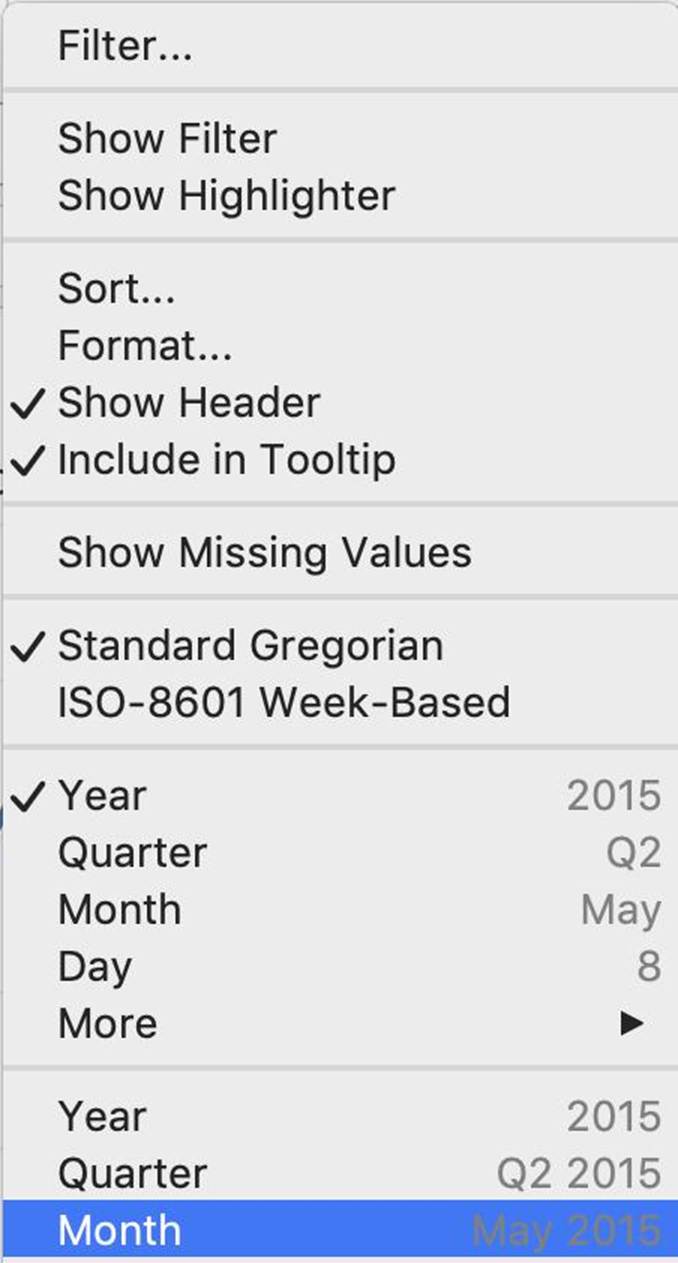
2) Now, click on the Profit pill in the Rows shelf, go to quick table calculation and choose Percent difference:
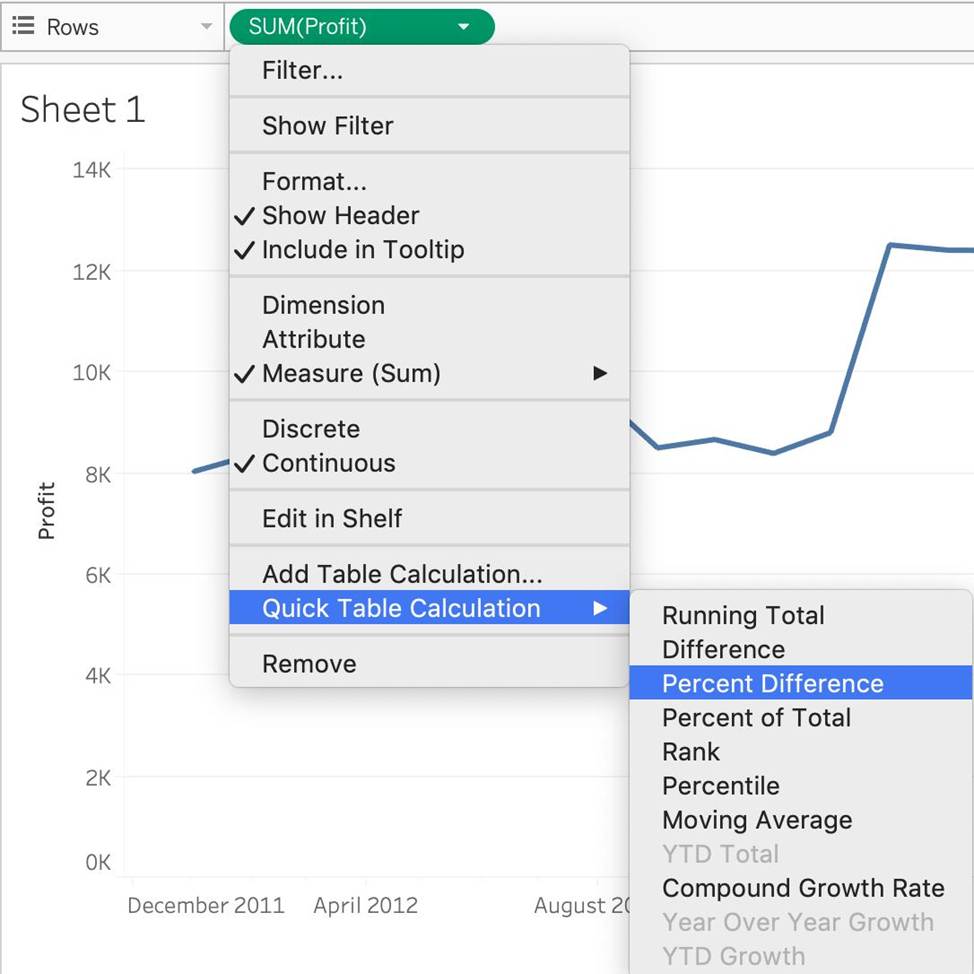
3) Finally, click on the Show mark Labels icon:

4) We finally have our view, and clearly, 10 Months have a NEGATIVE percent difference:
How can you create a packaged data source?
- A . From the Worksheet menu, select Export, and then select Data.
- B . From the Data pane, right-click the data connection, and then select Add to Saved Data Sources.
- C . From the File menu, select Share.
- D . From the File menu, select Save As.
B
Explanation:
To create a packaged data source (.tdsx file) in Tableau, you would right-click on the data connection in the Data pane and select the option to add it to saved data sources. This action packages the data source with the metadata that you’ve defined in Tableau, such as calculations, groups, and sets, so that you can easily share it with others. This does not package the data itself, which is a separate step if you’re working with local file-based data.
Which statement accurately describes an extract when the Physical Tables option is selected?
- A . Data is limited to only the Top N of data for the connection.
- B . All the data is tolled up to the current visible fields.
- C . An individual table is created for each physical table in the extract.
- D . Data shown in the Data pane is separated based on the table type.
C
Explanation:
When the Physical Tables option is selected for an extract in Tableau, an individual table is created for each physical table in the extract. This means that the extract will include a separate table for each underlying table in your database, maintaining the database’s structure within the extract. This can be useful when you need to preserve the original granularity of the data or when working with certain database optimizations.
When creating a histogram in Tableau, to what does bin size refer?
- A . The minimum number of axis ticks in the view.
- B . The range of the continuous measure counted in each bin.
- C . The count distinct (COUNTD) of items on either axis.
- D . The maximum number of marks in the view.
B
Explanation:
When creating a histogram in Tableau, bin size refers to the range of the continuous measure counted in each bin. A histogram is a chart that displays the shape of a distribution of a continuous measure. A histogram looks like a bar chart but groups values for a continuous measure into ranges, or bins. The basic building blocks for a histogram are as follows: Mark type: Automatic; Rows shelf: Continuous measure (aggregated by Count or Count Distinct); Columns shelf: Bin (continuous or discrete)4 To create bins from a continuous measure, you need to specify the size of bins, which determines how many bins are created and how wide they are. The size of bins is equal to the difference between consecutive values along the axis that represents the bins. For example, if you have bins with values 0-10, 10-20, 20-30, etc., then the size of bins is 10. You can either enter a value for the size of bins manually or have Tableau suggest an optimal bin size based on a formula that considers the number of distinct rows and the minimum and maximum values in the data5. The other options are not valid definitions of bin size when creating a histogram in Tableau. The minimum number of axis ticks in the view is determined by Tableau’s automatic scaling and formatting of axes, which can be adjusted manually if needed. The count distinct (COUNTD) of items on either axis is an aggregation function that returns the number of unique values in a field, which can be used as a measure in a histogram but not as bin size. The maximum number of marks in the view is limited by the performance and readability of the visualization, which can be improved by filtering, sorting, or aggregating the data4
Which of the following situations describe the best reason to use a union?
- A . You have two tables with similarly named columns of data that you want to combine.
- B . You have two data sets with similar data types for which you want to find only distinct values.
- C . You have two tables with differently named columns of data that you want to combine.
- D . You have two data sets saved in different formats that you want to unify into a single format.
A
Explanation:
You should use a union when you have two tables with similarly named columns of data that you want to combine. A union is a method for combining data by appending rows of one table onto another table. The tables that you union must have the same number of fields, the same field names, and the same data types2
What are two requirements to combine two tables by using a union? Choose two.
- A . Related fields must have matching data types.
- B . Related fields must have different names.
- C . The tables must come from different connections.
- D . The tables must have the same number of fields.
A, D
Explanation:
To perform a union in Tableau, the tables must have a related field with matching data types, and they must have the same number of fields. This allows the tables to be appended vertically in the data source. Different names or tables from different connections do not affect the ability to union the tables.
Data blending simulates a traditional _________________ Join
- A . Inner
- B . Right
- C . Full Outer
- D . Left
D
Explanation:
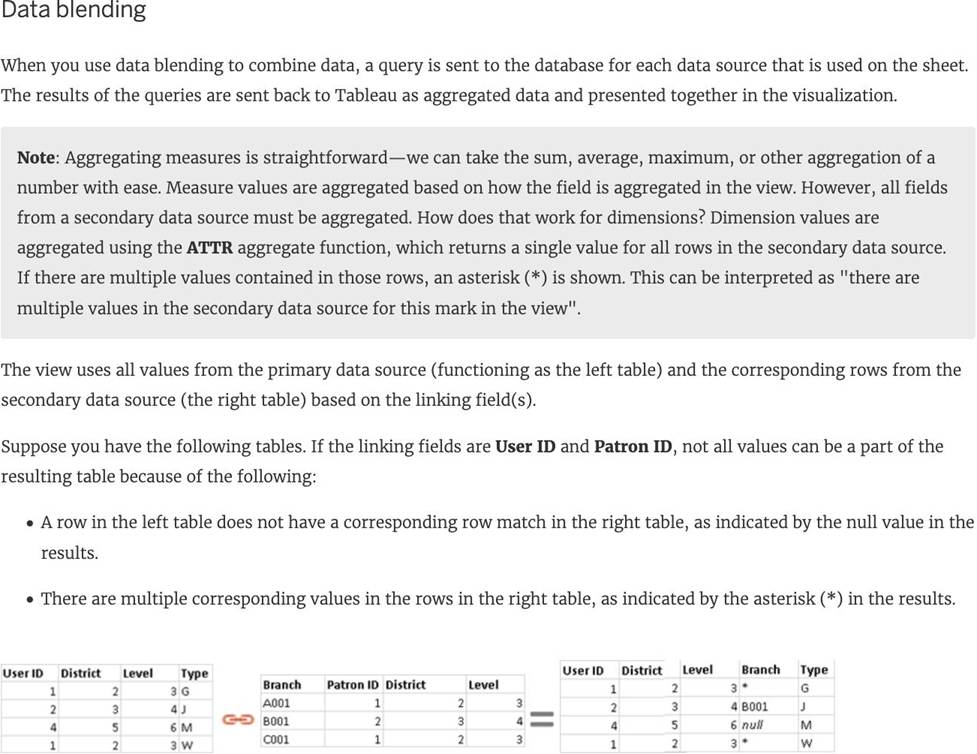
Data blending simulates a traditional left join. The main difference between the two is when the aggregation is performed. A join combines the data and then aggregates. A blend aggregates and then combines the data.
From the official website:
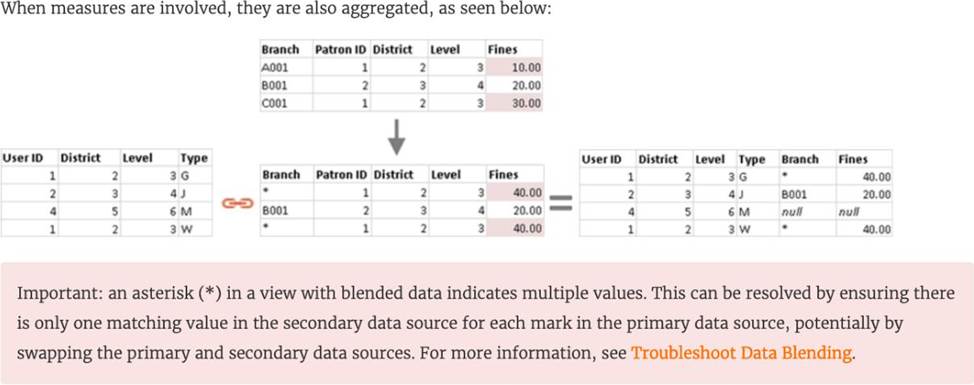
Reference: https://help.tableau.com/current/pro/desktop/en-us/multiple_connections.htm
What are three benefits of using an extract as compared to a live connection to a data source? Choose three.
- A . A live connection to a data source can be slow due to network and user traffic, whereas a connection to an extract improves performance.
- B . Extracts are stored in memory (RAM), resulting in faster query performance as compared with live data connections.
- C . A live connection to a data source provides the best performance for data connections.
- D . An extract reduces the amount of data stored on a client computer as compared to a live data connection.
- E . Calculated fields perform better in workbooks connected to extracts than in workbooks with live connections to a data source.
ABE
Explanation:
There are three benefits of using an extract as compared to a live connection to a data source:
A live connection to a data source can be slow due to network and user traffic, whereas a connection to an extract improves performance. An extract is a snapshot of data that is stored locally on your computer or on Tableau Server. An extract can reduce the load on the data source and speed up queries.
Extracts are stored in memory (RAM), resulting in faster query performance as compared with live data connections. When you use an extract, Tableau loads the data into memory and optimizes it for analysis. This allows Tableau to perform calculations and aggregations faster than with live connections.
Calculated fields perform better in workbooks connected to extracts than in workbooks with live connections to a data source. Calculated fields are custom fields that you create using formulas or expressions. When you use an extract, Tableau can process calculated fields more efficiently than with live connections.
You may create a context filter to:
- A . To create a dependent filter
- B . Improve performance
- C . To replace a data source filter
- D . Create a dependent numerical or top N filter
BD
Explanation:
Important question! You cannot use a context filter to replace a data source filter since each filter type has its own use case. Also, a content filter is an Independent filter and all other filters are called dependent since they only process the data that passes through a context filter.
According to the official documentation:
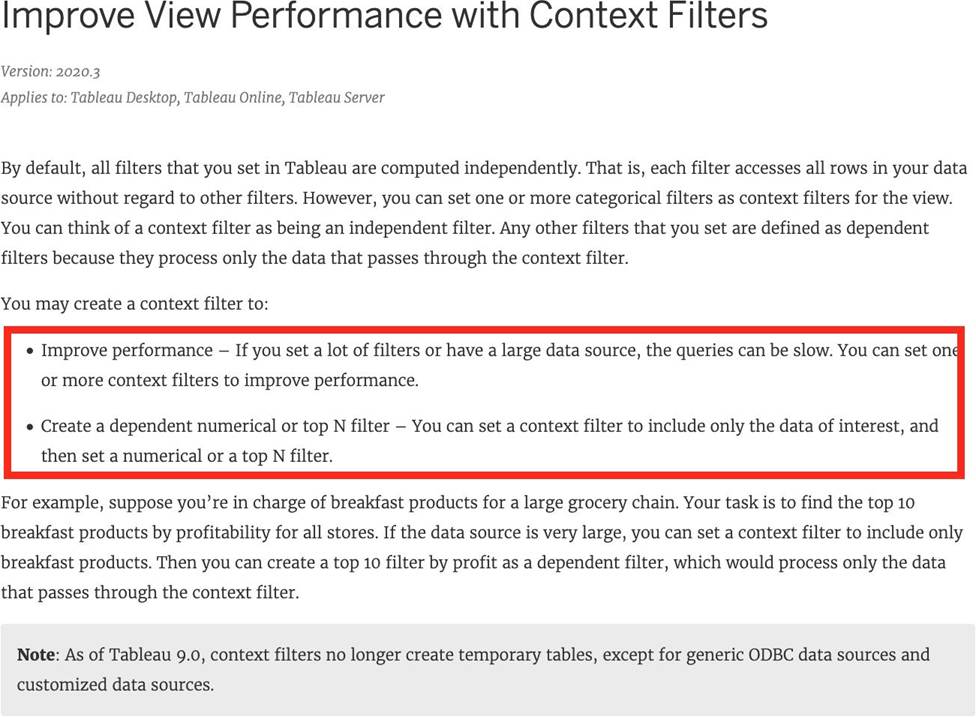
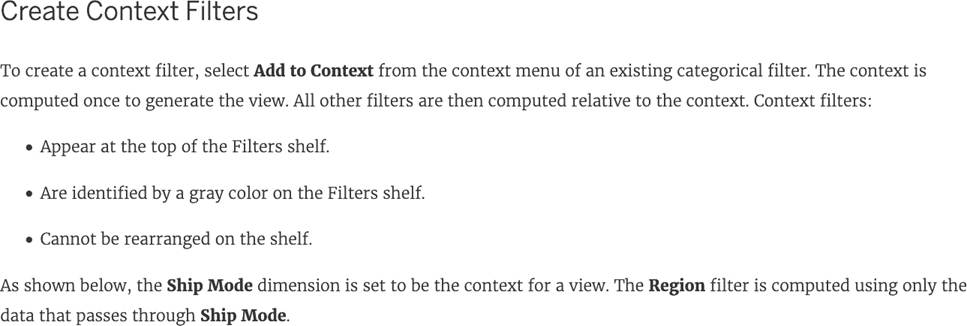
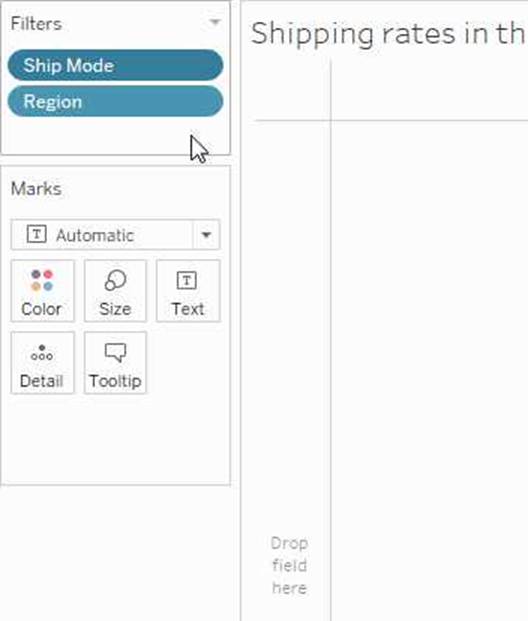
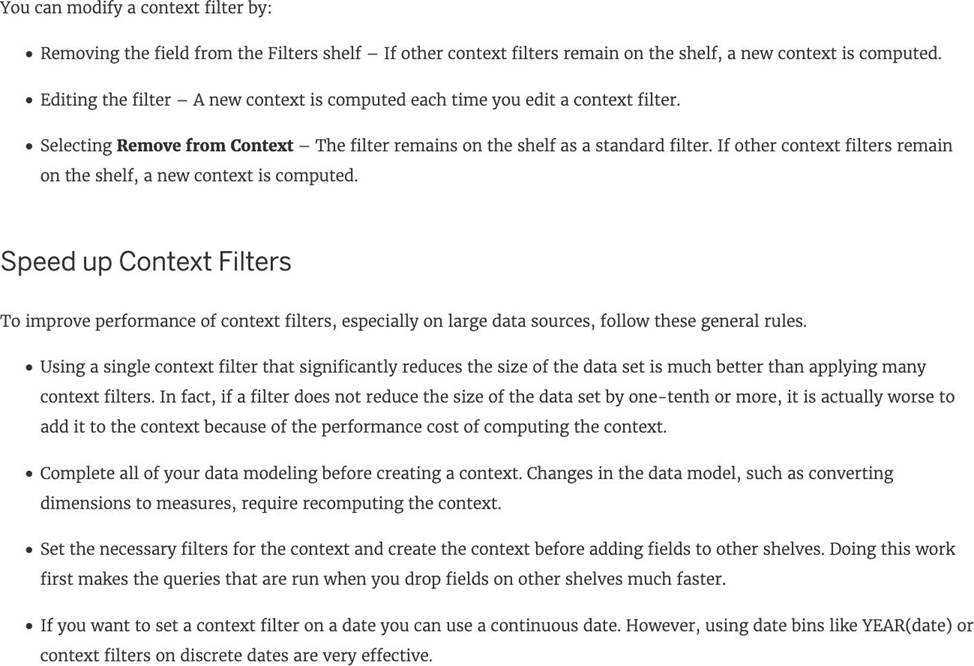
Reference: https://help.tableau.com/current/pro/desktop/en-us/filtering_context.htm
You need to invert the color intensity of a quantitative range.
Which option should you use?
- A . Reversed
- B . Opacity
- C . Border
- D . Stepped Color
A
Explanation:
To invert the color intensity of a quantitative range in Tableau, you should use the "Reversed" option. This option inverts the color scheme so that the colors representing the higher values are swapped with those representing the lower values. For example, if a color scale initially shows dark colors for high values and light colors for low values, using "Reversed" will switch this so that dark colors represent low values and light colors represent high values. This option is particularly useful for better visual distinction and interpretation in certain data scenarios.