
Tableau TDS-C01 Practice Exams
Last updated on Oct 21,2026- Exam Code: TDS-C01
- Exam Name: Tableau Desktop Specialist
- Certification Provider: Tableau
- Latest update: Oct 21,2026
Yes or No: The number of marks will increase when you increase the number of Dimensions in a view
- A . No
- B . Yes
B
Explanation:
Of course! As an example, see below:
1) Using the Sample Superstore data, let’s plot a bar chart showing the Sales for each Category:
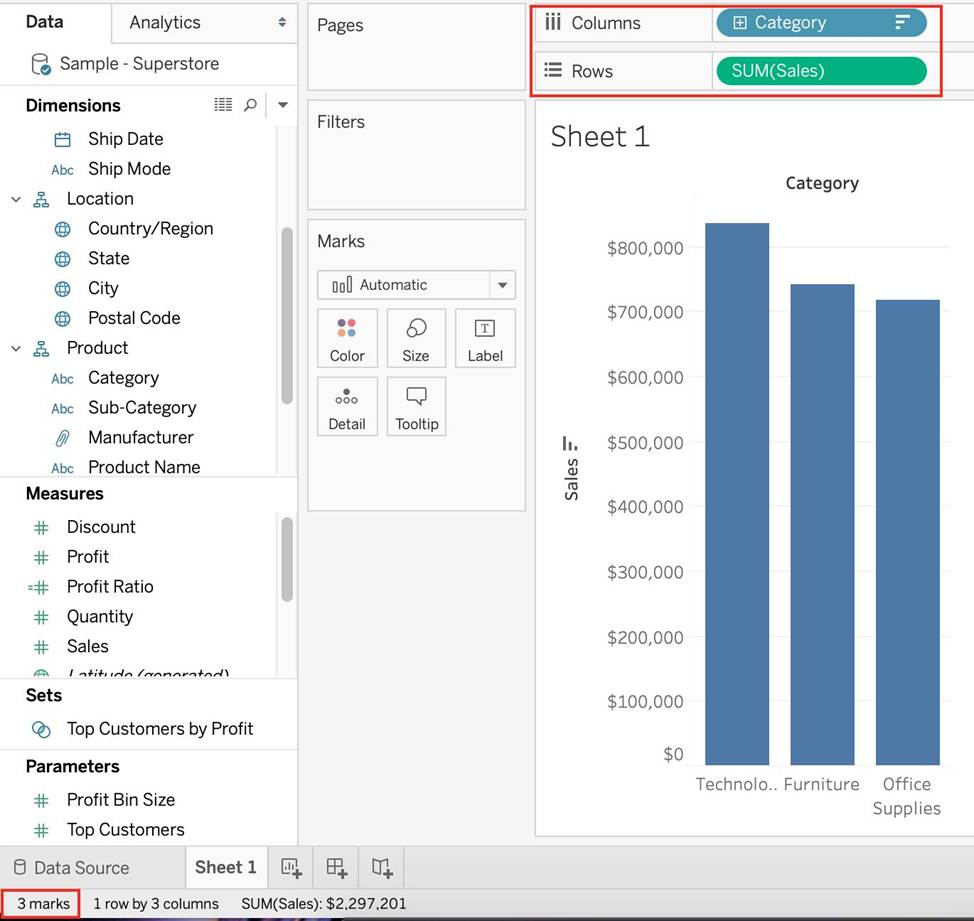
Observe that we have 3 marks – Each bar in a bar chart is called a mark. Similarly, each point in a scatter plot is also a mark, and so on for all charts.
1 row by 3 columns means that clearly on the y-axis (Sales), we have only a single mark – a single continous axis, but 3 different marks (Technology, Furniture and Office supplies) on the x-axis.
2) Now let’s add subcategory to the view as well (another dimension):
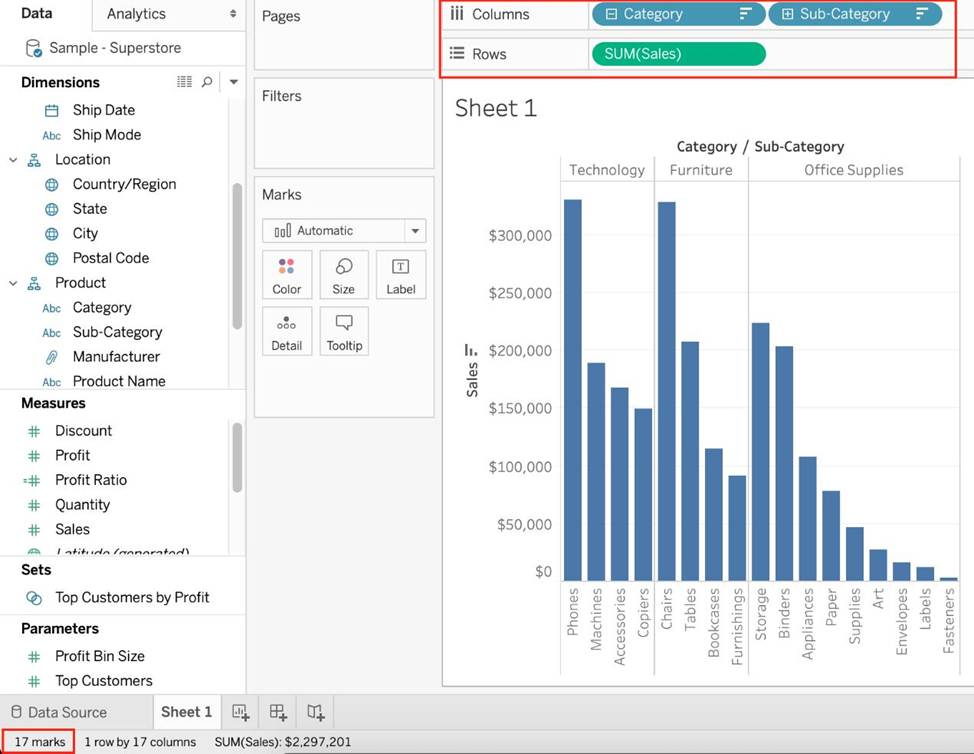
Observe that the number of marks has increased – i.e the number of Bars.
Also, notice we now have 1 row and 17 columns. Simply because 1 row = Sales (on the y-axis), and on the x-axis, we have 17 different columns (i.e product sub categories!!)
Which of the following is a compelling reason to export a sheet in Tableau to a PDF?
- A . If we want a static view of the visualisation.
- B . If we want to use filters in the visualisation.
- C . If we want to interact with the visualisation.
- D . If we want to dynamically enter parameters to the visualisation.
A
Explanation:
Exporting the visualisation gives us a static view of the visualisation.
It is NOT possible to interact with it, use filters, or dynamically enter anything in a visualisation exported PDF.
In Tableau Desktop, you can save views as PDF files rather than printing them as hard copies. You do not need to have Adobe Acrobat installed on your computer.
When you print an individual sheet to PDF, filters in the view are not included. To show filters, create a dashboard containing the sheet and export the dashboard to PDF. (IMPORTANT)
Reference: https://help.tableau.com/current/pro/desktop/en-us/printing.htm
Which two types of fields appear blue? Choose two.
- A . Continuous measures
- B . Discrete measures
- C . Continuous dimensions
- D . Discrete dimensions
BD
Explanation:
Discrete measures and discrete dimensions appear blue in Tableau. Discrete fields are those that have a finite number of distinct values, such as names, categories, or dates. Discrete fields are usually used to create headers or labels in the view. Blue fields indicate that the field is discrete. Continuous measures and continuous dimensions appear green in Tableau. Continuous fields are those that have an infinite range of possible values, such as numbers or ratios. Continuous fields are usually used to create axes or color gradients in the view. Green fields indicate that the field is continuous1
If you use a percent difference Quick Table Calculation, what value will be the first data value?
- A . null
- B . -1
- C . 0000
- D . 0
A
Explanation:
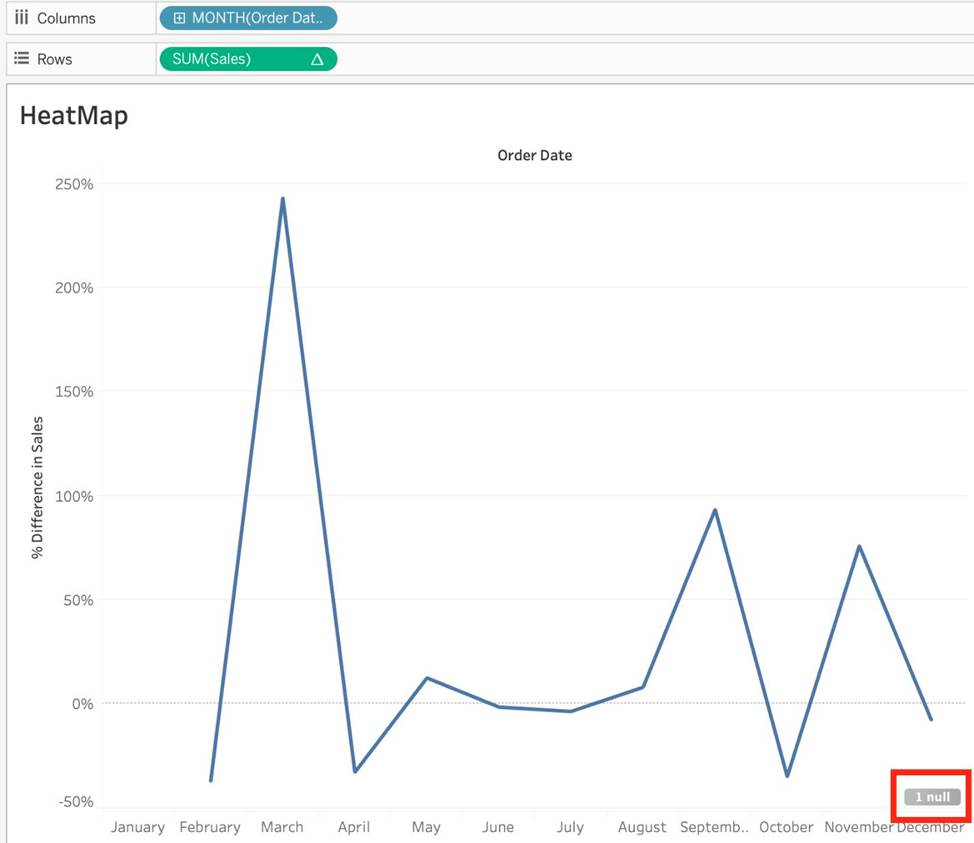
When using a Percent difference, Tableau calculates what the percent change has occured as compared to the last data value. BUT, for the first data value, there is no previous value to compare it to. Hence, it appears as NULL.
What two methods can you use to change the font of a worksheet title? Choose two.
- A . Double-click the title in a particular view and use the dialog box.
- B . Right-click the title in a view, and then select Format Title.
- C . Select Format on the menu, and then select Font.
- D . Select Format on the menu, and then select Title and Caption.
A, D
Explanation:
In Tableau, you can change the font of a worksheet title by double-clicking directly on the title in the view, which opens a dialog box where you can format the text, including changing the font. Another method is to use the Format menu; from there, you select "Title and Caption," which opens the Format Title pane on the left side of the screen, where you can change the font and other formatting options for the worksheet title.
Which of the following are valid ways to export a dashboard with multiple visualisations as an image?
- A . Click on Worksheet in the Menu bar followed by Export, then choose Image
- B . using the floating export worksheet option on the Dashboard
- C . Right click on the dashboard, and choose Copy, then image.
- D . Click on Dashboard in the Menu bar followed by Copy Image
D
Explanation:
Only 1 option is correct –
Click on Dashboard in the Menu bar followed by Copy Image
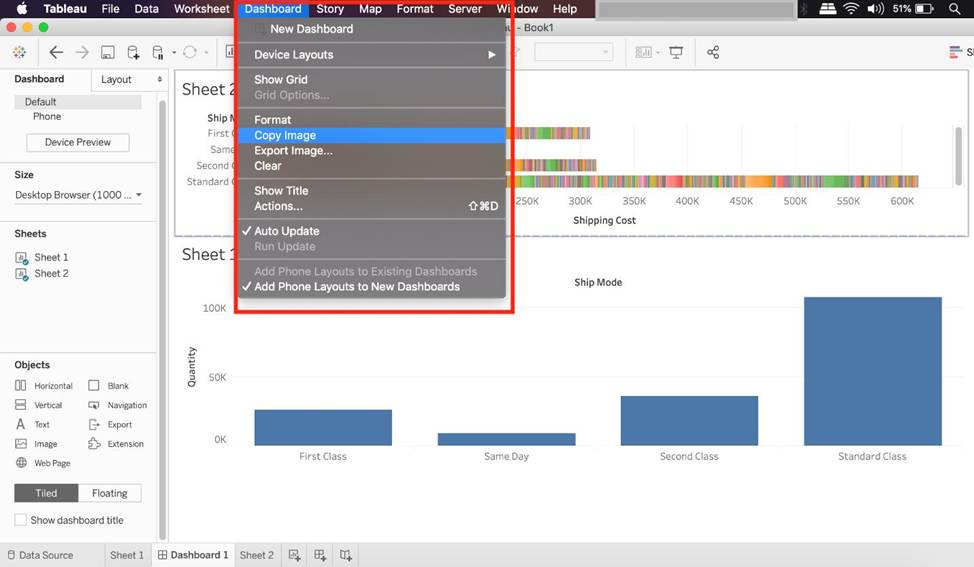
Right click on the dashboard, and choose Copy, then image – Try doing this, you will end up copying just one of the worksheets not the entire dashboard
Click on Worksheet in the Menu bar followed by Export, then choose Image – Again, try doing this. You will end up copying just one of the worksheets not the entire dashboard
Using the floating export worksheet option on the Dashboard – No such option exists
We can join a maximum of ______ tables in Tableau
- A . 16
- B . 32
- C . 64
- D . 128
B
Explanation:
It is possible to join a maximum of 32 tables in Tableau!
Reference: https://www.mytectra.com/interview-question/tableau-interview-question-and-answers
Is it possible to make a Measure discrete?
- A . No
- B . Yes
B
Explanation:
Of course! Follow along:
Right click on any measure, and choose Discrete as shown:
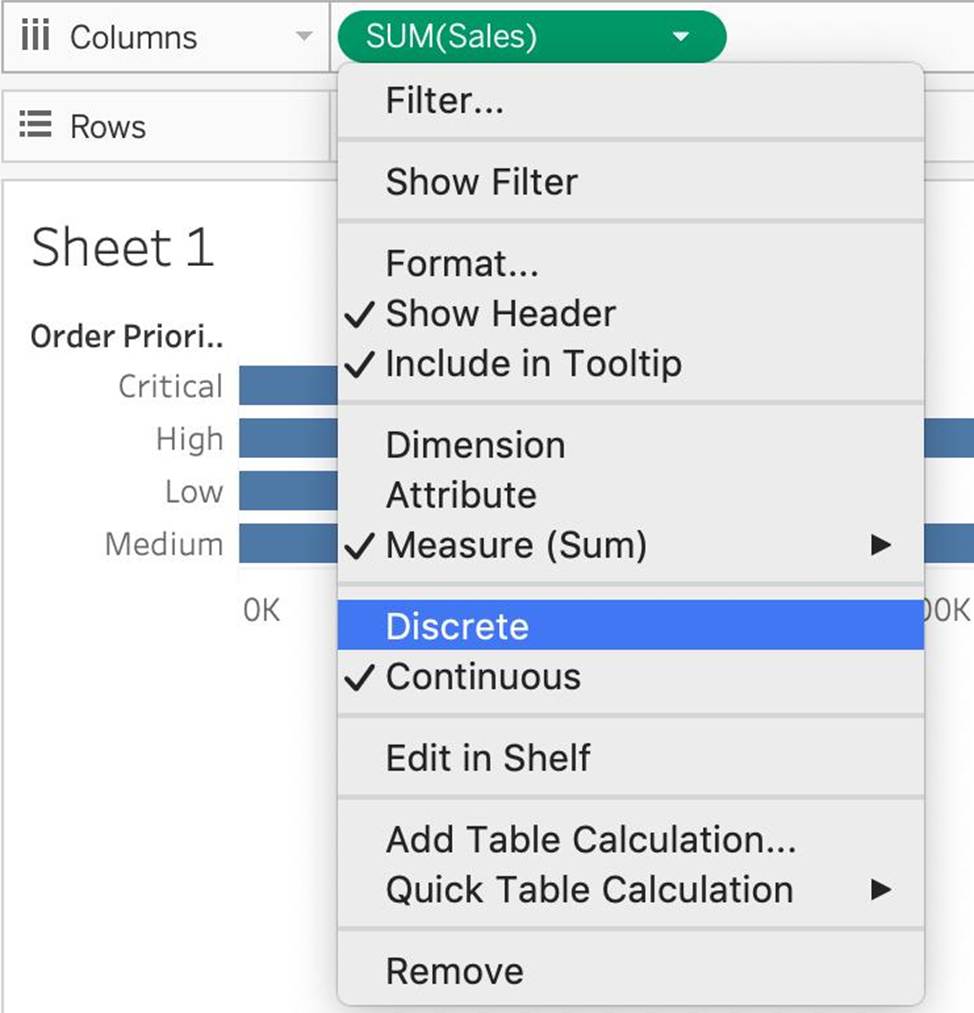
Once you do this, the green pill becomes blue in colour, indicating that it is now Discrete!
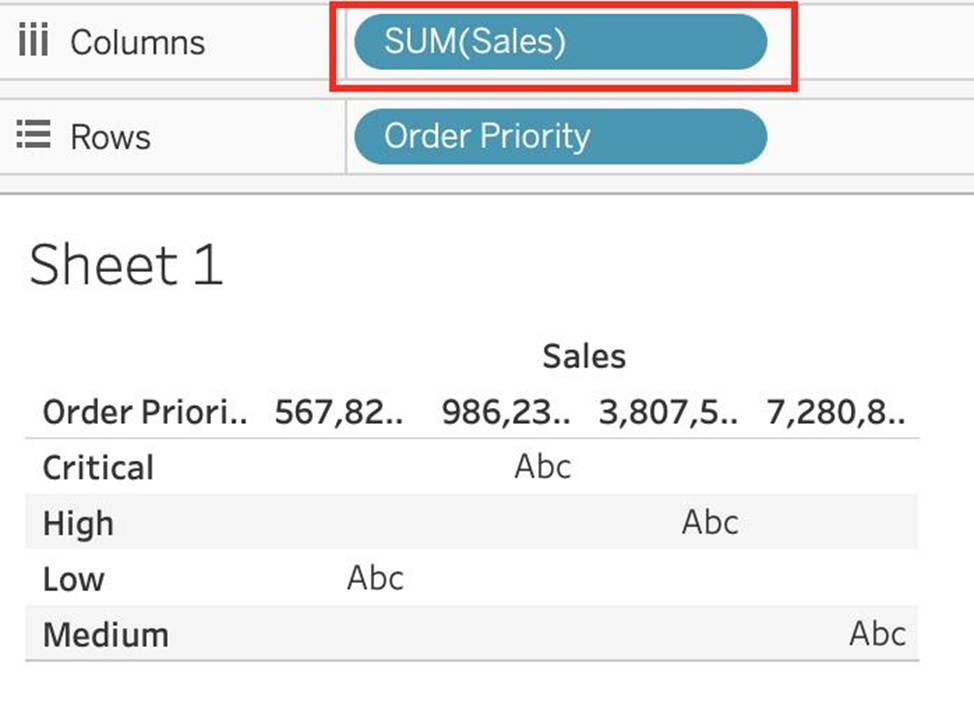
Reference: https://help.tableau.com/current/pro/desktop/en-us/datafields_typesandroles.htm
Using the Geo Data Table, create a Map showing Sales made per State.
For the State of New York (NY), what was the amount in Sales ($) made for Phone Assortments with White color?
- A . $16,581
- B . (Correct)
- C . $147,950
- D . $48,115
- E . $33,768
A
Explanation:
Phew! Tricky one! You needed to use filters in this one.
Follow along:
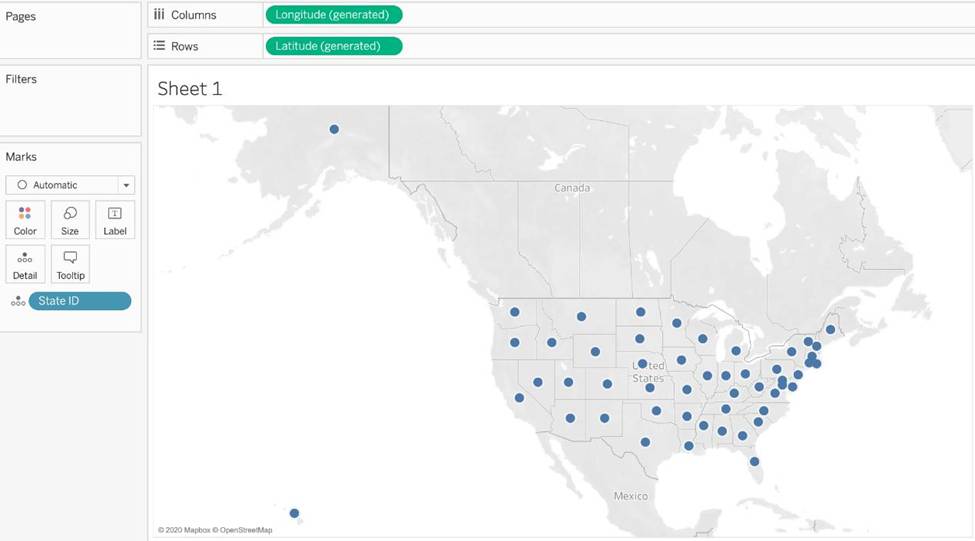
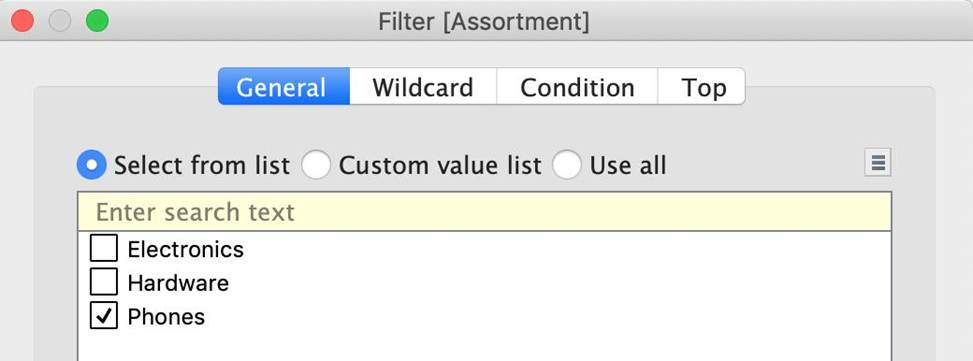
2) Next, as the question mentions, we need to focus on the Assortment PHONE, the color WHITE, and the state of NEW YORK. -> so we use filters for this!
i) First drag Assortment to Filters, and select only Phones:
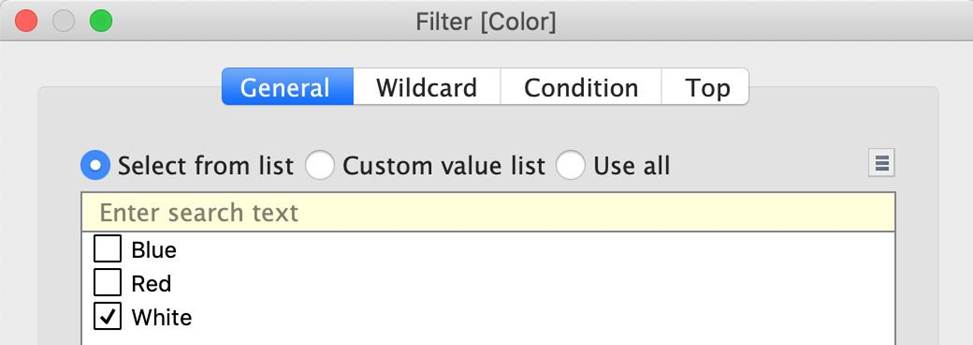
ii) Next, drag Color to Filters and Choose only White:
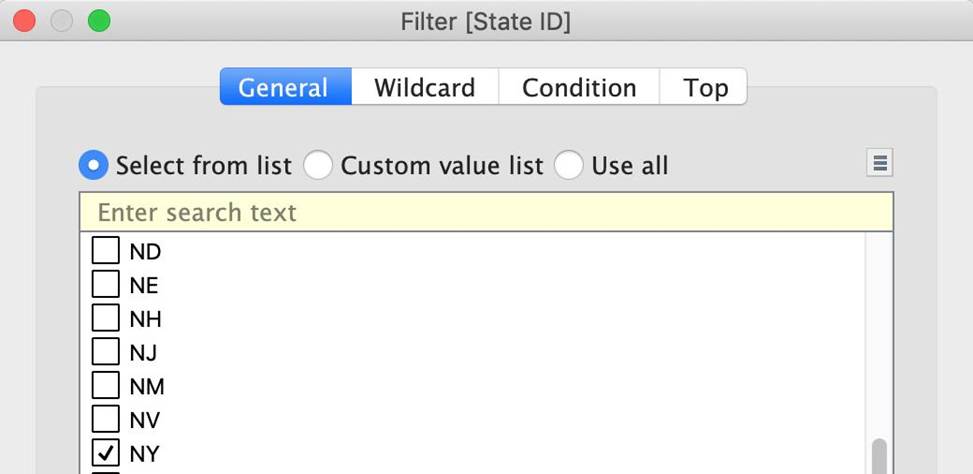
iii) Next, drag State ID to Filters, and choose New York (NY):
And Voila! We have our answer as follows:
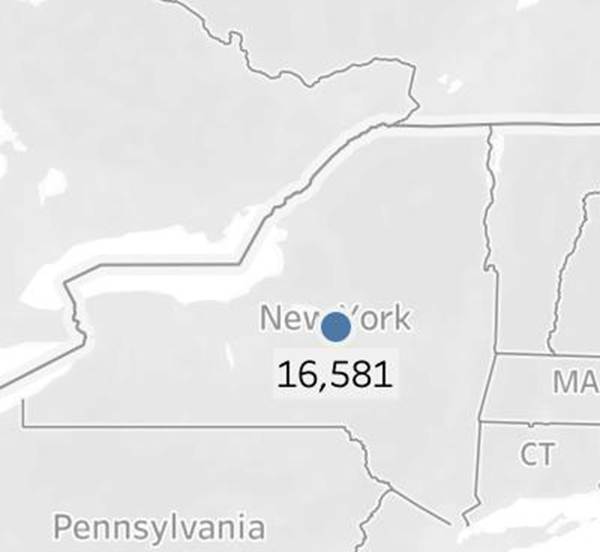
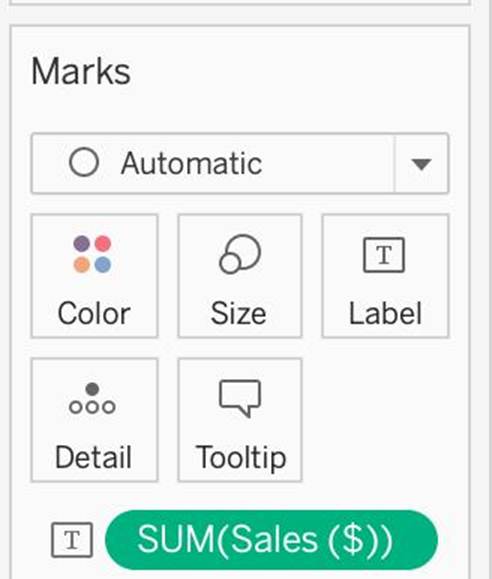
iv) Last, drag Sales to Label:
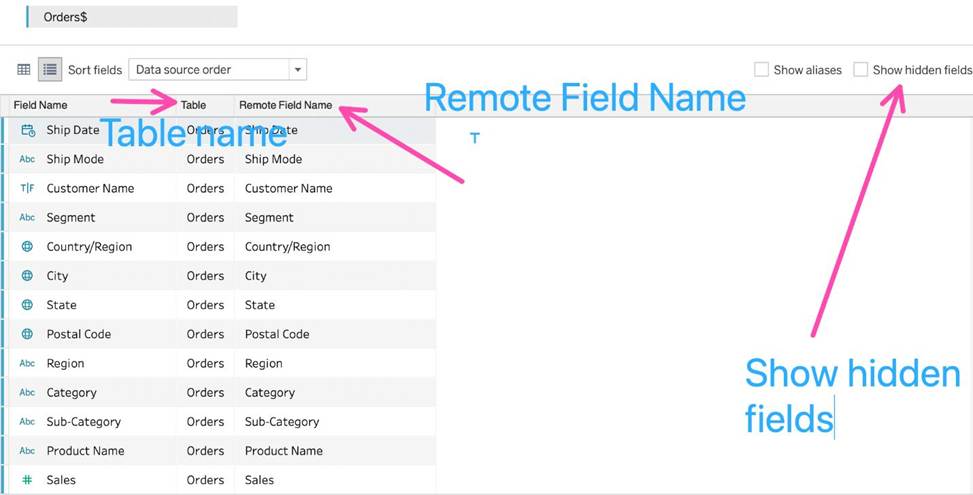
Which of the following are valid use-cases for the ‘Manage Metadata’ functionality?
- A . To clean and automatically fix the data issues in our data source
- B . To see the field name in the original data source
- C . To view all hidden fields
- D . To see the table a field belongs to
BCD
Explanation:
Top of Form
To clean and automatically fix the data issues in our data source – This is the definition of Data Interpreter.
To rename the field in the original data source – We never modify the original data source when managing metadata. All changes are local to Tableau for our convenience only.
All other options can be modified using the Manage Metadata property.
Bottom of Form