
Tableau TDS-C01 Practice Exams
Last updated on Oct 21,2026- Exam Code: TDS-C01
- Exam Name: Tableau Desktop Specialist
- Certification Provider: Tableau
- Latest update: Oct 21,2026
Which of the following describes the best way to change the formatting at a workbook level?
- A . Right click anywhere in the view, choose format, and then specify the formatting in the new Format workbook pane.
- B . It is only possible to specify formatting at a worksheet level, not at the workbook level.
- C . Click on Text in the Marks card, choose format, and then specify the formatting in the new Format workbook pane.
- D . Choose Format from the menu on top and then specify the formatting in the new Format workbook pane.
D
Explanation:
It is very much possible to specify the formatting at a WORKBOOK level (all sheets) instead of a single worksheet level.
You can quickly change how fonts, titles, and lines look in every view in a workbook by specifying format settings at the workbook level, instead of the worksheet level.
For example, you might want to use a specific font, size, and color so that all views adhere to your company’s brand. You might also want to remove grid lines from your views―or make them more noticeable by increasing their pixel size or color.
You can also change the theme used by your workbook. Themes control items like the default font, colors, and line thickness. When you create a new workbook, it automatically uses the Default theme, which uses visual best practices.
Change fonts in your workbook:
You can change all fonts in your workbook or you can change fonts for only certain areas, such as just worksheet titles.
1) On the Format menu, select Workbook.
2) The Format Workbook pane replaces the Data pane on the left and provides a series of drop-down lists where you can change all font settings in a workbook, as well as the font settings for titles of worksheets, stories, and dashboards.
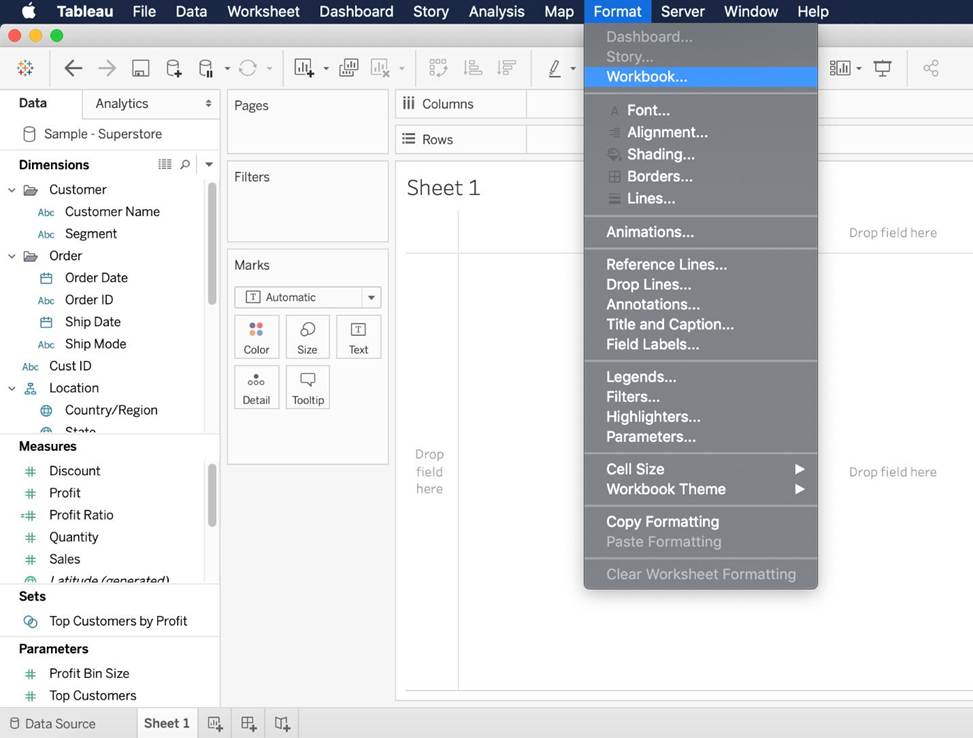
Note: If you have made font changes at the worksheet level, such as on a filter card or a worksheet title, changing the font at the WORKBOOK level will overwrite those changes.
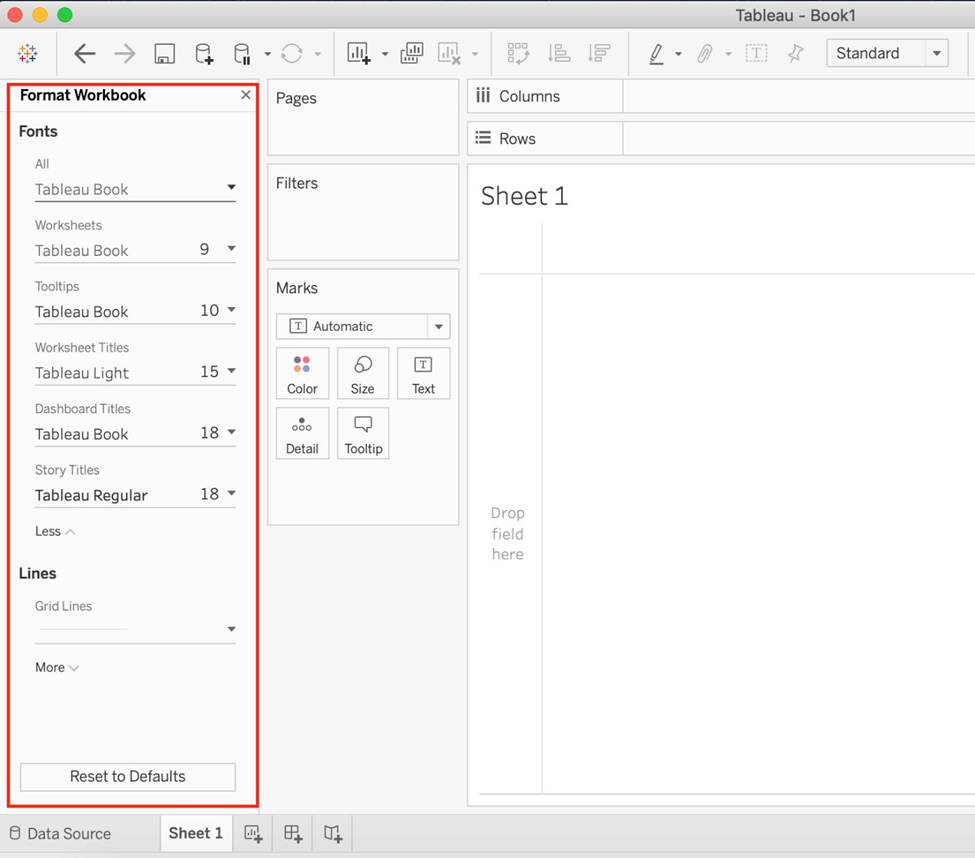
Reset a workbook to its default settings
When you make changes to your workbook’s font settings, a gray dot appears next to the setting in the Format Workbook pane. You can quickly switch back to default settings using the Reset to Defaults button.
1) On the Format menu, select Workbook.
2) In the Format Workbook pane, click Reset to Defaults.
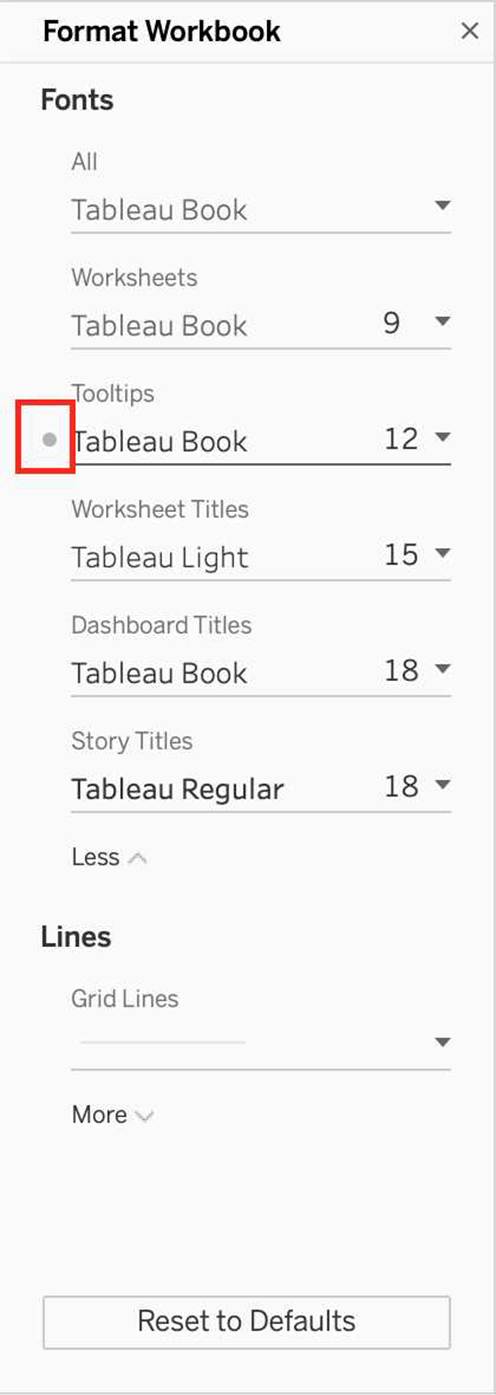
Reference: https://help.tableau.com/current/pro/desktop/en-us/formatting_workbook.htm
The calculation [Ship Date] – [Order Date] will return _______________
- A . Number of orders placed in that duration
- B . Number of days between these dates
- C . Number of unique orders placed between these dates
- D . Number of orders shipped between these dates
B
Explanation:
As the names suggest, if we subtract the order date from the shipping date, we simply get the number of days between these 2 dates.
We can these use this calculated field in our charts, and can use COUNT, SUM, AVG etc with them according to our need.
What is the following icon in the Data pane used to do?
Larger image

- A . View Data
- B . Clean Data
- C . Extract Data
- D . Sort Data
A
Explanation:
View Data allows you to inspect your data in a spreadsheet-like layout. You can view data either for the data source as a whole, or to see the underlying data for an individual mark or a group of marks. In a worksheet, the rows that you see in the View Data window are always scoped to the current selection or the current view.
The View Data window displays as much of the data as possible by default, up to 10,000 rows. Field names are shown as column headers and can be dragged and dropped to change their display order. Click a column header to sort the values in that column.
From the official website:
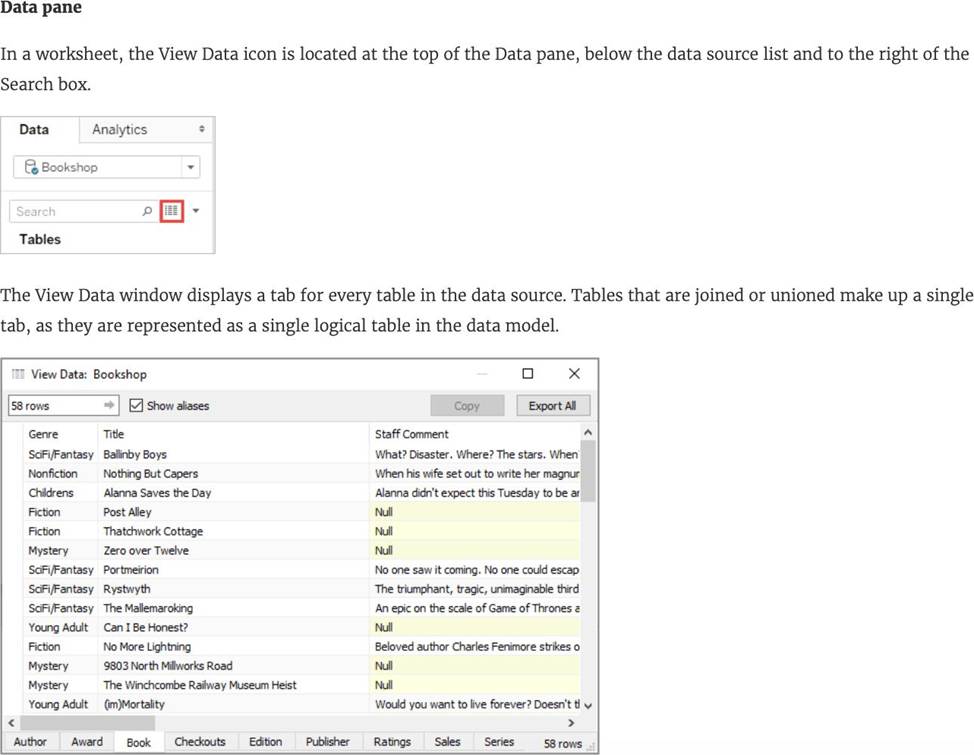
Reference: https://help.tableau.com/current/pro/desktop/en-us/inspectdata_viewdata.htm
True or False: Trend lines can only be used with numeric or date fields
- A . True
- B . False
A
Explanation:
You can show trend lines in a visualization to highlight trends in your data.
To add trend lines to a view, both axes must contain a field that can be interpreted as a number. For example, you cannot add a trend line to a view that has the Product Category dimension, which contains strings, on the Columns shelf and the Profit measure on the Rows shelf.
However, you can add a trend line to a view of sales over time because both sales and time can be interpreted as numeric values.
Reference: https://help.tableau.com/current/pro/desktop/en-us/trendlines_add.htm
Which of the following would you use to edit the Shape, colour, and Text of your visualisations?
- A . Marks Card
- B . Data Pane
- C . Filter Shelf
- D . Analytics Pane
A
Explanation:
The Marks Card allows us not only to edit the Shape, Text and Colour, but also to modify the Tooltip and the level of detail of the visualisation!
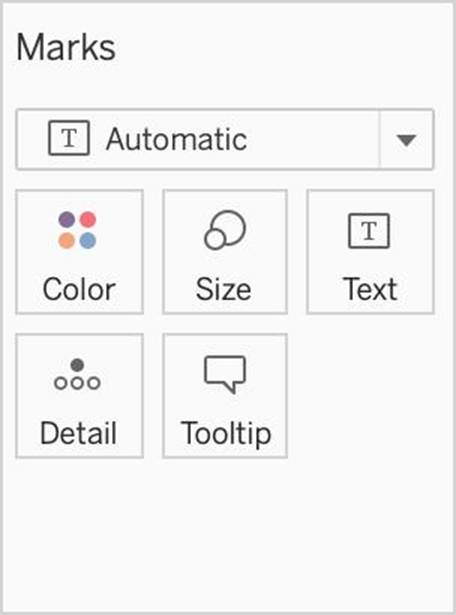
The Marks card is a key element for visual analysis in Tableau. As you drag fields to different properties in the Marks card, you add context and detail to the marks in the view.
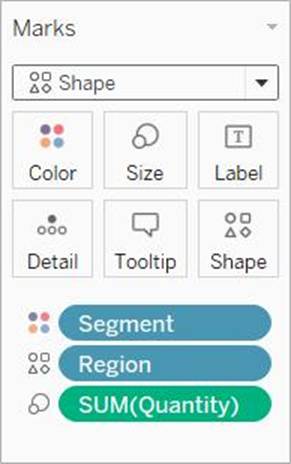
You use the Marks card to set the mark type (see Change the Type of Mark in the View), and to encode your data with color, size, shape, text, and detail. To change the mark settings, see Control the Appearance of Marks in the View.
In this example, three different fields have been dragged to different properties in the Marks card.
Segment is on Color, Region is on Shape, and Quantity is on Size.
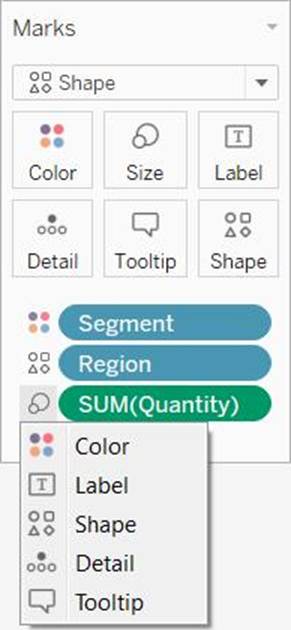
After you add a field to the Marks card, you can click the icon next to the field to change the property it is using. You can also click the property buttons in the Marks card to change those settings.
Many properties can have multiple fields. For example, you can add multiple fields to Label, Detail, Tooltip, and Color. Size and Shape can only have one field at a time. For more details, see Control the Appearance of Marks in the View.
Reference: https://help.tableau.com/current/pro/desktop/en-us/buildmanual_shelves.htm
True or False: When relating tables, the fields that define the relationships must have the same data type.
- A . True
- B . False
A
Explanation:
According to the official documentation, the following are the requirements for using relationships:
1) When relating tables, the fields that define the relationships must have the same data type. Changing the data type in the Data Source page does not change this requirement. Tableau will still use the data type in the underlying database for queries.
2) You can’t define relationships based on geographic fields.
3) Circular relationships aren’t supported in the data model.
4) You can’t edit relationships in a published data source.
5) You can’t define relationships between published data sources.
6) Your workbook must use an embedded data source for you to be able to edit relationships and performance options in the Data Source page in Tableau Online or Tableau Server.
Reference: https://help.tableau.com/current/online/en-us/datasource_relationships_learnmorepage.htm
Which of the following is a good reason for using a bullet graph?
- A . Comparing the actual sales against the target sales
- B . Analysing the trend over a given time period
- C . Forecasting future sales
- D . Displaying the year-on-year growth in sales
A
Explanation:
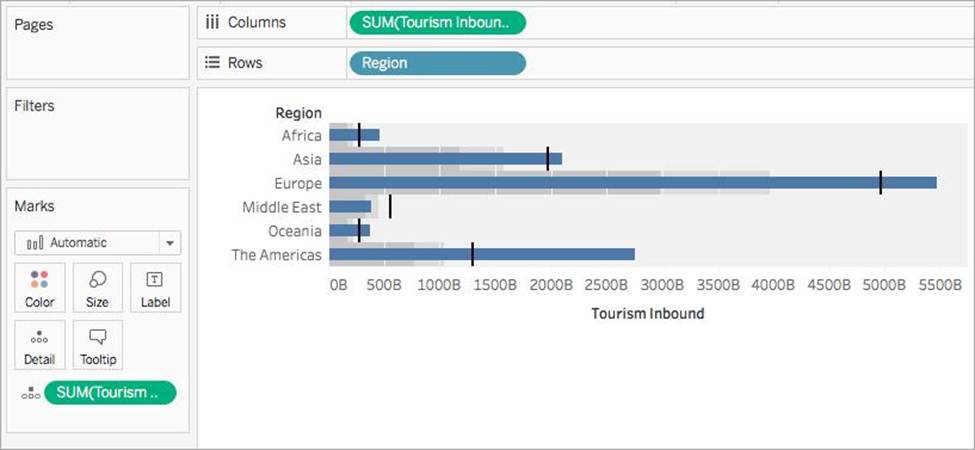
A bullet graph is a variation of a bar graph developed to replace dashboard gauges and meters. A bullet graph is useful for comparing the performance of a primary measure to one or more other measures. Below is a single bullet graph showing how actual sales compared to estimated sales.
Reference: https://help.tableau.com/current/pro/desktop/en-us/qs_bullet_graphs.htm
Creating a scatter plot requires a minimum of how many measures?
- A . 2
- B . 4
- C . 1
- D . 3
A
Explanation:
We can use scatter plots to visualize relationships between numerical variables!
In Tableau, you create a scatter plot by placing at least one measure on the Columns shelf and at least one measure on the Rows shelf (Total 2 minimum). If these shelves contain both dimensions and measures, Tableau places the measures as the innermost fields, which means that measures are always to the right of any dimensions that you have also placed on these shelves. The word "innermost" in this case refers to the table structure.
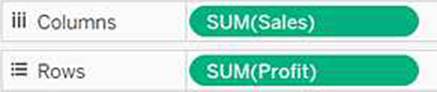
(Simple Scatter Plot)

(Matrix of Scatter Plots)
A scatter plot can use several mark types. By default, Tableau uses the shape mark type. Depending on your data, you might want to use another mark type, such as a circle or a square. For more information, see Change the Type of Mark in the View.
To create a scatter plot, follow the steps below:
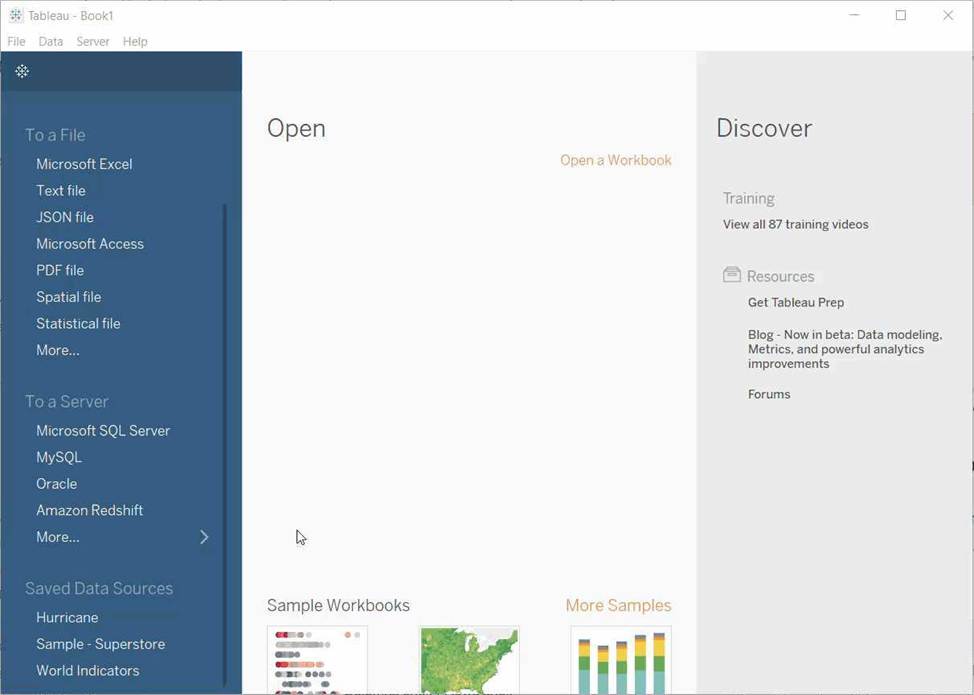
Reference: https://help.tableau.com/current/pro/desktop/en-us/buildexamples_scatter.htm
The default path for all supporting files, data sources, icons, logs etc is in ______________________
- A . Documents -> Tableau Files
- B . Documents -> Tableau
- C . Documents -> My Tableau Repository
- D . Downloads -> Tableau Support Files
C
Explanation:
By default, all of the above mentioned are stored in Documents -> My Tableau Repository
Reference: https://help.tableau.com/current/pro/desktop/en-us/environ_filesandfolders.htm
You create a visualization by first adding a measure to rows. Next, you add a dimension with 11 members to columns.
Assuming that all the dimensions have a non-zero value, how many marks are in the view before and after the dimension is added?
- A . 1 before and 2 after
- B . 1 before and 12 after
- C . 1 before and 11 after
- D . 2 before and 11 after
C
Explanation:
In Tableau, when you initially add a measure to the rows shelf, you create one mark in the view that represents the aggregate value of that measure. When you then add a dimension with 11 members to the columns shelf, the view is subdivided into 11 separate marks, each representing the measure for one of the dimension members. This results in a total of 11 marks in the view after the dimension is added, one for each member of the dimension.