Tableau TDS-C01 Practice Exams
Last updated on Oct 22,2026- Exam Code: TDS-C01
- Exam Name: Tableau Desktop Specialist
- Certification Provider: Tableau
- Latest update: Oct 22,2026
Using the Time Series Table, create a Line chart showing the Monthly Year over Year Growth for the Sales, broken down by Assortment.
For the Electronics assortment, which Month had the most NEGATIVE value of Year over Year Growth?
- A . October
- B . September
- C . July
- D . June
A
Explanation:
Follow along:
1) Drag Assortment and Year ID (choose Discrete Month) to Columns shelf, and Sales to the Columns Shelf.
For sales, click on the pill -> choose Quick Table calculation -> Year over Year growth.
The view should now look like:
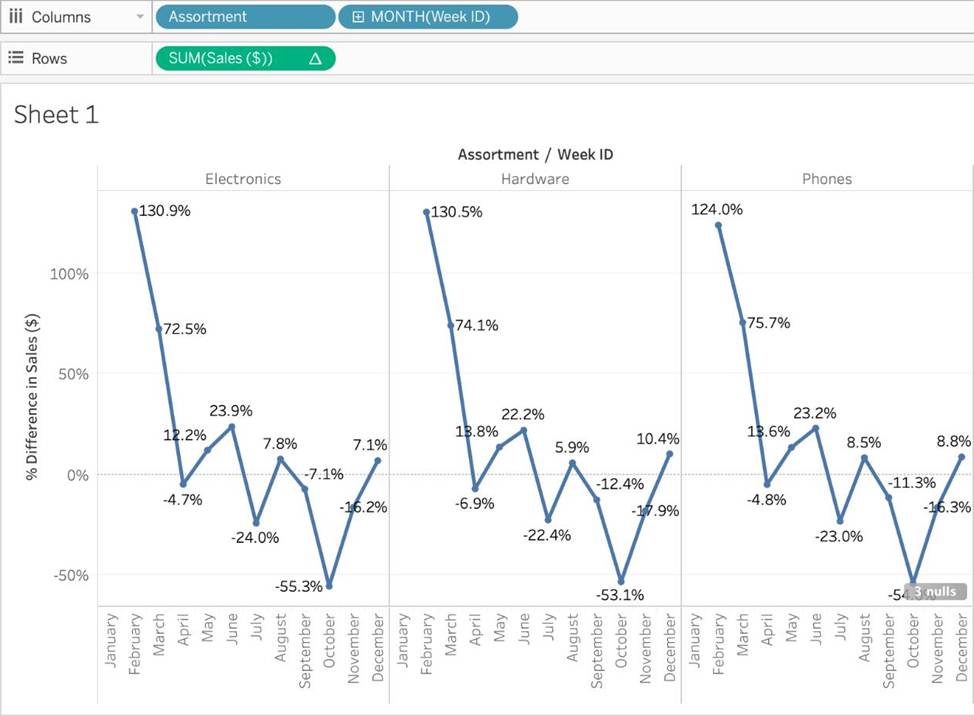
It is clear that October with -55.3% had the lowest Year on Year growth.
In order to avoid any confusions, what should you do after creating a Dual-axis chart?
- A . Hide the axis
- B . Change the colours
- C . Synchronise the axis
- D . Edit the labels
C
Explanation:
After creating a dual axis chart, make sure to synchronise their axis since they both might not be having the same y-axis.
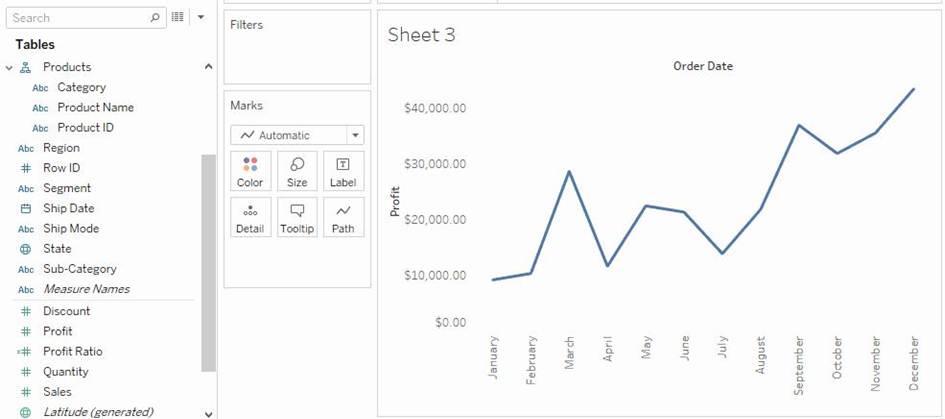
To align the two axes in a dual axes chart to use the same scale, right-click (control-click on Mac) the secondary axis, and select Synchronize Axis. This aligns the scale of the secondary axis to the scale of the primary axis.
In this example, the Sales axis is the secondary axis and the Profit axis is the primary axis.
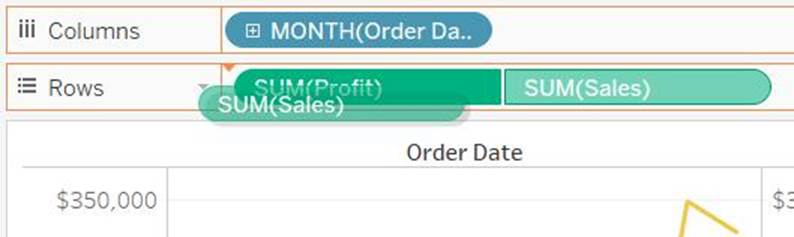
If you would like to change which axis is the primary, and which axis is the secondary, select the field on the Columns or Rows shelf that is the secondary, and drag it in front of the primary field on the shelf until you see an orange triangle appear.
In this example, you can select the SUM(Sales) field on the Rows shelf, and drag it in front of the SUM(Profit) field. The Sales axis is now the primary and the Profit axis is the secondary.
Reference: https://help.tableau.com/current/pro/desktop/en-us/multiple_measures.htm
What is the minimum amount of RAM recommended for any production use of Tableau Server?
- A . 8GB
- B . 16GB
- C . 32GB
- D . 64GB
B
Explanation:
The computer on which you are installing or upgrading Tableau Server must meet the minimum hardware requirements. If the Setup program determines that your computer does not meet the following requirements, you will not be able to install Tableau Server.
These minimum requirements are appropriate for a computer that you use for prototyping and testing of Tableau Server. They apply to single-node installations and to each computer in a distributed installation.
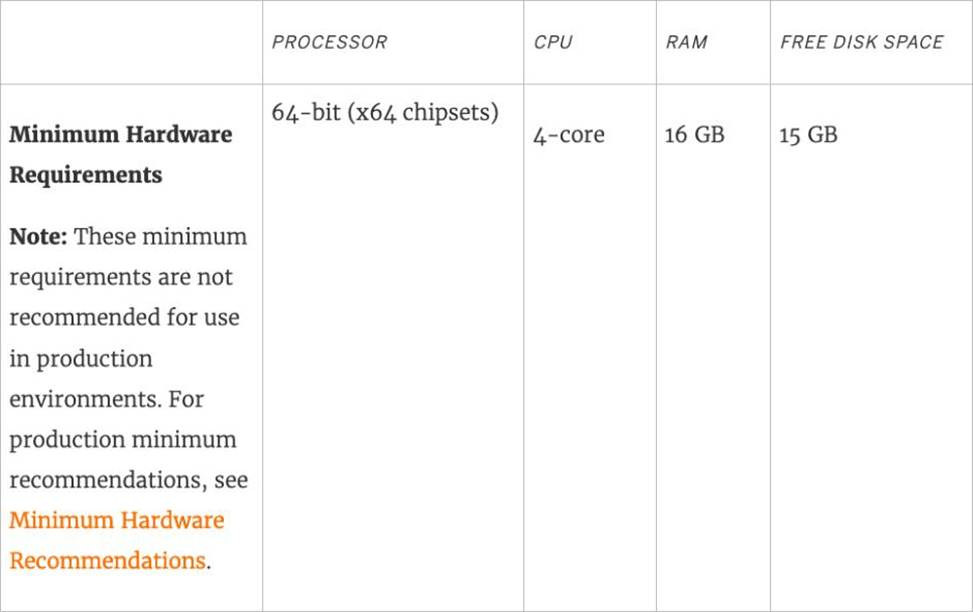
Reference: https://help.tableau.com/current/server/en-us/server_hardware_min.htm
A Tableau Support case can be opened in which of the following valid ways?
- A . Using the Developer Community Forum
- B . Contacting Salesforce using their website
- C . Using the support option on the Tableau website
- D . Using the Tableau learn website
C
Explanation:
It is possible to open a Tableau support case by visiting the following link: https://www.tableau.com/support/case
True or False: When you drag additional tables to the logical layer canvas, Tableau automatically attempts to create the relationship based on existing key constraints and matching fields to define the relationship. If it can’t determine the matching fields, then relating these tables is not possible.
- A . True
- B . False
B
Explanation:
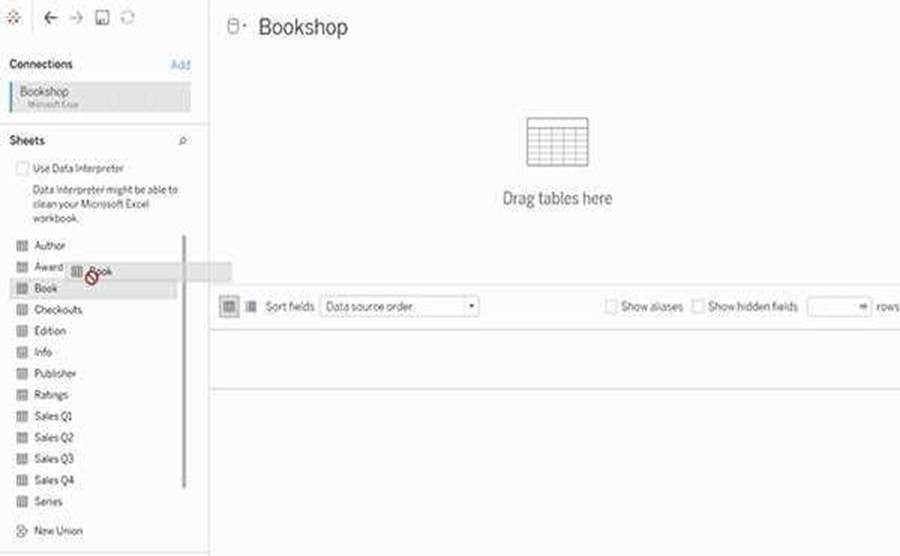
Tables that you drag to the logical layer of the Data Source page canvas must be related to each other. When you drag additional tables to the logical layer canvas, Tableau automatically attempts to create the relationship based on existing key constraints and matching fields to define the relationship. If it can’t determine the matching fields, you will need to select them.
If no constraints are detected, a Many-to-many relationship is created and referential integrity is set to Some records match. These default settings are a safe choice and provide the most a lot of flexibility for your data source.
Reference: https://help.tableau.com/current/server/en-us/datasource_datamodel.htm
True or False: When you drag additional tables to the logical layer canvas, Tableau automatically attempts to create the relationship based on existing key constraints and matching fields to define the relationship. If it can’t determine the matching fields, then relating these tables is not possible.
- A . True
- B . False
B
Explanation:
Tables that you drag to the logical layer of the Data Source page canvas must be related to each other. When you drag additional tables to the logical layer canvas, Tableau automatically attempts to create the relationship based on existing key constraints and matching fields to define the relationship. If it can’t determine the matching fields, you will need to select them.
If no constraints are detected, a Many-to-many relationship is created and referential integrity is set to Some records match. These default settings are a safe choice and provide the most a lot of flexibility for your data source.
Reference: https://help.tableau.com/current/server/en-us/datasource_datamodel.htm
Using the CoffeeChain table, create a Dual Axis chart showing the Sales (Bar chart) and Profit (Line Chart) for each Product type.
What was the Profit for the Herbal Tea product type in 2013?
- A . 68,620
- B . 74,683
- C . 37,455
- D . 46,493
C
Explanation:
If you answered this question quickly and correctly, you’re well prepared for the exam! Most students stumble while creating a Dual axis chart, so go ahead and give yourself a pat on the back!
To create a dual axis chart for the problem mentioned:
1) Drag Product Type to the column shelf, and Sales and Profit to the Row shelf:

2) Now, to focus on 2013, drag Date to the filter shelf and select only 2013:
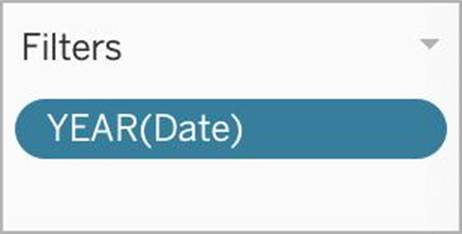
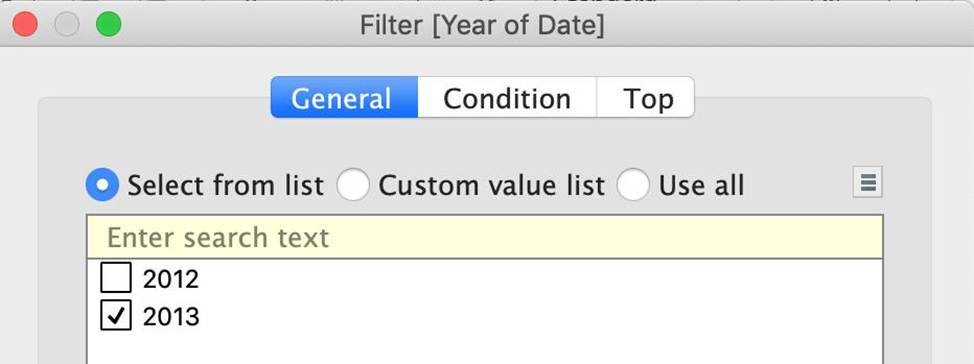
3) Now, click on the Profit pill in the Rows Shelf, and select dual axis:
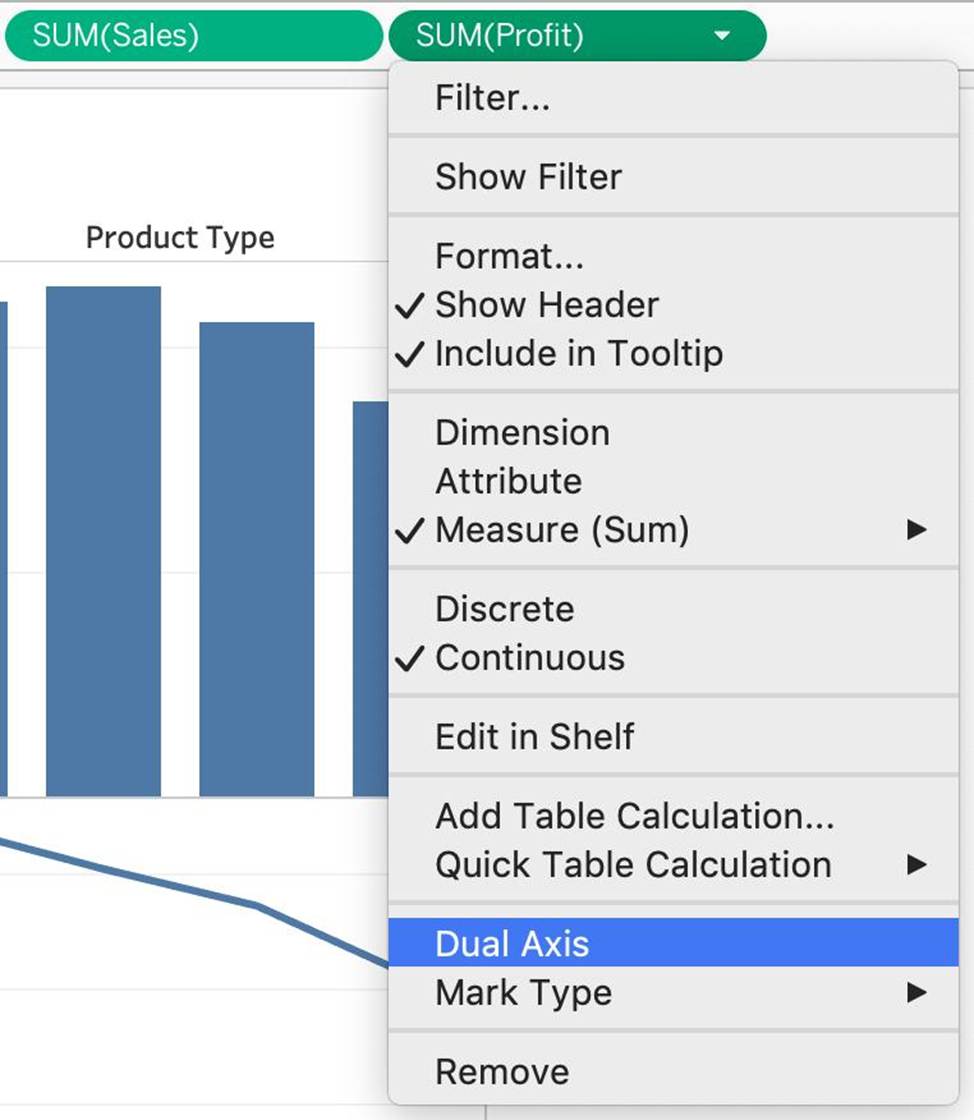
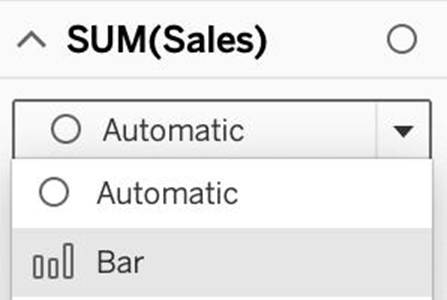
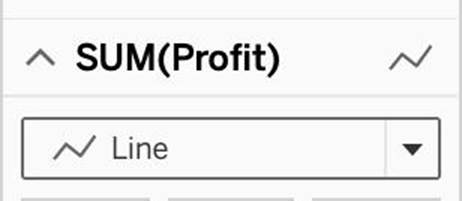
4) Now, in the marks shelf, choose Sales, and change the chart type to bar. Similarly, for Profit, change the chart type to Line.
Now the chart looks like this:
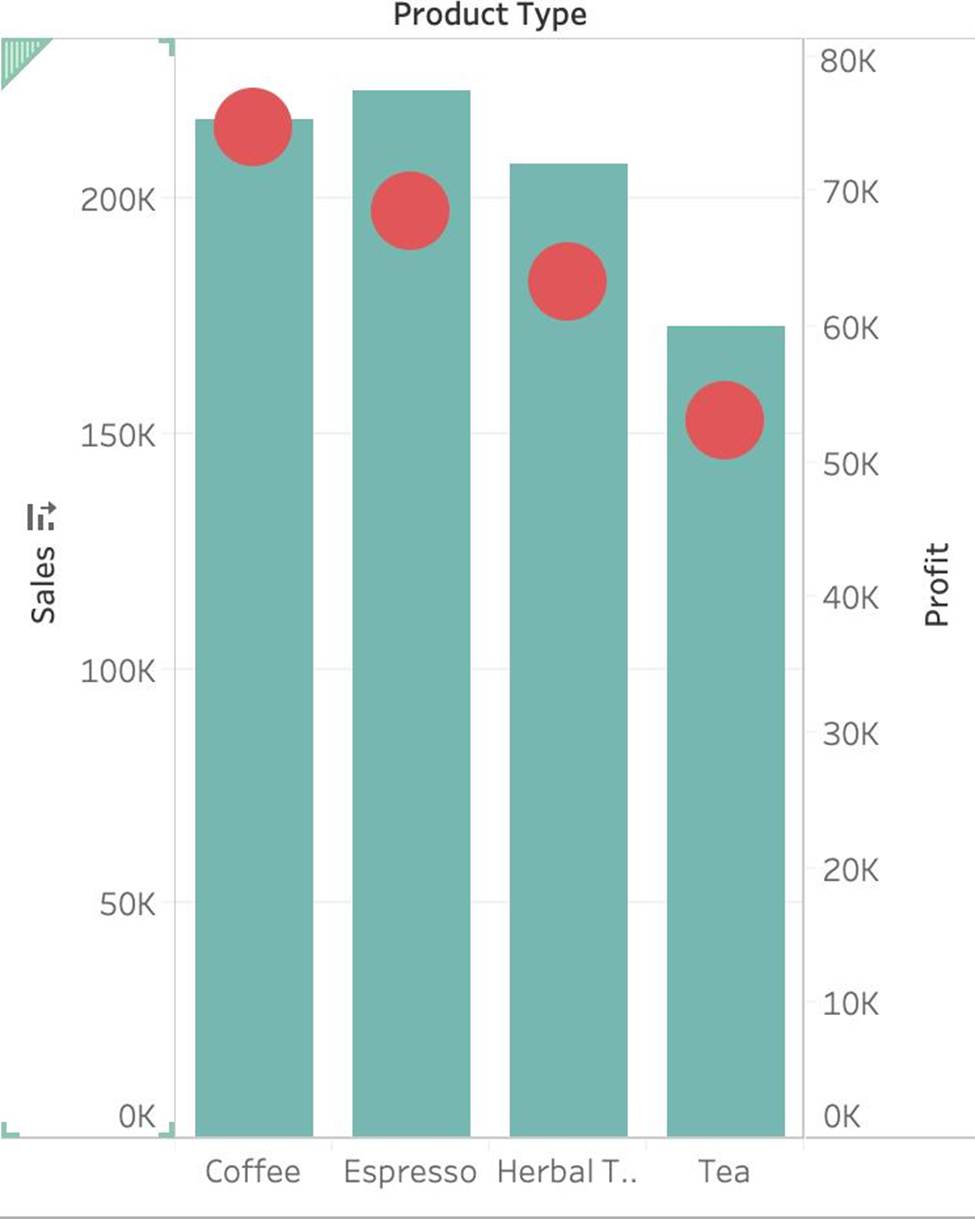
Now we change the Profit chart type to line:
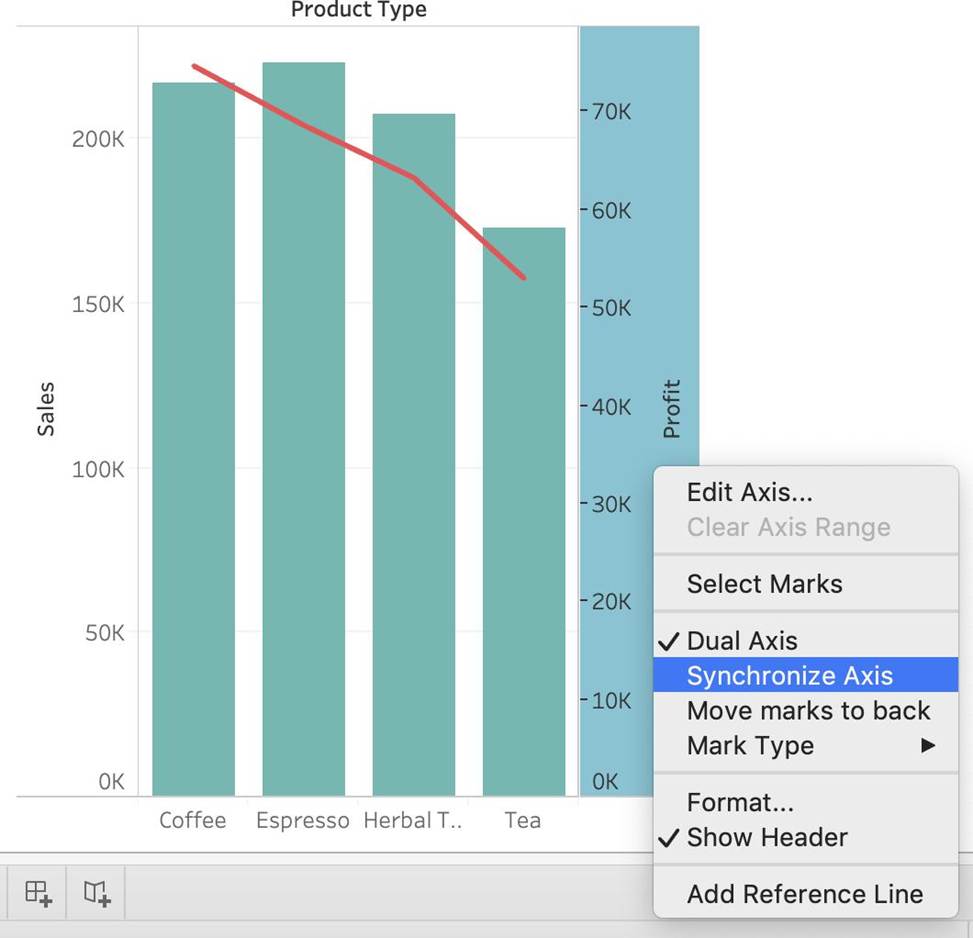
5) Finally, we synchronise the axis as follows: Right click on the axis, and choose ‘Synchronise axis’
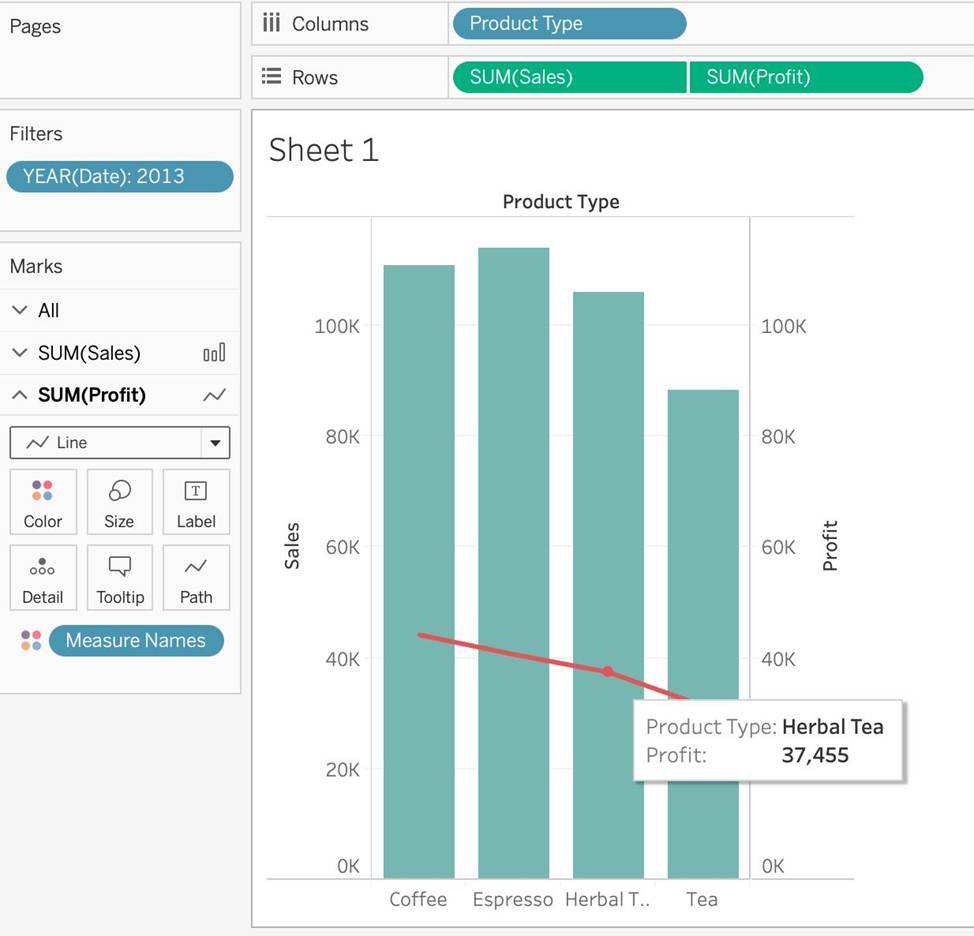
And, our final view and answer is:
You need to access options to change a dimension’s color palette.
In addition to the Marks card, what else can you use?
- A . The Color legend
- B . Edit in Shelf
- C . The Format menu
- D . Edit Caption
A
Explanation:
You can use the Color legend to access options to change a dimension’s color palette, in addition to the Marks card. The Color legend shows the colors assigned to each member of the dimension in the view. You can right-click on the Color legend and select Edit Colors to open the Edit Colors dialog box, where you can change the color palette, assign specific colors to dimension members, or edit the color transparency and border6 The other options are not valid ways to change a dimension’s color palette. Edit in Shelf is a feature that allows you to edit the fields on the Rows or Columns shelves by typing directly on the shelf. It does not affect the color palette of the dimension7 The Format menu allows you to change the appearance of various elements in the workbook, such as fonts, borders, shading, alignment, etc. It does not have options for changing the color palette of the dimension8 Edit Caption is a feature that allows you to add or edit a caption for a worksheet or dashboard. It does not affect the color palette of the dimension
Data blending simulates a traditional _________________ Join
- A . Inner
- B . Right
- C . Full Outer
- D . Left
D
Explanation:
Data blending simulates a traditional left join. The main difference between the two is when the aggregation is performed. A join combines the data and then aggregates. A blend aggregates and then combines the data.
From the official website:
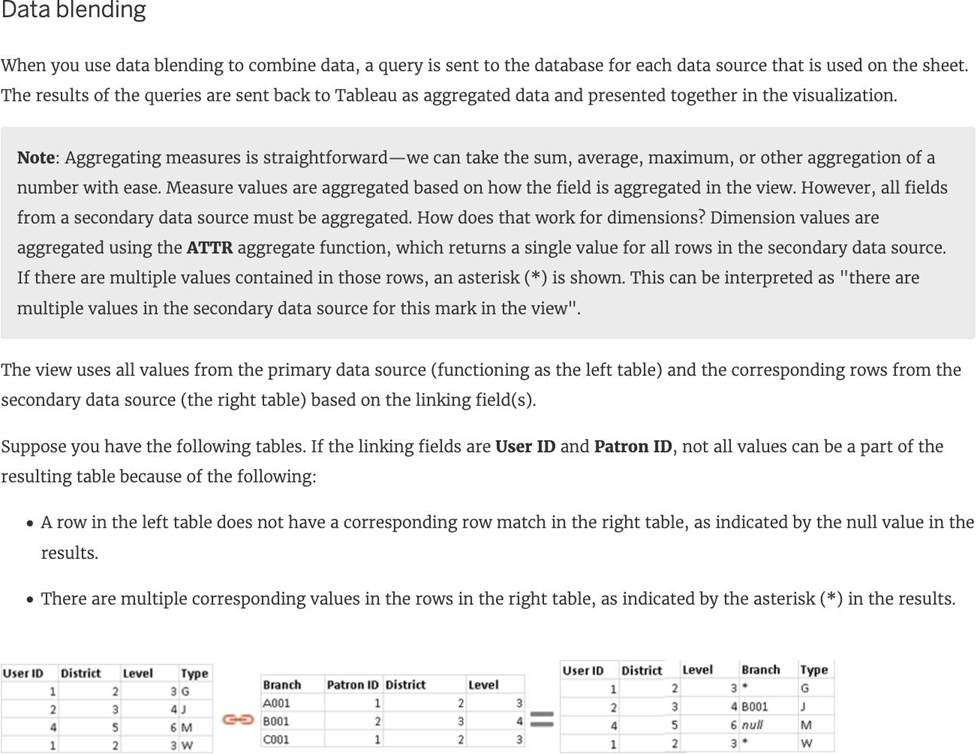
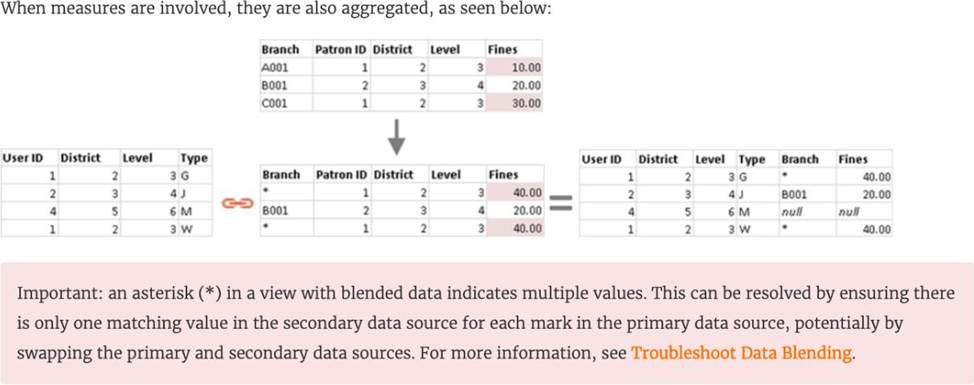
Reference: https://help.tableau.com/current/pro/desktop/en-us/multiple_connections.htm
Which of the following are valid way(s) to make either of Rows or Columns Bold without affecting the other?
- A . Right click on Rows or Columns, and choose format. In the Font option click on Bold.
- B . Select Text Label on the Marks Card, choose Rows or Columns, and then select Bold.
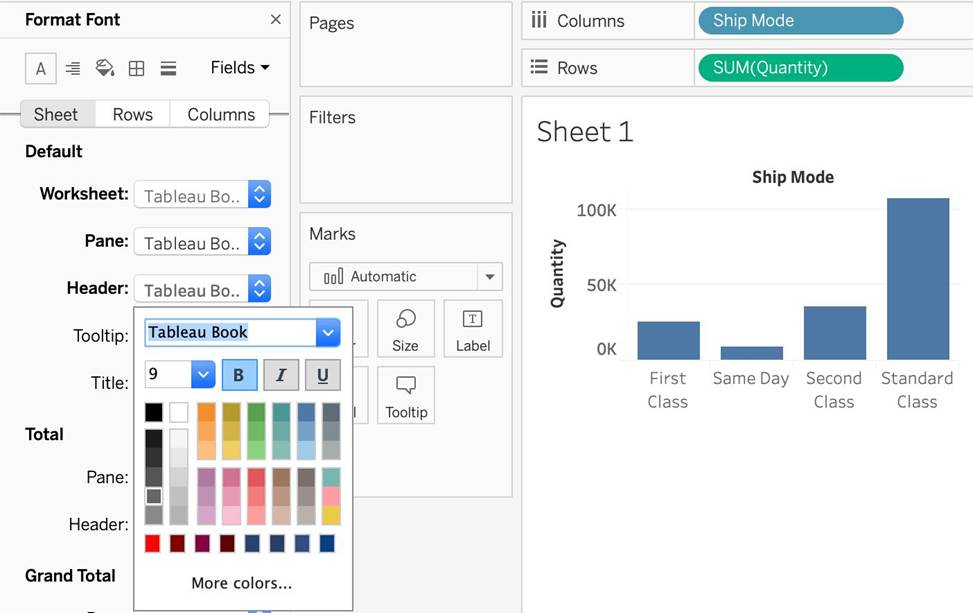
- C . Choose Format then Font from the Menu bar, and select Bold under the Header option
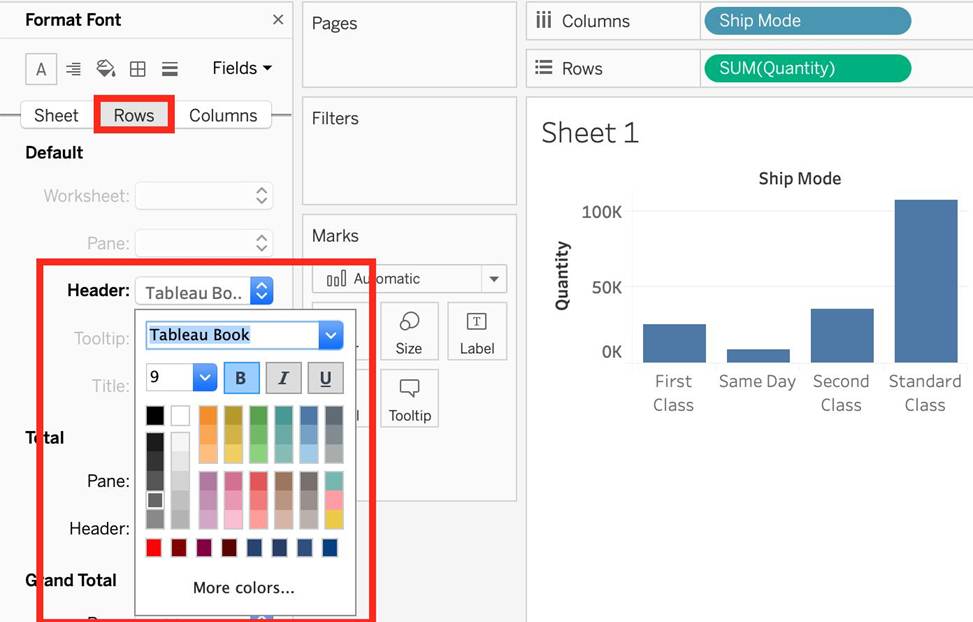
- D . Choose Format from the Menu bar, select Row or Column, and then select Bold under the header option
AD
Explanation:
1) Right click on Rows or Columns, and choose format. In the Font option click on Bold. (CORRECT) – this will modify only the selected axis (row or column)
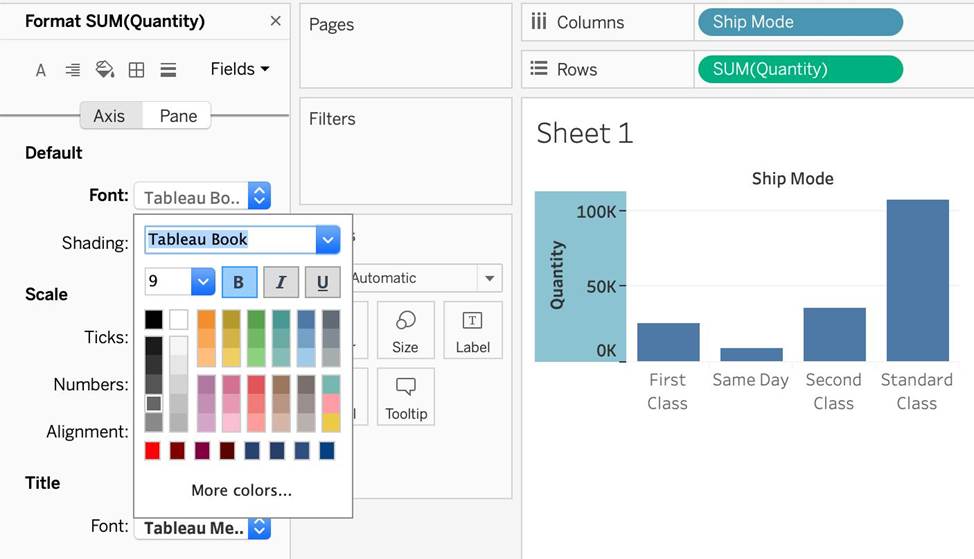
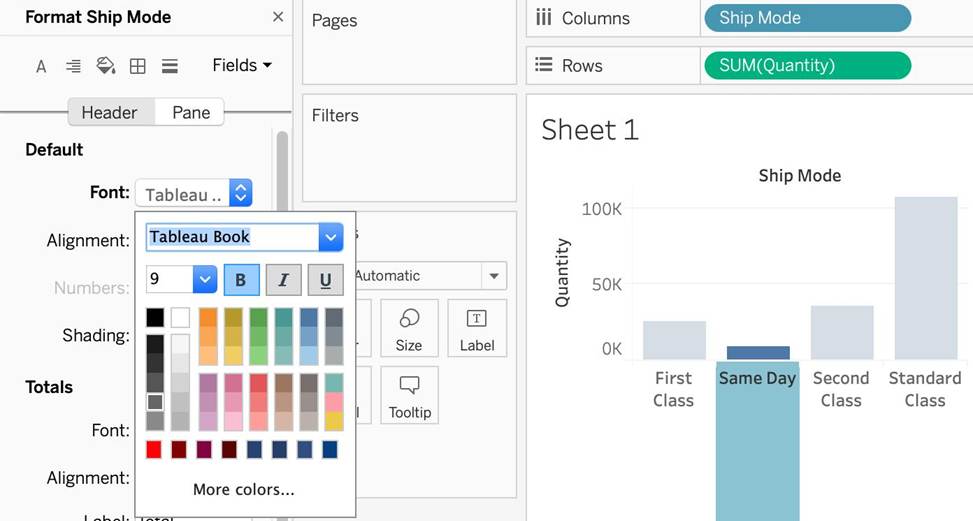
2) Choose Format then Font from the Menu bar, and select Bold under the Header option (INCORRECT) – this modifies both rows and columns at the same time
3) Choose Format from the Menu bar, select Row or Column, and then select Bold
under the header option (CORRECT) – this will modify only the selected axis (row or column)
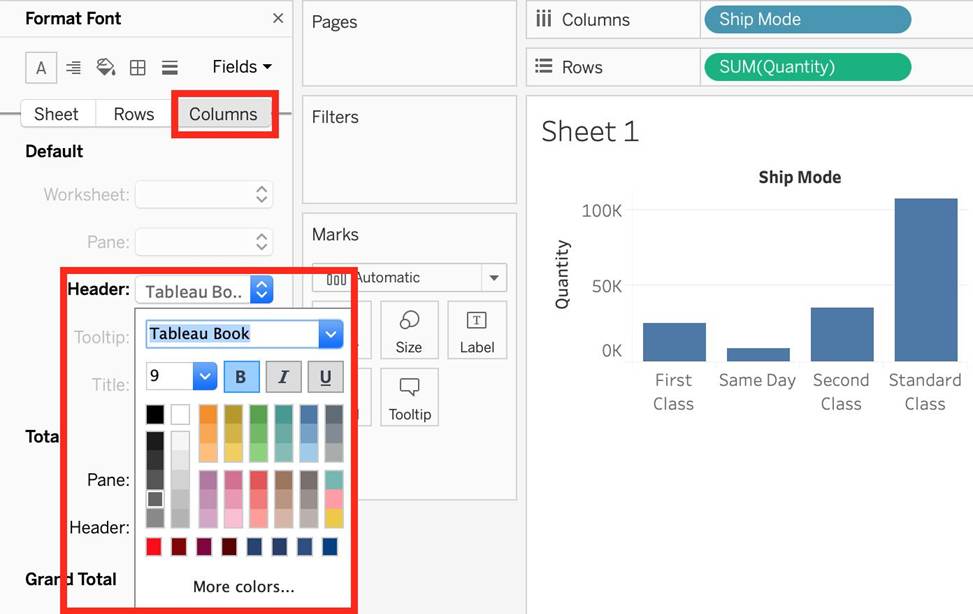
4) Select Text Label on the Marks Card, choose Rows or Columns, and then select Bold. (INCORRECT) – no such option exists