Tableau TDS-C01 Practice Exams
Last updated on Oct 22,2026- Exam Code: TDS-C01
- Exam Name: Tableau Desktop Specialist
- Certification Provider: Tableau
- Latest update: Oct 22,2026
Which mark type is used in a highlight table?
- A . Text
- B . Square
- C . Polygon
- D . Area
B
Explanation:
According to the Tableau Help, a highlight table is “a cross-tabulation that uses color to encode values”. The help also states that “Highlight tables use the Square mark type” (page 1).
Which of the following 2 fields CANNOT be deleted in Tableau?
- A . Number of Records
- B . Measure Names
- C . Measure Values
- D . Calculated Fields
BC
Explanation:
Measure names and values CANNOT be deleted in Tableau like other columns can. These are auto-generated.
Calculated Fields, and Number of records can both be deleted.
You are creating a combined axis chart.
Where should you drag the second measure after dragging the first measure to the Rows shelf?
- A . The Filter card
- B . The vertical axis in the view
- C . The Marks card
- D . The horizontal axis in the view
B
Explanation:
In Tableau, when creating a combined axis chart, after dragging the first measure to the Rows shelf, you should drag the second measure directly onto the existing axis in the view. This will combine both measures on the same axis, allowing them to share a scale and an axis, which is the essence of a combined axis chart.
Which of the following is a good reason for using a bullet graph?
- A . Comparing the actual sales against the target sales
- B . Analysing the trend over a given time period
- C . Forecasting future sales
- D . Displaying the year-on-year growth in sales
A
Explanation:
A bullet graph is a variation of a bar graph developed to replace dashboard gauges and meters. A bullet graph is useful for comparing the performance of a primary measure to one or more other measures. Below is a single bullet graph showing how actual sales compared to estimated sales.
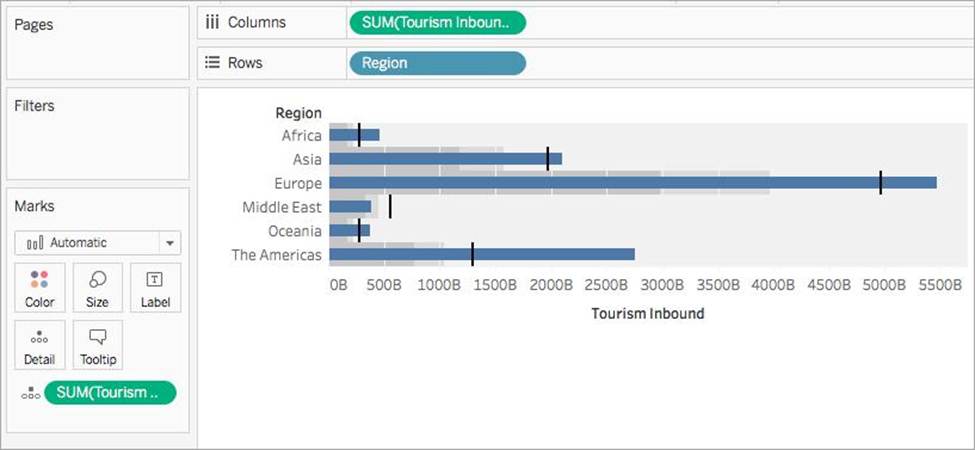
Reference: https://help.tableau.com/current/pro/desktop/en-us/qs_bullet_graphs.htm
Which of the following are FALSE about Joins?
- A . Joins can be defined at the time of query dynamically
- B . May drop unmatched measure values
- C . They are displayed with Venn diagram icons between physical tables
- D . Joined tables are never merged into a single table.
- E . They are a more dynamic way than relationships to combine data
ADE
Explanation:
According to the official documentation:
Joins are a more static way to combine data. Joins must be defined between physical tables up front, before analysis, and can’t be changed without impacting all sheets using that data source. Joined tables are always merged into a single table. As a result, sometimes joined data is missing unmatched values, or duplicates aggregated values.
Joins –
1) Are displayed with Venn diagram icons between physical tables
2) Require you to select join types and join clauses
3) Joined physical tables are merged into a single logical table with a fixed combination of data
4) May drop unmatched measure values
5) May duplicate aggregate values when fields are at different levels of detail
6) Support scenarios that require a single table of data, such as extract filters and aggregation
Reference: https://help.tableau.com/current/online/en-us/datasource_relationships_learnmorepage.htm
How can you add color to marks in the view in Tableau?
- A . Click on Data in the main menu above, and click on choose color.
- B . From the Data pane, drag a field to Color on the Marks card.
- C . In the column/row shelf, right click the field and click on edit in shelf to select the color.
- D . From the Analytics pane, drag a model to Color on the Marks card.
B
Explanation:
To assign a color to marks in the view, do the following:
From the Data pane, drag a field to Color on the Marks card.
Tableau applies different colors to marks based on the field’s values and members. For example, if you drop a discrete field (a blue field), such as Category, on Color, the marks in the view are broken out by category, and each category is assigned a color.
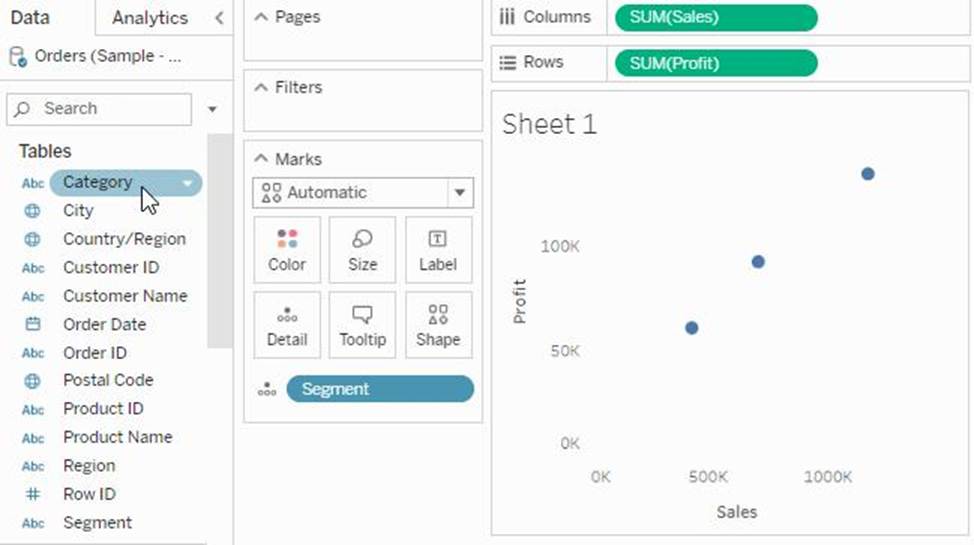
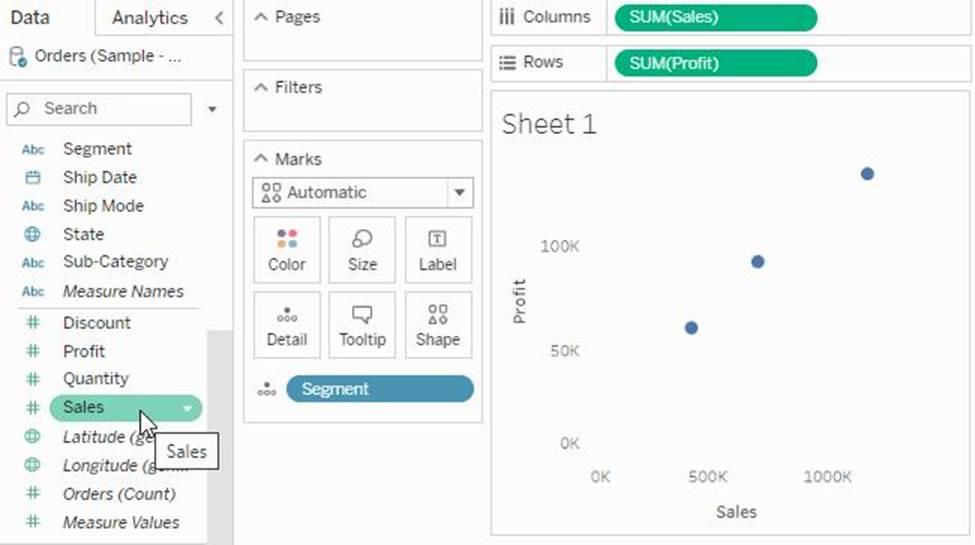
If you drop a continuous field, such as SUM (sales), on Color, each mark in the view is colored based on its sales value.
Relationships are represented by __________________ and operate at the ____________________.
- A . noodles, logical layer
- B . noodles, physical layer
- C . Venn diagrams, physical layer
- D . Venn diagrams, logical layer
A
Explanation:
From the official documentation:
The default view that you first see in the Data Source page canvas is the logical layer of the data source. You combine data in the logical layer using relationships (or noodles).
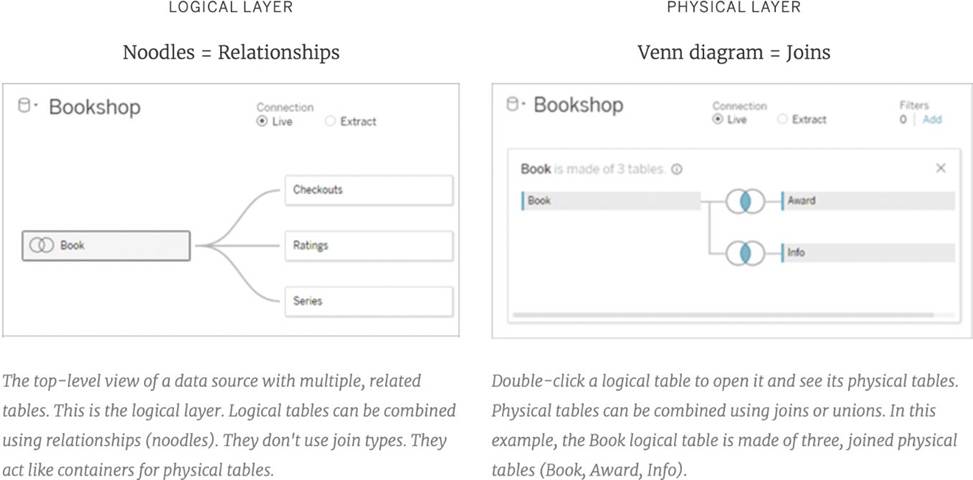
Reference: https://help.tableau.com/current/server/en-us/datasource_datamodel.htm
Which of the following would you use to edit the Shape, colour, and Text of your visualisations?
- A . Marks Card
- B . Data Pane
- C . Filter Shelf
- D . Analytics Pane
A
Explanation:
The Marks Card allows us not only to edit the Shape, Text and Colour, but also to modify the Tooltip and the level of detail of the visualisation!
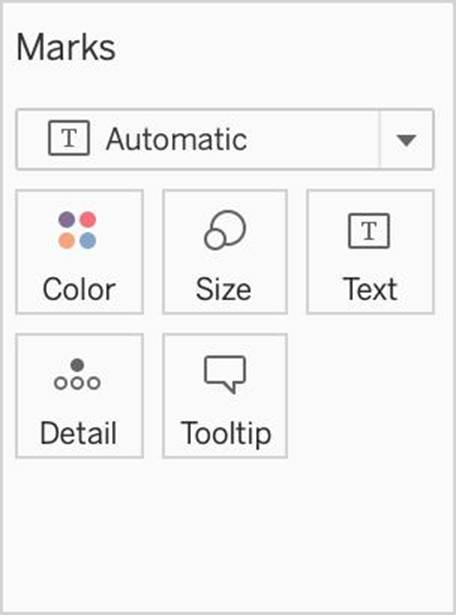
The Marks card is a key element for visual analysis in Tableau. As you drag fields to different properties in the Marks card, you add context and detail to the marks in the view.
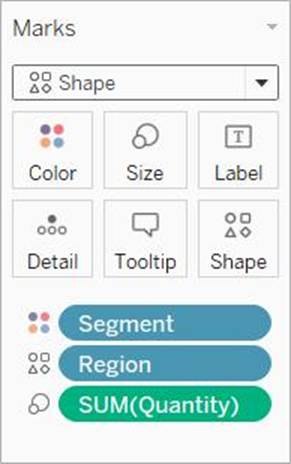
You use the Marks card to set the mark type (see Change the Type of Mark in the View), and to encode your data with color, size, shape, text, and detail. To change the mark settings, see Control the Appearance of Marks in the View.
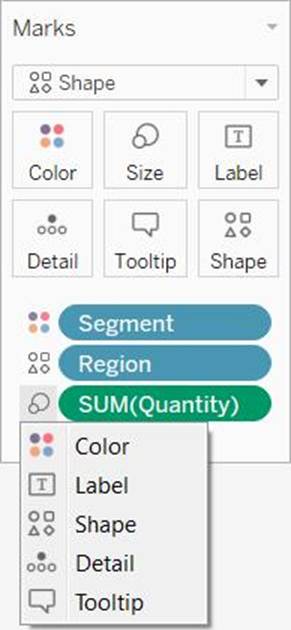
In this example, three different fields have been dragged to different properties in the Marks card.
Segment is on Color, Region is on Shape, and Quantity is on Size.
After you add a field to the Marks card, you can click the icon next to the field to change the property it is using. You can also click the property buttons in the Marks card to change those settings.
Many properties can have multiple fields. For example, you can add multiple fields to Label, Detail, Tooltip, and Color. Size and Shape can only have one field at a time. For more details, see Control the Appearance of Marks in the View.
Reference: https://help.tableau.com/current/pro/desktop/en-us/buildmanual_shelves.htm
DOWNLOAD THE DATASET FROM: https://drive.google.com/drive/folders/1WXzqsrNmXVdmQ-574wld4InEplyKT8RP?usp=sharing (if you haven’t already)
Using the cwurData table, plot a Map to see which country had the Second highest number of patents in the Year 2013?
- A . United States
- B . France
- C . United Kingdom
- D . Canada
B
Explanation:
Follow along to get the correct answer:
Drag Country to the view, and then Patents to the Size Mark on the Marks shelf as follows:
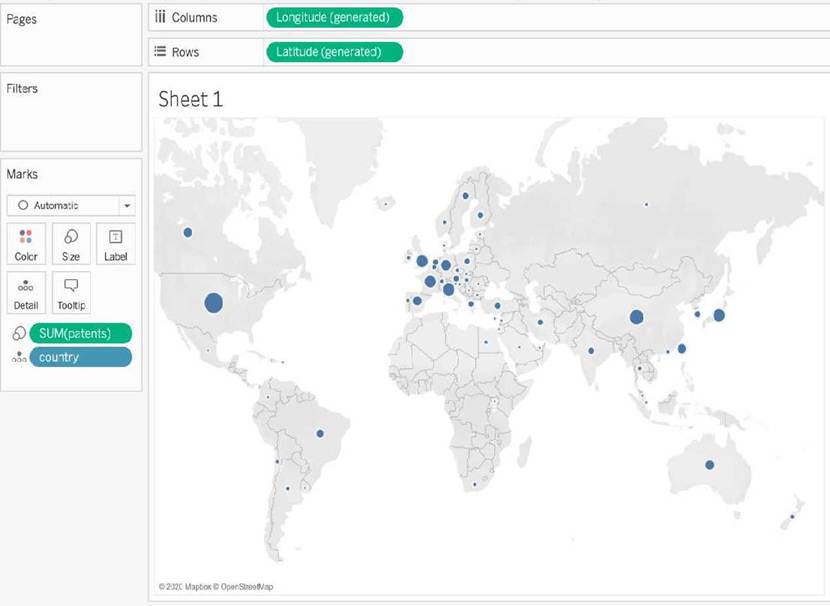
2) But, this isn’t all right? We need to focus on the year 2013.
This can be done by using the year column as it is (continuous) in the filter shelf, or by converting it to discrete first and then using it:
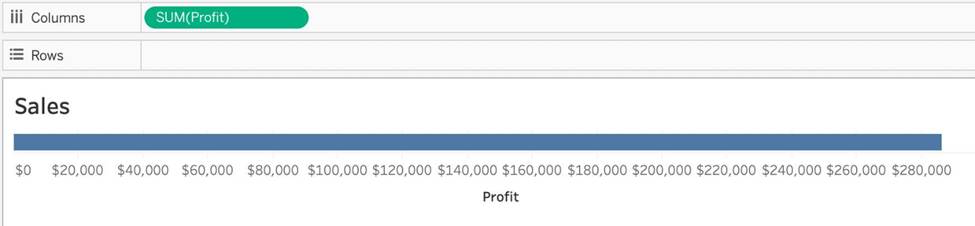
You just added this field to the Columns shelf.

What will this create?
- A . A vertical header
- B . A horizontal axis
- C . A vertical axis
- D . A horizontal header
B
Explanation:
We know that continuous fields will always create an axis, so options stating ‘header’ are automatically eliminated.
For our question, see below:
Had the question asked us to place this pill on the Rows shelf instead, we would’ve gotten a different answer: