
Tableau TDS-C01 Practice Exams
Last updated on Oct 22,2026- Exam Code: TDS-C01
- Exam Name: Tableau Desktop Specialist
- Certification Provider: Tableau
- Latest update: Oct 22,2026
Which of the following are valid ways to trigger actions for a Dashboard?
- A . Hover
- B . Click
- C . Select
- D . Menu
- E . Double click
A, C, D
Explanation:
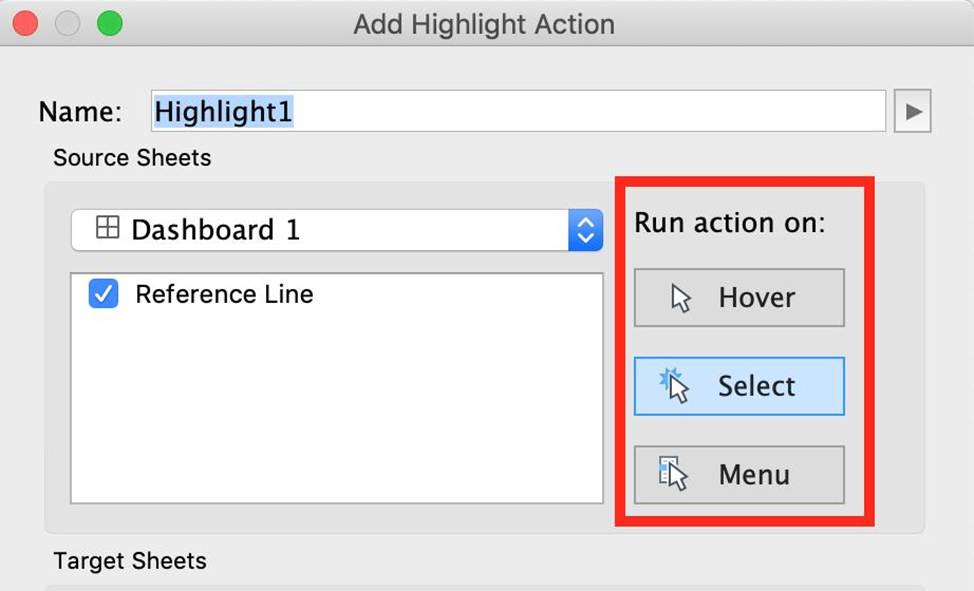
Whenever we want to add actions to a Dashboard, we can trigger then in the following 3 ways:
1) Select
2) Hover
3) Menu
Hover is best for highlighting, select for filtering. Menu action is added to the tooltip and user can decide whether to run that action or not (best for URL actions)
Reference: https://help.tableau.com/current/pro/desktop/en-us/actions_dashboards.htm
_____________ charts are typically used to represent accumulated totals over time and are the conventional way to display stacked lines.
- A . Line
- B . Area
- C . Gantt
- D . Bullet
B
Explanation:
According to the official Tableau documentation:
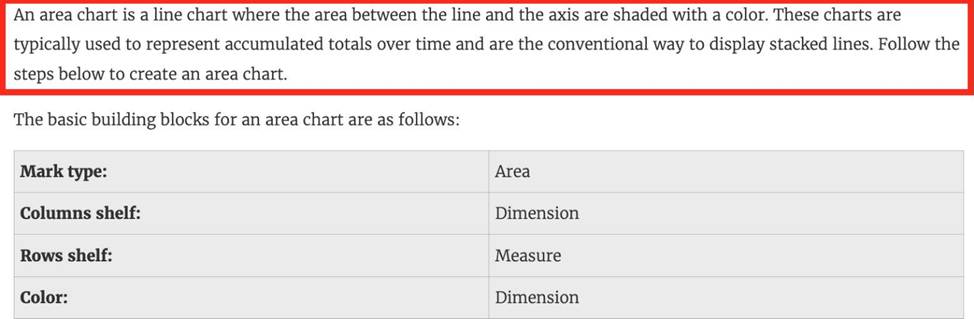
An example of an area chart is shown below:
What are two correct methods for creating a visual group? Choose two.
- A . Select marks in the view.
- B . Click the drop-down arrow from the top of the Data pane.
- C . Right-click a dimension in the Data pane.
- D . Drag a dimension onto another dimension in the Data pane.
C, A
Explanation:
Two correct methods for creating a visual group are selecting marks in the view and right-clicking a dimension in the Data pane. A visual group is a way of combining related members in a dimension field to create categories or segments in your data. For example, you can create a visual group by selecting several states in a map view and grouping them into regions. You can create a visual group by selecting one or more marks in the view and then clicking the group icon on the tooltip or on the toolbar. This will create a new group field in the Data pane with default names for each group based on their members. You can also create a visual group by right-clicking a dimension in the Data pane and selecting Create > Group. This will open the Create Group dialog box where you can select several members and drag them into groups with custom names8 The other options are not correct methods for creating a visual group. Clicking the drop-down arrow from the top of the Data pane will open a menu with options for creating new fields, folders, sets, bins, etc., but not groups. Dragging a dimension onto another dimension in the Data pane will create a hierarchy, which is a way of organizing data into different levels of detail, not groups9
While borders and background colors let you visually highlight items on a dashboard, _________ lets you precisely space items.
- A . padding
- B . margining
- C . tiling
- D . spacing
A
Explanation:
Padding lets you precisely space items on dashboard, while borders and background colors let you visually highlight them. Inner padding sets the spacing between item contents and the perimeter of the border and background color; outer padding provides additional spacing beyond the border and background color.
Reference: https://help.tableau.com/current/pro/desktop/en-us/dashboards_organize_floatingandtiled.htm
Larger image
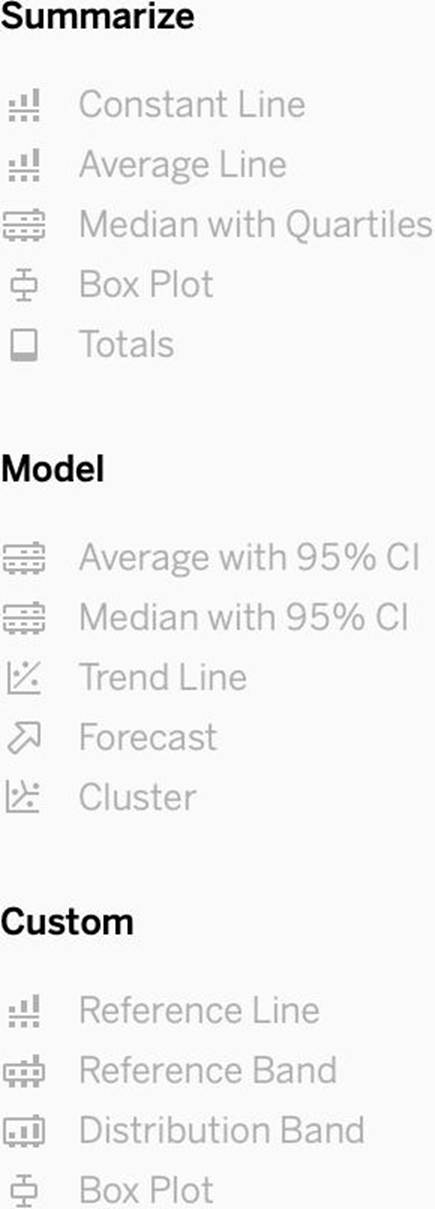
What is this entire view referred to as in Tableau?
- A . Data pane
- B . Analytics Pane
- C . Summary Pane
- D . Distribution Pane
B
Explanation:
Distribution Pane
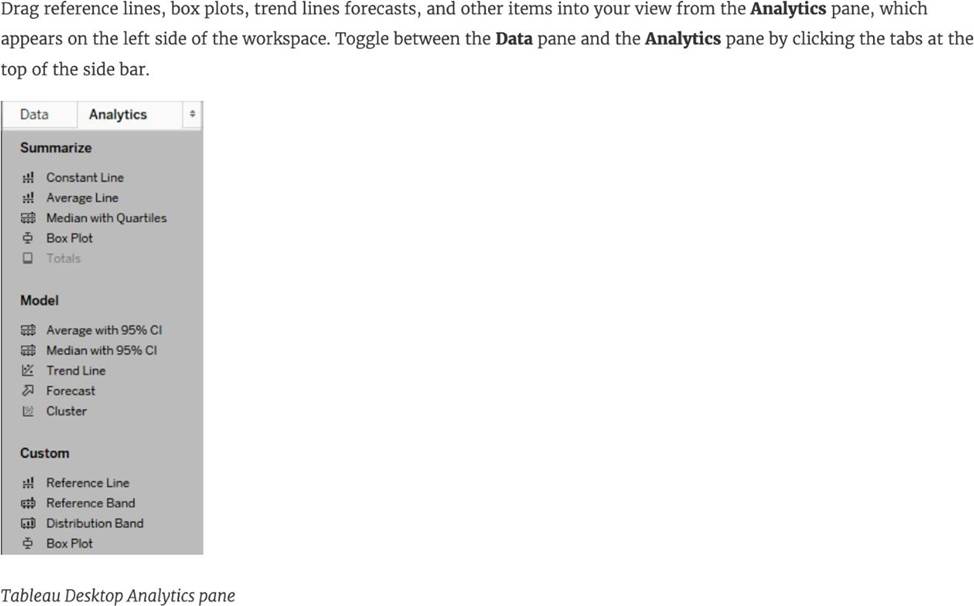
This is the Analytics pane! Read more from the official documentation below:
Reference: https://help.tableau.com/current/pro/desktop/en-us/environ_workspace_analytics_pane.htm
Which of the following are valid objects when creating a dashboard in Tableau? Choose 4.
- A . Video
- B . Text
- C . Extension
- D . Image
- E . Web Page
BCDE
Explanation:
Video is NOT a valid object type while creating dashboards in Tableau! All others are valid object types.
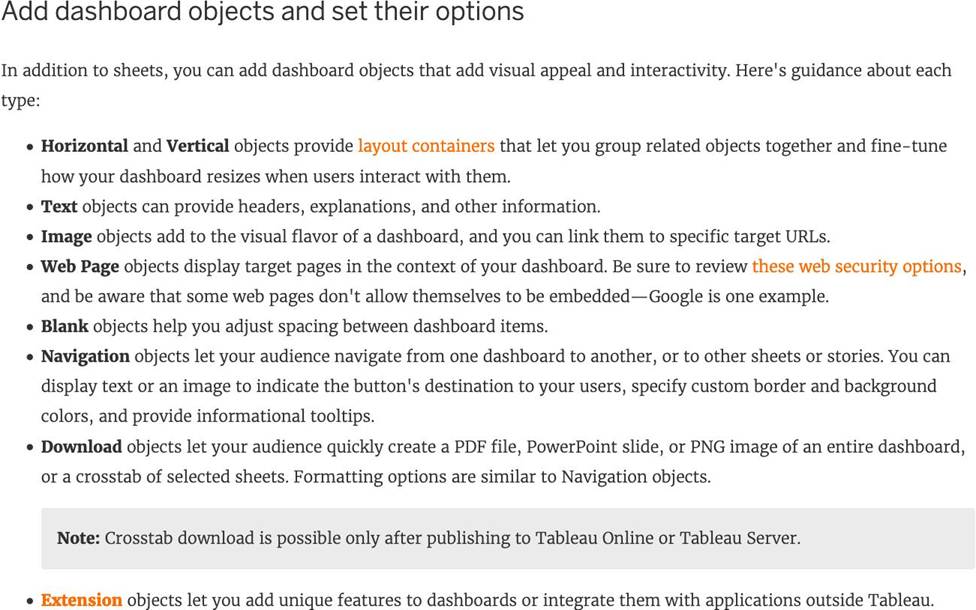
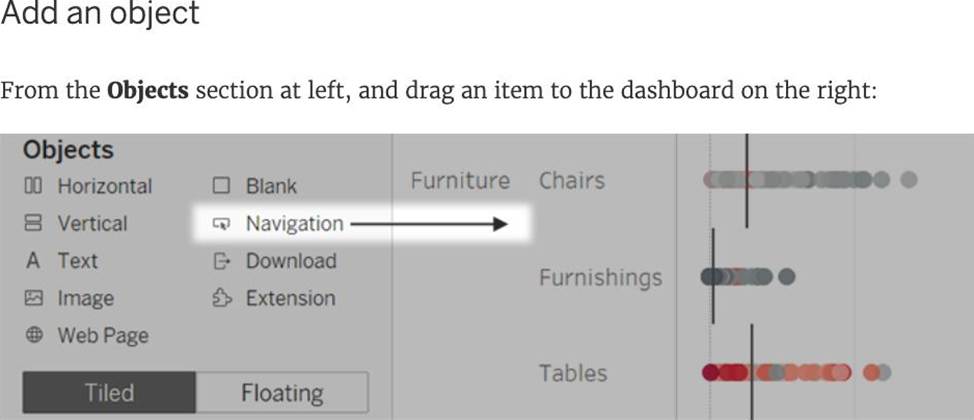
Reference: https://help.tableau.com/current/pro/desktop/en-us/dashboards_create.htm
What does it imply if a field has a blue background?
- A . It is continuous
- B . It is discrete
- C . It is a dimension
- D . It is a measure
B
Explanation:
When you connect to a new data source, Tableau assigns each field in the data source as dimension or measure in the Data pane, depending on the type of data the field contains. You use these fields to build views of your data.

Reference: https://help.tableau.com/current/pro/desktop/en-us/datafields_typesandroles.htm
Broadly speaking, when users connect to Tableau, the data fields in their data set are automatically assigned a ____________ and a ____________.
- A . role, type
- B . Data type, Value
- C . type, role
- D . dimension, measure
A
Explanation:
When users connect to Tableau, the data fields in their data set are automatically assigned a role and a type.
Role can be of the following two types:
1) Dimension
2) Measure
Type can be of the following :
1) String
2) Number
3) Geographic
4) Boolean
5) Date
6) Date and Time
Dimensions containing ____________ and ____________ values cannot be continuous.
- A . Boolean
- B . Date
- C . Date and Time
- D . String
AD
Explanation:
According to Tableau’s official documentation –
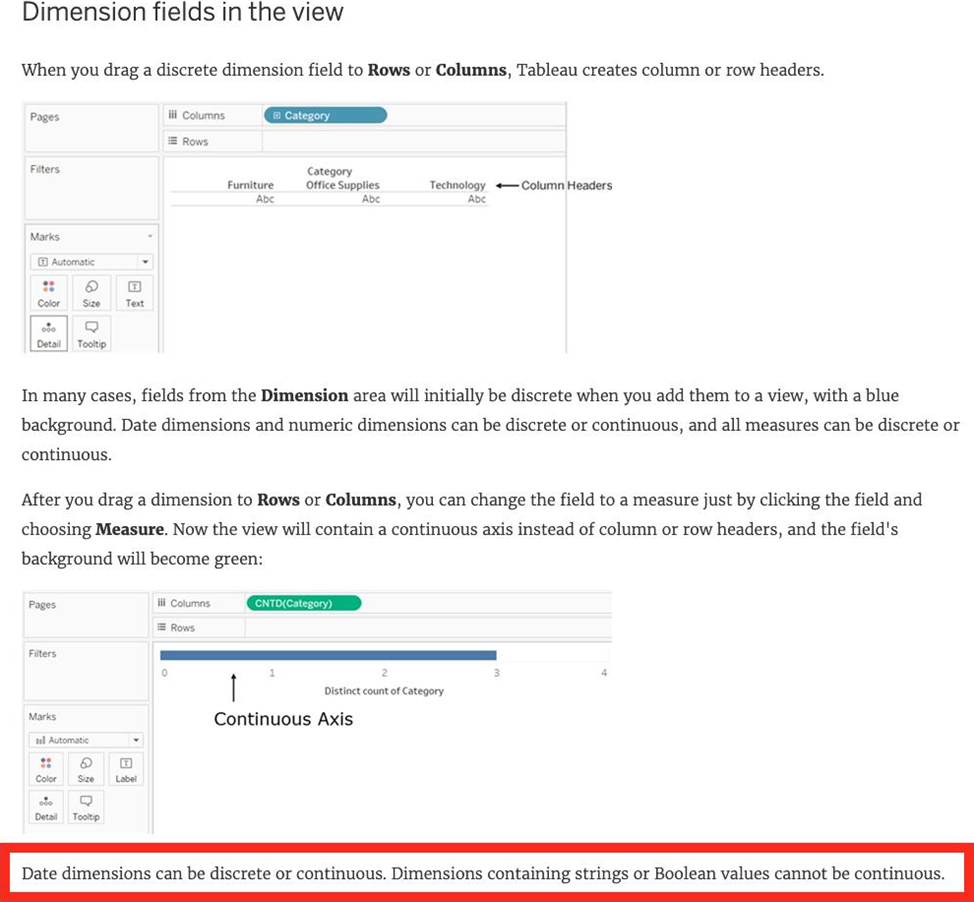
Reference: https://help.tableau.com/current/pro/desktop/en-us/datafields_typesandroles.htm
Which of the following are valid ways of Grouping Data?
- A . Using Marks in the view
- B . Using Labels in the View
- C . From the Analytics Pane
- D . From the Dimensions Shelf
A, B, D
Explanation:
**IMPORTANT QUESTION AND EXPLANATION, PLEASE READ**
3 ways to group data –
1) Marks
2) Labels
3) Dimensions shelf.
*IMPORTANT*
If we Group the data by selecting the marks, then they remain separate marks in the view and then have the same colour. Also, a new group is created in the Dimensions shelf.
Example
Using the sample superstore dataset, first plot a bar chart showing sales for each sub-category:
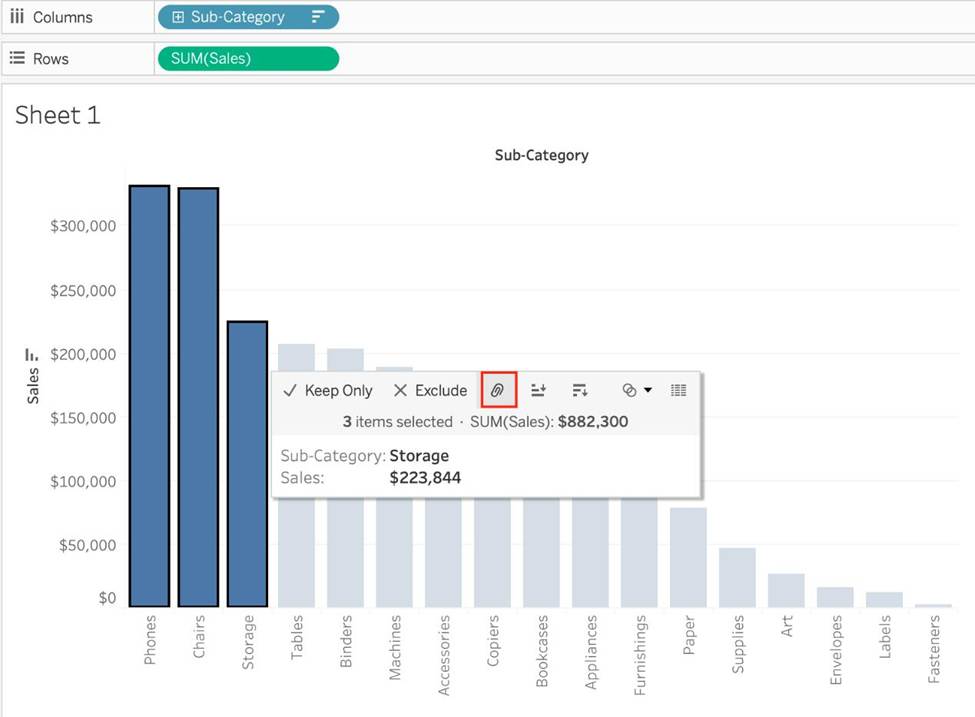
Here, if we Select Phones, Chairs and Storage by selecting the MARKS (Bars), and then group them:
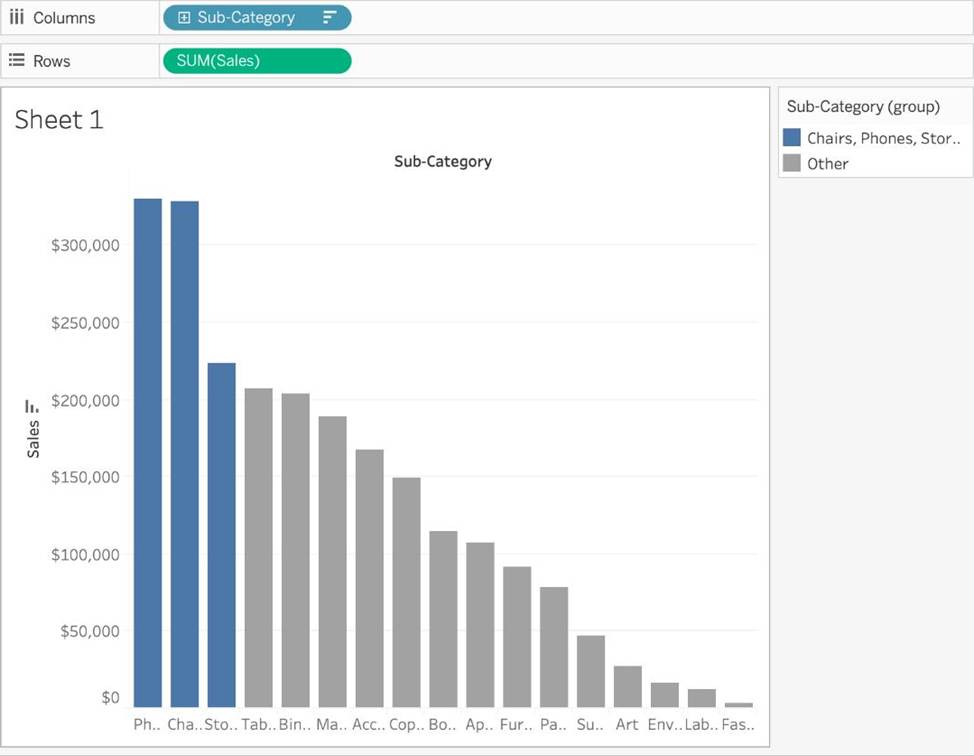
They remain seperate marks (BARS) but are grouped by the same colour.
Now, if we didn’t do this, and rather grouped by selecting their Labels (Names):
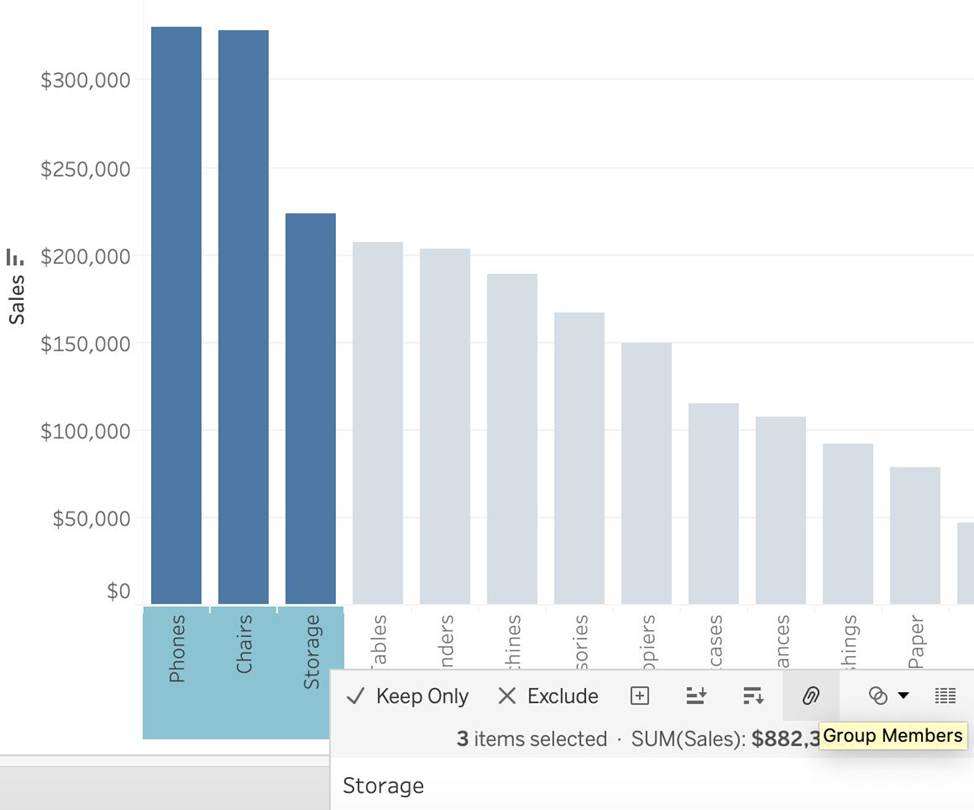
Then they no longer remain separate Marks (bars) but are rather consolidated into a single Bar:
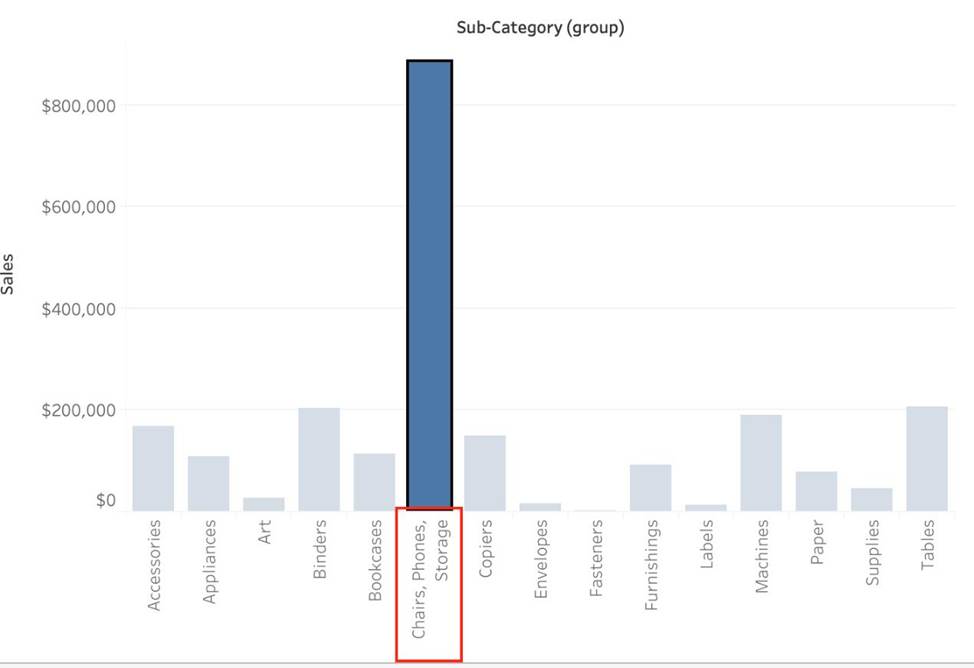
Finally, we can group directly from the Dimensions shelf as follows:
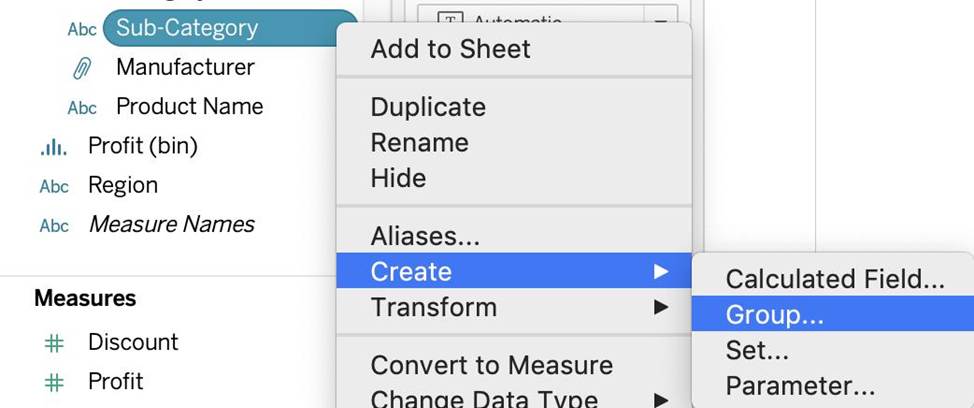
Now choose Phones, Chairs and Storage and Click Group:
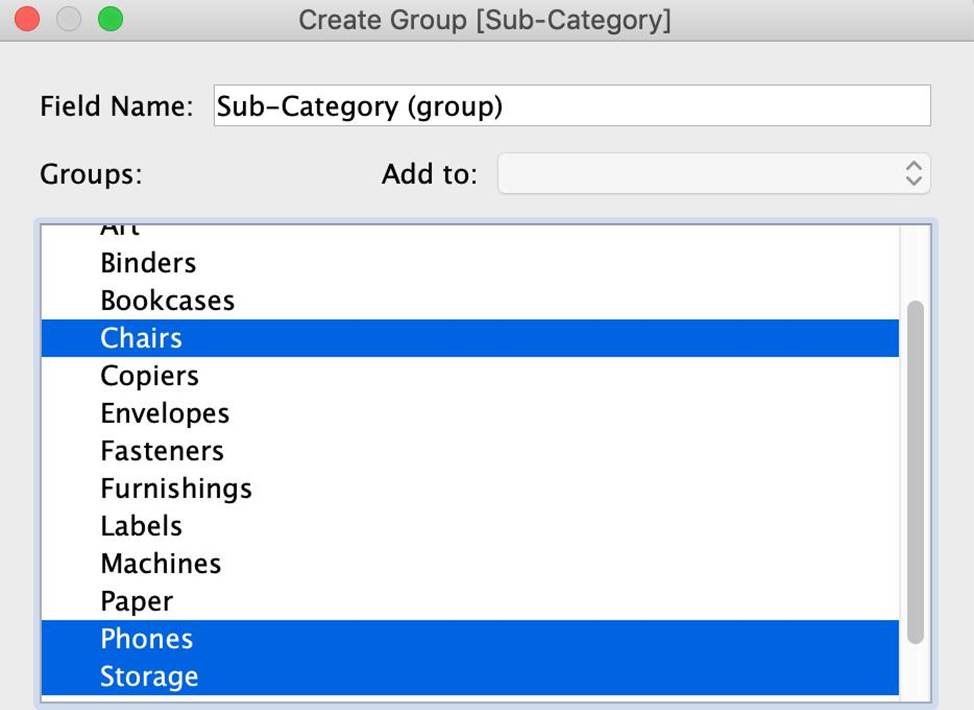
You will now automatically have a new Dimension as follows:

Reference: https://help.tableau.com/current/pro/desktop/en-us/sortgroup_groups_creating.htm