Tableau TDS-C01 Practice Exams
Last updated on Oct 22,2026- Exam Code: TDS-C01
- Exam Name: Tableau Desktop Specialist
- Certification Provider: Tableau
- Latest update: Oct 22,2026
From which three locations can you sort a visualization? Choose three.
- A . The Worksheet menu
- B . Tooltip on the Marks card
- C . DCA header
- D . The Analysis menu
- E . An axis
- F . Afield label
CEF
Explanation:
According to the Tableau Desktop Specialist Exam Guide, one of the exam objectives is to “Sort data in a visualization”. The guide also states that “You can sort data in a visualization from three locations: the Worksheet menu, an axis, or a field label” (page 15).
When exporting a worksheet as an image in Tableau, which of the following file formats are available?
- A . Portable Network Graphic (.PNG)
- B . JPEG Image (.JPG, .JPEG)
- C . Tagged Image File Format (TIFF)
- D . Windows Bitmap (.BMP)
A, B, D
Explanation:
The following options are available when an image is Exported:
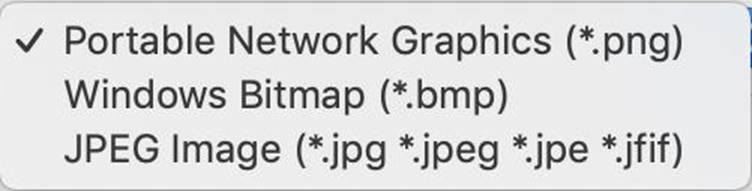
NOTE: When we Copy an image rather than exporting it, then the image is copied to the clipboard in the TIFF file format! However, it is not available when EXPORTING an image.
Reference: https://help.tableau.com/current/pro/desktop/en-us/save_export_image.htm
Which two actions can you perform when you join tables from multiple connections? Choose two.
- A . Create a union.
- B . Use a stored procedure.
- C . Add a data source filter.
- D . Create an extract.
CD
Explanation:
You can perform two actions when you join tables from multiple connections: add a data source filter and create an extract. A data source filter is a filter that you can apply to the data source before it is loaded into Tableau. This can help improve performance and reduce the amount of data in the view. A data source filter can be applied to any data source, including those that use cross-database joins2 An extract is a snapshot of data that is stored locally on your computer or on Tableau Server. An extract can also improve performance and enable offline analysis. You can create an extract from any data source, including those that use cross-database joins3 You cannot perform the other two actions when you join tables from multiple connections: create a union or use a stored procedure. A union is a method for combining data by appending rows of one table onto another table. To union your data in Tableau, the tables must come from the same connection. You cannot union tables from different data sources or connections4 A stored procedure is a set of SQL statements that can be executed on a database server. Tableau does not support using stored procedures as part of a cross-database join. You can only use stored procedures with some single-connection relational data sources, such as Microsoft SQL Server, Oracle, or PostgreSQL5
True or False: All rows from both tables are returned in an INNER JOIN
- A . True
- B . False
B
Explanation:
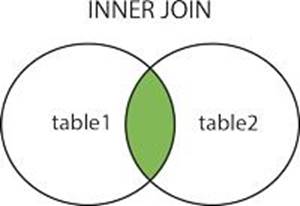
The INNER JOIN keyword selects all rows from both tables as long as there is a match between the columns. Consider 2 tables "Orders" and "Customers".
If there are records in the "Orders" table that do not have matches in "Customers", these orders will not be shown!
Reference: https://www.w3schools.com/sql/sql_join_inner.asp
Are animations enabled by default in Tableau?
- A . No
- B . Yes
A
Explanation:
No, by default, animations are not enabled in Tableau.
We can animate visualizations to better highlight changing patterns in your data, reveal spikes and outliers, and see how data points cluster and separate.
Animations visually transition between filter, sort, and zoom settings, different pages, and changes to filter, parameter, and set actions. As visualizations animate in response to these changes, viewers can more clearly see how data differs, helping them make better informed decisions.
When you author animations, you can choose between two different styles: simultaneous or sequential. Here are examples of each type.
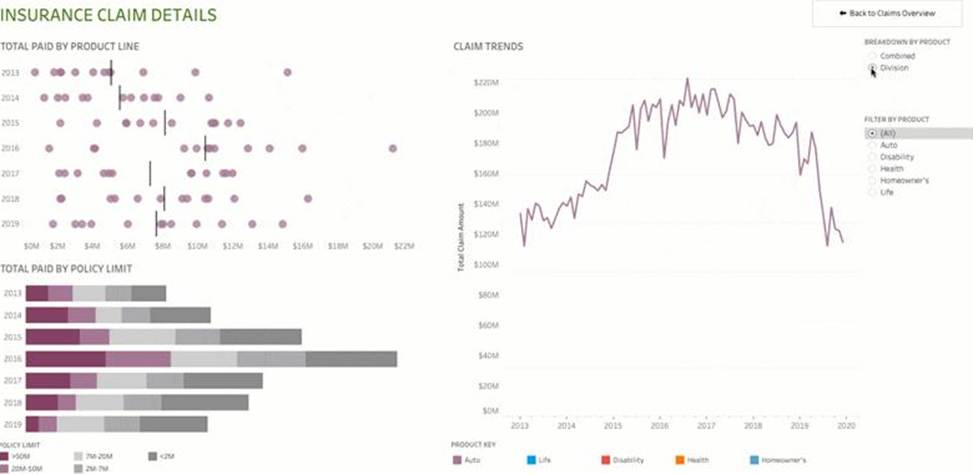
1) Simultaneous animations
The default simultaneous animations are faster and work well when showing value changes in simpler charts and dashboards.
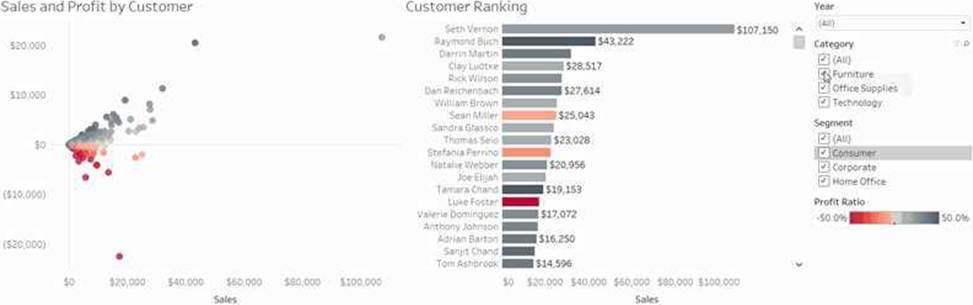
2) Sequential animations
Sequential animations take more time but make complex changes clearer by presenting them step-by-step.
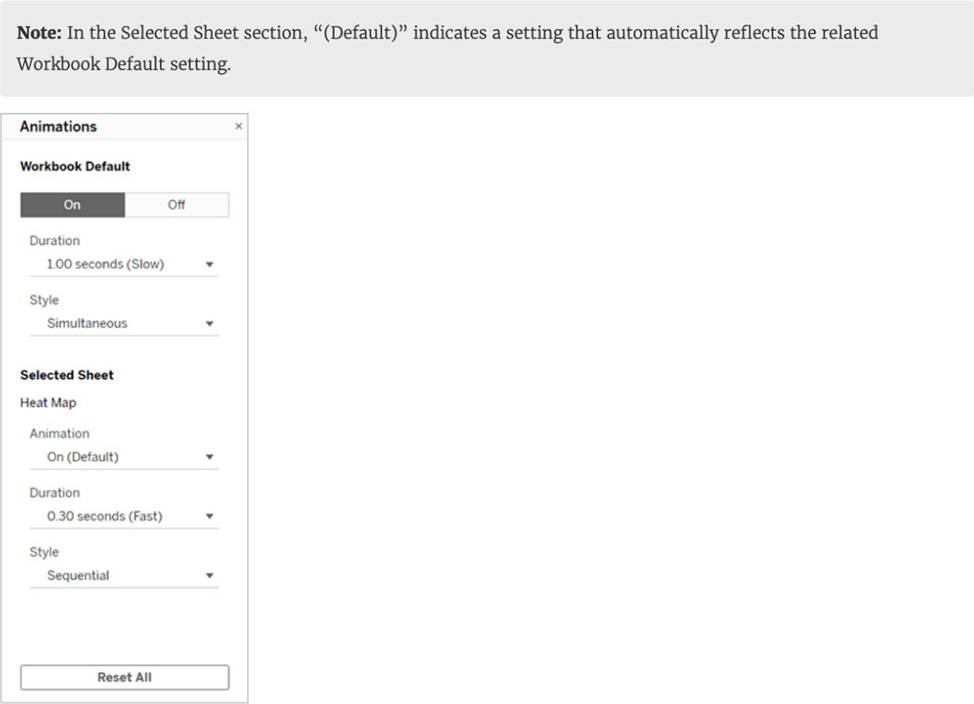
To Animate visualizations in a workbook:
1) Choose Format > Animations.
2) If you want to animate every sheet, under Workbook Default, click On. Then do the following:
For Duration, choose a preset, or specify a custom duration of up to 10 seconds.
For Style, choose Simultaneous to play all animations at once or Sequential to fade out marks, move and sort them, and then fade them in.
3) To override workbook defaults for a particular sheet, change the settings under Selected Sheet.
Reference: https://help.tableau.com/current/pro/desktop/en-us/formatting_animations.htm
How can you change the Default Aggregation for a measure in Tableau?
- A . By changing its properties manually every time we need to use it
- B . By right clicking the dimension -> Default properties and choosing Aggregation
- C . By right clicking the measure -> Default properties and choosing Aggregation
- D . By double clicking on the measure, and then choosing Window -> Default Aggregation
C
Explanation:
According to the official Tableau documentation:
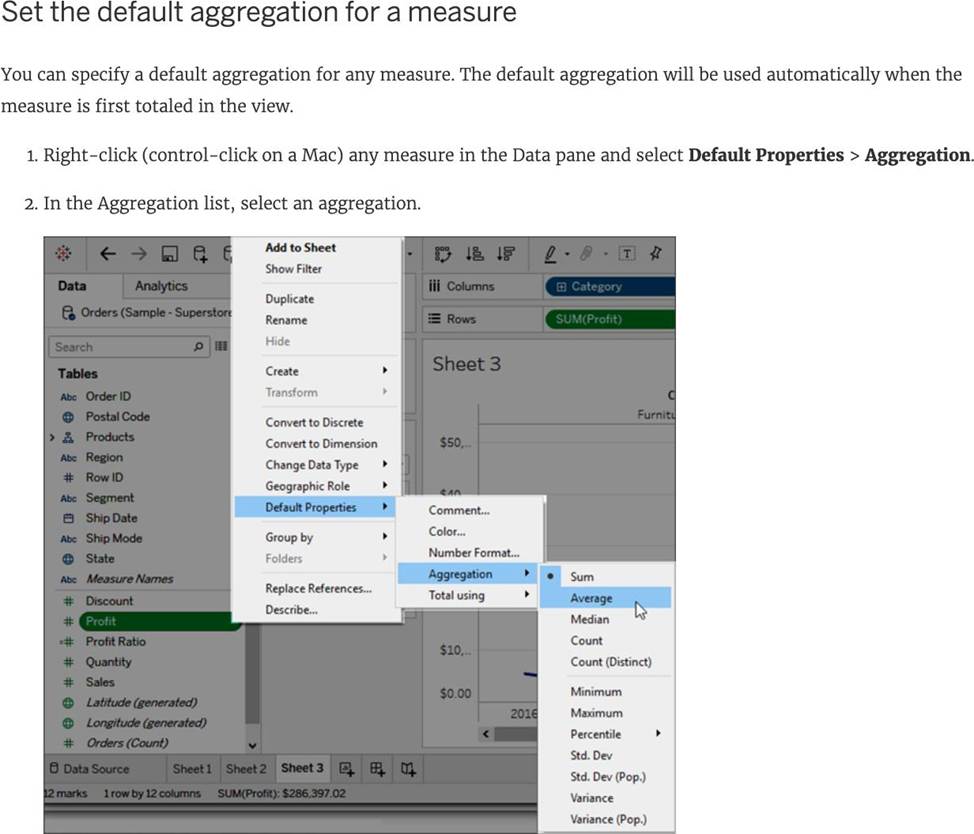
Dimensions don’t have aggregation properties, and adding properties manually each time defeats the whole DEFAULT aggregation purpose. Window tab doesn’t have any default aggregation option!
Reference: https://help.tableau.com/current/pro/desktop/en-us/datafields_fieldproperties.htm
Which of the following chart type makes use of ‘binned’ data?
- A . Gantt Chart
- B . Bullet chart
- C . Histogram
- D . Treemaps
C
Explanation:
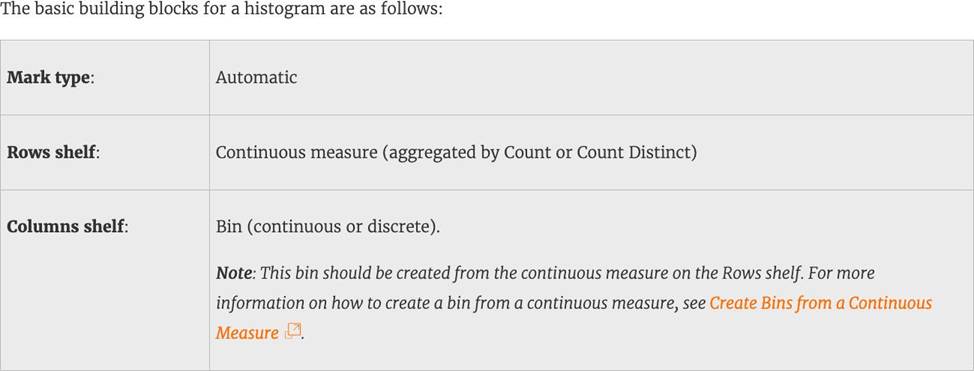
A histogram is a chart that displays the shape of a distribution. A histogram looks like a bar chart but groups values for a continuous measure into ranges, or bins.
The basic building blocks for a histogram are as follows:
Reference: https://help.tableau.com/current/pro/desktop/en-us/buildexamples_histogram.htm
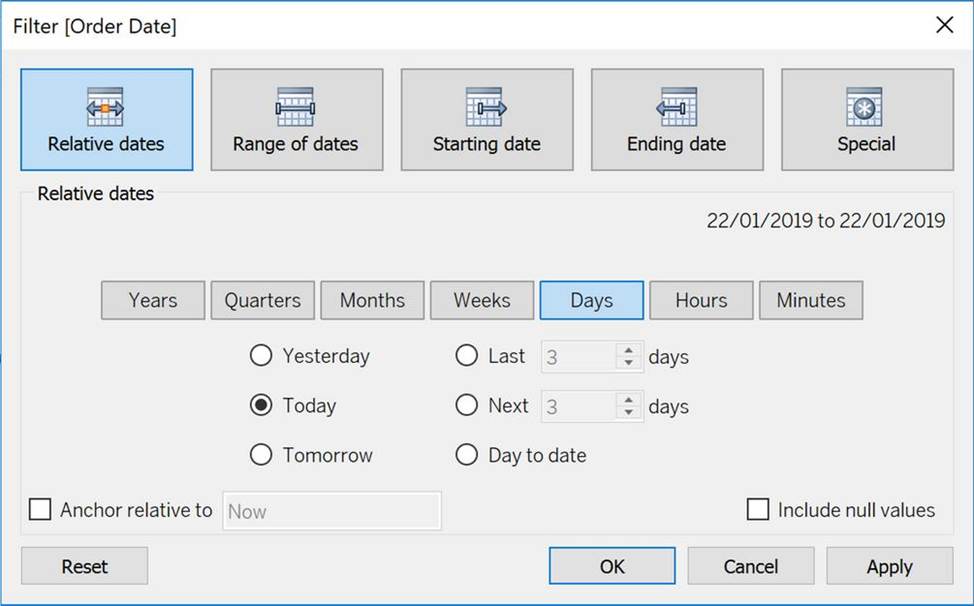
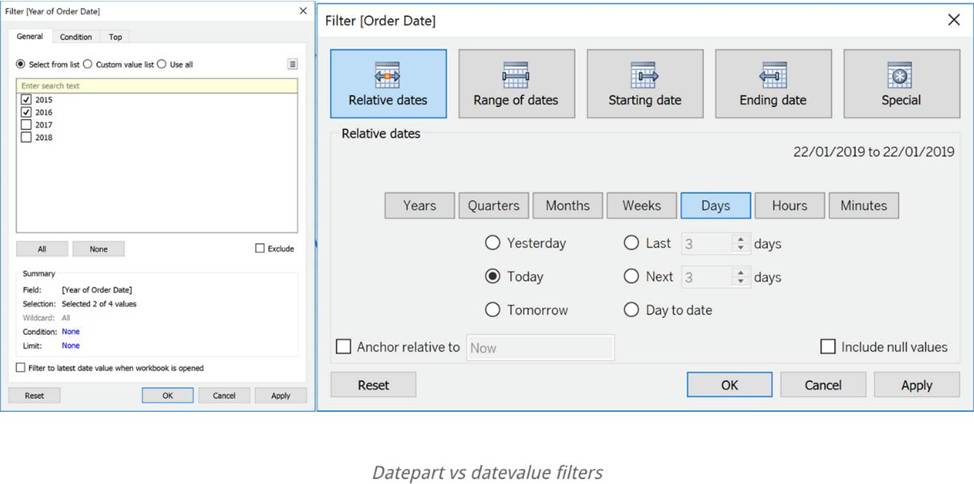
If you see the following Filter, then you’re working with _______________________ Larger image
- A . Grouped Dates
- B . Date Functions
- C . Date Parts
- D . Date Values
D
Explanation:
Dates in Tableau will behave differently depending on whether they are a Datepart (blue) or a Datevalue (green). This affects how the axes display/behave and also how visualisations such as line charts will display. The difference essentially boils down to Dateparts behaving like a dimension as opposed to a measure which is how Datevalues behave. This means that Dateparts behave like discrete categories on the view whereas Datevalues are more like continuous numeric values.
Dateparts are discrete and they behave the same as dimension filters. If all dates are used on the filter then each individual date will be a datepart that can be selected/excluded. This is the same for each level of date, if datepart months is placed on filters January to December will be tick-able options in the filter. This also means that conditions and top/bottom filters can be applied to datepart filters like any other dimension filter. Datevalues placed on filters behave like measure filters. A min and a max date can be set and there is a relative dates option which allows you to choose things like only show the previous 3 months or years etc.
Reference: https://www.thedataschool.co.uk/harry-cooney/tableau-dateparts-vs-datevalues/
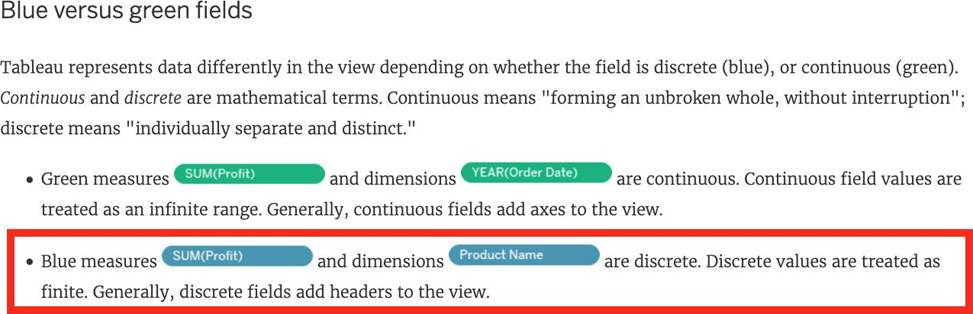
If you see a Blue field, generally it will add _____________ to the view
- A . axis
- B . both
- C . none
- D . headers
D
Explanation:
Important question!
Reference: https://help.tableau.com/current/pro/desktop/en-us/datafields_typesandroles.htm
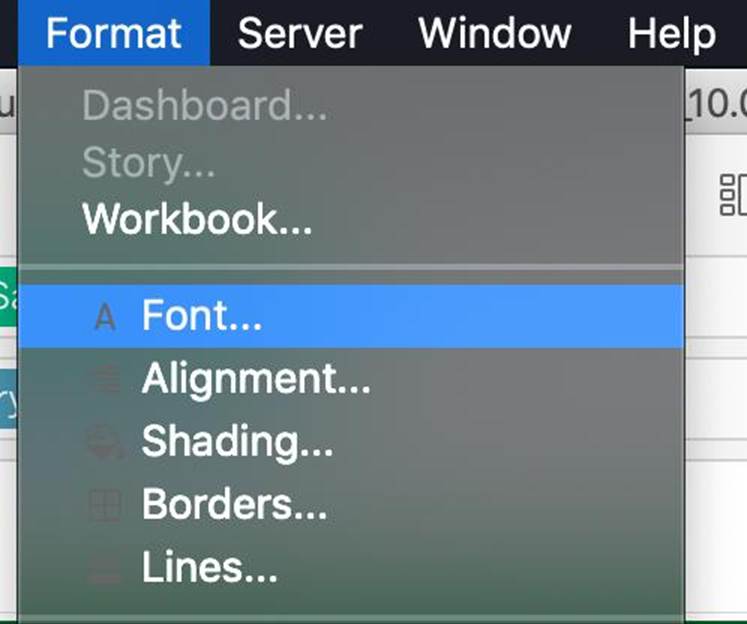
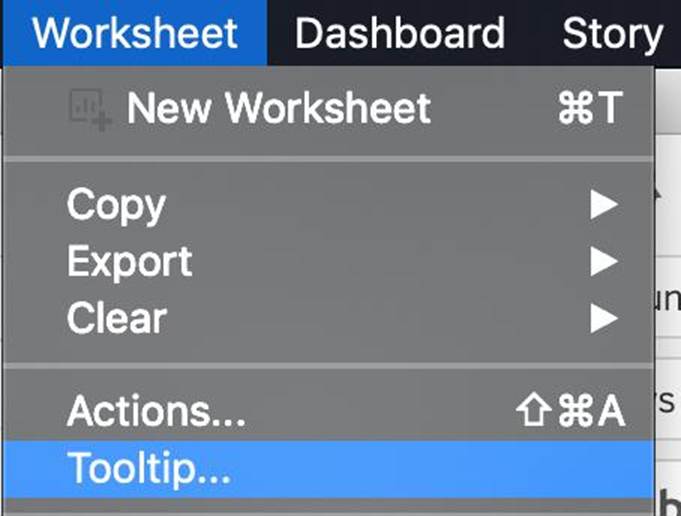
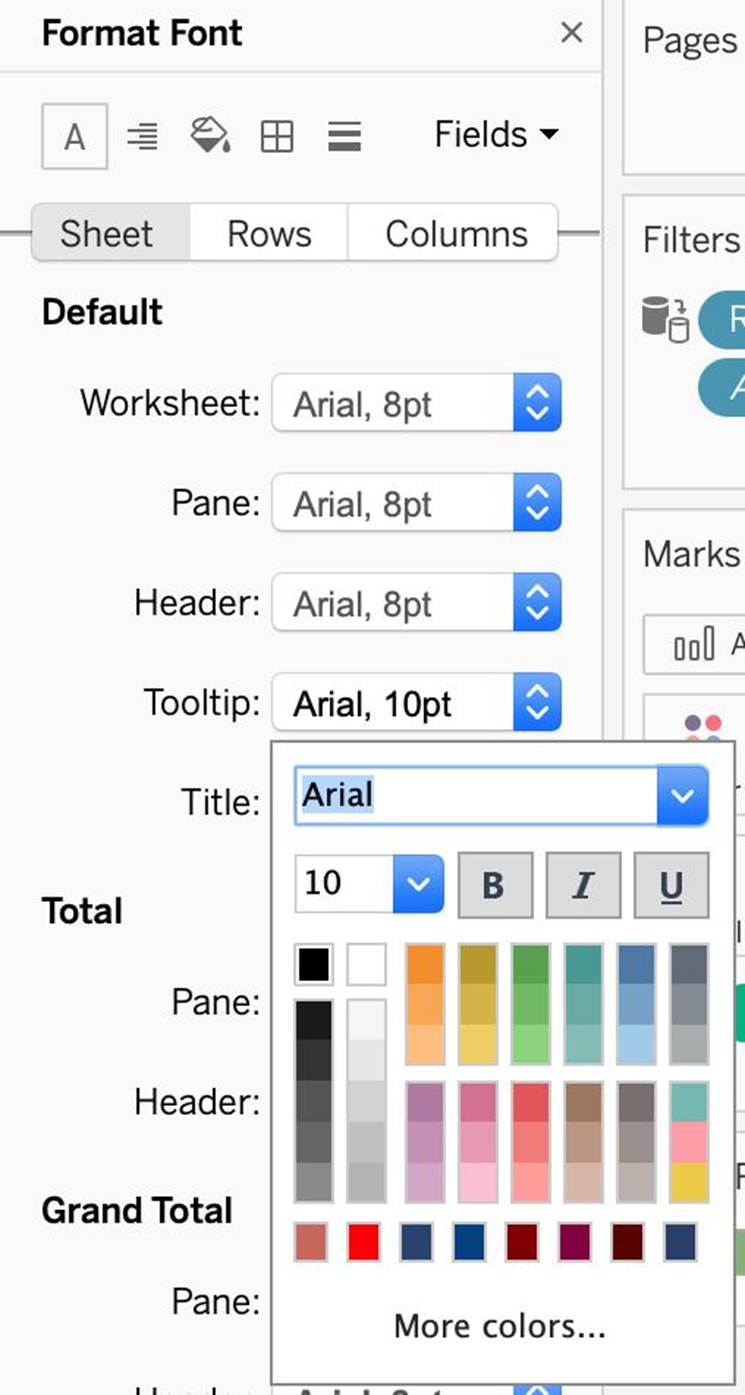
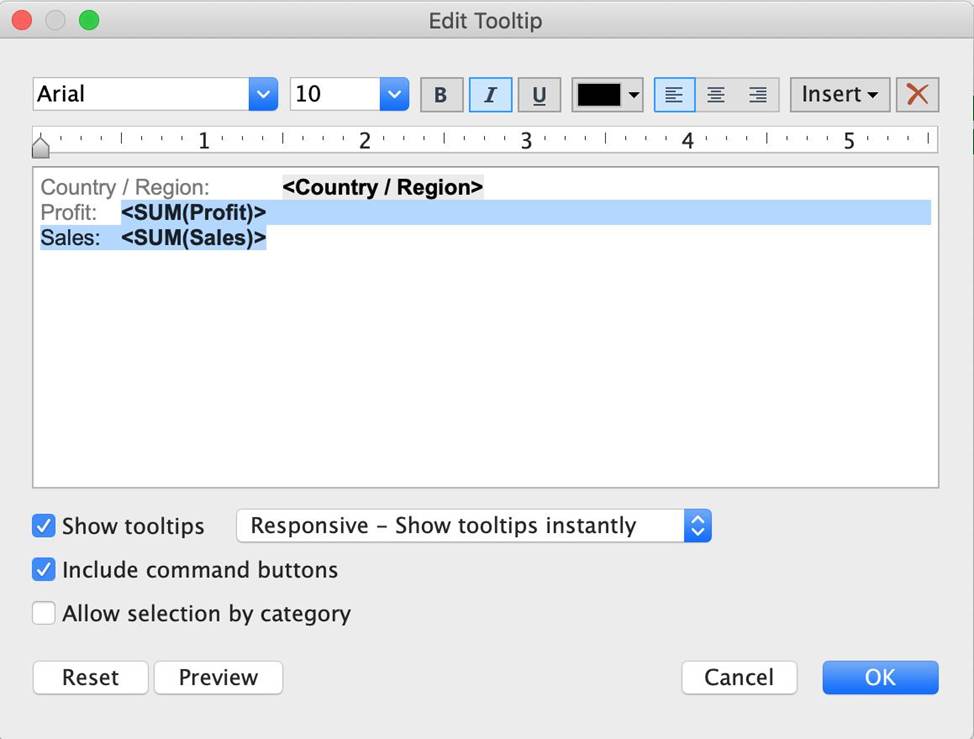
Which of the following are valid ways to italicize Tooltip content in Tableau?
- A . Click on Format in the Menu bar, choose Font, and then edit the Tooltip options to italicize the font
- B . Click on Tooltip in the Marks card, select the text, and then use the Italics option
- C . Click on Worksheet in the Menu bar, select Tooltip, and then use the italics option
- D . Click on Dashboard in the Menu bar, select Tooltip, and then use the italics option
ABC
Explanation:
The only incorrect option is – Click on Dashboard in the Menu bar, select Tooltip, and then use the italics option.
This option doesn’t exist. See below:
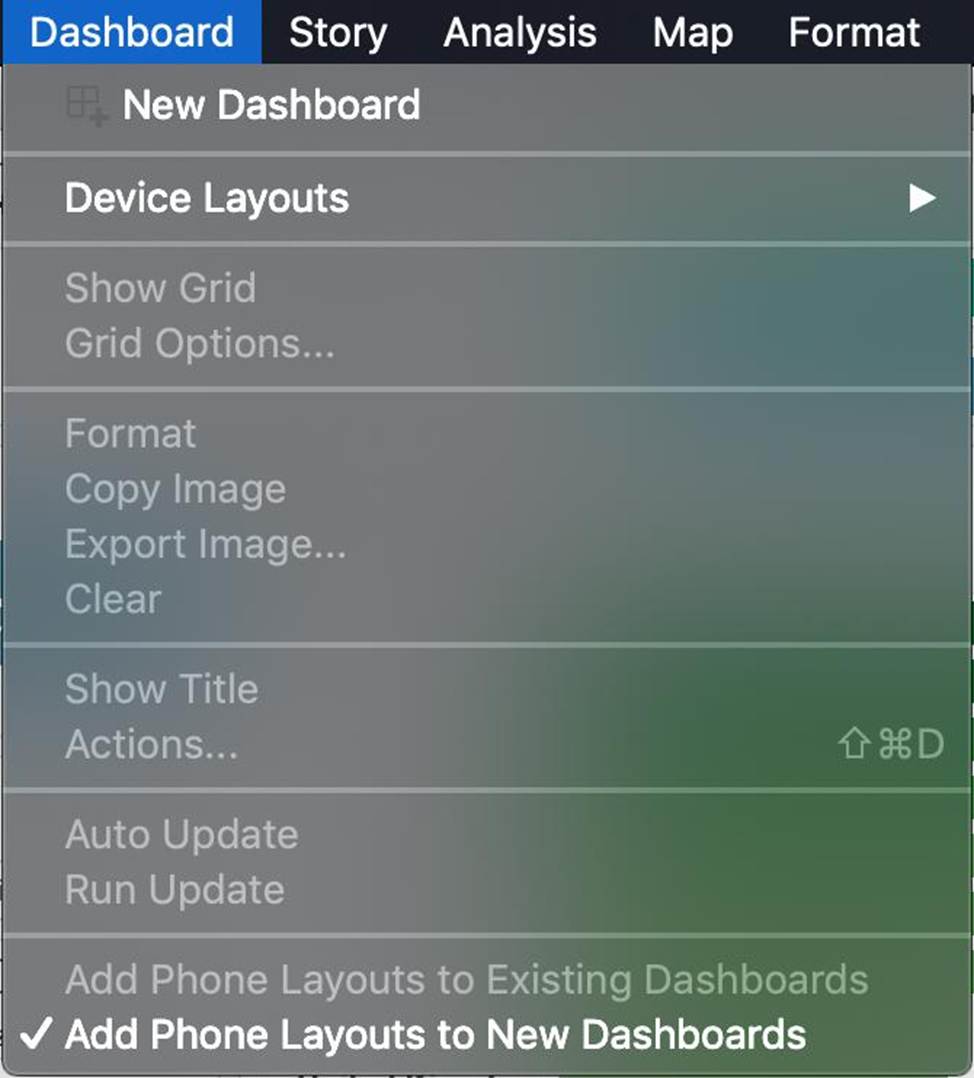
The rest of the options do exist, and therefore are correct: