
Tableau TDS-C01 Practice Exams
Last updated on Oct 23,2026- Exam Code: TDS-C01
- Exam Name: Tableau Desktop Specialist
- Certification Provider: Tableau
- Latest update: Oct 23,2026
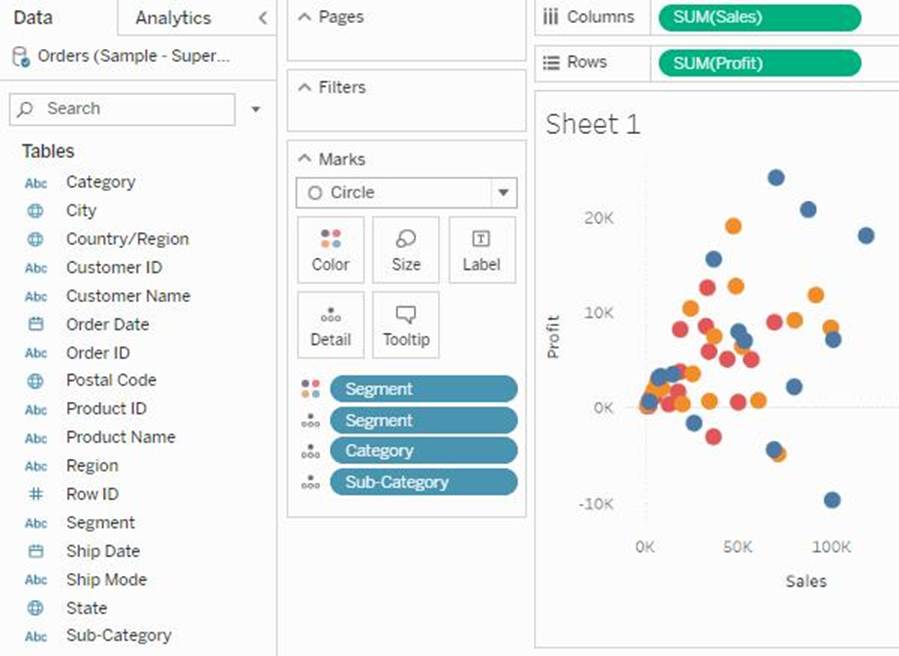
If you decide you want to see all of the marks in the view at the most detailed level of granularity, you can __________________ the view.
- A . sort the measures
- B . disaggregate the measures
- C . break-down the measures
- D . aggregate the measures
- E . split the measures
B
Explanation:
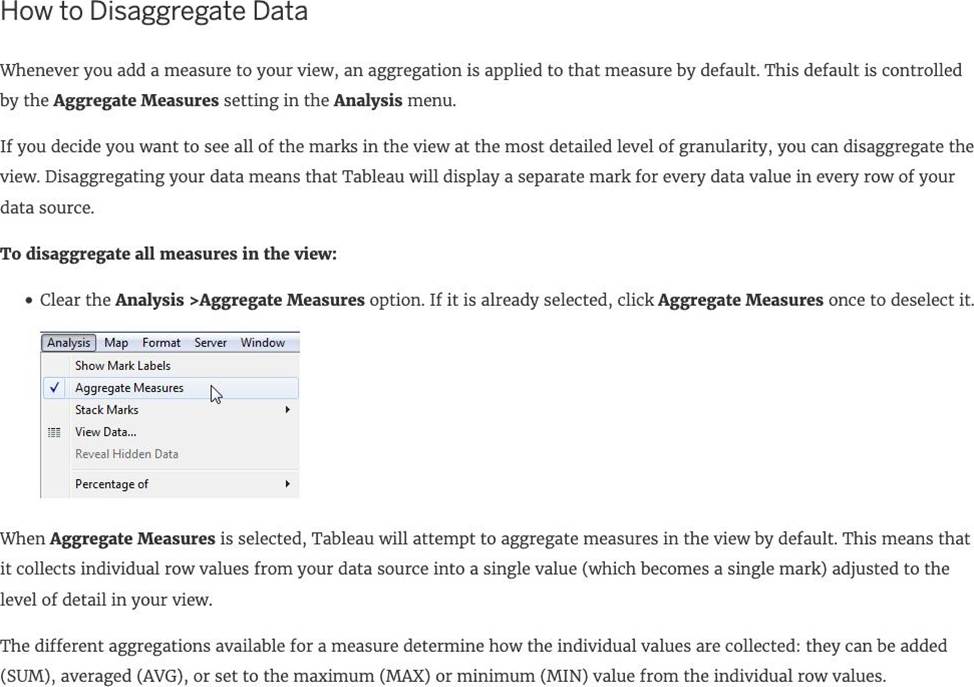
The different aggregations available for a measure determine how the individual values are collected: they can be added (SUM), averaged (AVG), or set to the maximum (MAX) or minimum (MIN) value from the individual row values.
For a complete list of the available aggregations, check out – List of Predefined Aggregations in Tableau.
The level of detail is determined by the dimensions in your view―for information about the concept of level of detail, see How dimensions affect the level of detail in the view.
Disaggregating your data can be useful for analyzing measures that you may want to use both independently and dependently in the view. For example, you may be analyzing the results from a product satisfaction survey with the Age of participants along one axis. You can aggregate the Age field to determine the average age of participants or disaggregate the data to determine at what age participants were most satisfied with the product.
Disaggregating data can be useful when you are viewing data as a scatter plot. See Example: Scatter Plots, Aggregation, and Granularity.
Reference: https://help.tableau.com/current/pro/desktop/en-us/calculations_aggregation.htm
True or False: Physical tables remain distinct (normalized), not merged in the data source whereas logical tables are merged into a single, flat table.
- A . True
- B . False
B
Explanation:
In fact, the opposite of this is true.
Trick: Whenever you think of joins -> Think that after the join is created, we get 1 single flat combined (joined) table. This flat combined table is created prior to us creating our visualizations.
This happens at the physical layer.
If you ever think about relationships, know that all tables will remain distinct and separate, and relationships sit at the logical layer. At run time, when you bring in the dimensions and measures to create your viz, Tableau very smartly creates the necessary joins, relates the tables and sends queries to these tables to get the resultant data back in the most meaningful way possible. This allows you to focus on using your data and revealing insights from it and focus less on the data preparation aspect!
Refer to logical layer vs physical layer from the official documentation: https://help.tableau.com/current/server/en-us/datasource_datamodel.htm
Which of the following are valid reasons to use a Tableau Data Extract (.tde) over Live Connections?
- A . To support additional functionality such as count distinct
- B . Fast to create
- C . Help improve performance
- D . To have access to the freshest possible data at all times
A, B, C
Explanation:
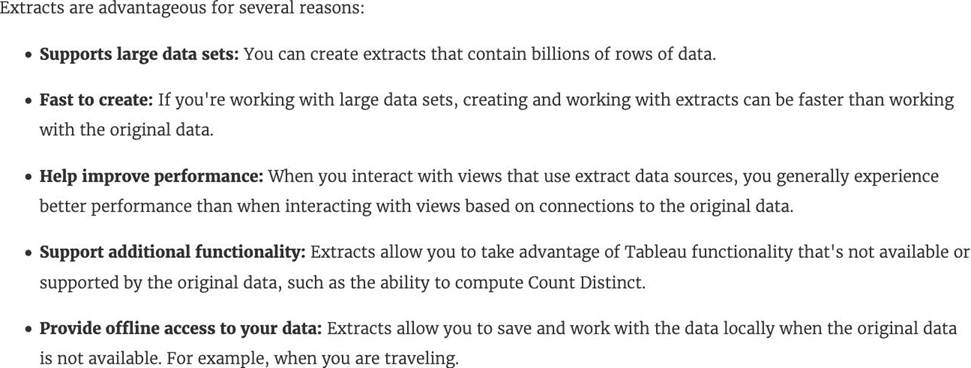
From the official documentation, the following are the major advantages of using Tableau Data Extracts:
From Tableau 2020.2 onwards, .hyper is the recommended way since it is faster than .tde!
Reference: https://help.tableau.com/current/pro/desktop/en-us/extracting_data.htm
Given a map, which of the following fields can be placed on Size,Shape,Detail,Color
- A . Region, Country, Profit, State
- B . Sales, State, Country, Profit
- C . Profit, State, Number of Records, Sales
- D . Longitude, Country, State, Sales
B
Explanation:
Since Sales is a measure, it can easily be depicted via size.
To drill down and change the level of detail, Country is the correct choice since it will contain STATE.
We can then depict the various states by different shapes such as circle, square etc.
Finally, the Profit can be depicted via a color! Eg – Red for poor and green for excellent profits!
Reference: https://www.tableau.com/learn/tutorials/on-demand/aggregation-granularity-and-ratio-calculations
Which of the following are valid ways to export a dashboard with multiple visualisations as an image?
- A . Click on Worksheet in the Menu bar followed by Export, then choose Image
- B . using the floating export worksheet option on the Dashboard
- C . Right click on the dashboard, and choose Copy, then image.
- D . Click on Dashboard in the Menu bar followed by Copy Image
D
Explanation:
Only 1 option is correct –
Click on Dashboard in the Menu bar followed by Copy Image
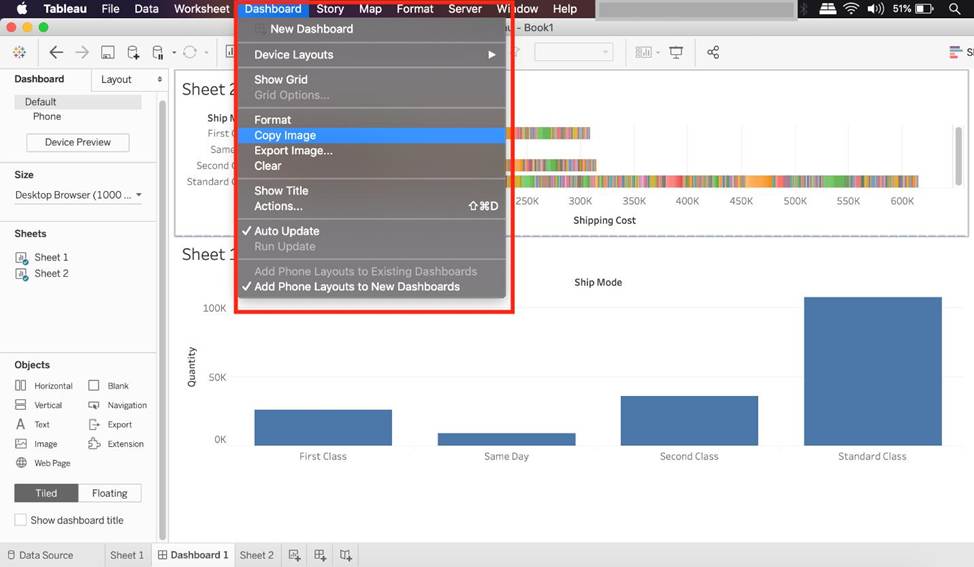
Right click on the dashboard, and choose Copy, then image – Try doing this, you will end up copying just one of the worksheets not the entire dashboard
Click on Worksheet in the Menu bar followed by Export, then choose Image – Again, try doing this. You will end up copying just one of the worksheets not the entire dashboard
Using the floating export worksheet option on the Dashboard – No such option exists
Is it possible to use measures in the same view multiple times (e.g. SUM of the measure and AVG of the measure)?
- A . Yes
- B . No
A
Explanation:
Yes, it is very much possible to use measures in the same view multiple times.
For example, refer to the image below:
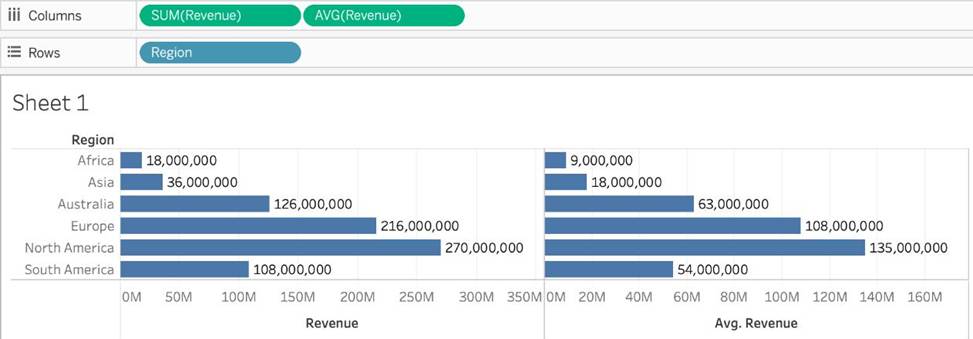
We are using BOTH the Sum of the revenue and the AVG of the revenue in the same view!
Using the dataset, create a bar chart showing the average Quantity broken down by Region, and filtered by Country to only show Japan.
What was the average Quantity in the State of Tokyo?
- A . 3.000
- B . 3.840
- C . 3.704
- D . 3.500
C
Explanation:
Since we need to focus on 1 country -> Japan, let’s filter on it first as follows:
1) Drag Country to the filter shelf, and choose only Japan. Click OK.
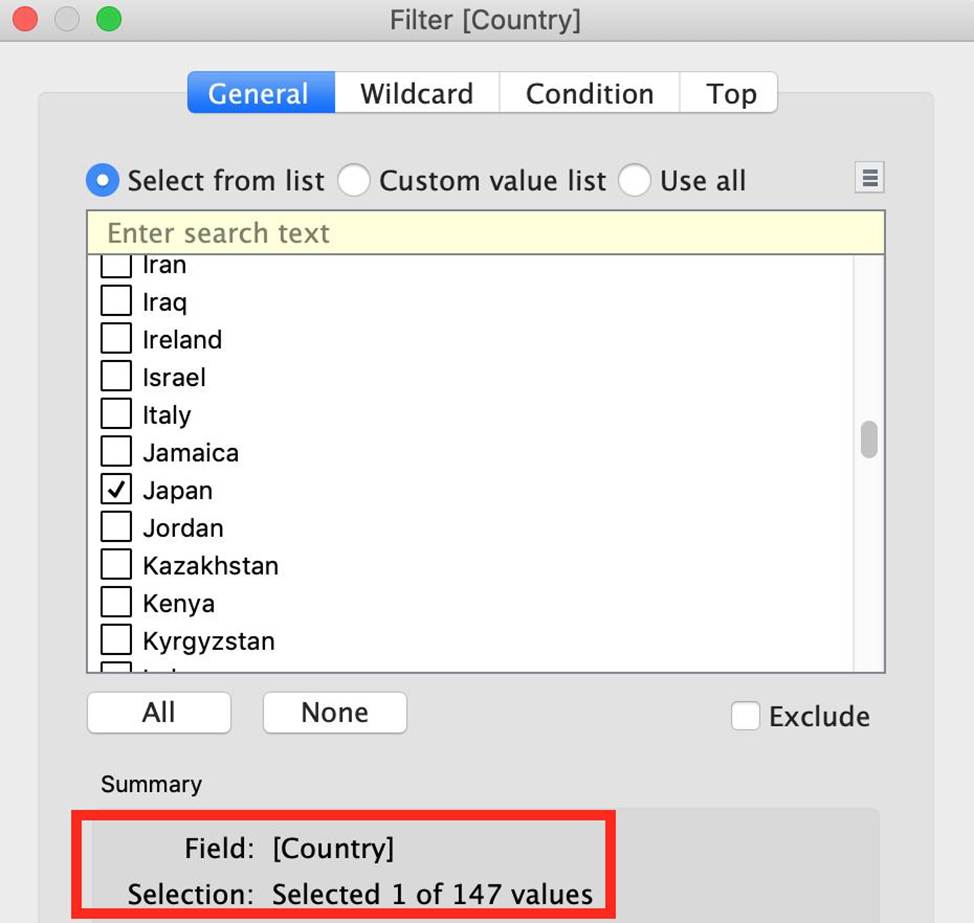
2) Read the Question Carefully, we need to break down the visualisation by Region, then by Country, and then by State. So let’s do that:
Drag Region to the column shelf, followed by Country. Drill down into Country to include
states as well.
Then drag Quantity to the Row Shelf, and change the Aggregation to AVERAGE.
The following is our visualisation:
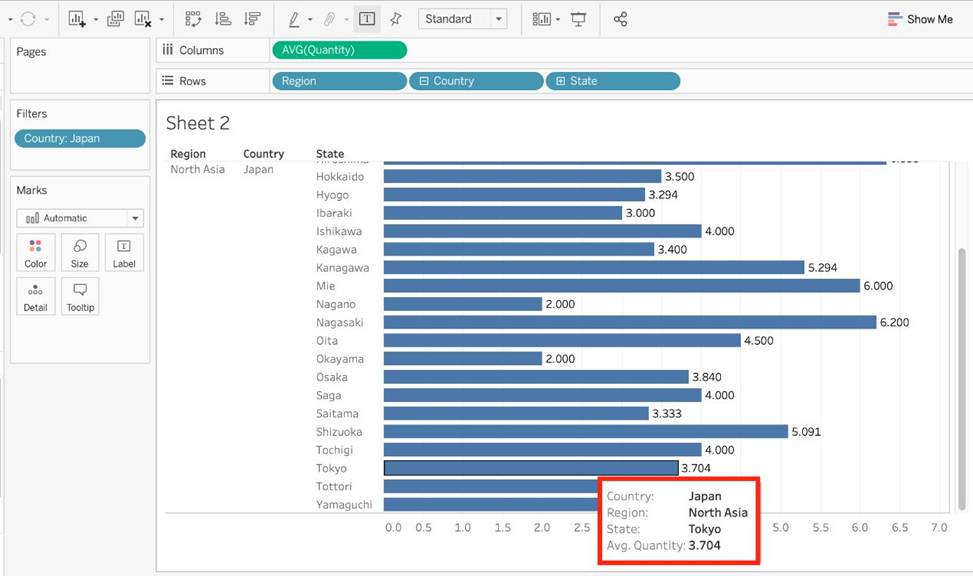
Now that you think of it, EVEN IF YOU REMOVE THE REGION, THE ANSWER REMAINS THE SAME. Such elements will be present in the actual exam too, just to make the question sound a little difficult, but actually it is pretty straightforward 🙂
As a general best practice, how many categories can a pie chart display effectively?
- A . 2 to 5
- B . 3 to 5
- C . 2 to 8
- D . 3 to 7
A
Explanation:
As a general best practice, your pie chart should contain 2 to 5 categories. Anything more than that is not easy for the eyes to distinguish. This is a common question and mentioned in Tableau’s own eLearning module as well!
See how to build a pie chart:
Reference: https://help.tableau.com/current/pro/desktop/en-us/buildexamples_pie.htm
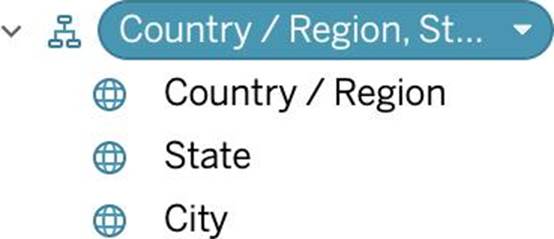
What term is used to describe the following picture?
- A . Larger image
- B . Parameter
- C . Set
- D . Hierarchy
- E . Group
C
Explanation:
When you connect to a data source, Tableau automatically separates date fields into hierarchies so you can easily break down the viz. You can also create your own custom hierarchies. For example, if you have a set of fields named Region, State, and County, you can create a hierarchy from these fields so that you can quickly drill down between levels in the viz.
Reference: https://help.tableau.com/current/pro/desktop/en-us/qs_hierarchies.htm
You have a visualization that uses multiple types of sorting.
How can you clear all sorting of the visualization?
- A . Right-click a sorted field, and then select Clear Sort.
- B . From the Dashboard menu, select Clear.
- C . From the Header label, select the sort icon.
- D . From the Worksheet menu, select Clear, and then select Sorts.
D
Explanation:
To clear all sorting in a Tableau visualization, you would go to the Worksheet menu, select the "Clear" option, and then choose "Sorts." This action removes all sorting that has been applied to the visualization, including any custom sorting or sorting based on multiple fields. This is a quick way to reset the view to its default sorting state and is particularly useful when you have applied various sorting layers and wish to start fresh.