
Tableau TDS-C01 Practice Exams
Last updated on Oct 23,2026- Exam Code: TDS-C01
- Exam Name: Tableau Desktop Specialist
- Certification Provider: Tableau
- Latest update: Oct 23,2026
Broadly speaking, after an importing a dataset in Tableau Desktop, all fields in it are broken down into _______________________
- A . Dimensions and Measures
- B . Rows and Columns
- C . Labels and Values
- D . Numbers and Headers
A
Explanation:
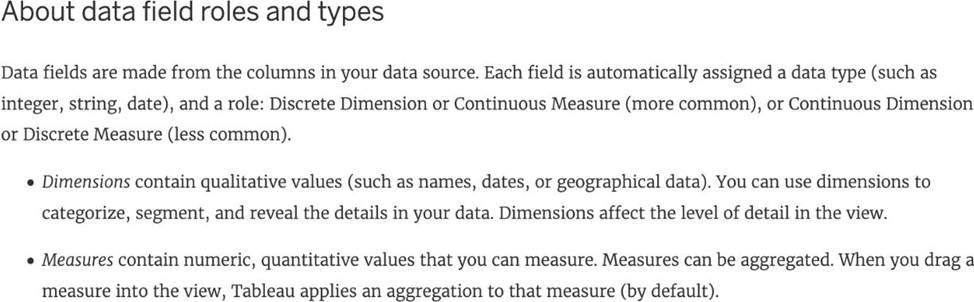
When you connect to a new data source, Tableau assigns each field in the data source as dimension
or measure in the Data pane, depending on the type of data the field contains. You use these fields to
build views of your data.
Further,
Reference: https://help.tableau.com/current/pro/desktop/en-us/datafields_typesandroles.htm
In which situation should you save a workbook as a PDF document?
- A . Your users have Tableau Desktop but not Tableau Reader.
- B . You want document users to be able to filter and sort the views.
- C . Your analysis does not require a live connection to a data source.
- D . You need paper copies of the workbook.
D
Explanation:
You should save a workbook as a PDF document if you need paper copies of the workbook. A PDF document preserves the layout and formatting of the workbook, and can be easily printed or shared. Saving a workbook as a PDF document is not necessary or useful in the other situations1
When should you use a relationship instead of a join for two data sets?
- A . The data sets include similar data aggregated up to the highest level.
- B . The data sets include similar data aggregated at different levels of detail.
- C . The data sets are in two separate tables within a single spreadsheet.
- D . To use both data sets across multiple sheets in a visualization.
B
Explanation:
You should use a relationship instead of a join for two data sets when the data sets include similar data aggregated at different levels of detail. A relationship is a way of combining data from different tables based on common fields without creating a single table with all fields. A relationship allows you to query data from multiple tables as needed and preserve the level of detail of each table. A relationship is useful when you have data sets that are aggregated at different levels of detail, such as sales by region and sales by product. A relationship can match data from different levels of detail without creating null values or duplicate rows. The other options are not valid situations for using a relationship instead of a join for two data sets. The data sets include similar data aggregated up to the highest level is not correct, because a relationship is not needed when both data sets have the same level of detail. You can use either a relationship or a join in this case, depending on your preference and performance. The data sets are in two separate tables within a single spreadsheet is not correct, because a relationship is not limited by the location or format of the data sets. You can use a relationship to combine data from different sources or connections, such as databases, files, or web services. To use both data sets across multiple sheets in a visualization is not correct, because a relationship does not affect how you use data in your visualization. You can use either a relationship or a join to create multiple sheets and dashboards with your data sets.
What is the following icon in the Data pane used to do?
Larger image

- A . View Data
- B . Clean Data
- C . Extract Data
- D . Sort Data
A
Explanation:
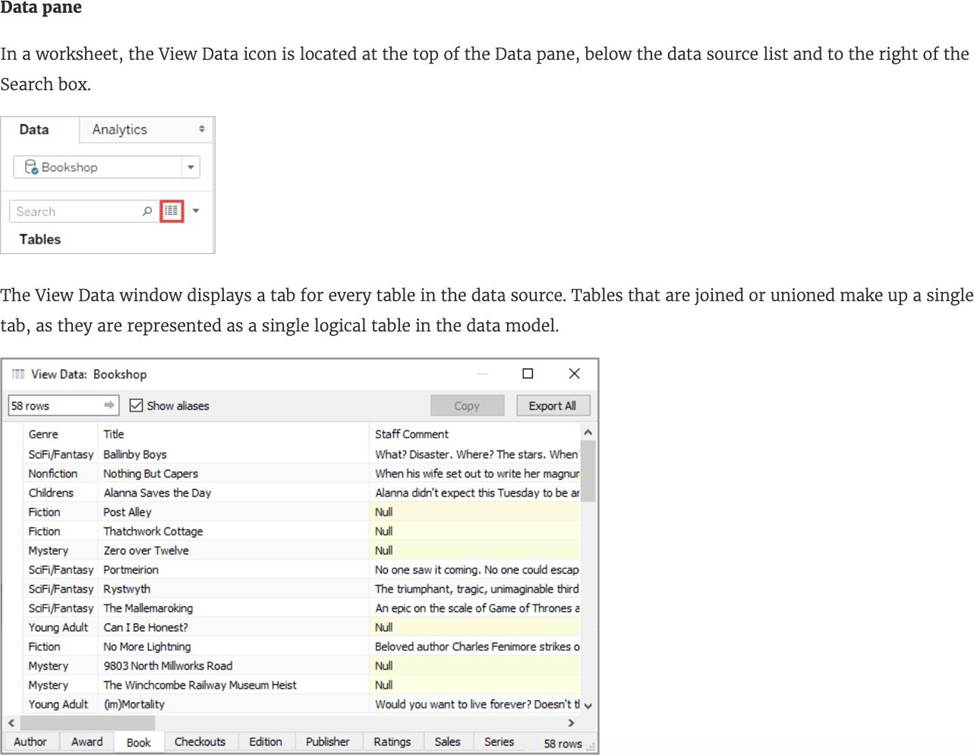
View Data allows you to inspect your data in a spreadsheet-like layout. You can view data either for the data source as a whole, or to see the underlying data for an individual mark or a group of marks. In a worksheet, the rows that you see in the View Data window are always scoped to the current selection or the current view.
The View Data window displays as much of the data as possible by default, up to 10,000 rows. Field names are shown as column headers and can be dragged and dropped to change their display order. Click a column header to sort the values in that column.
From the official website:
Reference: https://help.tableau.com/current/pro/desktop/en-us/inspectdata_viewdata.htm
Using the Geo Data table, create a Bar chart showing the In-Stock percentage for each Color.
What is the Average In-Stock percentage for the Color Red? Present your answer correctly upto 2 decimal places.
- A . 96.46%
- B . 95.12%
- C . 97.12%
- D . 99.46%
C
Explanation:
Not too tough. Follow along the steps:
Drag Color to Filter and choose Red:
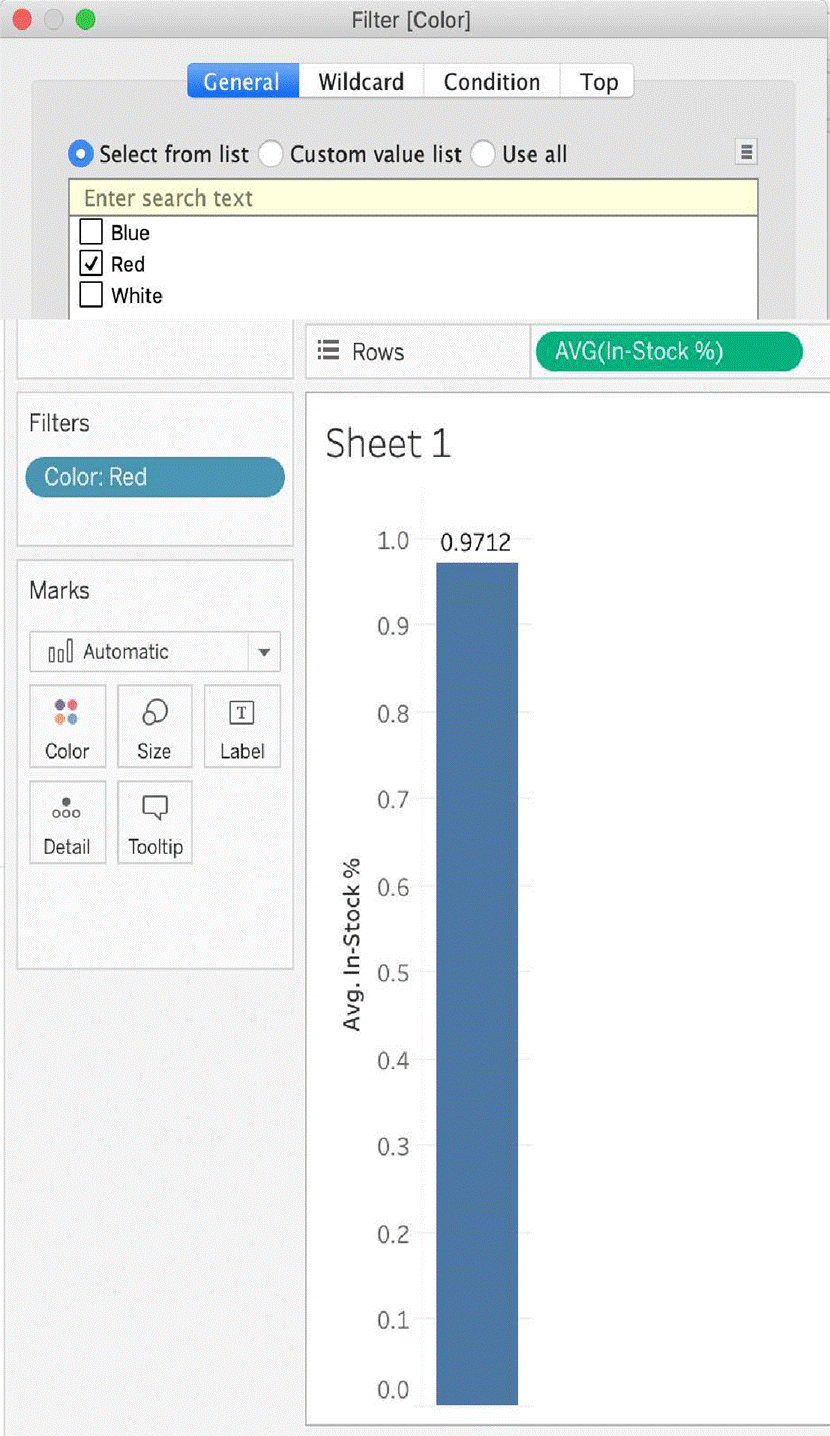
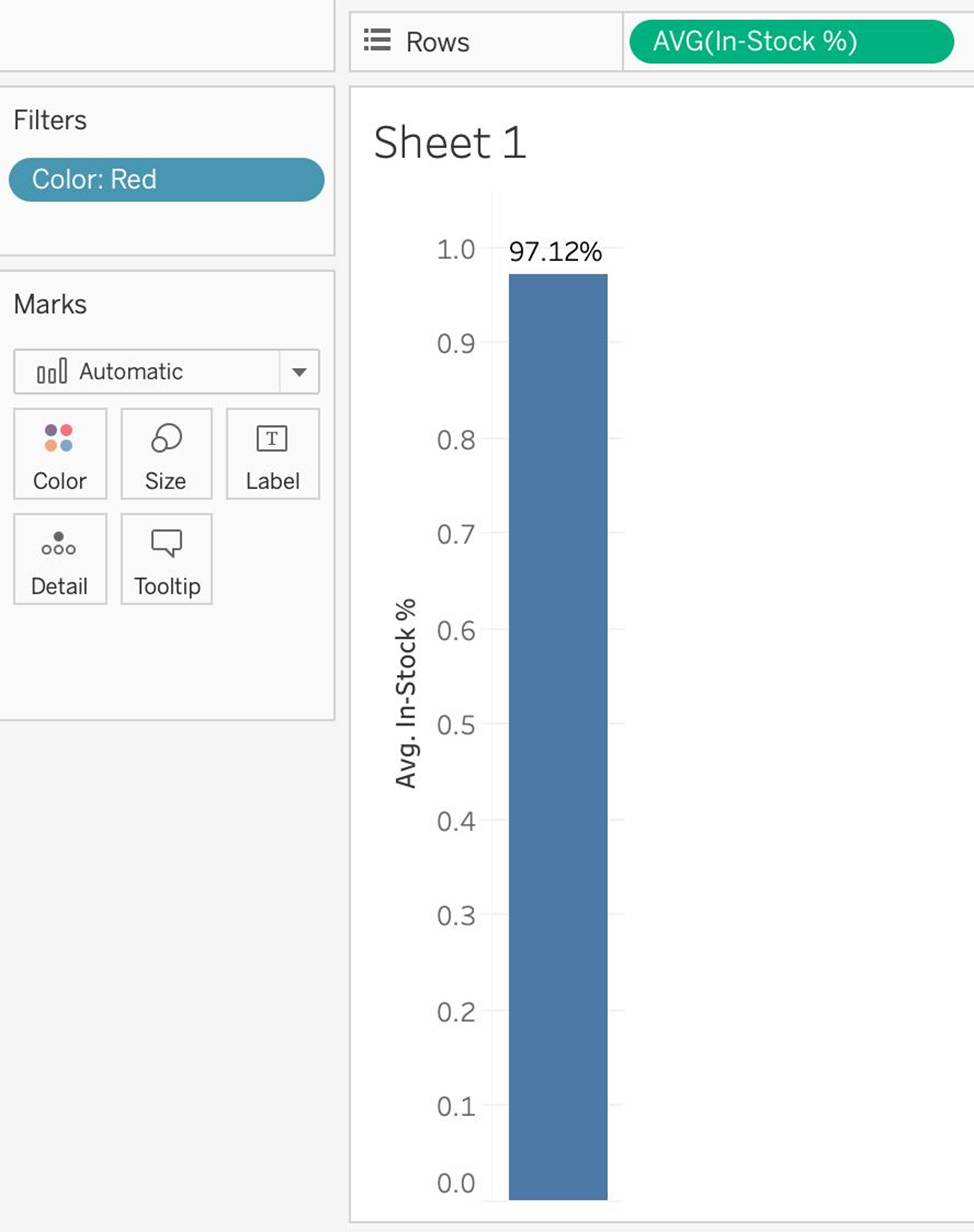
3) Now to display the percentage correctly, lets format it. Click on the In Stock % pill in the Row shelf, and select format:
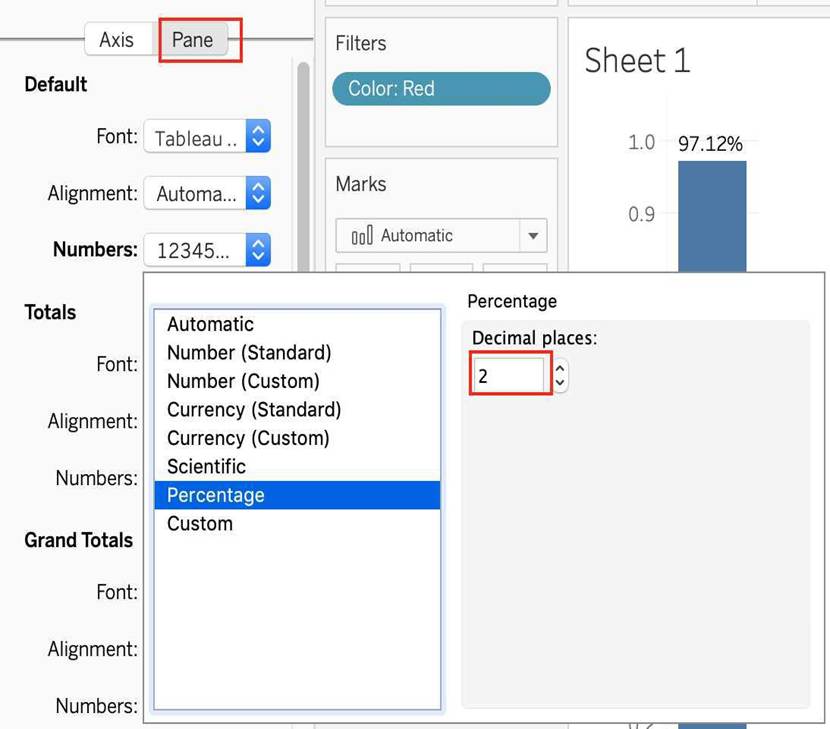
And your final view will look like :
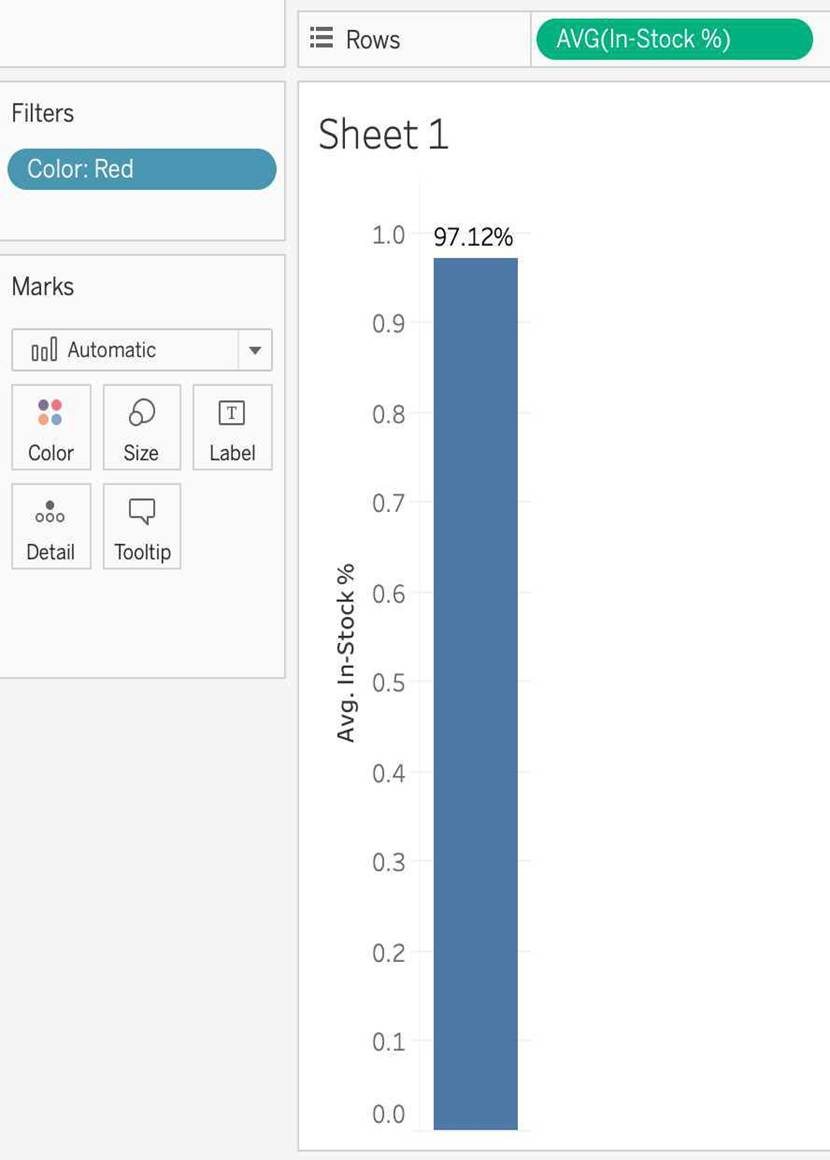
True or False: It is not possible to blend axes for multiple measures into a single axis
- A . False
- B . True
A
Explanation:
We can very much blend multiple measures into a single axis. Such charts are called Combined-Axis /
Blended-Axis charts.
Follow along:
Measures can share a single axis so that all the marks are shown in a single pane. To blend multiple measures, drag one measure or axis and drop it onto an existing axis.
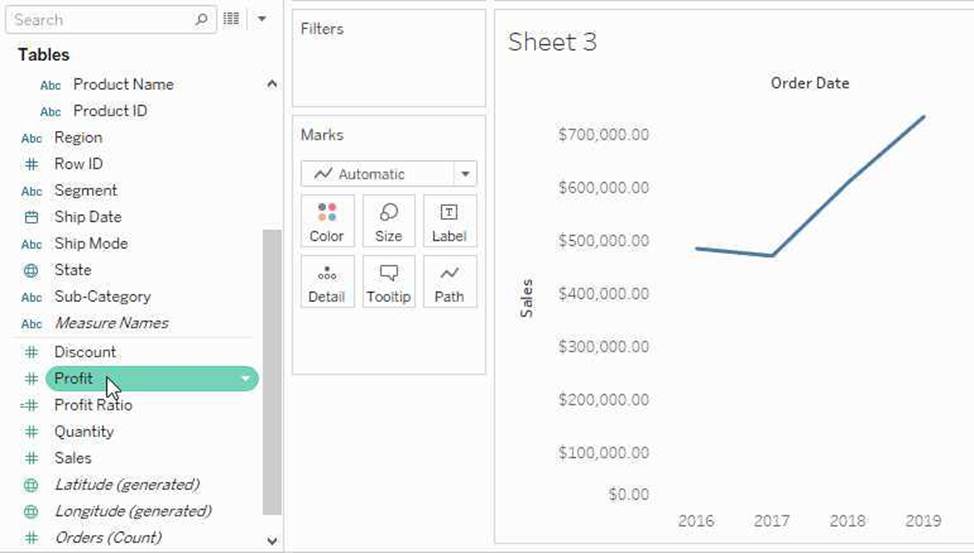
Instead of adding rows and columns to the view, when you blend measures there is a single row or column and all of the values for each measure is shown along one continuous axis. For example, the view below shows quarterly sales and profit on a shared axis.
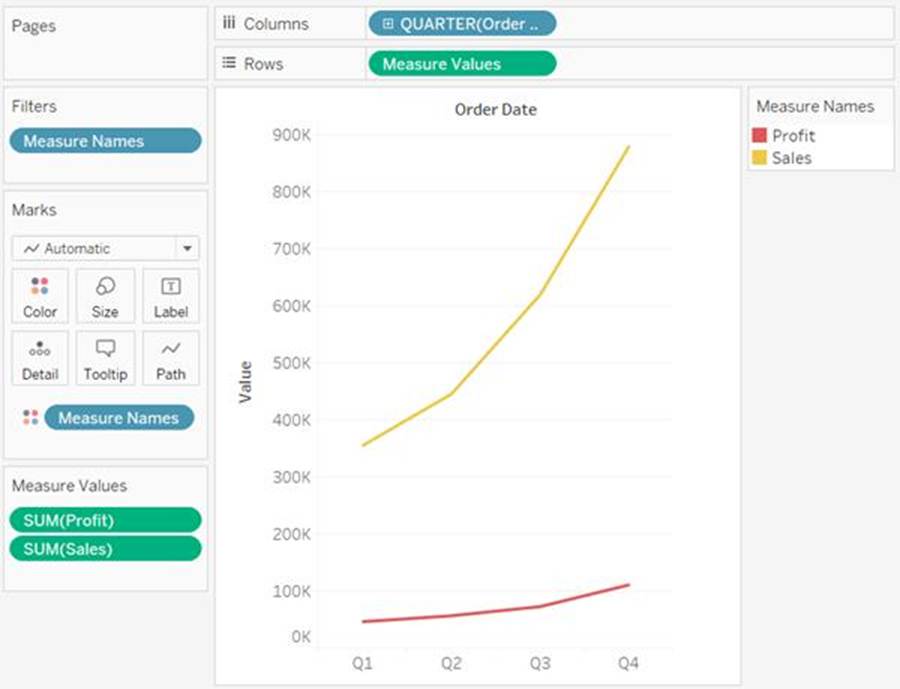
Note: If you drag a measure on to the canvas and only see a single ruler indicator instead of the double ruler indicator shown below, Tableau creates dual axes instead of a blended axis. For more information about how to create dual axes, see Compare two measures using dual axes.
Reference: https://help.tableau.com/current/pro/desktop/en-us/multiple_measures.htm
You have a bar chart that has a dimension on the Columns shelf and a measure on the Rows shelf.
How can you make a stacked bar chart?
- A . Drag another dimension to Color on the Marks card
- B . Drag another measure to Color on the Marks card.
- C . Drag another dimension to Size on the Marks card.
- D . Drag another measure to the left of the measure on the Rows shelf.
A
Explanation:
To create a stacked bar chart in Tableau, you can drag a second dimension to the Color shelf on the Marks card. This action will segment the bars already present in the chart by the new dimension, stacking the segments on top of each other within each bar. This is a common method to add additional layers of detail to a bar chart and effectively compare parts to a whole across categories.
What two methods can you use to change the font of a worksheet title? Choose two.
- A . Double-click the title in a particular view and use the dialog box.
- B . Right-click the title in a view, and then select Format Title.
- C . Select Format on the menu, and then select Font.
- D . Select Format on the menu, and then select Title and Caption.
A, D
Explanation:
In Tableau, you can change the font of a worksheet title by double-clicking directly on the title in the view, which opens a dialog box where you can format the text, including changing the font. Another method is to use the Format menu; from there, you select "Title and Caption," which opens the Format Title pane on the left side of the screen, where you can change the font and other formatting options for the worksheet title.
Suppose you create a bar chart by dragging a dimension to the Column shelf and a measure to the Rows shelf.
Which of the following would create a stacked bar chart?
- A . By dragging another dimension to the Rows shelf
- B . By dragging another measure to Color on the Marks card
- C . By dragging another dimension to Color on the Marks card
- D . By dragging another measure to the Columns shelf
B
Explanation:
Very important question for the exam and appears quite a lot too.
The correct answer is – By dragging another dimension to Color on the Marks card.
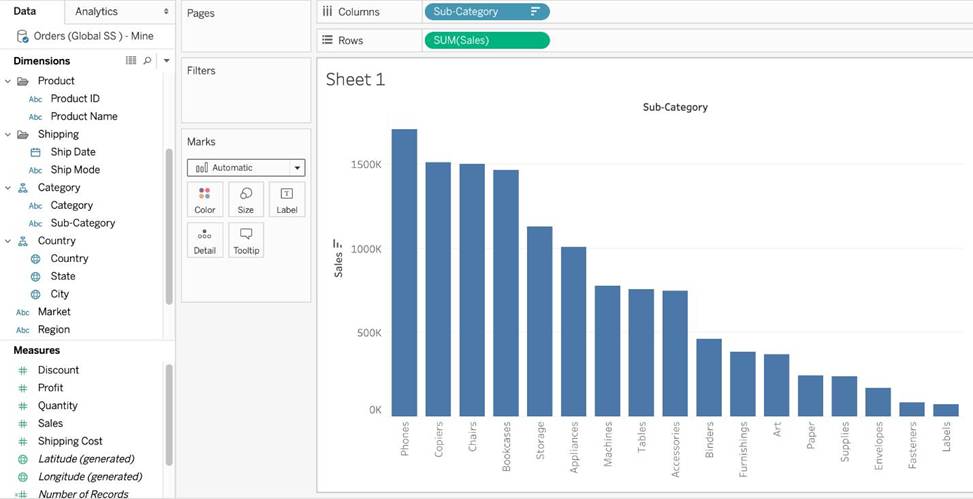
This is what the question says we have already created. Now to convert this into a Stacked bar chart, we will drop another dimension on Color in the Marks card.
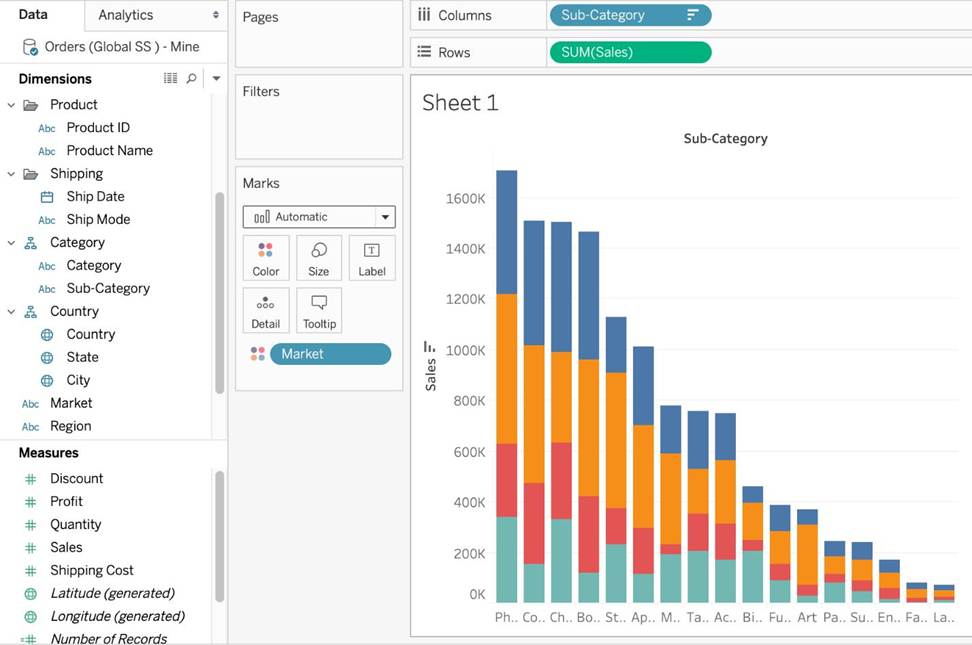
The rest won’t create stacked bar charts, and hence are incorrect choices. The best way to answer such questions on the real exam is to quickly do what the options say and see if they satisfy the requirements in the question.
You need to invert the color intensity of a quantitative range.
Which option should you use?
- A . Reversed
- B . Opacity
- C . Border
- D . Stepped Color
A
Explanation:
To invert the color intensity of a quantitative range in Tableau, you should use the "Reversed" option. This option inverts the color scheme so that the colors representing the higher values are swapped with those representing the lower values. For example, if a color scale initially shows dark colors for high values and light colors for low values, using "Reversed" will switch this so that dark colors represent low values and light colors represent high values. This option is particularly useful for better visual distinction and interpretation in certain data scenarios.