
Tableau TDS-C01 Practice Exams
Last updated on Oct 22,2026- Exam Code: TDS-C01
- Exam Name: Tableau Desktop Specialist
- Certification Provider: Tableau
- Latest update: Oct 22,2026
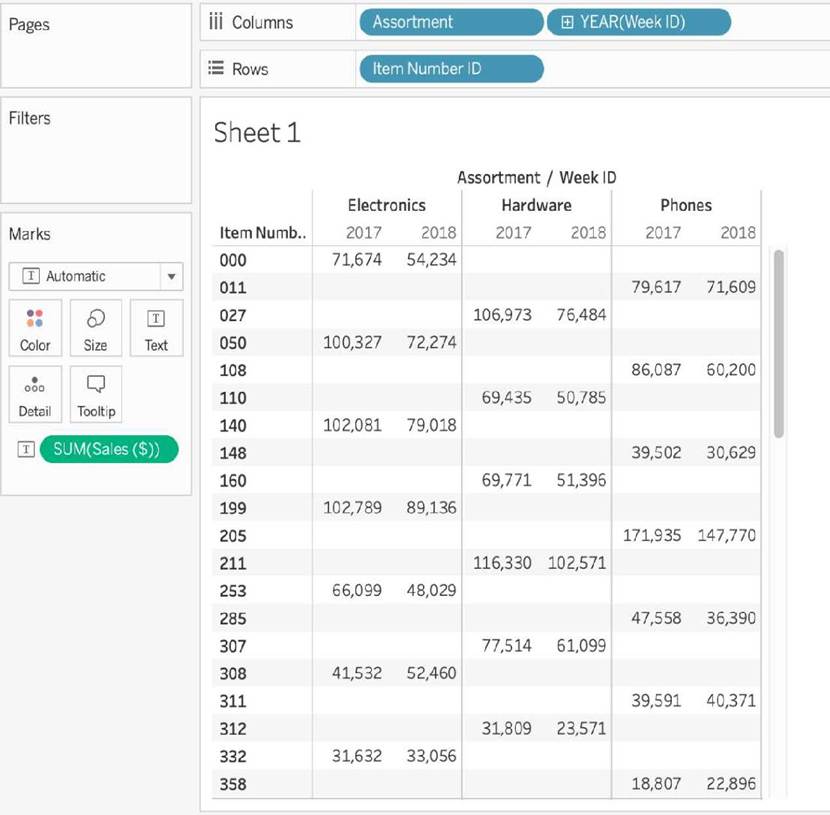
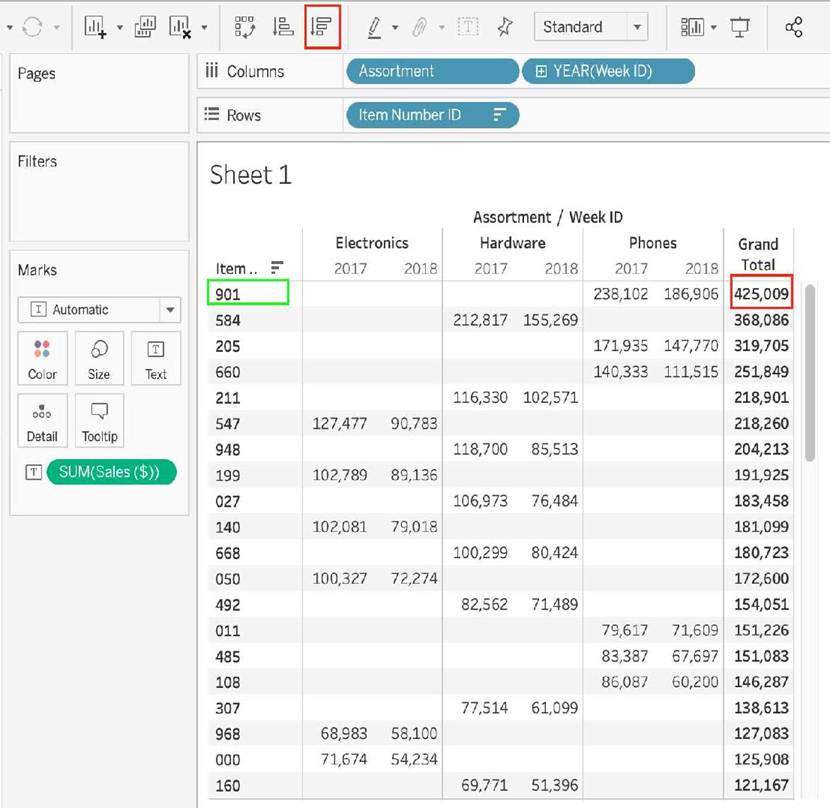
Using the Time-series table, create a cross tab showing the Sales for each Item Number-ID, broken down by Assortments, then add Grand totals to the view.
Which Item Number ID made the maximum sales across all assortments?
- A . 584
- B . 901
- C . Correct)
- D . 205
- E . 660
B
Explanation:
Follow along the steps below:
Drag Assortment and Year ID to the column shelf, and Item Number ID to the row shelf. Next, drag
Sales to the Text label to create a cross-tab as below:
What are two use cases for creating hierarchies from the Data pane? Choose two.
- A . To concatenate all fields into a single field
- B . To add drilldown functionality for fields
- C . To create faster-performing queries
- D . To organize related fields together
BD
Explanation:
Two use cases for creating hierarchies from the Data pane are to add drilldown functionality for fields and to organize related fields together. A hierarchy is a way of organizing data into different levels of detail. For example, a date hierarchy can have year, quarter, month, and day levels. A geographic hierarchy can have country, state, city, and zip code levels. By creating hierarchies from the Data pane, you can quickly drill down or up in a hierarchy to add or subtract more levels of detail in the view. You can also use hierarchies to group related fields together in the Data pane, making it easier to find and use them14 The other options are not valid use cases for creating hierarchies from the Data pane. To concatenate all fields into a single field, you need to use a calculated field or a join, not a hierarchy. To create faster-performing queries, you need to optimize your data source, filters, calculations, or extracts, not create hierarchies
True or False: We can disaggregate the data, to see all of the marks in the view at the most detailed level of granularity
- A . True
- B . False
A
Explanation:
Whenever you add a measure to your view, an aggregation is applied to that measure by default.
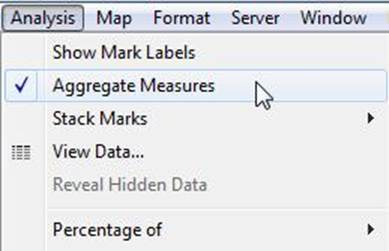
This default is controlled by the Aggregate Measures setting in the Analysis menu.
If you decide you want to see all of the marks in the view at the most detailed level of granularity, you can disaggregate the view. Disaggregating your data means that Tableau will display a separate mark for every data value in every row of your data source.
To disaggregate all measures in the view:
Clear the Analysis >Aggregate Measures option.
If it is already selected, click Aggregate Measures once to deselect it.
Reference: https://help.tableau.com/current/pro/desktop/en-us/calculations_aggregation.htm
What is a story point in Tableau?
- A . A single worksheet or dashboard
- B . A collection of dashboards
- C . A collection of both worksheets and dashboards
- D . A collection of worksheets
A
Explanation:
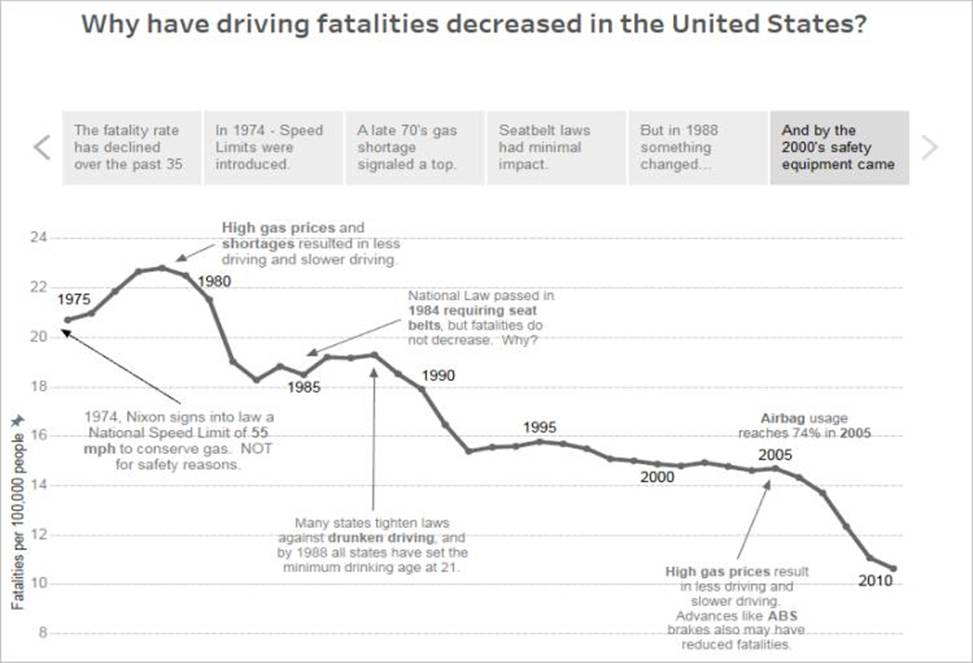
In Tableau, a story is a sequence of visualizations that work together to convey information. You can create stories to tell a data narrative, provide context, demonstrate how decisions relate to outcomes, or to simply make a compelling case.
A story is a sheet, so the methods you use to create, name, and manage worksheets and dashboards also apply to stories (for more details, see Workbooks and Sheets). At the same time, a story is also a collection of sheets, arranged in a sequence. Each individual sheet (worksheet or dashboard) in a story is called a story point.
When you share a story ―for example, by publishing a workbook to Tableau Public, Tableau Server, or Tableau Online―users can interact with the story to reveal new findings or ask new questions of the data.
Reference: https://help.tableau.com/current/pro/desktop/en-us/stories.htm
What is a story point in Tableau?
- A . A single worksheet or dashboard
- B . A collection of dashboards
- C . A collection of both worksheets and dashboards
- D . A collection of worksheets
A
Explanation:
In Tableau, a story is a sequence of visualizations that work together to convey information. You can create stories to tell a data narrative, provide context, demonstrate how decisions relate to outcomes, or to simply make a compelling case.
A story is a sheet, so the methods you use to create, name, and manage worksheets and dashboards also apply to stories (for more details, see Workbooks and Sheets). At the same time, a story is also a collection of sheets, arranged in a sequence. Each individual sheet (worksheet or dashboard) in a story is called a story point.
When you share a story ―for example, by publishing a workbook to Tableau Public, Tableau Server, or Tableau Online―users can interact with the story to reveal new findings or ask new questions of the data.
Reference: https://help.tableau.com/current/pro/desktop/en-us/stories.htm
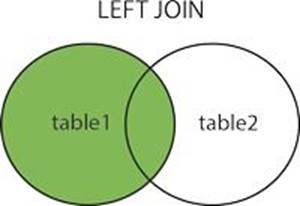
True or False: LEFT JOIN returns all rows from the left table, with the matching rows in the right table
- A . True
- B . False
A
Explanation:
This is true, indeed!
The LEFT JOIN keyword returns all records from the left table (table1), and the matched records from the right table (table2). The result is NULL from the right side, if there is no match.
Reference: https://www.w3schools.com/sql/sql_join_left.asp
By definition, Tableau displays measures over time as a ____________.
- A . Packed Bubble
- B . Bar
- C . Stacked Bar
- D . Line
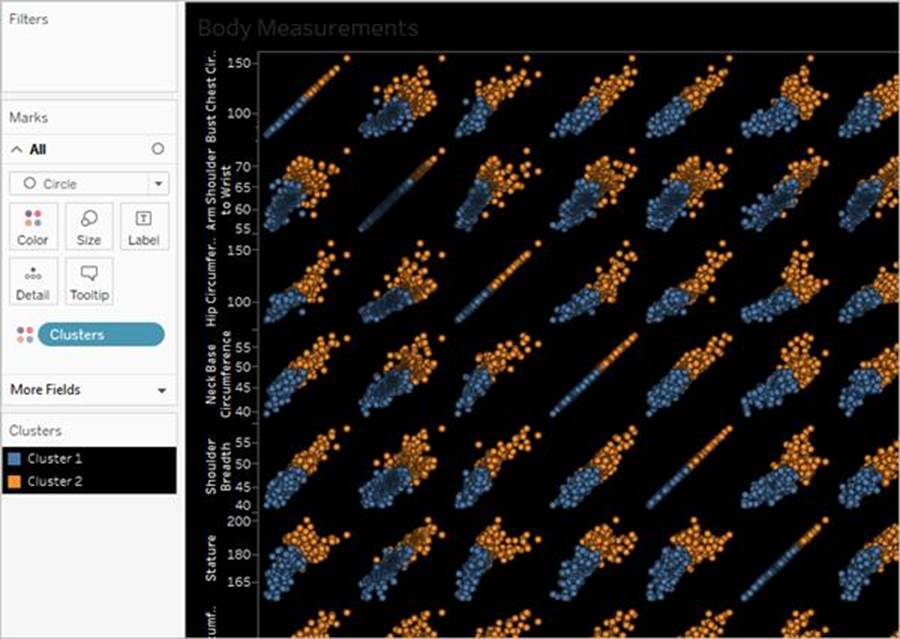
__________ is a technique in Tableau which will identify marks with similar characteristics
- A . Clustering
- B . Grouping
- C . Sets
- D . Union
A
Explanation:
Cluster analysis partitions marks in the view into clusters, where the marks within each cluster are more similar to one another than they are to marks in other clusters.
Reference: https://help.tableau.com/current/pro/desktop/en-us/clustering.htm
The default path for all supporting files, data sources, icons, logs etc is in ______________________
- A . Documents -> Tableau Files
- B . Documents -> Tableau
- C . Documents -> My Tableau Repository
- D . Downloads -> Tableau Support Files
C
Explanation:
By default, all of the above mentioned are stored in Documents -> My Tableau Repository
Reference: https://help.tableau.com/current/pro/desktop/en-us/environ_filesandfolders.htm
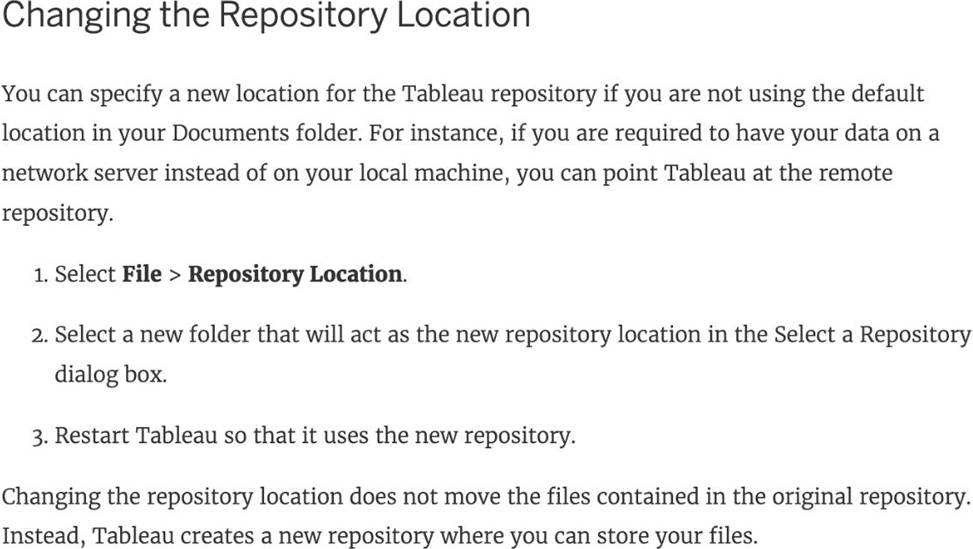
How can you change the default Tableau repository location?
- A . By clicking on Window -> Repository Location
- B . By clicking on Help -> Change Repository Location
- C . By clicking on File -> Repository Location and choosing a new location
- D . By Moving the repository location manually to wherever we want
C
Explanation:
According to the official Tableau documentation:
Reference: https://help.tableau.com/current/pro/desktop/en-us/environ_filesandfolders.htm