
Tableau TDS-C01 Practice Exams
Last updated on Oct 22,2026- Exam Code: TDS-C01
- Exam Name: Tableau Desktop Specialist
- Certification Provider: Tableau
- Latest update: Oct 22,2026
You want to update the font of an entire workbook.
What should you use to configure the default fonts?
- A . The Formal Font pane
- B . The Format Workbook pane
- C . Field labels
- D . Titles and captions
B
Explanation:
To update the font of an entire workbook in Tableau, you should use the "Format Workbook" pane. This feature allows you to set and modify the default font settings for the entire workbook, ensuring consistency in font style across all sheets and dashboards. It’s a global setting that applies to all visual elements in the workbook, including titles, captions, axis labels, and other text elements.
For a relative date filter, the default anchor is _________________
- A . The current time
- B . Today’s date
- C . The target date
- D . The date we specify
B
Explanation:
Relative date filters dynamically update to show a time period relative to when you open the view, such as the current week, the year to date, or the past 10 days. Relative date filters make it easy to create views that always show the most recent data.
Step 1: Drag a date field to the filter shelf
Right-click (control-click on Mac) and drag a date field from the Data window to the Filters shelf. In the Filter Field dialog box, click Relative Date, and then click Next.
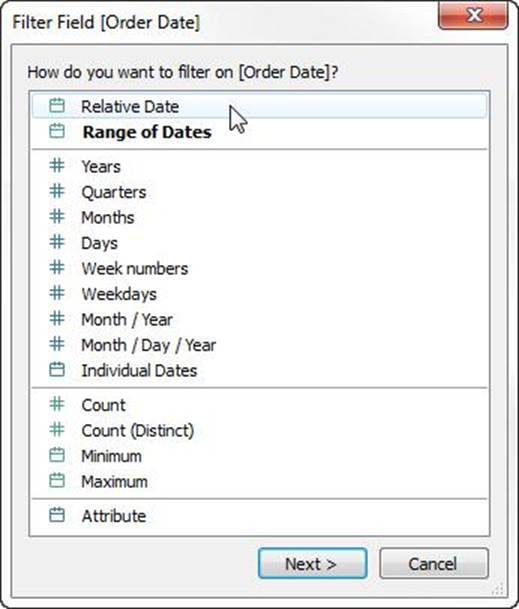
Step 2: Select a time unit
In the Filter dialog box, click Relative dates, and then select the unit of time for the filter.
For example, to show only the three most recent weeks, select Weeks.
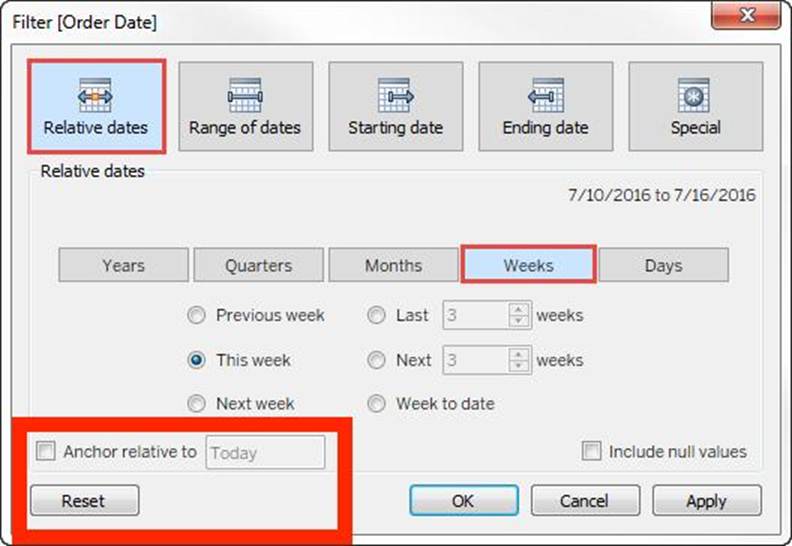
Here, you can clearly see that the default date is TODAY
Reference: https://help.tableau.com/current/pro/desktop/en-us/qs_relative_dates.htm
We can join a maximum of ______ tables in Tableau
- A . 16
- B . 32
- C . 64
- D . 128
B
Explanation:
It is possible to join a maximum of 32 tables in Tableau!
Reference: https://www.mytectra.com/interview-question/tableau-interview-question-and-answers
Which of the following are correct ways to define a join in Tableau version 2020.3 and above?
- A . Right-click a logical table and click on open to go to the Join/Union canvas in the physical layer and add joins or unions.
- B . Double-click a physical table to go to the Join/Union canvas in the logical layer and add joins or unions.
- C . Right-click a physical table and click on open to go to the Join/Union canvas in the logical layer and add joins or unions.
- D . Double-click a logical table to go to the Join/Union canvas in the physical layer and add joins or unions.
AD
Explanation:
Remember that joins are defined in the physical layer and relationships in the logical layer.
You can still specify joins between tables in the physical layer of a data source. Double-click a logical table to go to the Join/Union canvas in the physical layer and add joins or unions.
Every top-level, logical table contains at least one physical table. Open a logical table to view, edit, or create joins between its physical tables. Right-click a logical table, and then click Open. Or, just double-click the table to open it.
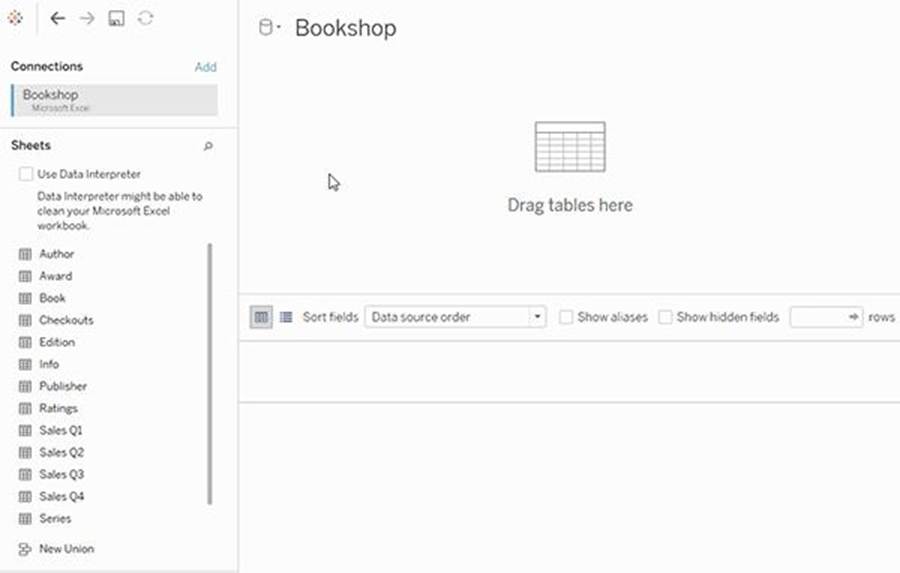
When you create a data source, it has two layers. The top-level layer is the logical layer of the data source. You combine data between tables in the logical layer using relationships.
The next layer is the physical layer of the data source. You combine data between tables at the physical layer using joins. For more information, see Logical and physical tables in the data model
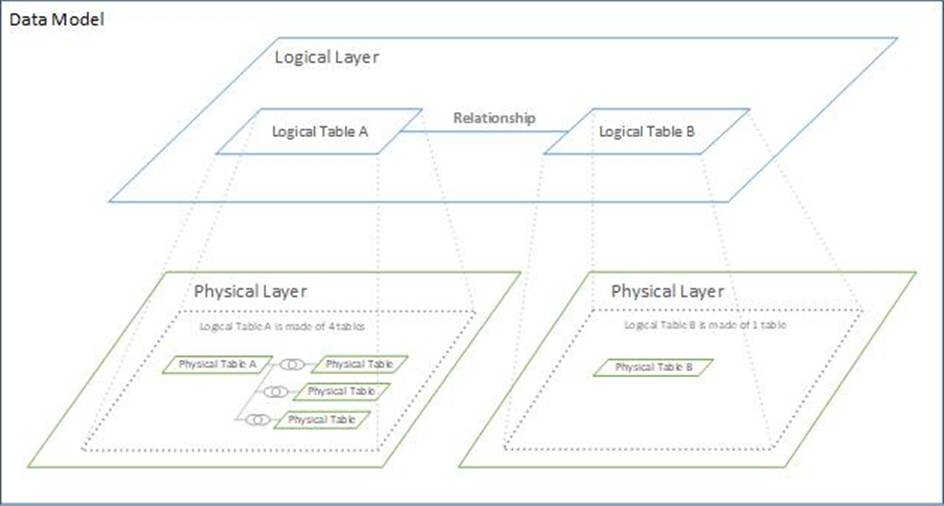
Reference: https://help.tableau.com/current/online/en-us/datasource_relationships_learnmorepage.htm
Which of the following are correct ways to define a join in Tableau version 2020.3 and above?
- A . Right-click a logical table and click on open to go to the Join/Union canvas in the physical layer and add joins or unions.
- B . Double-click a physical table to go to the Join/Union canvas in the logical layer and add joins or unions.
- C . Right-click a physical table and click on open to go to the Join/Union canvas in the logical layer and add joins or unions.
- D . Double-click a logical table to go to the Join/Union canvas in the physical layer and add joins or unions.
AD
Explanation:
Remember that joins are defined in the physical layer and relationships in the logical layer.
You can still specify joins between tables in the physical layer of a data source. Double-click a logical table to go to the Join/Union canvas in the physical layer and add joins or unions.
Every top-level, logical table contains at least one physical table. Open a logical table to view, edit, or create joins between its physical tables. Right-click a logical table, and then click Open. Or, just double-click the table to open it.
When you create a data source, it has two layers. The top-level layer is the logical layer of the data source. You combine data between tables in the logical layer using relationships.
The next layer is the physical layer of the data source. You combine data between tables at the physical layer using joins. For more information, see Logical and physical tables in the data model
Reference: https://help.tableau.com/current/online/en-us/datasource_relationships_learnmorepage.htm
How can you set the default properties of a field to Currency?
- A . From the Data pane, configure the number format of the field.
- B . From the Format menu, configure the Font settings
- C . From the Format menu, configure the Field Labels settings.
- D . From the Data pane, configure the data type of the field.
A
Explanation:
To set the default properties of a field to Currency in Tableau, you need to configure the number format of the field from the Data pane. This can be done by right-clicking the field in the Data pane and selecting Default Properties, then choosing the appropriate number format (in this case, Currency).
What statement correctly describes a requirement to create a reference line in Tableau?
- A . One of the axis must contain a dimension.
- B . One of the axis must contain an aggregated measure.
- C . The reference line must be created on a continuous axis.
- D . The reference line must be paired with a date field.
B
Explanation:
In Tableau, to create a reference line, one of the axes in the view must contain an aggregated measure. Reference lines are typically used to add context or additional information to the data in a view, and they are often based on some form of aggregate such as the average, median, sum, etc., of a measure.
What is the one most important thing you should do after creating a Dual-axis chart?
- A . Synchronise the axis
- B . Change the colours
- C . Edit the labels
- D . Hide the axis
A
Explanation:
After creating a dual axis chart, make sure to synchronise their axis since they both might not be having the same y-axis.
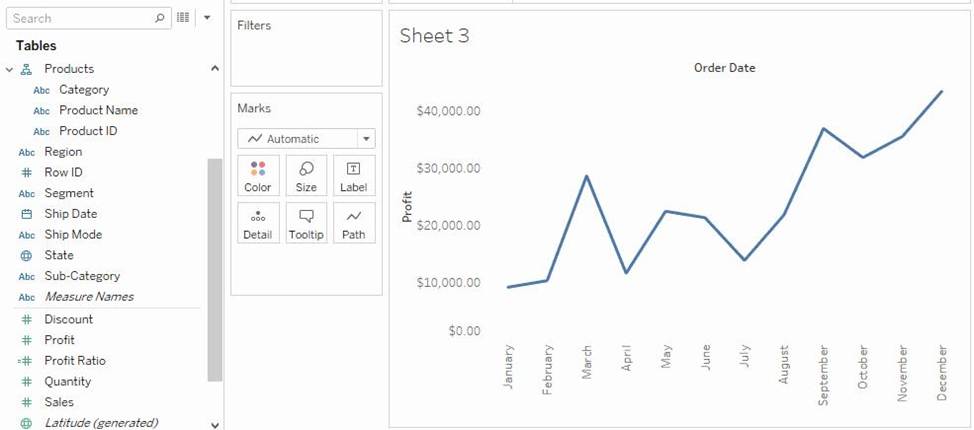
To align the two axes in a dual axes chart to use the same scale, right-click (control-click on Mac) the secondary axis, and select Synchronize Axis. This aligns the scale of the secondary axis to the scale of the primary axis.
In this example, the Sales axis is the secondary axis and the Profit axis is the primary axis.
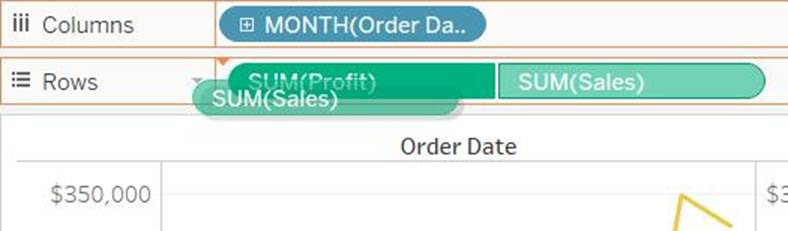
If you would like to change which axis is the primary, and which axis is the secondary, select the field on the Columns or Rows shelf that is the secondary, and drag it in front of the primary field on the shelf until you see an orange triangle appear.
In this example, you can select the SUM(Sales) field on the Rows shelf, and drag it in front of the SUM(Profit) field. The Sales axis is now the primary and the Profit axis is the secondary.
Reference: https://help.tableau.com/current/pro/desktop/en-us/multiple_measures.htm
Dragging a ______________ to colour creates distinct colours for each item whereas dragging a ______________ to colour creates a gradient
- A . Discrete value, Continuous Value
- B . Geographic Value, Discrete Value
- C . Continuous Value, Discrete Value
- D . Longitude, Latitude
A
Explanation:
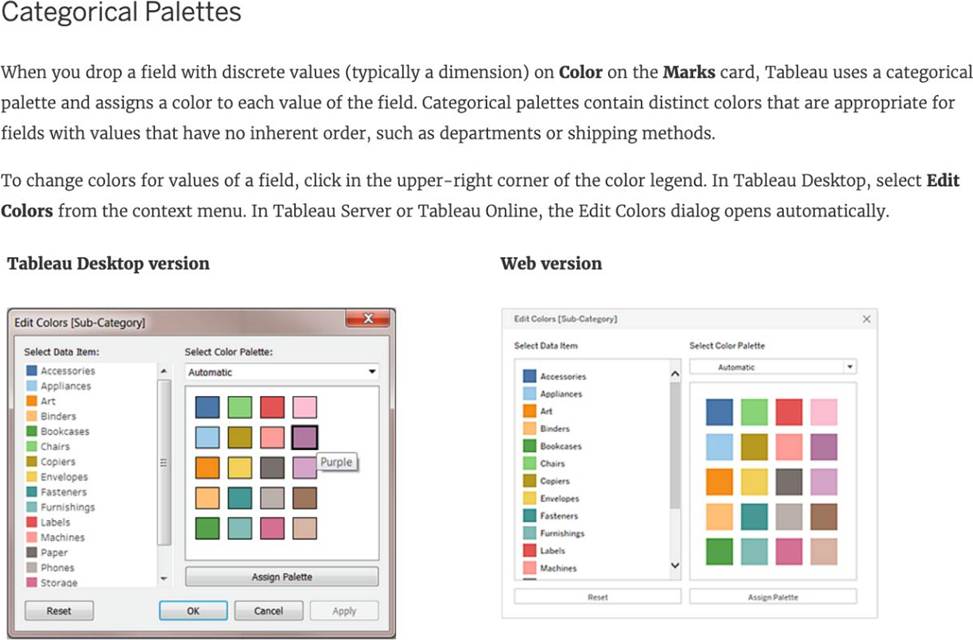
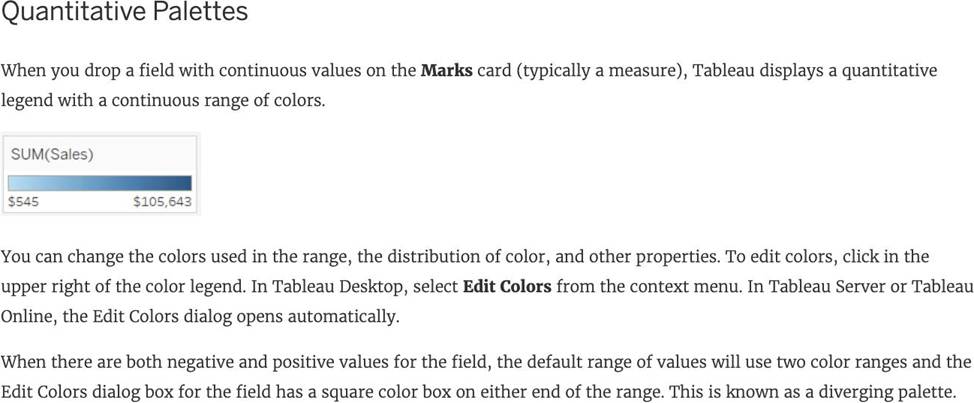
Remember that dragging a discrete value to colour creates distinct colours for each item whereas dragging a continuous value to colour creates a gradient. (Same for Map)
From the official documentation:
Reference: https://help.tableau.com/current/pro/desktop/en-us/viewparts_marks_markproperties_color.htm
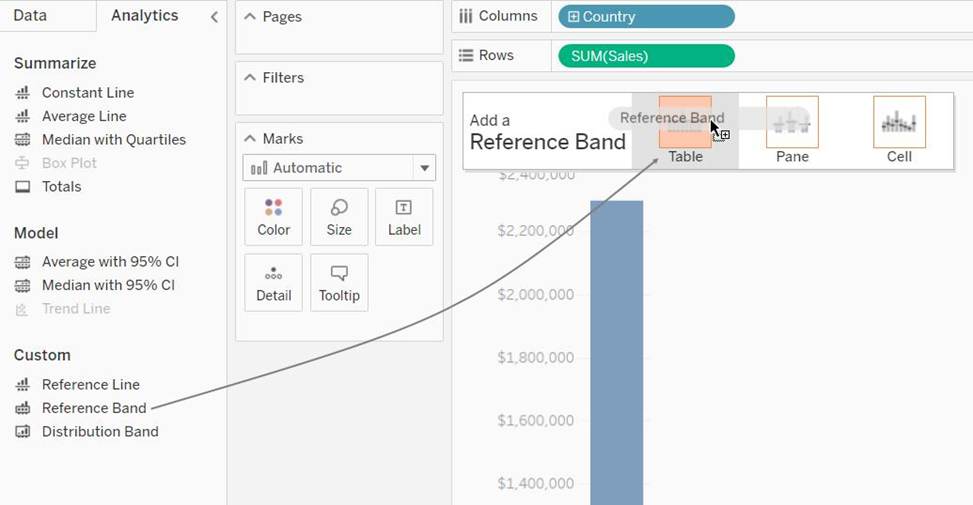
True or False: A reference line cannot be added from the Analytics Pane
- A . True
- B . False
B
Explanation:
You can add a reference line to any continuous axis in the view.
To add a reference line:
Drag Reference Line from the Analytics pane into the view. Tableau shows the possible destinations.
The range of choices varies depending on the type of item and the current view.
In a simple case, the drop target area offers three options:
Reference: https://help.tableau.com/current/pro/desktop/en-us/reference_lines.htm