
Tableau TDS-C01 Practice Exams
Last updated on Oct 23,2026- Exam Code: TDS-C01
- Exam Name: Tableau Desktop Specialist
- Certification Provider: Tableau
- Latest update: Oct 23,2026
What should you use to create headers in a visualization?
- A . A parameter
- B . A measure
- C . A dimension
D A filter
C
Explanation:
According to the Tableau Help, headers are “labels that identify the different parts of your view”. The help also states that “Headers are created when you place a discrete dimension on Columns or Rows” (page 1).
What are two correct methods to change the data type of a field? Choose two.
- A . From the Data Source tab, click on the drop-down menu of the field.
- B . From the Data pane, click on the drop-down menu of the field.
- C . From the Data Source tab, click the data type icon of the field.
- D . From the Data pane, select and hold the field.
BC
Explanation:
you can change the data type of a field from the Data Source tab by clicking on the drop-down menu of the field or by clicking the data type icon of the field. You cannot change the data type of a field from the Data pane or by selecting and holding the field.
Which of the following options best describe measures?
- A . They are categorical, qualitative
- B . They are categorical, quantitative
- C . They are numerical, qualitative
- D . They are numerical, quantitative
D
Explanation:
Data fields are made from the columns in your data source. Each field is automatically assigned a data type (such as integer, string, date), and a role: Discrete Dimension or Continuous Measure (more common), or Continuous Dimension or Discrete Measure (less common).
Dimensions contain qualitative values (such as names, dates, or geographical data). You can use dimensions to categorize, segment, and reveal the details in your data. Dimensions affect the level of detail in the view.
Measures contain numeric, quantitative values that you can measure. Measures can be aggregated.
When you drag a measure into the view, Tableau applies an aggregation to that measure (by default).
Reference: https://help.tableau.com/current/pro/desktop/en-us/datafields_typesandroles.htm
Suppose you have a bar chart. When we group by labels in a view, which of the following happens?
- A . Nothing changes in the view, but a group is created in the Dimensions shelf.
- B . The colours of the members selected are now the same, and different for the rest of the members.
- C . Trick question! It is not possible to group by labels.
- D . A new mark (bar) is created, which consolidates all members of the group.
D
Explanation:
*Very important question*
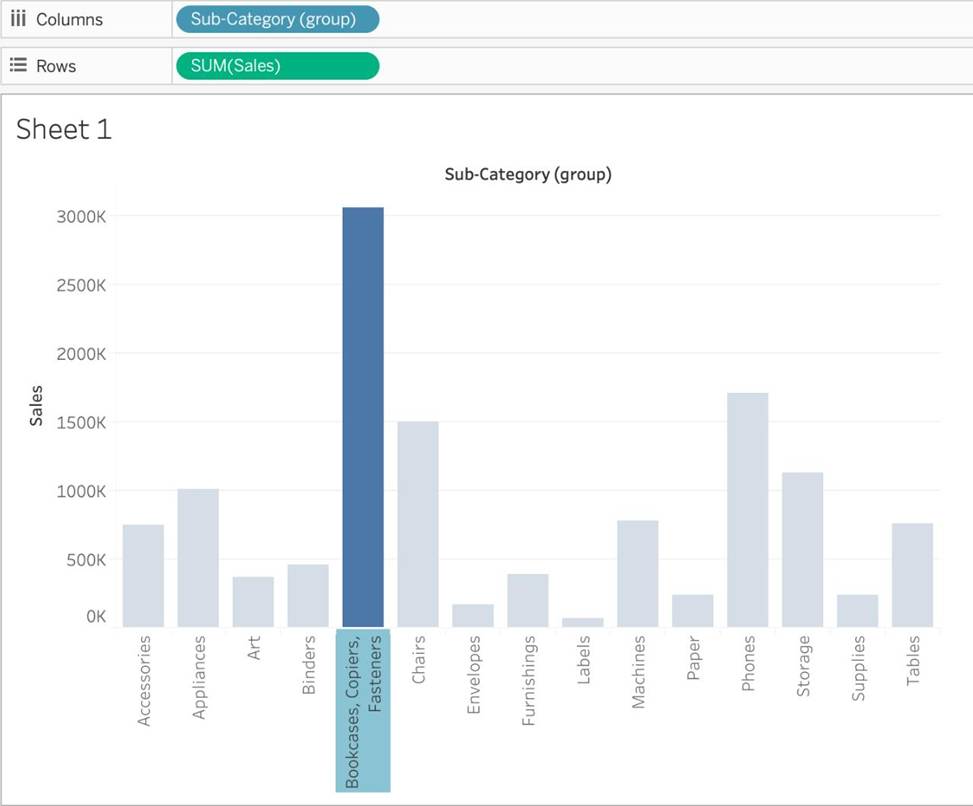
If we select the labels in the view and then group, a new consolidated mark is created – in our case bar since we are talking about a bar chart in the question. See below:
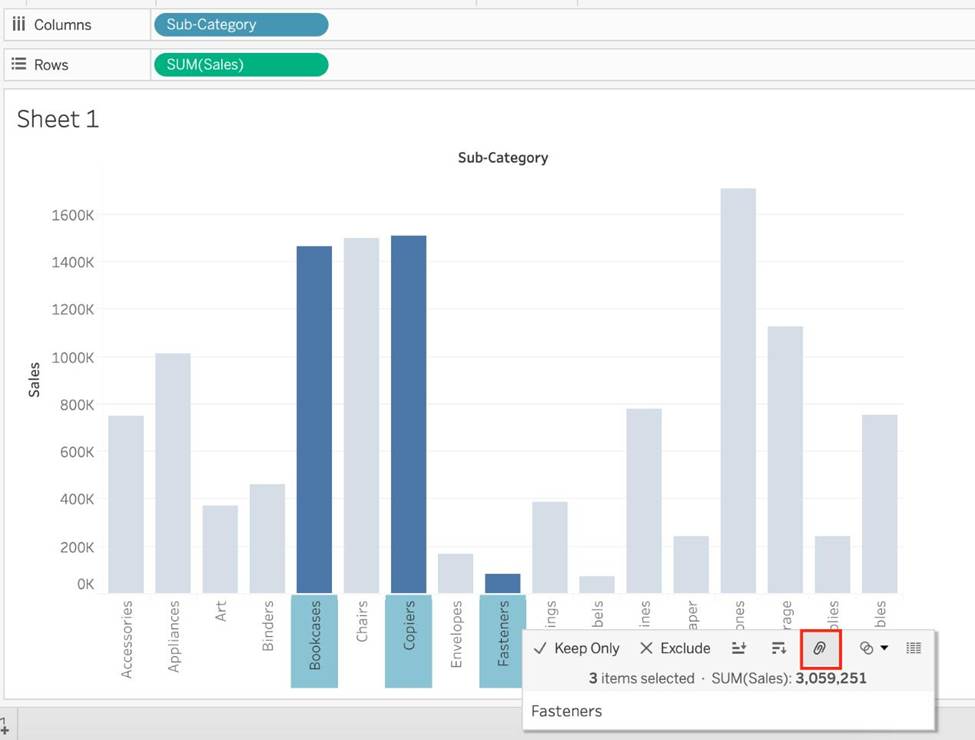
Then on grouping, a new bar is created, and the colour of all bars remain the same.
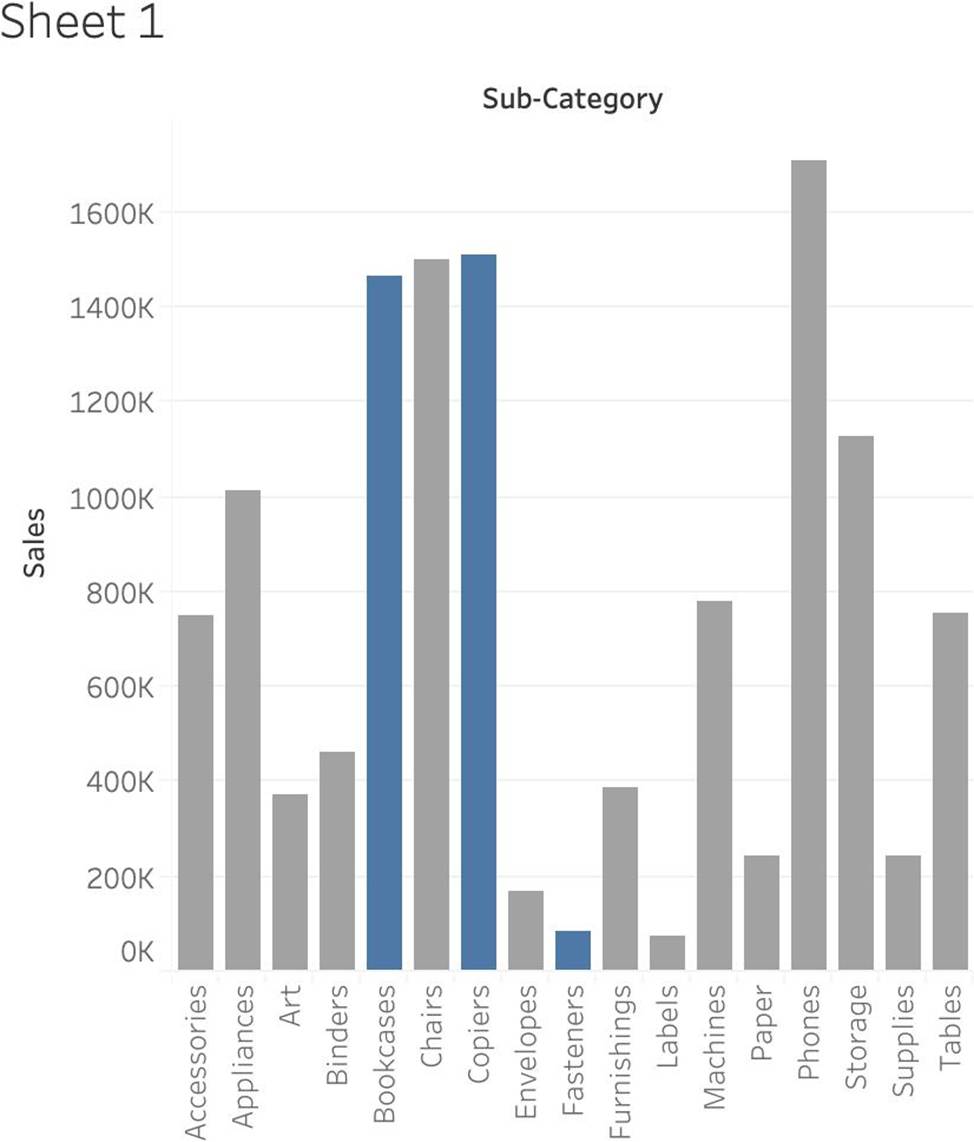
Had we grouped by choosing the marks instead of the labels, the following would be the result:
Reference: https://help.tableau.com/current/pro/desktop/en-us/sortgroup_groups_creating.htm
For which of the following charts, does the Size option on the Marks card not work?
- A . Gantt Chart
- B . Bar Chart
- C . Tree Map
- D . Pie Chart
C
Explanation:
You can adjust the size for all charts except the Tree Map. You use dimensions to define the structure of the treemap, and measures to define the size or color of the individual rectangles. Treemaps are a relatively simple data visualization that can provide insight in a visually attractive format.
In a Tree Map, the measure itself defines the size and colour! The greater the sum of Measure for each category, the darker and larger its box.
Reference: https://help.tableau.com/current/pro/desktop/en-us/buildexamples_treemap.htm
According to Tableau’s ‘Order of Operations’, which of the following filters is applied FIRST?
- A . Dimension Filter
- B . Measure Filter
- C . Context Filter
- D . Extract Filter
D
Explanation:
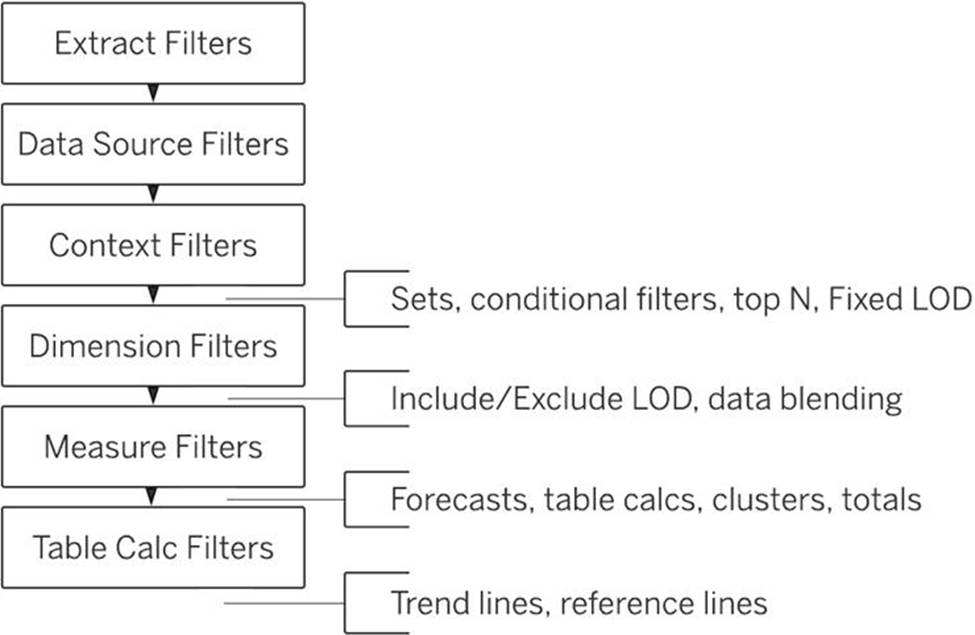
According to Tableau’s order of operations, the Extract filter is right at the top of the hierarchy. The data filtered in the Extract is then passed on to what we see in the Data Pane.
See below:
Reference: https://help.tableau.com/current/pro/desktop/en-us/order_of_operations.htm
Which type of filter affects a fixed Level of Detail (LOD) expression?
- A . Table calculation filter
- B . Measure filter
- C . Context filter
- D . Dimension filter
D
Explanation:
In Tableau, a Fixed Level of Detail (LOD) expression calculates values at a specific level of granularity, regardless of the dimensions in the view. The computation of a fixed LOD expression can be influenced by a context filter. A context filter serves as a primary filter, setting the context for the rest of the filters in the view. When a context filter is applied, it effectively changes the level at which the fixed LOD expression is computed, thereby affecting its outcome. Other types of filters, such as table calculation, measure, and dimension filters, do not have this influence on fixed LOD expressions.
You need to display the complete list of potential data connections when you connect to a server.
What action should you perform?
- A . Select File on the menu, and then select New
- B . Select Connecting to Data.
- C . Select More under To a Server
- D . Select More under To a File.
C
Explanation:
To display the complete list of potential data connections when connecting to a server in Tableau, you should select "More" under the "To a Server" option. This action will provide a comprehensive list of server types and data sources that Tableau can connect to.
Beginning in version 10.5, when you create a new extract, it uses the _________ format instead of the .tde format.
- A . .tds
- B . .tdex
- C . .hyper
- D . .twbx
C
Explanation:
Beginning in version 10.5, when you create a new extract, it uses the .hyper format instead of the .tde format.
Extracts in the .hyper format take advantage of the improved data engine, which supports the same fast analytical and query performance as the data engine before it, but for even larger extracts.
Although there are many benefits of using .hyper extracts, the primary benefits include the following:
1) Create larger extracts: You can create extracts with billions of rows of data. Because .hyper extracts can support more data, you can consolidate .tde extracts that you previously had to create separately into a single .hyper extract.
2) Create and refresh extracts faster: While Tableau has always optimized performance for creating and refreshing extracts, version 2020.3 supports faster extract creation and refreshes for even larger data sets.
3) Experience better performance when interacting with views that use extract data
sources: Although smaller extracts continue to perform efficiently, larger extracts perform more efficiently.
Reference: https://help.tableau.com/current/pro/desktop/en-us/extracting_upgrade.htm
Which of the following are stored in a .tds file? Choose 3.
- A . Data Connection information
- B . Visualizations
- C . Calculated Fields
- D . Data Extracts
- E . Metadata edits
ACE
Explanation:
If you’ve created a data connection that you might want to use with other workbooks or share with colleagues, you can export (save) the data source to a file. You might want to do this also if you’ve added joined tables, default properties, or custom fields―such as groups, sets, calculated fields, and binned fields―to the Data pane.
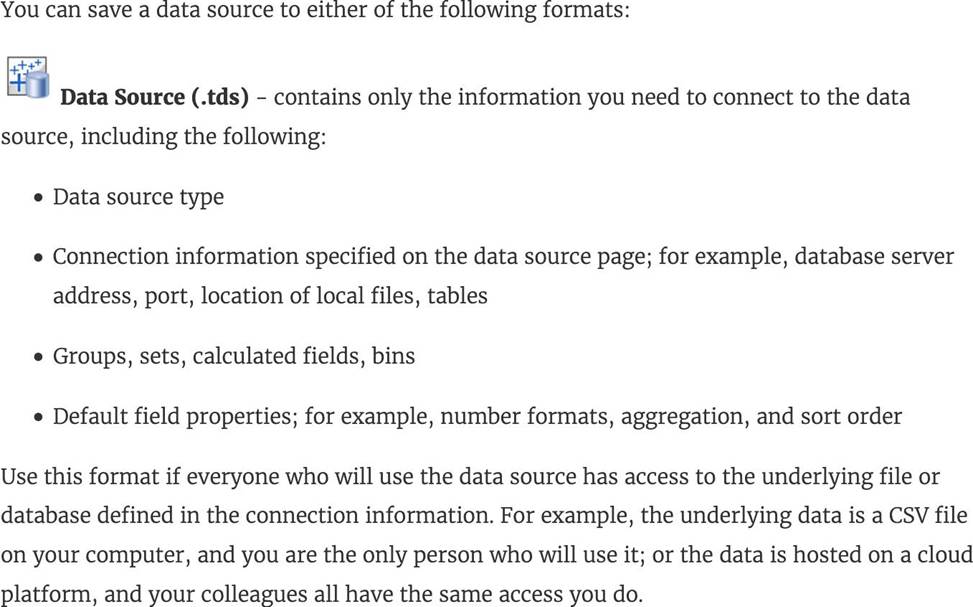
Visualisations and Data extracts are NOT saved in a .tds file!
Reference: https://help.tableau.com/current/pro/desktop/en-us/export_connection.htm