
Tableau TDS-C01 Practice Exams
Last updated on Oct 23,2026- Exam Code: TDS-C01
- Exam Name: Tableau Desktop Specialist
- Certification Provider: Tableau
- Latest update: Oct 23,2026
Which of the following is a compelling reason to export a sheet in Tableau to a PDF?
- A . If we want a static view of the visualisation.
- B . If we want to use filters in the visualisation.
- C . If we want to interact with the visualisation.
- D . If we want to dynamically enter parameters to the visualisation.
A
Explanation:
Exporting the visualisation gives us a static view of the visualisation.
It is NOT possible to interact with it, use filters, or dynamically enter anything in a visualisation exported PDF.
In Tableau Desktop, you can save views as PDF files rather than printing them as hard copies. You do not need to have Adobe Acrobat installed on your computer.
When you print an individual sheet to PDF, filters in the view are not included. To show filters, create a dashboard containing the sheet and export the dashboard to PDF. (IMPORTANT)
Reference: https://help.tableau.com/current/pro/desktop/en-us/printing.htm
Which of the following can help us focus on specific data without removing data in the visualization?
- A . Highlighters
- B . Sets
- C . Clusters
- D . Filters
A
Explanation:
From the official documentation:
When you have a view with a large amount of data you might want to explore your data interactively and highlight a specific mark or group of marks while still maintaining the context of where those marks show in your view.
To do this you can turn on the Highlighter for one or more discrete fields that are included in your view and that affect the level of detail
Example – Here we just want to focus on Public Affairs college dimension, but don’t want to filter out or remove the rest of the data:
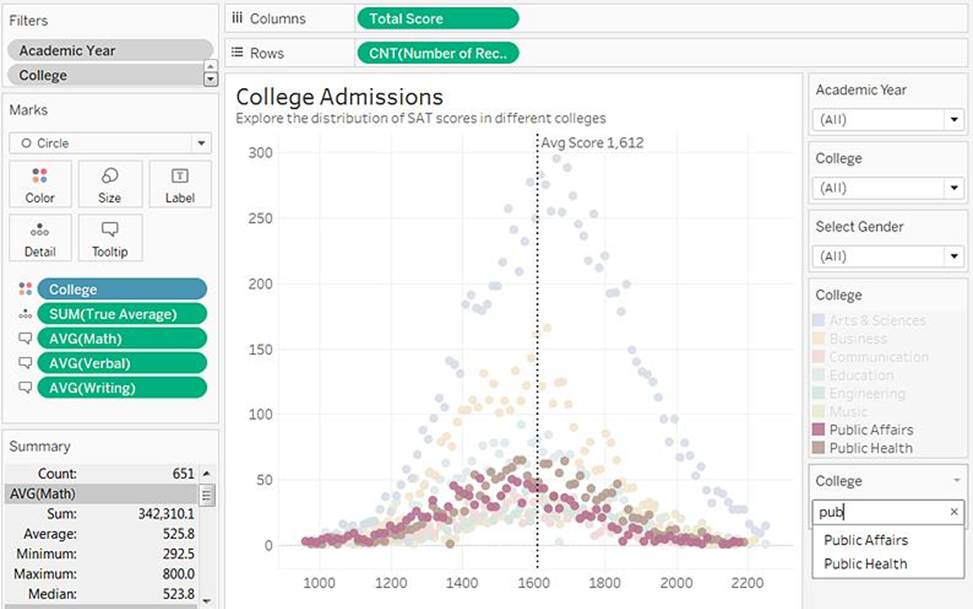
Note that filtering is not the correct option since that would REMOVE the data that doesn’t match the filtering criteria.
Reference: https://help.tableau.com/current/pro/desktop/en-us/actions_highlight_highlighter.htm
What are three options to change the scope of a reference line? Choose three.
- A . Per Pane
- B . Fill Above
- C . Entire Table
- D . Maximum
- E . Per Cell
ACE
Explanation:
You can change the scope of a reference line by choosing one of the following options: Per Pane, Entire Table, or Per Cell. The scope determines how many reference lines are added to the view and how they are calculated. Per Pane adds one reference line for each pane in the view. Entire Table adds one reference line for the entire table in the view. Per Cell adds one reference line for each cell in the view
How can you MANUALLY assign geographic roles to a dimension from the data pane?
- A . Edit the config file in My Documents -> MyTableauRepository for a quick fix
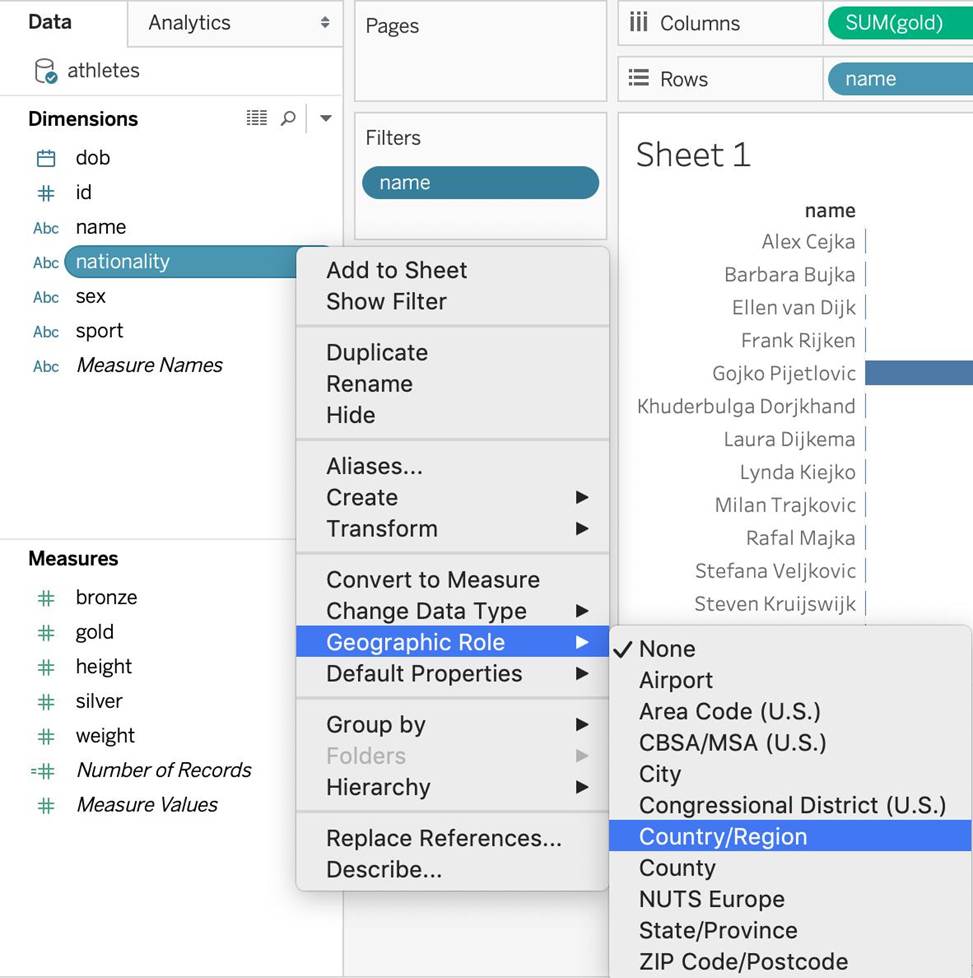
- B . Right click it -> Geographic role -> and then assign the appropriate geographic role
- C . Edit the data source manually for a quick resolution
- D . Right click it -> Edit Default properties -> Assign geographic roles
B
Explanation:
From the data pane, simply right click on the dimension, choose geographic role, and then select the appropriate role as follows:
Which statement accurately describes a join?
- A . Away to combine multiple Tableau workbooks using similar data sources
- B . A combination of rows appended from different tables that have the same column names
- C . Away to combine table columns in relational databases by using shared values
- D . A combination of columns appended from different tables that have similar values
C
Explanation:
According to the [Tableau Desktop Specialist Exam Guide], a join is a way to combine table columns in relational databases by using shared values. A join can be inner, left, right, or full, depending on how the matching rows are included or excluded.
Which of the following describes the best way to change the formatting at a workbook level?
- A . Right click anywhere in the view, choose format, and then specify the formatting in the new Format workbook pane.
- B . It is only possible to specify formatting at a worksheet level, not at the workbook level.
- C . Click on Text in the Marks card, choose format, and then specify the formatting in the new Format workbook pane.
- D . Choose Format from the menu on top and then specify the formatting in the new Format workbook pane.
D
Explanation:
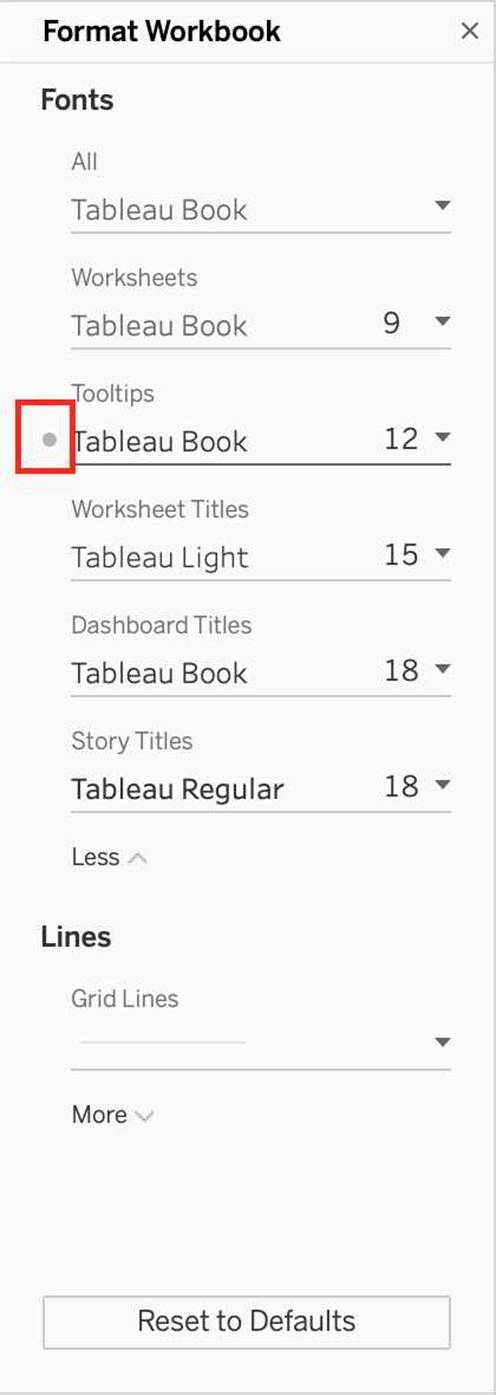
It is very much possible to specify the formatting at a WORKBOOK level (all sheets) instead of a single worksheet level.
You can quickly change how fonts, titles, and lines look in every view in a workbook by specifying format settings at the workbook level, instead of the worksheet level.
For example, you might want to use a specific font, size, and color so that all views adhere to your company’s brand. You might also want to remove grid lines from your views―or make them more noticeable by increasing their pixel size or color.
You can also change the theme used by your workbook. Themes control items like the default font, colors, and line thickness. When you create a new workbook, it automatically uses the Default theme, which uses visual best practices.
Change fonts in your workbook:
You can change all fonts in your workbook or you can change fonts for only certain areas, such as just worksheet titles.
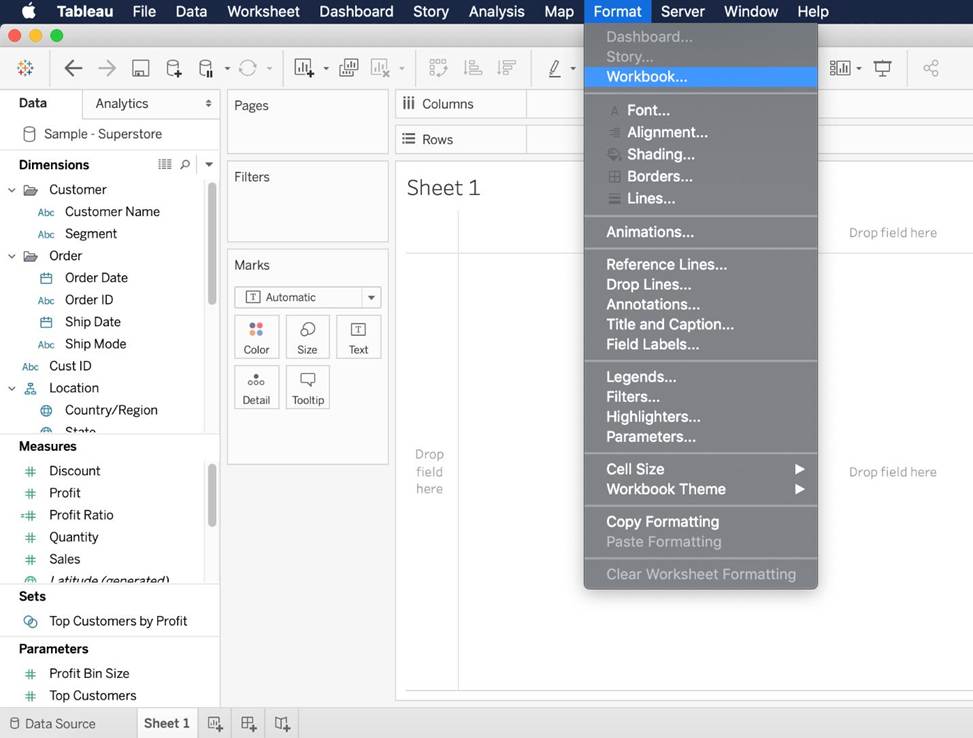
1) On the Format menu, select Workbook.
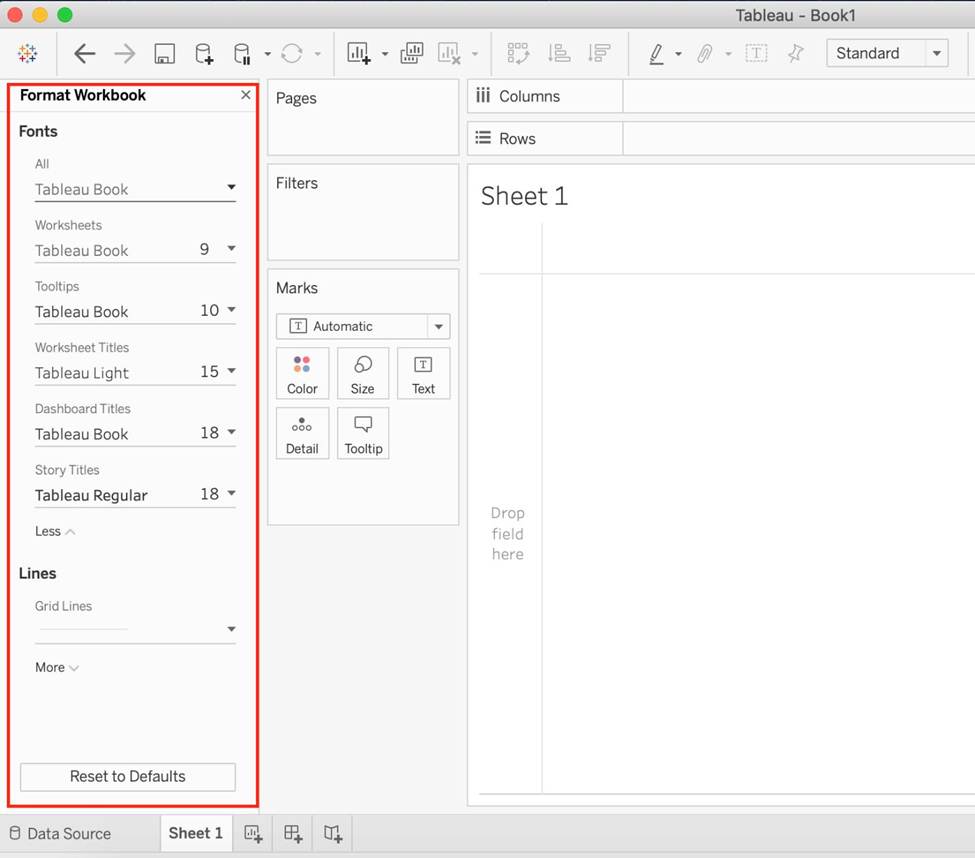
2) The Format Workbook pane replaces the Data pane on the left and provides a series of drop-down lists where you can change all font settings in a workbook, as well as the font settings for titles of worksheets, stories, and dashboards.
Note: If you have made font changes at the worksheet level, such as on a filter card or a worksheet title, changing the font at the WORKBOOK level will overwrite those changes.
Reset a workbook to its default settings
When you make changes to your workbook’s font settings, a gray dot appears next to the setting in the Format Workbook pane. You can quickly switch back to default settings using the Reset to Defaults button.
1) On the Format menu, select Workbook.
2) In the Format Workbook pane, click Reset to Defaults.
Reference: https://help.tableau.com/current/pro/desktop/en-us/formatting_workbook.htm
Which of the following are valid ways to copy a worksheet visualisation as an image?
- A . By simply clicking Control + V on the keyboard
- B . By clicking on Worksheet in the Tableau Main Menu above, and choosing Copy->Image
- C . Using the Marks shelf and choosing Copy->Image
- D . By right clicking on the worksheet visualisation and selecting Copy->Image
B, D
Explanation:
The following are 2 correct ways to copy the worksheet visualisation as an image:
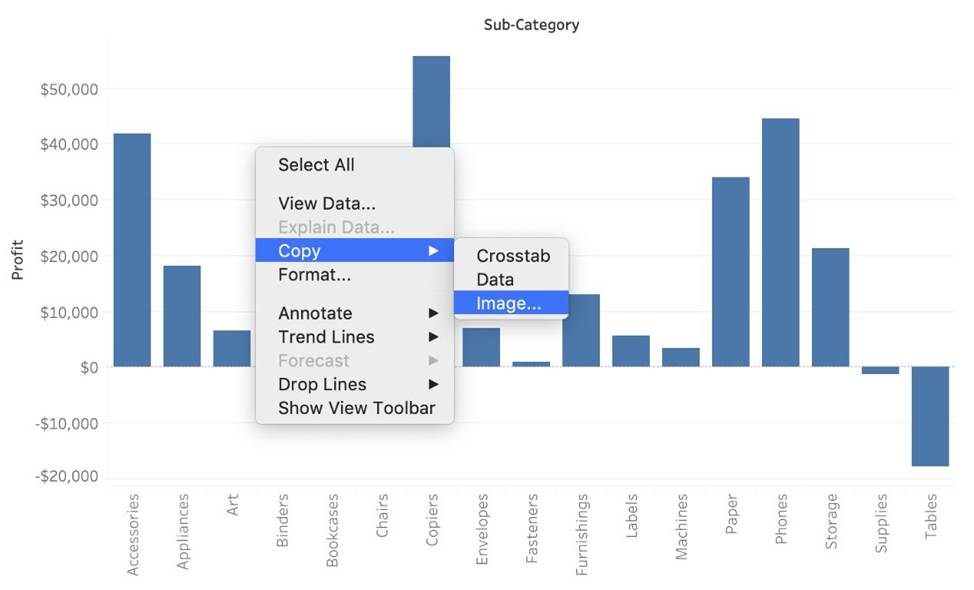
AND
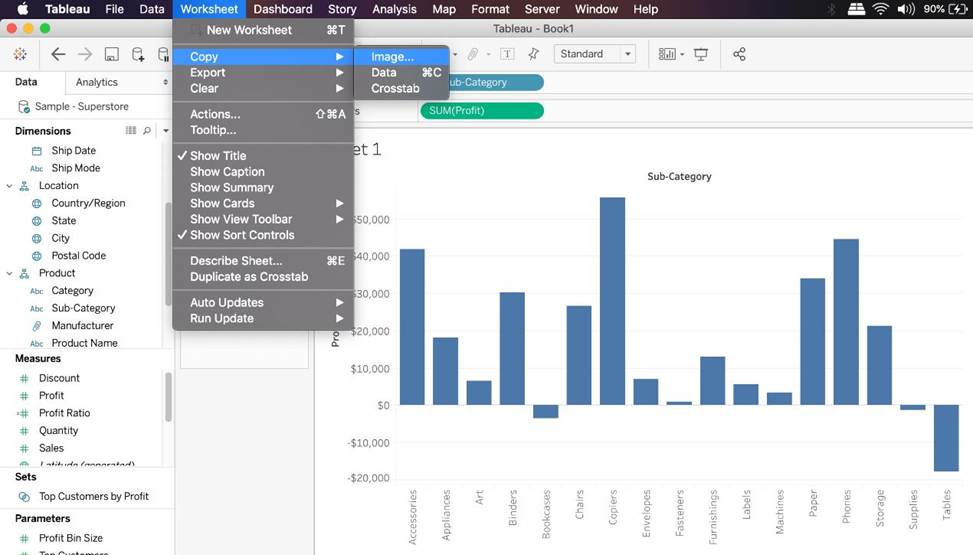
Reference: https://help.tableau.com/current/pro/desktop/en-us/save_export_image.htm
Which of the following chart types makes use of ‘binned’ data? Select all that apply.
- A . Gantt Chart
- B . Bullet chart
- C . Histogram
- D . Treemaps
Which of the following is a valid way to create Sets in Tableau?
- A . In the Data pane, right-click a dimension and select Create > Set.
- B . In the Tableau Main Menu, Choose Worksheet and select Create > Set
- C . In the Tableau Main Menu, choose Dashboard and select Create > Set
- D . In the Data pane, right-click a measure and select Create > Set.
A
Explanation:
There are two types of sets: dynamic sets and fixed sets. The members of a dynamic set change when the underlying data changes. Dynamic sets can only be based on a single dimension.
To create a dynamic set:
1) In the Data pane, right-click a dimension and select Create > Set.
2) In the Create Set dialog box, configure your set.
You can configure your set using the following tabs:
General: Use the General tab to select one or more values that will be considered when computing the set.
You can alternatively select the Use all option to always consider all members even when new members are added or removed.
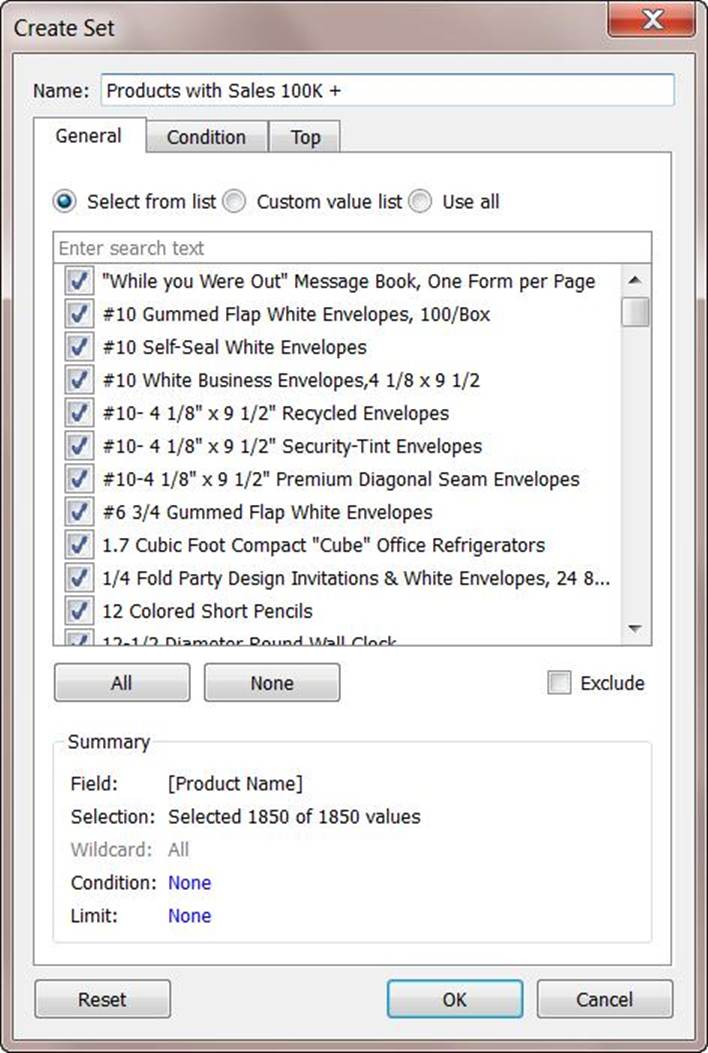
None of the other options exist, and therefore are incorrect answers.
Reference: https://help.tableau.com/current/pro/desktop/en-us/sortgroup_sets_create.htm
Which of the following are true about Dashboards in Tableau?
- A . Floating items can be layered over other objects
- B . Tiled items don’t overlap
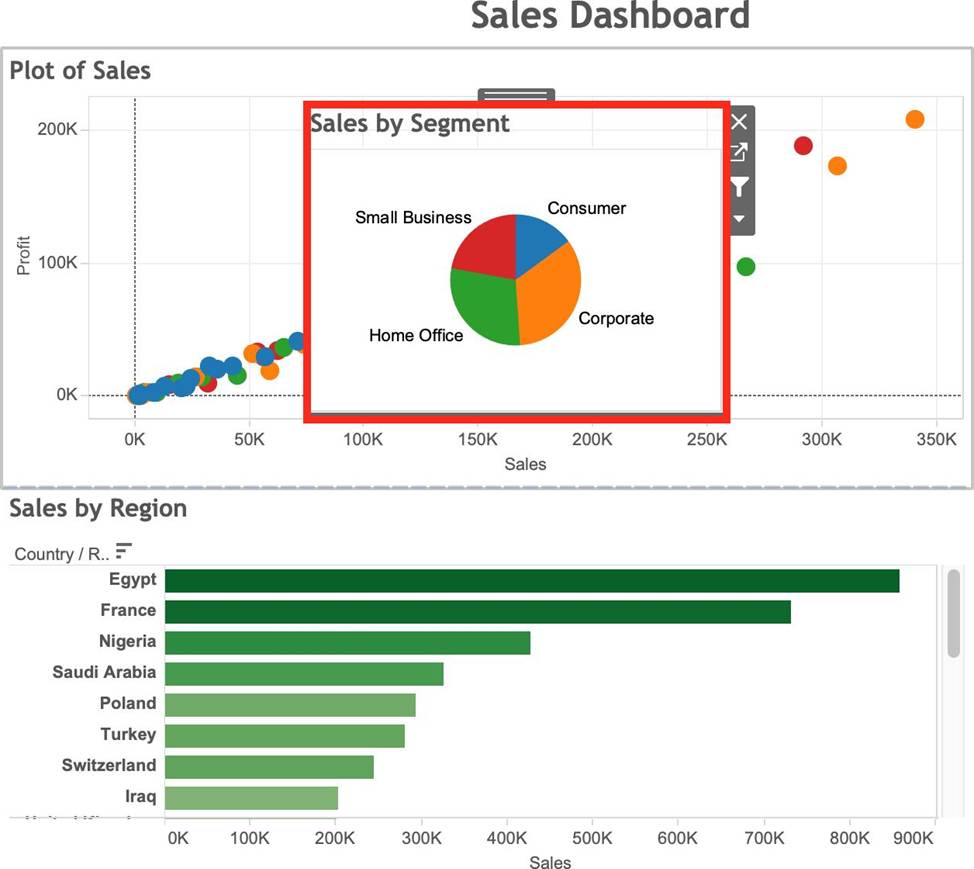
- C . A bar chart can be used a floating item
- D . None of these
ABC
Explanation:
From the official Tableau documentation:
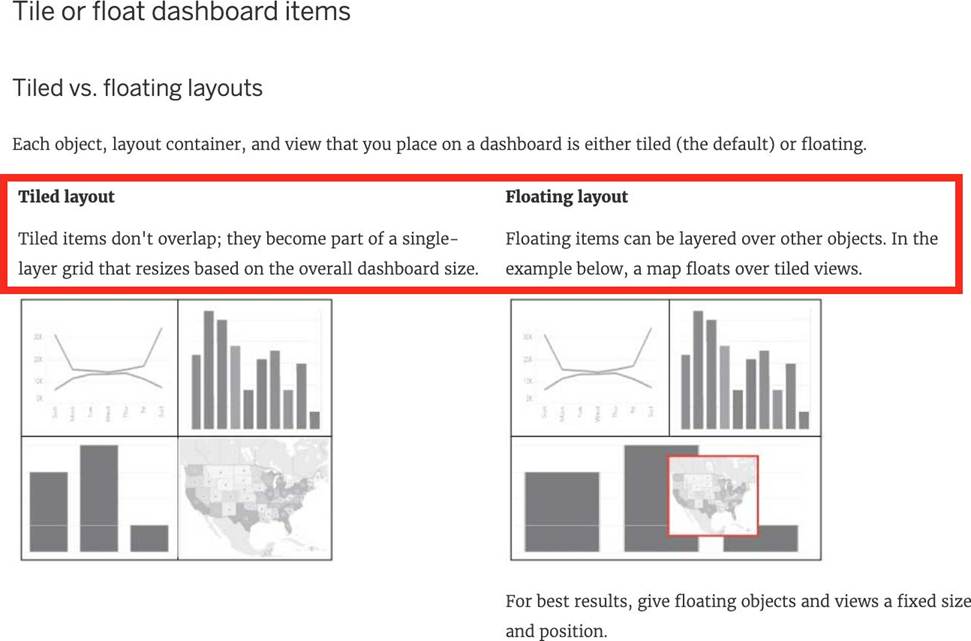
As we can see below, Bar charts can be used as a floating object.
Reference: https://help.tableau.com/current/pro/desktop/en-us/dashboards_organize_floatingandtiled.htm