
Tableau TDS-C01 Practice Exams
Last updated on Oct 23,2026- Exam Code: TDS-C01
- Exam Name: Tableau Desktop Specialist
- Certification Provider: Tableau
- Latest update: Oct 23,2026
Which of the following sets would you use to compare the members?
- A . None of these
- B . Dynamic Sets
- C . Static Sets
- D . Combined Sets
D
Explanation:
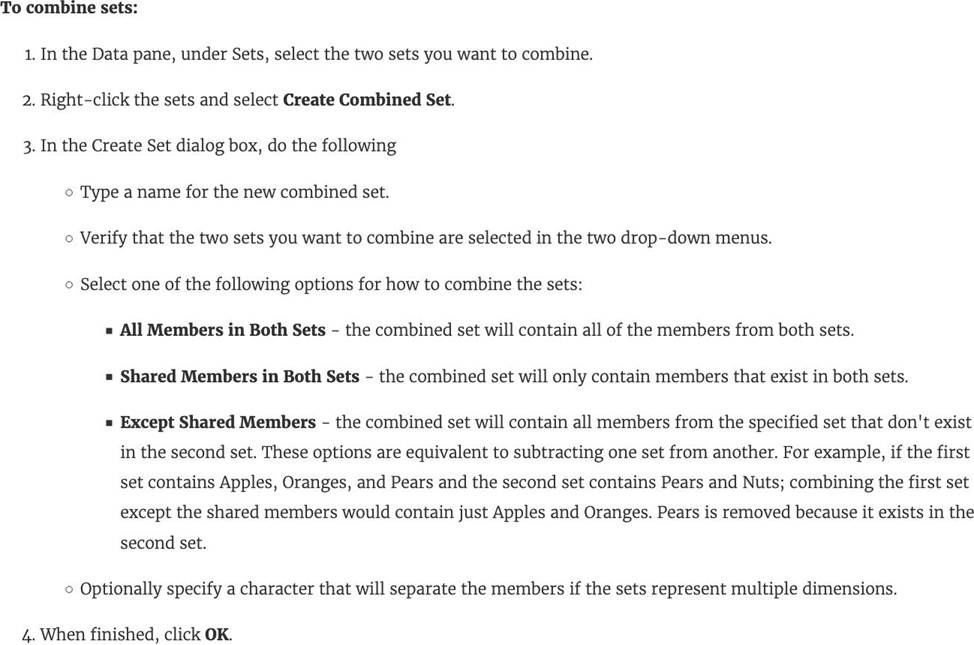
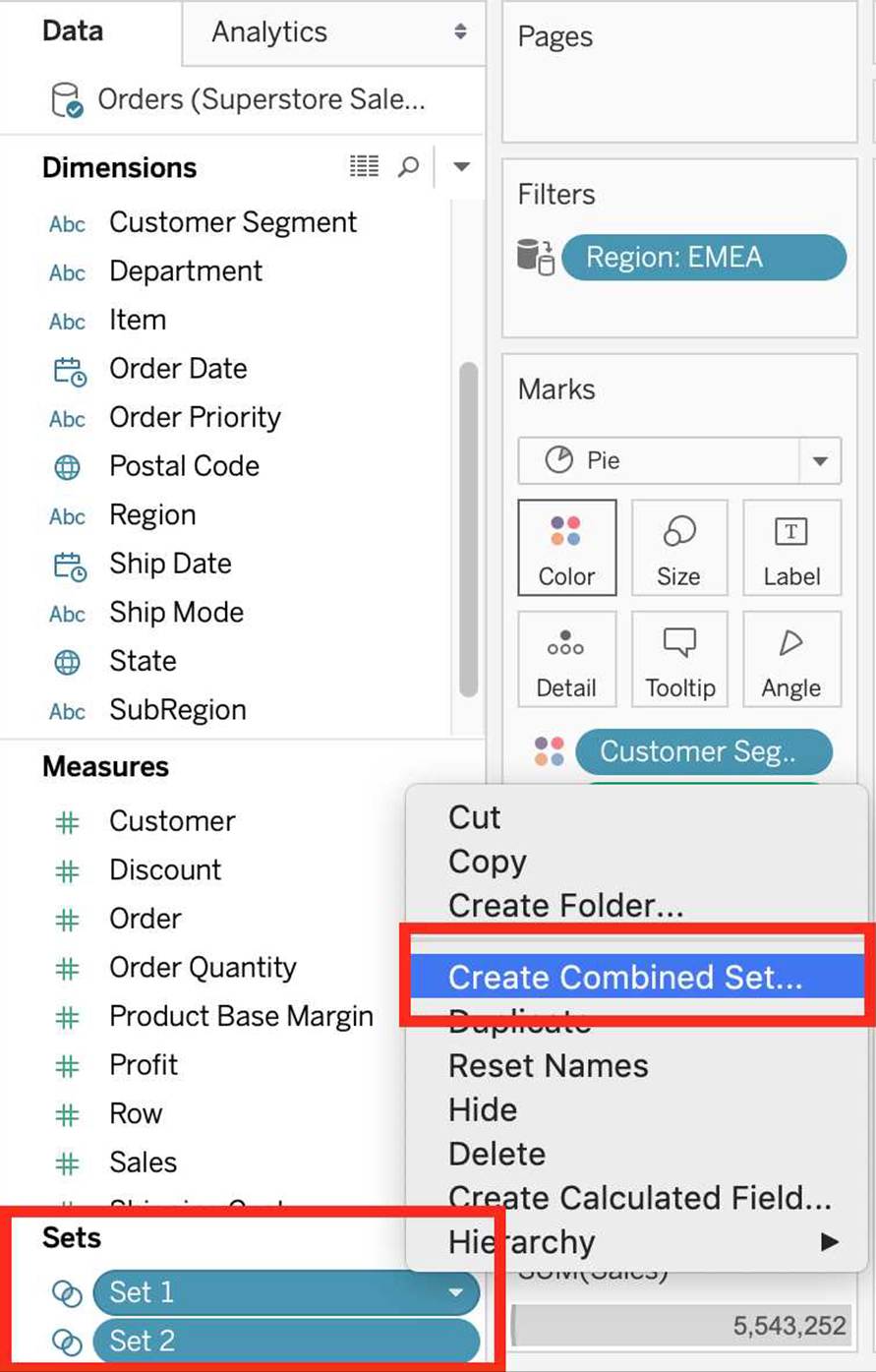
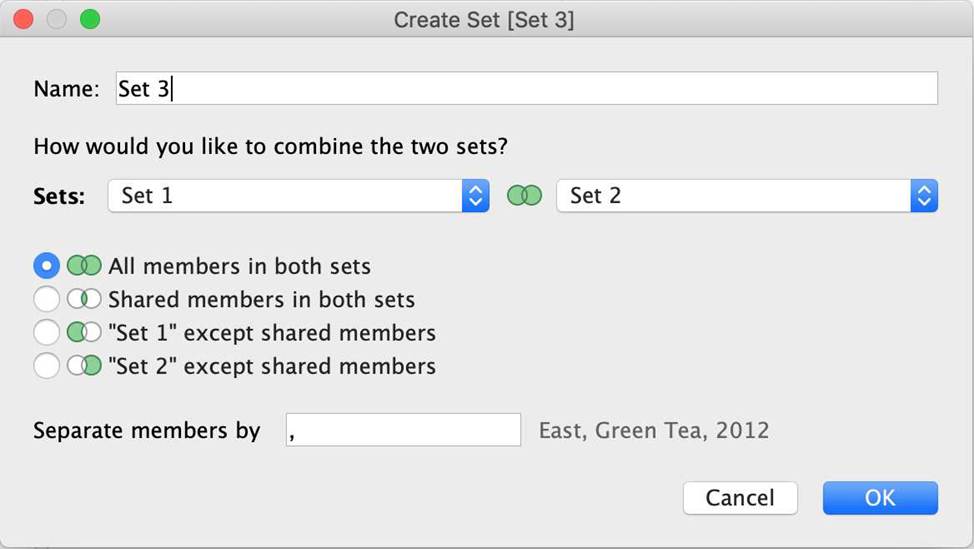
You can combine two sets to compare the members. When you combine sets you create a new set containing either the combination of all members, just the members that exist in both, or members that exist in one set but not the other.
Combining sets allows you to answer complex questions and compare cohorts of your data. For example, to determine the percentage of customers who purchased both last year and this year, you can combine two sets containing the customers from each year and return only the customers that exist in both sets.
To combine two sets, they must be based on the same dimensions. That is, you can combine a set containing the top customers with another set containing the customers that purchased last year. However, you cannot combine the top customers set with a top products set.
Reference: https://help.tableau.com/current/pro/desktop/en-us/sortgroup_sets_create.htm
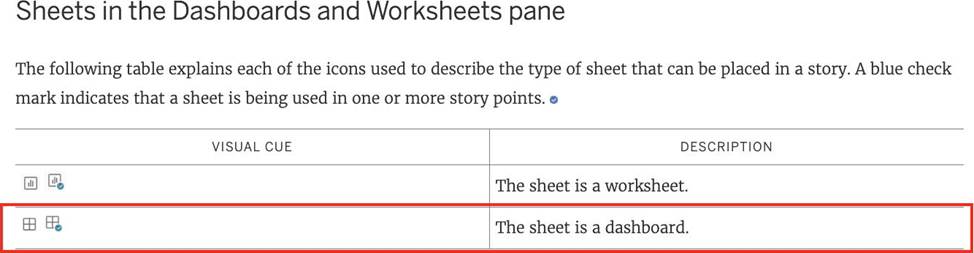
What does the following icon do in Tableau?
Larger image
- A . Create a Story
- B . Create a Story and Dashboard both
- C . Create a Worksheet
- D . Create a Dashboard
D
Explanation:
The icon shown is used to add a new Dashboard! From the official documentation:
Reference: https://help.tableau.com/current/pro/desktop/en-us/inspectdata_viewdata.htm
True or False: Sets can be created on Measures
- A . True
- B . False
B
Explanation:
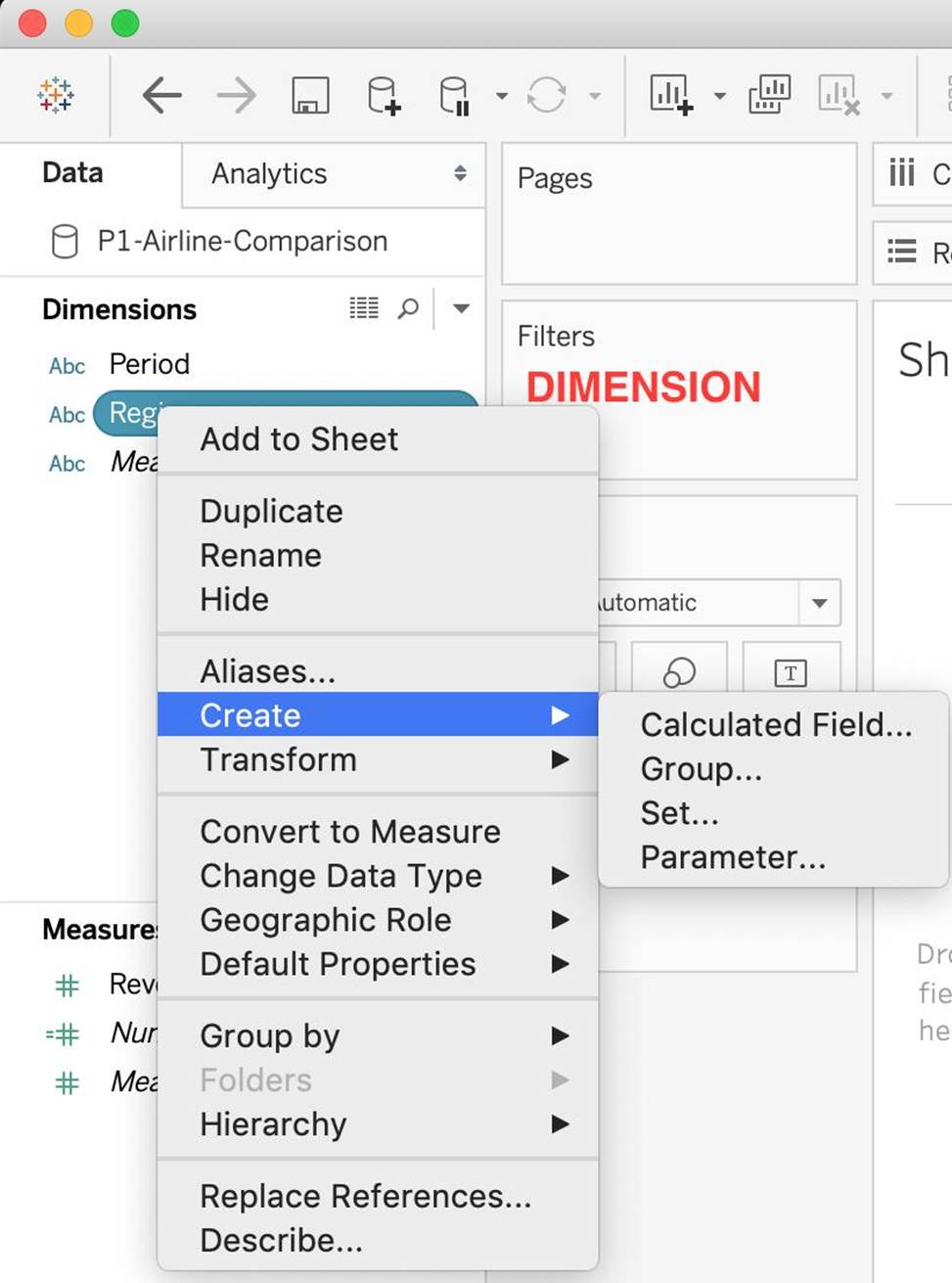
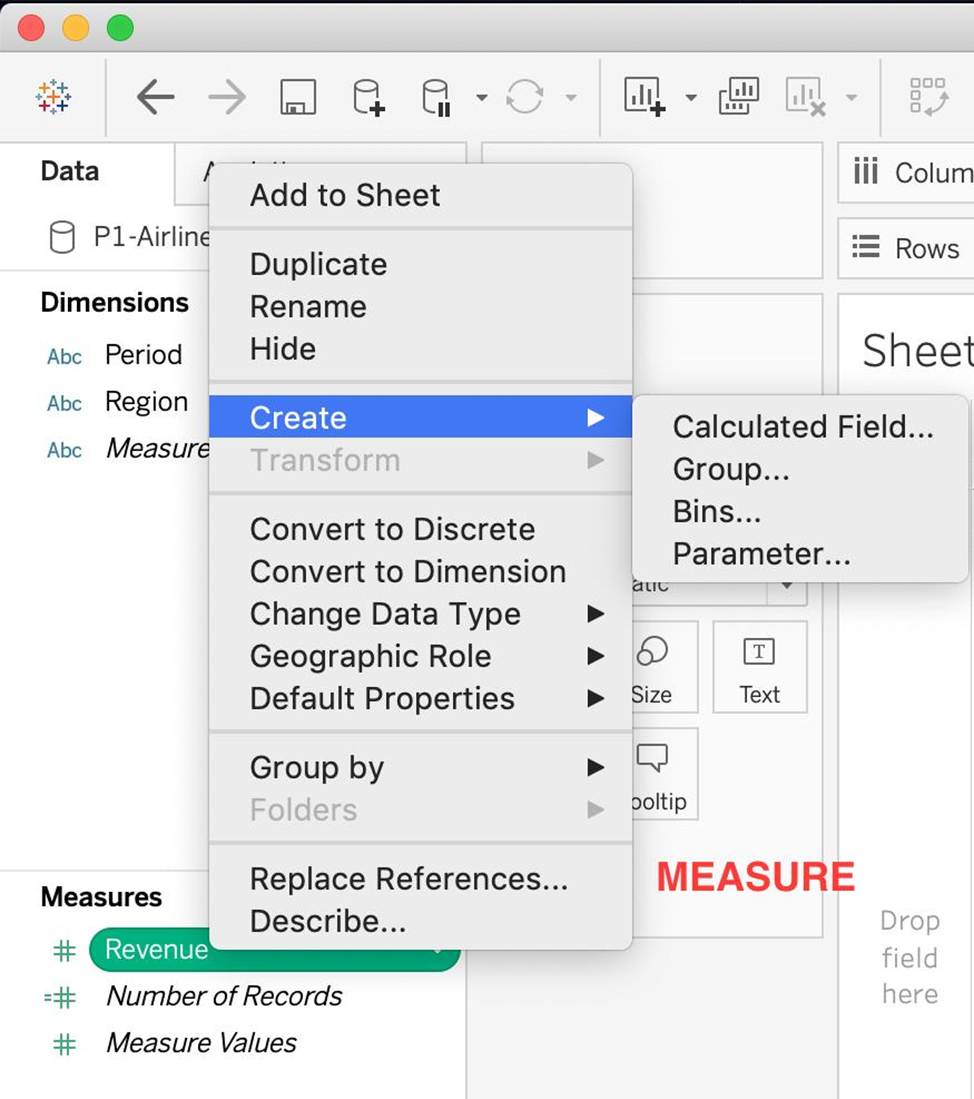
Sets are custom fields that are created within Tableau Desktop based on dimensions from your data source. They are subsets of your data, which can be created manually or computed. Either dimensions or measures can be used to determine what is included or excluded from a set using conditional logic, but to CREATE a set we use dimensions.
Reference: https://interworks.com/blog/rcurtis/2016/10/26/tableau-deep-dive-sets-introduction-sets/
You create the following visualization.
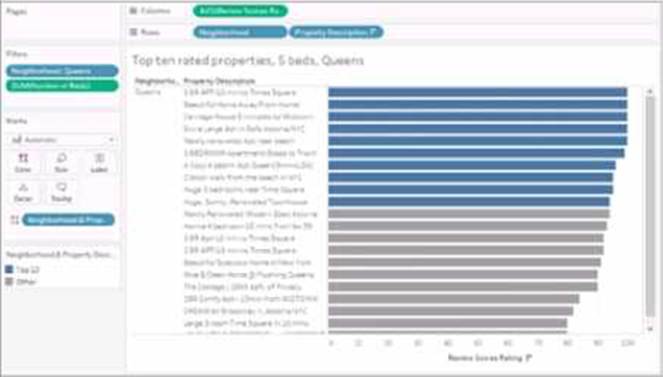
What is the first step to create the visual grouping of the 10 marks shown in blue?
- A . Select the desired 10 marks in the view.
- B . Create a Group on the Property Description field in the Data pane.
- C . Select the desired 10 text labels under Property Description.
- D . Create a Set on the Neighborhood field in the Data pane.
A
Explanation:
To visually group marks in Tableau, you typically start by selecting the marks directly in the view. Once the desired marks are selected, you can then create a group from them. This will visually group the selected marks, as indicated by the blue color in the example provided.
When creating an extract, what are three options for specifying how much data to extract? Choose three.
- A . Hide all unused fields.
- B . Aggregate data for visible dimensions
- C . Compute Calculations Now.
- D . Append Data from Files
- E . Apply a filter.
A, B, E
Explanation:
When creating an extract in Tableau, there are several options to control how much data is included in the extract. These options include hiding all unused fields to reduce the size of the extract, aggregating the data for visible dimensions to summarize it, and applying filters to extract only the data that meets certain criteria.
Creating a scatter plot requires a minimum of how many measures?
- A . 2
- B . 4
- C . 1
- D . 3
A
Explanation:
We can use scatter plots to visualize relationships between numerical variables!
In Tableau, you create a scatter plot by placing at least one measure on the Columns shelf and at least one measure on the Rows shelf (Total 2 minimum). If these shelves contain both dimensions and measures, Tableau places the measures as the innermost fields, which means that measures are always to the right of any dimensions that you have also placed on these shelves. The word "innermost" in this case refers to the table structure.
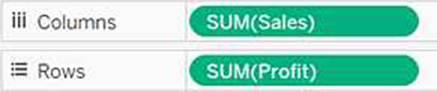
(Simple Scatter Plot)

(Matrix of Scatter Plots)
A scatter plot can use several mark types. By default, Tableau uses the shape mark type. Depending on your data, you might want to use another mark type, such as a circle or a square. For more information, see Change the Type of Mark in the View.
To create a scatter plot, follow the steps below:
Reference: https://help.tableau.com/current/pro/desktop/en-us/buildexamples_scatter.htm
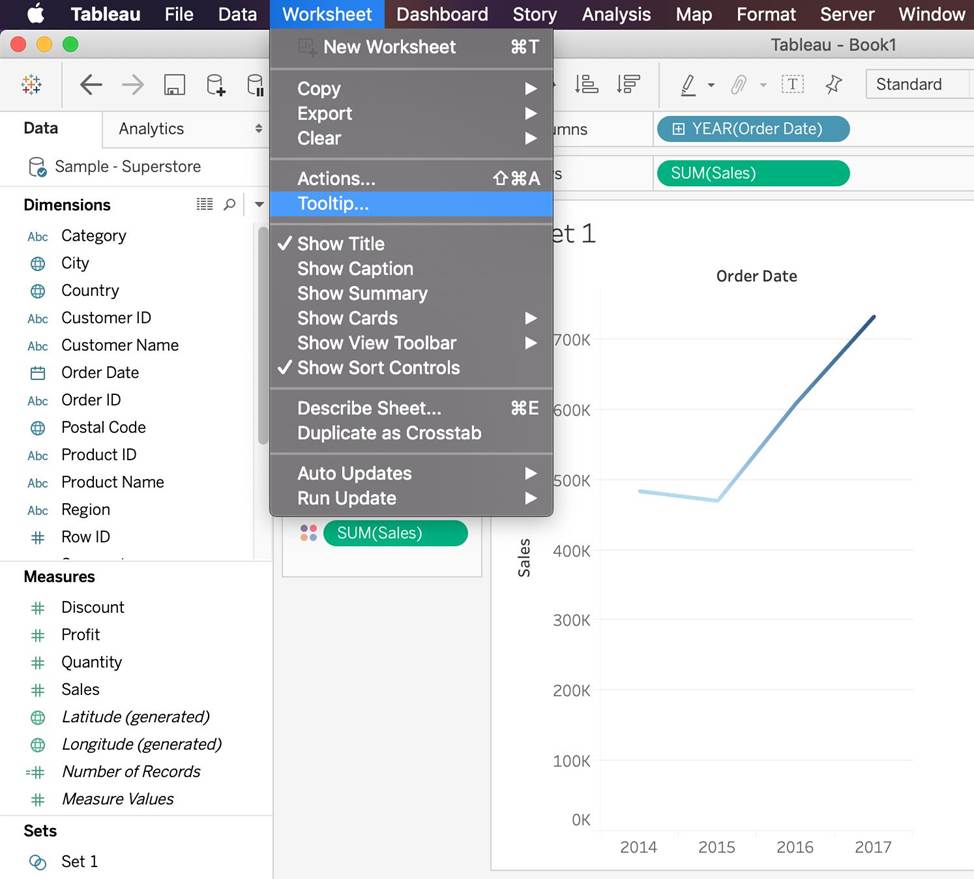
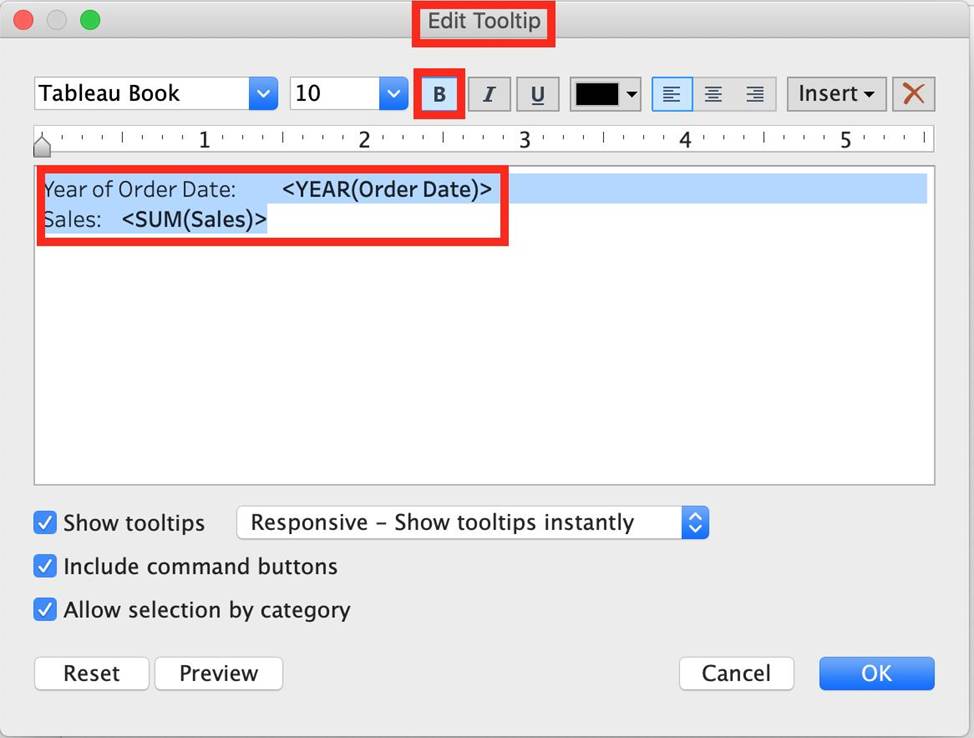
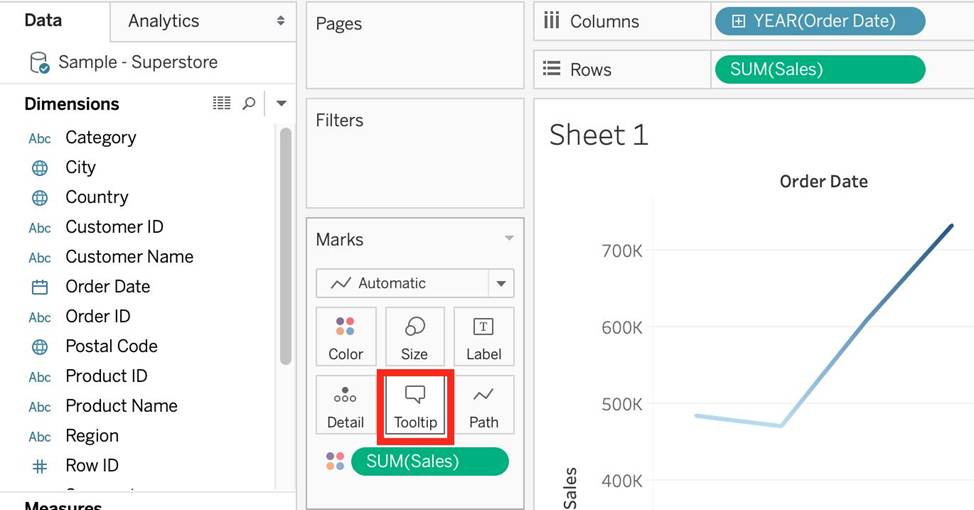
Which of the following are valid ways to Bold the Tooltip content in Tableau?
- A . Click on Analysis, Tooltip options, and select bold.
- B . Click on Tooltip in the Marks card, and select bold.
- C . Click on Worksheet in the Menu bar, followed by Tooltip and select the bold option
- D . Right click, click format and then under the default worksheet formatting, choose Tooltip and make it bold.
BCD
Explanation:
Lot of students have been seeing this question in the exam lately, and wanted me to include this question so here it is. Follow along –
1) Click on Worksheet in the Menu bar, followed by Tooltip and select the bold option
2) Click on Tooltip in the Marks card, and select bold.
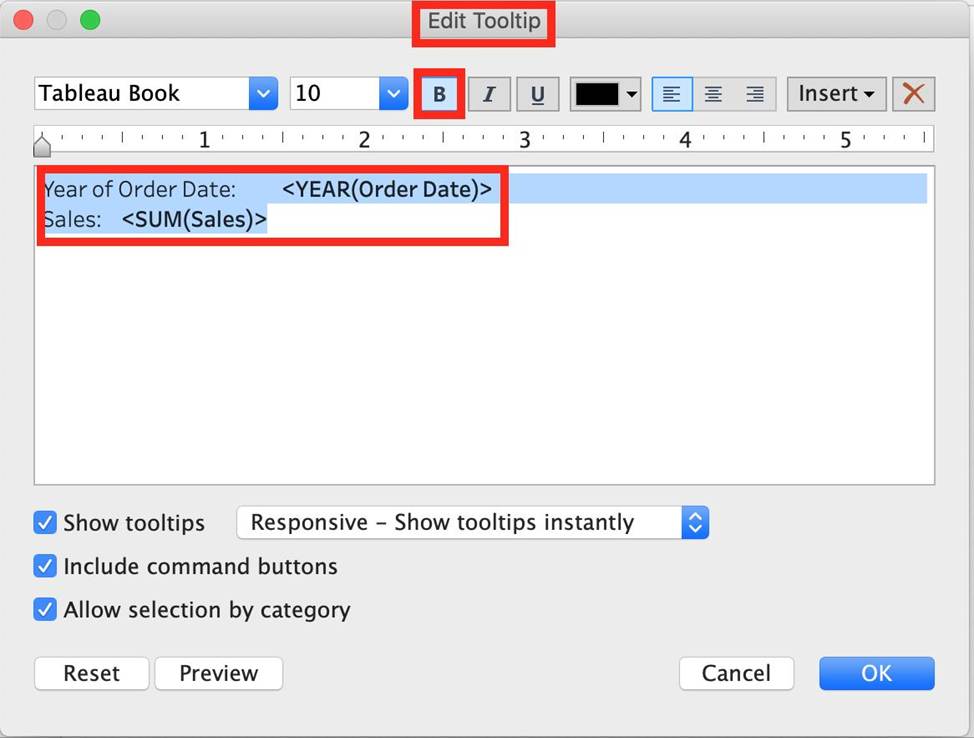
3) Right click, click format and then under the default worksheet formatting, choose Tooltip and make it bold.
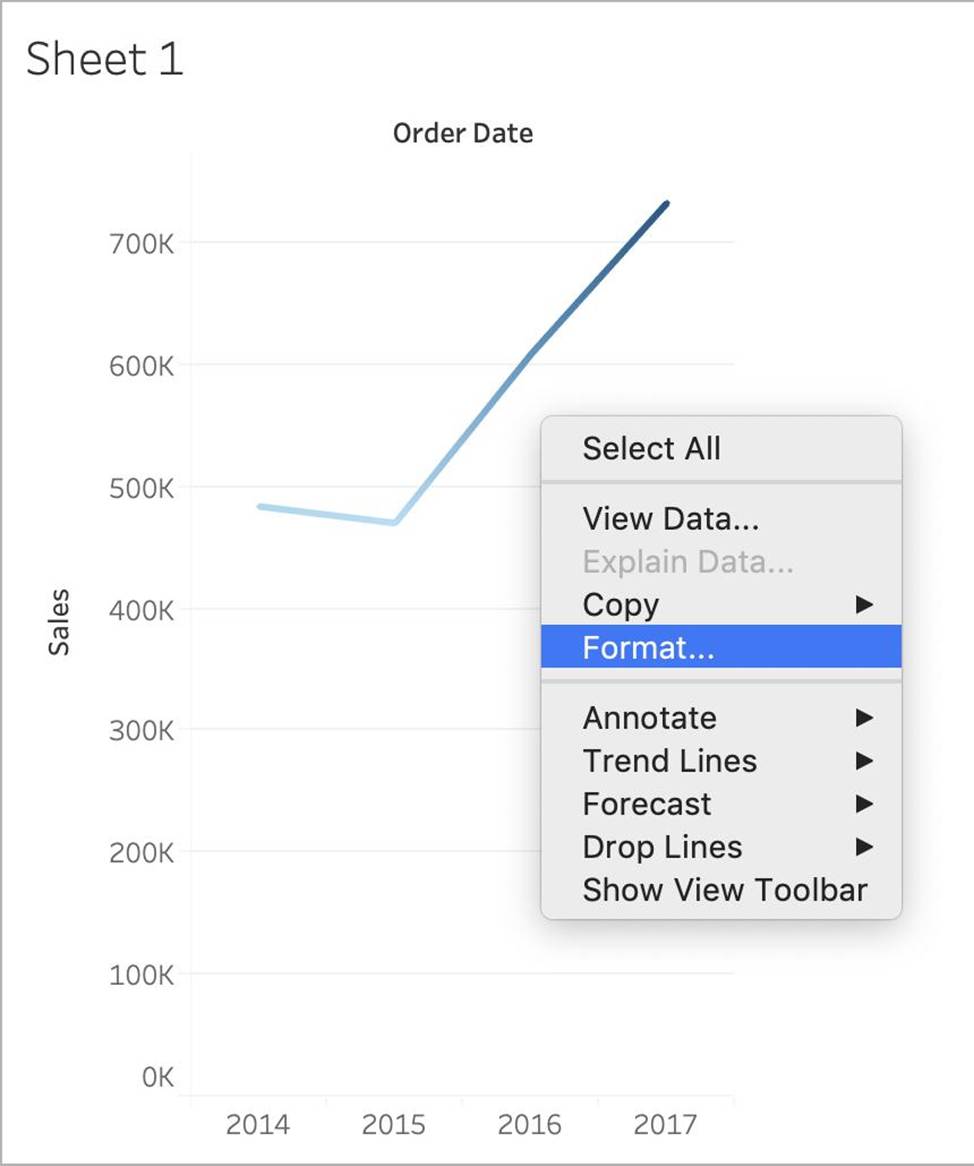
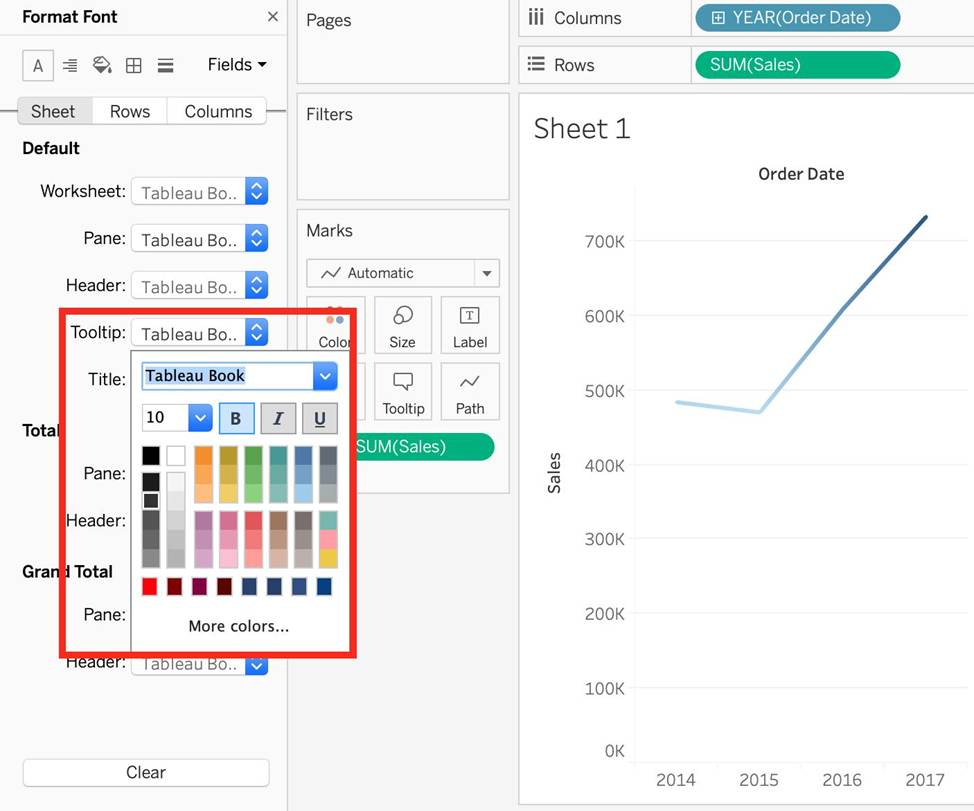
There exists no option to Bold the tooltip contents by clicking Analysis. Hence, it is an incorrect choice.
When using Animations in a Tableau, which of the following is the default duration for animations?
- A . 0.4s
- B . 0.3s
- C . 0.5s
- D . 0.2s
B
Explanation:
The LATEST Tableau Desktop Sepcialist exam blueprint now requires you to know some basics about animations as well!
NOTE: Animations are DISABLED by default and must be manually enabled.
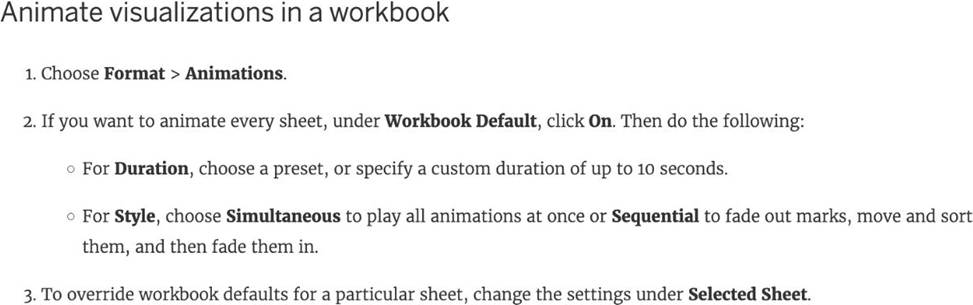
You can also reset all settings to default by clickin on ‘Reset All’
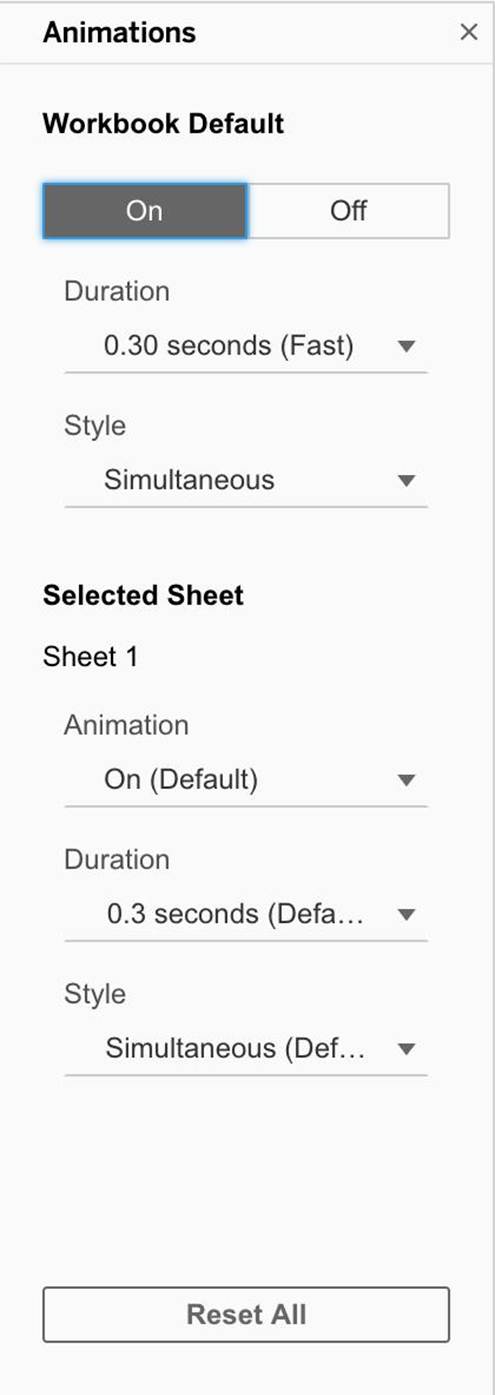
Reference: https://help.tableau.com/current/pro/desktop/en-us/formatting_animations.htm
Which of the following is NOT a new feature introduced in Tableau 2020.1?
- A . Dynamic Paramaters
- B . Viz Animations
- C . Buffer Calculations
- D . Set Control
D
Explanation:
Your Tableau Desktop Specialist exam will be based on the 2020.1 version.
Set controls are a new feature introduced in the 2020.2 version, and hence is the correct answer – it is not a part of 2020.1
For the 2020.1 version the new features were:
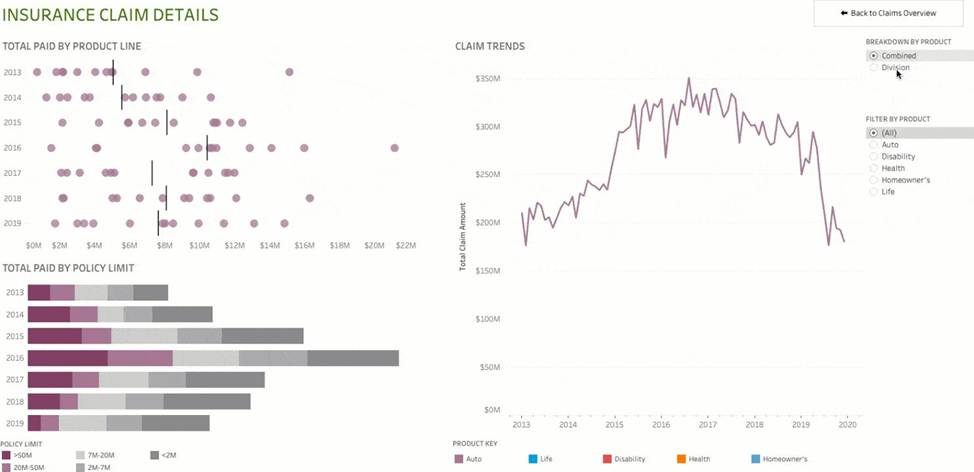
1) Viz animations:
Viz animations help you see and understand your changing data. It’s easy to track the logical steps behind data’s evolution and tell powerful data stories. Sorting, filtering, adding fields, and other actions will now smoothly animate your visualizations. Choose whether to turn Viz Animations on or off, and decide how you’d best like to apply animations to your new workbooks.
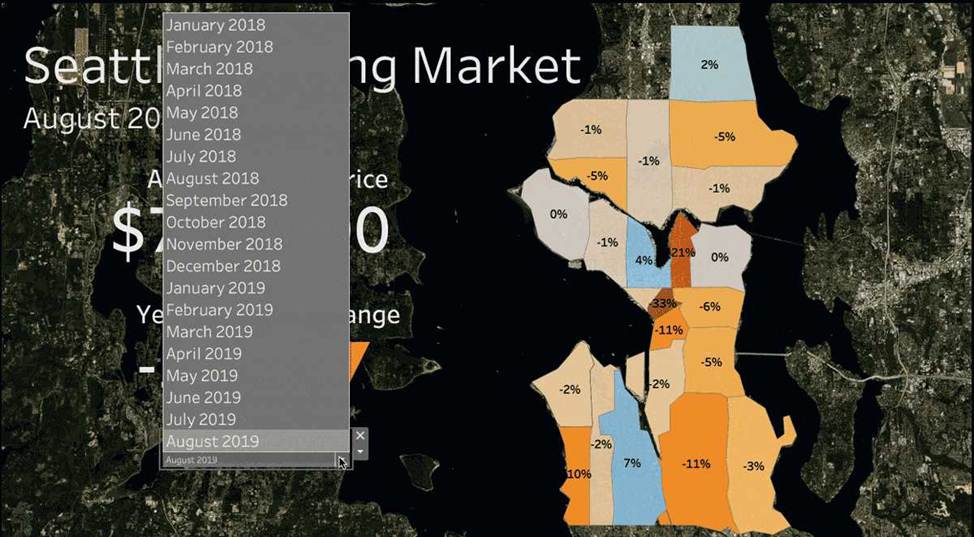
2) Dynamic Parameters:
Say goodbye to republishing workbooks with parameters every time the underlying data changes. Set your parameter once, and Tableau will automatically update the parameter’s list of values every time someone opens the workbook.
3) Buffer Calculations:
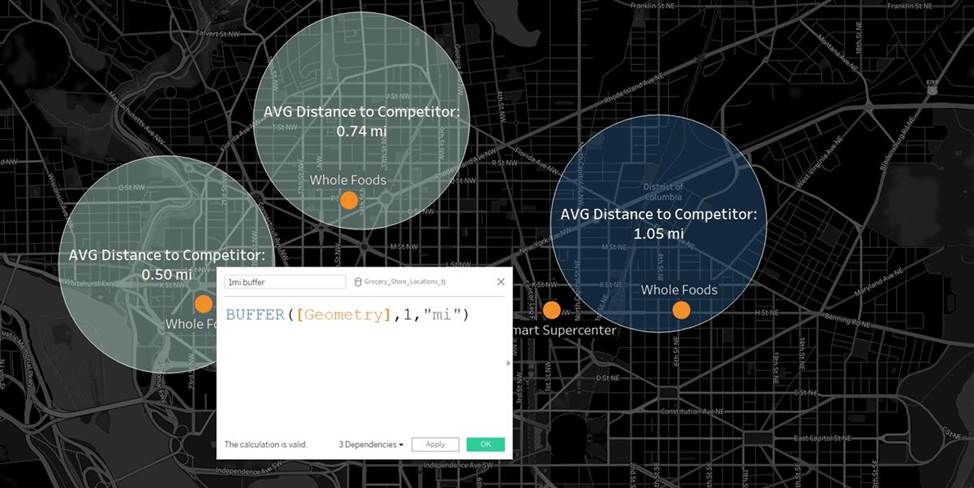
Buffer calculations allow you to visualize the distance around point locations. Give Tableau three parameters―location, distance, and a unit of measure―and a buffer, or boundary is instantly created. Answering complex spatial questions becomes easier than ever before―visualize what properties are within 200 meters of a proposed transit site, or how many competitors’ stores are within 1 mile of their store, and more.
Which of the following is a discrete date part?
- A . 07Mar20l7
- B . 20Sep2016:9:8:8:6546
- C . 01/23/2021
- D . February
D
Explanation:
February is a discrete date part, because it is a specific value that can be used to group or filter data by month. 07Mar2017, 20Sep2016:9:8:8:6546, and 01/23/2021 are continuous date values, because they represent points along a continuous timeline that can be used for analysis.