
Tableau TDS-C01 Practice Exams
Last updated on Oct 23,2026- Exam Code: TDS-C01
- Exam Name: Tableau Desktop Specialist
- Certification Provider: Tableau
- Latest update: Oct 23,2026
Which statement accurately describes aliases?
- A . You can create an alias for a discrete measure.
- B . You can create an alias for a continuous dimension.
- C . When you assign an alias, the name changes in the database.
- D . You can assign an alias to a field member before creating a visualization.
D
Explanation:
You can assign an alias to a field member before creating a visualization. An alias is an alternative name that you can assign to a value in a dimension field. You can use aliases to rename specific values within a dimension to make them more relevant or descriptive in your view than what the original data provides. For example, you can use aliases to shorten long names, correct spelling errors, or replace codes with meaningful labels6 You can create aliases for the members of discrete dimensions only. They cannot be created for continuous dimensions, dates, or measures. To create an alias for a dimension member, you can right-click the dimension in the Data pane and select Aliases, then enter a new name for each member under Value (Alias). You can also create an alias by right-clicking a dimension member in the view and selecting Edit Alias. You can do this before or after creating a visualization6. The other options are not accurate statements about aliases. You cannot create an alias for a discrete measure, because measures are not discrete fields. You cannot create an alias for a continuous dimension, because aliases are only available for discrete dimensions. When you assign an alias, the name does not change in the database, only in Tableau. Aliases are stored as part of the workbook or data source, and do not affect the original data6
True or False: We get different colour pallete options if we drop a discrete field on "Color" in the marks card compared to if we drop a continous field on Color.
- A . False
- B . True
B
Explanation:
Yes! We get different color palettes. They are:
*From the official Tableau documentation*
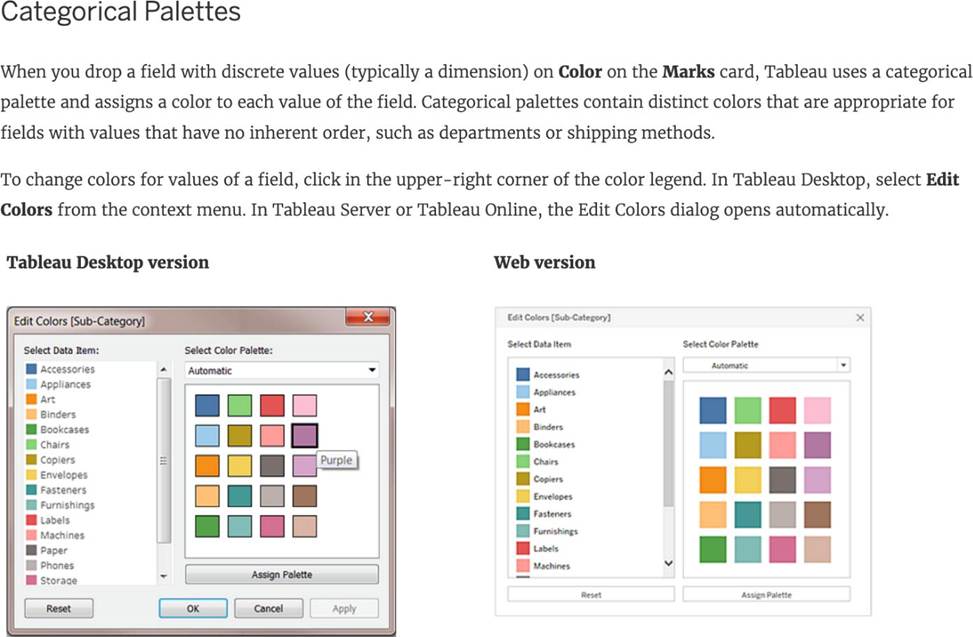
To change the color for a value
1) Click on an item on the left, under Select Data Item.
2) Click a new color in the palette on the right. In Tableau Desktop you can hover over a swatch to identify the color.
3) Repeat for as many values that you want to change.
4) In Tableau Desktop, click OK to exit the Edit Colors dialog box. In Tableau Server or Tableau Online, simply close the dialog box.
AND
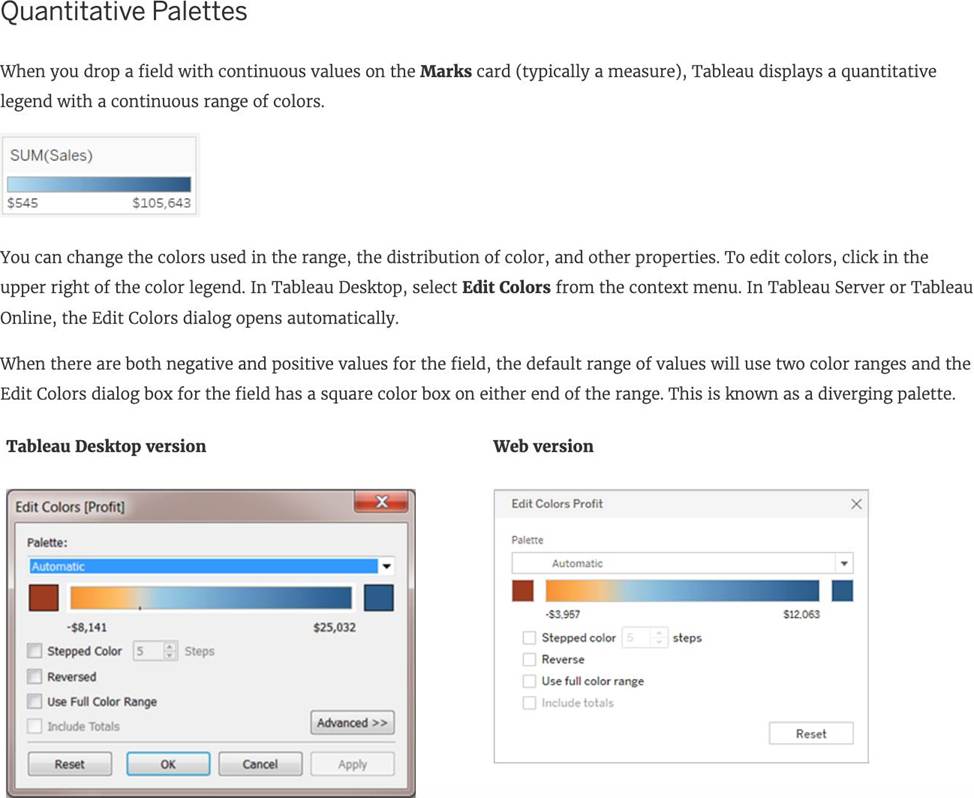
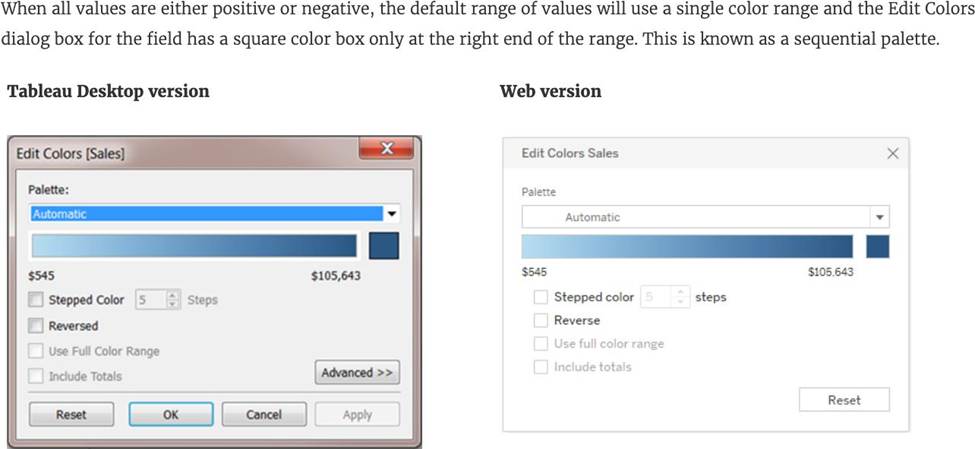
Reference: https://help.tableau.com/current/pro/desktop/enus/viewparts_marks_markproperties_color.htm
For Bullet Graphs we need at least ____________ measures
- A . 3
- B . 1
- C . 2
- D . 4
C
Explanation:
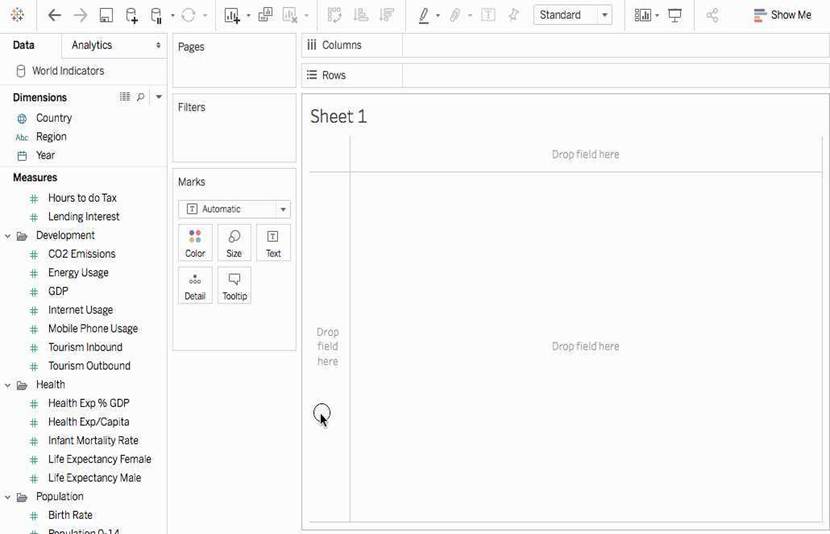
A bullet graph is a variation of a bar graph developed to replace dashboard gauges and meters. A bullet graph is useful for comparing the performance of a primary measure to one or more other measures.
Therefore, we need at least 2 measures for creating bullet graphs.
Reference: https://help.tableau.com/current/pro/desktop/en-us/qs_bullet_graphs.htm
The calculation [Ship Date] – [Order Date] will return _______________
- A . Number of orders placed in that duration
- B . Number of days between these dates
- C . Number of unique orders placed between these dates
- D . Number of orders shipped between these dates
B
Explanation:
As the names suggest, if we subtract the order date from the shipping date, we simply get the number of days between these 2 dates.
We can these use this calculated field in our charts, and can use COUNT, SUM, AVG etc with them according to our need.
You can create _______________ for members in a dimension so that their labels appear differently in the view.
- A . parameters
- B . duplicates
- C . copies
- D . aliases
D
Explanation:
You can create aliases (alternate names) for members in a dimension so that their labels appear differently in the view.
Aliases can be created for the members of discrete dimensions only. They cannot be created for continuous dimensions, dates, or measures.
To create an alias:
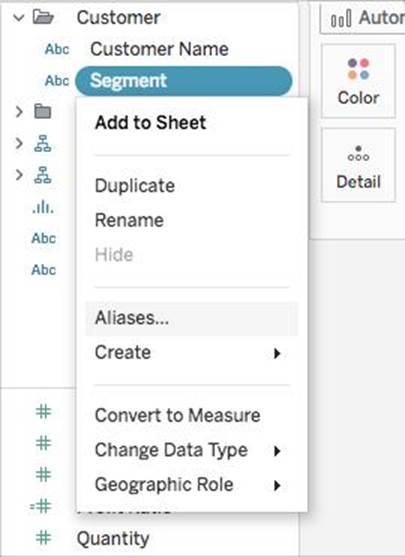
1) In the Data pane, right-click a dimension and select Aliases.
2) In the Edit Aliases dialog box, under Value (Alias), select a member and enter a new name.
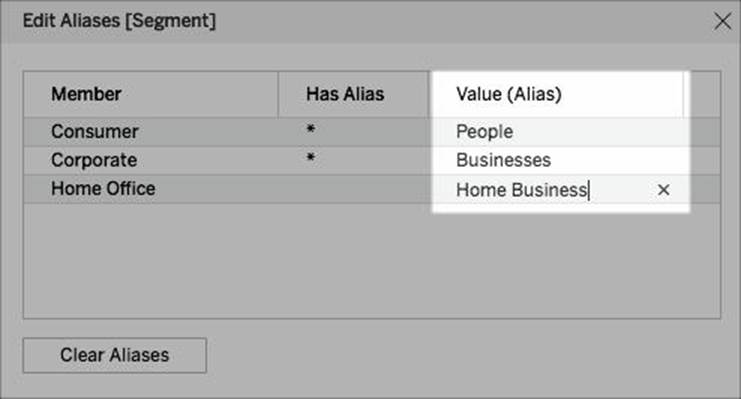
✑ To submit your changes: In Tableau Desktop, click OK.
On Tableau Server or Tableau Online, click the X icon in the top-right corner of the dialog box.
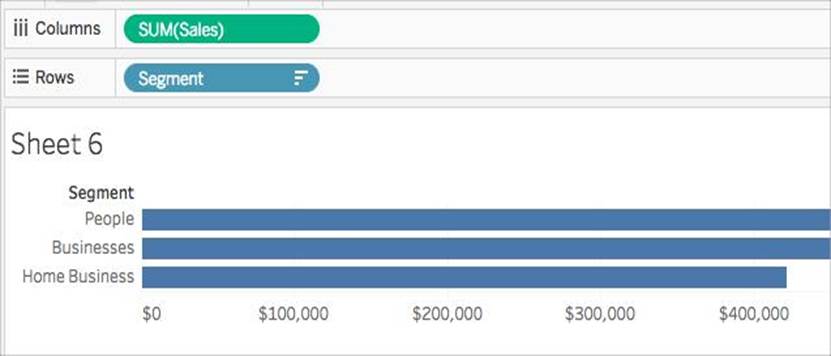
When you add the field to the view, the alias names appear as labels in the view. For example:
Reference: https://help.tableau.com/current/pro/desktop/en-us/datafields_fieldproperties_aliases_ex1editing.htm
What was the Store count in 2017 for Texas (TX)?
Skipped Join the Geo Data and Time Series Table on the Item Number ID column, and display the Store count for every State on a Map.
What was the Store count in 2017 for Texas (TX)?
- A . 592,593
- B . 293,202
- C . 416,702
- D . 336,908
C
Explanation:
Since you need BOTH State and the YEAR, we need to use an Inner Join.
Follow the steps below:
What are three ways to access bolding options for the text in a tooltip? Choose three.
- A . Select Tooltip on the Marks card.
- B . Select Format on the menu, and then select Font
- C . Select Worksheet on the menu, and then select Tooltip
- D . Hover over a mark and press CTRL+B.
- E . Hover over a mark and press ALT+F.
- F . Right-click on the Field and select Format.
A, C, B
Explanation:
To access bolding options for the text in a tooltip in Tableau, you can:
Select Tooltip on the Marks card, which allows you to edit the tooltip for the specific marks. Select Worksheet on the menu, and then Tooltip, to open the tooltip editor for the worksheet. Right-click on the Field and select Format, which lets you format the text including bolding options in the tooltip.
How can you create a packaged data source?
- A . From the Worksheet menu, select Export, and then select Data.
- B . From the Data pane, right-click the data connection, and then select Add to Saved Data Sources.
- C . From the File menu, select Share.
- D . From the File menu, select Save As.
B
Explanation:
To create a packaged data source (.tdsx file) in Tableau, you would right-click on the data connection in the Data pane and select the option to add it to saved data sources. This action packages the data source with the metadata that you’ve defined in Tableau, such as calculations, groups, and sets, so that you can easily share it with others. This does not package the data itself, which is a separate step if you’re working with local file-based data.
Which of the following URL prefixes are permitted when creating a URL Action in Tableau?
- A . SMTP
- B . FTP
- C . HTTPS
- D . HTTP
BCD
Explanation:
A URL action is a hyperlink that points to a web page, file, or other web-based resource outside of Tableau. You can use URL actions to create an email or link to additional information about your data. To customize links based on your data, you can automatically enter field values as parameters in URLs.
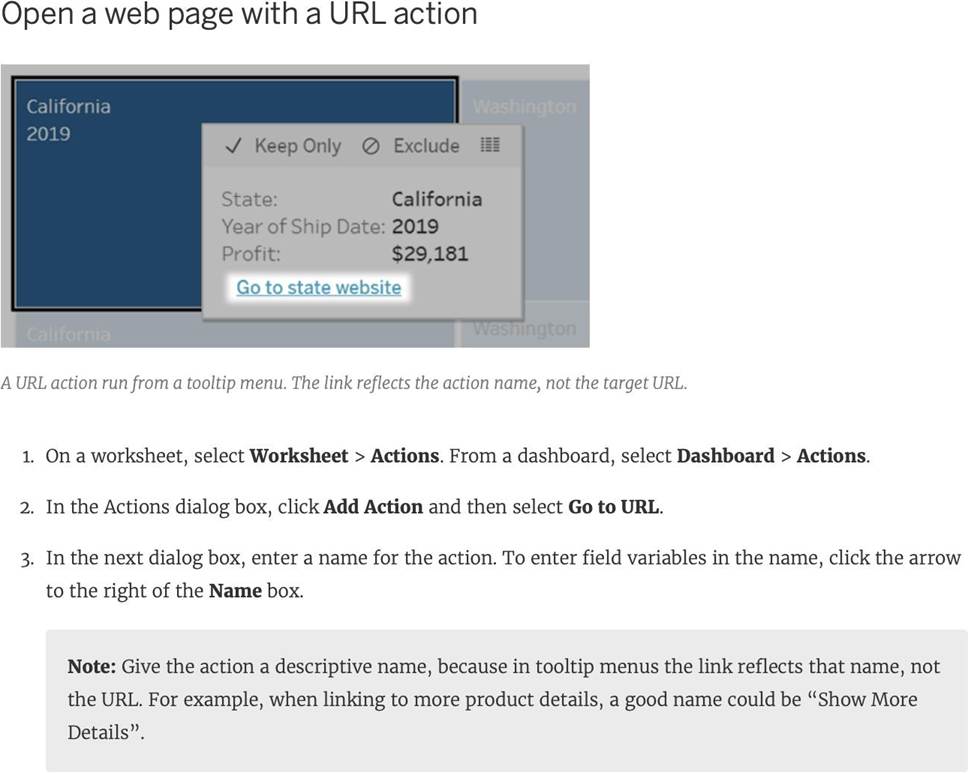
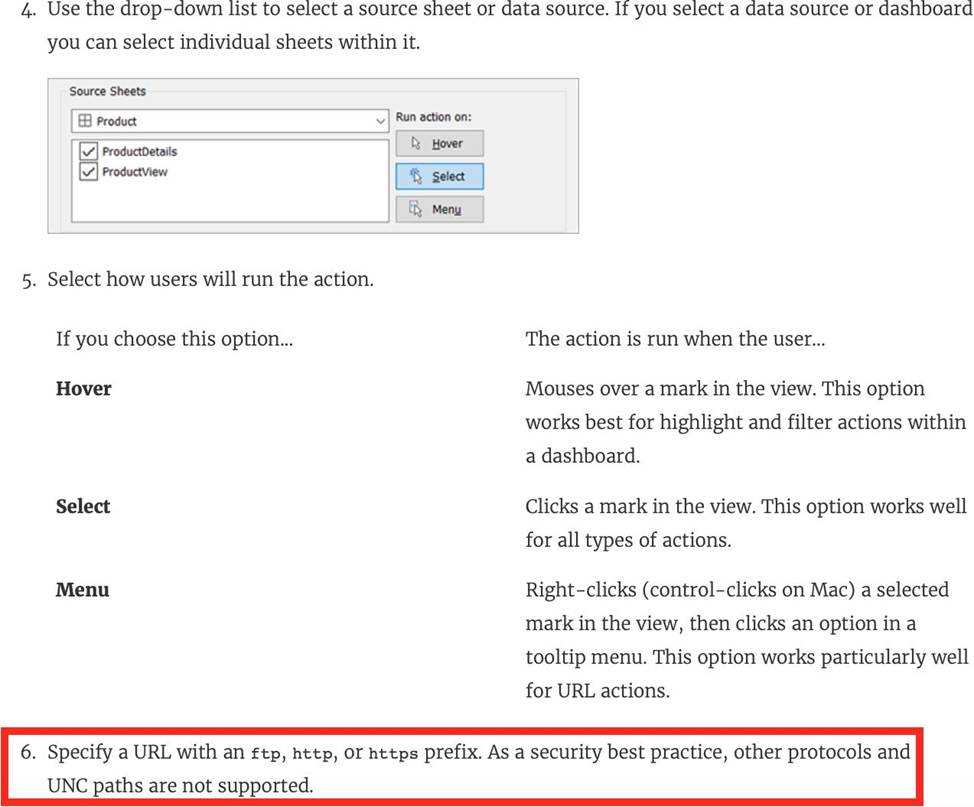
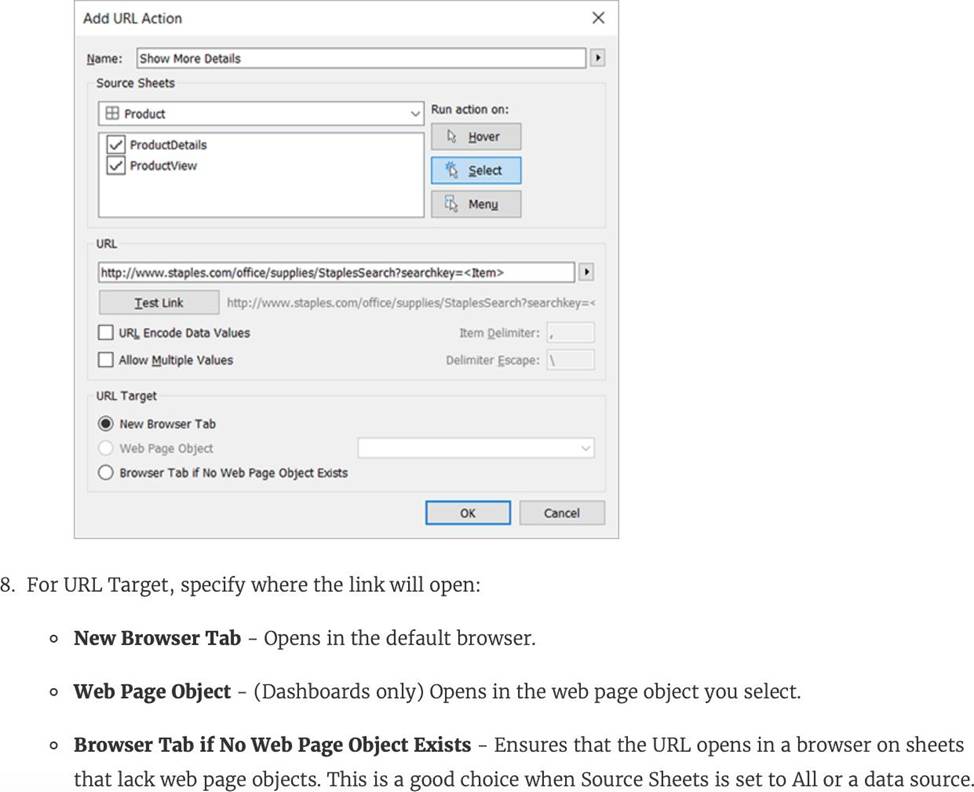
Reference: https://help.tableau.com/current/pro/desktop/en-us/actions_url.htm
To display data that has both negative and positive quantitative values, Tableau Desktop will display marks by using __________________ as the default.
- A . the full color range
- B . a diverging palette
- C . a sequential palette
- D . a categorical palette
B
Explanation:
Tableau Desktop will display marks by using a diverging palette as the default to display data that has both negative and positive quantitative values. A diverging palette is a type of color palette that uses two different color ranges to show positive and negative values. For example, a red-green diverging palette uses shades of red for negative values and shades of green for positive values. A diverging palette is automatically applied when there are both negative and positive values for a measure that is placed on Color on the Marks card5 The other options are not correct types of color palettes that Tableau Desktop uses as the default for data with both negative and positive values. A full color range is not a valid term for a color palette in Tableau. A sequential palette is a type of color palette that uses different shades of one color to show variations in a single measure. A sequential palette is usually applied when there are only positive values for a measure that is placed on Color on the Marks card5 A categorical palette is a type of color palette that uses different colors to show discrete values or categories. A categorical palette is usually applied when there is a dimension that is placed on Color on the Marks card5