
Tableau TDS-C01 Practice Exams
Last updated on Oct 23,2026- Exam Code: TDS-C01
- Exam Name: Tableau Desktop Specialist
- Certification Provider: Tableau
- Latest update: Oct 23,2026
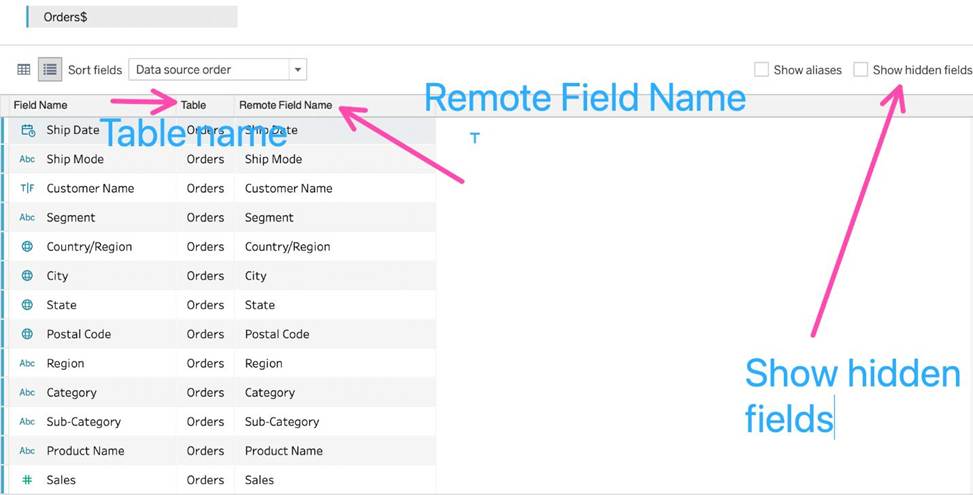
Which of the following are valid use-cases for the ‘Manage Metadata’ functionality?
- A . To clean and automatically fix the data issues in our data source
- B . To see the field name in the original data source
- C . To view all hidden fields
- D . To see the table a field belongs to
BCD
Explanation:
Top of Form
To clean and automatically fix the data issues in our data source – This is the definition of Data Interpreter.
To rename the field in the original data source – We never modify the original data source when managing metadata. All changes are local to Tableau for our convenience only.
All other options can be modified using the Manage Metadata property.
Bottom of Form
You have cleaned a data source properly, created some calculated fields and renamed some columns. You want to save these changes for future use cases.
Which of the following would BEST satisfy this requirement?
- A . Save it as a .twm file
- B . Save it as a .twb file
- C . Save it as a .tds file
- D . Save it as a .twbx file
C
Explanation:
After making changes to Data, we can save that new data source as a .tds file. To do so, go to data menu on top and then choose your current connected data source. Then next click on Add to Saved Data sources. This will save all calculated fields, changes to fields etc. It will be saved in My Tableau Repository -> Mydatasources. This will then also appear on Tableau Home Page under saved data sources like SampleSuperStore.
Note: Data source files do not contain the actual data but rather the information necessary to connect to the actual data as well as any modifications you’ve made on top of the actual data such as changing default properties, creating calculated fields, adding groups, and so on.
.twb and .twbx are not the BEST solutions since the questions nowhere mentions that we need to store our workbooks as well.
.twm is a bookmark which contains a single worksheet and are an easy way to quickly share your work.
Reference: https://help.tableau.com/current/pro/desktop/en-us/environ_filesandfolders.htm
How can you format an axis as Bold in Tableau?
- A . By choosing the axis and selecting Command/Control + B on your keyboard
- B . By right clicking on the axis, choosing Edit Axis, and then setting its font to bold.
- C . By right clicking on the axis, choosing format, and then setting its font to bold.
- D . By clicking on Format on the main menu bar, choosing field labels, and setting it to bold.
C
Explanation:
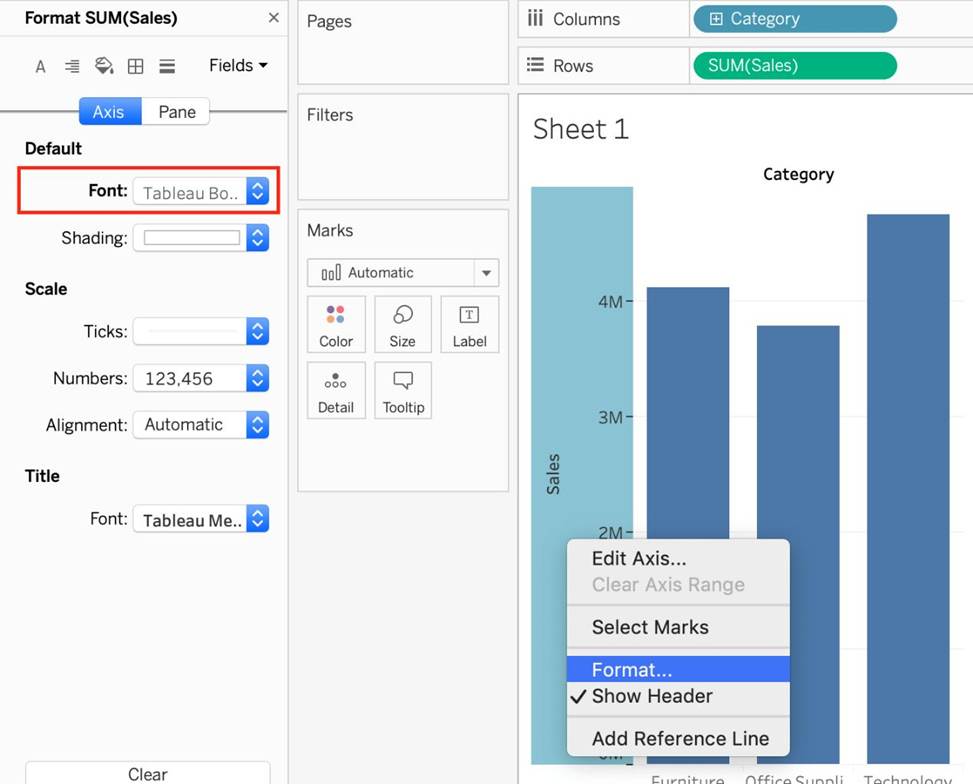
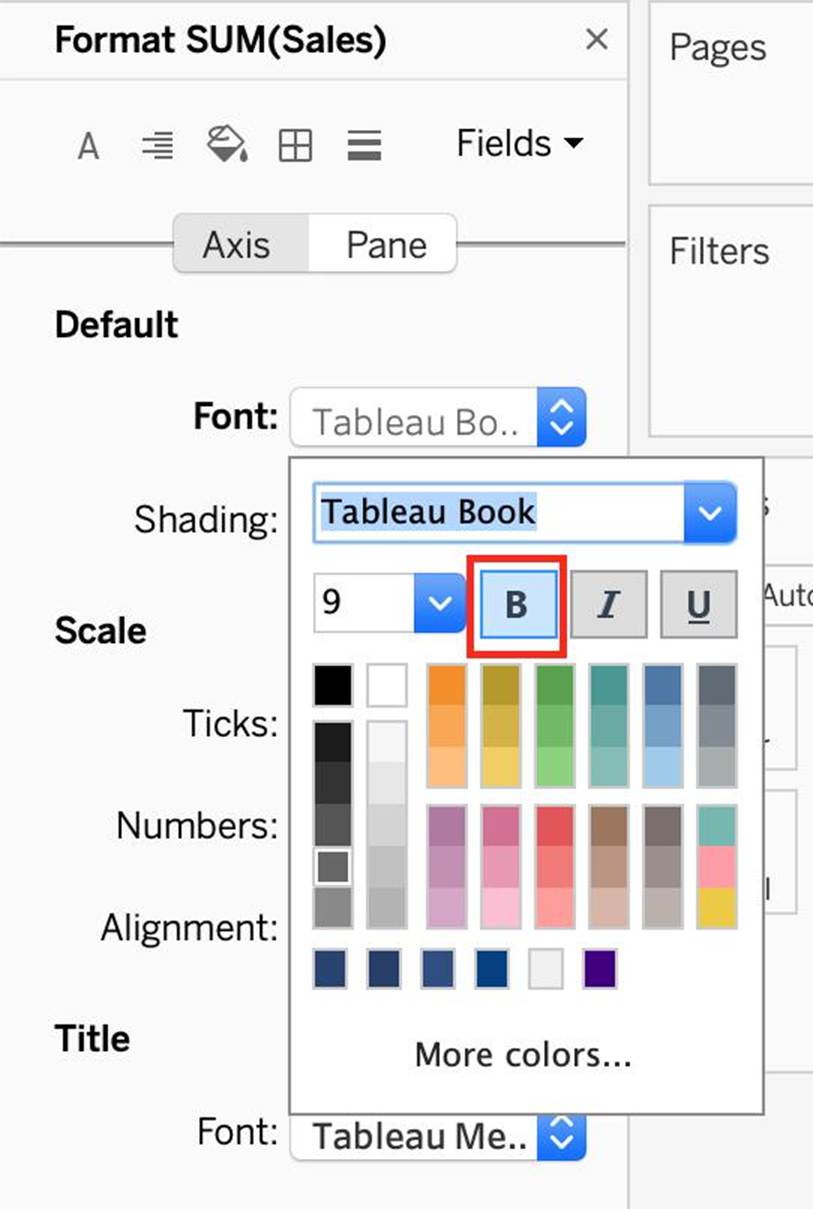
To make an axis bold, simply right click it, select format, and then click on Font to choose Bold:
None of the other options are valid ways to make the axis bold.
Read more about editing axis: https://help.tableau.com/current/pro/desktop/en-us/formatting_editaxes.htm
When is an axis created for the visualisation in Tableau?
- A . When we drag a measure to the row/column shelf
- B . When we drag a dimension to the row/column shelf
- C . When we drag a discrete field to the row/column shelf
- D . When we drag a continuous field to the row/column shelf
D
Explanation:
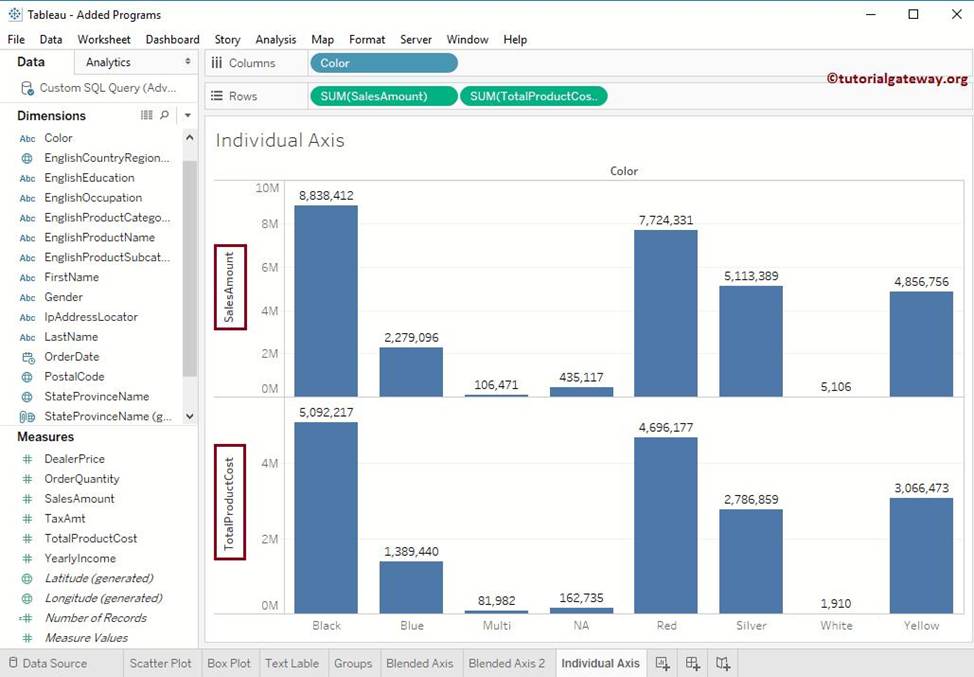
An Individual Axis in Tableau is obtained by adding a continuous into Rows or Columns Shelf.
Example:
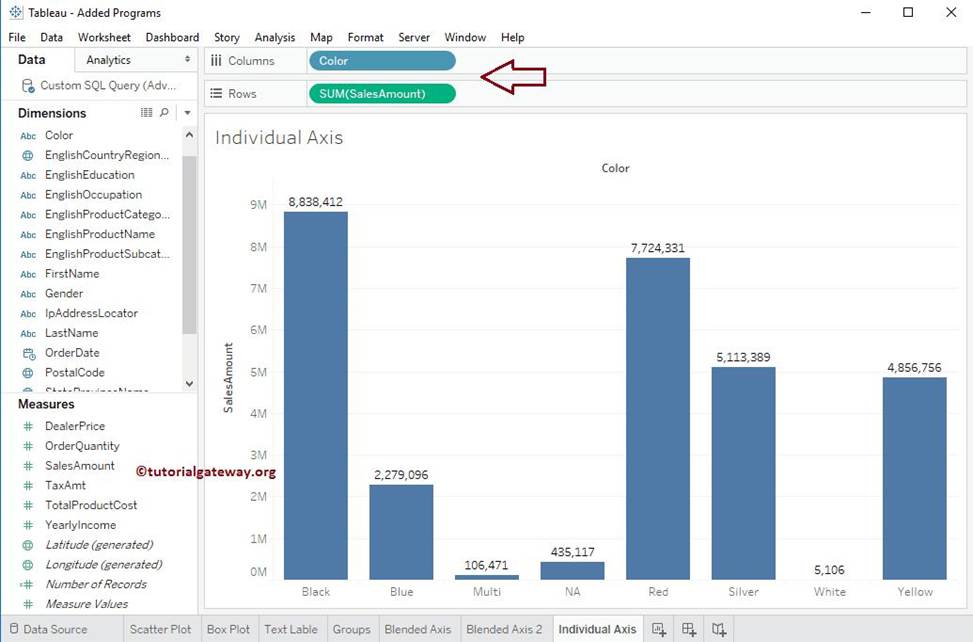
In order to show Individual Axis in Tableau First, we drag and drop the Color from Dimension shelf to Column Shelf. Next, we drag and drop the Sales Amount from measures shelf to Rows Shelf. Since it is a continuous value, the Sales Amount will be aggregated to default Sum. Once you drag them, following Chart report will be generated.
Next, we drag and Drop one more measure value, i.e., Total Product Cost from Measures Region to Rows Shelf. Because it is a Measure value, Total Product Cost is aggregated to default Sum. From the below screenshot, you can observe that Tableau has created an individual axis for each measure (continuous field).
Reference: https://www.tutorialgateway.org/individual-axis-in-tableau/
Which of the following are valid ways to add Totals to a view?
- A . Using the Data Pane
- B . Using the Analytics Pane
- C . From the Analysis Tab in the Menu bar on top
- D . Using the Marks shelf
B, C
Explanation:
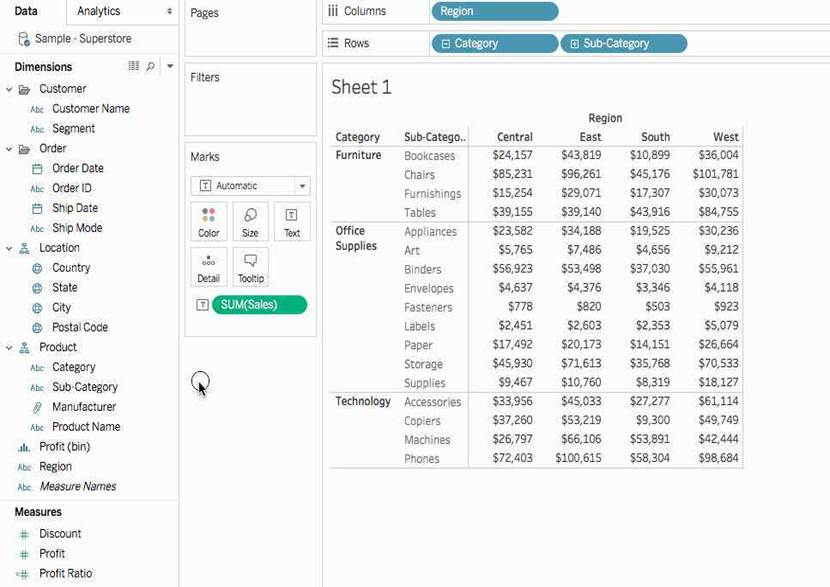
To add totals to a view using the Analytics pane:
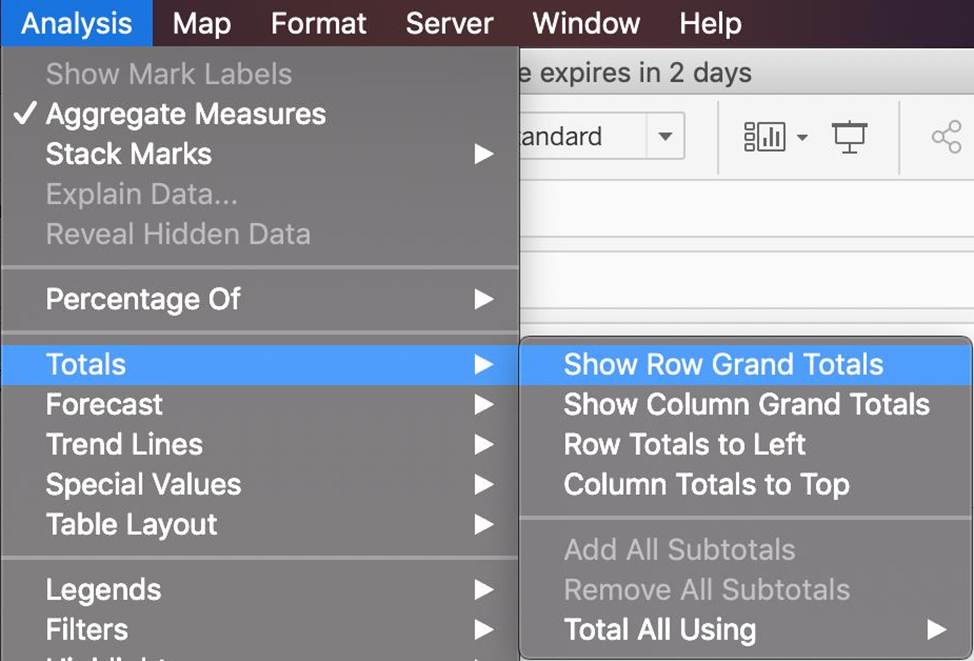
Also, you can add totals from the Analytics tab in the Menu above:
True or False: Enabling any other type of sort (Field, alphabetic, or Nested) clears the manual sort we create.
- A . True
- B . False
A
Explanation:
This is true. a Manual Sort lets you select a value and move it to the desired position, either by dragging it in the list or using the arrows to the right.
However, as soon as you choose some other type of sort – be it field, nested, or alphabetic, our custom created manual sort gets deleted/cleared.
Reference: https://help.tableau.com/current/pro/desktop/en-us/sortgroup_sorting_computed_howto.htm
True or False: Enabling any other type of sort (Field, alphabetic, or Nested) clears the manual sort we create.
- A . True
- B . False
A
Explanation:
This is true. a Manual Sort lets you select a value and move it to the desired position, either by dragging it in the list or using the arrows to the right.
However, as soon as you choose some other type of sort – be it field, nested, or alphabetic, our custom created manual sort gets deleted/cleared.
Reference: https://help.tableau.com/current/pro/desktop/en-us/sortgroup_sorting_computed_howto.htm
What do the colours Blue and Green represent in Tableau?
- A . Discrete and Continuous
- B . Measures and Dimensions
- C . Continuous and Discrete
- D . Dimensions and Measures
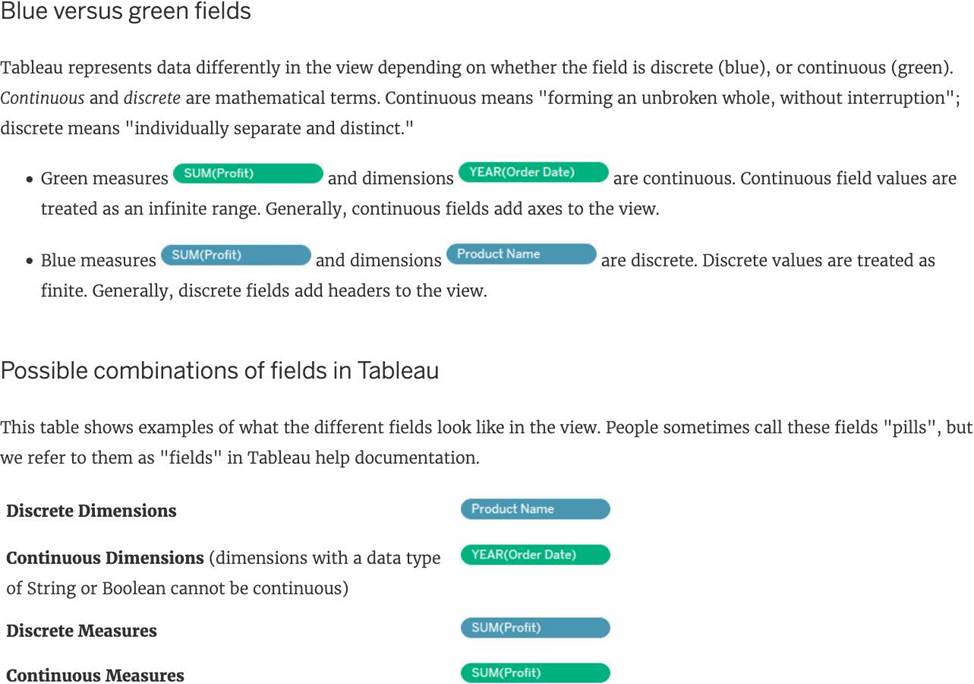
A
Explanation:
Important question! If you selected Dimension and Measure, don’t worry! It is a very common mistake. But we’re here to learn aren’t we?
When you connect to a new data source, Tableau assigns each field in the data source as dimension or measure in the Data pane, depending on the type of data the field contains. You use these fields to build views of your data.
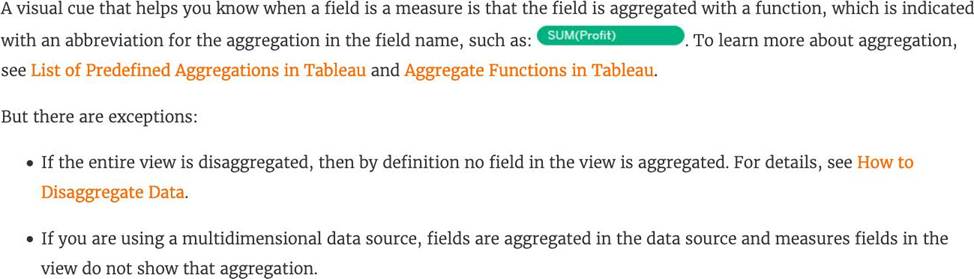
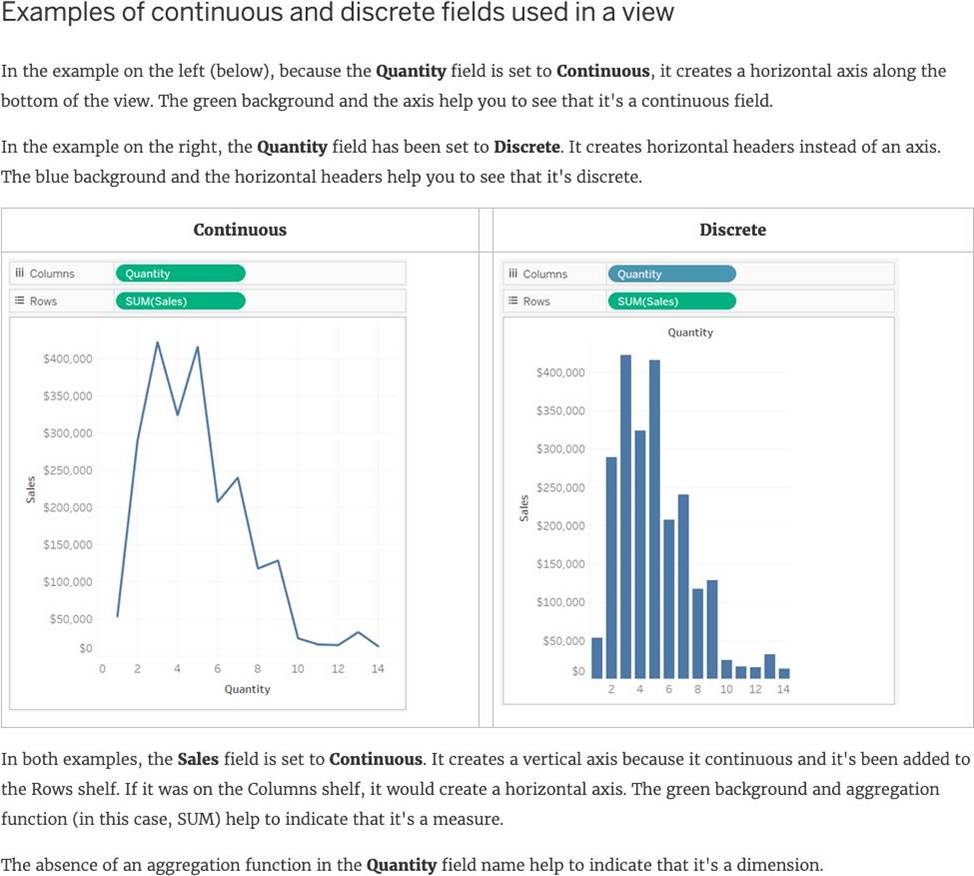
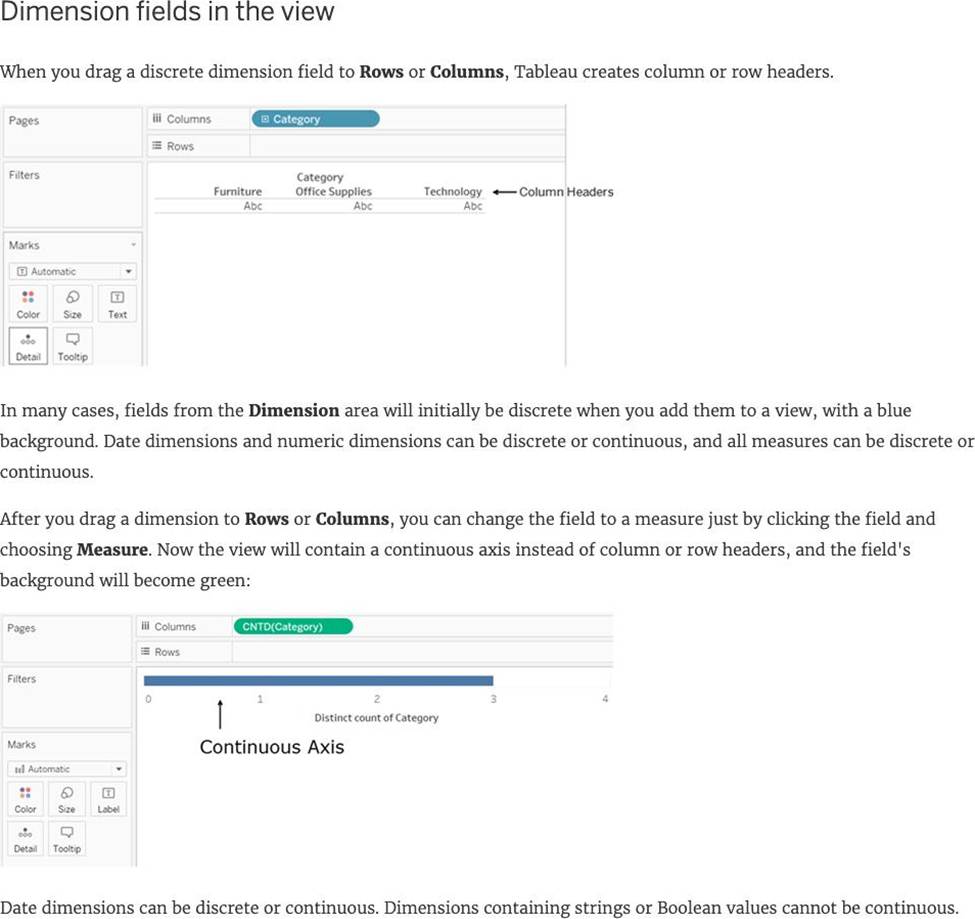
Reference: https://help.tableau.com/current/pro/desktop/en-us/datafields_typesandroles.htm
Which of the following represent a valid method to create a Bullet Graph with the LEAST number of fields possible?
- A . using 2 measures
- B . using 2 dimensions
- C . using 2 dimensions and 3 measures
- D . using 1 measure
A
Explanation:
A bullet graph is a variation of a bar graph developed to replace dashboard gauges and meters. A bullet graph is useful for comparing the performance of a primary measure to one or more other measures. Below is a single bullet graph showing how actual sales compared to estimated sales.
We can create a Bullet graph with just 2 measures! This method requires the LEAST number of fields possible to create this type of chart.
The best way to tackle such questions in the exam is to click the "SHOW ME" button on top right, and hover over the chart we want to create.
In our case, it is a Bullet graph.
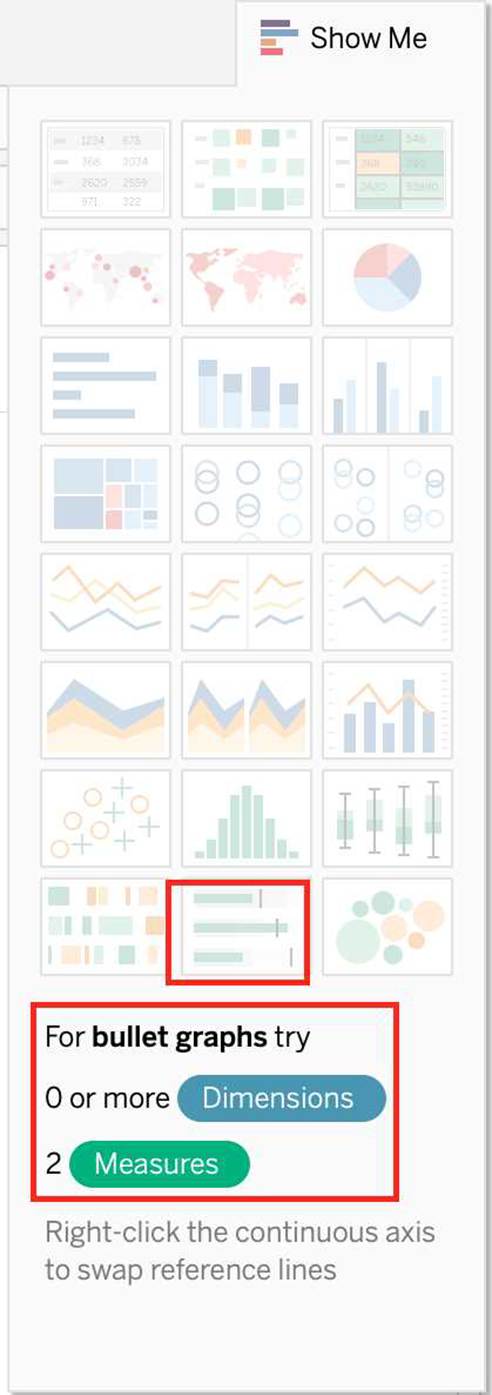
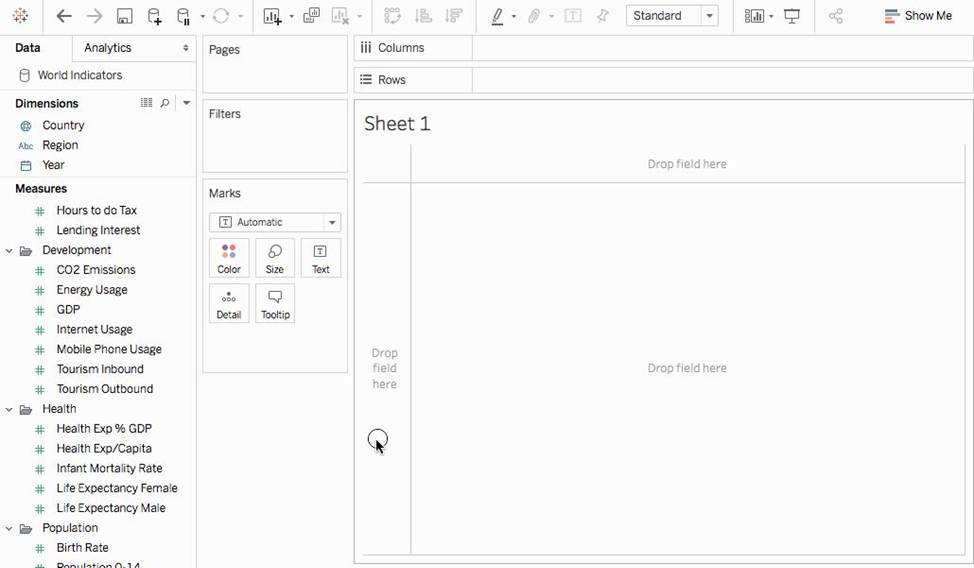
Therefore, we need 2 measures at least to create this chart, and 0 or more dimensions.
Reference: https://help.tableau.com/current/pro/desktop/en-us/qs_bullet_graphs.htm
True or False: Trend lines can only be used with numeric or date fields
- A . True
- B . False
A
Explanation:
You can show trend lines in a visualization to highlight trends in your data.
To add trend lines to a view, both axes must contain a field that can be interpreted as a number. For example, you cannot add a trend line to a view that has the Product Category dimension, which contains strings, on the Columns shelf and the Profit measure on the Rows shelf.
However, you can add a trend line to a view of sales over time because both sales and time can be interpreted as numeric values.
Reference: https://help.tableau.com/current/pro/desktop/en-us/trendlines_add.htm