
Tableau TDS-C01 Practice Exams
Last updated on Oct 23,2026- Exam Code: TDS-C01
- Exam Name: Tableau Desktop Specialist
- Certification Provider: Tableau
- Latest update: Oct 23,2026
How do you identify a continuous field in Tableau?
- A . It is identified by a blue pill in the visualization
- B . It is identified by a green pill in a visualization
- C . It is preceded by a ‘=#’ symbol in the data window
- D . It is preceded by a ‘Abc’ symbol in the data window
B
Explanation:
When you connect to a new data source, Tableau assigns each field in the data source as dimension or measure in the Data pane, depending on the type of data the field contains. You use these fields to build views of your data.
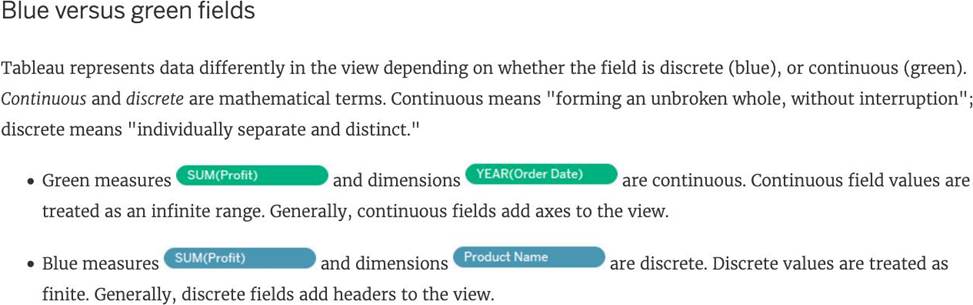
Reference: https://help.tableau.com/current/pro/desktop/en-us/datafields_typesandroles.htm
Which chart type uses automatically generated sizes that cannot be resized by using the Marks card?
- A . Packed bubbles
- B . Side-by-side circles
- C . Heat maps
- D . Density map
A
Explanation:
In Tableau, a Density map (also known as a heat map) uses automatically generated sizes for the data points that cannot be resized by using the Marks card. This chart type is designed to display density of data points on a map, where the size and color of the data points represent the concentration of data in that area.
You have the following legend.
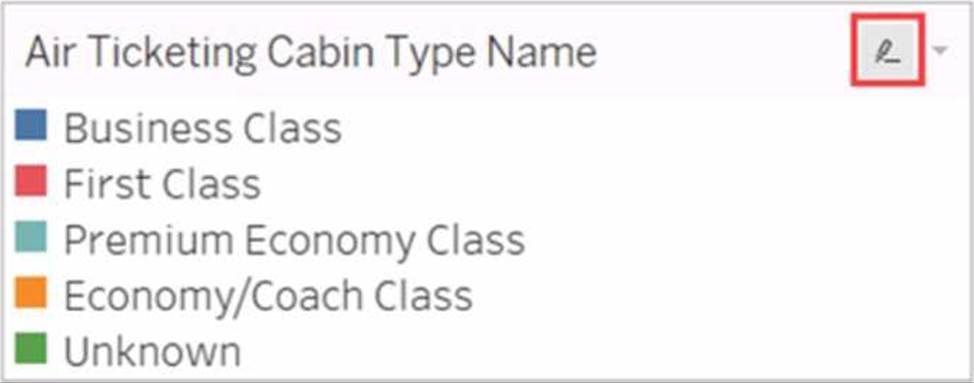
What occurs when you click the icon to the right of Air Ticketing Cabin Type Name?
- A . The filter options open.
- B . The legend toggles on or off.
- C . The highlighter toggles on or off.
- D . The Edit Colors dialog box opens
C
Explanation:
When you click the icon to the right of Air Ticketing Cabin Type Name, the highlighter toggles on or off. The highlighter is a feature that allows you to highlight marks in the view that match a specific value or condition. You can access the highlighter by clicking the icon next to a dimension or measure in the legend, filter, or parameter. The icon looks like a light bulb with a plus sign. When you click the icon, a highlighter box will appear where you can enter or select a value to highlight. The marks that match the value will be highlighted in the view, while the others will be dimmed. You can also use the highlighter box to search for values, clear the highlighting, or lock the highlighting. To turn off the highlighter, you can click the icon again or close the highlighter box. The other options are not correct descriptions of what occurs when you click the icon to the right of Air Ticketing Cabin Type Name. The filter options do not open, because the icon is not for filtering, but for highlighting. The legend does not toggle on or off, because the icon is not for showing or hiding the legend, but for accessing the highlighter. The Edit Colors dialog box does not open, because the icon is not for changing the colors of marks, but for highlighting them.
Using the dataset, plot a Map showing all the countries, filtered by Market to only include LATAM.
Which country in the LATAM Market has the highest shipping delay (sum of total number of days between the order date and the ship date)?
- A . Brazil
- B . Peru
- C . Argentina
- D . Mexico
D
Explanation:
VERY IMPORTANT QUESTION FOR THE EXAM, PAY ATTENTION
1) To find the number of days between order date and shipping date, we will make use of a calculated field:
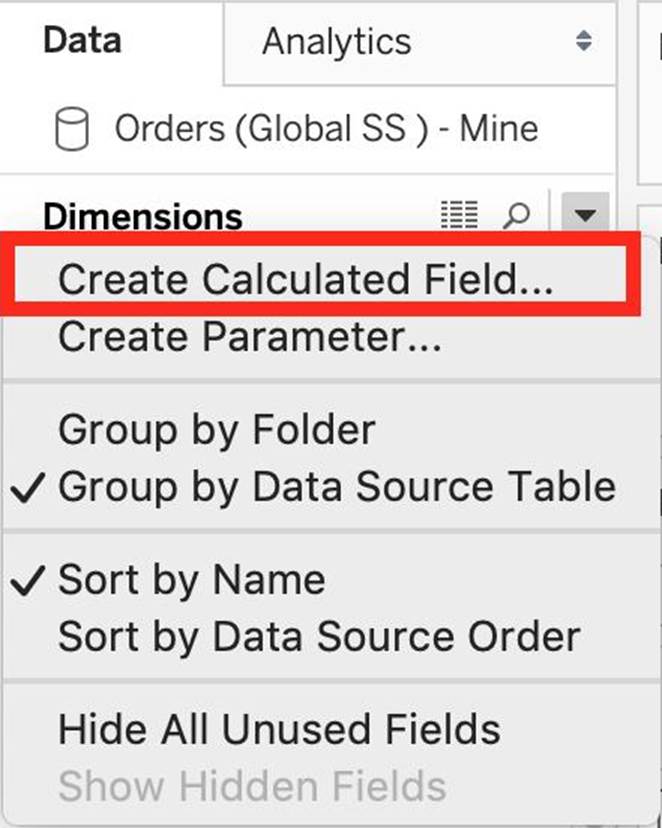
In the data pane, click on the dropdown arrow, and choose create calculated field.
Let’s name this calculated field "ShippingDelay" (you can name it anything you want 🙂 )
2) Use the DATEDIFF() function, and pass it the arguments as follows:
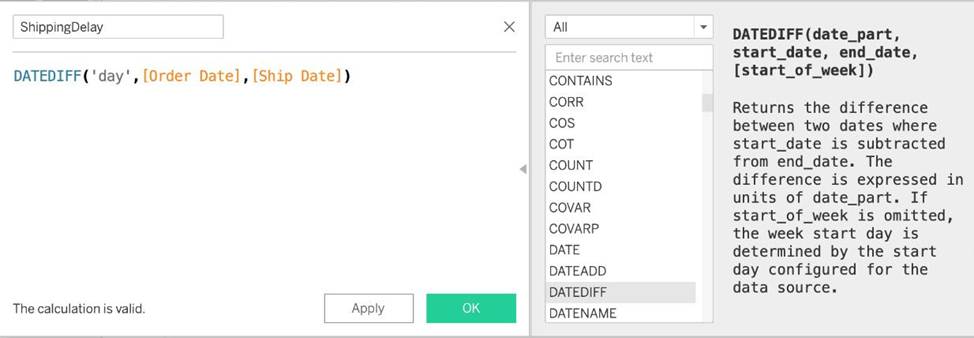
‘day’ depicts that we want to calculate the number of DAYS between the two dates. The first argument is ‘start_date’ which is the ORDER_DATE (day the order was placed), the second argument is ‘end_date’, which is the SHIP_DATE (date the order was shipped). So by subtracting as follows: SHIP_DATE – ORDER_DATE, we can find the delay in shipping.
Click OK.
3) You should now have a new measure as follows:
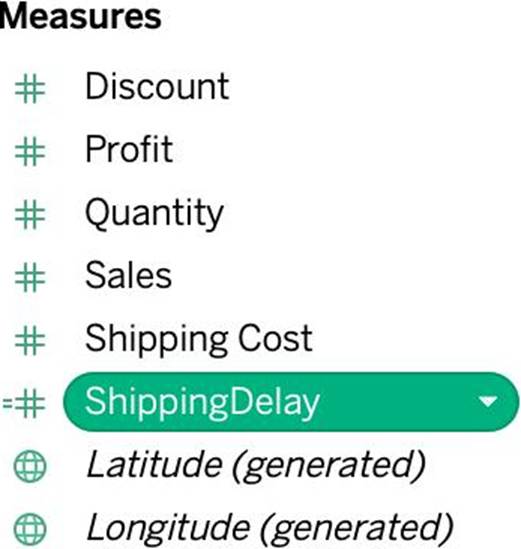
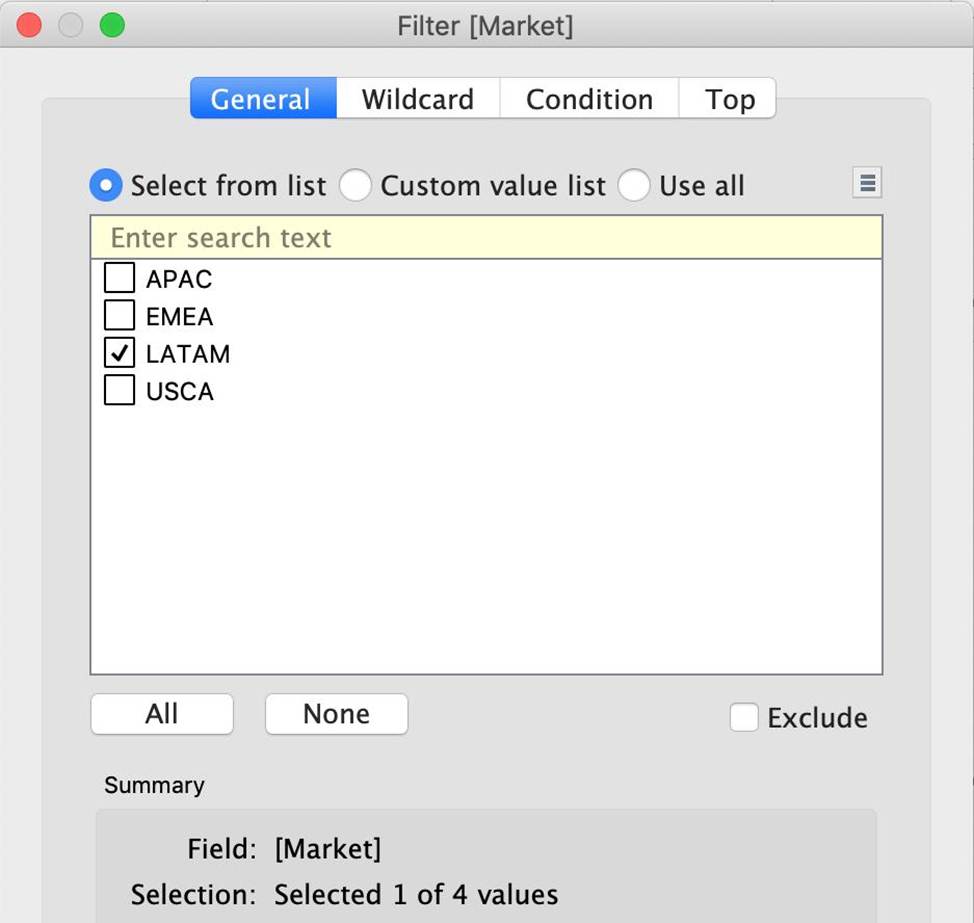
4) Phew! The hard part is done! Now let’s filter by Market to include only LATAM:
5) Drag Country to the view, and the new calculated field ‘ShippingDelay’ to SIZE on the Marks Shelf as follows:
*You can also click on Show Text Labels to be sure that you’re choosing the Largest value*
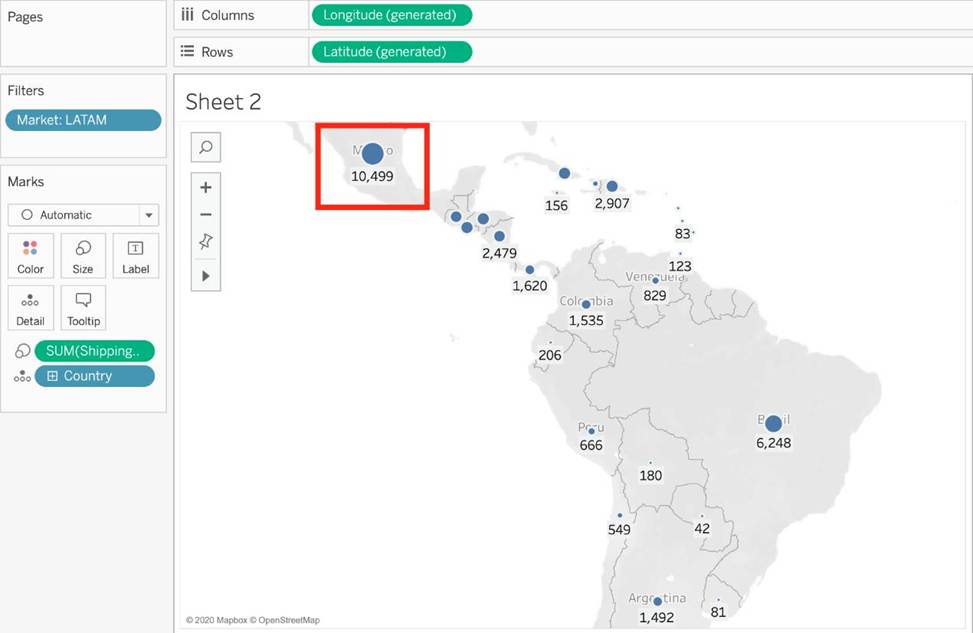
Clearly, Mexico has the highest Shipping Delay!
Is it possible to make a Measure discrete?
- A . No
- B . Yes
B
Explanation:
Of course! Follow along:
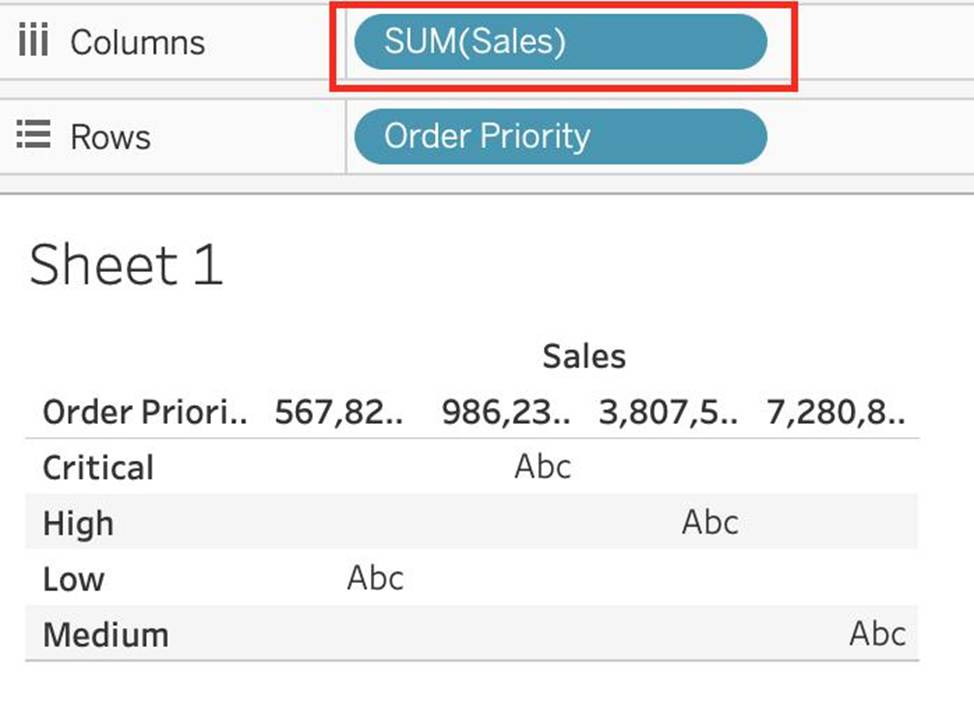
Right click on any measure, and choose Discrete as shown:
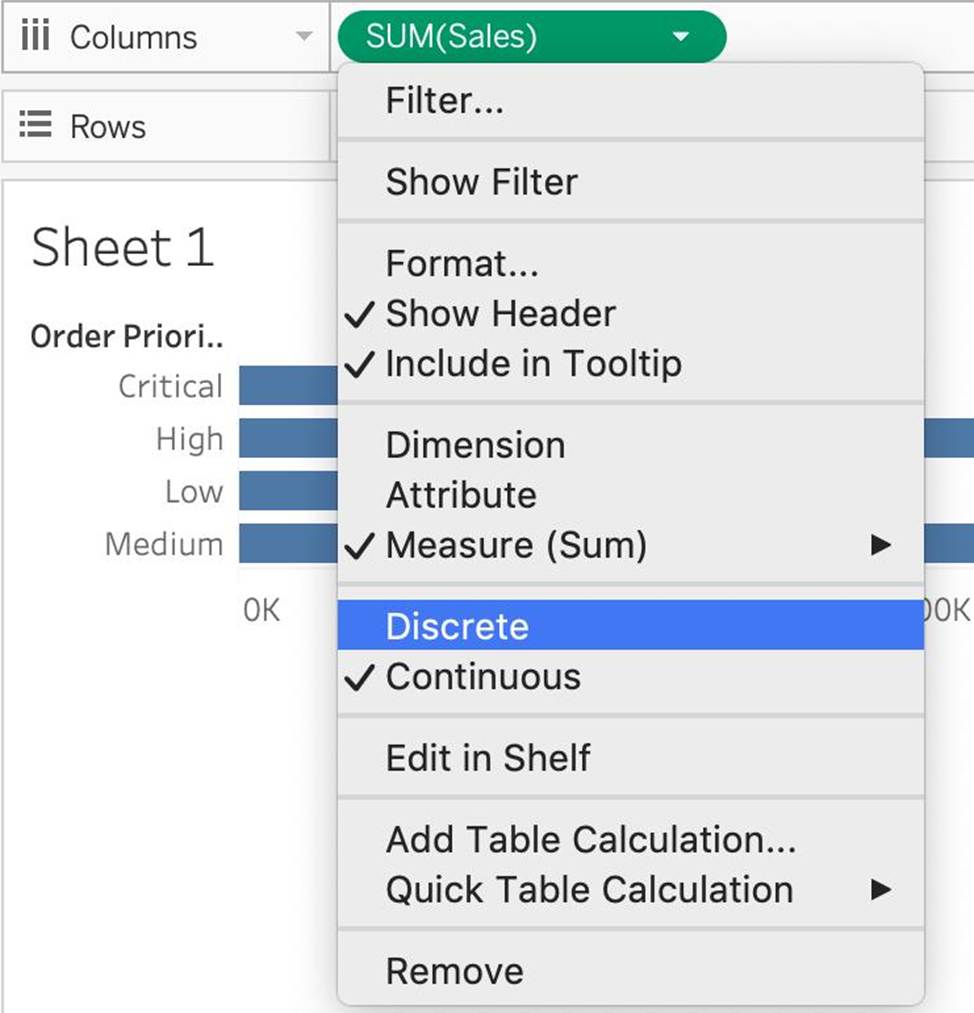
Once you do this, the green pill becomes blue in colour, indicating that it is now Discrete!
Reference: https://help.tableau.com/current/pro/desktop/en-us/datafields_typesandroles.htm
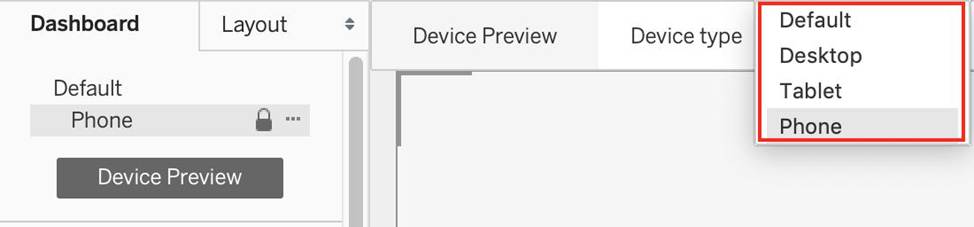
When creating a dashboard for multiple devices, which of the following Device options are available in the Device Preview section?
- A . Monitor, Default, Phone, Tablet
- B . Phone, Tablet, Laptop, Desktop
- C . Default, Phone, Tablet, Desktop
- D . Phone, Monitor, Laptop, Default
C
Explanation:
The following options are available in the Device preview section when creating a Dashboard:
Reference: https://help.tableau.com/current/pro/desktop/en-us/dashboards_dsd_create.htm
A Tableau Data Source File (.tds) contains which of the following?
- A . Default Field Properties
- B . Copy of any local file-based data
- C . Calculated Fields
- D . Data Source Type
ACD
Explanation:
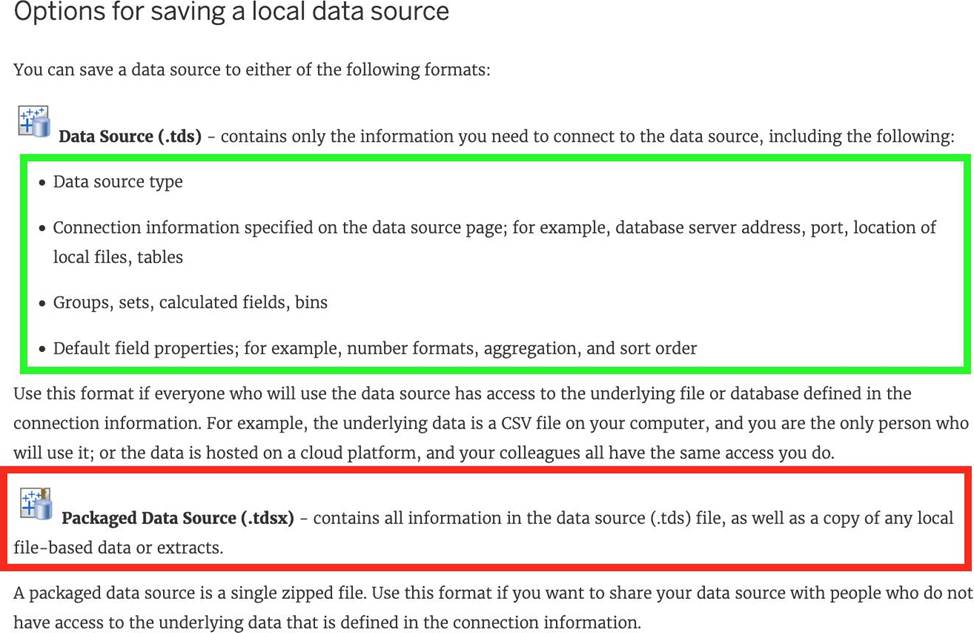
All are correct, except – Copy of any local file-based data. This is contained in a .tdsx file (Tableau Packaged Data Source)!
According to the official documentation –
Reference: https://help.tableau.com/current/pro/desktop/en-us/export_connection.htm
To use a quick table calculation, which of the following programming languages do you need to know?
- A . ython
- B . Java
- C . Javascript
- D . None of these
D
Explanation:
You don’t need to know ANY programming language to use quick table calculations!
Follow along with the steps below to learn how to apply a quick table calculation to a visualization:
1) Open Tableau Desktop and connect to the Sample-Superstore data source, which comes with Tableau.
2) Navigate to a new worksheet.
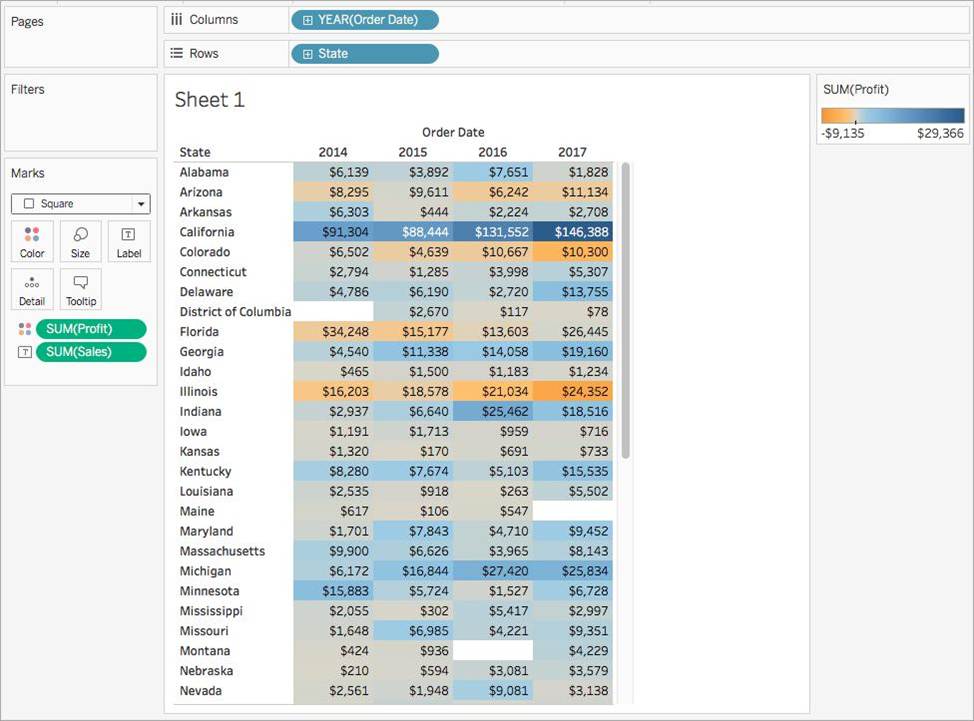
3) From the Data pane, under Dimensions, drag Order Date to the Columns shelf.
4) From the Data pane, under Dimensions, drag State to the Rows shelf.
5) From the Data pane, under Measures, drag Sales to Text on the Marks Card.
6) From the Data pane, under Measures, drag Profit to Color on the Marks Card.
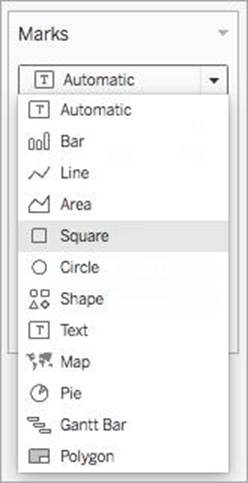
7) On the Marks card, click the Mark Type drop-down and select Square.
The visualization updates to look like this:
Apply the quick table calculation
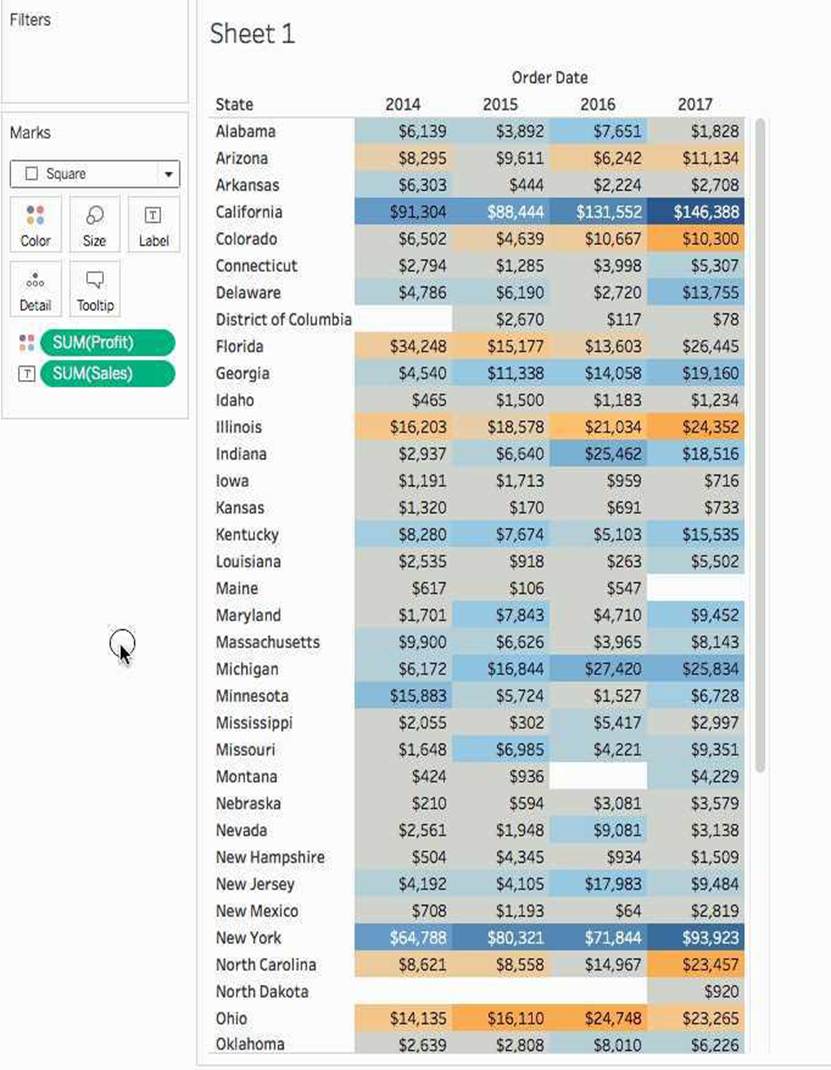
1) On the Marks card, right-click SUM(Profit) and select Quick Table Calculation > Moving Average. Note: You can only perform quick table calculations on measures in the view.
A delta symbol appears on the field to indicate that a quick table calculation is being applied to the field. The colors in the visualization update to show the moving average of profit across the years.
Reference: https://help.tableau.com/current/pro/desktop/en-us/calculations_tablecalculations_quick.htm
What does the box in a box plot represent?
- A . Maximum value of the data
- B . Minimum value of the data
- C . The interquartile range
- D . The median of the middle half of the data points
C
Explanation:
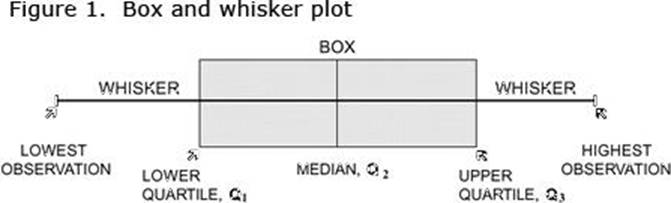
In a box and whisker plot:
1) The ends of the box are the upper and lower quartiles, so the box spans the interquartile range
2) The median is marked by a vertical line inside the box
3) The whiskers are the two lines outside the box that extend to the highest and lowest observations.
You have the following visualization.
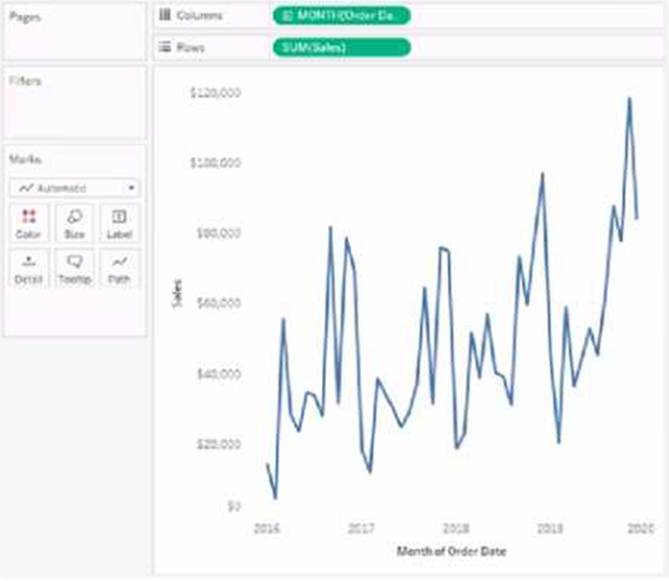
Where should you place a field named Region to show multiple distinct lines on the same axis?
- A . Path on the Marks card
- B . Color on the Marks card
- C . The Columns shelf
- D . The Rows shelf
B
Explanation:
To display multiple distinct lines on the same axis based on a field, you should place the field on the Color shelf in the Marks card. This will encode each distinct value in the Region field with a different color, resulting in separate lines for each region on the same axis.