
Tableau TDS-C01 Practice Exams
Last updated on Oct 23,2026- Exam Code: TDS-C01
- Exam Name: Tableau Desktop Specialist
- Certification Provider: Tableau
- Latest update: Oct 23,2026
When creating a histogram in Tableau, to what does bin size refer?
- A . The minimum number of axis ticks in the view.
- B . The range of the continuous measure counted in each bin.
- C . The count distinct (COUNTD) of items on either axis.
- D . The maximum number of marks in the view.
B
Explanation:
When creating a histogram in Tableau, bin size refers to the range of the continuous measure counted in each bin. A histogram is a chart that displays the shape of a distribution of a continuous measure. A histogram looks like a bar chart but groups values for a continuous measure into ranges, or bins. The basic building blocks for a histogram are as follows: Mark type: Automatic; Rows shelf: Continuous measure (aggregated by Count or Count Distinct); Columns shelf: Bin (continuous or discrete)4 To create bins from a continuous measure, you need to specify the size of bins, which determines how many bins are created and how wide they are. The size of bins is equal to the difference between consecutive values along the axis that represents the bins. For example, if you have bins with values 0-10, 10-20, 20-30, etc., then the size of bins is 10. You can either enter a value for the size of bins manually or have Tableau suggest an optimal bin size based on a formula that considers the number of distinct rows and the minimum and maximum values in the data5. The other options are not valid definitions of bin size when creating a histogram in Tableau. The minimum number of axis ticks in the view is determined by Tableau’s automatic scaling and formatting of axes, which can be adjusted manually if needed. The count distinct (COUNTD) of items on either axis is an aggregation function that returns the number of unique values in a field, which can be used as a measure in a histogram but not as bin size. The maximum number of marks in the view is limited by the performance and readability of the visualization, which can be improved by filtering, sorting, or aggregating the data4
The icon associated with the field that has been grouped is a ______________
- A . Paper Clip
- B . Globe
- C . Intersection
- D . =#
A
Explanation:
You can create a group to combine related members in a field. The icon associated with a group is a paper clip!

Using the Geo Data Table, create a Map showing Sales made per State.
For the State of New York (NY), what was the amount in Sales ($) made for Phone Assortments with White color?
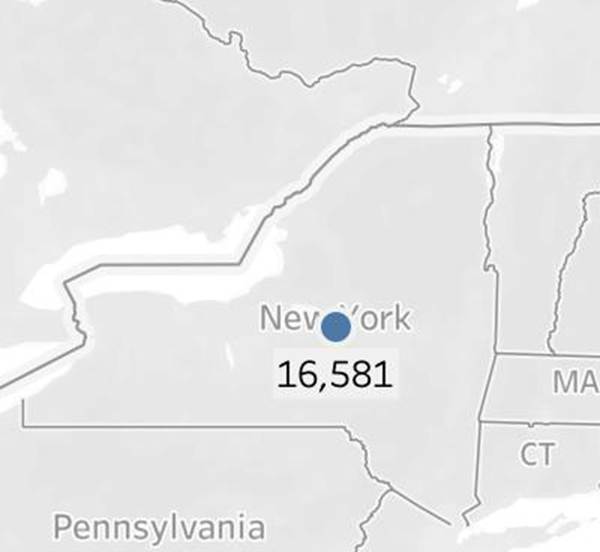
- A . $16,581
- B . (Correct)
- C . $147,950
- D . $48,115
- E . $33,768
A
Explanation:
Phew! Tricky one! You needed to use filters in this one.
Follow along:
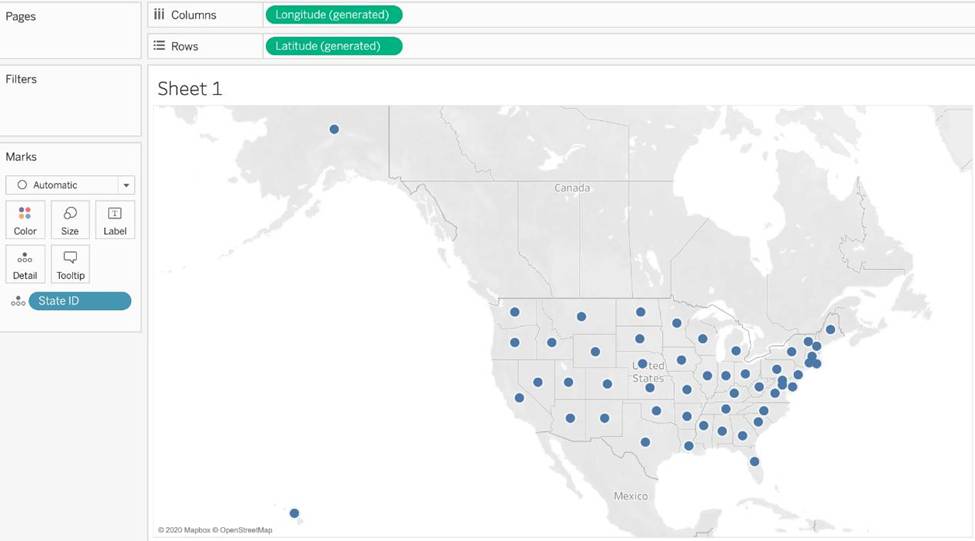
2) Next, as the question mentions, we need to focus on the Assortment PHONE, the color WHITE, and the state of NEW YORK. -> so we use filters for this!
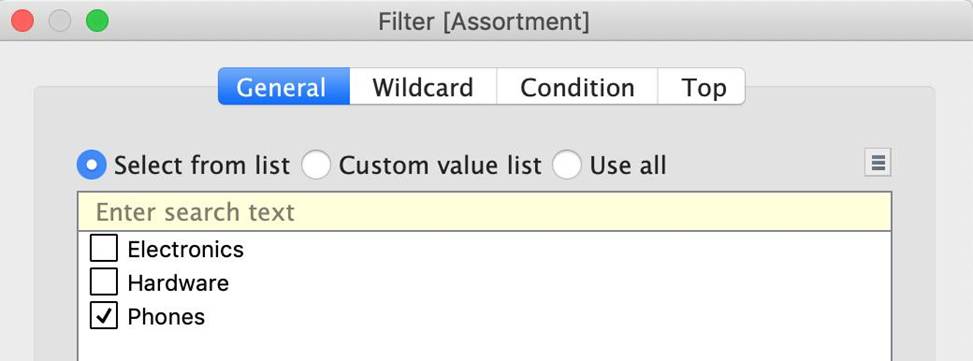
i) First drag Assortment to Filters, and select only Phones:
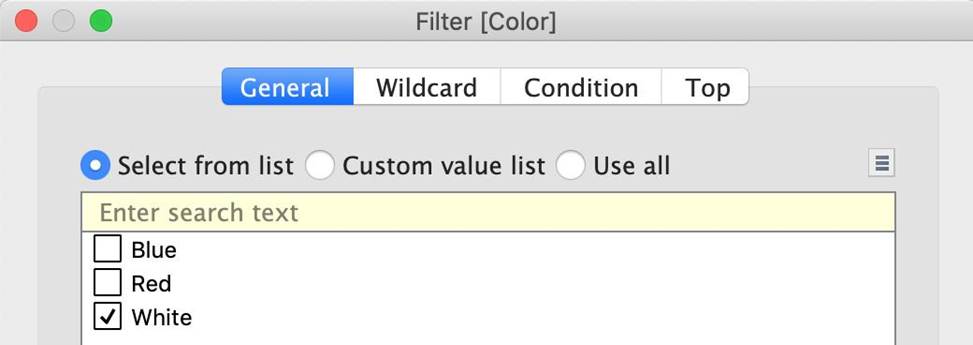
ii) Next, drag Color to Filters and Choose only White:
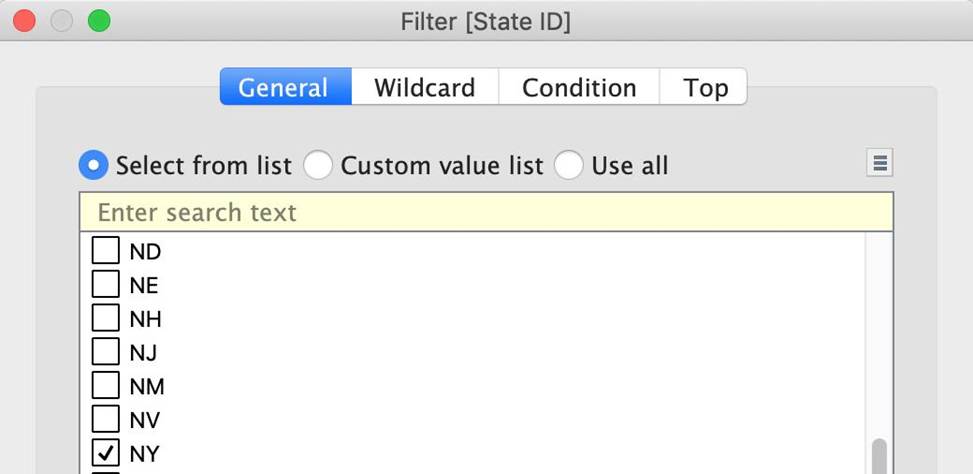
iii) Next, drag State ID to Filters, and choose New York (NY):
And Voila! We have our answer as follows:
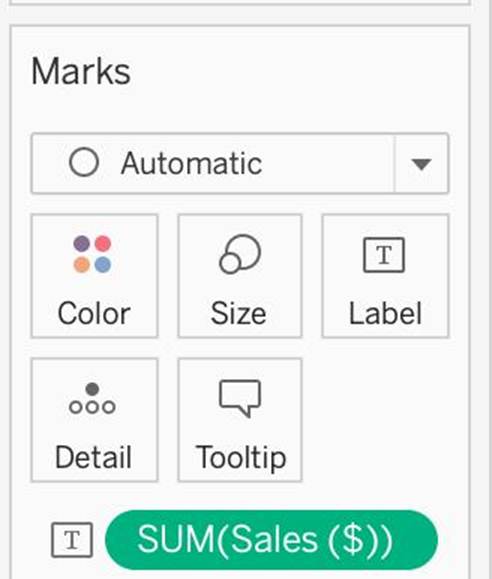
iv) Last, drag Sales to Label:
Which of the following is the correct way to calculate Profit Ratio in Tableau?
- A . Profit / Sales
- B . Sales / Profit
- C . SUM(Profit) / SUM(Sales)
- D . SUM(Sales)/SUM(Profit)
C
Explanation:
THIS IS A VERY IMPORTANT QUESTION
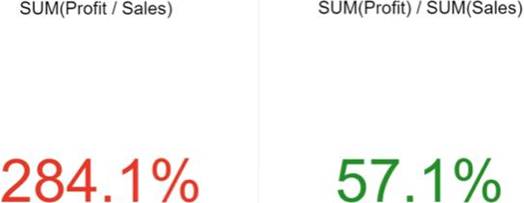
Aggregation is an important concept to consider when creating calculated fields. A calculated field for SUM([Profit]) / SUM([Sales]) will give you a very different answer than [Profit] / [Sales], even though both formulas are valid.
If you do not provide the aggregation within the calculated field, Tableau will calculate the equation for every record (row) in your analysis, then aggregate the answers for all of the rows together when the calculated field is added to the view.
In simple terms, if specify the aggregation such as SUM, what Tableau will do is that it will first calculate the sum of the Profit column (say x), then calculate the sum of the Sales column (say y), and then simply apply x/y —> This is what we expect! Perfect!
BUT, if you don’t specify the aggregation, it will go to every single ROW, perform Profit / Sales, and then aggregate the answers calculated for each row. This is simply NOT what we wan’t!
An example:
Reference: https://www.linkedin.com/pulse/tableau-tip-dont-make-error-ratio-calculations-bob-newstadt
You create a visualization by first adding a measure to rows. Next, you add a dimension with 11 members to columns.
Assuming that all the dimensions have a non-zero value, how many marks are in the view before and after the dimension is added?
- A . 1 before and 2 after
- B . 1 before and 12 after
- C . 1 before and 11 after
- D . 2 before and 11 after
C
Explanation:
In Tableau, when you initially add a measure to the rows shelf, you create one mark in the view that represents the aggregate value of that measure. When you then add a dimension with 11 members to the columns shelf, the view is subdivided into 11 separate marks, each representing the measure for one of the dimension members. This results in a total of 11 marks in the view after the dimension is added, one for each member of the dimension.
You have a scatter plot visualization.
What should you do to configure the visualization as a density map?
- A . Change the mark shape of the view.
- B . Change the mark type of the view.
- C . Create a custom color palette.
- D . Select heat maps from Show Me.
B
Explanation:
You should change the mark type of the view to configure the visualization as a density map. A density map is a type of mark that shows how data points are distributed in a two-dimensional space. To change the mark type, you can use the Marks card or Show Me. Changing the mark shape, creating a custom color palette, or selecting heat maps from Show Me will not create a density map2
Skipped
You have just created a histogram and now want to be able to change the size of bins dynamically.
Using which of the following will easily satisfy your requirement?
- A . Sets
- B . Groups
- C . Calculation
- D . Parameters
D
Explanation:
A parameter is a global placeholder value such as a number, date, or string that can replace a constant value in a calculation, filter, or reference line.
For example, you may create a calculated field that returns True if Sales is greater than $500,000 and otherwise returns False. You can replace the constant value of “500000” in the formula with a parameter. Then, using the parameter control, you can dynamically change the threshold in your calculation.
For example –
Reference: https://help.tableau.com/current/pro/desktop/en-us/parameters_create.htm
True or False: It is possible to change the Geographic Role of a dimension
- A . True
- B . False
A
Explanation:
A geographic role associates each value in a field with a latitude and longitude value. Assigning a geographic role based on the type of location (such as state versus postcode) helps ensure that your data is plotted correctly on your map view. For example, you can assign the City geographic role to a field that contains a list of city names.
To assign a geographic role to a field:
In the Data pane, click the data type icon next to the field, select Geographic Role, and then select the geographic role you want to assign to the field.
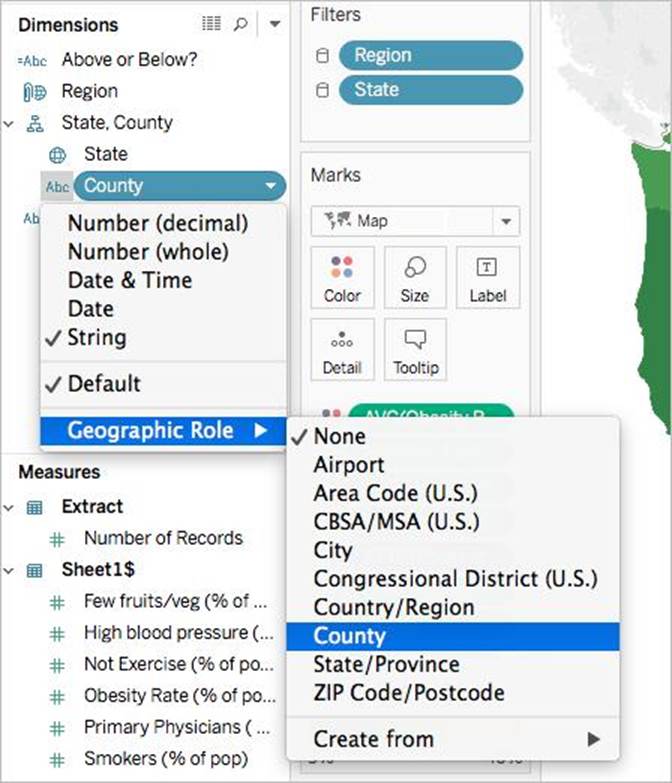
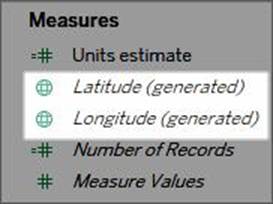
When you assign a geographic role to a field, Tableau adds two fields to the Measures area of the Data pane: Latitude (generated) and Longitude (generated).
These fields contain latitude and longitude values and are assigned the Latitude and Longitude geographic roles. If you double-click each of these fields, Tableau adds them to the Columns and Rows shelves and creates a map view using the Tableau background map.
Reference: https://help.tableau.com/current/pro/desktop/en-us/maps_geographicroles.htm
Is SUM a table calculation?
- A . Yes
- B . No
B
Explanation:
SUM is an aggregate function, not a table calculation!
A table calculation is a transformation you apply to the values in a visualization. Table calculations are a special type of calculated field that computes on the local data in Tableau. They are calculated based on what is currently in the visualization and do not consider any measures or dimensions that are filtered out of the visualization.
The most common Table calculations are:
Running Total
Percent Difference
Difference
Percent of Total
Rank
Percentile
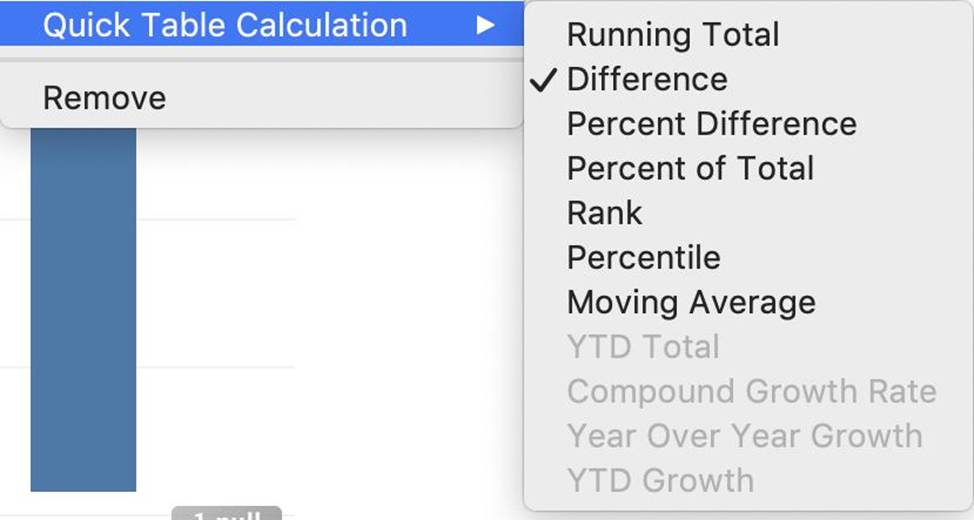
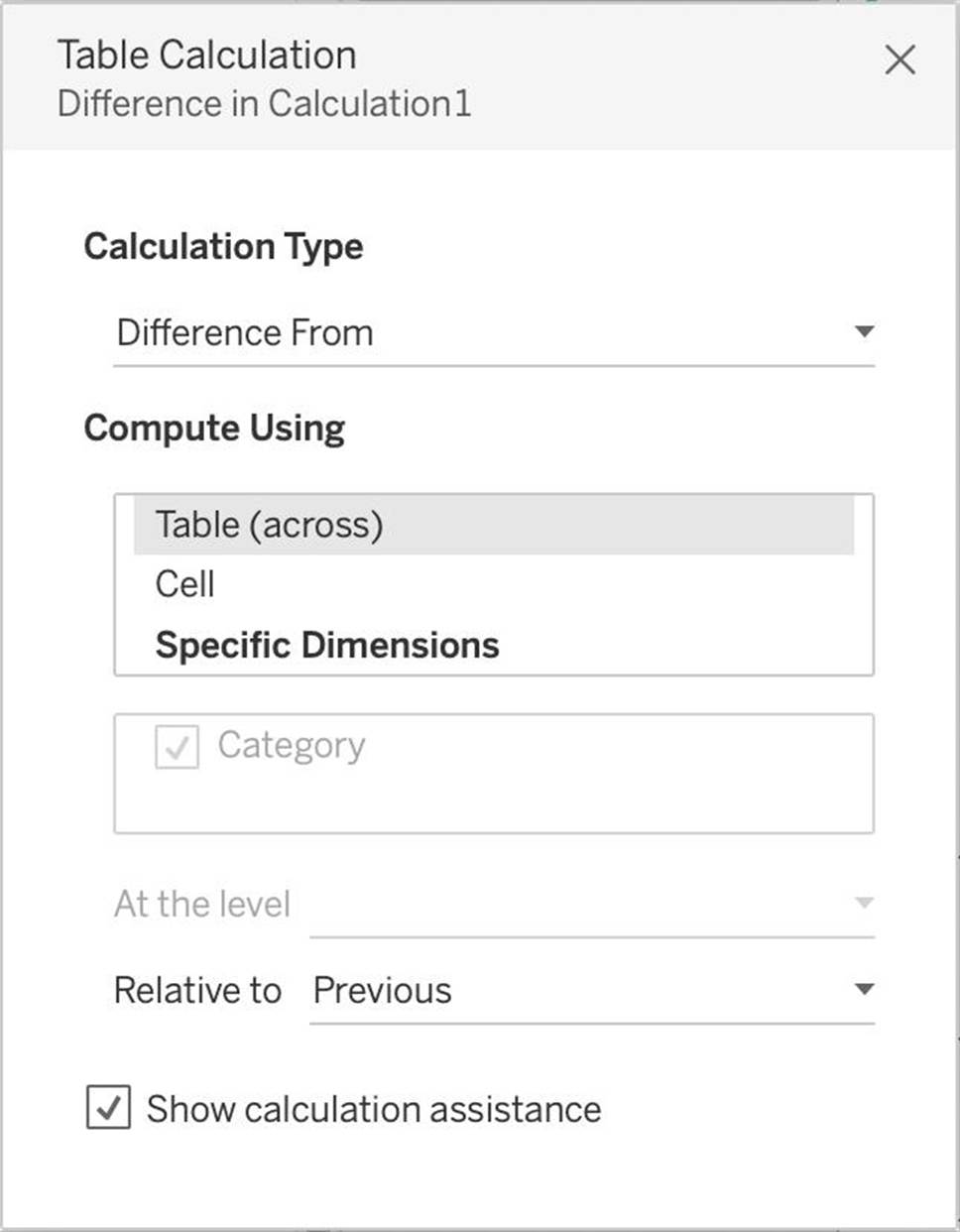
These can be calculated using: Table(across), Cell, or Specific dimensions!
Reference: https://help.tableau.com/current/pro/desktop/en-us/calculations_tablecalculations_definebasic_runningtotal.htm
To customize links based on the data in your dashboard, you can automatically enter field values as _______________ in URLs
- A . parameters
- B . sets
- C . values
- D . inputs
A
Explanation:
A URL action is a hyperlink that points to a web page, file, or other web-based resource outside of Tableau. You can use URL actions to create an email or link to additional information about your data. To customize links based on your data, you can automatically enter field values as parameters in URLs.
Read more in depth at: https://help.tableau.com/current/pro/desktop/en-us/actions_url.htm