
Tableau TDS-C01 Practice Exams
Last updated on Oct 23,2026- Exam Code: TDS-C01
- Exam Name: Tableau Desktop Specialist
- Certification Provider: Tableau
- Latest update: Oct 23,2026
What should you use to apply bold text formatting to rows or columns independent of each other?
- A . Text on the Marks card
- B . The Field Format Font pane
- C . The Rows tab or the Columns tab on the Format Font pane
- D . The Sheets tab on the Format Font pane
C
Explanation:
To apply bold text formatting to rows or columns independently in Tableau, you should use the Rows tab or the Columns tab on the Format Font pane. This approach provides control over the formatting of text within individual rows or columns. By selecting the appropriate tab (Rows or Columns), you can apply formatting settings, including bold text, to only the selected rows or columns. This is a crucial feature for enhancing the readability and visual appeal of specific parts of a Tableau worksheet, allowing for emphasis on particular data points or categories.
When viewing quick table calculations, such as Percent Difference From, that use a value in the previous column, what will be the first data value in the visualization?
- A . Null
- B . The current value
- C . Zero(O)
- D . Duplicated from the nearest column
A
Explanation:
According to the Tableau Desktop Specialist Exam Guide, when using quick table calculations, such as Percent Difference From, that use a value in the previous column, the first data value in the visualization will be null, because there is no previous value to compare with.
What is the one critical difference between normal calculated fields, and the calculated fields created after Data blending?
- A . No difference, calculated fields cannot be created in Blends
- B . Fields used in Blends must first be aggregated
- C . The calculated fields created in Blends cannot be edited once created
- D . The calculated fields created in Blends cannot use than 2 fields
B
Explanation:
Yes, due to the nature of blends, there are some conditions as follows from the official documentation that must be kept in mind while working with blends:
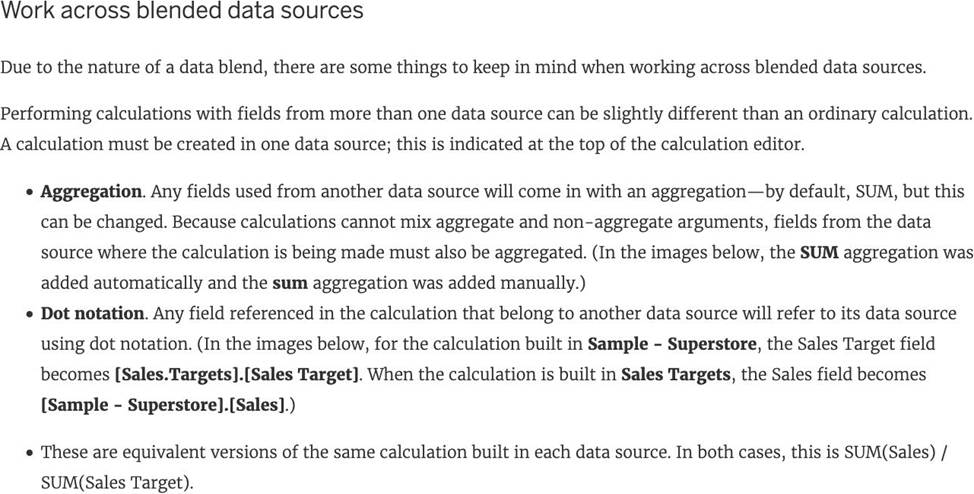
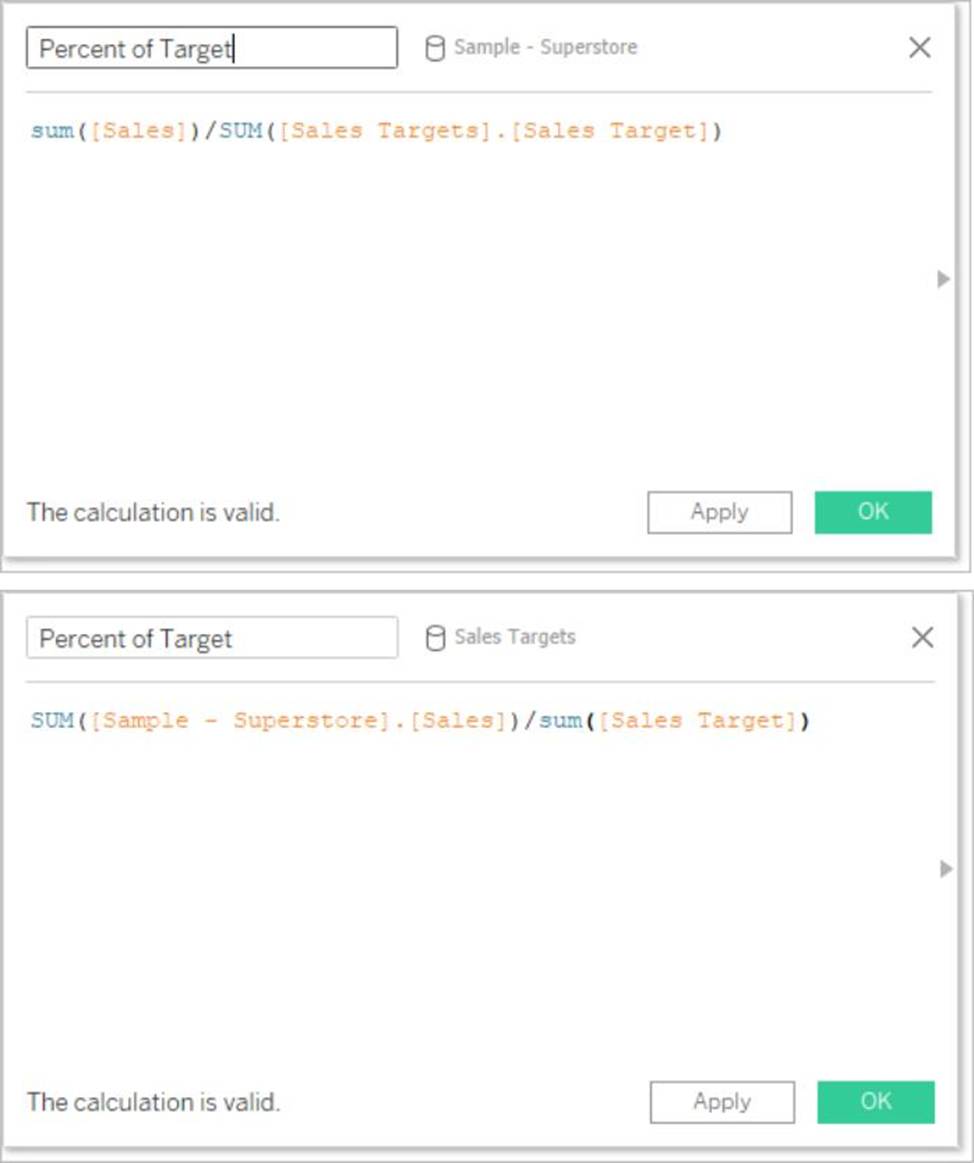
In addition to handling calculations slightly differently, there are some limitations on secondary data sources. You may not be able to sort by a field from a secondary data source, and action filters may not work as expected with blended data. For more information, see Other data blending issues.
Reference: https://help.tableau.com/current/pro/desktop/en-us/multiple_connections.htm
Which of the following situations describe the best reason to use a union?
- A . You have two tables with similarly named columns of data that you want to combine.
- B . You have two data sets with similar data types for which you want to find only distinct values.
- C . You have two tables with differently named columns of data that you want to combine.
- D . You have two data sets saved in different formats that you want to unify into a single format.
A
Explanation:
You should use a union when you have two tables with similarly named columns of data that you want to combine. A union is a method for combining data by appending rows of one table onto another table. The tables that you union must have the same number of fields, the same field names, and the same data types2
Which of the following are benefits of combining sheets using dashboards?
- A . Easier to compare visualisations side by side
- B . It is mandatory to combine sheets when using Tableau
- C . Helps in faster analysis
- D . Provides the ability to use one sheet as a filter for other
ACD
Explanation:
The only incorrect option is – It is mandatory to combine sheets when using Tableau.
All others are valid advantages that Dashboards provide when using Tableau!
Which of the following are benefits of using Data Extracts in Tableau?
- A . Improved Performance
- B . Ability to use the data offline
- C . Working with freshest data at all times
- D . Faster to work with
A, B, D
Explanation:
Extracts are advantageous for several reasons:
1) Supports large data sets: You can create extracts that contain billions of rows of data.
2) Fast to create: If you’re working with large data sets, creating and working with extracts can be faster than working with the original data.
3) Help improve performance: When you interact with views that use extract data sources, you generally experience better performance than when interacting with views based on connections to the original data.
4) Support additional functionality: Extracts allow you to take advantage of Tableau functionality that’s not available or supported by the original data, such as the ability to compute Count Distinct.
5) Provide offline access to your data: Extracts allow you to save and work with the data locally when the original data is not available. For example, when you are traveling.
To work with the MOST up-do-date data, use a live connection instead!
Reference: https://help.tableau.com/current/pro/desktop/en-us/extracting_data.htm
You have the following visualization.
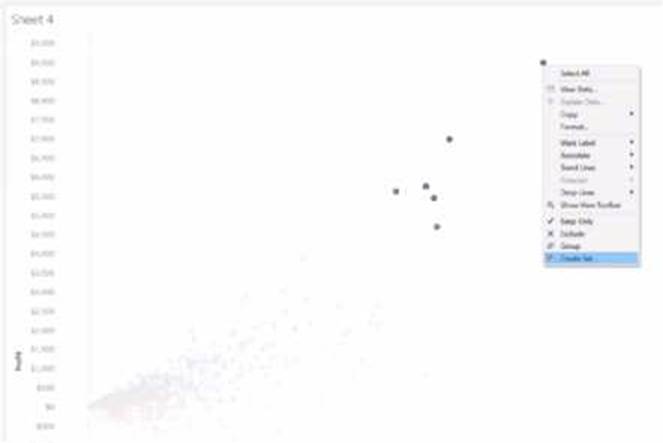
Which set type is created when you select the Create Set option?
- A . A fixed set
- B . A dynamic set
- C . A Top N set
- D . A combined set
B
Explanation:
When you use the ‘Create Set’ option in Tableau, it creates a dynamic set if the conditions for inclusion in the set are based on a calculation or an aggregation that may change as the data is updated or as filters are applied. Fixed sets are static and do not change with data refreshes, while dynamic sets can update to reflect the current state of the data.
Which of the following is an example of a Date Part?
- A . Q4 2017
- B . March 2019
- C . September 2020
- D . November
D
Explanation:
All answers except November are examples of Date Values (continuous in nature).
See below:
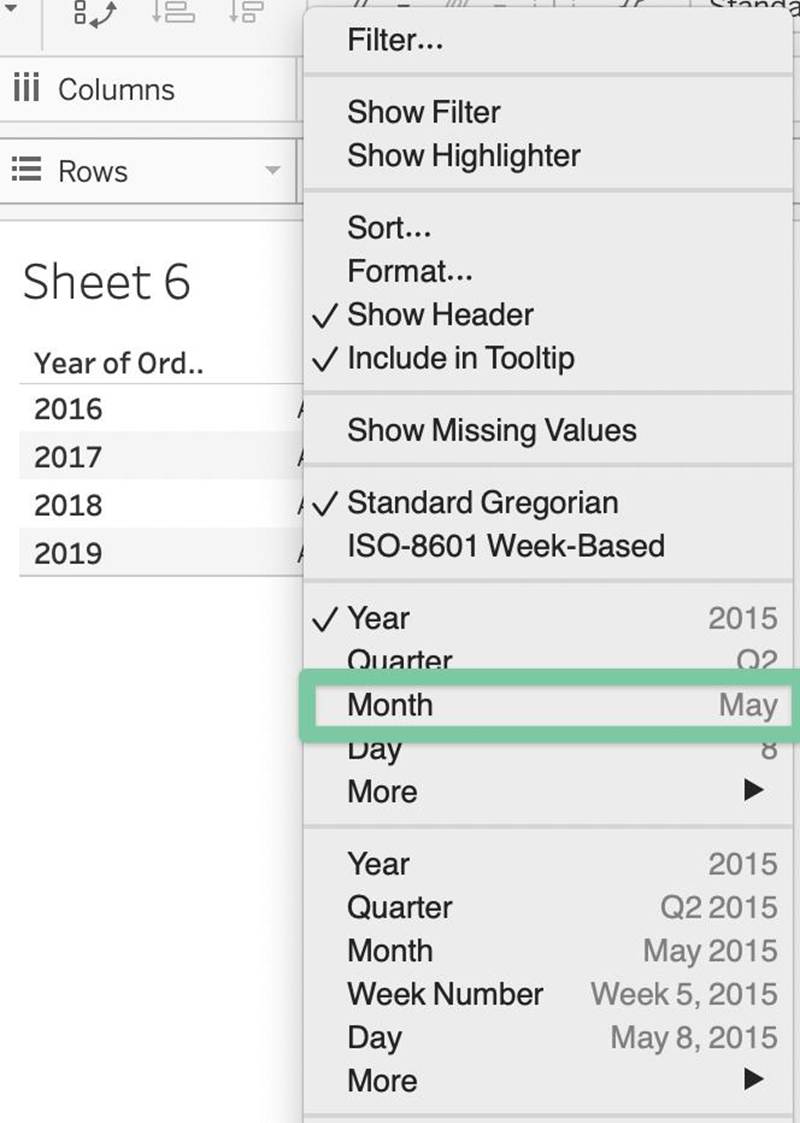
You can see that the option in Green symbolizes our correct answer, i.e only a Month. In our case that month is November (the correct answer).
All other options are combinations of a year with one other value (like a month, quarter, or day). So this is how by looking at an option you can know if its a date part or date value!
You need to uniformly change the size for all marks in a view.
What should you do?
- A . Select Label on the Marks card and then select Alignment.
- B . Use the Fit dropdown menu on the toolbar.
- C . Select Format on the menu, and then select Cell Size.
- D . Select Size on the Marks card and use the slider to adjust the size
D
Explanation:
You should select Size on the Marks card and use the slider to adjust the size to uniformly change the size for all marks in a view. The Size property on the Marks card allows you to control the size of marks in the view by moving the slider to the left or right. The Size slider affects different marks in different ways, such as making them bigger or smaller, wider or narrower, or thicker or thinner1. The other options are not valid ways to uniformly change the size for all marks in a view. Selecting Label on the Marks card and then selecting Alignment will allow you to change the position of labels on marks, not the size of marks2 Using the Fit dropdown menu on the toolbar will allow you to change how the view fits within the worksheet, not the size of marks3 Selecting Format on the menu, and then selecting Cell Size will allow you to change the height and width of cells in a text table, not the size of marks in other types of views4
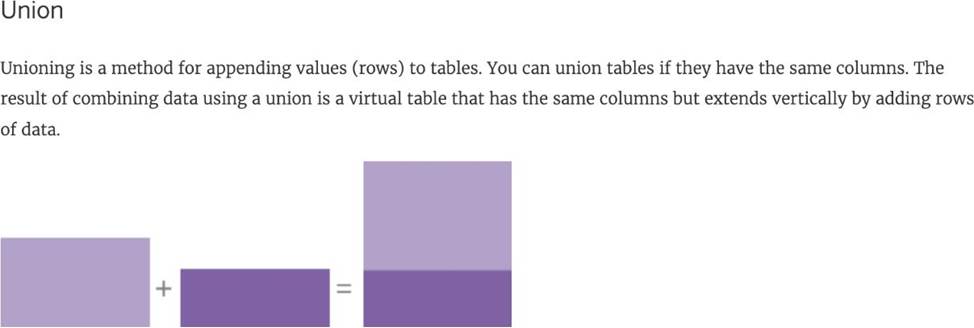
______________ is a method for appending values (rows) to tables. You can use this method if both tables have the same columns. The result is a virtual table that has the same columns but extends vertically by adding rows of data.
- A . Joining
- B . Blending
- C . Combining
- D . Unioning
D
Explanation:
Unioning is the correct answer!
From the official documentation:
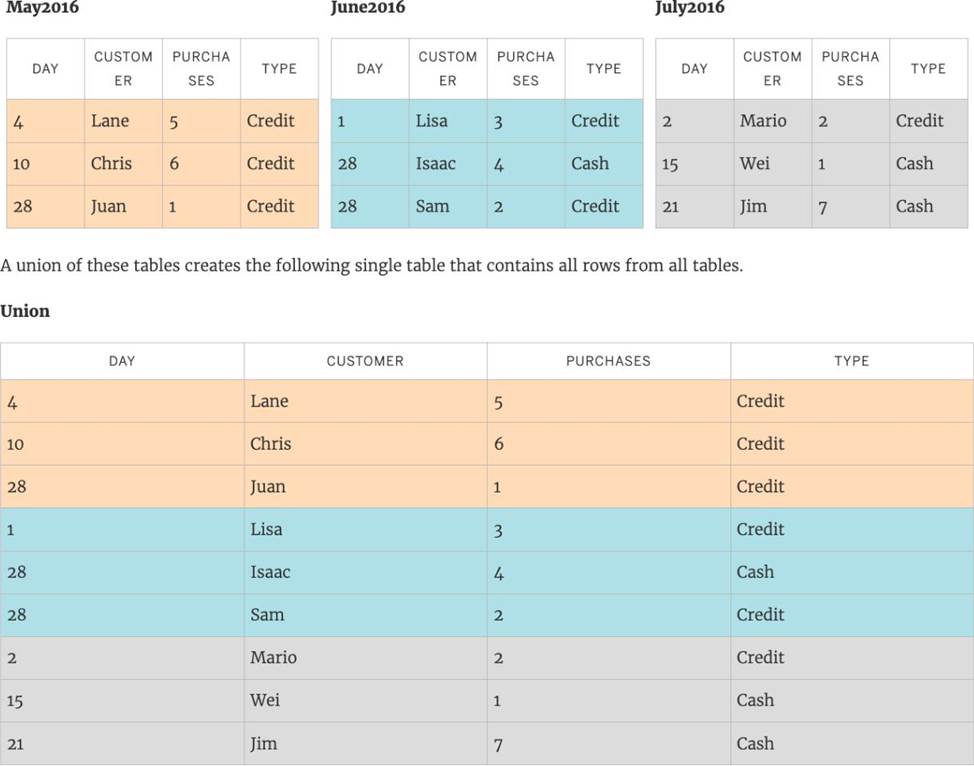
For example, suppose you have the following customer purchase information stored in three tables, separated by month. The table names are "May2016" , "June2016" and "July2016."
Reference: https://help.tableau.com/current/pro/desktop/en-us/union.htm