
Tableau TDS-C01 Practice Exams
Last updated on Oct 23,2026- Exam Code: TDS-C01
- Exam Name: Tableau Desktop Specialist
- Certification Provider: Tableau
- Latest update: Oct 23,2026
By default, what does Tableau do when you connect to a data source?
- A . Creates an extract of the data
- B . Creates a live connection to the data
- C . Loads your actual file into Tableau
- D . Sorts the data in descending order
B
Explanation:
Before you can build a view and analyze your data, you must first connect Tableau to your data.
Tableau supports connecting to a wide variety of data, stored in a variety of places.
By default, when you connect a data source to Tableau, Tableau will create a live connection to the data.
Live connection refers to a data source that contains direct connection to underlying data, which provides real-time or near real-time data. With a live connection, Tableau makes queries directly against the database or other source, and returns the results of the query for use in a workbook.
Users can create live connections and then share them on Tableau Server so that other Tableau users can use the same data using the same connection and filtering settings.
Reference: https://help.tableau.com/current/guides/everybody-install/en-
us/everybody_admin_data.htm
Question 30: Skipped
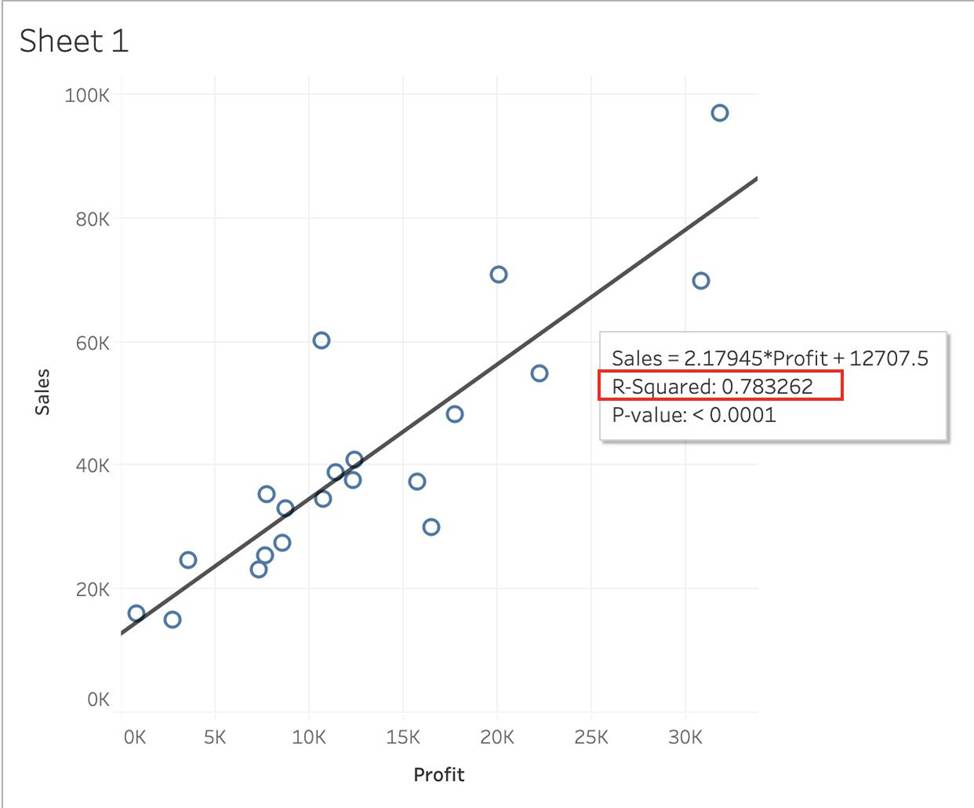
Using the CoffeeChain table, create a scatter plot of Profit (x-axis) vs Sales (y-axis) broken down by State. Add a Linear trend line to the view.
What is its R-squared value?
- A . 0.783262
- B . 0.739284
- C . 0.759329
- D . 0.748472
A
Explanation:
Trend lines have become popular questions in recent Tableau examinations.
Follow along:
1) First drag Sales to the Rows shelf and Profit to the Columns shelf:
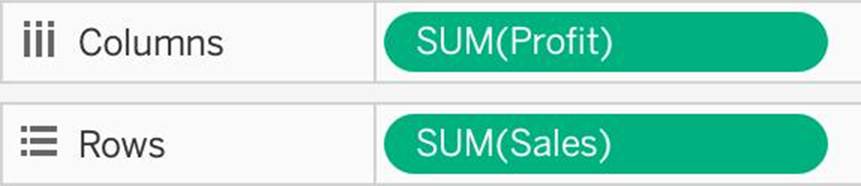
You will only see a single mark since the view is aggregated.
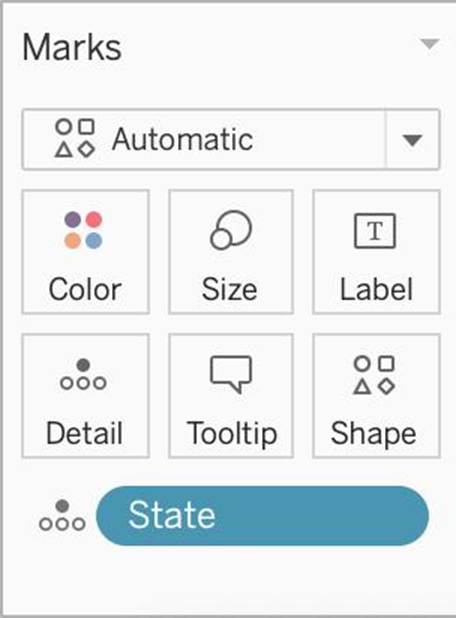
2) Now, break down this view by state. Drag State into Detail on the Marks shelf (or directly to the view):
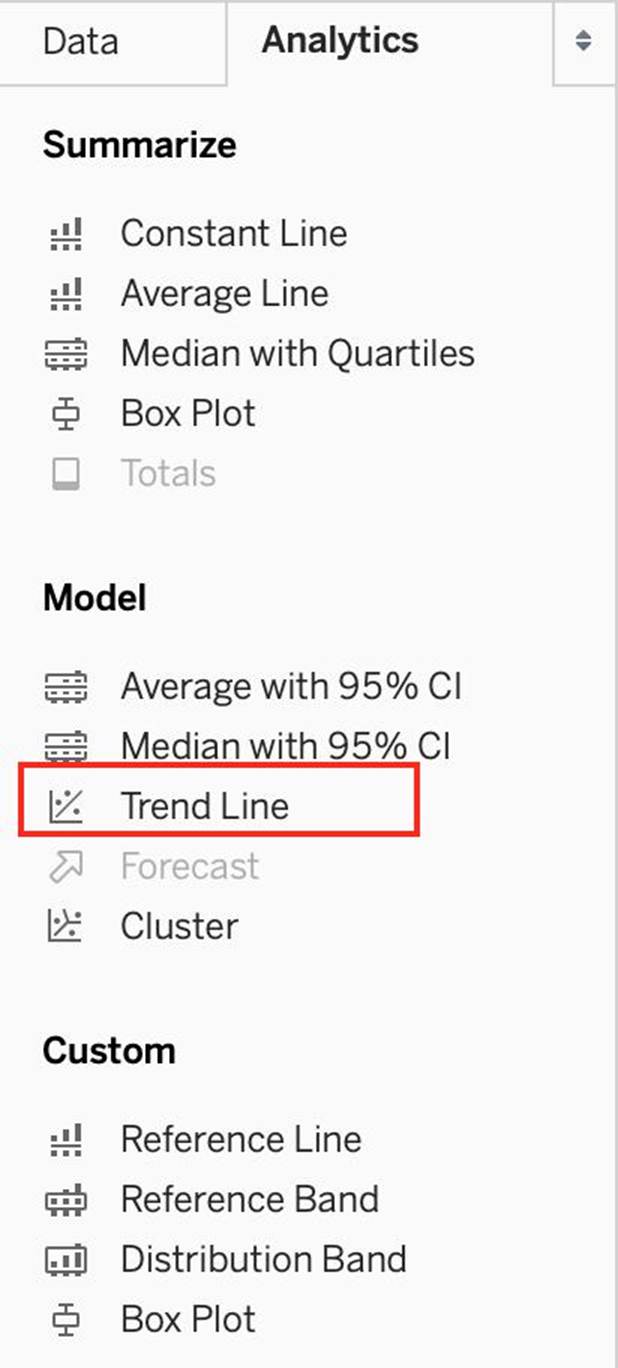
3) Finally, move to the Analytics pane, and drag Trend line to the view.
When you drag it, select the Linear option!:
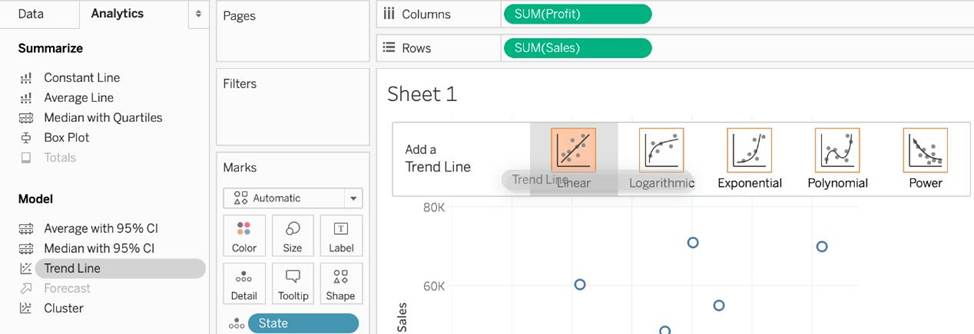
4) The following is our view. Hover over the trend line to see the R-squared value:
True or False: You get different filtering options for categorical and quantitative data
- A . True
- B . False
A
Explanation:
Yes! We get different options for filtering depending on whether we use a categorical data (think dimension) or quantitative data (think measure).
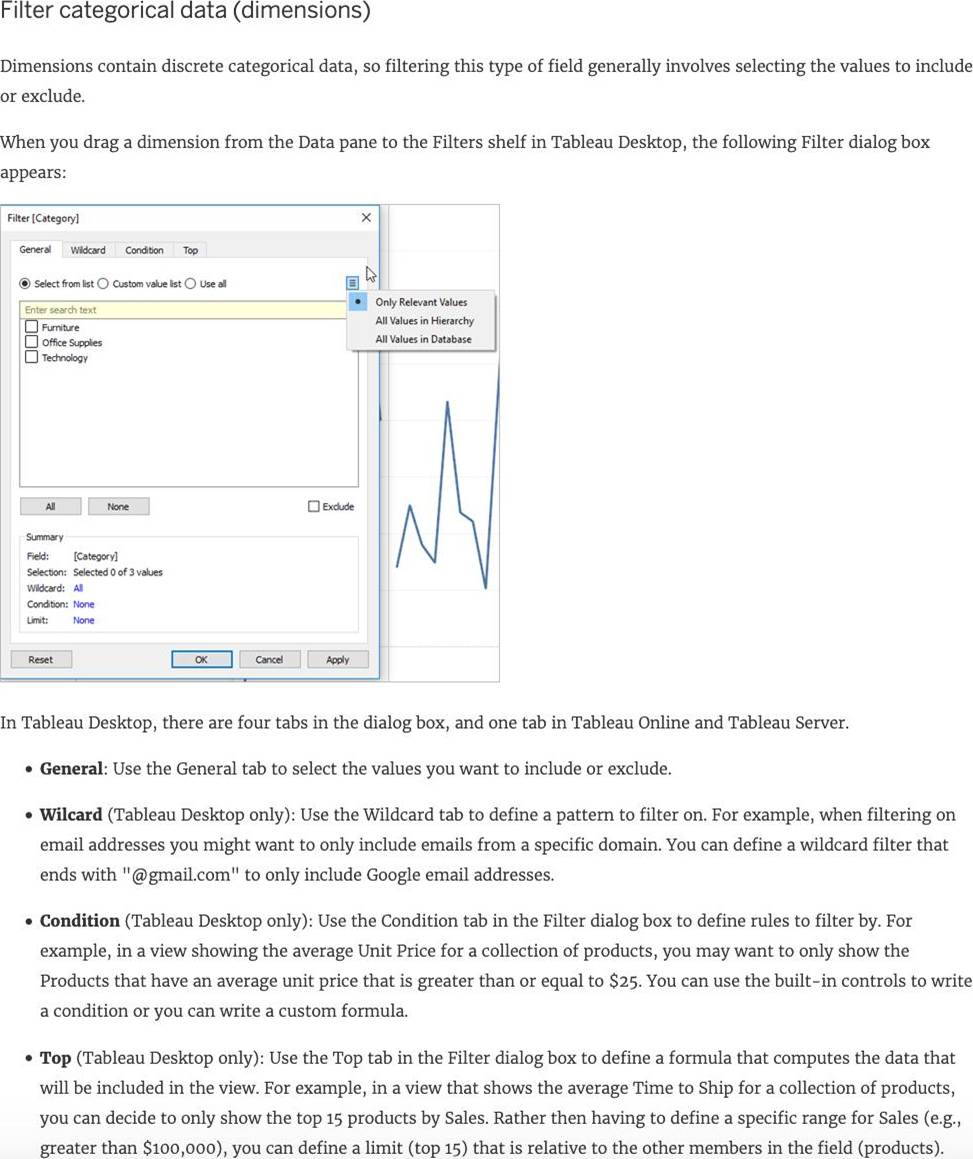
Important Note: Each tab adds additional definitions to your filter. For example, you can select to exclude values under the General tab, and also add limits under the Top tab. Selections and configurations from both tabs are applied to your filter.
At any time, you can see the definitions of your filter under Summary on the General tab.
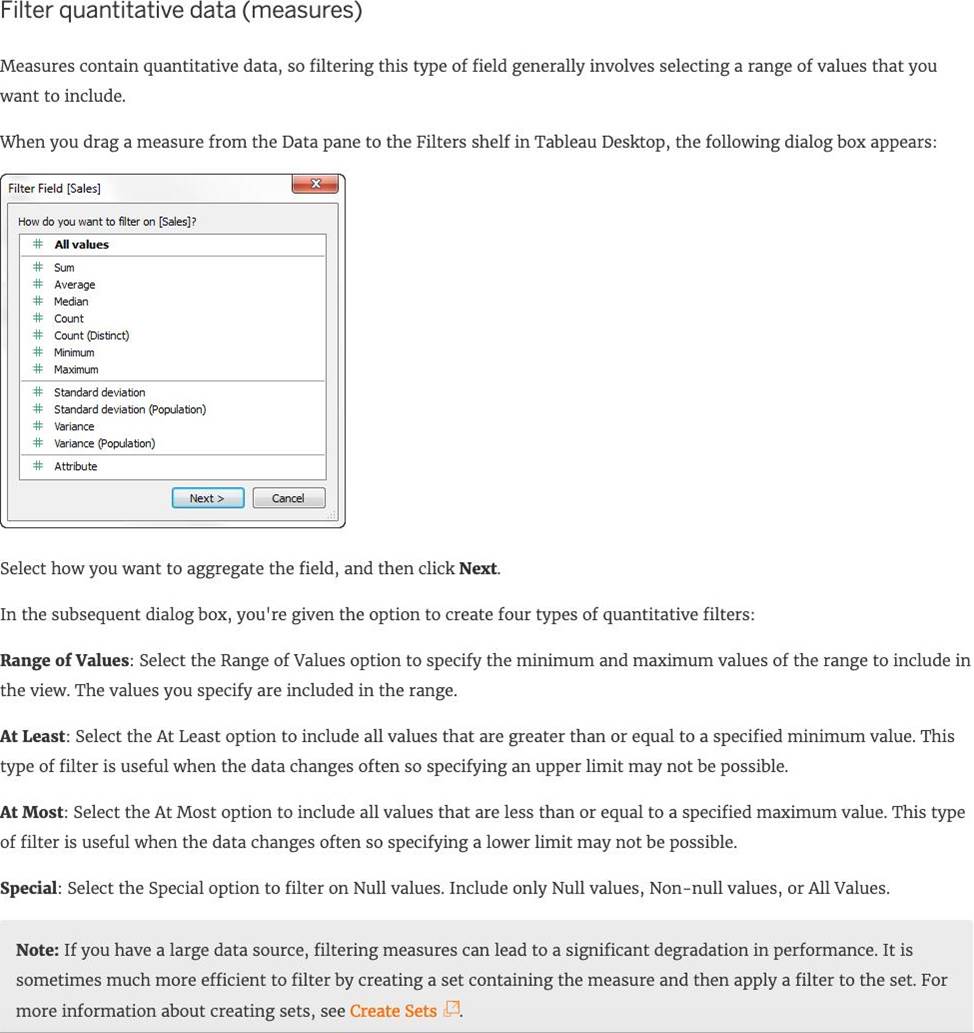
Note: If you have a large data source, filtering measures can lead to a significant degradation in performance. It is sometimes much more efficient to filter by creating a set containing the measure and then apply a filter to the set. For more information about creating sets, see Create Sets
Reference: https://help.tableau.com/current/pro/desktop/en-us/filtering.htm
Dates in Tableau are typically treated as ______________
- A . Dimensions
- B . Measures
A
Explanation:
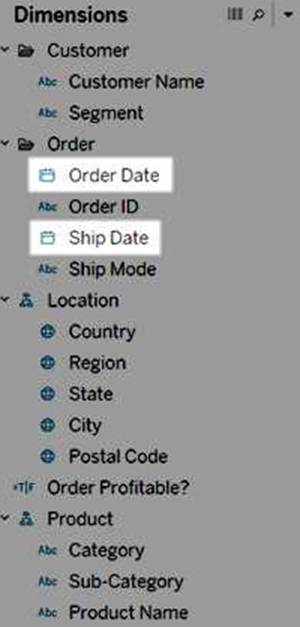
For relational data sources, dates and times are automatically placed in the Dimensions area of the Data pane and are identified by the date or date-time icon.
For example, the Order Date and Ship Date dimensions from an Excel data source are shown below:
When you place a relational date on a shelf, the field name is automatically modified to reflect the default date level. Tableau defines the default date level to be the level at which there are multiple instances. For example, if the date field includes multiple years, the default level is year. However, if the date field contains data for just one year but includes multiple months, then the default level is month.
Reference: https://help.tableau.com/current/pro/desktop/en-us/dates.htm
What is the default behavior of Tableau when you add a measure to the view?
- A . You are prompted to add an aggregation.
- B . An aggregation is applied that is independent of the context of the view.
- C . The measure is added disaggregated.
- D . An aggregation is applied that varies depending on the context of the view.
D
Explanation:
The default behavior of Tableau when you add a measure to the view is to automatically apply an aggregation to that measure. The type of aggregation applied can vary depending on the context of the view. For example, if no other measures or dimensions affect the measure, Tableau might default to SUM. However, if there are other dimensions in the view that define the level of detail, the aggregation might be different to reflect the context.
Which two options can you use to change the device layout of a dashboard? Choose two.
- A . The Dashboard pane
- B . The Format menu
- C . The Dashboard menu
- D . The Layout pane
AC
Explanation:
You can change the device layout of a dashboard by using the Dashboard pane or the Dashboard menu. The Dashboard pane allows you to select a device type and customize the layout for that device. The Dashboard menu allows you to create a new device layout or copy an existing one. The Format menu and the Layout pane do not have options for changing the device layout1
Which of the following are valid ways to show Mark Labels in the visualisation?
- A . Click on the Show mark labels icon in the Toolbar
- B . Drag the measure to the Text label in the Marks Card
- C . Click on Data in the Menu bar and Choose Show Mark Labels
- D . Click on Analysis in the Menu bar and choose Show Mark Labels
A, B, D
Explanation:
The following showcase how you can show mark labels. Using the Sample Superstore dataset:
1) Let’s create a Bar chart showing the sales for each sub-category:
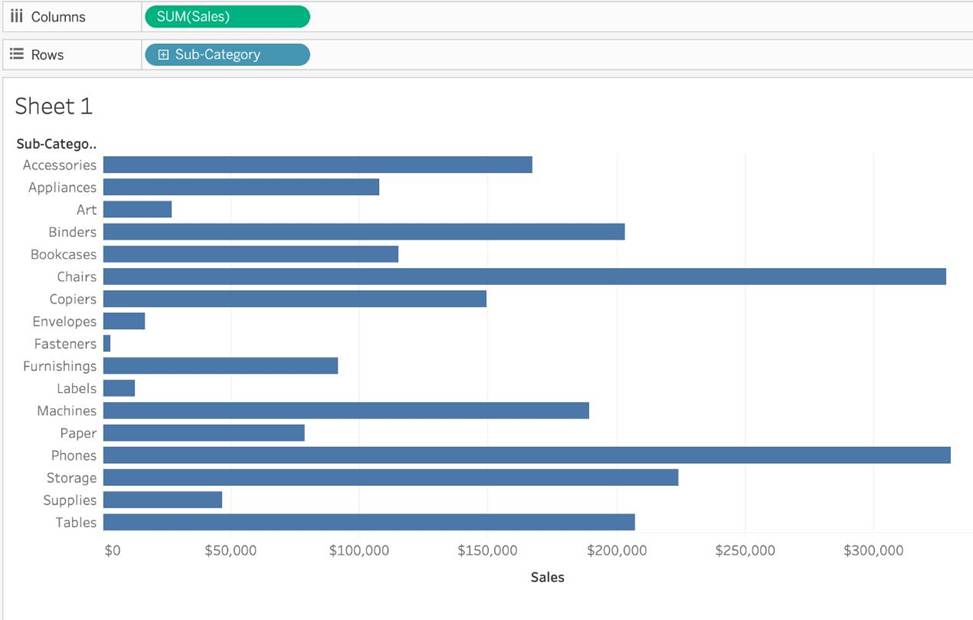
2) Now you can show labels by:
Which of the following fields would be best used as Dimensions?
- A . Profit
- B . Names
- C . Categories
- D . Sales
BC
Explanation:
Names and Categories would be mostly used as dimensions (categorical data).
Profit and measures contain quantitative data and would be more suitable for Measures!
Reference: https://help.tableau.com/current/pro/desktop/en-us/datafields_typesandroles.htm
True or False: The Highlighting action can be disabled for the entire workbook.
- A . True
- B . False
A
Explanation:
Yes, it is possible to disable highlighting for the entire workbook.
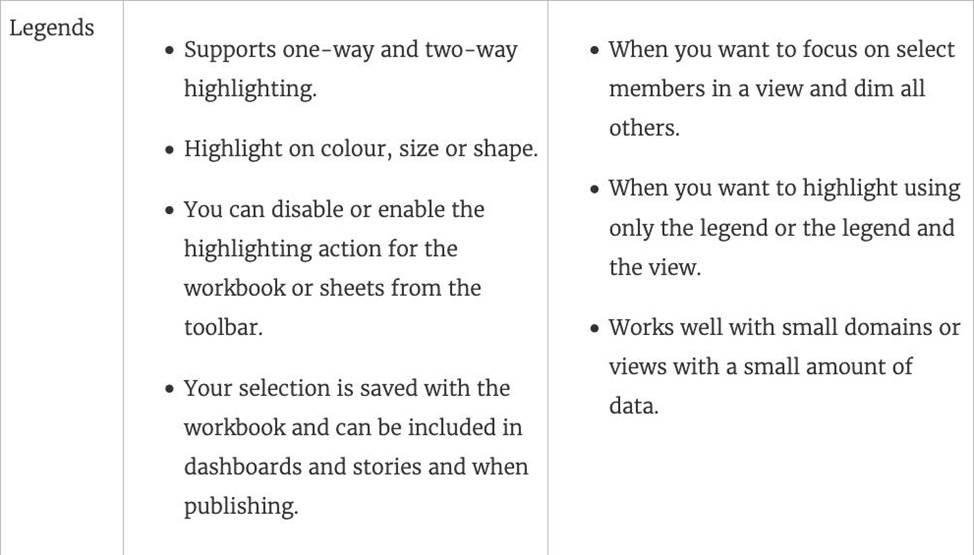
For more information: https://help.tableau.com/current/pro/desktop/en-gb/actions_highlight.htm
What are two outcomes when you drag a continuous date value to the Rows shelf? Choose two,
- A . The pill on the Rows shelf is green.
- B . The pill on the Rows shelf is blue.
- C . A quantitative axis is shown.
- D . The date part Is displayed as labels.
AC
Explanation:
Dragging a continuous date value to the Rows shelf in Tableau results in a green pill on the Rows shelf, indicating a continuous field. It also results in a quantitative axis being displayed on the visualization. Continuous fields are used to create axes on charts and can represent a range of values smoothly. This is opposed to discrete date values, which would be represented by a blue pill and typically show headers or labels rather than a continuous axis.