Tableau TDS-C01 Practice Exams
Last updated on Oct 23,2026- Exam Code: TDS-C01
- Exam Name: Tableau Desktop Specialist
- Certification Provider: Tableau
- Latest update: Oct 23,2026
Which chart type uses automatically generated sizes that cannot be resized by using the Marks card?
- A . Treemaps
- B . Pie charts
- C . Histograms
- D . Area charts
A
Explanation:
Treemaps use automatically generated sizes that cannot be resized by using the Marks card. A treemap is a type of visualization that shows hierarchical data as a set of nested rectangles. Each rectangle represents a dimension member and its size is proportional to a measure value. Tableau automatically calculates the size of each rectangle based on an optimal aspect ratio for readability and comparison. You cannot manually adjust the size of each rectangle by using the Marks card or any other option in Tableau10 The other chart types do not use automatically generated sizes that cannot be resized by using the Marks card. Pie charts use angles to show proportions of a whole, not sizes. Histograms use bins and frequencies to show distributions of a measure, not sizes. Area charts use filled areas to show trends over time or categories, not sizes. You can adjust the size of these chart types by using the Marks card or other options in Tableau
A _____________ action is a hyperlink that points to a web page, file, or other web-based resource
outside of Tableau.
- A . Go to Hyperlink
- B . Go to Web page
- C . Go to URL
- D . Go to Sheet
C
Explanation:
Tricky options! Go to hyperlink and Go to Web page are not valid Actions in Tableau.
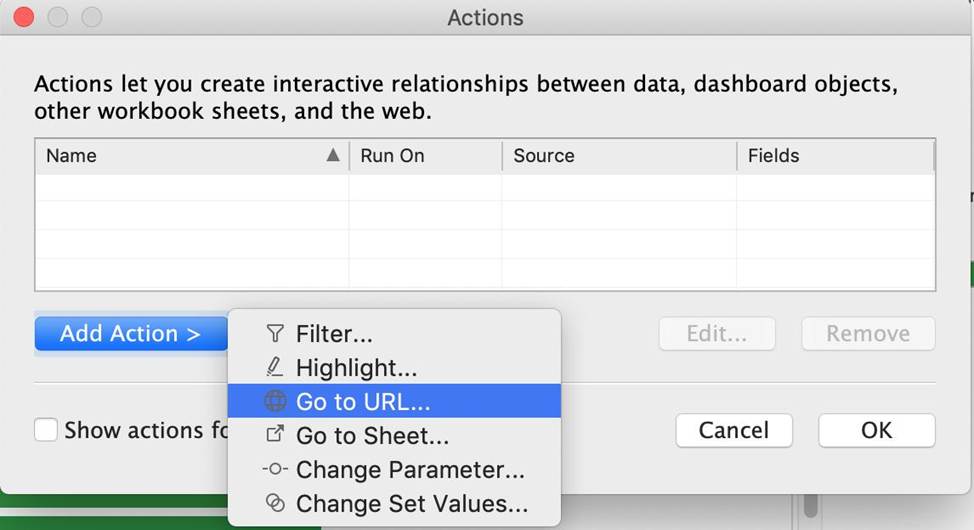
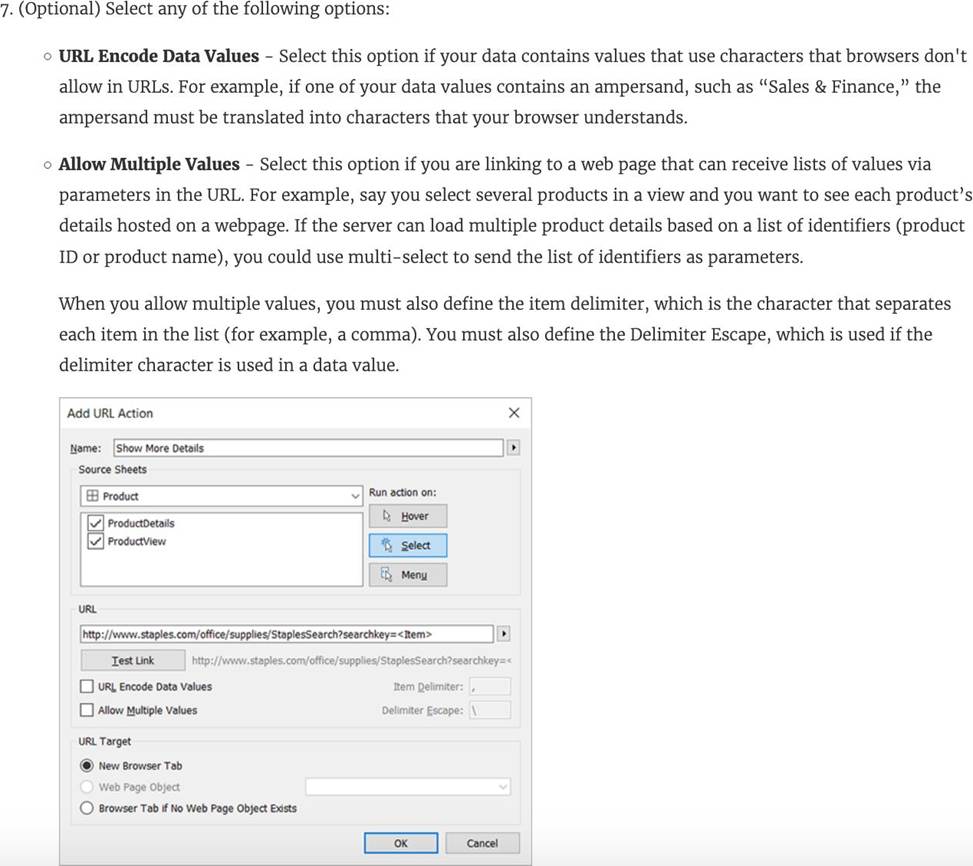
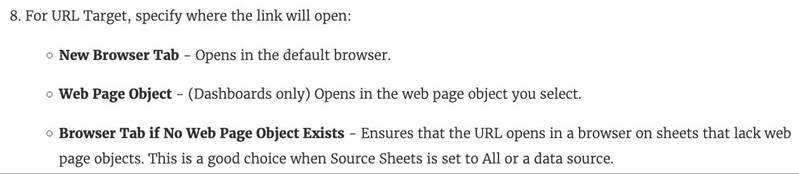
A URL action is a hyperlink that points to a web page, file, or other web-based resource outside of Tableau. You can use URL actions to create an email or link to additional information about your data. To customize links based on your data, you can automatically enter field values as parameters in URLs.
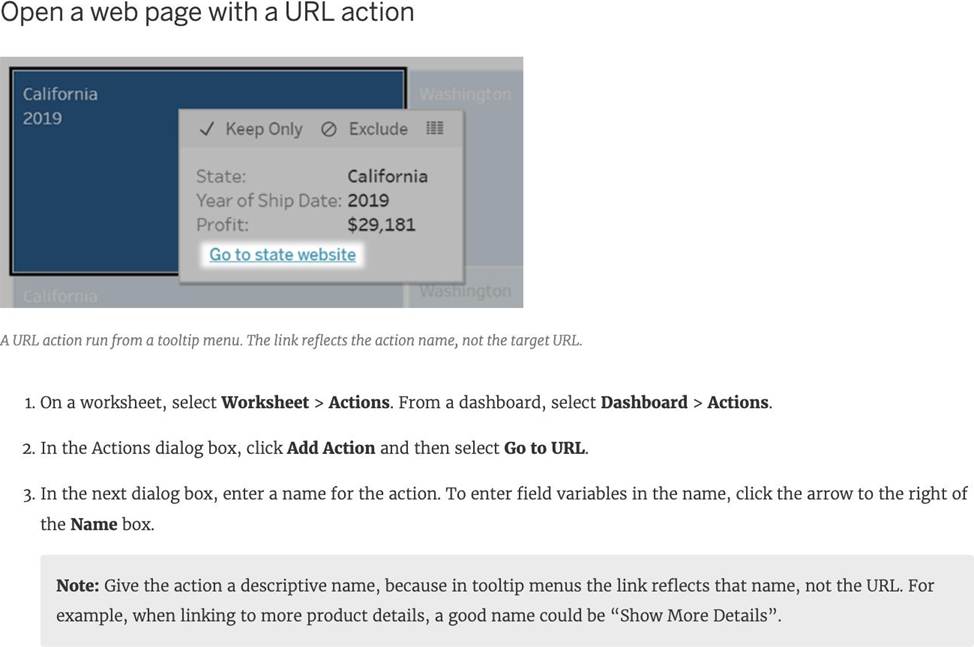
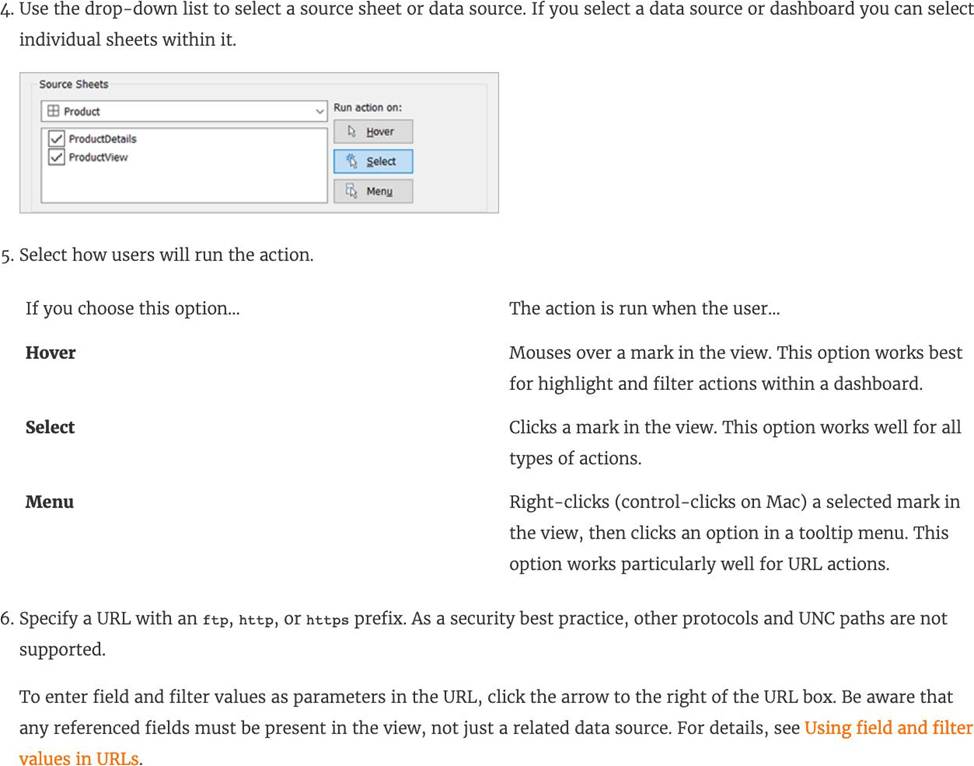
Reference: https://help.tableau.com/current/pro/desktop/en-us/actions_url.htm
You can _______________ your data to combine two or more tables by appending values (rows)
from one table to another
- A . join
- B . blend
- C . concatenate
- D . union
D
Explanation:
You can union your data to combine two or more tables by appending values (rows) from one table to another. To union your data in Tableau data source, the tables must come from the same connection.
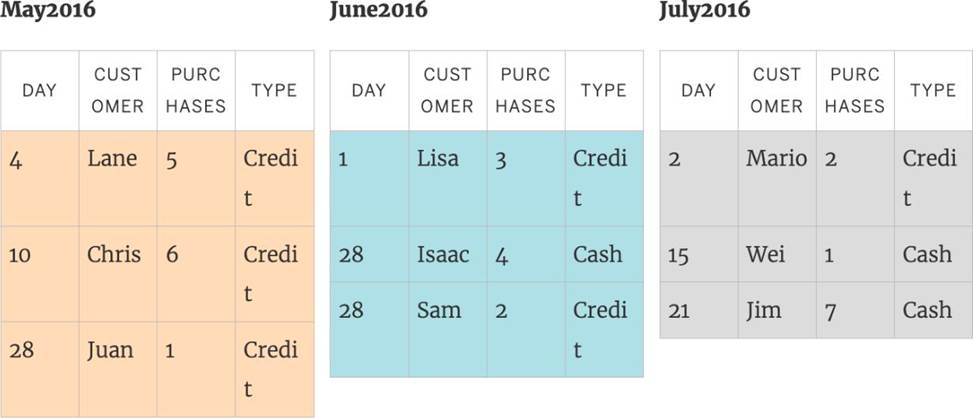
For example, suppose you have the following customer purchase information stored in three tables, separated by month. The table names are "May2016," "June2016," and "July2016."
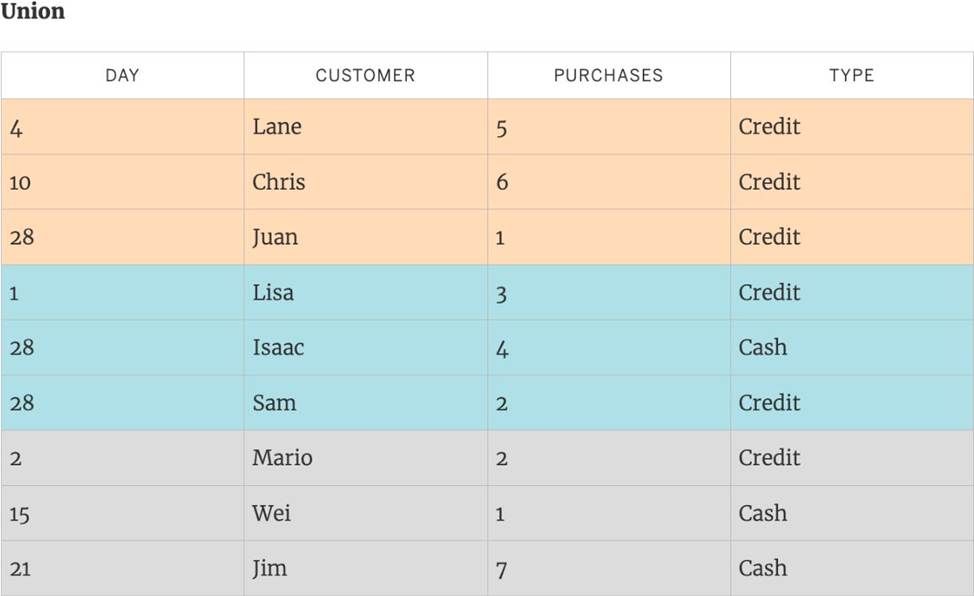
A union of these tables creates the following single table that contains all rows from all tables.
Reference: https://help.tableau.com/current/pro/desktop/en-us/union.htm
True or False: A sheet cannot be used within a story directly. Either sheets should be used within a dashboard, or a dashboard should be used within a story.
- A . rue
- B . False
B
Explanation:
It is possible in Tableau to use a sheet within a story directly.
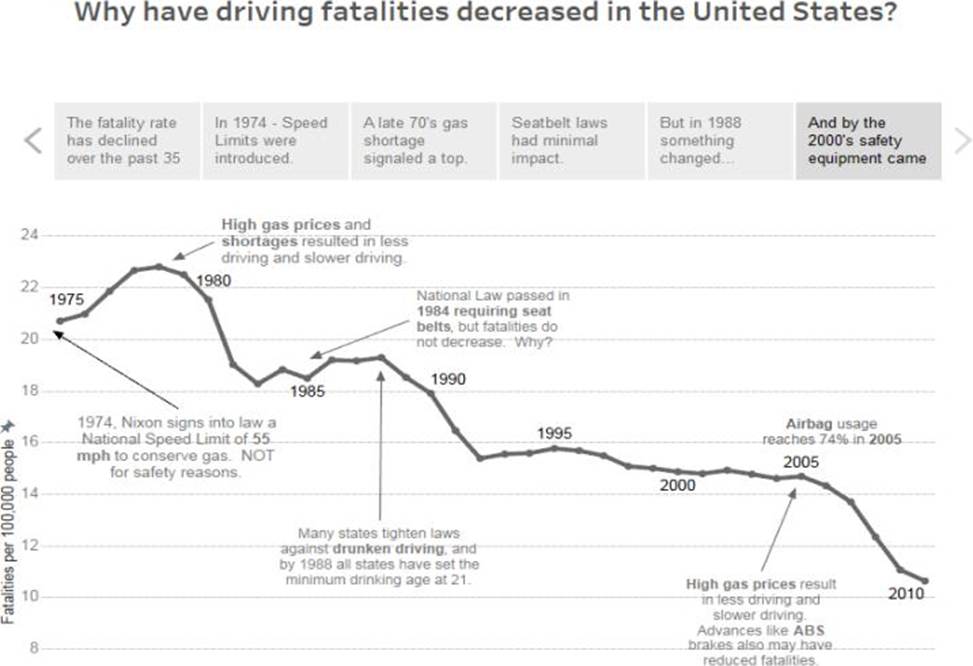
Moreover, in Tableau, a story is a sequence of visualizations that work together to convey information. You can create stories to tell a data narrative, provide context, demonstrate how decisions relate to outcomes, or to simply make a compelling case.
At the same time, a story is also a collection of sheets, arranged in a sequence. Each individual sheet in a story is called a story point.
Reference: https://help.tableau.com/current/pro/desktop/en-us/stories.htm
Which statement accurately describes an extract when the Physical Tables option is selected?
- A . Data is limited to only the Top N of data for the connection.
- B . All the data is tolled up to the current visible fields.
- C . An individual table is created for each physical table in the extract.
- D . Data shown in the Data pane is separated based on the table type.
C
Explanation:
When the Physical Tables option is selected for an extract in Tableau, an individual table is created for each physical table in the extract. This means that the extract will include a separate table for each underlying table in your database, maintaining the database’s structure within the extract. This can be useful when you need to preserve the original granularity of the data or when working with certain database optimizations.
Which two analytics options are available for a scatter plot view? Choose two.
- A . Forecast
- B . Totals IS
- C . Reference lines
- D . Trend lines
C, D
Explanation:
For a scatter plot view in Tableau, you can add reference lines and trend lines as part of the analytics options. Reference lines can be added to a visualization to mark certain values or to provide context, such as an average line across a scatter plot. Trend lines, on the other hand, are used to show the relationship between two variables in the view, indicating the general direction or pattern of the data points in a scatter plot.
To connect Tableau to a CSV data source what type of connection should you use?
- A . Spatial
- B . Excel
- C . Text
- D . JSON
C
Explanation:
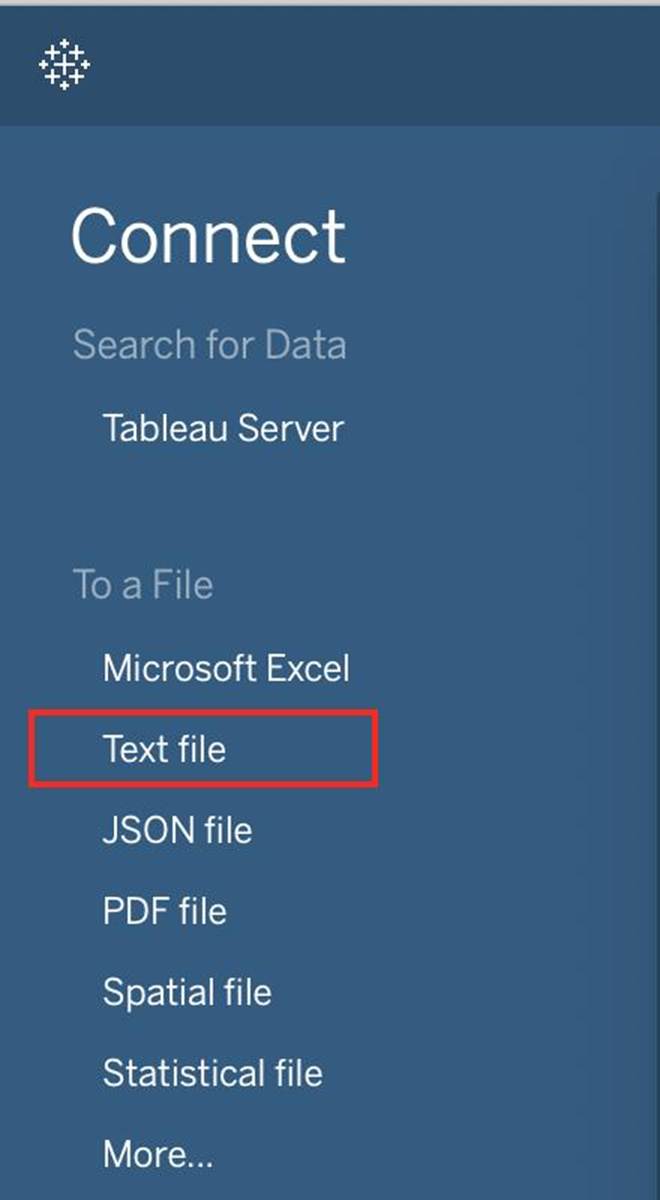
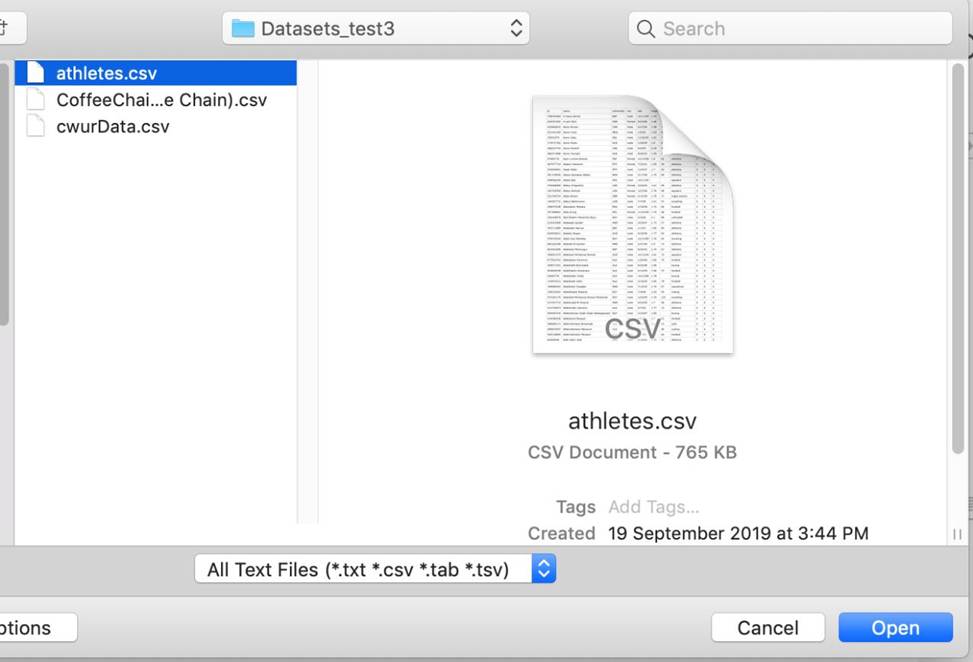
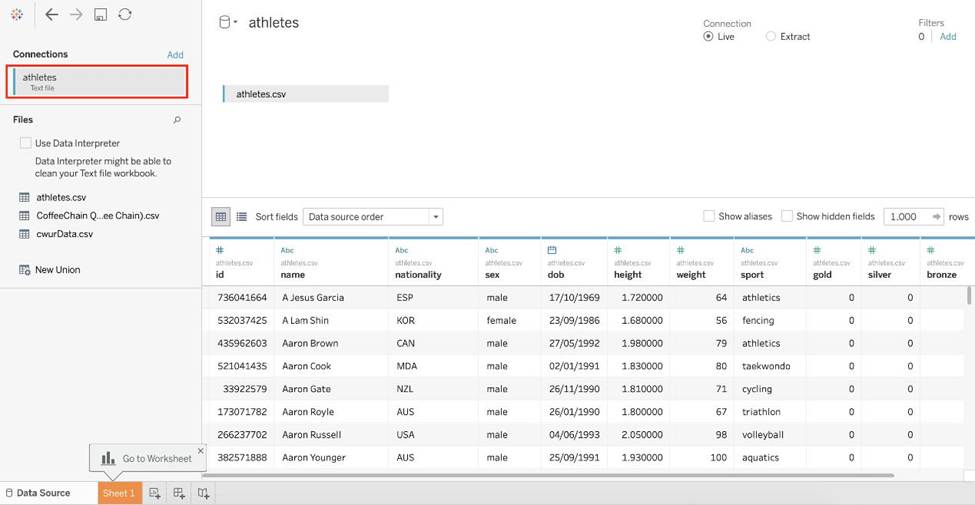
Tableau recognises a CSV file as a TEXT file, and therefore it is the correct option.
The following are the steps to import a CSV file:
1) From the data connection screen, click on Text:
2) Choose the appropriate file, and click Open:
3) Finally, Tableau imports the data as shown below:
Reference: https://intellipaat.com/community/46338/how-to-import-csv-file-in-tableau
Which of the following are the options to export the data used to build the view / visualisations?
- A . CSV file
- B . PDF File
- C . JSON format
- D . MS Access Database
AD
Explanation:
You can export the data in a Tableau data source, including all or part of the records from your original data. Alternatively, you can export only the portion of data used to generate the view.
Since the question mentions the data used to build the view, we’ll focus on that:
*Export data in the view to Microsoft Access or .csv*
Export the data that is used to generate the view as an Access database (Windows only) or.csv file (Mac only).
1) In Tableau Desktop, select Worksheet > Export > Data.
2) Select a location and type a name for your Access database or .csv file.
3) Click Save.
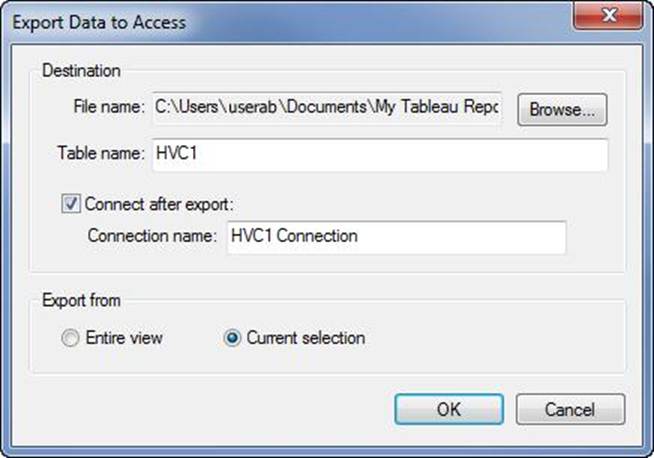
4) If you’re on Windows, the Export Data to Access dialog box displays to give you the option to immediately use the new Access database and continue working in Access without interrupting your work flow.
Reference: https://help.tableau.com/current/pro/desktop/en-us/save_export_data.htm
Tableau will automatically create a hierarchy for which two kinds of data? Choose two.
- A . Date & Time
- B . Date
- C . Geographic
- D . String
A, B
Explanation:
Tableau will automatically create a hierarchy for date and geographic data. A hierarchy is a way of organizing data into different levels of detail. For example, a date hierarchy can have year, quarter, month, and day levels. A geographic hierarchy can have country, state, city, and zip code levels.
Tableau recognizes date and geographic data based on their data types and formats, and creates hierarchies for them by default. Tableau does not automatically create hierarchies for date & time or string data3
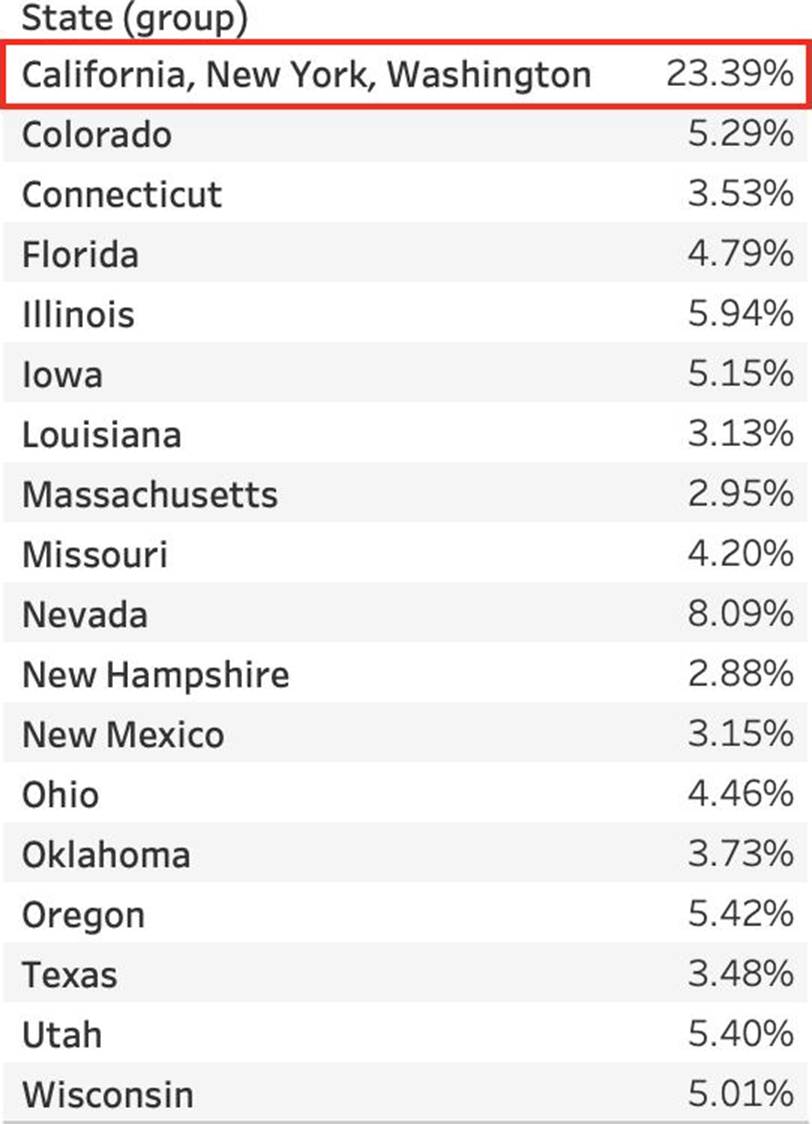
Using the CoffeeChain table, create a crosstab showing the Total Expenses per State and add Column Grand Totals to the view. Now group the states of New York, California and Washington.
What percent of the total sales does this group contribute?
- A . 25.79%
- B . 23.39%
- C . 27.73%
- D . 29.49%
C
Explanation:
We need to use the concept of Groups for this question.
Follow along:
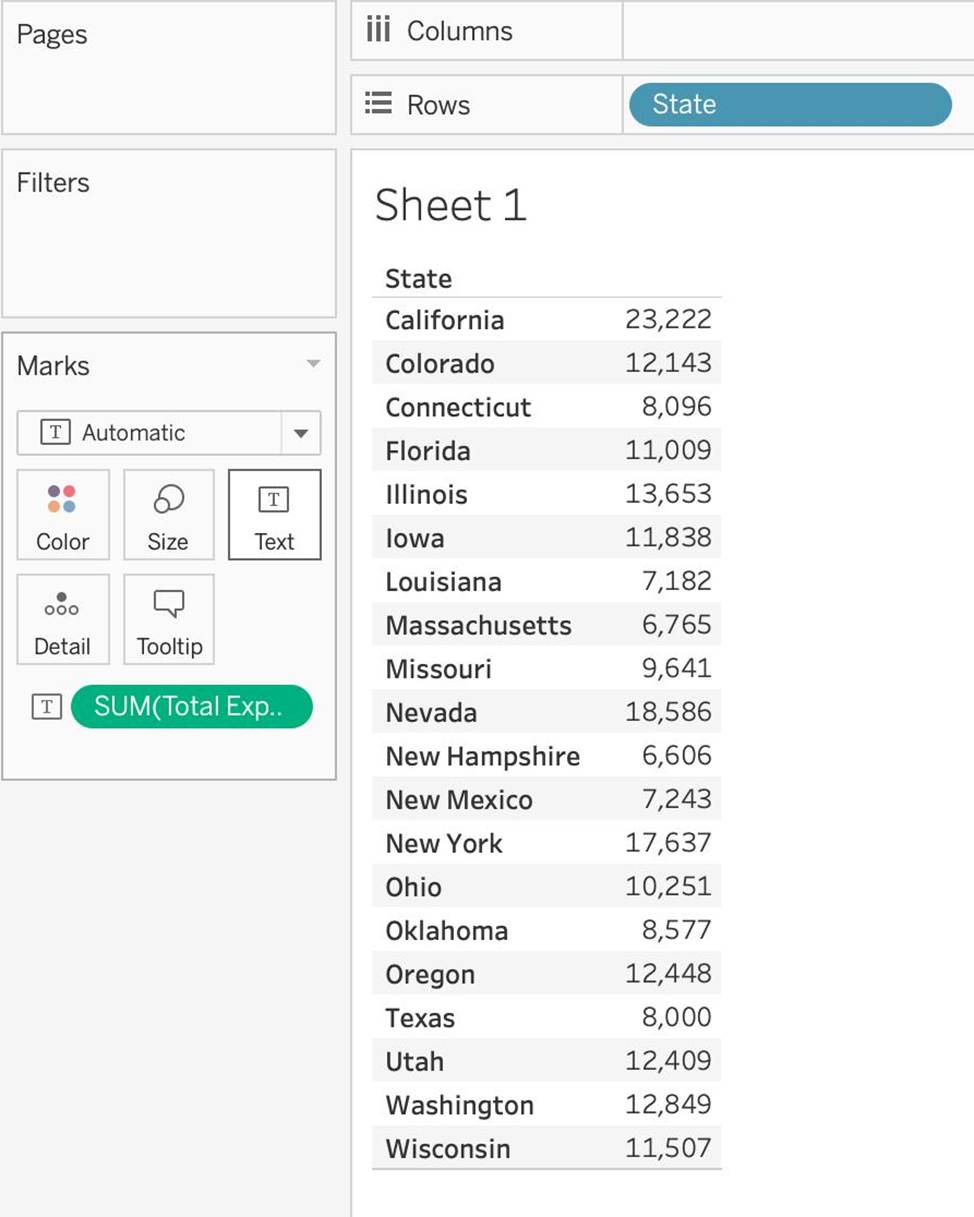
1) First, Drag State to the Rows shelf, and Total Expenses to the Text Mark on the Marks Shelf:
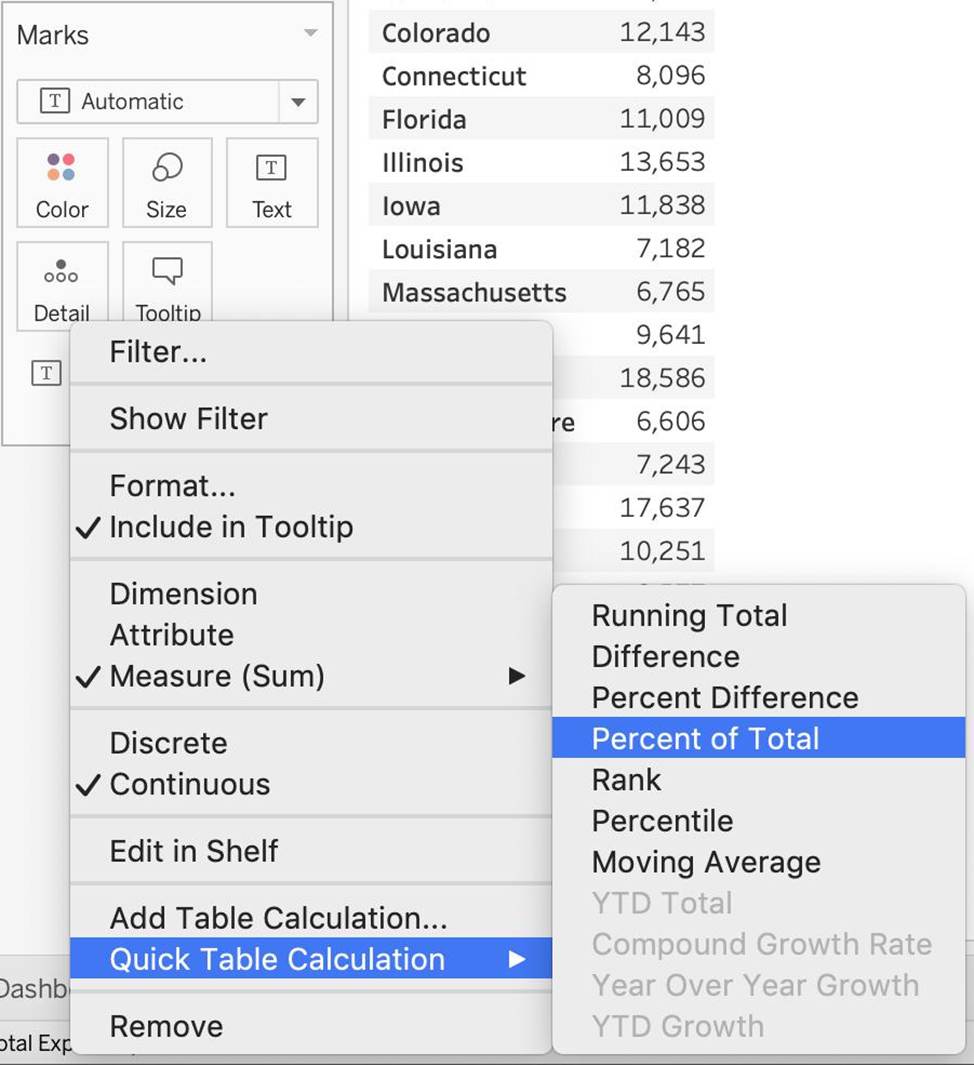
2) Now, remove the SUM aggregation from Total Expenses, and add a quick table calculation -> Percent of total:
3) Next, Select the States of New York, California and Washington -> And then click the paperclip icon:
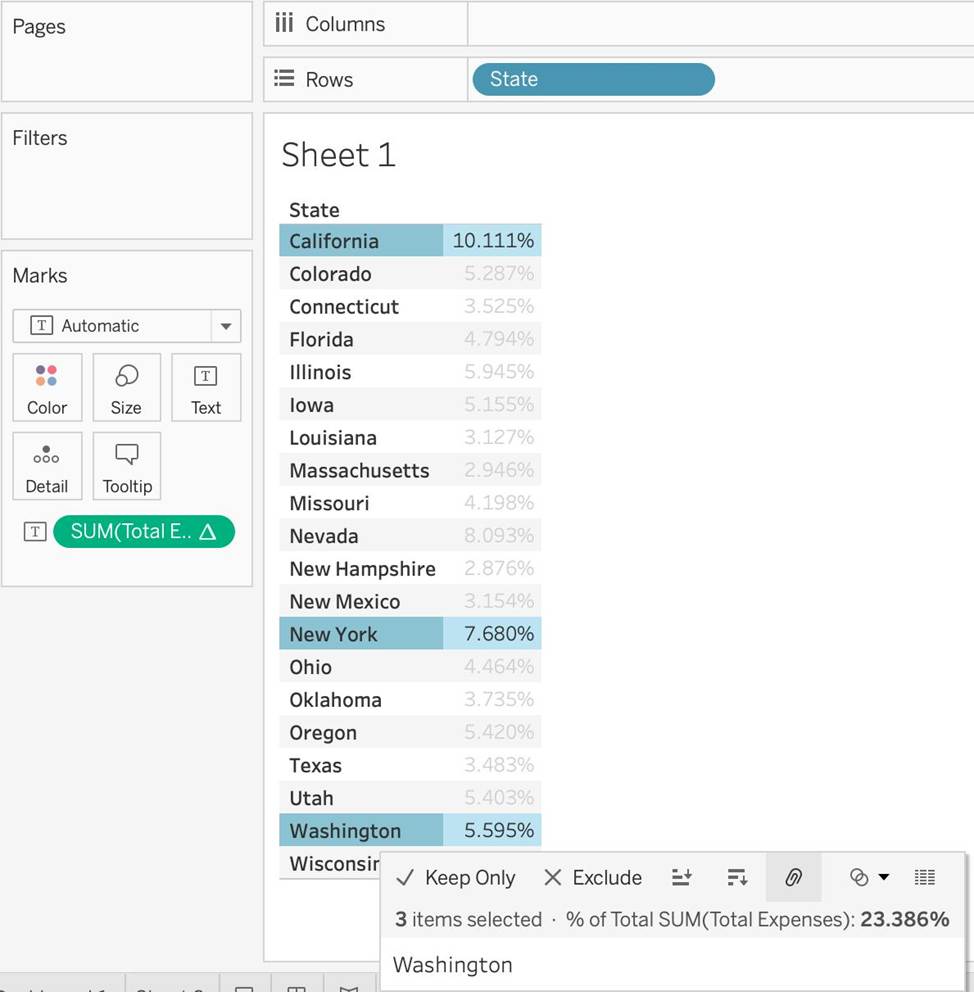
We can see the answer already: 23.386% in the view above (even before grouping!)
4) Finally, we get the following view and our answer: