
Tableau TDS-C01 Practice Exams
Last updated on Oct 23,2026- Exam Code: TDS-C01
- Exam Name: Tableau Desktop Specialist
- Certification Provider: Tableau
- Latest update: Oct 23,2026
In an extract, what are three differences between a full refresh versus an incremental refresh? Choose three.
- A . An incremental refresh only adds rows that are new
- B . A full refresh must be configured. An incremental refresh is the default extract in Tableau.
- C . An incremental refresh can only be run from Tableau Server.
- D . A full refresh is usually very slow. An incremental refresh can take less time.
- E . A full refresh replaces all the extracted data with the data in the underlying data source.
ADE
Explanation:
According to the [Tableau Desktop Specialist Exam Guide], an incremental refresh only adds rows that are new, based on a specified column and value. A full refresh replaces all the extracted data with the data in the underlying data source. A full refresh is usually very slow, especially for large extracts. An incremental refresh can take less time, depending on how many new rows are added. A full refresh does not need to be configured, it is the default option for extracts in Tableau. An incremental refresh can be run from both Tableau Desktop and Tableau Server.
If you are working with a huge dataset, which of the following are strong reasons to use a context filter?
- A . Improve query performance
- B . To make the context filter a dependent filter
- C . To help clean the data
- D . To include only the data of interest
AD
Explanation:
By default, all filters that you set in Tableau are computed independently. That is, each filter accesses all rows in your data source without regard to other filters. However, you can set one or more categorical filters as context filters for the view. You can think of a context filter as being an independent filter (Option stating – To create a dependent filter eliminated here). Any other filters that you set are defined as dependent filters because they process only the data that passes through the context filter.
You may create a context filter to:
1) Improve performance C If you set a lot of filters or have a large data source, the queries can be slow. You can set one or more context filters to improve performance.
2) Create a dependent numerical or top N filter C You can set a context filter to include only the data of interest, and then set a numerical or a top N filter.
For example, suppose you’re in charge of breakfast products for a large grocery chain. Your task is to find the top 10 breakfast products by profitability for all stores. If the data source is very large, you can set a context filter to include only breakfast products. Then you can create a top 10 filter by profit as a dependent filter, which would process only the data that passes through the context filter.
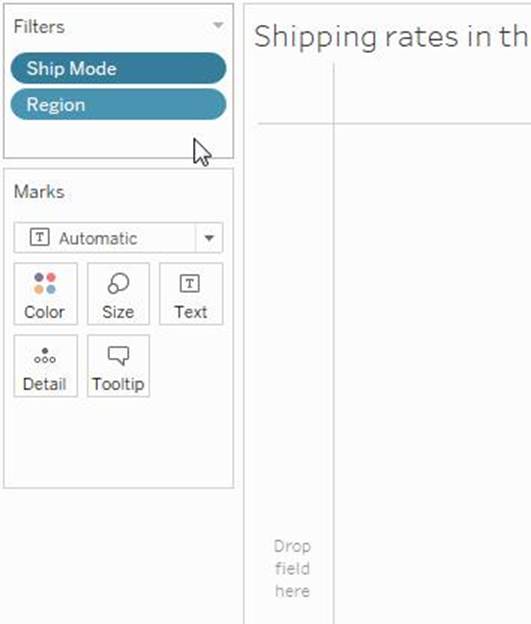
Reference: https://help.tableau.com/current/pro/desktop/en-us/filtering_context.htm
When using a data source that has relationships, how can you add a join between two or more tables?
- A . From the Tables pane, double-click a table.
- B . From the Tables pane, drag a table directly on top of an existing logical table.
- C . From the Connections pane, select Add.
- D . Double-click a logical table in the canvas.
D
Explanation:
When using a data source that has relationships, you can add a join between two or more tables by dragging a table directly on top of an existing logical table from the Tables pane. This will create a logical table that contains the joined tables. You can then edit the join type, join clauses, and join calculation as needed2 The other options are not valid ways to add a join between tables when using relationships. From the Tables pane, double-clicking a table will add it to the data source as a separate logical table, not joined with any other table. From the Connections pane, selecting Add will allow you to add another connection to the data source, not join tables within the same connection. Double-clicking a logical table in the canvas will open the Data Source page, where you can view and edit the fields in the logical table, not join it with another table2
Which of the following would you use to connect to multiple tables in a single data source at once?
- A . A Blend
- B . A Hierarchy
- C . A Set
- D . A Join
Which aggregation is available without requiring a table calculation or calculated field?
- A . Running total
- B . Standard deviation
- C . Sample covariance
- D . Percent of total
B
Explanation:
Standard deviation is an aggregation that is available without requiring a table calculation or calculated field. Standard deviation is a statistical measure that shows how much variation there is from the average value in a set of data. Standard deviation is one of the predefined aggregations in Tableau that can be applied to any measure by selecting it from the context menu of the measure or from the drop-down menu on the Marks card6 The other options are not aggregations that are available without requiring a table calculation or calculated field. Running total, sample covariance, and percent of total are all examples of table calculations, which are computations that are applied to the values in an entire table or partition of a table. Table calculations can be created by selecting them from the context menu of a measure or by using functions in a calculated field7
You want to provide additional information when hovering over a field in the Data pane as shown in the following exhibit.
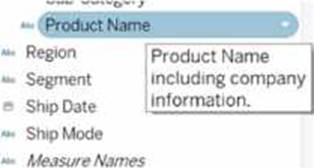
What should you configure for the field?
- A . An alias
- B . A header label
- C . A hierarchy
- D . A default comment
D
Explanation:
To provide additional information when hovering over a field in the Data pane, as shown in the exhibit, you need to configure a default comment for the field. This comment can be set by right-clicking on the field in the Data pane and selecting "Default Properties" and then "Comment." The text entered as a comment here will then be displayed as a tooltip when hovering over the field in the Data pane.
At a minimum, what do you need to create a simple scatter plot?
- A . A measure on Columns and a measure on Rows
- B . A dimension on Detail and a measure on Columns
- C . A dimension on Columns and a measure on Rows
- D . A dimension on Columns and a dimension on Rows
A
Explanation:
To create a simple scatter plot in Tableau, you need to have a measure on Columns and a measure on Rows. A scatter plot is a type of visualization that shows the relationship between two numerical variables. In Tableau, you can create a scatter plot by placing at least one measure on the Columns shelf and at least one measure on the Rows shelf. The measures can be continuous or discrete, but they must be aggregated. The marks in the scatter plot represent the intersection of the values for each measure1 The other options are not valid ways to create a simple scatter plot in Tableau. A dimension on Detail and a measure on Columns will create a bar chart, not a scatter plot. A dimension on Columns and a measure on Rows will create a line chart or an area chart, depending on the mark type. A dimension on Columns and a dimension on Rows will create a text table or a heat map, depending on the mark type1
What are two ways to share a dashboard as an image file? Choose two.
- A . Export Image on the Dashboard menu
- B . Export on the Worksheet menu
- C . Copy Formatting on the Format menu
- D . A dashboard export button
AD
Explanation:
You can share a dashboard as an image file by using one of the following methods: Export Image on the Dashboard menu, or a dashboard export button. Export Image on the Dashboard menu allows you to export the dashboard as an image file in BMP, JPEG, PNG, or SVG format. A dashboard export button is a custom button that you can create on your dashboard to export it as an image file using a URL action
When field names in the Union do not match, then:
- A . An error is raised and both fields are dropped from the resulting Union
- B . Only one field name is present in the Union with null values
- C . Only one field name is present in the Union with correct values since Tableau automatically corrects field name mismatch
- D . Both field names are present in the Union, but contain several null values
D
Explanation:
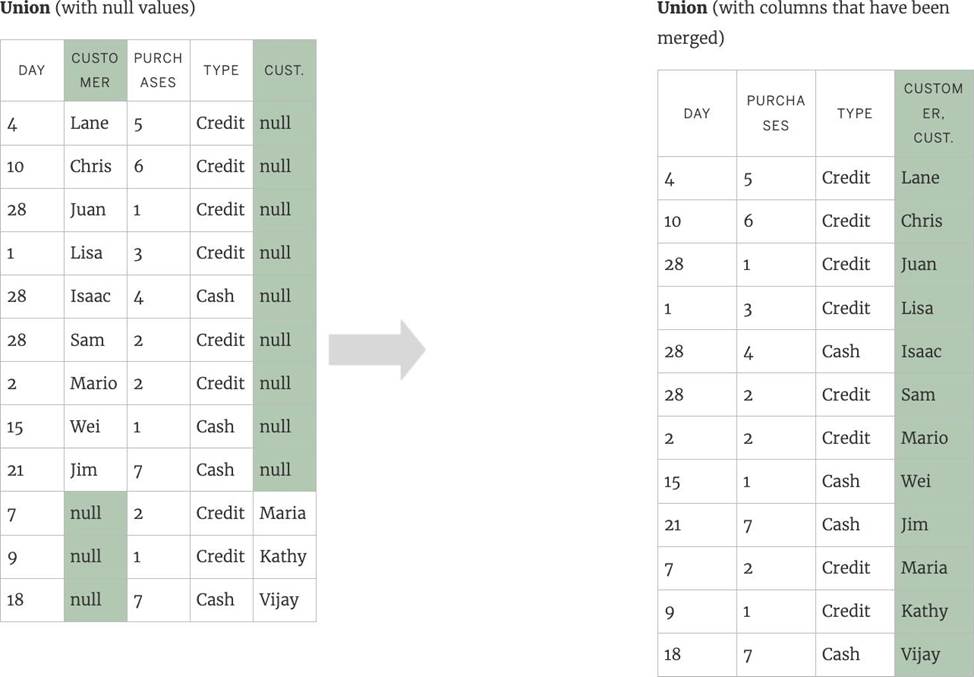
By default, both field names are present in the Union, but contain several null values!
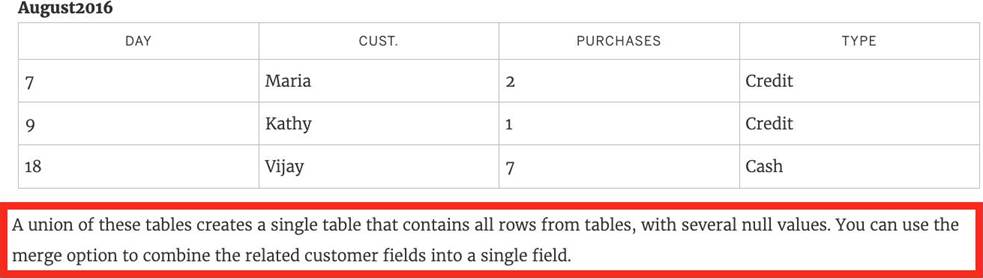
When field names in the union do not match, fields in the union contain null values. You can merge
the non-matching fields into a single field using the merge option to remove the null values. When you use the merge option, the original fields are replaced by a new field that displays the first non-null value for each row in the non-matching fields.
You can also create your own calculation or, if possible, modify the underlying data to combine the non-matching fields.
For example, suppose you have the following customer purchase information stored in three tables, separated by month. The table names are "May2016," "June2016," and "July2016."
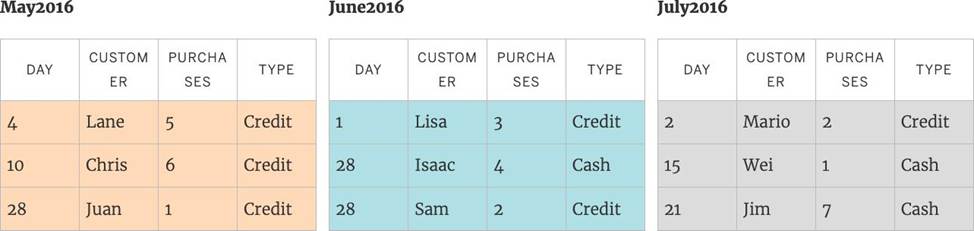
A union of these tables creates the following single table that contains all rows from all tables.
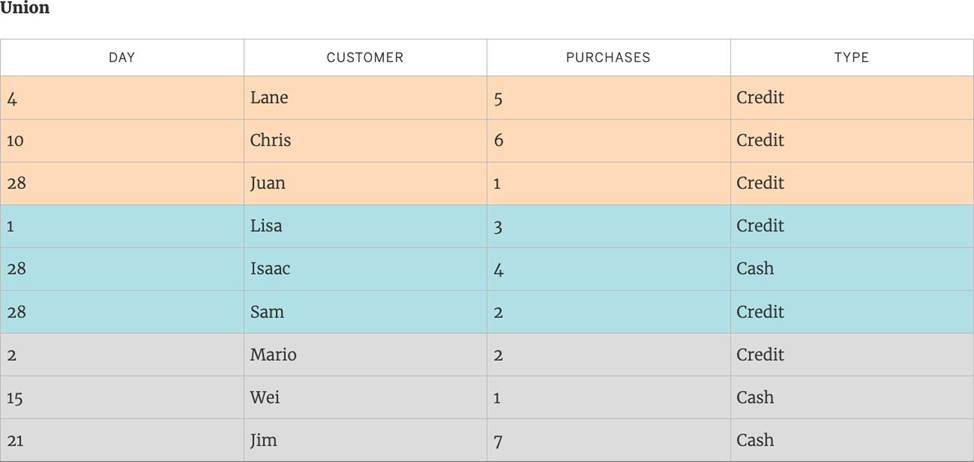
Now suppose a fourth table, "August2016", is added to the underlying data. Instead of the standard "Customer" field name, it contains an abbreviated version called "Cust."
Reference: https://help.tableau.com/current/pro/desktop/en-us/union.htm
DOWNLOAD THE DATASET FROM – https://drive.google.com/file/d/1F8L_Rl5B9LAz8RDi-DdjWx3Iv-SgzaBq/view?usp=sharing ( if you haven’t already from the test instructions page! )
How many different countries are present in the dataset?
- A . 150
- B . 147
- C . 140
- D . 156
B
Explanation:
To reach the correct answer, follow these steps:
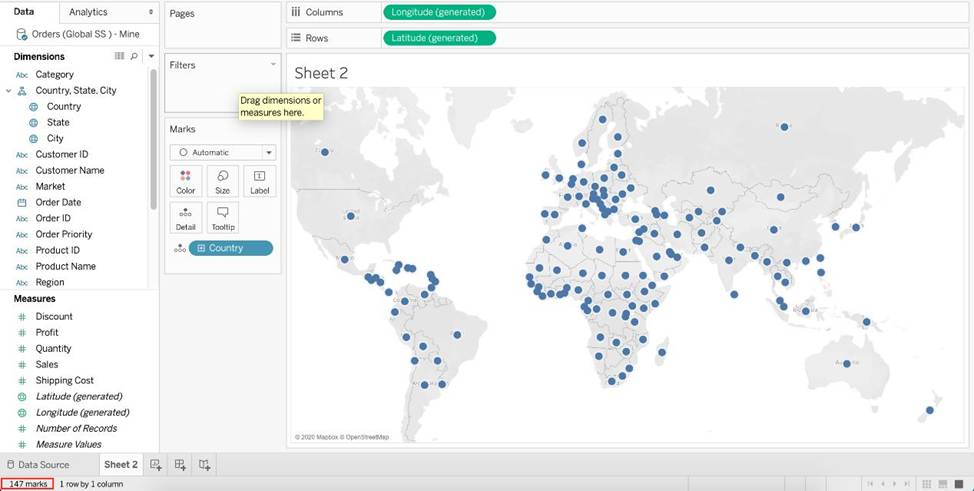
1) You can simply drag Country to the view, and look at the marks in the bottom left of Tableau Desktop – 147 marks!
2) Or, you can simply go to Data Source -> Country Tab -> Describe
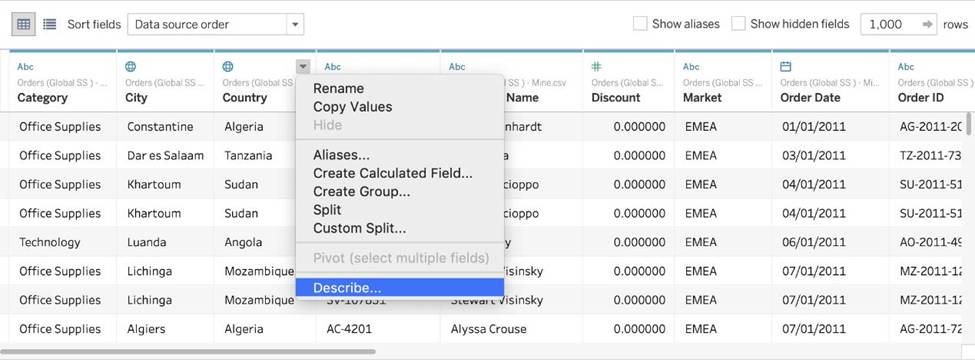
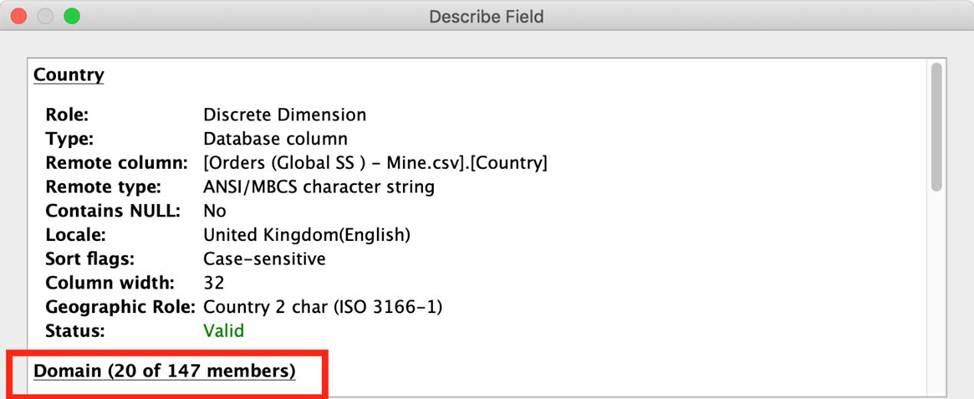
As you can see, 147 members exist in this Country column!