
Tableau TDS-C01 Practice Exams
Last updated on Oct 23,2026- Exam Code: TDS-C01
- Exam Name: Tableau Desktop Specialist
- Certification Provider: Tableau
- Latest update: Oct 23,2026
Yes or No: The number of marks will increase when you increase the number of Dimensions in a view
- A . No
- B . Yes
B
Explanation:
Of course! As an example, see below:
1) Using the Sample Superstore data, let’s plot a bar chart showing the Sales for each Category:
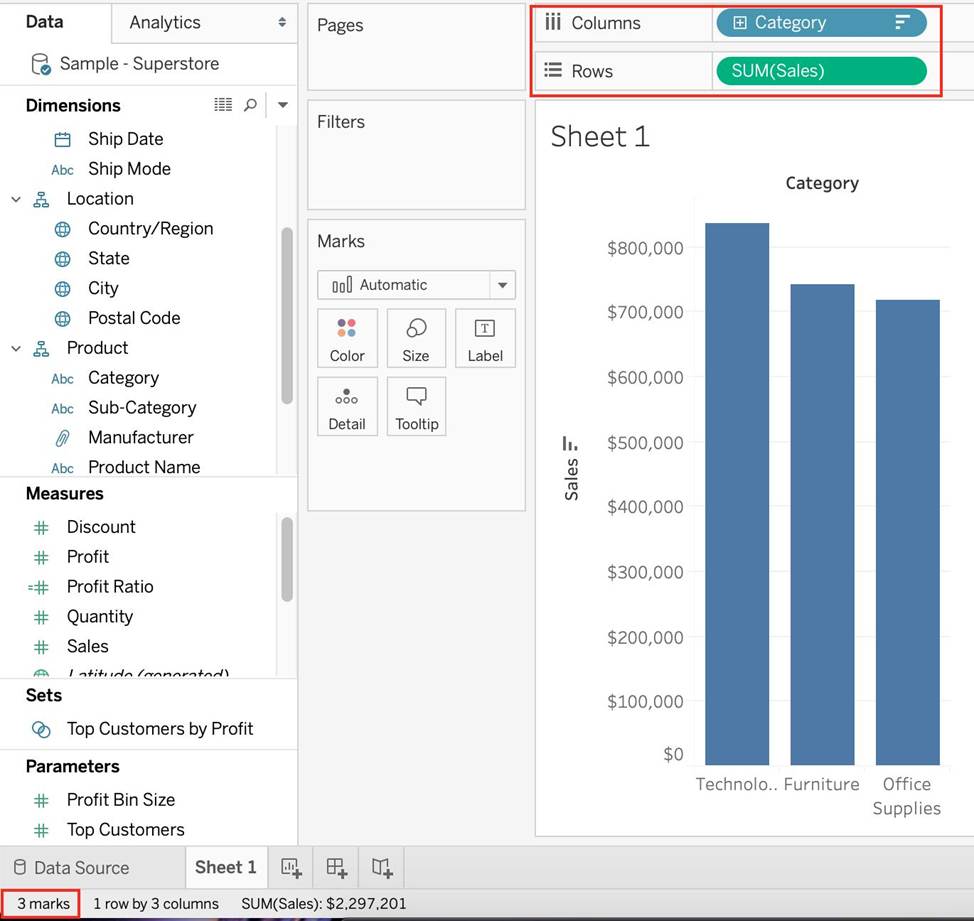
Observe that we have 3 marks – Each bar in a bar chart is called a mark. Similarly, each point in a scatter plot is also a mark, and so on for all charts.
1 row by 3 columns means that clearly on the y-axis (Sales), we have only a single mark – a single continous axis, but 3 different marks (Technology, Furniture and Office supplies) on the x-axis.
2) Now let’s add subcategory to the view as well (another dimension):
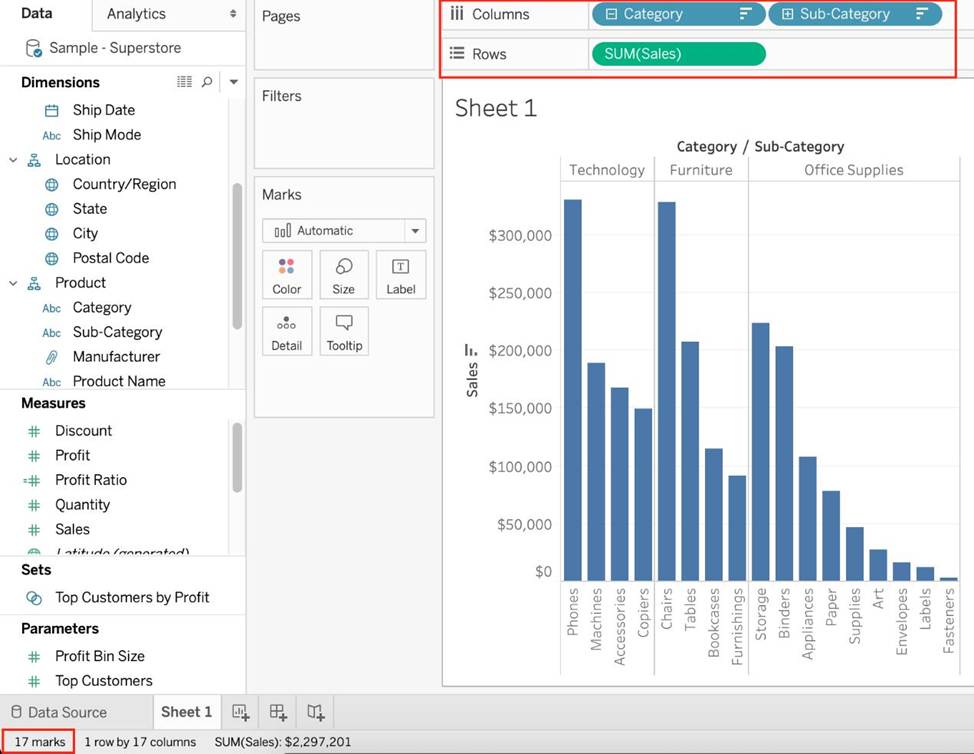
Observe that the number of marks has increased – i.e the number of Bars.
Also, notice we now have 1 row and 17 columns. Simply because 1 row = Sales (on the y-axis), and on the x-axis, we have 17 different columns (i.e product sub categories!!)
Which of the following is NOT a valid official data source in Tableau Desktop?
- A . PostgreSQL
- B . SAP HANA
- C . Google Firebase
- D . Amazon Redshift
C
Explanation:
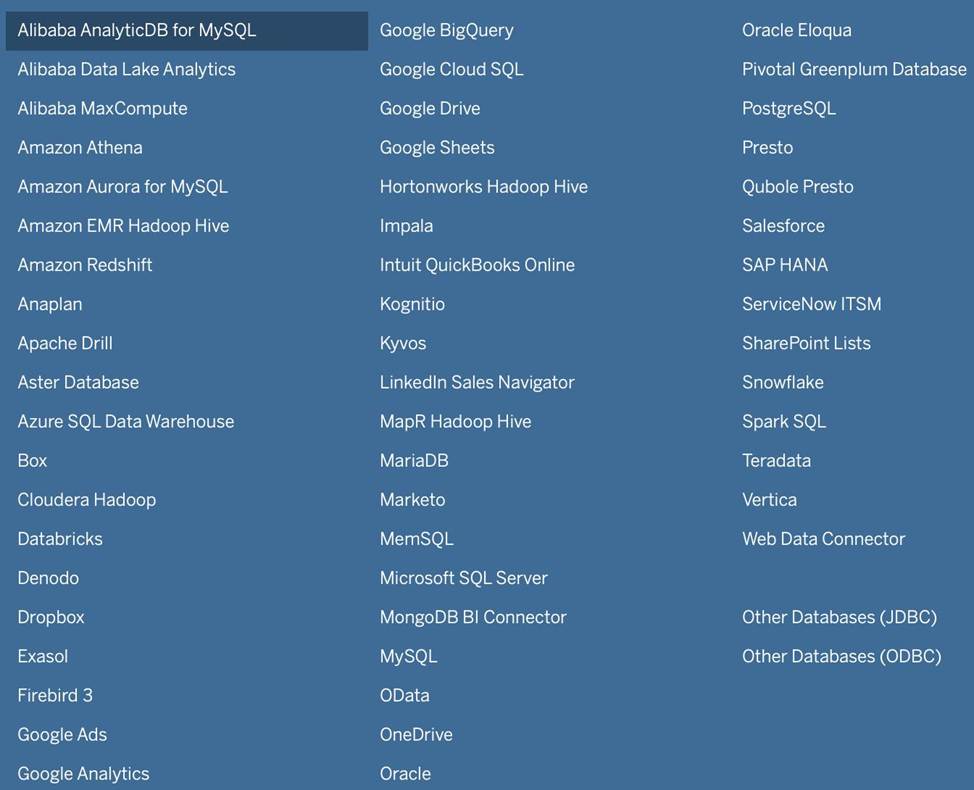
Presently, there is no official way to connect your data in Firebase directly with Tableau Desktop.
A workaround however can be to export your Firebase data into Google BigQuery, and then connect it to Tableau Desktop.
But then again, it is a workaround and not an official out-of-the-box solution.
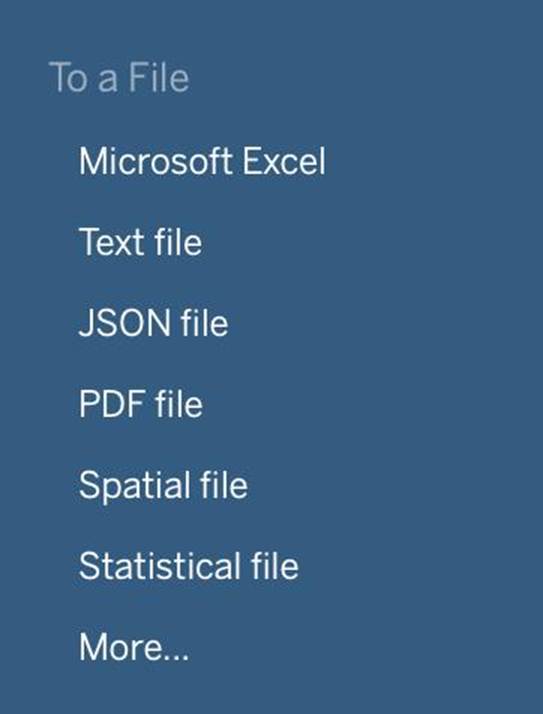
The following are the available Data sources available as of now:
1) Server
2) File
You clicked Sheet 1 from the data source page, and now you have opened the Tableau Desktop workspace as shown above.
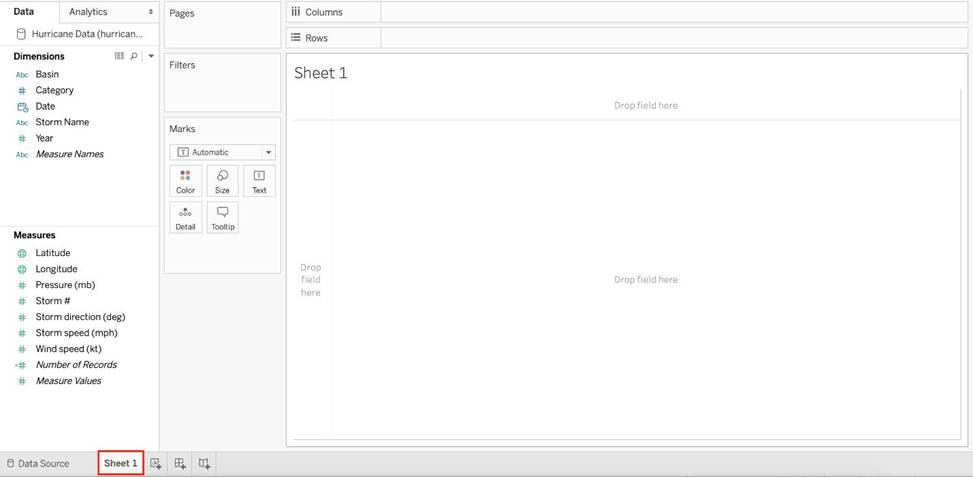
What is the main thing that you do here?
- A . Clean the data
- B . Preview the data
- C . Create visualisations to analyze your data
- D . Rename the fields and change data types
C
Explanation:
The Tableau workspace consists of menus, a toolbar, the Data pane, cards and shelves, and one or more sheets. Sheets can be worksheets, dashboards, or stories. For details on dashboard or story workspaces, see Create a Dashboard or The Story Workspace.
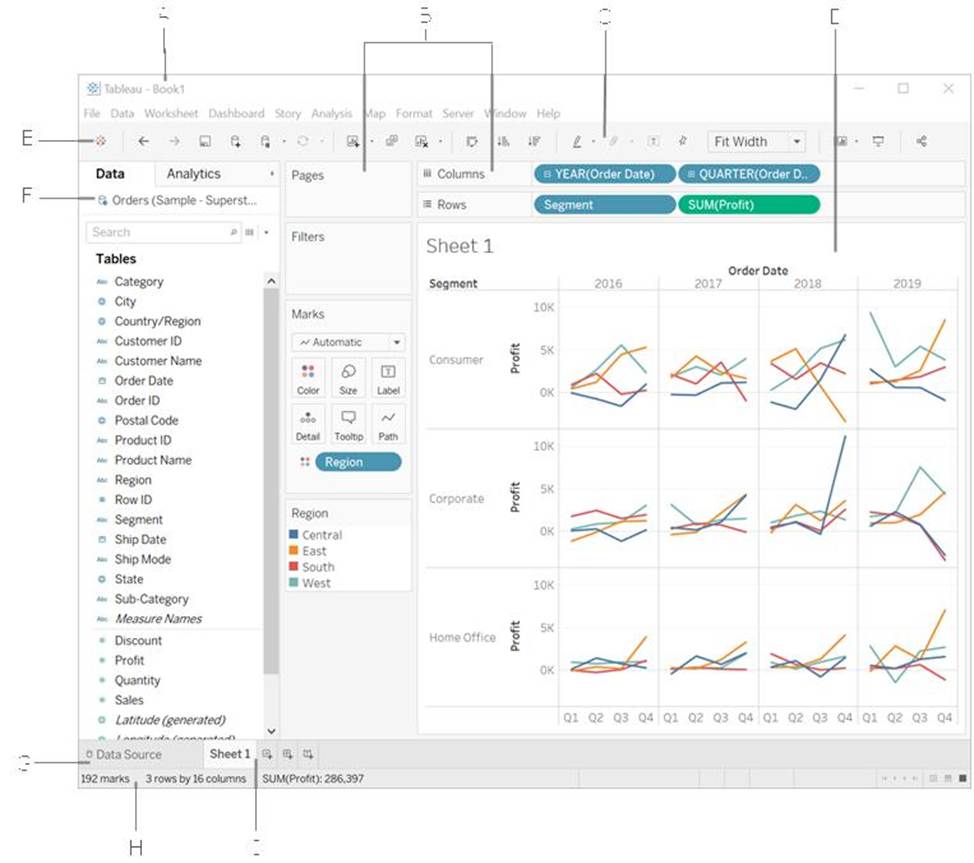
The main thing you do in the workspace is to create visualisations to analyze your data.
Renaming data fields, cleaning the data, previewing the data can all be done in the Data source window.
Reference: https://help.tableau.com/current/pro/desktop/en-us/environment_workspace.htm
What are two use cases for creating hierarchies from the Data pane? Choose two.
- A . To organize related fields together
- B . To create faster-performing queries
- C . To concatenate all fields into a single field
- D . To add drilldown functionality for fields
A, D
Explanation:
Hierarchies in Tableau are used to define a drill-down path through your data. By creating a hierarchy, you can organize related fields together, which makes it easier to navigate complex data models. This also allows users to explore data at different levels of detail, from the highest level of the hierarchy to the most granular details, simply by clicking to expand and collapse levels of the hierarchy in the view.
What are two use cases for creating hierarchies from the Data pane? Choose two.
- A . To organize related fields together
- B . To create faster-performing queries
- C . To concatenate all fields into a single field
- D . To add drilldown functionality for fields
A, D
Explanation:
Hierarchies in Tableau are used to define a drill-down path through your data. By creating a hierarchy, you can organize related fields together, which makes it easier to navigate complex data models. This also allows users to explore data at different levels of detail, from the highest level of the hierarchy to the most granular details, simply by clicking to expand and collapse levels of the hierarchy in the view.
Our use case states that we need to create a set showing the Bottom 10 products by Profit in each Region.
Which of the following filter types should you apply on Region?
- A . Measure Filters
- B . Context Filters
- C . Extract Filters
- D . Dimension Filters
B
Explanation:
The beauty of context filters is that according to Tableau’s Order of Operations, they are executed before Sets.
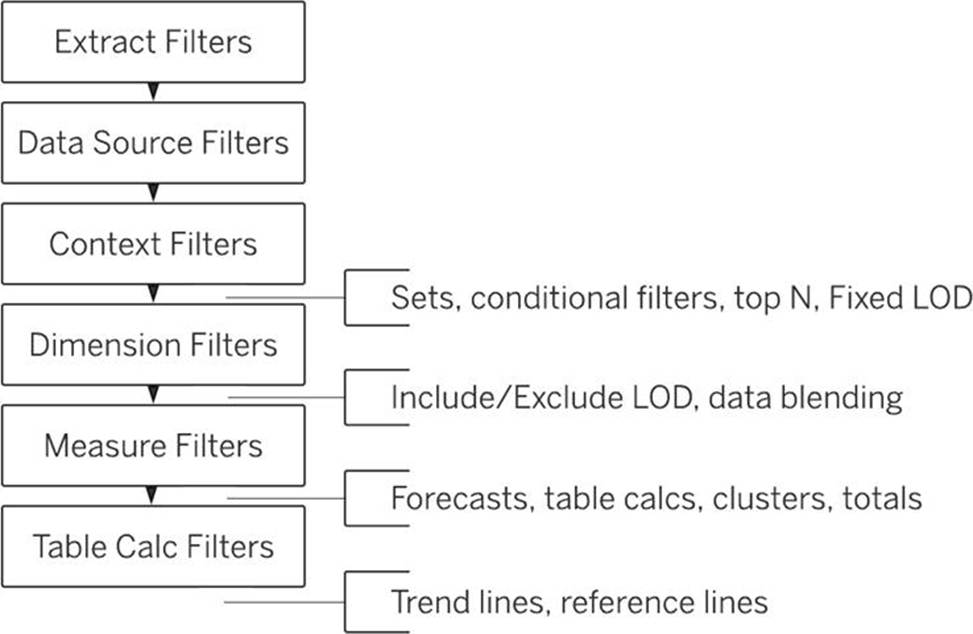
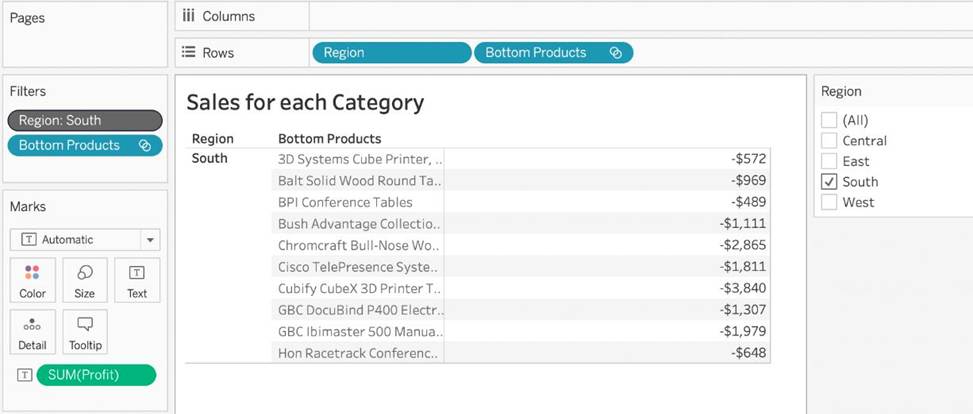
This means that based on what Region’s you’ve selected – Tableau will first only preserve the rows for those Regions. THEN, after this it will compute the Set, i.e, Bottom 10 products in each Region.
1) First let’s create a set to compute the Bottom 10 Products by Profit.
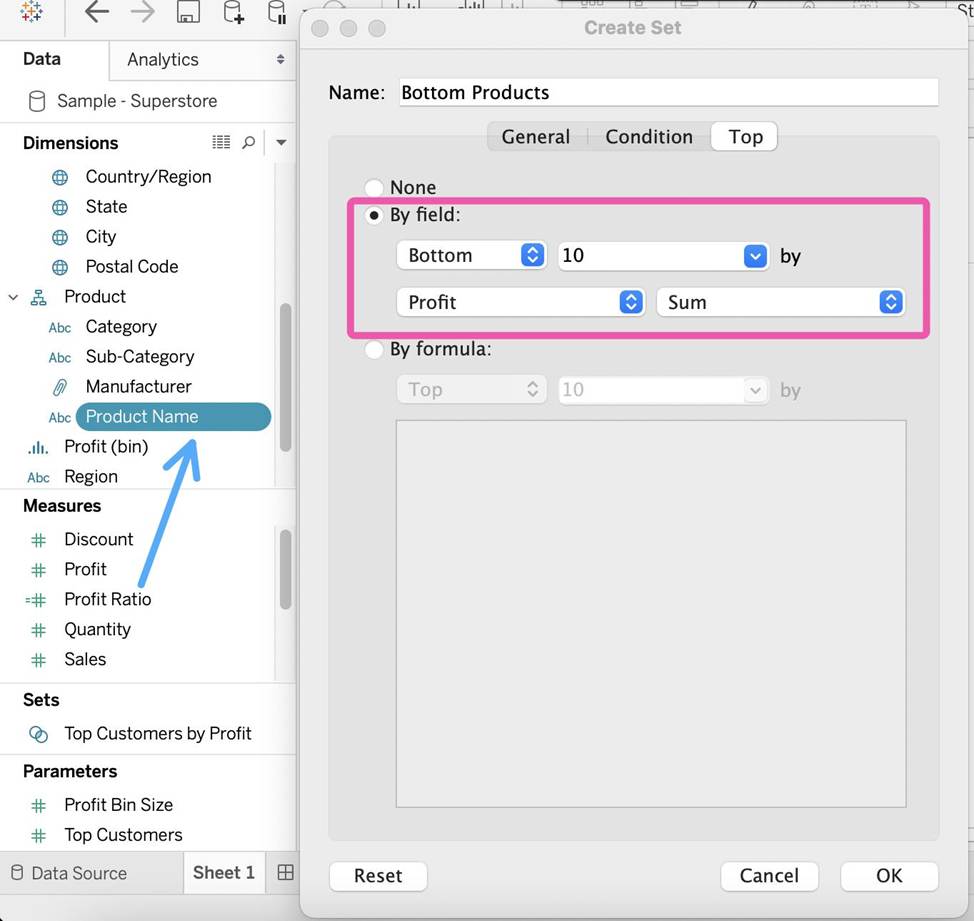
2) Next, take region on the Rows Shelf followed by the Set we just created. Drag Region and the Set to the Filters Shelf as well.
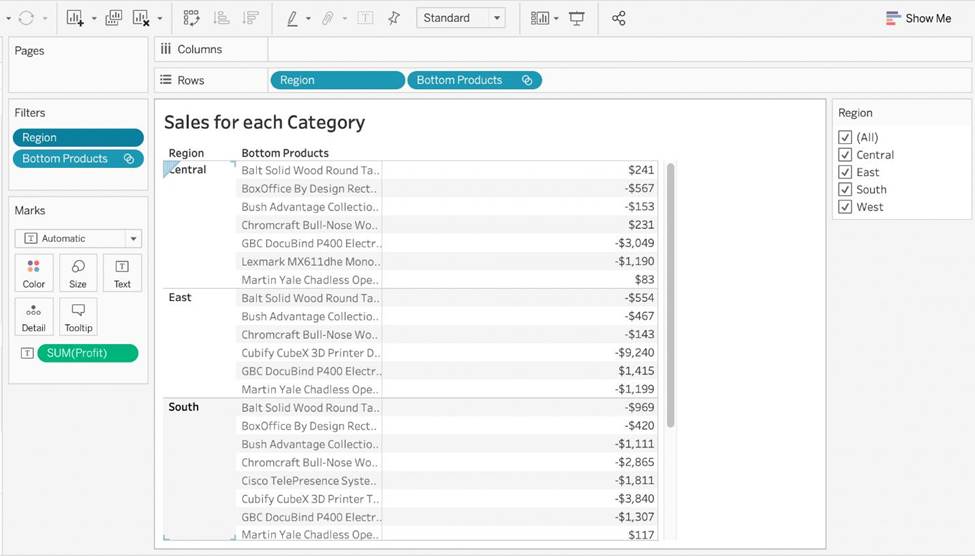
3) Now, try to only visualize the data for the South Region:
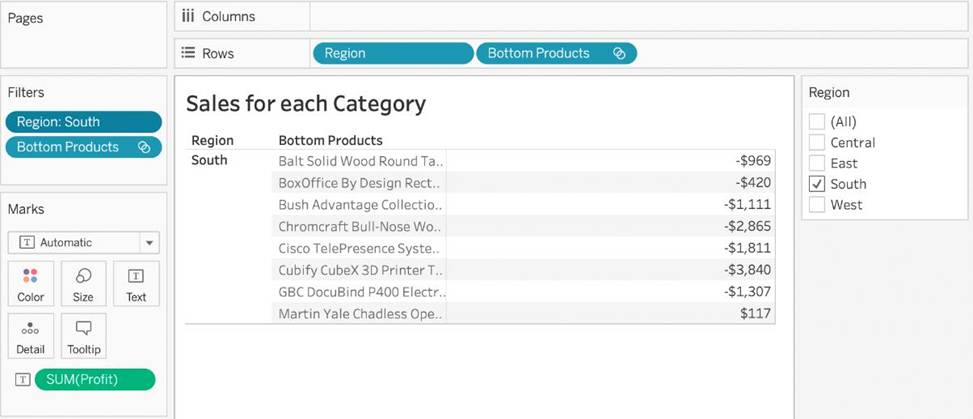
4) The problem right now is that Tableau is computing the Set first (Bottom 10 Products), and then applying the Dimension Filter – South Region and hence these values are incorrect. Note how these aren’t even 10 products, but rather just 8. To fix this, simply add Region to Context:
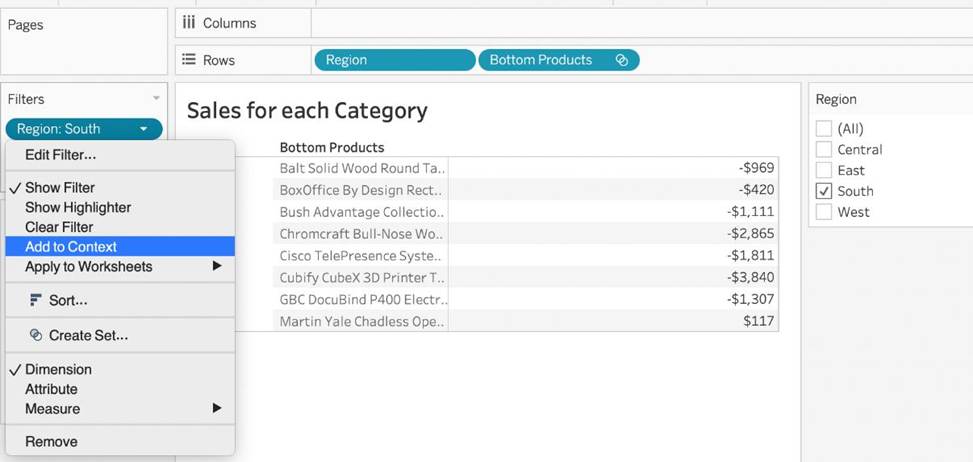
Upon doing this, we get the correct answer as:
Reference:
https://help.tableau.com/current/pro/desktop/en-us/order_of_operations.htm
https://help.tableau.com/current/pro/desktop/en-us/filtering_context.htm
You can use the __________________ in Tableau to clean / organise your data.
- A . Data cleaner
- B . Data manager
- C . Data interpreter
- D . Data organiser
C
Explanation:
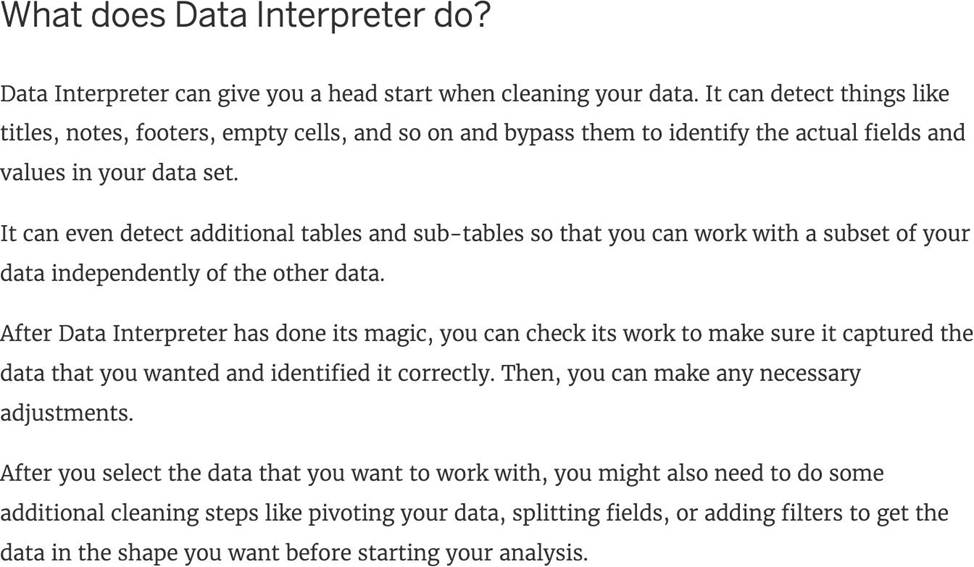
When you track data in Excel spreadsheets, you create them with the human interface in mind. To make your spreadsheets easy to read, you might include things like titles, stacked headers, notes, maybe empty rows and columns to add white space, and you probably have multiple tabs of data too.
When you want to analyze this data in Tableau, these aesthetically pleasing attributes make it very difficult for Tableau to interpret your data. That’s where Data Interpreter can help.
Reference: https://help.tableau.com/current/pro/desktop/en-us/data_interpreter.htm
Which two elements can have their values changed by using a dashboard action? Choose two.
- A . Bins
- B . Groups
- C . Sets
- D . Parameters
C, D
Explanation:
In Tableau, the two elements that can have their values changed by using a dashboard action are Sets and Parameters. Dashboard actions can be configured to modify the values within a set or a parameter, allowing for interactive and dynamic changes in the visualization based on user interactions. For example, selecting a specific data point in a dashboard can trigger an action that updates a set or changes the value of a parameter, which in turn can alter the displayed data or the appearance of visualizations within the dashboard.
You have a continuous numeric measure named Sales.
Which chart type is created when you double-click the Sales measure?
- A . A text table
- B . A line chart
- C . A pie chart
- D . A bar chart
D
Explanation:
When you double-click a continuous numeric measure named Sales in Tableau, it automatically creates a bar chart. Tableau’s default behavior for a single measure is to display it as a bar chart, with the measure values represented on the Y-axis and an automatic range on the X-axis.
True or False: Tableau can create worksheet-specific filters
- A . True
- B . False
A
Explanation:
Yes, it is possible to create worksheet-specific filters in Tableau.
When you add a filter to a worksheet, by default it applies to the current worksheet. Sometimes, however, you might want to apply the filter to other worksheets in the workbook.
Then, you can select specific worksheets to apply the filter to or apply it globally to all worksheets that use the same data source or related data sources.
Reference: https://help.tableau.com/current/pro/desktop/en-us/filtering_global.htm