
Tableau TCC-C01 Practice Exams
Last updated on Oct 21,2026- Exam Code: TCC-C01
- Exam Name: Tableau Certified Consultant
- Certification Provider: Tableau
- Latest update: Oct 21,2026
A client is working in Tableau Prep and has a field named Orderld that is compiled by country, year, and an order number as shown in the following table.
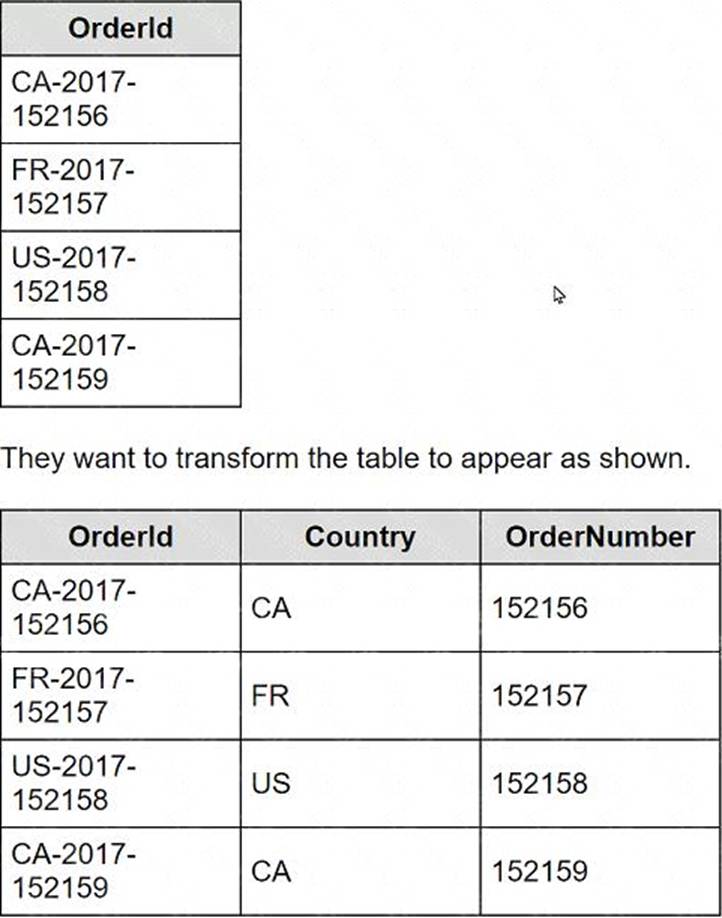
What should the consultant use to transform the table in the most efficient manner?
- A . A calculated field that uses the TRIM function
- B . A calculated field that uses the LEFT function
- C . The Split option
- D . The Aliases option
C
Explanation
To transform theOrderldfield in Tableau Prep, the Split option is the most efficient and straightforward method.
Here’s how you can apply it:
– In Tableau Prep, drag your dataset into the flow.
– Click on theOrderldfield in the workspace to select it.
– Look for the option in the toolbar that says "Split" and select it.
– Choose "Automatic Split" if the delimiters (such as hyphens) are consistent; Tableau Prep should automatically detect the hyphen as the delimiter and split the Orderldinto multiple new fields.
– The dataset should now show new columns: one for the country code (CA, FR, US), one for the year (2017), and one for the order number (152156, 152157, etc.).
The Split option works effectively here because it automatically identifies and uses the hyphen as the delimiter to divide the original Orderldinto the desired components without manual specification of conditions or writing any formulas.
References: This procedure is based on the standard functionalities provided in Tableau Prep for splitting a field into multiple columns based on a delimiter, as described in the Tableau Prep user guide.
A client wants to see the average number of orders per customer per month, broken down by region. The client has created the following calculated field:
Orders per Customer: {FIXED [Customer ID]: COUNTD ([Order ID])}
The client then creates a line chart that plots AVG (Orders per Customer) over MONTH(Order Date) by Region. The numbers shown by this chart are far higher
than the customer expects.
The client asks a consultant to rewrite the calculation so the result meets their expectation.
Which calculation should the consultant use?
- A . {INCLUDE [Customer ID]: COUNTD ([Order ID])}
- B . {FIXED [Customer ID], [Region]: COUNTD ([Order ID])}
- C . {EXCLUDE [Customer ID]: COUNTD ([Order ID])}
- D . {FIXED [Customer ID], [Region], [Order Date]: COUNTD ([Order ID])}
B
Explanation
The calculation {FIXED [Customer ID], [Region]: COUNTD ([Order ID])}is the correct one to use for this scenario. This Level of Detail (LOD) expression will calculate the distinct count of orders for each customer within each region, which is then averaged per month. This approach ensures that the average number of orders per customer is accurately calculated for each region and then broken down by month, aligning with the client’s expectations.
References: The LOD expressions in Tableau allow for precise control over the level of detail at which calculations are performed, which is essential for accurate data analysis. The use of{FIXED}expressions to specify the granularity of the calculation is a common practice and is well-documented in Tableau’s official resources12.
The initial calculation provided by the client likely overestimates the average number of orders per customer per month by region due to improper granularity control. The revised calculation must take into account both the customer and the region to correctly aggregate the data:
FIXED Level of Detail Expression: This calculation uses a FIXED expression to count distinct order IDs for each customer within each region. This ensures that the count of orders is correctly grouped by both customer ID and region, addressing potential duplication or misaggregation issues.
Accurate Aggregation: By specifying both [Customer ID] and [Region] in the FIXED expression, the calculation prevents the overcounting of orders that may appear if only customer ID was considered, especially when a customer could be ordering from multiple regions.
References:
Level of Detail Expressions in Tableau: These expressions allow you to specify the level of granularity you need for your calculations, independent of the visualization’s level of detail, thus offering precise control over data aggregation.
A company has a data source for sales transactions.
The data source has the following characteristics:
– Millions of transactions occur weekly.
– The transactions are added nightly.
– Incorrect transactions are revised every week on Saturday.
– The end users need to see up-to-date data daily.
A consultant needs to publish a data source in Tableau Server to ensure that all the transactions in the data source are available.
What should the consultant do to create and publish the data?
- A . Publish an incremental extract refresh every day and perform a full extract refresh every Saturday.
- B . Publish a live connection to Tableau Server.
- C . Publish an incremental refresh every Saturday.
- D . Publish an incremental extract refresh every day and publish a secondary data set containing data revisions.
A
Explanation
Given the need for up-to-date data on a daily basis and weekly revisions, the best approach is to use an incremental extract refresh daily to update the data source with new transactions. On Saturdays, when incorrect transactions are revised, a full extract refresh should be performed to incorporate all revisions and ensure the data’s accuracy. This strategy allows end users to have access to the most current data throughout the week while also accounting for any necessary corrections12.
References: The solution is based on best practices for managing data sources in Tableau Server, which recommend using incremental refreshes for frequent updates and full refreshes when significant changes or corrections are made to the data12.
A client calculates the percent of total sales for a particular region compared to all regions.
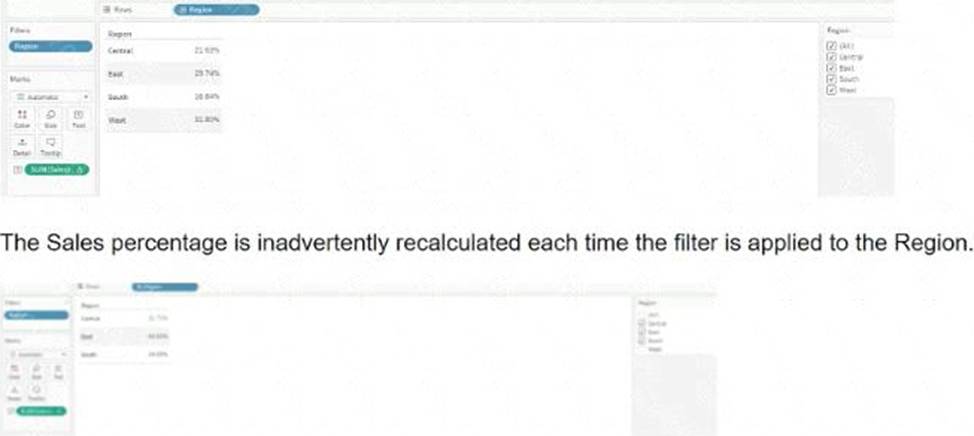
Which calculation will fix the automatic recalculation on the % of total field?
- A . {FIXED [Region]: [Sales]}/{FIXED: SUM([Sales])}
- B . {FIXED [Region]: sum([Sales])}
- C . {FIXED [Region]: sum([Sales])}/{FIXED :SUM([Sales])
- D . {FIXED [Region]: sum([Sales])}/SUM([Sales]}
D
Explanation
To correctly calculate the percent of total sales for a particular region compared to all regions, and to ensure that the calculation does not get inadvertently recalculated with each region filter application, the recommended calculation is:
– {FIXED [Region]: sum([Sales])}: This part of the formula computes the sum of sales for each region, regardless of any filters applied to the view. It uses a Level of Detail expression to fix the sum of sales to each region, ensuring that filtering by regions won’t affect the calculated value.
– SUM([Sales]): This part computes the total sum of sales across all regions and is recalculated dynamically based on the filters applied to other parts of the dashboard or worksheet.
– Combining the two parts: By dividing the fixed regional sales by the total sales, we get the proportion of sales for each region as compared to the total. This calculation ensures that while the denominator adjusts according to filters, the numerator remains fixed for each region, accurately reflecting the sales percentage without being affected by the region filter directly.
References: This calculation follows Tableau’s best practices for using Level of Detail expressions to manage computation granularity in the presence of dashboard filters, as outlined in the Tableau User Guide and official Tableau training materials.
An online sales company has a table data source that contains Order Date. Products ship on the first day of each month for all orders from the previous month.
The consultant needs to know the average number of days that a customer must wait before a product is shipped.
Which calculation should the consultant use?
- A . Calc1: DATETRUNC (‘month’, DATEADD(‘month’, 1, [Order Date]))
Calc2: AVG(DATEDIFF (‘week’, [Order Date], [Calc1])) - B . Calc1: DATETRUNC (‘month’, DATEADD (‘month’, 1, [Order Date]))
Calc2: AVG(DATEDIFF (‘day’, [Order Date], [Calc1])) - C . Calc1: DATETRUNC (‘day’, DATEADD(‘week’, 4, [Order Date]))
Calc2: AVG([Order Date] – [Calc1]) - D . Calc1: DATETRUNC (‘day’, DATEADD (‘day’, 31, [Order Date]))
Calc2: AVG ([Order Date] – [Calc1])
B
Explanation
The correct calculation to determine the average number of days a customer must wait before a product is shipped is to first find the shipping date, which is the first day of the following month after the order date. This is done using DATETRUNC (‘month’, DATEADD (‘month’, 1, [Order Date])). Then, the average difference in days between the order date and the shipping date is calculated using AVG (DATEDIFF (‘day’, [Order Date], [Calc1])). This approach ensures that the average wait time is calculated in days, which is the most precise measure for this scenario.
References: The solution is based on Tableau’s date functions and their use in calculating differences between dates, which are well-documented in Tableau’s official learning resources and consultant documents12.
To calculate the average waiting days from order placement to shipping, where shipping occurs on the first day of the following month:
Calculate Shipping Date (Calc1): Use the DATEADD function to add one month to the order date, then apply DATETRUNC to truncate this date to the first day of that month. This represents the shipping date for each order.
Calculate Average Wait Time (Calc2): Use DATEDIFF to calculate the difference in days between the original order date and the calculated shipping date (Calc1). Then, use AVG to average these differences across all orders, giving the average number of days customers wait before their products are shipped.
References:
Date Functions in Tableau: Functions like DATEADD, DATETRUNC, and DATEDIFF are used to manipulate and calculate differences between dates, crucial for creating metrics that depend on time intervals, such as customer wait times in this scenario.
A company has a sales team that is segmented by territory. The team’s manager wants to make sure each sales representative can see only data relevant to that representative’s territory in the team Sales Dashboard.
The team is large and has high turnover, and the manager wants the mechanism for restricting data access to be as automated as possible. However, the team does not have a Tableau Data Management license.
What should the consultant recommend to meet the company’s requirements?
- A . Create one group for each territory and assign sales representatives to the appropriate groups. Map each group to a territory in the Sales Dashboard. Publish this dashboard to the Sales Dashboard project and ensure all users have permissions to view the dashboard.
- B . Create separate workbooks for each territory. Publish each dashboard to the same Sales Dashboard project, and set permissions so each sales representative can see only the dashboards for their territories.
- C . Create a data source by joining the sales data table to an entitlements data table. Add a data source filter to restrict access and publish the data source. Connect the Sales Dashboard to this published data source.
- D . Create a user filter in the Sales Dashboard workbook and map each sales representative to the territories they are responsible for. Publish this dashboard to the Sales Dashboard project and ensure all users have permissions to view the dashboard.
C
Explanation
To ensure that each sales representative sees only data relevant to their territory, the best approach in the absence of a Tableau Data Management license involves using a joined data source with entitlements:
– Data Source Configuration: Create a data source that joins the sales data table with an entitlements table. The entitlements table contains mappings of sales representatives to their respective territories.
– Data Source Filter: Implement a data source filter that restricts data based on the current user’s access rights. This filter references the joined entitlements to dynamically control data visibility based on the logged-in user.
– Publishing the Data Source: Publish this filtered data source to Tableau Server. All workbooks or dashboards connecting to this data source inherently respect the row-level security established by the data source filter.
References: This approach aligns with Tableau’s capabilities for implementing row-level security directly within the data source, as detailed in the Tableau security management and data modeling best practices.
A Tableau Cloud client has requested a custom dashboard to help track which data sources are used most frequently in dashboards across their site.
Which two actions should the client use to access the necessary metadata? Choose two.
- A . Connect directly to the Site Content data source within the Admin Insights project.
- B . Query metadata through the GraphiQL engine.
- C . Access metadata through the Metadata API.
- D . Download metadata through Tableau Catalog.
B C
Explanation
To track which data sources are used most frequently across a site in Tableau Cloud, the client should use the GraphiQL engine and the Metadata API. The GraphiQL engine allows for interactive exploration of the metadata, making it easier to construct and test queries1.The Metadata API provides access to metadata and lineage of external assets used by the content published to Tableau Cloud, which is essential for tracking data source usage2.
References: The actions are based on the capabilities of the GraphiQL engine and the Metadata API as described in Tableau’s official documentation and learning resources321.
A client’s dashboard has two sections dedicated to their shops and warehouses shown when a viewer chooses either shops or warehouses with a parameter.
There are a few quick filters that apply to both, while others apply to only shops or only warehouses.
Currently, the quick filters are all shown at the left side of the dashboard. The client wants to hide all filters, but when shown, make it easy for the viewer to find the quick filters that work for only shops or only warehouses.
Which solution should the consultant recommend that meets the client’s needs and is most user-friendly?
- A . Divide the quick filters into three groups: General, for shops. Place the general filters on the left of dashboard for warehouses. Place other filters next to the sections to which they apply.
- B . Use Dynamic Zone Visibility to inform viewers which quick filters apply to warehouses or shops.
- C . Hide container with all quick filters with a Show/Hide Button.
- D . Use Dynamic Zone Visibility to show only the quick filters that apply with the chosen parameter value and a Show/Hide Button to hide
container with all the filters.
D
Explanation
The most user-friendly solution is to use Dynamic Zone Visibility in combination with a Show/Hide Button. This approach allows the dashboard to dynamically display only the relevant quick filters based on the viewer’s selection of shops or warehouses, thus reducing clutter and focusing the user’s attention on applicable filters. The Show/Hide Button further enhances the user experience by allowing viewers to toggle the visibility of the filter container, providing a clean and organized dashboard interface1.
References: Dynamic Zone Visibility is a feature in Tableau that enables dashboard elements to appear or disappear based on the value of a field or parameter1.This functionality is ideal for creating interactive and user-friendly dashboards that adapt to user interactions and selections1.
A client uses Tableau Data Management and notices that when they view a data source, they sometimes see a different count of workbooks in the Connected Workbooks tab compared to the lineage count in Tableau Catalog.
What is the cause of this discrepancy?
- A . Some workbooks have been connected to the data source, but do not use any fields from it.
- B . Some workbooks have not been viewed by enough users yet.
- C . Some of the workbooks connected to the data source are not visible to the user due to permissions.
- D . Some Creators have connected to the data source in Tableau Desktop but have not yet published a workbook.
C
Explanation
The discrepancy between the count of workbooks in the Connected Workbooks tab and the lineage count in Tableau Catalog can occur because of user permissions. In Tableau Data Management, the visibility of
connected workbooks is subject to the permissions set by administrators. If a user does not have permission to view certain workbooks, they will not see them listed in the Connected Workbooks tab, even though these workbooks are part of the data source’s lineage and are counted in Tableau Catalog.
References: This explanation is based on the functionality of Tableau Data Management and Tableau Catalog, which includes managing user permissions and access to workbooks. The information is supported by Tableau’s official documentation on data management and security practices1.
A client is searching for ways to curate and document data in order to obtain data lineage. The client has a data source connected to a data lake.
Which tool should the consultant recommend to meet the client’s requirements?
- A . Tableau Catalog without Tableau Data Management Add-on
- B . Tableau Catalog with Tableau Data Management Add-on
- C . Tableau Prep Conductor
- D . Tableau Catalog with Tableau Server Management Add-on
B
Explanation
To effectively curate and document data for obtaining data lineage, particularly from a data source connected to a data lake, the recommended tool is:
– Tableau Catalog with Tableau Data Management Add-on: This add-on enhances the capabilities of Tableau Catalog, providing extensive features for data management, including detailed data lineage, impact analysis, and metadata management.
– Functionality: The Tableau Catalog with the Data Management Add-on allows users to see the full history and lineage of the data, trace its usage across all Tableau content, and understand dependencies. It also facilitates better governance and transparency in data handling.
– Why Choose this Tool: For a client needing comprehensive data lineage and documentation capabilities, this add-on ensures that data stewards and users can maintain and utilize a well-managed data environment. It supports robust data governance practices necessary for large and complex data ecosystems like those typically associated with data lakes.
References: The recommendation is based on the functionalities offered by the Tableau Data Management Add-on, as described in Tableau’s official documentation on managing and documenting data sources for enhanced governance and operational efficiency.