
Tableau TCC-C01 Practice Exams
Last updated on Oct 21,2026- Exam Code: TCC-C01
- Exam Name: Tableau Certified Consultant
- Certification Provider: Tableau
- Latest update: Oct 21,2026
A client needs to design row-level security (RLS) measures for their reports. The client does not currently have Tableau Data Management Add-on, and it may be an option in the future.
What should the consultant recommend as the safest and easiest way to manage for the long term?
- A . Create User filters based on data policies and apply them to views using set filters and option Server/Create User Filter.
- B . Create User filters for each report using a table joined to its data source and using the option Apply to All Sheet Using the Data Source.
- C . Create User filters based on data policies and apply them to a published data source.
- D . Create User filters in each view of each report using set filters and option Server/Create User Filter.
C
Explanation
For implementing row-level security (RLS) without the Tableau Data Management Add-on, the best approach is to integrate user filters into the published data source:
– Creating User Filters on Published Data Source: This method involves defining user filters that apply directly to the data source before it is published to the Tableau Server. This ensures that any workbook or view leveraging this data source inherently respects the row-level security settings.
– To implement this, create a calculated field in Tableau that defines the security logic, typically using a formula that references user functions (like USERNAME () or ISMEMBEROF ()). Drag this field to the Filters shelf and configure it to match the security rules (who can see what data).
– Once configured, publish the data source to Tableau Server with these filters in place. This approach centralizes security management, making it easier to maintain and update security policies as they are applied universally to all workbooks using this data source.
This strategy is safe as it reduces the risk of accidental data exposure through individual workbook misconfiguration and simplifies long-term maintenance of security policies.
References: This method follows Tableau’s best practices for implementing row-level security as detailed in Tableau’s security management resources. It ensures robust, maintainable security measures that scale with organizational needs without requiring additional add-ons.
A university has data on its undergraduate students and their majors by grade level (Freshman, Sophomore, Junior, Senior). The university is interested in visualizing the path students take as they change majors across grade levels.
Which visualization type should the consultant recommend?
- A . Chord Chart
- B . Tree Chart
- C . Radar Chart
- D . Sankey Diagram
D
Explanation
To visualize the path students take as they change majors across different grade levels, a Sankey Diagram is highly effective. This type of visualization illustrates the flow and quantity between different stages or categories:
– Sankey Diagram: It allows for a visual representation of students’ movements between majors over time. Each flow’s thickness is proportional to the number of students moving from one major to another, giving a clear, immediate visual cue of major popularity and student migration patterns.
– To create a Sankey Diagram in Tableau, you typically need to prepare the data specifically for this type of chart. The data must include source (starting major), target (ending major), and the value (number of students). It often requires custom calculations and data reshaping to get the data in a format that a Sankey can use.
– Once the data is prepared, you can use a combination of calculated fields, path binning, and line charts to simulate the flow effect in Tableau. External plugins or web-based integrations might also be employed for more direct implementations.
References: Sankey Diagrams are not natively supported in Tableau but can be implemented through creative use of data preparation and calculations, as suggested in advanced Tableau user communities and demonstrated in various Tableau public galleries.
From the desktop, open the CCworkbook. Use the US PopulationEstimates data source.
You need to shape the data in US Population Estimates by using TableauDesktop.
The data must be formatted as shown in the following table.
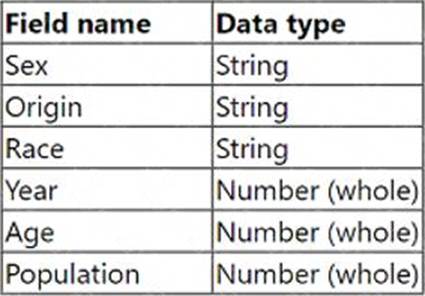
Open the Population worksheet. Enter the total number of records contained in the data set into the Total Records parameter.
From the File menu in Tableau Desktop, click Save.
– Open the CC Workbook and Access the Worksheet:
– From the desktop, double-click on the CC workbook to open it in Tableau Desktop.
– Navigate to the Population worksheet by selecting its tab at the bottom of the window.
– Format and Shape the Data:
– Ensure the data types match those specified in the requirements: Sex, Origin, Race as strings; Year, Age, Population as whole numbers.
– To verify or change the data type, click on the dropdown arrow next to each field name in the Data pane and select "Change Data Type" if necessary.
– Calculate Total Number of Records:
– Create a new calculated field named "Total Records". To do this, right-click in the Data pane and select "Create Calculated Field".
– Enter the formula COUNT ([Record ID]) or SUM ([Number of Records]) depending on how the data source identifies each row uniquely.
– Drag this new calculated field onto the worksheet to display the total number of records.
– Enter the Value into the Total Records Parameter:
– Locate the "Total Records" parameter in the Data pane. Right-click on the parameter and select "Edit".
– Manually enter the number displayed from the calculated field into the parameter, ensuring accuracy to meet the data shaping requirement.
– Save Your Changes:
– From the File menu, click ‘Save’ to ensure all your changes are stored.
References:
– Tableau Desktop Guide: Provides detailed instructions on managing data types, creating calculated fields, and updating parameters.
– Tableau Data Shaping Techniques: Outlines effective methods for manipulating and structuring data for analysis.
This process will ensure the data in the "US Population Estimates" is accurately shaped according to the specified format and that the total number of records is correctly calculated and entered into the designated parameter. This thorough approach ensures data integrity and accuracy in reporting.
Use the following login credentials to sign in to the virtual machine:
Username: Admin Password:
The following information is for technical support purposes only:
Lab Instance: 40201223
To access Tableau Help, you can open the Help.pdf file on the desktop.
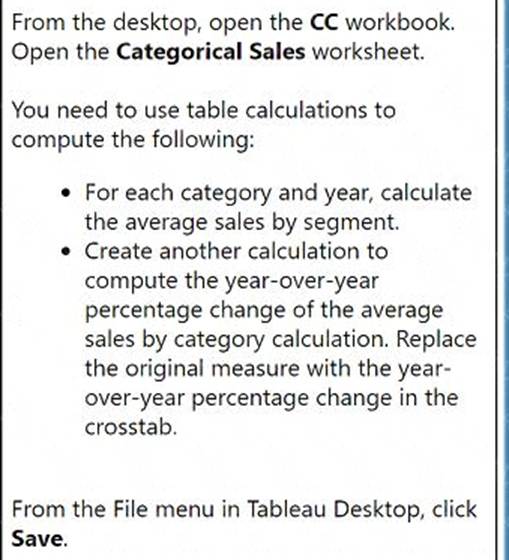
From the desktop, open the CC workbook.
Open the Categorical Sales worksheet.
You need to use table calculations to compute the following:
– For each category and year, calculate the average sales by segment.
– Create another calculation to compute the year-over-year percentage change of the average sales by category calculation. Replace the original measure with the year-over-year percentage change in the
crosstab.
From the File menu in Tableau Desktop, click Save.
– Compute Average Sales by Segment for Each Category and Year:
– Open the CC workbook and navigate to the Categorical Sales worksheet.
– Drag the ‘Sales’ field to the Rows shelf if it’s not already there.
– Drag the ‘Segment’ field to the Rows shelf as well, placing it next to ‘Category’ and ‘Year’.
– Right-click on the ‘Sales’ field in the Rows shelf and select ‘Quick Table Calculation’ > ‘Average’.
This will compute the average sales for each segment within each category and year.
– Create a Calculation for Year-over-Year Percentage Change:
– Right-click in the data pane and select ‘Create Calculated Field’.
– Name the calculated field something descriptive, e.g., "YoY Sales Change".
– Enter the formula to calculate the year-over-year percentage change:
(ZN(SUM([Sales])) – LOOKUP(ZN(SUM([Sales])), -1)) / ABS(LOOKUP(ZN(SUM([Sales])), -1))
– Click ‘OK’ to save the calculated field.
– Replace the Original Measure with the Year-over-Year Percentage Change in the Crosstab:
– Remove the original ‘Sales’ measure from the view by dragging it off the Rows shelf.
– Drag the newly created "YoY Sales Change" calculated field to the Rows shelf where the ‘Sales’ field was originally.
– Format the "YoY Sales Change" field to display as a percentage. Right-click on the field in the Rows shelf, select ‘Format’, and adjust the number format to percentage.
– Save Your Changes:
– From the File menu, click ‘Save’ to ensure all your changes are stored.
References:
– Tableau Help: Offers guidance on creating calculated fields and using table calculations.
– Tableau Desktop User Guide: Provides instructions on formatting and saving worksheets.
These steps allow you to manipulate data within Tableau effectively, using table calculations to analyze trends and changes in sales data by category and segment over years.
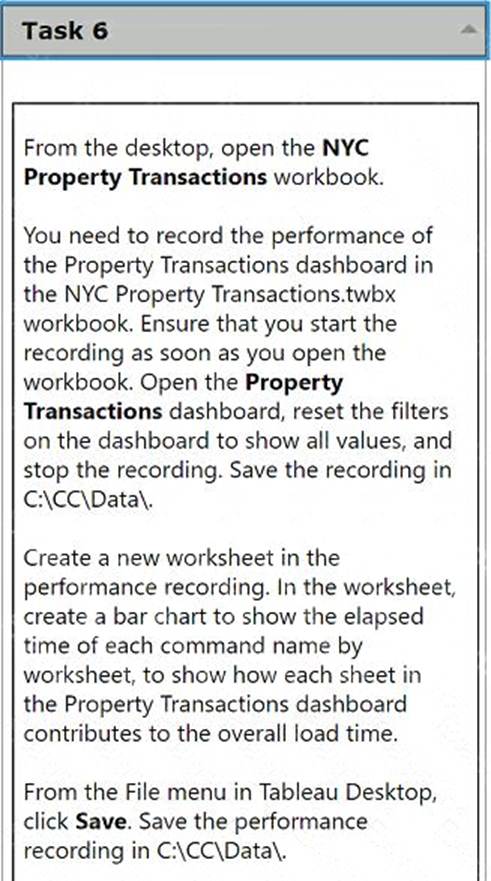
From the desktop, open the NYC Property Transactions workbook.
You need to record the performance of the Property Transactions dashboard in the NYC Property Transactions.twbx workbook. Ensure that you start the recording as soon as you open the workbook. Open the Property Transactions dashboard, reset the filters on the dashboard to show all values, and
stop the recording. Save the recording in C:CCData.
Create a new worksheet in the performance recording. In the worksheet, create a bar chart to show the elapsed time of each command name by worksheet, to show how each sheet in the Property Transactions dashboard contributes to the overall load time.
From the File menu in Tableau Desktop, click Save. Save the performance recording in C:CCData.
– Open the NYC Property Transactions Workbook:
– From the desktop, double-click the NYC Property Transactions.twbx workbook to open it in Tableau Desktop.
– Start Performance Recording:
– Before doing anything else, navigate to the ‘Help’ menu in Tableau Desktop.
– Select ‘Settings and Performance’, then choose ‘Start Performance Recording’.
– Open the Property Transactions Dashboard and Reset Filters:
– Navigate to the Property Transactions dashboard within the workbook.
– Reset all filters to show all values. This usually involves selecting the dropdown on each filter and choosing ‘All’ or using a ‘Reset’ button if available.
– Stop the Performance Recording:
– Go back to the ‘Help’ menu.
– Choose ‘Settings and Performance’, then select ‘Stop Performance Recording’.
– Tableau will automatically open a new tab displaying the performance recording results.
– Save the Performance Recording:
– In the performance recording results tab, go to the ‘File’ menu.
– Click ‘Save As’ and navigate to the C:CCData directory.
– Save the file, ensuring it is stored in the desired location.
– Create a New Worksheet for Performance Analysis:
– Return to the NYC Property Transactions workbook and create a new worksheet by clicking on the ‘New Worksheet’ icon.
– Drag the ‘Command Name’ field to the Columns shelf.
– Drag the ‘Elapsed Time’ field to the Rows shelf.
– Ensure that the ‘Worksheet’ field is also included in the analysis to break down the time by individual sheets within the dashboard.
– Choose ‘Bar Chart’ from the ‘Show Me’ options to display the data as a bar chart.
– Customize and Finalize the Bar Chart:
– Adjust the axes and labels to clearly display the information.
– Format the chart to enhance readability, applying color coding or sorting as needed to emphasize sheets with longer load times.
– Save Your Work:
– Once the new worksheet and the performance recording are complete, ensure all work is saved.
– Navigate to the ‘File’ menu and click ‘Save’, confirming that changes are stored in the workbook.
References:
– Tableau Help Documentation: Provides guidance on how to start and stop performance recordings and analyze them.
– Tableau Visualization Techniques: Offers tips on creating effective bar charts for performance data. By following these steps, you have successfully recorded and analyzed the performance of the Property Transactions dashboard, providing valuable insights into how each component of the dashboard contributes to the overall load time. This analysis is crucial for optimizing dashboard performance and ensuring efficient data visualization.
A client has several long-term shipping contracts with different vendors that set rates based on shipping volume and speed. The client requests a dashboard that allows them to model shipping costs for the next week based on the selected shipping vendor. Speed for the end user is critical.
Which dashboard building strategy will deliver the desired result?
- A . Recommend that the client model for only profitability for the next 24 hours instead of a full week.
- B . Calculate the potential shipping cost for each order with each vendor, display the aggregate costs in a large table, and use quick filters to limit the options visible to the user.
- C . Aggregate the orders then use a calculated field that refers to a user-selected parameter to calculate the shipping costs.
- D . Use a calculated field that refers to a user-selected parameter to calculate shipping costs for each order and then display the aggregate
values.
D
Explanation
For modeling shipping costs based on varying vendor contracts and ensuring speed in dashboard performance, the suggested approach involves:
– Calculated Field with Parameter: Utilize a calculated field that dynamically references a user-selected parameter for the shipping vendor. This parameter adjusts the cost calculations based on selected vendor characteristics (like volume and speed).
– Aggregate Results: After calculating individual shipping costs, aggregate these costs to provide a concise, summarized view of potential expenses for the upcoming week. This method ensures the dashboard remains performant by reducing the load of processing individual line items in real-time.
– Why This Works: By using parameters and calculated fields, the dashboard can quickly adapt to user inputs without needing to re-query the entire dataset. Aggregating the results further improves performance and user experience by simplifying the output.
References: This strategy leverages Tableau’s capability to handle dynamic calculations with parameters and is recommended for scenarios where performance and user-driven interaction are priorities. Tableau’s performance optimization resources and dashboard design guidelines detail these techniques.
For a new report, a consultant needs to build a data model with three different tables, including two that contain hierarchies of locations and products. The third table contains detailed warehousing data from all locations across six countries. The consultant uses Tableau Cloud and the size of the third table excludes using an extract.
What is the most performant approach to model the data for a live connection?
- A . Relating the tables in Tableau Desktop
- B . Blending the first two tables with the third
- C . Joining the tables in Tableau Prep
- D . Joining the tables in Tableau Desktop
A
Explanation
For a performant live connection in Tableau Cloud, especially when dealing with large datasets that preclude the use of extracts, relating the tables in Tableau Desktop is the recommended approach. This method allows for flexibility in how the data is queried and can improve performance by leveraging Tableau’s relationships feature, which optimizes queries for the underlying database.
References: The best practices for live connections in Tableau Cloud suggest using relationships to manage complex data models efficiently1.Additionally, Tableau’s documentation on connecting data sources recommends using relationships for better performance with live connections2.
A client creates a report and publishes it to Tableau Server where each department has its own user group set on the server. The client wants to limit visibility of the report to the sales and marketing groups in the most efficient manner.
Which approach should the consultant recommend?
- A . Grant access to the report on the Tableau Server only to the members of sales and marketing user groups.
- B . Prepare a row-level security (RLS) entitlement table to define limitations of the access and use it to build user filters in the report’s data source.
- C . Add user filters from Tableau Server to each worksheet and select only sales and marketing user groups.
- D . Use user groups defined on Tableau Server to build user filters in the report’s data source.
A
Explanation
The most efficient way to limit report visibility to specific user groups on Tableau Server is to manage permissions directly on the server. By granting access to the report only to the sales and marketing user groups, the client ensures that only members of these groups can view the report. This method is straightforward and does not require the additional steps involved in setting up row-level security or user filters.
References: The approach is supported by best practices in managing user permissions and visibility on Tableau Server, as described in the Tableau Community and official Tableau resources12.
A multi-national company wants to have a Tableau dashboard that will provide country-level information for both its forecast summaries and year-on-year metrics. The company wants to toggle between these two views while leaving main key performance indicators (KPIs) visible on the main dashboard.
Which method is the most efficient in achieving the company’s requirements?
- A . Create a dashboard with the sheets containing the main KPIs and the forecast summary worksheet.
– Duplicate this dashboard and replace the forecast view worksheet with the year-on-year metrics worksheet.
– Add navigation buttons to both dashboards. - B . Create a parameter that accepts values from a list that contains "Forecast View" and "Year-on-Year View."
– Right-click the parameter and select Add to Sheet for both worksheets.
– Navigate back to the dashboard and to the upper corner of the two worksheets.
– Enable the Use as Filter option. - C . Create a single worksheet with all the measures required for both the forecast summary and the year-on-year views.
– Create a Boolean parameter and a corresponding calculated field with the following calculation: True.
– Add a blank dashboard object and in the Layout tab, check the box for "Control visibility using value" and select the parameter you created. - D . Create a Boolean parameter with the two names of the views as aliases and a corresponding calculated field with the following calculation: True.
– Add the forecast summary sheet to the dashboard and add the year-on-year metrics sheet to the same dashboard as a Floating dashboard object.
– Add the calculated fields as a Detail under the Marks card of the floating view, create a "Change Parameter" action, and set the "Target Parameter" and "Source Fields" to the parameter and calculated field you created.
– Check the box for "Control visibility using value" in the Layout tab of the floating view and select the parameter you created.
D
Explanation
The most efficient method for toggling between two views (forecast summaries and year-on-year metrics) while keeping main KPIs visible involves using a parameter and calculated fields for controlling visibility:
– Create a Boolean Parameter: This parameter will have two aliases representing the two views ("Forecast View" and "Year-on-Year View"). This allows the user to select which view they wish to see directly from the dashboard.
– Calculated Field: Create a calculated field that always returns True. This field acts as a constant placeholder to enable the visibility control tied to the parameter.
– Dashboard Setup: Place both the forecast summary and the year-on-year metrics sheets on the dashboard. Set the year-on-year metrics sheet as a floating object over the forecast summary.
– Visibility Control: Use the "Control visibility using value" option in the Layout tab for the floating year-on-year metrics view. Tie this setting to the Boolean parameter so that changing the parameter will show or hide this view without affecting the main KPIs displayed on the dashboard.
– Interactivity: Implement a "Change Parameter" dashboard action where selecting different options in the dashboard (e.g., clicking on certain parts) triggers the parameter to change, thus toggling the visible view.
References: This method leverages Tableau’s dashboard interactivity features including parameters, calculated fields, and visibility settings, as recommended in Tableau’s user guide on dynamic dashboard design.
A client has a large data set that contains more than 10 million rows.
A consultant wants to calculate a profitability threshold as efficiently as possible.
The calculation must classify the profits by using the following specifications:
– Classify profit margins above 50% as Highly Profitable.
– Classify profit margins between 0% and 50% as Profitable.
– Classify profit margins below 0% as Unprofitable.
Which calculation meets these requirements?
- A . IF [ProfitMargin]>0.50 Then ‘Highly Profitable’ ELSEIF [ProfitMargin]>=0 Then ‘Profitable’ ELSE ‘Unprofitable’
END - B . IF [ProfitMargin]>=0.50 Then ‘Highly Profitable’ ELSEIF [ProfitMargin]>=0 Then ‘Profitable’ ELSE ‘Unprofitable’
END - C . IF [ProfitMargin]>0.50 Then ‘Highly Profitable’
ELSEIF [ProfitMargin]>=0 Then ‘Profitable’
ELSEIF [ProfitMargin] <0 Then ‘Unprofitable’
END - D . IF([ProfitMargin]>=0.50,’Highly Profitable’, ‘Profitable’) ELSE ‘Unprofitable’
END
B
Explanation
The correct calculation for classifying profit margins into categories based on specified thresholds involves the use of conditional statements that check ranges in a logical order:
Highly Profitable Classification: The first condition checks if the profit margin is 50% or more. This must use the ">=" operator to include exactly 50% as "Highly Profitable".
Profitable Classification: The next condition checks if the profit margin is between 0% and 50%. Since any value falling at or above 50% is already classified, this condition only needs to check for values greater than or equal to 0%.
Unprofitable Classification: The final condition captures any remaining scenarios, which would only be values less than 0%.
References:
Logical Order in Conditional Statements: It is crucial in programming and data calculation to ensure that conditions in IF statements are structured in a logical and non-overlapping manner to accurately categorize all possible values.