
Tableau TCC-C01 Practice Exams
Last updated on Oct 21,2026- Exam Code: TCC-C01
- Exam Name: Tableau Certified Consultant
- Certification Provider: Tableau
- Latest update: Oct 21,2026
A client currently has a workbook with the table shown below.
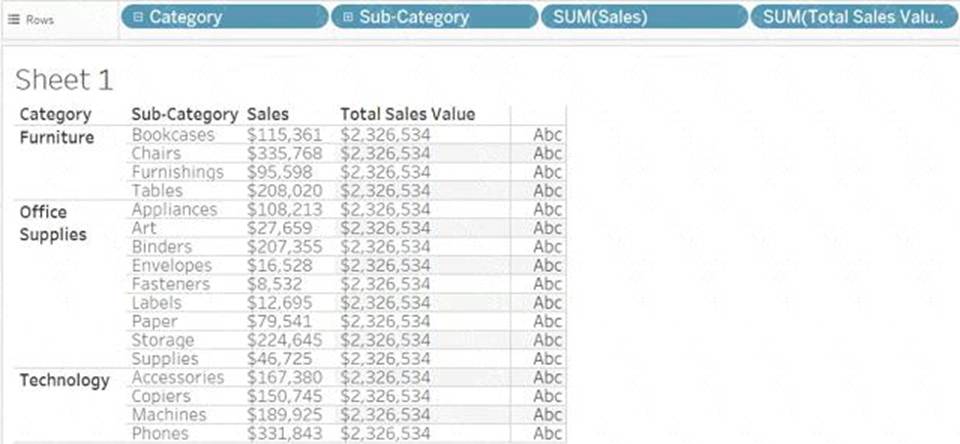
Which method will produce the output for the Total Sales Value field for all the categories shown in the table?
- A . Quick Table Calculation
- B . A Window Function
- C . Level of Detail (LOD) Calculation
- D . MAX() Function
C
Explanation
To calculate the Total Sales Value for all categories as displayed in the table, an LOD expression is ideal. An LOD calculation in Tableau allows you to compute values at the data level that is different from the view level. In this case, since the Total Sales Value appears consistent across different sub-categories within each category, an LOD expression can be used to fix the Total Sales Value irrespective of the sub-category detail. Here’s how to set it up:
– Go to the Calculations area by right-clicking in the data pane and selecting "Create Calculated Field".
– Enter a name for the calculation, such as "Total Sales Value".
– Enter the LOD expression: {FIXED [Category]: SUM([Sales])}. This calculation fixes the total sales to the category level, effectively summing sales for all sub-categories within each category, irrespective of how the data is broken down in the view.
– Drag this new calculated field into your visualization alongside the existing measures.
This method ensures that the Total Sales Value reflects the total for each category across all its sub-categories, matching the uniform values shown across different rows for each category in your table.
References: The explanation utilizes the concept of Level of Detail calculations in Tableau, which allows for advanced aggregations independent of the view level details. This concept is covered extensively in Tableau’s official documentation and relevant training materials such as Tableau’s online help resources.
A client has a published dashboard. They change the dashboard and then republish it. Now, users report that their web browser bookmarks to the dashboard are broken.
What are two possible causes for this issue? Choose two.
- A . New credentials were embedded into the data source.
- B . The dashboard was published to a different project.
- C . Tableau Server was upgraded.
- D . The dashboard was published with a new name.
B D
Explanation
When a client republishes a dashboard after making changes and users report broken bookmarks, the likely causes include:
– The dashboard was published to a different project: Changing the project location alters the URL path, causing bookmarks to point to a now non-existent dashboard location.
– The dashboard was published with a new name: Altering the dashboard’s name changes its URL, resulting in broken bookmarks as the previous URL no longer leads to the intended dashboard.
A consultant wants to improve the performance of reports by moving calculations to the data layer and materializing them in the extract.
Which calculation should the consultant use?
- A . ZN([Sales])*(1 – ZN([Discount]))
- B . CASE [Sector Parameter] WHEN 1 THEN "green" WHEN 2 THEN "yellow"
- C . SUM([Profit])/SUM([Sales])
- D . POWER(ZN(SUM([Sales]))/
LOOKUP(ZN(SUM([Sales])), FIRST()),ZN(1/(INDEX()-1)))
– 1 END
C
Explanation
To improve performance by moving calculations to the data layer and materializing them in the extract, the consultant should choose calculations that benefit from pre-computation and significantly reduce the load during query time:
Aggregation-Level Calculation: The formula SUM([Profit])/SUM([Sales]) calculates a ratio at an aggregate level, which is ideal for pre-computation. Materializing this calculation in the extract means that the complex division operation is done once and stored, rather than being recalculated every time the report is accessed.
Performance Improvement: By pre-computing this aggregate ratio, Tableau can utilize the pre-calculated fields directly in visualizations, which speeds up report loading and interaction times as the heavy lifting of data processing is done during the data preparation stage.
References:
Materialization in Extracts: This concept involves pre-calculating and storing complex aggregations or calculations within the Tableau data extract itself, improving performance by reducing the computational load during visualization rendering.
A client wants to produce a visualization to show quarterly profit growth and aggregated sales totals across a number of product categories from the data provided below.
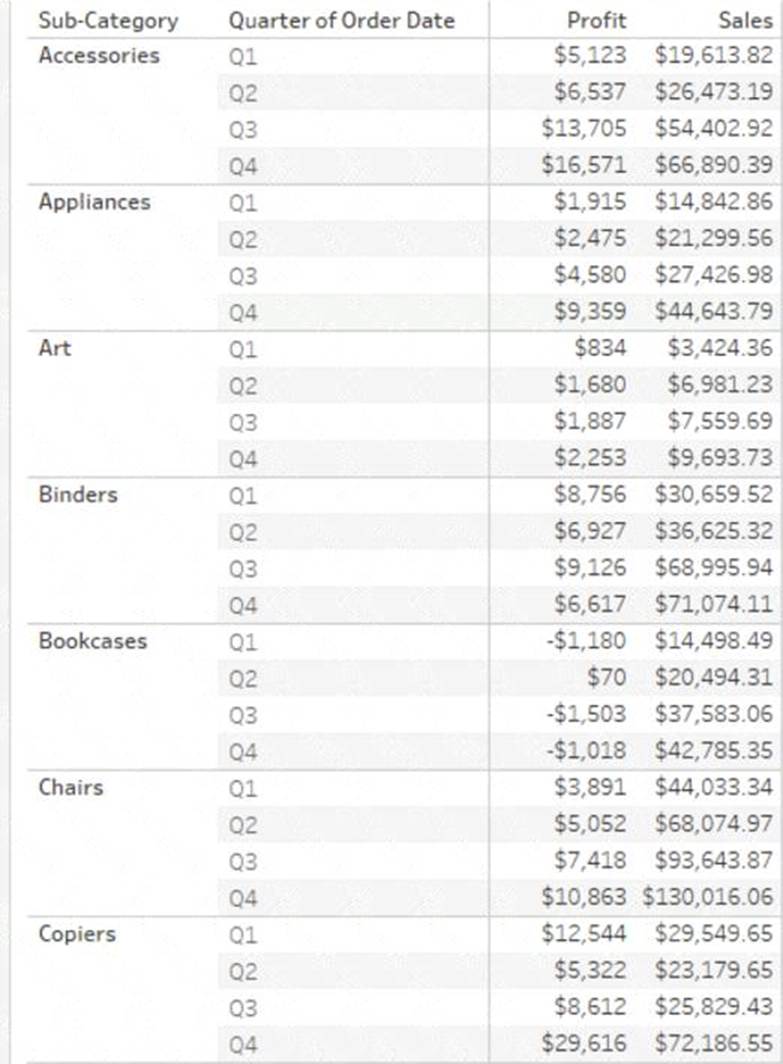
Which set of charts should the consultant use to meet the client’s requirements?
- A . Line and bubble charts
- B . Waterfall chart and tree map
- C . Gantt and bar charts
- D . Scatter plot and pie chart
B
Explanation
To effectively display quarterly profit growth and aggregated sales totals across different product categories, a combination of a Waterfall chart and a Tree Map is recommended:
– Waterfall Chart: This chart type is excellent for visualizing the sequential growth or decline of profits across different quarters for each sub-category. It clearly shows how profits accumulate over time, highlighting both positive and negative changes, which makes it ideal for tracking profit growth or decline through the quarters.
– Tree Map: A Tree Map can efficiently display aggregated sales totals where each block size represents the total sales of a product category, providing a quick, visually impactful comparison across categories. This is especially useful when the client wants to understand which categories contribute most to sales in a glanceable format.
Together, these charts provide a comprehensive overview of both profit trends over time (Waterfall Chart) and a comparative snapshot of sales performance across categories (Tree Map), meeting the client’s need to analyze performance dynamics in a detailed yet consolidated manner.
References: These recommendations are based on common best practices for data visualization in Tableau, where specific chart types are chosen for their strengths in communicating certain types of data relationships and dynamics, as detailed in Tableau’s official visualization guides.
A client requests a published Tableau data source that is connected to SQL Server. The client needs to leverage the multiple tables option to create an extract. The extract will include partial data from the SQL Server data source.
Which action will reduce the amount of data in the extract?
- A . Use an extract filter.
- B . Aggregate the extract to the visible dimensions.
- C . Define the filters by using custom SQL.
- D . Set up the extract as an incremental refresh.
A
Explanation
Using an extract filter is an effective way to reduce the amount of data in a Tableau extract. Extract filters allow you to specify a subset of the data to include, which can significantly decrease the size of the extract by excluding unnecessary data. This is particularly useful when you only need partial data from a larger SQL Server data source.
References: The recommendation to use extract filters to reduce data size is supported by Tableau’s best practices for optimizing extracts. These practices suggest keeping the extract’s data set short through filtering1.Additionally, discussions in the Tableau Community confirm that hiding fields and using extract filters before extracting data can help reduce the extract size2.
When dealing with large datasets in SQL Server and needing to create a manageable extract in Tableau, using an extract filter is the most direct and effective method to limit the data included:
– Extract Filter: This involves setting filters that apply directly when the data is extracted from the source. This means that only the data meeting the specified criteria will be extracted and loaded into Tableau, significantly reducing the size of the extract.
– To apply an extract filter, in the Data Source page in Tableau, drag the fields you want to filter by to the Filters shelf. Then, configure the desired filter criteria. When you create the extract, choose the option to "Add Filters to Extract" and select the configured filters. This ensures that only the data that meets these conditions is extracted from the SQL Server.
This approach not only minimizes the data volume but also speeds up performance in Tableau because it processes a smaller subset of the full dataset.
References: This procedure is described in detail in Tableau’s help documentation on managing extracts and optimizing performance by using extract filters, which is recommended for scenarios involving large datasets or when specific subsets of data are required for analysis.
A client wants to report Saturday and Sunday regardless of the workbook’s data source’s locale settings.
Which calculation should the consultant recommend?
- A . DATEPART(‘weekday’, [Order Date])>=6
- B . DATEPART(‘iso-weekday’, [Order Date])>=6
- C . DATENAME(‘iso-weekday’, [Order Date])>=6
- D . DATEPART(‘iso-weekday’, [Order Date])=1 or DATEPART(‘iso-weekday’, [Order Date])=7
D
Explanation
The calculation DATEPART (‘iso-weekday’, [Order Date])=1 or DATEPART(‘iso-weekday’, [Order Date])=7is recommended because the ISO standard considers Monday as the first day of the week (1) and Sunday as the last day (7). This calculation will correctly identify Saturdays and Sundays regardless of the locale settings of the workbook’s data source, ensuring that the report includes these days as specified by the client.
References: The use of the ‘iso-weekday’ part in the DATEPART function is consistent with the ISO 8601 standard, which is independent of locale settings. This approach is supported by Tableau’s documentation on date functions and their behavior with different locale settings123.
To accurately identify weekends across different locale settings, using the ‘iso-weekday’ component is reliable as it is consistent across various locales:
ISO Weekday Function: The ISO standard treats Monday as the first day of the week (1), which makes Sunday the seventh day (7). This standardization helps avoid discrepancies in weekday calculations that might arise due to locale-specific settings.
Identifying Weekends: The calculation checks if the ‘iso-weekday’ part of the date is either 1 (Sunday) or 7 (Saturday), thereby correctly identifying weekends regardless of the locale settings.
References:
Handling Locale-Specific Settings: Using ISO standards in date functions allows for uniform results across systems with differing locale settings, essential for consistent reporting in global applications.
From the desktop, open the CC workbook.
Open the Manufacturers worksheet.
The Manufacturers worksheet is used to analyze the quantity of items contributed by each manufacturer.
You need to modify the Percent Contribution calculated field to use a Level of Detail (LOD) expression that calculates the percentage contribution of each manufacturer to the total quantity.
Enter the percentage for Newell to the nearest hundredth of a percent into the Newell % Contribution parameter.
From the File menu in Tableau Desktop, click Save.
– Open the CC Workbook and Access the Worksheet:
– Double-click on the CC workbook from the desktop to open it in Tableau Desktop.
– Navigate to the Manufacturers worksheet by selecting its tab at the bottom of the window.
– Modify the Percent Contribution Calculated Field:
– Navigate to the Data pane and find the "Percent Contribution" calculated field.
– Right-click on the "Percent Contribution" field and select ‘Edit’.
– Modify the formula to incorporate an LOD expression that calculates the total quantity across all manufacturers and the specific quantity per manufacturer:
{FIXED [Manufacturer]: SUM([Quantity])} / {SUM([Quantity])} Quantity])}
– This formula uses {FIXED [Manufacturer]: SUM([Quantity])}to compute the total quantity contributed by each manufacturer, regardless of other dimensions in the view. The total quantity {SUM([Quantity])} calculates the grand total across all manufacturers. The division calculates the percentage contribution.
– Click ‘OK’ to save the updated calculated field.
– Enter Percentage for Newell:
– With the updated "Percent Contribution" field, drag it onto the view to update the chart or table.
– Identify the value corresponding to ‘Newell’ in the updated visualization.
– Round this value to the nearest hundredth of a percent as required.
– Enter this value into the "Newell % Contribution" parameter. To do this, locate the parameter in the Data pane or on the dashboard, right-click it, and choose ‘Edit’. Enter the calculated percentage for Newell.
– Save Your Changes:
– From the File menu, click ‘Save’ to store all the modifications you have made to the workbook.
References:
– Tableau Help: Offers detailed guidance on using LOD expressions for precise and context-independent aggregations.
– Tableau Desktop User Guide: Provides comprehensive instructions on managing calculated fields and parameters, ensuring accurate data analysis.
By following these steps, you will have successfully updated the calculation for percent contribution using LOD expressions, providing a more accurate analysis of each manufacturer’s contribution to the total quantity. Moreover, updating the parameter with Newell’s specific contribution rounds out the task by reflecting precise data inputs for reporting or further analysis.
A client collects information about a web browser customers use to access their website. They then visualize the breakdown of web traffic by browser version.
The data is stored in the format shown below in the related table, with a NULL BrowserID stored in the Site Visitor Table if an unknown browser version accesses their website.
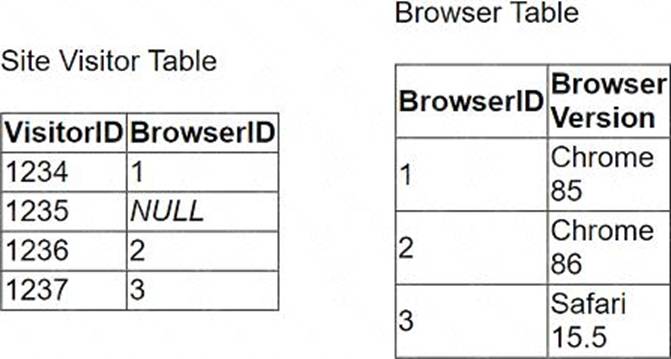
The client uses "Some Records Match" for the Referential Integrity setting because a match is not guaranteed. The client wants to improve the performance of the dashboard while also getting an accurate count of site visitors.
Which modifications to the data tables and join should the consultant recommend?
- A . Continue to use NULL as the BrowserID in the Site Visitor Table and leave the Referential Integrity set to "Some Records Match."
- B . Add an "Unknown" option to the Browser Table, reference its BrowserID in the Site Visitor Table, and change the Referential Integrity to "All
Records Match." - C . Add an "Unknown" option to the Browser Table, reference its BrowserID in the Site Visitor Table, and leave the Referential Integrity set to
"Some Records Match." - D . Continue to use NULL as the BrowserID in the Site Visitor Table and change the Referential Integrity to "All Records Match."
B
Explanation
To improve the performance of a Tableau dashboard while maintaining accurate counts, particularly when dealing with unknown or NULL BrowserIDs in the data tables, the following steps are recommended:
Modify the Browser Table: Add a new row to the Browser Table labeled "Unknown," assigning it a unique BrowserID, e.g., 0 or 4.
Update the Site Visitor Table: Replace all NULL BrowserID entries with the BrowserID assigned to the "Unknown" entry. This ensures every record in the Site Visitor Table has a valid BrowserID that corresponds to an entry in the Browser Table.
Change Referential Integrity Setting: Change the Referential Integrity setting from "Some Records Match" to "All Records Match." This change assumes all records in the primary table have corresponding records in the secondary table, which improves query performance by allowing Tableau to make optimizations based on this assumption.
References:
Handling NULL Values: Replacing NULL values with a valid unknown option ensures that all data is included in the analysis, and integrity between tables is maintained, thereby optimizing the performance and accuracy of the dashboard.
A client is using Tableau to visualize data by leveraging security token-based credentials. Suddenly, sales representatives in the field are reporting that they cannot access the necessary workbooks. The client cannot recreate the error from their offices, but they have seen screenshots from the field agents. The client wants to restore functionality for the field agents with minimal disruption.
Which step should the consultant recommend to accomplish the client’s goal?
- A . Ensure that "Allow Refresh Access" was checked when the data source was published.
- B . Change the data source permissions for the connection to "Prompt User."
- C . Ask the workbook owners to republish the workbooks to refresh the security token.
- D . Renew the security token via the Data Connection on Tableau Server.
D
Explanation
When field agents are unable to access workbooks due to issues with security token-based credentials, the most immediate and least disruptive solution is to renew the security token. This can be done through the Data Connection settings on Tableau Server. Renewing the token will restore access for the field agents without requiring them to take any action or affecting other users.
References: The use of personal access tokens (PATs) in Tableau and the procedure for renewing them are documented in Tableau’s official resources. It is noted that PATs are long-lived authentication tokens that can be revoked and renewed to manage access securely1.Additionally, there have been discussions in the Tableau Community regarding issues with concurrent PAT access, which further supports the need to manage tokens effectively2.
A consultant is designing a dashboard that will be consumed on desktops, tablets, and phones. The consultant needs to implement a dashboard design that provides the best user experience across all the platforms.
Which approach should the consultant take to achieve these results?
- A . Build one dashboard that has desktop, tablet, and phone layouts, and fix the size of the layouts.
- B . Build one dashboard and fix the size of the dashboard.
- C . Build one dashboard and set the size to Automatic.
- D . Build one dashboard for each type of device and fix the size of the layouts.
A
Explanation
For a consultant designing a dashboard to be consumed across multiple device types, the best approach is:
– Multi-device Layout: Tableau provides the capability to design device-specific layouts within a single dashboard. This feature allows the dashboard to adapt its layout to best fit the screen size and orientation of desktops, tablets, and phones.
– Fixed Size Layouts: By fixing the size of each layout, the consultant can ensure that the dashboard appears consistent and maintains the intended design elements and user experience across devices. Fixed sizes prevent components from resizing in ways that could disrupt the dashboard’s readability or functionality.
– Implementation: In Tableau, you can create these layouts by selecting ‘Device Preview’ and adding custom layouts for each device type. Here, you define the dimensions and the positioning of sheets and controls tailored to each device’s typical viewing mode.
References: This approach leverages Tableau’s device designer capabilities, which are specifically designed to optimize dashboards for multiple viewing environments, ensuring a seamless user experience regardless of the device used. This functionality is well documented in Tableau’s official guides on creating and managing device-specific dashboards.