
Nutanix NCP-MCA Practice Exams
Last updated on Oct 06,2026- Exam Code: NCP-MCA
- Exam Name: Nutanix Certified Professional - Multicloud Automation (NCP-MCA) 6 Exam
- Certification Provider: Nutanix
- Latest update: Oct 06,2026
Prism Central reporting indicates that there are multiple memory-constrained VMs in multiple clusters. The target VMs have Memory Hot Add enabled.
Using X-Play, in what order should the Playbook actions be added to ensure the VMs are properly remediated?
- A . VM add Memory, Take a VM Snapshot, Resolve Alert
- B . Take a VM Snapshot, Power Off VM, VM Add Memory, Resolve Alert, Power on VM
- C . Take a VM Snapshot, VM add Memory, Resolve Alert
- D . Power off VM, Take a VM Snapshot, VM add Memory, Resolve Alert
C
Explanation:
To ensure the VMs are properly remediated, the Playbook actions should be added in the following order: Take a VM Snapshot, VM add Memory, Resolve Alert. This is because Memory Hot Add allows the administrator to increase the memory allocation of a running VM without powering it off. Taking a VM snapshot before adding memory provides a backup point in case of any issues. Resolving the alert after adding memory clears the notification and updates the status of the VM. Powering off the VM is not necessary and may cause downtime or disruption to the applications running on the VM.
Reference: Nutanix Certified Professional – Multicloud Automation (NCP-MCA) Exam Blueprint Guide, page 11; Nutanix Calm SaaS User Guide, section 4.2.3.
An administrator has a vendor-provided script that must be run at 9 am every Saturday on a Linux application VM.
The administrator currently has a playbook that has a Time trigger and a VM SSH action to execute the script. However, the administrator has received a request to have the output of the script emailed to the application team when it is executed.
What is the easiest way to satisfy this request?
- A . Modify the script to include a function to format the output of the script and email the output to the desired address.
- B . Add an Email action to the end of the existing playbook and use the {{action [index].response_body}} parameter in the Message field.
- C . Direct the output of the script to a file and use the Send Email with Payload action at the end of your existing playbook.
- D . Add an Email action to the end of the existing playbook and use the {{action[index] .stdout}} parameter in the Message field.
D
Explanation:
The easiest way to satisfy the request is to add an Email action to the end of the existing playbook and use the {{action[index] .stdout}} parameter in the Message field. This way, the administrator does not need to modify the script or create a file to store the output. The {{action[index] .stdout}}
parameter will capture the standard output of the previous action, which is the VM SSH action that executes the script. The Email action will then send the output as the message body to the specified recipients.
Reference: You can find more information about this topic in the following sources:
Nutanix Certified Professional – Multicloud Automation (NCP-MCA) Exam Blueprint Guide, Section 3 – Validate Blueprints, Runbooks, Playbooks, and Automation Settings, page 10
Nutanix Multicloud Automation Administration (NMCAA), Module 4 – X-Play, Lesson 2 – Playbooks, page 4-11
An administrator manages a Nutanix cluster with 630 VMs, all of which are in production.
The Accounting department wants to be notified when any of their production VMs exceed 90% CPU usage or 90% memory usage. Their VMs are categorized as LOB:Accounting.
How should the administrator satisfy this request from the Accounting department?
- A . Direct the VM users to generate alerts within the affected VMs.
- B . Create a dashboard in Prism Central with the CPU Usage.
- C . Create a category named Department with the value Accounting.
- D . Create an Alert with the Accounting category assigned.
D
Explanation:
Alerts are a way of monitoring the health and performance of the Nutanix cluster and the VMs running on it. Alerts can be triggered by various metrics, such as CPU usage, memory usage, disk space, network traffic, etc. Alerts can also be configured to send notifications to the administrator or other recipients via email, Slack, PagerDuty, etc. To satisfy the request from the Accounting department, the administrator should create an Alert with the following settings: Trigger: CPU Usage (%) > 90 OR Memory Usage (%) > 90 Scope: VM
Category: LOB:Accounting
Notification: Email to [email protected] This way, the Alert will only apply to the VMs that belong to the Accounting department, and will send an email notification to the Accounting department when any of their VMs exceed the specified thresholds.
Reference: Nutanix Multicloud Automation Administration (NMCAA), page 9; Nutanix Certified Professional – Multicloud Automation (NCP-MCA), section 1; [Nutanix Prism Central Guide – Alerts]
Reference: https://portal.nutanix.com/page/documents/details?targetId=Prism-Central-Guide-Prism-v6_0:ale-alert-health-toc-auto-u.html
An administrator at a busy software development company is looking to roll out Calm for automation and estimates they will be creating 200 Projects, 500 Runbooks, 1500 Blueprints and automating the deployment of 7500 VMs for their development teams.
What size of Prism Central VM(s) is recommended to host the Calm environment?
- A . 3 nodes Large – 10vCPU and 52GB Memory per node.
- B . 1 node Small – 6vCPU and 30GB Memory per node.
- C . 3 nodes Small – 6vCPU and 30GB Memory per node.
- D . 1 node Large – 10vCPU and 52GB Memory per node.
A
Explanation:
According to the Nutanix Multicloud Automation Administration (NMCAA) course, the recommended
Prism Central VM size depends on the number of VMs that are managed by Calm and the number of
concurrent users. For a large-scale environment with more than 5000 VMs and more than 100
concurrent users, the recommended size is 3 nodes Large – 10vCPU and 52GB Memory per node1.
This size provides enough resources for the Prism Central cluster to handle the workload and
performance requirements of Calm.
Reference: Nutanix Multicloud Automation Administration (NMCAA) course, Module 2: Nutanix Calm
Installation and Configuration, Lesson 2: Nutanix Calm Installation and Configuration2
Nutanix Certified Professional – Multicloud Automation (NCP-MCA) v6.5 Exam Blueprint Guide, Section 2: Deploy and Configure Self-service and Related Components, Objective 2.2: Identify required configuration settings for a Self-Service deployment3 Scaling out Prism Central | Nutanix Community1
Reference: https://portal.nutanix.com/page/documents/solutions/details?targetId=Nutanix_Hybrid_Cloud_Reference_Architecture:Nutanix_Hybrid_Cloud_Reference_Architecture
What should be done to scale out an existing Calm environment?
- A . Create new prism Central Scale-Out VMS end enable Calm within the GUI,
- B . Back up the data and create three Calm VMS from the Calm VM QCOW2 image.
- C . Run cluster destroy on the VM that will be the master Calm VM.
- D . Beck up the data and create three Calm VMS from the Calm VM OVA template.
D
Explanation:
According to the Nutanix Calm documentation1, to scale out an existing Calm environment, the administrator needs to back up the data and create three Calm VMs from the Calm VM OVA template. The administrator then needs to configure the Calm VMs as a cluster and restore the data from the backup. The other options are incorrect because they either do not use the correct image format, do not create a cluster of Calm VMs, or destroy the existing Calm VM.
Reference: 1 Nutanix Calm User Guide: Scaling Out the Calm Cluster2
An administrator would like to be notified each time a subset of VMS within the Environment: Dev category is restored from snapshot.
Which trigger should the administrator use to satisfy this requirement?
- A . Event, where event type is Restored VM from Snapshot and Target VM is the specific VMS.
- B . Event, where the event is Snapshot Restoration, and the Target VM is VMS in Environment: Dev
- C . Alerts Matching Criteria. where alert type is Snapshot Restoration, and the criteria is the VM names.
- D . Alert. where alert type is Restored VM from Snapshot and target VM Category is Environment: Dev
B
Explanation:
An event trigger is a type of trigger that can be used to execute a playbook when a specific event occurs in the Nutanix platform. An event trigger can be configured with various parameters, such as the event type, the target VM, the target VM category, the target project, and the target user. In this scenario, the administrator wants to be notified when a subset of VMs within the Environment: Dev category is restored from snapshot.
Therefore, the event trigger should have the following parameters:
Event type: Snapshot Restoration. This is the event that indicates a VM has been restored from a snapshot.
Target VM: VMS in Environment: Dev. This is the filter that specifies which VMs are relevant for the trigger. By selecting VMS in Environment: Dev, the trigger will only apply to the VMs that belong to the Environment: Dev category.
Other parameters: These can be left as default or customized as needed.
Reference: Nutanix Multicloud Automation Administration (NMCAA) Course, Module 3: X-Play, Lesson 3.2:
Creating and Managing Playbooks, Slide 13: Event Trigger
Nutanix Certified Professional – Multicloud Automation (NCP-MCA) Exam Blueprint Guide, Section 3: Validate Blueprints, Playbooks, and Automation Settings, Objective 3.1: Determine the causes of a Playbook execution failure
Refer to the exhibit.
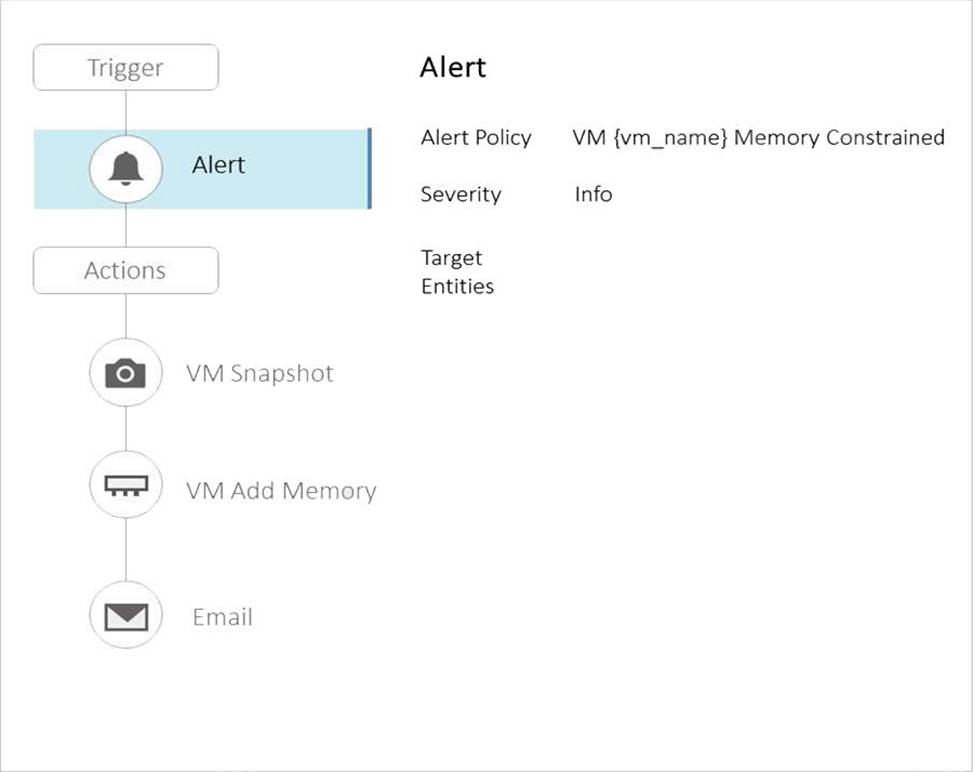
The VM appSAP01dev is a SAP development environment application and it is common to have memory constrained alerts on this VM, but the administrator wants to avoid adding memory to development VMs like this one, since this is normally done for only production VMs.
Which two actions should the administrator take to avoid adding memory to the development VMs? (Choose two.)
- A . Assign the category Environment:Production to the production VMs
- B . Modify the Alert by adding the correct category
- C . Disable the Alert in Prism Central
- D . Assign the category Environment:Development to development VMs
B, D
Explanation:
The administrator should modify the alert by adding the correct category and assign the category Environment: Development to development VMs. By doing this, they can filter out alerts for development VMs that are expected to have memory constrained alerts and focus on those that are critical, such as production VMs. This is based on the general practices in managing alerts in a multicloud environment, as well as the specific features and requirements of Nutanix Calm and Prism Central.
Reference: How to create custom alert policies | Prism central | Nutanix Community
Nutanix Certified Professional – Multicloud Automation (NCP-MCA) v6.5 Exam Blueprint Guide,
Section 3: Validate Blueprints, Runbooks, Playbooks, and Automation Settings, Objective 3.1:
Determine the causes of a Blueprint or Runbook deployment failure
Nutanix Multicloud Automation Administration (NMCAA) course, Module 4: Nutanix Calm
Governance, Lesson 1: Nutanix Calm Governance
When creating a blueprint, which Pre-create and Post-delete tasks are valid?
- A . Create, Start, Stop, Delete
- B . Execute, Set variable, HTTP, Delay
- C . Create, Start, Stop, Soft Delete
- D . Execute, Set variable, API, Delay
B
Explanation:
Pre-create and Post-delete tasks are actions that can be performed before creating or after deleting a blueprint deployment. They can be used to integrate with external systems, set variables, or add delays. The valid tasks are Execute, Set variable, HTTP, and Delay. Create, Start, Stop, and Delete are not valid tasks, as they are part of the deployment lifecycle, not the pre-create or post-delete actions.
Reference: Nutanix Certified Professional – Multicloud Automation (NCP-MCA) Exam Blueprint Guide, page 10; Nutanix Multicloud Automation Administration (NMCAA) Course, Module 5: Blueprints.
Reference: https://portal.nutanix.com/page/documents/details?targetId=Nutanix-Calm-Admin-Operations-Guide-v3_2_7:nuc-pre-create-task-overview-c.html
An administrator is tasked with creating a blueprint that can scale an application using Calm.
Which two actions should the administrator take to create and execute a scaling action? (Choose two.)
- A . Execute the scaling action in the Manage tab of the application.
- B . Execute the scaling action in the Services tab of the application.
- C . Create the action under the service profile section of the blueprint.
- D . Create the action under the application profile section of the blueprint.
C D
Explanation:
To create and execute a scaling action using Calm, the administrator should create the action under the service profile section of the blueprint and the application profile section of the blueprint. The service profile section defines the properties and actions of each service in the blueprint, such as the VM configuration, the scripts to run, and the scaling parameters. The application profile section defines the properties and actions of the entire application, such as the number of instances, the dependencies, and the scaling triggers. The administrator can then execute the scaling action in the Overview tab or the Services tab of the application, depending on the scope of the scaling action.
Reference:
Nutanix Certified Professional – Multicloud Automation, Page 18
Nutanix Calm User Guide
Nutanix Calm User Guide
Nutanix Calm User Guide
Nutanix Calm User Guide
An administrator has Playbook that continues to fail with this error: failed to execute action with error: Internal Error, Maximum Memory size limit reached.
What action are required to resolve the issue?
- A . update the Playbook action to increase the memory limit.
- B . VM is already running with maximum allowed configuration,
- C . VM average memory utilization is less than 50%
- D . Migrate the VM to host with Sufficient free memory.
A
Explanation:
A Playbook action has a default memory limit of 256 MB, which can be increased up to 1024 MB in the advanced settings of the action. If the action requires more memory than the limit, it will fail with the error message “Internal Error, Maximum Memory size limit reached”. To resolve this issue, the administrator can edit the action and increase the memory limit to a suitable value, depending on the complexity and requirements of the action.
Reference: Nutanix Multicloud Automation Administration (NMCAA) Course, Module 3: X-Play, Lesson 3.3:
Creating and Managing Playbooks, Slide 19: Action Settings
Nutanix Certified Professional – Multicloud Automation (NCP-MCA) Exam Blueprint Guide, Section 3: Validate Blueprints, Playbooks, and Automation Settings, Objective 3.3: Determine the correct method to validate required Playbook configurations