
Netskope NSK200 Practice Exams
Last updated on Oct 21,2026- Exam Code: NSK200
- Exam Name: Netskope Certified Cloud Security Integrator (NCCSI)
- Certification Provider: Netskope
- Latest update: Oct 21,2026
Your customer has some managed Windows-based endpoints where they cannot add any clients or agents. For their users to have secure access to their SaaS application, you suggest that the customer use Netskope’s Explicit Proxy.
Which two configurations are supported for this use case? (Choose two.)
- A . Endpoints can be configured to directly use the Netskope proxy.
- B . Endpoints must have separate steering configurations in the tenant settings.
- C . Endpoints must be configured in the device section of the tenant to interoperate with all proxies.
- D . Endpoints can be configured to use a Proxy Auto Configuration (PAC) file.
AD
Explanation:
For the use case of managed Windows-based endpoints where no clients or agents can be added, you can suggest that the customer use Netskope’s Explicit Proxy. Explicit Proxy is a method for steering traffic from any device to the Netskope Cloud using a proxy server. There are two supported configurations for this use case: Endpoints can be configured to directly use the Netskope proxy by setting the proxy settings in the browser or the operating system to point to the explicit proxy destination provided by Netskope. Endpoints can be configured to use a Proxy Auto Configuration (PAC) file by downloading a PAC file template from Netskope and modifying it according to the customer’s needs. The PAC file can be hosted on-premises or on the cloud and distributed to the endpoints. The other options are not valid for this use case. Endpoints do not need separate steering configurations in the tenant settings, as they can use the same explicit proxy destination and port. Endpoints do not need to be configured in the device section of the tenant to interoperate with all proxies, as this is only required for reverse proxy mode.
Reference: Explicit Proxy3, [Explicit Proxy over IPSec and GRE Tunnels]
Review the exhibit.
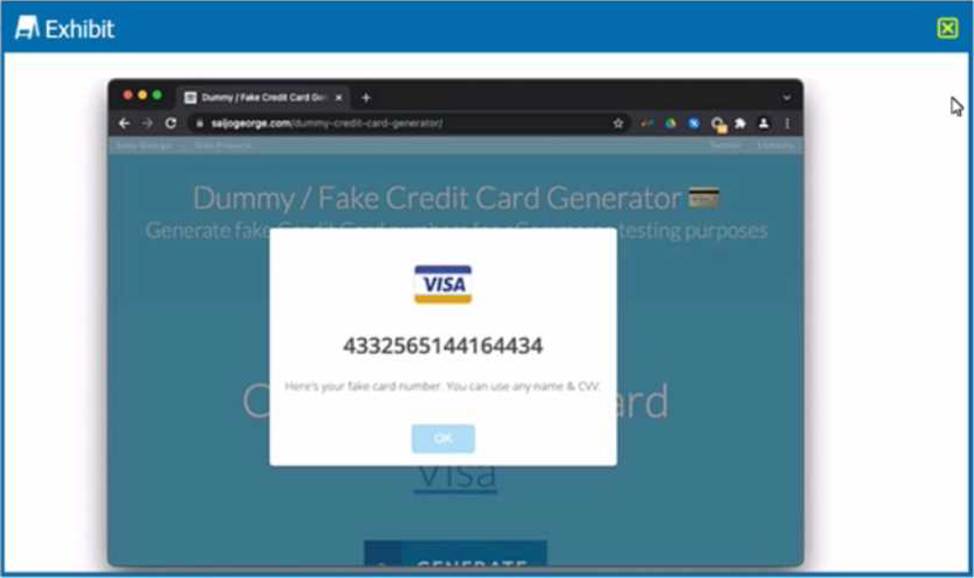
You are asked to create a DLP profile that will ensure that the data shown in the exhibit cannot be uploaded to a user’s personal Google Drive.
What must be used to accomplish this task?
- A . document fingerprinting
- B . ML image classifier
- C . optical character recognition
- D . INTL-PAN-Name rule
C
Explanation:
To create a DLP profile that will ensure that the data shown in the exhibit cannot be uploaded to a user’s personal Google Drive, you need to use optical character recognition (OCR). OCR is a feature that allows you to detect and extract text from images and scanned documents. You can use OCR in your DLP profiles to identify sensitive data that is embedded or hidden in images1. In the exhibit, we can see that the data is a credit card number, which is a type of sensitive data that can be easily identified by OCR. You can create a DLP profile that uses OCR and matches the credit card number data identifier or a custom regex expression. You can then apply an action such as block, alert, or quarantine to prevent the data from being uploaded to Google Drive2. Therefore, option C is correct and the other options are incorrect.
Reference: Optical Character Recognition (OCR) – Netskope Knowledge Portal, Add a Policy for Data Protection – Netskope Knowledge Portal
What are three methods to deploy a Netskope client? (Choose three.)
- A . Deploy Netskope client using SCCM.
- B . Deploy Netskope client using REST API v2.
- C . Deploy Netskope client using email invite.
- D . Deploy Netskope client using REST API v1.
- E . Deploy Netskope client using IdP.
ACE
Explanation:
Three methods to deploy a Netskope client are A. Deploy Netskope client using SCCM, C. Deploy Netskope client using email invite, and E. Deploy Netskope client using IdP. These are some of the methods that Netskope supports for packaging and installing the Netskope client on the user’s device1. SCCM is a Microsoft tool that allows you to push the Netskope client silently to the user’s device without requiring user intervention or local admin privileges2. Email invite is a method that sends an email to the user with a unique link to download and install the Netskope client. This method is quick and easy, but requires the user to initiate the installation and have local admin privileges3. IdP is a method that uses an identity provider (such as Azure AD or Okta) to authenticate the user and enroll the Netskope client. This method requires the UPN of the logged in user to match the directory, or use SAML/SSO as an alternative4. Therefore, options A, C, and E are correct and the other options are incorrect.
Reference: Deploy the Netskope Client – Netskope Knowledge
Portal, Deploying with Microsoft Endpoint Configuration Manager / SCCM – Netskope Knowledge Portal, Deploying with Email Invite – Netskope Knowledge Portal, Deploying with IdP – Netskope Knowledge Portal
Review the exhibit.
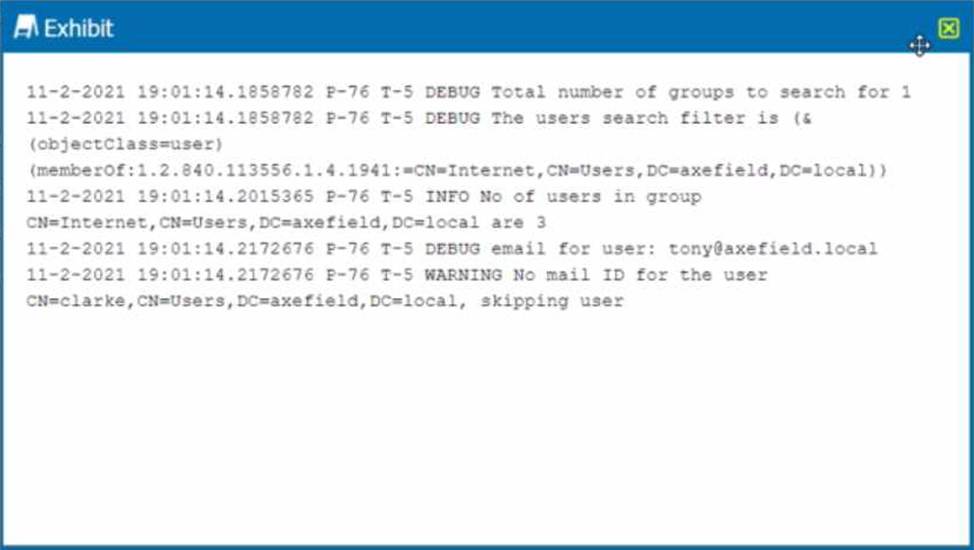
You are troubleshooting a Netskope client for user Clarke which remains in a disabled state after being installed. After looking at various logs, you notice something which might explain the problem. The exhibit is an excerpt from the nsADImporterLog.log.
Referring to the exhibit, what is the problem?
- A . The client was not Installed with administrative privileges.
- B . The Active Directory user is not synchronized to the Netskope tenant.
- C . This is normal; it might take up to an hour to be enabled.
- D . The client traffic is decrypted by a network security device.
B
Explanation:
The problem is
B. The Active Directory user is not synchronized to the Netskope tenant. This is evident from the log message “WARNING No mail ID for the user: Clarke, Daxmeifield, DC=local, skipping use”. This means that the user Clarke does not have a valid email address in the Active Directory, which is required for the Netskope client to work. The Netskope client uses the email address of the user to authenticate and enable the client. Therefore, option B is correct and the other options are incorrect.
You are deploying a Netskope client in your corporate office network. You are aware of firewall or proxy rules that need to be modified to allow traffic.
Which two statements are true in this scenario? (Choose two.)
- A . You need to allow TLS 1.1 traffic to pass through the firewalls from the users’ IP to all destinations.
- B . You must enable SSL decryption in the proxy to inspect the Netskope tunnel.
- C . It is recommended to allow UDP port 443 to the Netskope IP ranges to allow DTLS.
- D . You need to allow TCP port 443 to the Netskope IP ranges or domains.
CD
Explanation:
Allowing UDP port 443 is recommended to support DTLS, which enhances performance over the Netskope tunnel. TCP port 443 must also be allowed as it is essential for secure HTTPS connections used by Netskope services.
The director of IT asks for confirmation If your organization’s Web traffic would be blocked when the Netskope client fails.
In this situation, what would confirm the fail close status?
- A . Perform a right-click on the Netskope client icon using your mouse.
- B . Review the nsdebuglog.log.
- C . View Application events.
- D . Review user settings.
B
Explanation:
The method that would confirm the fail close status is B. Review the nsdebuglog.log. The nsdebuglog.log is a log file that contains information about the Netskope client’s status, configuration, events, errors, etc. You can review the nsdebuglog.log file to confirm the fail close status by looking for a line that says “failCloseStatus”:“1”. This indicates that the fail close option is enabled for the Netskope client4. The fail close option is a feature that allows you to block all web traffic when the Netskope client fails or loses connection to the Netskope cloud5. Therefore, option B is correct and the other options are incorrect.
Reference: Troubleshooting Netskope Client – Netskope Knowledge Portal, Client Configuration – Netskope Knowledge Portal
Your customer is using a virtual desktop infrastructure (VDI) for their support engineers. Multiple users will be logging into the same device, and they want to detect activities for each user.
- A . Install Netskope client in default mode and enable DTLS.
- B . Install Netskope client and create a separate steering configuration for each user.
- C . Install Netskope client in peruserconfig mode.
- D . Install Netskope client and create a separate device configuration for each user.
C
Explanation:
Installing the Netskope client in "peruserconfig" mode allows for user-specific configurations on shared devices like those in a VDI environment. This mode enables Netskope to detect and report activities separately for each user, even if multiple users are logged into the same device.
Your IT organization is migrating its user directory services from Microsoft Active Directory to a cloud-based Identity Provider (IdP) solution, Azure AD. You are asked to adapt the Netskope user provisioning process to work with this new cloud-based IdP.
- A . Directory Importer
- B . Microsoft GPO
- C . SCIMApp
- D . Manual Import
C
Explanation:
The SCIMApp integration is the best choice for Azure AD as it allows for seamless user provisioning between cloud-based IdPs and Netskope. SCIM (System for Cross-domain Identity Management) is a standard for automating user provisioning and works effectively with cloud IdPs like Azure AD.
Review the exhibit.
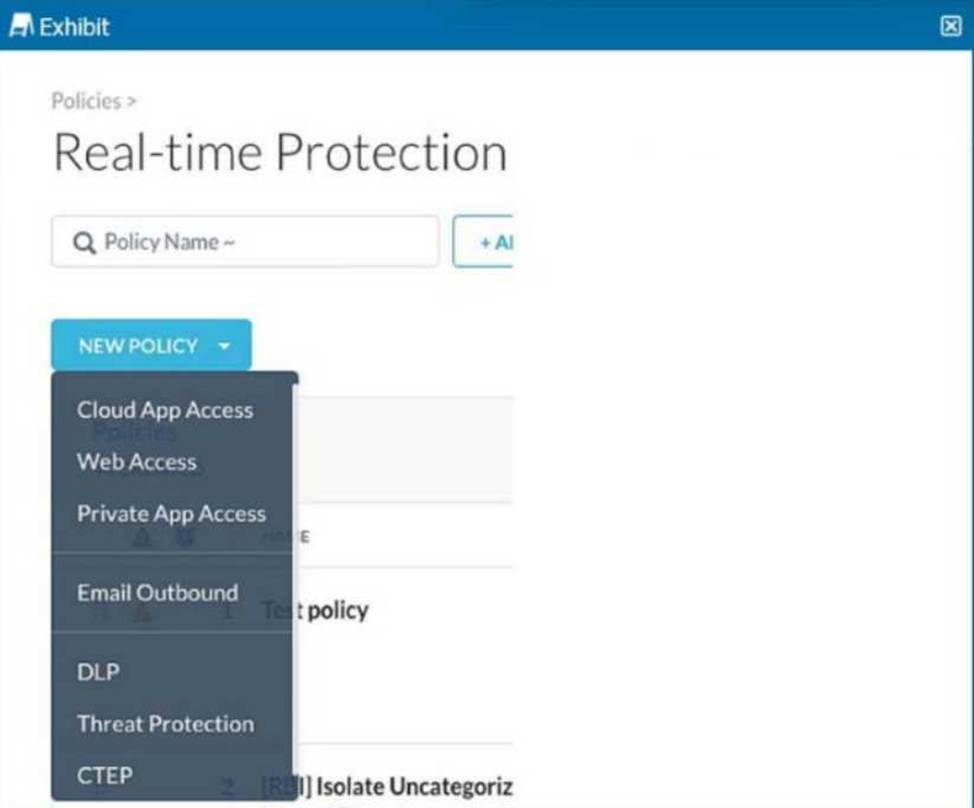
You are asked to create a new Real-time Protection policy to scan SMTP emails using data loss prevention (DLP) for personal health information (PHI). The scope is limited to only emails being sent from Microsoft Exchange Online to outside recipients.
- A . Web Access policy
- B . Email Outbound policy
- C . CTEP policy
- D . DLP policy
B
Explanation:
An "Email Outbound" policy is specifically designed to apply data loss prevention controls on
outbound emails, such as SMTP traffic from Exchange Online. This policy type enables granular control over outbound email content, ensuring compliance with DLP policies for PHI data.
You notice that your Netskope client icon has a red dot and see "Disabled due to error" when hovering the mouse over the icon.
What are two reasons for this message? (Choose two.)
- A . The client service is manually stopped.
- B . The steering exceptions are incorrect.
- C . The client health check has failed.
- D . The client traffic is directed over iPsec.
AC
Explanation:
Two reasons for the message “Disabled due to error” when hovering the mouse over the Netskope client icon are A. The client service is manually stopped and C. The client health check has failed. The client service is a background process that runs the Netskope client on the user’s device and communicates with the Netskope cloud. If the client service is manually stopped by the user or by another program, the Netskope client will be disabled and show a red dot on the icon1. The client health check is a feature that monitors the status of the Netskope client and performs self-repair actions if any issues are detected. If the client health check has failed, it means that the Netskope client has encountered a critical error that cannot be fixed automatically, such as corrupted files or registry entries. In this case, the Netskope client will be disabled and show a red dot on the icon2. Therefore, options A and C are correct and the other options are incorrect.
Reference: Troubleshooting Netskope Client – Netskope Knowledge Portal, Client Health Check – Netskope Knowledge Portal