
Netskope NSK101 Practice Exams
Last updated on Oct 22,2026- Exam Code: NSK101
- Exam Name: Netskope Certified Cloud Security Administrator (NCCSA)
- Certification Provider: Netskope
- Latest update: Oct 22,2026
You want to use an out-of-band API connection into your sanctioned Microsoft 365 OneDrive for Business application to find sensitive content, enforce near real-time policy controls, and quarantine malware.
In this scenario, which primary function in the Netskope platform would you use to connect your application to Netskope?
- A . DLP forensics
- B . Risk Insights
- C . laaS API-enabled Protection
- D . SaaS API-enabled Protection
D
Explanation:
SaaS API-enabled Protection is a primary function in the Netskope platform that allows customers to connect their sanctioned SaaS applications to Netskope using out-of-band API connections. This enables customers to find sensitive content, enforce near real-time policy controls, and quarantine malware in their SaaS applications without affecting user experience or performance. If you want to use an out-of-band API connection into your sanctioned Microsoft 365 OneDrive for Business application to achieve these goals, you should use SaaS API-enabled Protection as the primary function in the Netskope platform. DLP forensics, Risk Insights, and IaaS API-enabled Protection are not primary functions in the Netskope platform that can be used to connect your application to Netskope.
Reference: [Netskope SaaS API-enabled Protection].
What are two supported ways to provision users to your customer’s Netskope tenant? (Choose two.)
- A . Use Microsoft Intune.
- B . Use the AD Connector.
- C . Use SCIM.
- D . Use the Directory Importer.
B, C
Explanation:
AD Connector:
The AD Connector is used to integrate your Netskope tenant with Active Directory (AD) to provision and synchronize user accounts.
It ensures that user information in Netskope is always up-to-date by periodically synchronizing with AD.
To set up the AD Connector:
Navigate to Settings > Tools > Directory Importer.
Configure the AD Connector with your AD details.
Set the synchronization schedule.
This method is commonly used in enterprise environments where AD is the primary user directory.
SCIM (System for Cross-domain Identity Management):
SCIM is an open standard for automating the exchange of user identity information between identity domains or IT systems.
Netskope supports SCIM for provisioning users from identity providers like Okta, Azure AD, and others.
To configure SCIM:
Go to Settings > Tools > SCIM.
Follow the instructions to set up SCIM with your identity provider.
SCIM is beneficial for environments using modern identity management solutions.
Reference: For detailed configuration steps and additional information, refer to the Netskope documentation on provisioning users using the AD Connector and SCIM.
An administrator wants to determine to which data plane a user is traversing.
In this scenario, what are two ways to accomplish this task? (Choose two.)
- A . Settings -> Security Cloud Platform -> Devices
- B . Settings -> Security Cloud Platform -> Client Configuration
- C . SkopeIT -> Alerts -> View Details
- D . System Tray -> Configuration
BC
Explanation:
To determine which data plane a user is traversing, an administrator can use the following methods:
Settings -> Security Cloud Platform -> Client Configuration: This section provides details about the client configurations and the data planes assigned to different users or groups. By reviewing the client configuration, administrators can determine the data plane a user is connected to.
SkopeIT -> Alerts -> View Details: In the SkopeIT alerts, administrators can view detailed information about user activities, including the data plane through which the user traffic is being routed. This provides real-time insights into the user’s path through the Netskope infrastructure.
Reference: Netskope documentation on configuring and managing the Security Cloud Platform and client configurations.
Guides on using SkopeIT to monitor user activities and view detailed alert information.
In the Tenant III, which two methods would an administrator use to update a File Profile with malicious file hashes? (Choose two)
- A . Upload a CSV file of malicious file hashes.
- B . Create a Threat Protection Profile to define a block list of malicious files.
- C . Input a list of malicious file hashes.
- D . Upload a JSON file of malicious file hashes.
AC
Explanation:
To update a File Profile with malicious file hashes in the Netskope platform, an administrator can use the following methods:
Upload a CSV file of malicious file hashes: Administrators can prepare a CSV file containing the malicious file hashes and upload it to the platform. This method allows for bulk updates of the file profile with multiple hashes at once.
Input a list of malicious file hashes: Administrators can manually input a list of malicious file hashes directly into the platform. This method is useful for adding individual hashes or making small updates to the file profile.
These methods ensure that the file profile is updated with the latest malicious file information, enabling the platform to detect and block known threats effectively.
Reference: Netskope documentation on managing File Profiles and updating them with malicious file hashes.
Instructions and best practices for uploading and managing threat intelligence data within the Netskope platform.
A customer wants to receive e-mail alerts whenever Netskope publishes an incident involving a specific service, or if Netskope publishes information regarding planned maintenance.
Which two Netskope sites allow an administrator to subscribe to service notifications? (Choose two.)
- A . https://notify.netskope.com
- B . https://communitynetskope.com/
- C . https://supportnetskope.com
- D . https://trust.netskope.com
AD
Explanation:
Administrators can subscribe to service notifications, including incidents and planned maintenance, through the following Netskope sites:
https://notify.netskope.com: This site provides notifications about incidents and maintenance updates. Administrators can subscribe to receive email alerts whenever there are updates involving specific services or planned maintenance.
https://trust.netskope.com: This site offers detailed information about Netskope’s operational status, including any incidents, planned maintenance, and security updates. Administrators can subscribe to receive notifications and stay informed about the service status.
Reference: Netskope documentation and support articles on subscribing to service notifications and updates.
Netskope’s service notification and operational status sites providing subscription options for alerts and updates.
Your company asks you to obtain a detailed list of all events from the last 24 hours for a specific user.
In this scenario, what are two methods to accomplish this task? (Choose two.)
- A . Use the Netskope reporting engine.
- B . Export the data from Skope IT Application Events.
- C . Use the Netskope REST API.
- D . Export the data from Skope IT Alerts.
BC
Explanation:
In this scenario, there are two methods to obtain a detailed list of all events from the last 24 hours for a specific user. One method is to export the data from Skope IT Application Events, which is a feature in the Netskope platform that allows you to view and analyze all the activities performed by users on cloud applications. You can use filters to narrow down your search by user name, time range, application, activity, and other criteria. You can then export the data to a CSV or JSON file for further analysis or reporting. Another method is to use the Netskope REST API, which is a programmatic interface that allows you to access and manipulate data from the Netskope platform using HTTP requests. You can use the API to query for events by user name, time range, application, activity, and other parameters. You can then retrieve the data in JSON format for further analysis or integration with other tools. Using the Netskope reporting engine or exporting the data from Skope IT Alerts are not methods to obtain a detailed list of all events from the last 24 hours for a specific user, as they are more suited for generating summary reports or alerts based on predefined criteria or thresholds, rather than granular event data.
Reference: [Netskope Skope IT Application Events], [Netskope REST API].
In which two scenarios would you use SD-WAN technology? (Choose two.)
- A . to differentiate between corporate and personal SaaS applications
- B . to optimize utilization and performance across multiple Internet connections
- C . to ensure a user’s corporate laptop has all of the required security compliance software in place
- D . to replace dedicated MPLS connections with multiple broadband WAN and mobile options
B, D
Explanation:
SD-WAN technology is used in the following scenarios:
To optimize utilization and performance across multiple Internet connections: SD-WAN allows organizations to aggregate multiple Internet connections and optimize traffic flow based on application requirements and network conditions. This improves overall network performance and ensures efficient use of available bandwidth.
To replace dedicated MPLS connections with multiple broadband WAN and mobile options:
SD-WAN provides the flexibility to use a mix of broadband, LTE, and other connectivity options to replace traditional MPLS circuits. This can significantly reduce costs and improve agility in network deployment and management.
Reference: Netskope Knowledge Portal: SD-WAN Integration
Netskope Knowledge Portal: Benefits of SD-WAN
What are two correct methods to gather logs from the Netskope Client? (Choose two.)
- A . From the Netskope Console in the device detail view, select Collect Log.
- B . Right-click on the Netskope task tray icon and click Save Logs…
- C . Open the Netskope Client application and click the Advanced Debugging button.
- D . Search for the systeminfo.log file in Explorer and submit the results.
A, B
Explanation:
From the Netskope Console in the device detail view, select Collect Log:
Step 1: Access the Netskope Admin Console.
Step 2: Navigate to the specific device detail view.
Step 3: Locate and select the "Collect Log" option.
Reference: This method is described in the Netskope documentation under device management and log collection sections.
Right-click on the Netskope task tray icon and click Save Logs…:
Step 1: Go to the device running the Netskope Client.
Step 2: Locate the Netskope icon in the task tray.
Step 3: Right-click on the Netskope icon.
Step 4: Select "Save Logs…" from the context menu.
Reference: This method is commonly described in user guides for collecting logs locally from client applications.
Reference: Netskope Knowledge Portal: Detailed guides on collecting logs via the Netskope Console and client applications.
Click the Exhibit button.
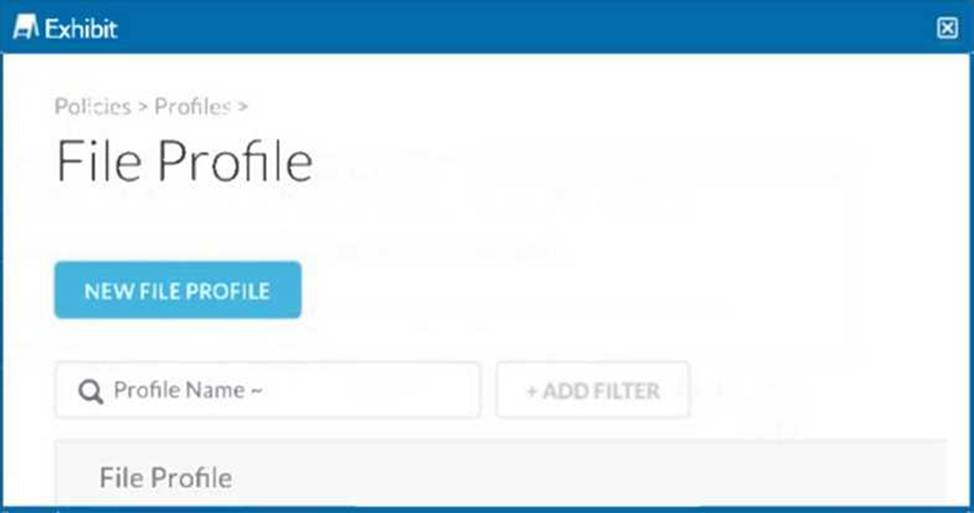
What are two use cases where the parameter shown in the exhibit is required? (Choose two.)
- A . When you create a policy to prevent file transfer between a sanctioned Google Drive and personal Google Drive.
- B . When you share the JoC between a third-party security solution and the Threat Protection Profile.
- C . When you create a policy to prevent binary files larger than 5 MB that are shared publicly on a sanctioned OneDrive.
- D . When you share Incident details about files detected in a DLP incident.
A, C
Explanation:
The parameter shown in the exhibit (File Profile) is crucial in policies where file type, size, and other attributes need to be specified.
Here are two use cases where this parameter is required:
When you create a policy to prevent file transfer between a sanctioned Google Drive and personal
Google Drive:
In this use case, the File Profile is used to define the types of files that are not allowed
to be transferred between different Google Drive instances. By specifying the file types in the policy, administrators can ensure that sensitive corporate data is not transferred to personal accounts.
Implementation: Create a new File Profile with the desired file types and apply this profile in the policy that governs the data transfer rules between sanctioned and personal Google Drive instances.
When you create a policy to prevent binary files larger than 5 MB that are shared publicly on a sanctioned OneDrive:
This use case involves creating a policy that restricts the sharing of large binary files (e.g., executable files) on publicly accessible folders in OneDrive. The File Profile parameter allows defining the file size and type criteria.
Implementation: Define a File Profile that specifies binary files and sets a size limit (e.g., 5 MB). Apply this profile in the policy to prevent such files from being shared publicly.
Reference: REST API v2 Overview – Netskope Knowledge Portal
Using the REST API v2 dataexport Iterator Endpoints – Netskope Knowledge Portal
Using the REST API v2 UCI Impact Endpoints – Netskope Knowledge Portal
netskopesdk ・ PyPI
Netskope Rest APIv2(OAS 3.1) – Postman Collection
You are setting up a real-time threat protection policy for patient zero to block previously unseen files until a benign verdict is produced by the Netskope Threat Protection Service.
In this scenario, which two policy parameters must you configure? (Choose two)
- A . block action
- B . CCL destination criterion
- C . file type activity constraint
- D . remediation profile
AD
Explanation:
To set up a real-time threat protection policy for patient zero to block previously unseen files until a benign verdict is produced by the Netskope Threat Protection Service, you need to configure the following parameters:
Block Action: This action ensures that any previously unseen file is blocked until it has been analyzed and a verdict has been reached. By blocking the file, the policy prevents potential threats from entering the network until they are deemed safe.
Remediation Profile: This profile defines the actions to be taken when a threat is detected. It includes configuring the alerts and responses (such as notifying administrators) when a file is blocked. This ensures that there is a process in place for handling detected threats and that appropriate measures are taken.
Reference: Netskope Threat Protection documentation detailing the setup of real-time threat protection policies.
Configuration guides for policy actions and remediation profiles in the Netskope platform.