
Microsoft SC-401 Practice Exams
Last updated on Nov 16,2026- Exam Code: SC-401
- Exam Name: Administering Information Security in Microsoft 365
- Certification Provider: Microsoft
- Latest update: Nov 16,2026
You have a Microsoft 365 subscription.
You need to customize encrypted email for the subscription. The solution must meet the following requirements.
● Ensure that when an encrypted email is sent, the email includes the company logo.
● Minimize administrative effort.
Which PowerShell cmdlet should you run?
- A . Set-IRMConfiguration
- B . Set-OMEConfiguration
- C . Set-RMSTemplate
- D . New-OMEConfiguration
B
Explanation:
To customize encrypted email in Microsoft 365, including adding a company logo, you need to modify the Office Message Encryption (OME) branding settings.
The Set-OMEConfiguration PowerShell cmdlet allows you to configure branding elements such as:
● Company logo
● Custom text
● Background color
This cmdlet is used to update existing OME branding settings, ensuring that encrypted emails sent from your organization include the required customizations.
HOTSPOT
You have a Microsoft 365 E5 subscription that contains two users named User1 and User2.
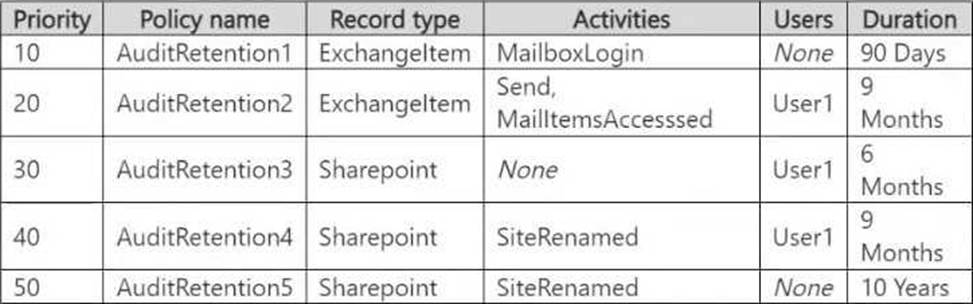
You create the audit retention policies shown in the following table.
The users perform the following actions:
● User1 renames a Microsoft SharePoint Online site.
● User2 sends an email message.
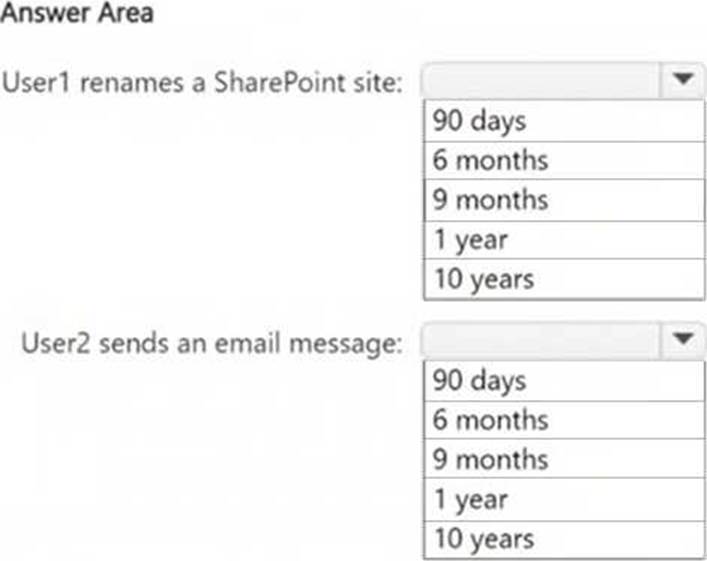
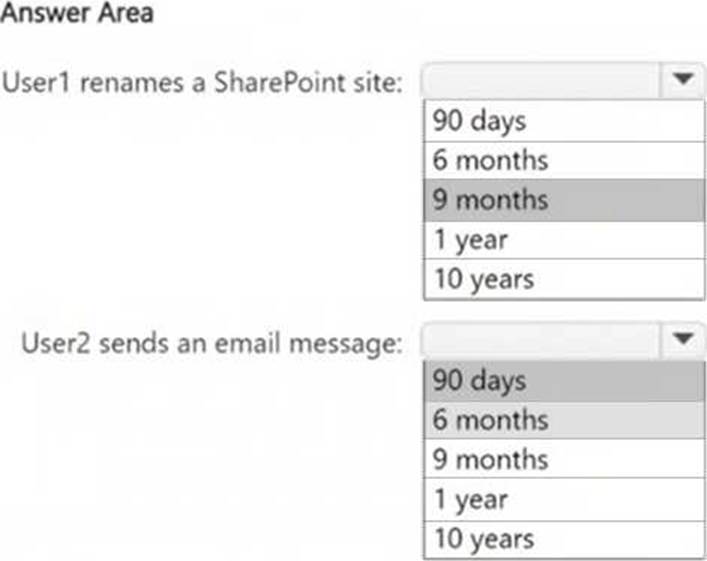
How long will the audit log records be retained for each action? To answer, select the appropriate options in the answer area. NOTE: Each correct selection is worth one point.
Explanation:
The action "SiteRenamed" for SharePoint is covered under the AuditRetention4 policy, which applies to User1 and retains logs for 9 months.
The action "Send" for ExchangeItem is covered under the AuditRetention2 policy, but this policy applies only to User1. Since User2 is not covered under a specific policy, the default retention period for audit logs in Microsoft Purview is 90 days.
HOTSPOT
You need to meet the technical requirements for the confidential documents.
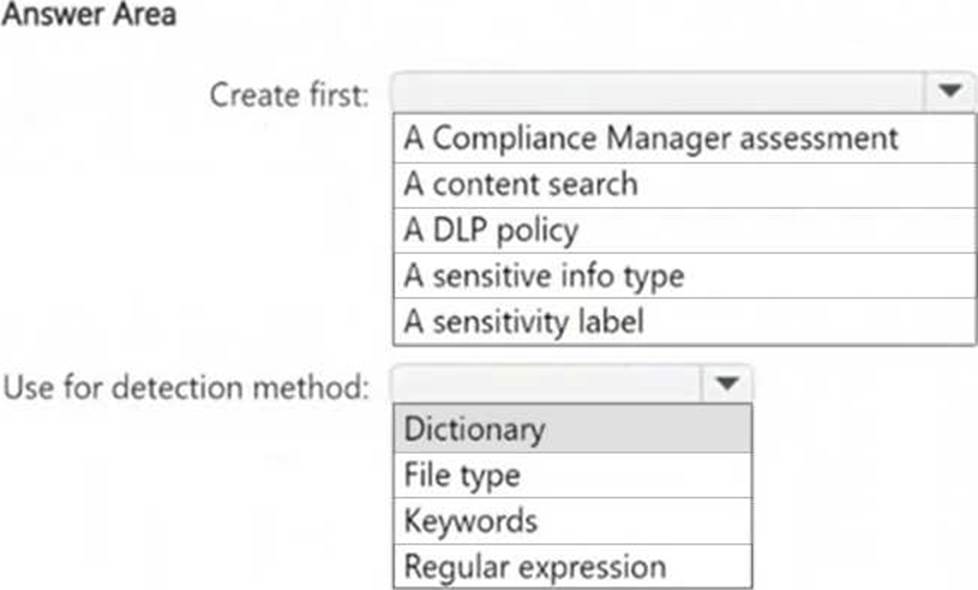
What should you create first, and what should you use for the detection method? To answer, select the appropriate options in the answer area. NOTE: Each correct selection is worth one point.
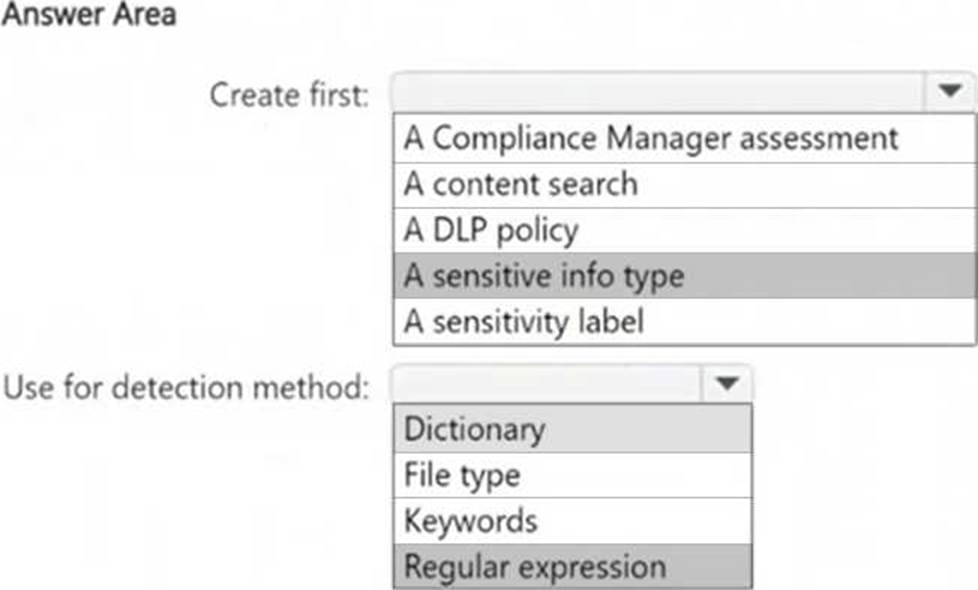
Explanation:
To detect and protect confidential documents, we need a custom rule to identify project codes that start with 999 (since they are classified as confidential).
Box 1: A Sensitive Info Type (SIT) allows Microsoft Purview DLP policies to recognize structured data (e.g., project codes). DLP policies require a sensitive info type to detect content based on patterns, keywords, or dictionary terms. A sensitivity label alone does not define detection logic―it is used for classification and protection after content is identified.
Box 2: Since project codes follow a structured 10-digit pattern, we should use a Regular Expression (Regex) to match project codes that start with 999.
Example Regex pattern:
999d{7}
This pattern detects a 10-digit number starting with "999".
You receive an email that contains a list of words that will be used for a sensitive information type.
You need to create a file that can be used as the source of a keyword dictionary.
In which format should you save the list?
- A . an XLSX file that contains one word in each cell of the first row
- B . an XML file that contains a keyword tag for each word
- C . an ACCDB database file that contains a table named Dictionary
- D . a text file that has one word on each line
D
Explanation:
To create a keyword dictionary for a sensitive information type in Microsoft Purview Data Loss Prevention (DLP), you must use a plain text (.txt) file where each keyword is on a separate line.
Format Example (TXT file):
confidential
sensitive
classified
top secret
This format is simple, efficient, and directly compatible with Microsoft 365 DLP policies for keyword dictionaries.
How to use the keyword dictionary?
● Create a text file with one keyword per line.
● Upload it to Microsoft Purview under Data Classification > Sensitive Info Types.
● Use the dictionary in a DLP policy to identify and protect sensitive information.
Note: This question is part of a series of questions that present the same scenario. Each question in the series contains a unique solution that might meet the stated goals. Some question sets might have more than one correct solution, while others might not have a correct solution.
After you answer a question in this section, you will NOT be able to return to it. As a result, these questions will not appear in the review screen.
You have a Microsoft 365 subscription.
You have a user named User1. Several users have full access to the mailbox of User1.
Some email messages sent to User1 appear to have been read and deleted before the user viewed them.
When you search the audit log in the Microsoft Purview portal to identify who signed in to the mailbox of User1, the results are blank.
You need to ensure that you can view future sign-ins to the mailbox of User1.
Solution: You run the Set-Mailbox -Identity "User1" -AuditEnabled $true command.
Does that meet the goal?
- A . Yes
- B . No
A
Explanation:
To track who accesses User1’s mailbox, you need to enable mailbox auditing for User1. By default, Exchange mailbox auditing is not enabled per mailbox (even though it is enabled tenant-wide).
The Set-Mailbox -Identity "User1" -AuditEnabled $true command enables audit logging for mailbox actions like:
● Read emails
● Delete emails
● Send emails as User1
● Access by delegated users
Once enabled, you can search for future sign-ins and actions in the Microsoft Purview audit logs.
Topic 2, Mix Questions
You have a Microsoft 365 E5 subscription that contains a Microsoft Teams channel named Channel1.
Channel1 contains research and development documents.
You plan to implement Microsoft 365 Copilot for the subscription.
You need to prevent the contents of files stored in Channel1 from being included in answers generated by Copilot and shown to unauthorized users.
What should you use?
- A . data loss prevention (DLP)
- B . Microsoft Purview insider risk management
- C . Microsoft Purview Information Barriers
- D . sensitivity labels
D
Explanation:
To prevent the contents of files stored in Channel1 from being included in Microsoft 365 Copilot responses and ensure unauthorized users cannot access them, you should use Microsoft Purview Sensitivity Labels.
Sensitivity labels allow you to classify, protect, and restrict access to sensitive files. You can configure label-based encryption and access control policies to ensure that only authorized users can access or interact with the files in Channel1. Microsoft 365 Copilot respects sensitivity labels, meaning if a file is labeled with restricted permissions, Copilot will not use it in generated responses for unauthorized users.
You have a Microsoft 365 E5 subscription.
You need to enable support for sensitivity labels in Microsoft SharePoint Online.
What should you use?
- A . the Microsoft Purview portal
- B . the Microsoft Entra admin center
- C . the SharePoint admin center
- D . the Microsoft 365 admin center
C
Explanation:
To enable support for sensitivity labels in Microsoft SharePoint Online, you must configure the setting in the SharePoint admin center.
Sensitivity labels in SharePoint Online allow labeling and protection of files stored in SharePoint and OneDrive. This feature must be enabled in the SharePoint admin center → Settings → Information protection to allow sensitivity labels to apply encryption and protection to stored documents.
HOTSPOT
You have a Microsoft 365 E5 subscription.
You receive the data loss prevention (DLP) alert shown in the following exhibit.
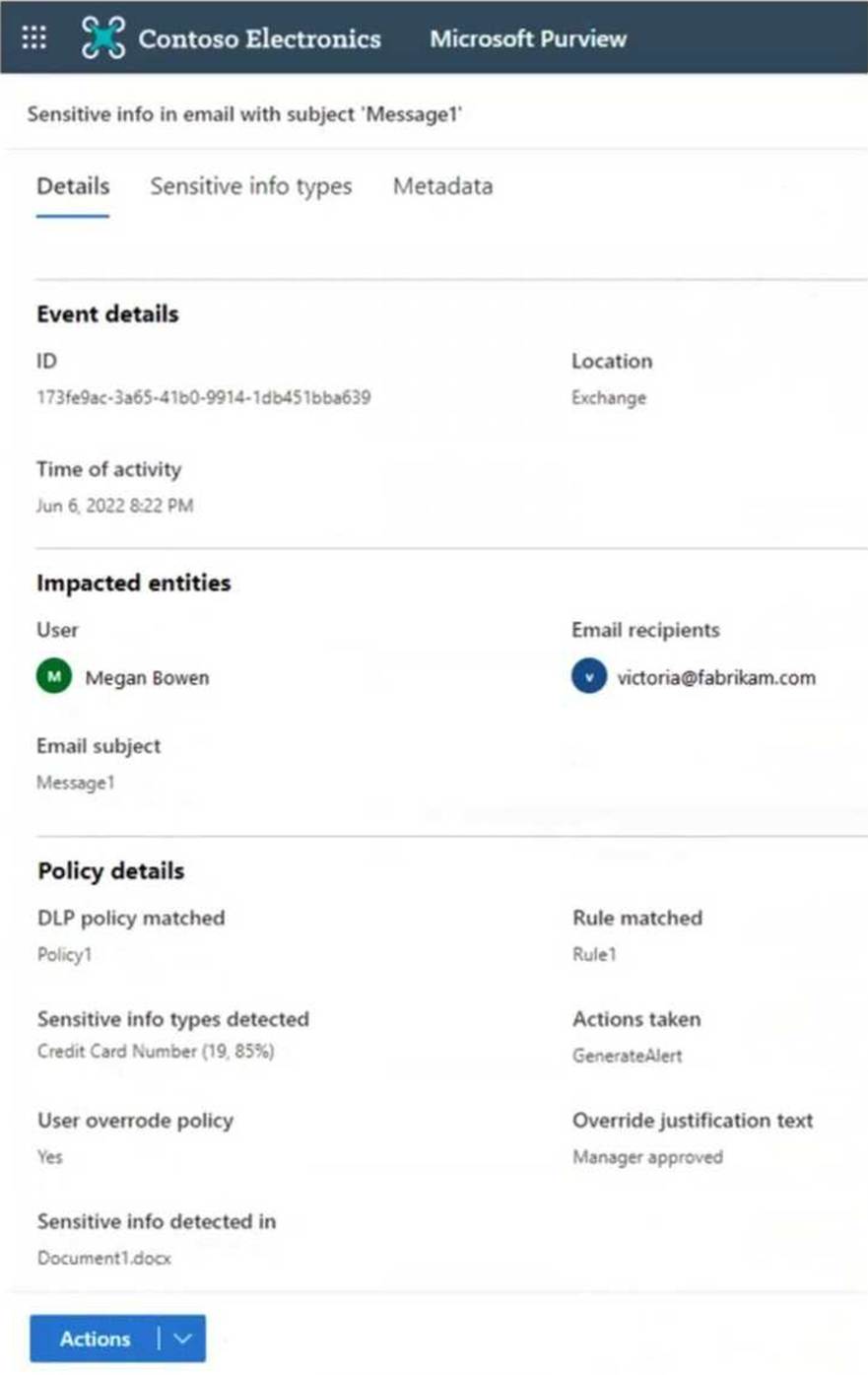
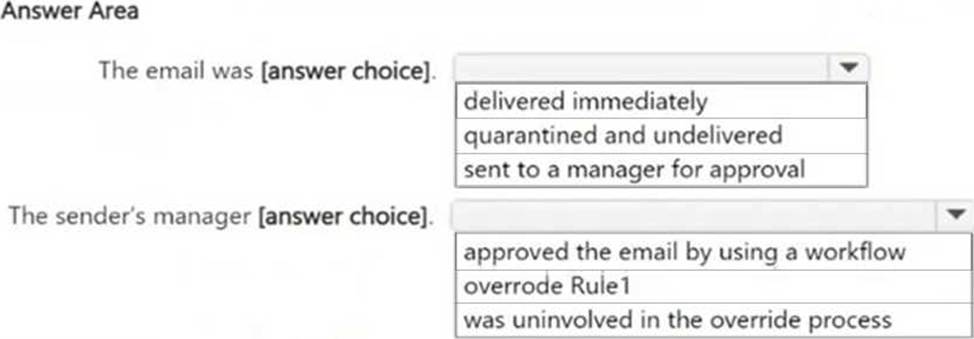
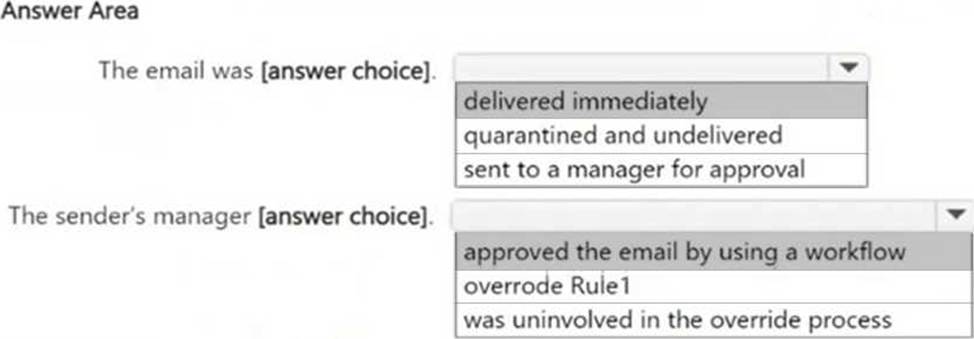
Use the drop-down menus to select the answer choice that completes each statement based on the information presented in the graphic. NOTE: Each correct selection is worth one point.
HOTSPOT
You have a Microsoft 365 E5 subscription.
The subscription contains devices that are onboarded to Microsoft Purview and configured as shown in the following table.

The subscription contains the users shown in the following table.

You need to review the activities.
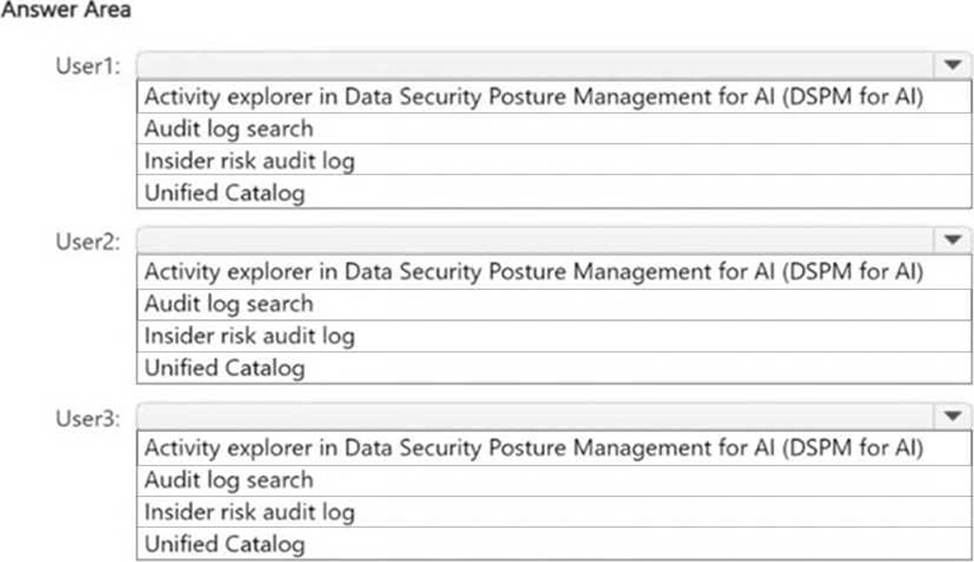
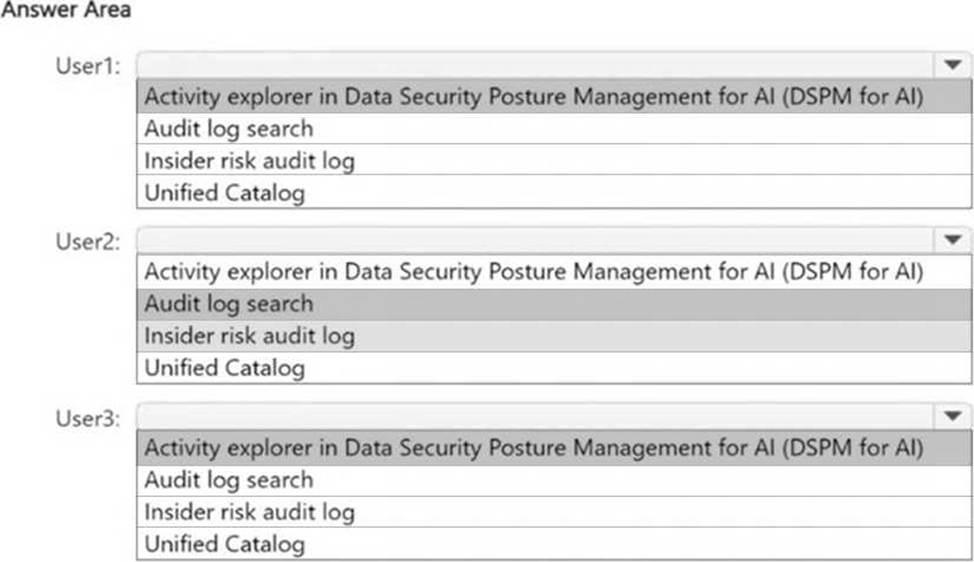
What should you use for each user? To answer, select the appropriate options in the answer area. NOTE: Each correct selection is worth one point.
Explanation:
User1: Since the Microsoft Purview browser extension is installed on Device1, AI-related activity performed by User1 (generating an image using a generative AI website) can be reviewed in Activity explorer in DSPM for AI.
User2: Since Device2 does not have the Microsoft Purview browser extension installed, AI-related activity cannot be tracked in DSPM for AI. Instead, Audit log search should be used to review activity such as using Microsoft 365 Copilot.
User3: Since Device3 has the Microsoft Purview browser extension installed, AI-related activity (browsing sample content on a generative AI website) can be reviewed using Activity explorer in DSPM for AI.
You have a data loss prevention (DLP) policy configured for endpoints as shown in the following exhibit.
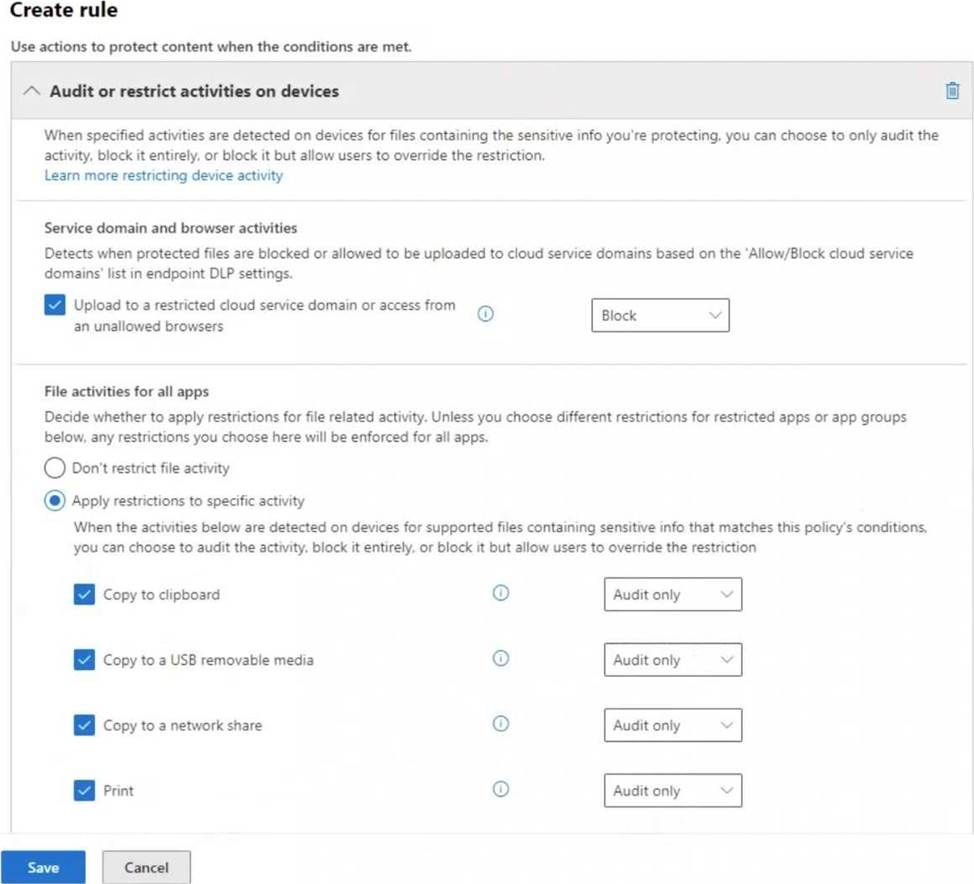
From a computer named Computer1, a user can sometimes upload files to cloud services and sometimes cannot. Other users experience the same issue.
What are two possible causes of the issue? Each correct answer presents a complete solution. NOTE: Each correct selection is worth one point.
- A . The unallowed browsers in the Microsoft 365 Endpoint data loss prevention (Endpoint DLP) settings are NOT configured.
- B . There are file path exclusions in the Microsoft 365 Endpoint data loss prevention (Endpoint DLP) settings.
- C . The Access by restricted apps action is set to Audit only.
- D . The Copy to clipboard action is set to Audit only.
- E . The computers are NOT onboarded to Microsoft Purview.
A, B
Explanation:
The issue where users sometimes can upload files to cloud services and sometimes cannot suggests inconsistent enforcement of Endpoint DLP policies. This can be caused by the unallowed browsers in the Microsoft 365 Endpoint DLP settings are NOT configured. Also, there are file path exclusions in the Microsoft 365 Endpoint DLP settings.
Endpoint DLP can block uploads only when using unallowed browsers. If unallowed browsers are not configured, users might be able to bypass restrictions by switching to a different browser. This could explain why uploads sometimes work and sometimes don’t, depending on which browser is used.
File path exclusions allow certain files or folders to be exempt from DLP restrictions. If a specific file location is excluded, files stored there won’t trigger DLP policies, leading to inconsistent behavior. This could result in some uploads being blocked while others are allowed.