
DELL EMC D-SNC-DY-00 Practice Exams
Last updated on Oct 21,2026- Exam Code: D-SNC-DY-00
- Exam Name: Dell SONiC Deploy Exam
- Certification Provider: DELL EMC
- Latest update: Oct 21,2026
Refer to the exhibits.
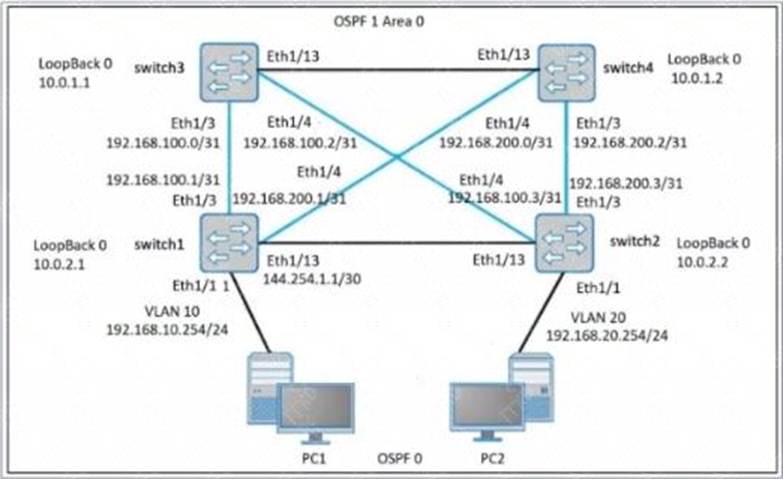
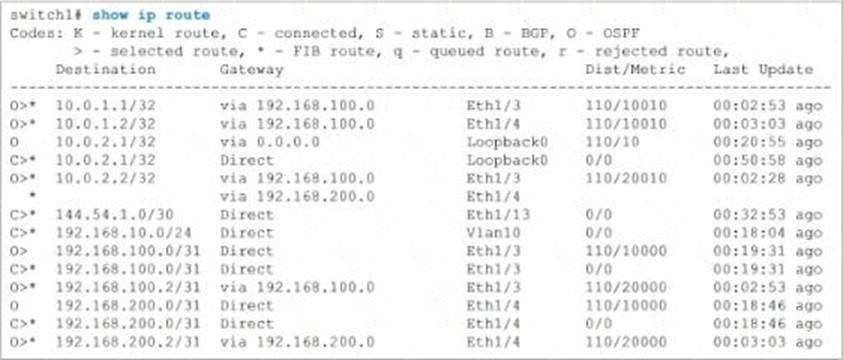
PC1 has a valid address on the 192.168.10.0 network, and PC2 has a valid address on the 192.168.20.0 network.
What happens when a ping command is issued between PC1 and PC2?
- A . The ping is successful because there is a route to 10.0.1.1, which is connected to 1(10.2.2, which is connected to PC2.
- B . The ping is unsuccessful because there is no route to the VLAN 10 gateway address of 192.168.10.254.
- C . The ping is successful because there are two routes from switch1 to switch2 which are connected to PC2.
- D . The ping is unsuccessful because there is no route from switch 1 to the 192.168.20.0 network.
D
Explanation:
Network Topology Analysis:
PC1 is on VLAN 10 with an IP address in the 192.168.10.0/24 subnet.
PC2 is on VLAN 20 with an IP address in the 192.168.20.0/24 subnet.

The network uses OSPF for routing between the switches.
The OSPF area is 0, and all switches have loopback interfaces for OSPF.
Routing Table Examination (from switch1):
The show ip route command output from switch1 provides a detailed look at the routing table.
Routes to the 192.168.10.0/24 network (directly connected via Vlan10) are present.
No routes to the 192.168.20.0/24 network are listed in switch1’s routing table.
For PC1 to communicate with PC2, switch1 must have a route to the 192.168.20.0/24 network.
The absence of a route to the 192.168.20.0/24 network in switch1’s routing table means that switch1 cannot forward packets destined for 192.168.20.0/24.
Therefore, any ping from PC1 to PC2 will be unsuccessful as switch1 does not know how to route packets to PC2’s network.
Verification with Dell SONiC:
In Dell SONiC environments, OSPF is configured to ensure dynamic routing.
The configuration must include all necessary networks for inter-switch routing.
If a network (like 192.168.20.0/24) is not included in OSPF configurations on switch1, routes to that network will not be advertised or learned, leading to failed connectivity tests like the ping from PC1 to PC2.
References:
Dell Enterprise SONiC Deployment Guide
Dell Technologies Networking – SONiC
A customer must configure a peer link between two switches in the L2 MC-LAG scenario.
SwitchB has already been configured. Configure the peer link on SwitchA.
Use the following configuration information:
MC-LAG domain 1
VLAN 101
Peer link Port-Channel 100
SwitchA IP: 192.168.1.1/24
SwitchB IP: 192.168.1.2/24
MC-LAG system MAC: 00:00:00:11:11:11
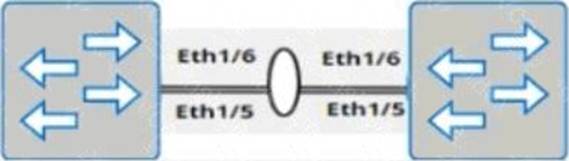
The physical ports to connect the peer switch are Eth 1/5 and Eth 1/6 for each switch.
see the explanation for all step by step solution with all explanation.
Enter Configuration Mode:
SwitchA# configure terminal
Create VLAN 101:
SwitchA(config)# vlan 101
Create Port-Channel 100:
SwitchA(config)# interface port-channel 100
SwitchA(config-if-po100)# switchport mode trunk
SwitchA(config-if-po100)# switchport trunk allowed vlan 101
SwitchA(config-if-po100)# exit
Assign Physical Interfaces to Port-Channel 100:
SwitchA(config)# interface ethernet 1/5
SwitchA(config-if-eth1/5)# channel-group 100 mode active
SwitchA(config-if-eth1/5)# exit
SwitchA(config)# interface ethernet 1/6
SwitchA(config-if-eth1/6)# channel-group 100 mode active
SwitchA(config-if-eth1/6)# exit
Configure MC-LAG Domain 1:
SwitchA(config)# mclag domain 1
SwitchA(config-mclag-domain)# peer-link port-channel 100
SwitchA(config-mclag-domain)# local-ip 192.168.1.1
SwitchA(config-mclag-domain)# peer-ip 192.168.1.2
SwitchA(config-mclag-domain)# system-mac 00:00:00:11:11:11
SwitchA(config-mclag-domain)# exit
Save Configuration:
SwitchA# write memory
Comprehensive Detailed Step by Step Explanation: with References:
Enter Configuration Mode:
Begin by entering the global configuration mode to make changes to the switch configuration.
Create VLAN 101:
Create VLAN 101 to be used for the MC-LAG peer link communication.
Create Port-Channel 100:
Enter the port channel interface configuration mode using interface port-channel 100.
Set the port channel to trunk mode with switchport mode trunk.
Allow VLAN 101 on the trunk with switchport trunk allowed vlan 101.
Exit the port channel interface configuration mode.
Assign Physical Interfaces to Port-Channel 100:
Enter interface configuration mode for ethernet 1/5 and assign it to port channel 100 using the channel-group 100 mode active command.
Exit the interface configuration mode.
Repeat the same steps for ethernet 1/6.
Configure MC-LAG Domain 1:
Enter the MC-LAG domain configuration mode using mclag domain 1.
Specify the peer link port channel with peer-link port-channel 100.
Configure the local IP address as 192.168.1.1 using local-ip 192.168.1.1.
Configure the peer IP address as 192.168.1.2 using peer-ip 192.168.1.2.
Set the MC-LAG system MAC address using system-mac 00:00:00:11:11:11.
Exit the MC-LAG domain configuration mode.
Save Configuration:
Save the configuration to ensure the changes persist after a reboot using the write memory command.
References:
Dell Technologies Networking – SONiC
Dell Enterprise SONiC Deployment Guide
These steps provide a comprehensive guide to configure the peer link for an MC-LAG scenario on SwitchA, ensuring the specific requirements for IP addressing, VLAN configuration, and port channel setup are met.
A customer must configure a peer link between two switches in the L2 MC-LAG scenario.
SwitchB has already been configured. Configure the peer link on SwitchA.
Use the following configuration information:
MC-LAG domain 1
VLAN 101
Peer link Port-Channel 100
SwitchA IP: 192.168.1.1/24
SwitchB IP: 192.168.1.2/24
MC-LAG system MAC: 00:00:00:11:11:11
The physical ports to connect the peer switch are Eth 1/5 and Eth 1/6 for each switch.
see the explanation for all step by step solution with all explanation.
Enter Configuration Mode:
SwitchA# configure terminal
Create VLAN 101:
SwitchA(config)# vlan 101
Create Port-Channel 100:
SwitchA(config)# interface port-channel 100
SwitchA(config-if-po100)# switchport mode trunk
SwitchA(config-if-po100)# switchport trunk allowed vlan 101
SwitchA(config-if-po100)# exit
Assign Physical Interfaces to Port-Channel 100:
SwitchA(config)# interface ethernet 1/5
SwitchA(config-if-eth1/5)# channel-group 100 mode active
SwitchA(config-if-eth1/5)# exit
SwitchA(config)# interface ethernet 1/6
SwitchA(config-if-eth1/6)# channel-group 100 mode active
SwitchA(config-if-eth1/6)# exit
Configure MC-LAG Domain 1:
SwitchA(config)# mclag domain 1
SwitchA(config-mclag-domain)# peer-link port-channel 100
SwitchA(config-mclag-domain)# local-ip 192.168.1.1
SwitchA(config-mclag-domain)# peer-ip 192.168.1.2
SwitchA(config-mclag-domain)# system-mac 00:00:00:11:11:11
SwitchA(config-mclag-domain)# exit
Save Configuration:
SwitchA# write memory
Comprehensive Detailed Step by Step Explanation: with References:
Enter Configuration Mode:
Begin by entering the global configuration mode to make changes to the switch configuration.
Create VLAN 101:
Create VLAN 101 to be used for the MC-LAG peer link communication.
Create Port-Channel 100:
Enter the port channel interface configuration mode using interface port-channel 100.
Set the port channel to trunk mode with switchport mode trunk.
Allow VLAN 101 on the trunk with switchport trunk allowed vlan 101.
Exit the port channel interface configuration mode.
Assign Physical Interfaces to Port-Channel 100:
Enter interface configuration mode for ethernet 1/5 and assign it to port channel 100 using the channel-group 100 mode active command.
Exit the interface configuration mode.
Repeat the same steps for ethernet 1/6.
Configure MC-LAG Domain 1:
Enter the MC-LAG domain configuration mode using mclag domain 1.
Specify the peer link port channel with peer-link port-channel 100.
Configure the local IP address as 192.168.1.1 using local-ip 192.168.1.1.
Configure the peer IP address as 192.168.1.2 using peer-ip 192.168.1.2.
Set the MC-LAG system MAC address using system-mac 00:00:00:11:11:11.
Exit the MC-LAG domain configuration mode.
Save Configuration:
Save the configuration to ensure the changes persist after a reboot using the write memory command.
References:
Dell Technologies Networking – SONiC
Dell Enterprise SONiC Deployment Guide
These steps provide a comprehensive guide to configure the peer link for an MC-LAG scenario on SwitchA, ensuring the specific requirements for IP addressing, VLAN configuration, and port channel setup are met.
Configure a VRF called "VrfGreen" and the static route in it to network 172.16.128.64/28 through next-hop 10.10.10.1. Set an administrative distance of 213.
see the explanation for all step by step solution with all explanation.
Enter Configuration Mode:
sonic# configure terminal
Create VRF "VrfGreen":
sonic(config)# ip vrf VrfGreen
Configure the Static Route:
sonic(config)# ip route vrf VrfGreen 172.16.128.64/28 10.10.10.1 213
Save Configuration:
sonic# write memory
Comprehensive Detailed Step by Step Explanation with References:
Enter Configuration Mode:
Begin by entering the global configuration mode to make changes to the switch configuration.
Create VRF "VrfGreen":
Use the command ip vrf VrfGreen to create a new VRF named "VrfGreen". This command sets up a new VRF instance which will isolate the routing table for this VRF from the global routing table and other VRFs.
Configure the Static Route:
Use the command ip route vrf VrfGreen 172.16.128.64/28 10.10.10.1 213 to configure the static route.
ip route vrf VrfGreen specifies that the route should be added to the "VrfGreen" VRF.
What is ECMP?
- A . A Layer 3 routing feature to forward traffic using multiple available paths
- B . A routing protocol database filter supporting a maximum of four paths
- C . A round-robin path distribution mechanism
- D . A routing protocol with multipath support
A
Explanation:
ECMP (Equal-Cost Multi-Path) is a Layer 3 routing feature that allows traffic to be forwarded using multiple available paths of equal cost. This improves bandwidth utilization and provides redundancy. ECMP is commonly used in modern networks to optimize the flow of traffic and increase the resiliency of network connections.
References:
Dell Technologies SONiC documentation
ECMP Configuration Guide
Which network devices route unencapsulated user traffic in a symmetric IRB overlay network?
- A . Source VTEP and destination VTEP
- B . Leaf router and spine router
- C . Capability extended next hop router and leaf router
- D . Autonomous system boundary router and source VTEP
A
Explanation:
In a symmetric Integrated Routing and Bridging (IRB) overlay network, the Source Virtual Tunnel End Point (VTEP) and the Destination VTEP route unencapsulated user traffic. Symmetric IRB ensures that routing occurs at both the ingress and egress VTEPs, allowing for optimized traffic flow and efficient network operations.
References:
Dell Technologies SONiC documentation
VXLAN Configuration Guide
Create port channel 10 on interfaces Eth 1/11 and 1/12, so that it connects to an already configured switch. A server will be connected on Eth 1/1. Both the server and port channel need VLAN 1 untagged and only VLAN 10 tagged.
Complete the configuration on Switch A.
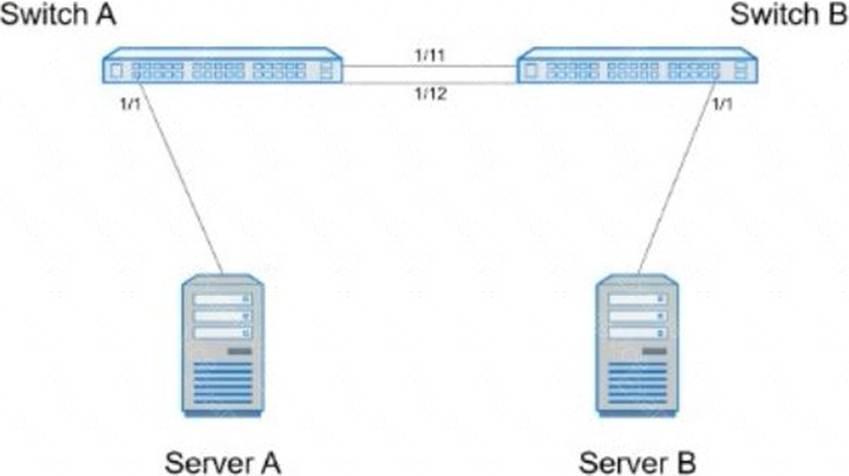
see the explanation for all step by step solution with all explanation.
Enter Configuration Mode:
SwitchA# configure terminal
Create Port Channel 10:
SwitchA(config)# interface port-channel 10
SwitchA(config-if-po10)# switchport mode trunk
SwitchA(config-if-po10)# switchport trunk native vlan 1
SwitchA(config-if-po10)# switchport trunk allowed vlan 1,10
Assign Interfaces Eth 1/11 and Eth 1/12 to Port Channel 10:
SwitchA(config)# interface ethernet 1/11
SwitchA(config-if-eth1/11)# channel-group 10 mode active
SwitchA(config-if-eth1/11)# exit
SwitchA(config)# interface ethernet 1/12
SwitchA(config-if-eth1/12)# channel-group 10 mode active
SwitchA(config-if-eth1/12)# exit
Configure Interface Eth 1/1 for Server Connection:
SwitchA(config)# interface ethernet 1/1
SwitchA(config-if-eth1/1)# switchport mode trunk
SwitchA(config-if-eth1/1)# switchport trunk native vlan 1
SwitchA(config-if-eth1/1)# switchport trunk allowed vlan 1,10
SwitchA(config-if-eth1/1)# end
Save Configuration:
SwitchA# write memory
Comprehensive Detailed Step by Step Explanation with References:
Enter Configuration Mode:
Start by entering the global configuration mode to make changes to the switch configuration.
Create Port Channel 10:
Enter the port channel interface configuration mode using interface port-channel 10.
Set the port channel to trunk mode with switchport mode trunk.
Specify VLAN 1 as the native VLAN (untagged) using switchport trunk native vlan 1.
Allow VLANs 1 and 10 on the trunk with switchport trunk allowed vlan 1,10.
Assign Interfaces Eth 1/11 and Eth 1/12 to Port Channel 10:
Enter interface configuration mode for ethernet 1/11 and ethernet 1/12.
Assign each interface to port channel 10 using the channel-group 10 mode active command.
Exit the interface configuration mode.
Configure Interface Eth 1/1 for Server Connection:
Enter interface configuration mode for ethernet 1/1.
Set the interface to trunk mode with switchport mode trunk.
Specify VLAN 1 as the native VLAN using switchport trunk native vlan 1.
Allow VLANs 1 and 10 on the trunk with switchport trunk allowed vlan 1,10.
Exit the configuration mode.
Save Configuration:
Ensure the configuration is saved so it persists after a reboot using the write memory command.
References:
Dell Technologies Networking – SONiC
Dell Enterprise SONiC Deployment Guide
These steps provide a comprehensive guide to configure a port channel and VLAN settings on Switch A to meet the specified requirements for server and trunk connections.
Enterprise SONiC Switch 1 and Switch 2 are part of a symmetric VXLAN fabric in a data center environment.
Switch 1 has learned MAC addresses from its local VLANs.
What role does BGP EVPN play in this scenario?
- A . Distributes locally learned MAC addresses to Switch 2
- B . Establishes Layer 2 connectivity between Switch 1 and Switch 2
- C . Enables efficient communication across the VXLAN fabric
A
Explanation:
BGP EVPN (Border Gateway Protocol Ethernet VPN) is used in a VXLAN fabric to distribute MAC address reachability information between switches. In this scenario, Switch 1 uses BGP EVPN to advertise the locally learned MAC addresses to Switch 2. This distribution of MAC addresses enables the switches to build and maintain an efficient forwarding table, facilitating communication across the VXLAN fabric.
References:
Dell Technologies SONiC documentation
BGP EVPN Configuration Guide
An administrator is installing Enterprise SONIC in ONIE from an HTTP server.
On which interface should the administrator configure the IP?
- A . Mgmt1/1/1
- B . GiO
- C . ethO
- D . Eth1/1
C
Explanation:
When installing Enterprise SONIC from an HTTP server using the Open Network Install Environment (ONIE), the management interface typically used for network installations is eth0. This is the default interface ONIE uses for network connectivity to retrieve installation images and other configuration files.
References:
Dell Technologies SONiC documentation
ONIE User Guide
What does show interface breakout port slot/slot command display?
- A . The Error/Debug status of the breakout of the port
- B . The breakout modes available to that port
- C . The In Progress/Complete status of the breakout of the port
- D . The configuration of that port
B
Explanation:
The show interface breakout port slot/slot command displays the breakout modes available for the specified port. Breakout modes determine how a single high-speed port can be split into multiple lower-speed ports, providing flexibility in network port configurations.
References:
Dell Technologies SONiC Command Reference Guide
Port Breakout Configuration Guide