
DELL EMC D-PVM-OE-01 Practice Exams
Last updated on Nov 16,2026- Exam Code: D-PVM-OE-01
- Exam Name: Dell PowerMax Operate v2 Exam
- Certification Provider: DELL EMC
- Latest update: Nov 16,2026
What is the largest TDEV PowerMaxOS 5978 can create?
- A . 32 TB
- B . 64TB
- C . 128 TB
- D . 256TB
B
Explanation:
Step by Step Comprehensive Detailed
In PowerMaxOS 5978, the largest TDEV (Thin Device) that can be created is 64 TB. This represents the maximum size for a single, thinly provisioned storage volume on a PowerMax array running that version of the operating system.
Reference and documents of Dell’s public documentation for PowerMax Operate v.2:
Dell PowerMax Family: Essentials and Best Practices Guide: This guide provides an overview of PowerMax features and capabilities, including information about storage device sizes and limits.
Dell Solutions Enabler 10.0.0 CLI User Guide: This guide might contain details about the maximum size of TDEVs that can be created using SYMCLI commands.
Topic 2,
SIMULATION
SIMULATION
Your organization is preparing for a major software update, and it is crucial to ensure data integrity during this process. As a system administrator, create a secure snapshot named "Stor1" from the storage group "StorGroup1." The snapshot cannot be deleted for two days to safeguard against any potential data loss during the update.
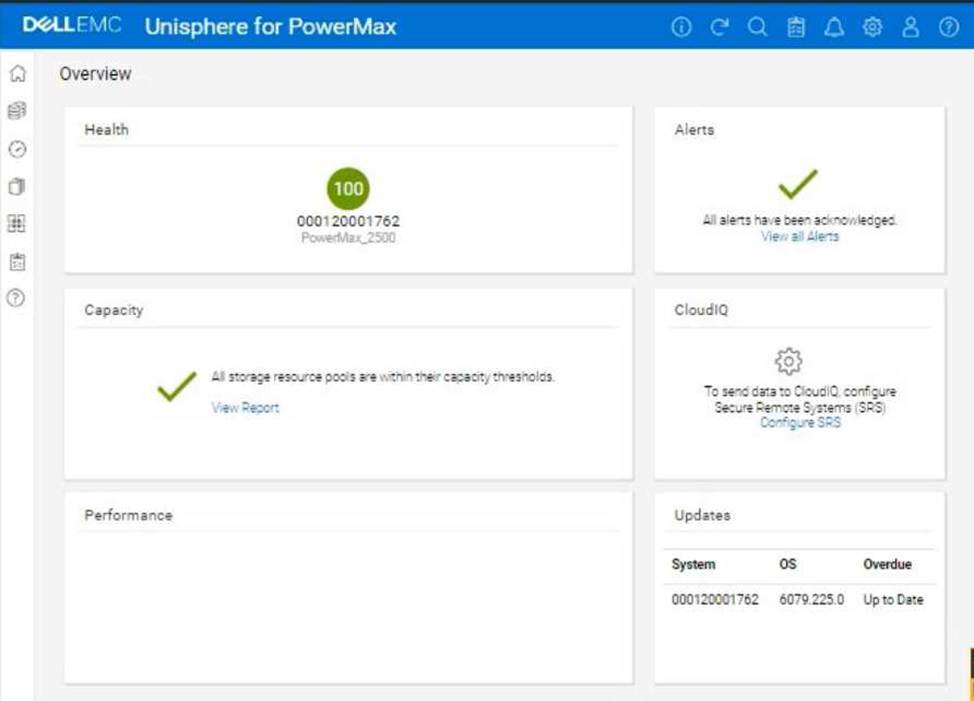
Using the simulator, complete the operation.
Here’s a step-by-step guide on how to do this, based on typical Unisphere functionality:
Steps:
SIMULATION
Your organization is preparing for a major software update, and it is crucial to ensure data integrity during this process. As a system administrator, create a secure snapshot named "Stor1" from the storage group "StorGroup1." The snapshot cannot be deleted for two days to safeguard against any potential data loss during the update.
Using the simulator, complete the operation.
Here’s a step-by-step guide on how to do this, based on typical Unisphere functionality:
Steps:
Refer to the exhibit.
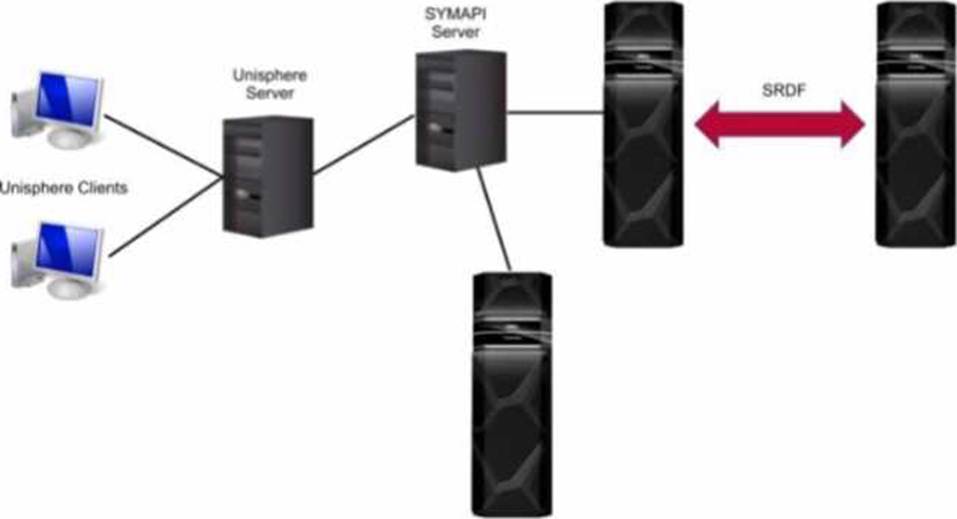
What is the Unisphere for PowerMax deployment option pictured?
- A . Embedded
- B . Either remote or local
- C . Remote
- D . Local
C
Explanation:
Step by Step Comprehensive Detailed
Unisphere for PowerMax offers different deployment options to manage PowerMax storage arrays.
Based on the exhibit, we can identify the following:
Separate SYMAPI Server: The diagram shows a dedicated SYMAPI server. SYMAPI (Symmetrix Application Programming Interface) is a command-line interface used to manage PowerMax and VMAX storage arrays. This indicates that the Unisphere server is not directly connected to the storage arrays.
Unisphere Server Connected to SYMAPI Server: The Unisphere server is shown to be connected to the SYMAPI server. This means that the Unisphere server relies on the SYMAPI server to communicate with the PowerMax arrays.
No Direct Connection to Arrays: The Unisphere server does not have a direct connection to the PowerMax arrays.
Considering these points, the deployment option depicted in the exhibit is a remote deployment. In a remote deployment, the Unisphere server is installed on a separate host and communicates with the PowerMax arrays through a SYMAPI server. This allows for centralized management of multiple arrays from a single Unisphere instance.
Why other options are incorrect:
What takes place during an SRDF Restore operation?
- A . Changes made to the R1 are propagated to the R2. Changes made to the R2 are discarded
- B . Resumes normal SRDF mirroring and host access
- C . Changes made to the R2 are propagated to the R1 Changes made to the R1 are discarded
- D . Enables access to both the R1 and R2 devices for their hosts
A
Explanation:
Step by Step Comprehensive Detailed
In SRDF (Symmetrix Remote Data Facility), a "Restore" operation is used to resynchronize the source (R1) and target (R2) devices after a situation where the target device might have been modified independently. This typically occurs after a failover scenario where the target device becomes the primary and undergoes changes.
During an SRDF Restore operation:
R2 Changes Discarded: Any changes made to the target (R2) device since the last synchronization are discarded.
R1 Changes Propagated: The current data on the source (R1) device is copied over to the target (R2), overwriting any existing data on the target.
This effectively restores the target device to a state consistent with the source device, ensuring data integrity and consistency.
Why other options are incorrect:
B. Resumes normal SRDF mirroring and host access: While a Restore operation can be part of the failback process, it’s not the only step involved. Failback might involve additional actions like reversing replication direction and restoring host access.
C. Changes made to the R2 are propagated to the R1. Changes made to the R1 are discarded: This describes an "Update" operation, not a "Restore."
D. Enables access to both the R1 and R2 devices for their hosts: This describes a "Split" operation, where both devices are made accessible independently.
Reference and documents of Dell’s public documentation for PowerMax Operate v.2:
Dell Solutions Enabler 10.0.0 SRDF Family CLI User Guide: This guide provides detailed information about SRDF commands and operations, including the symrdf restore command. You can find this document on the Dell Support website by searching for "Solutions Enabler SRDF Family CLI User Guide."
Dell PowerMax Family: Essentials and Best Practices Guide: This guide offers a comprehensive overview of SRDF and its functionalities, including disaster recovery scenarios and the use of the "Restore" operation.
What takes place during an SRDF Restore operation?
- A . Changes made to the R1 are propagated to the R2. Changes made to the R2 are discarded
- B . Resumes normal SRDF mirroring and host access
- C . Changes made to the R2 are propagated to the R1 Changes made to the R1 are discarded
- D . Enables access to both the R1 and R2 devices for their hosts
A
Explanation:
Step by Step Comprehensive Detailed
In SRDF (Symmetrix Remote Data Facility), a "Restore" operation is used to resynchronize the source (R1) and target (R2) devices after a situation where the target device might have been modified independently. This typically occurs after a failover scenario where the target device becomes the primary and undergoes changes.
During an SRDF Restore operation:
R2 Changes Discarded: Any changes made to the target (R2) device since the last synchronization are discarded.
R1 Changes Propagated: The current data on the source (R1) device is copied over to the target (R2), overwriting any existing data on the target.
This effectively restores the target device to a state consistent with the source device, ensuring data integrity and consistency.
Why other options are incorrect:
B. Resumes normal SRDF mirroring and host access: While a Restore operation can be part of the failback process, it’s not the only step involved. Failback might involve additional actions like reversing replication direction and restoring host access.
C. Changes made to the R2 are propagated to the R1. Changes made to the R1 are discarded: This describes an "Update" operation, not a "Restore."
D. Enables access to both the R1 and R2 devices for their hosts: This describes a "Split" operation, where both devices are made accessible independently.
Reference and documents of Dell’s public documentation for PowerMax Operate v.2:
Dell Solutions Enabler 10.0.0 SRDF Family CLI User Guide: This guide provides detailed information about SRDF commands and operations, including the symrdf restore command. You can find this document on the Dell Support website by searching for "Solutions Enabler SRDF Family CLI User Guide."
Dell PowerMax Family: Essentials and Best Practices Guide: This guide offers a comprehensive overview of SRDF and its functionalities, including disaster recovery scenarios and the use of the "Restore" operation.
What takes place during an SRDF Restore operation?
- A . Changes made to the R1 are propagated to the R2. Changes made to the R2 are discarded
- B . Resumes normal SRDF mirroring and host access
- C . Changes made to the R2 are propagated to the R1 Changes made to the R1 are discarded
- D . Enables access to both the R1 and R2 devices for their hosts
A
Explanation:
Step by Step Comprehensive Detailed
In SRDF (Symmetrix Remote Data Facility), a "Restore" operation is used to resynchronize the source (R1) and target (R2) devices after a situation where the target device might have been modified independently. This typically occurs after a failover scenario where the target device becomes the primary and undergoes changes.
During an SRDF Restore operation:
R2 Changes Discarded: Any changes made to the target (R2) device since the last synchronization are discarded.
R1 Changes Propagated: The current data on the source (R1) device is copied over to the target (R2), overwriting any existing data on the target.
This effectively restores the target device to a state consistent with the source device, ensuring data integrity and consistency.
Why other options are incorrect:
B. Resumes normal SRDF mirroring and host access: While a Restore operation can be part of the failback process, it’s not the only step involved. Failback might involve additional actions like reversing replication direction and restoring host access.
C. Changes made to the R2 are propagated to the R1. Changes made to the R1 are discarded: This describes an "Update" operation, not a "Restore."
D. Enables access to both the R1 and R2 devices for their hosts: This describes a "Split" operation, where both devices are made accessible independently.
Reference and documents of Dell’s public documentation for PowerMax Operate v.2:
Dell Solutions Enabler 10.0.0 SRDF Family CLI User Guide: This guide provides detailed information about SRDF commands and operations, including the symrdf restore command. You can find this document on the Dell Support website by searching for "Solutions Enabler SRDF Family CLI User Guide."
Dell PowerMax Family: Essentials and Best Practices Guide: This guide offers a comprehensive overview of SRDF and its functionalities, including disaster recovery scenarios and the use of the "Restore" operation.
When setting Host I/O Limits on a Storage Group, what are the available dynamic I/O distribution modes?
- A . Never, OnFailure. and Always
- B . Balanced Always, and OnFailure
- C . Never, Balanced, and Always
- D . Balanced, OnFailure. and Never
C
Explanation:
Step by Step Comprehensive Detailed
Host I/O Limits in PowerMax allow you to control the maximum IOPS (Input/Output Operations Per Second) or bandwidth that a storage group can consume. This helps prevent performance issues caused by one application or workload monopolizing resources.
When setting Host I/O Limits, you can choose from different dynamic I/O distribution modes:
Never: This is the default mode. It means that the I/O limits are statically distributed across the directors in the associated masking view. If a director fails, its allocated portion of the I/O limit is lost.
Balanced: In this mode, the I/O limits are dynamically adjusted based on the number of online directors. If a director fails, its I/O limit is redistributed among the remaining online directors. This helps maintain performance even in the event of a director failure.
Always: This mode provides full dynamic distribution of I/O limits. The limits are continuously adjusted across all online directors based on the current workload and demand. This ensures optimal resource utilization and performance.
Reference and documents of Dell’s public documentation for PowerMax Operate v.2:
Dell PowerMax and VMware vSphere Configuration Guide: This guide provides detailed information about Host I/O Limits, including the different distribution modes and their benefits. You can find this document on the Dell Support website by searching for "PowerMax and VMware vSphere Configuration Guide."
Dell Solutions Enabler 10.0.0 CLI User Guide: This guide provides information on how to set Host I/O Limits using SYMCLI commands, including the -dynamic option for specifying the distribution mode.
A Storage Administrator runs the command:
syradm list -environment -offline
What migration environments are listed?
- A . The environments where the application has been taken offline to perform the cutover.
- B . Only the environments controlled by the host from where the list command is run.
- C . The environments controlled by and those from the systems reachable by the host performing the command.
C
Explanation:
Step by Step Comprehensive Detailed
The syradm list -environment -offline command in Solutions Enabler is used to display information about migration environments that are currently offline.
Here’s what it shows:
Controlled Environments: It lists the migration environments that are directly controlled by the host where the command is executed. These are the environments where the host acts as the primary control point for the migration.
Reachable Environments: It also lists environments that are reachable from the host executing the command. This includes environments controlled by other hosts that are connected and accessible within the SAN fabric.
This broader scope allows administrators to get a comprehensive view of offline migration environments across their managed systems.
Why other options are incorrect:
SIMULATION
A customer has a clone session for the storage group DATA that is no longer needed.
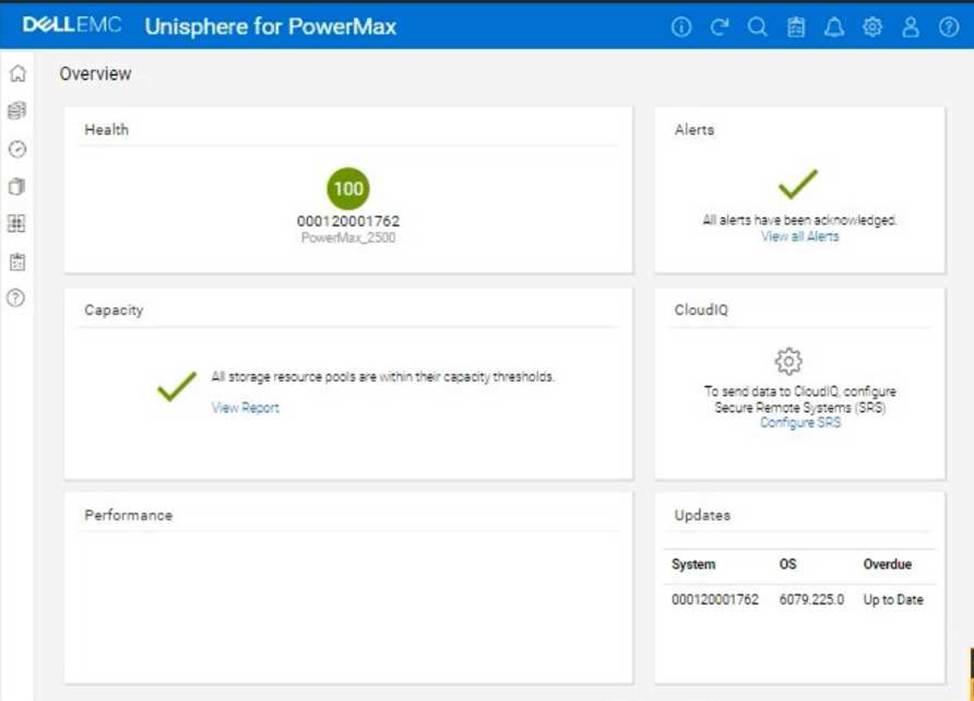
Using the simulator, terminate the clone session for the storage group.
Here’s a step-by-step guide on how to do this, based on typical Unisphere functionality and the context of the question:
Steps: