
DELL EMC D-PVM-OE-01 Practice Exams
Last updated on Nov 16,2026- Exam Code: D-PVM-OE-01
- Exam Name: Dell PowerMax Operate v2 Exam
- Certification Provider: DELL EMC
- Latest update: Nov 16,2026
Which tasks can a storage administrator manage from the Data Protection menu in the Unisphere for PowerMax?
- A . Convert front-end ports to SRDF ports
- B . Configure and manage SRDF groups
- C . Configure Data Protection for z systems
- D . Review the audit log for unwanted logins
B
Explanation:
Step by Step Comprehensive Detailed
The "Data Protection" menu in Unisphere for PowerMax provides a centralized location for managing various data protection features and functionalities. Specifically, it allows storage administrators to:
Configure and manage SRDF groups: SRDF (Symmetrix Remote Data Facility) is a key technology for disaster recovery and data replication in PowerMax. The Data Protection menu enables administrators to create, modify, and monitor SRDF groups, establish replication relationships between devices, and control replication settings.
Why other options are incorrect:
What are two characteristics of a SnapVX Linked Target?
- A . They are read writable (R/W).
- B . They support a maximum of 1024 snaps per volume
- C . They cannot send data to SRDF
- D . They can be made secure
AC
Explanation:
Step by Step Comprehensive Detailed
SnapVX Linked Targets: SnapVX is a snapshot technology used in Dell PowerMax storage arrays. A linked target is a volume that provides read/write access to a specific point-in-time copy (snapshot) of a source volume.
Read/Write Access: Unlike traditional snapshots, which are typically read-only, SnapVX linked targets allow modifications. This makes them suitable for use cases like testing, development, and data analysis where changes need to be made to a copy of the data without affecting the original source.
Secure Snapshots: SnapVX offers the capability to create "secure snapshots." These snapshots are write-protected and prevent any modifications or deletion, ensuring data integrity and protection against accidental or malicious changes.
Why other options are incorrect:
B. They support a maximum of 1024 snaps per volume: This is partially correct. While a source volume can have up to 1024 snapshots, this limit includes all types of snapshots (manual, automated, and legacy), not just linked targets.
B. They cannot send data to SRDF: This is incorrect. SnapVX linked targets can participate in SRDF (Symmetrix Remote Data Facility) replication, allowing for disaster recovery and data mobility.
Reference and documents of Dell’s public documentation for PowerMax Operate v.2:
Dell Solutions Enabler 10.0.0 TimeFinder SnapVX CLI User Guide: This guide provides detailed information about SnapVX features and commands, including how to create, link, and manage snapshots. It confirms the read/write capability of linked targets and the ability to create secure snapshots. You can find this document on the Dell Support website by searching for "Solutions Enabler TimeFinder SnapVX CLI User Guide."
Dell PowerMax Family: Essentials and Best Practices Guide: This guide offers a comprehensive overview of PowerMax technologies, including SnapVX. It highlights the benefits of SnapVX linked targets for various use cases. You can find this document on the Dell Support website by searching for "PowerMax Family Essentials and Best Practices Guide."
What are two characteristics of a SnapVX Linked Target?
- A . They are read writable (R/W).
- B . They support a maximum of 1024 snaps per volume
- C . They cannot send data to SRDF
- D . They can be made secure
AC
Explanation:
Step by Step Comprehensive Detailed
SnapVX Linked Targets: SnapVX is a snapshot technology used in Dell PowerMax storage arrays. A linked target is a volume that provides read/write access to a specific point-in-time copy (snapshot) of a source volume.
Read/Write Access: Unlike traditional snapshots, which are typically read-only, SnapVX linked targets allow modifications. This makes them suitable for use cases like testing, development, and data analysis where changes need to be made to a copy of the data without affecting the original source.
Secure Snapshots: SnapVX offers the capability to create "secure snapshots." These snapshots are write-protected and prevent any modifications or deletion, ensuring data integrity and protection against accidental or malicious changes.
Why other options are incorrect:
B. They support a maximum of 1024 snaps per volume: This is partially correct. While a source volume can have up to 1024 snapshots, this limit includes all types of snapshots (manual, automated, and legacy), not just linked targets.
B. They cannot send data to SRDF: This is incorrect. SnapVX linked targets can participate in SRDF (Symmetrix Remote Data Facility) replication, allowing for disaster recovery and data mobility.
Reference and documents of Dell’s public documentation for PowerMax Operate v.2:
Dell Solutions Enabler 10.0.0 TimeFinder SnapVX CLI User Guide: This guide provides detailed information about SnapVX features and commands, including how to create, link, and manage snapshots. It confirms the read/write capability of linked targets and the ability to create secure snapshots. You can find this document on the Dell Support website by searching for "Solutions Enabler TimeFinder SnapVX CLI User Guide."
Dell PowerMax Family: Essentials and Best Practices Guide: This guide offers a comprehensive overview of PowerMax technologies, including SnapVX. It highlights the benefits of SnapVX linked targets for various use cases. You can find this document on the Dell Support website by searching for "PowerMax Family Essentials and Best Practices Guide."
What are two characteristics of a SnapVX Linked Target?
- A . They are read writable (R/W).
- B . They support a maximum of 1024 snaps per volume
- C . They cannot send data to SRDF
- D . They can be made secure
AC
Explanation:
Step by Step Comprehensive Detailed
SnapVX Linked Targets: SnapVX is a snapshot technology used in Dell PowerMax storage arrays. A linked target is a volume that provides read/write access to a specific point-in-time copy (snapshot) of a source volume.
Read/Write Access: Unlike traditional snapshots, which are typically read-only, SnapVX linked targets allow modifications. This makes them suitable for use cases like testing, development, and data analysis where changes need to be made to a copy of the data without affecting the original source.
Secure Snapshots: SnapVX offers the capability to create "secure snapshots." These snapshots are write-protected and prevent any modifications or deletion, ensuring data integrity and protection against accidental or malicious changes.
Why other options are incorrect:
B. They support a maximum of 1024 snaps per volume: This is partially correct. While a source volume can have up to 1024 snapshots, this limit includes all types of snapshots (manual, automated, and legacy), not just linked targets.
B. They cannot send data to SRDF: This is incorrect. SnapVX linked targets can participate in SRDF (Symmetrix Remote Data Facility) replication, allowing for disaster recovery and data mobility.
Reference and documents of Dell’s public documentation for PowerMax Operate v.2:
Dell Solutions Enabler 10.0.0 TimeFinder SnapVX CLI User Guide: This guide provides detailed information about SnapVX features and commands, including how to create, link, and manage snapshots. It confirms the read/write capability of linked targets and the ability to create secure snapshots. You can find this document on the Dell Support website by searching for "Solutions Enabler TimeFinder SnapVX CLI User Guide."
Dell PowerMax Family: Essentials and Best Practices Guide: This guide offers a comprehensive overview of PowerMax technologies, including SnapVX. It highlights the benefits of SnapVX linked targets for various use cases. You can find this document on the Dell Support website by searching for "PowerMax Family Essentials and Best Practices Guide."
A TimeFinder SnapVX snapshot of a Storage Group was created with a time-to-live setting of seven days Fourteen days after snapshot creation, a query shows that the snapshot still exists
What is a possible reason for this issue?
- A . Snapshot has one or more linked targets
- B . Snapshot was not manually terminated
- C . Snapshot was created in NoCopy mode
- D . Reserved Capacity limit was exceeded
A
Explanation:
Step by Step Comprehensive Detailed
TimeFinder SnapVX snapshots in PowerMax can be configured with a time-to-live (TTL) setting. This setting automatically deletes the snapshot after the specified time period has elapsed. However, there are certain situations where a snapshot might persist beyond its TTL:
Linked Targets: If a snapshot has one or more linked targets associated with it, the snapshot will not be automatically deleted even if the TTL expires. This is because the linked targets depend on the snapshot for their data. The snapshot will remain available until all linked targets are deleted or
unlinked.
Why other options are incorrect:
B. Snapshot was not manually terminated: The TTL setting is designed to automatically delete the snapshot; manual termination is not required.
C. Snapshot was created in NoCopy mode: The NoCopy mode affects how the snapshot is initially created, not its TTL behavior.
D. Reserved Capacity limit was exceeded: The Reserved Capacity limit applies to the overall storage space used by snapshots, not the TTL of individual snapshots.
Reference and documents of Dell’s public documentation for PowerMax Operate v.2:
Dell Solutions Enabler 10.0.0 TimeFinder SnapVX CLI User Guide: This guide provides detailed information about SnapVX features and functionalities, including the time-to-live setting and how it interacts with linked targets. You can find this document on the Dell Support website by searching for "Solutions Enabler TimeFinder SnapVX CLI User Guide."
Four snapshots of a single source volume have been created. The snapshots were created with the same name at 8:00 AM, 10:00 AM, 12:00 PM: and 2:00 PM.
What is the generation number of the snapshot created at 2:00 PM?
- A . 0
- B . 4
- C . 1
- D . 3
D
Explanation:
Step by Step Comprehensive Detailed
In TimeFinder SnapVX, snapshots of a source volume are assigned generation numbers. These numbers indicate the order in which the snapshots were created. The first snapshot taken has a generation number of 0, the second has 1, and so on.
In this case, four snapshots were created at different times:
8:00 AM (Generation 0)
10:00 AM (Generation 1)
12:00 PM (Generation 2)
2:00 PM (Generation 3)
Therefore, the snapshot created at 2:00 PM has a generation number of 3.
Reference and documents of Dell’s public documentation for PowerMax Operate v.2:
Dell Solutions Enabler 10.0.0 TimeFinder SnapVX CLI User Guide: This guide provides detailed information about SnapVX features and functionalities, including how generation numbers are assigned to snapshots. You can find this document on the Dell Support website by searching for "Solutions Enabler TimeFinder SnapVX CLI User Guide."
Four snapshots of a single source volume have been created. The snapshots were created with the same name at 8:00 AM, 10:00 AM, 12:00 PM: and 2:00 PM.
What is the generation number of the snapshot created at 2:00 PM?
- A . 0
- B . 4
- C . 1
- D . 3
D
Explanation:
Step by Step Comprehensive Detailed
In TimeFinder SnapVX, snapshots of a source volume are assigned generation numbers. These numbers indicate the order in which the snapshots were created. The first snapshot taken has a generation number of 0, the second has 1, and so on.
In this case, four snapshots were created at different times:
8:00 AM (Generation 0)
10:00 AM (Generation 1)
12:00 PM (Generation 2)
2:00 PM (Generation 3)
Therefore, the snapshot created at 2:00 PM has a generation number of 3.
Reference and documents of Dell’s public documentation for PowerMax Operate v.2:
Dell Solutions Enabler 10.0.0 TimeFinder SnapVX CLI User Guide: This guide provides detailed information about SnapVX features and functionalities, including how generation numbers are assigned to snapshots. You can find this document on the Dell Support website by searching for "Solutions Enabler TimeFinder SnapVX CLI User Guide."
Four snapshots of a single source volume have been created. The snapshots were created with the same name at 8:00 AM, 10:00 AM, 12:00 PM: and 2:00 PM.
What is the generation number of the snapshot created at 2:00 PM?
- A . 0
- B . 4
- C . 1
- D . 3
D
Explanation:
Step by Step Comprehensive Detailed
In TimeFinder SnapVX, snapshots of a source volume are assigned generation numbers. These numbers indicate the order in which the snapshots were created. The first snapshot taken has a generation number of 0, the second has 1, and so on.
In this case, four snapshots were created at different times:
8:00 AM (Generation 0)
10:00 AM (Generation 1)
12:00 PM (Generation 2)
2:00 PM (Generation 3)
Therefore, the snapshot created at 2:00 PM has a generation number of 3.
Reference and documents of Dell’s public documentation for PowerMax Operate v.2:
Dell Solutions Enabler 10.0.0 TimeFinder SnapVX CLI User Guide: This guide provides detailed information about SnapVX features and functionalities, including how generation numbers are assigned to snapshots. You can find this document on the Dell Support website by searching for "Solutions Enabler TimeFinder SnapVX CLI User Guide."
SIMULATION
A company is setting up a multi-tenant environment where multiple departments share the same storage array with SID 1762. The IT department requires 2 TB of storage to be available on the ESXi1 host. Use "ESXi1_SG" for the storage group name, create a port group with Dir- Ports "OR-1C:0 and OR-2C:0," and leave all other settings at their default.
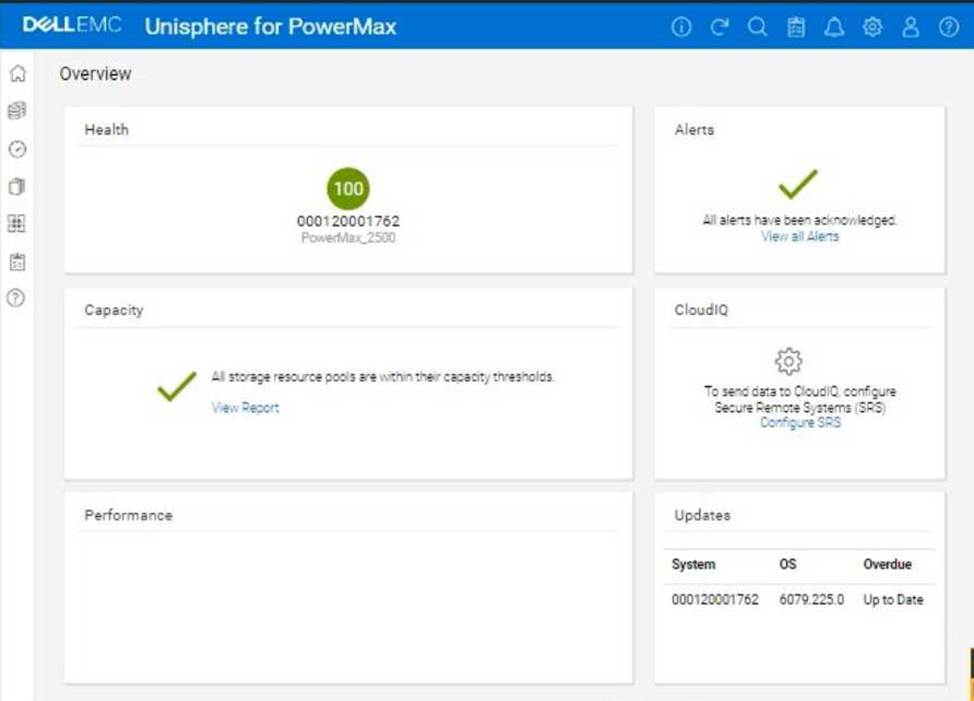
Using the simulator, provision the storage required with a single volume using auto-provisioning groups.
Storage Group Name: ESXi1_SG
Port Group: (A new port group with Directors OR-1C:0 and OR-2C:0)
Volume Size: 2 TB (single volume)
Other Settings: Default
Here are the step-by-step instructions, tailored for the Unisphere simulator as described in the question:
Steps:
Refer to the exhibit.
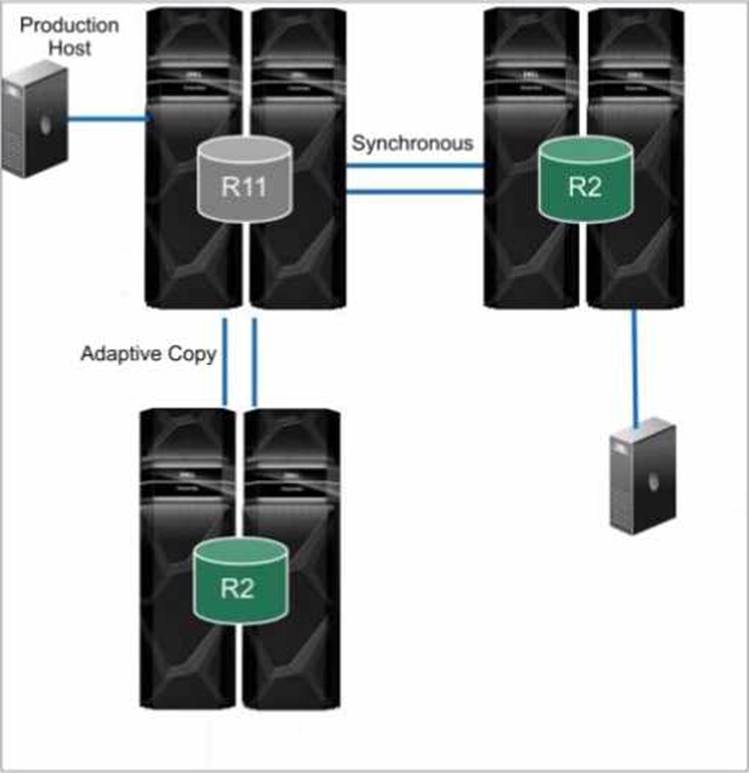
What is the topology shown1?
- A . Cascaded SRDF
- B . SRDF/Star
- C . SRDF/Metro
- D . Concurrent SRDF
A
Explanation:
Step by Step Comprehensive Detailed
The topology shown in the exhibit depicts Cascaded SRDF. This SRDF configuration involves three storage arrays (or sites) connected in a chained or cascaded manner.
Here’s how it works:
Primary Site (R1): The production host is connected to the primary storage array (R1).
Intermediate Site (R2): The primary array (R1) synchronously replicates data to an intermediate array (R2).
Remote Site (R2): The intermediate array (R2) then asynchronously replicates data to a remote array (also labeled R2 in the diagram).
This cascading setup provides a multi-hop disaster recovery solution, where data is first replicated synchronously to a nearby site for high availability and then asynchronously replicated to a further remote site for disaster recovery.
Why other options are incorrect:
B. SRDF/Star: SRDF/Star involves a central array replicating to multiple remote arrays in a star-like pattern.
C. SRDF/Metro: SRDF/Metro is designed for synchronous replication over short distances, typically within a metropolitan area.
D. Concurrent SRDF: Concurrent SRDF allows multiple SRDF relationships to exist simultaneously for the same device.
Reference and documents of Dell’s public documentation for PowerMax Operate v.2:
Dell Solutions Enabler 10.0.0 SRDF Family CLI User Guide: This guide provides detailed information about different SRDF configurations, including Cascaded SRDF. You can find this document on the Dell Support website by searching for "Solutions Enabler SRDF Family CLI User Guide."
Dell PowerMax Family: Essentials and Best Practices Guide: This guide offers a comprehensive overview of SRDF and its functionalities, including various topologies and use cases.