
DELL EMC D-OME-OE-A-24 Practice Exams
Last updated on Oct 22,2026- Exam Code: D-OME-OE-A-24
- Exam Name: Dell OpenManage Operate Achievement
- Certification Provider: DELL EMC
- Latest update: Oct 22,2026
Which are the minimum recommended hardware requirements to support up to 8,000 managed devices?
- A . 4 CPU cores and 16 GB memory
- B . 8 CPU cores and 32 GB memory
- C . 12 CPU cores and 48 GB memory
- D . 6 CPU cores and 24 GB memory
B
Explanation:
The minimum recommended hardware requirements to support up to 8,000 managed devices in Dell OpenManage Enterprise are 8 CPU cores and 32 GB memory. This configuration ensures that the system has sufficient resources to manage a large number of devices efficiently.
Here’s a detailed explanation:
CPU Cores: The number of CPU cores directly impacts the ability of the OpenManage Enterprise appliance to process data and perform operations. With 8 CPU cores, the system can handle multiple tasks and processes concurrently, which is essential for managing thousands of devices.
Memory: 32 GB of memory provides the necessary buffer for the system to store and manage the information from all the managed devices. It allows for smooth operation and quick access to data, which is crucial when dealing with a large device ecosystem.
This information is based on the official documentation provided by Dell, which outlines the hardware requirements for different scales of device management. For managing up to 8,000 devices, the specified configuration is recommended to ensure optimal performance and reliability123.
An OpenManage Enterprise administrator has been tasked to enforce server configuration policies on 2,000 servers using six different configuration profiles.
What is a valid method to create a compliance template?
- A . Export the deployment template
- B . Import the template from dell.com
- C . Clone an existing template
- D . Export the template from a file
C
Explanation:
To enforce server configuration policies on multiple servers using different configuration profiles, one valid method is to clone an existing template. Cloning allows administrators to take a pre-existing template that closely matches the desired configuration and make necessary adjustments to create a new compliance template. Here’s how it can be done:
Access OpenManage Enterprise: Log into the OpenManage Enterprise console with administrative privileges.
Navigate to Templates: Go to the section where server templates are managed.
Select a Template: Choose an existing template that is closest to the desired configuration for the compliance policy.
Clone the Template: Use the option to clone the selected template. This will create a new template with the same configuration settings.
Modify the Template: Make any necessary changes to the cloned template to meet the specific requirements of the compliance policy.
Save the New Template: Save the newly created compliance template.
Apply the Template: Deploy the compliance template to the servers to enforce the configuration policies.
Cloning an existing template is a time-saving approach that leverages the work already done on previous configurations. It ensures consistency across server configurations and simplifies the management of multiple servers1.
For more detailed instructions on creating and managing server templates in OpenManage Enterprise, administrators can refer to the official Dell OpenManage documentation2.
Where is the Server Initiated Discovery feature enabled?
- A . The Configure Server Initiated Discovery option from the Text User Interface
- B . The Set Networking Parameters option from the Text User Interface
- C . Application Settings > Console Preferences from the GUI
- D . Monitor > Server Initiated Discovery from the GUI
A
Explanation:
The Server Initiated Discovery feature is enabled through the Text User Interface (TUI) of the OpenManage Enterprise appliance.
Here are the steps to enable this feature:
Log in to the OpenManage Enterprise TUI: Access the TUI through the VM Guest Console.
Select Configure Server Initiated Discovery: Navigate to this option and press Enter.
Enable Server Initiated Discovery: Select the option to enable Server Initiated Discovery and confirm by selecting the Apply option.
Enter Administrator Password: Provide the administrator password for OpenManage Enterprise to confirm the changes.
Close the Confirmation Dialog: After enabling the feature, close the dialog to complete the process.
These steps are outlined in the Dell Technologies OpenManage Enterprise documentation, which provides detailed instructions for enabling and configuring the Server Initiated Discovery feature1. It’s important to ensure that the corresponding DNS entries are added for OpenManage Enterprise in the DNS server to support this feature.
An OpenManage Enterprise appliance is configured with two NICs to connect to multiple networks. When trying to add a firmware catalog on a file share using the secondary adapter, the file share is
only accessible by IP address and not by name.
What could cause this issue?
- A . The OME appliance does not have a DNS domain configured.
- B . DNS name resolution requires enabling IPv6 in the adapter settings.
- C . OME can only resolve DNS names using its primary network interface.
- D . The firmware catalog does not contain any updates that are applicable to managed systems.
C
Explanation:
The issue described is likely due to the OpenManage Enterprise (OME) appliance’s limitation in resolving DNS names through its secondary network interface. Typically, an OME appliance is configured to use its
primary network interface for DNS name resolution. If a firmware catalog on a file share is only accessible by IP address and not by name when using the secondary adapter, it suggests that DNS queries are not being routed or resolved through the secondary interface.
This behavior can be attributed to the network configuration and DNS settings within the OME appliance. In many systems, the primary NIC is set up with the necessary DNS configuration to resolve domain names, while additional NICs may not have the same settings or may be intended for different purposes, such as management or backup networks.
For more detailed information on configuring network settings and DNS resolution in OpenManage Enterprise appliances, including how to manage multiple NICs, you can refer to the official Dell documentation and support forums12.
Shortly after deploying a template you notice that you are no longer able to log in to the server Operating System.
What is the most likely cause?
- A . The Operating System IP address was changed
- B . The template deployment failed
- C . The deployment template included RAID configuration
- D . The Operating System Password was changed
D
Explanation:
The most likely cause of being unable to log in to the server Operating System shortly after deploying a template is that the Operating System Password was changed. When deploying a template in Dell OpenManage Enterprise, if the template includes user credentials or password settings, it may overwrite the existing credentials on the target server.
Here’s why this is the most likely cause:
The Operating System IP address was changed: While changing the IP address can affect remote connectivity, it would not prevent login once access to the server is established.
The template deployment failed: If the deployment had failed, the server would likely revert to its previous settings, including the original password.
The deployment template included RAID configuration: Configuring RAID would not typically affect the Operating System’s ability to log in unless it resulted in data loss or corruption.
The Operating System Password was changed: This directly affects the ability to log in, as the credentials used previously would no longer be valid.
It’s important to review the contents of the deployment template before applying it to ensure that any changes to user credentials are intentional and documented. For more information on the effects of template deployment on server settings, you can refer to the Dell OpenManage Enterprise documentation and community discussions1.
An OpenManage Enterprise Administrator has been tasked to place servers in device groups depending on the data center location. The Administrator wants to ensure that all future servers are
included in these device groups.
How can this be accomplished?
- A . Create static groups based on a data center-specific attribute.
- B . Create dynamic groups based on a data center-specific attribute.
- C . Create query groups based on a data center-specific attribute.
- D . Create plug-in groups based on a data center-specific attribute.
B
Explanation:
To ensure that all future servers installed in a particular data center are automatically included in the appropriate device groups, the OpenManage Enterprise Administrator should create dynamic groups based on a data center-specific attribute. Dynamic groups are designed to automatically update their membership based on the criteria defined, such as location, model, or other attributes.
Here’s how this can be accomplished:
Define the Criteria: Determine the specific attribute that identifies the data center location, which could
be a naming convention, IP range, or any other relevant identifier.
Create Dynamic Group: In OpenManage Enterprise, navigate to the device group management section and create a new dynamic group.
Set the Attribute: Configure the dynamic group with the chosen data center-specific attribute as the criteria for group membership.
Save the Group: Save the configuration, and the dynamic group will automatically include any new server that matches the criteria.
Dynamic groups are advantageous because they reduce the need for manual updates to group membership as new servers are added to the environment. This ensures that device groups remain up-to-date and reflective of the current infrastructure without additional administrative effort1.
For more detailed instructions on creating and managing dynamic groups in OpenManage Enterprise, refer to the official Dell EMC OpenManage Enterprise User’s Guide2.
Refer to Exhibit:
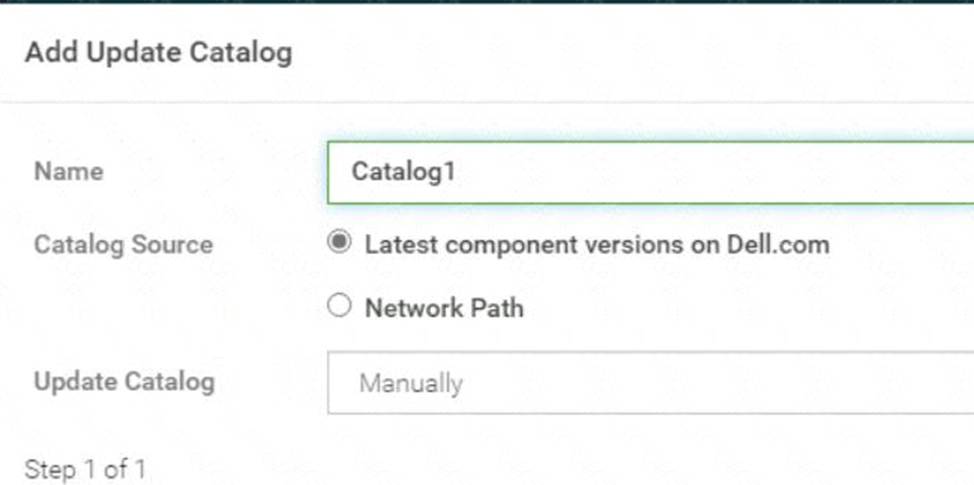
An OpenManage Enterprise environment contains both Dell EMC 13G and 14G PowerEdge servers and an online catalog that is configured as shown.
A Device Manager is tasked with creating a firmware baseline using Catalog1 for all the server infrastructure. During the task, they find that they are only able to select the 14G PowerEdge servers in
the environment.
What is causing the problem?
- A . Only Administrators are permitted to create firmware baselines
- B . The catalog does not contain any firmware applicable to 13G servers
- C . Only the 14G servers are in the scope of their account
- D . Each firmware baseline can only contain servers from the same generation
B
Explanation:
Understanding the Catalog Configuration: The online catalog, as shown in the exhibit, is configured to source the latest component versions from Dell.com.
This catalog is named ‘Catalog1’.
Identifying the Issue: The Device Manager is unable to select 13G PowerEdge servers when creating a firmware baseline using Catalog1. This indicates that the catalog lacks firmware for 13G servers.
Catalog Contents: Since Catalog1 is set to pull the latest component versions, it is likely that it only includes firmware for the most recent, supported server generations, which in this case appears to be the 14G PowerEdge servers.
Firmware Baseline Creation: Firmware baselines are created to standardize the firmware versions across the server infrastructure. If certain server generations are not included in the catalog, they cannot be selected for the baseline.
Reference to Dell OpenManage Documentation: Dell OpenManage documentation would typically explain how catalogs are associated with server generations and their firmware. It would state that if a catalog does not contain firmware for a particular generation, servers from that generation cannot be included in the baseline.
The exhibit provided context for the issue at hand, showing that Catalog1 is likely tailored for 14G servers, hence the absence of 13G server firmware. This aligns with standard practices for managing server firmware where catalogs are generation-specific to ensure compatibility and supportability.
When the maximum number of SNMP events are reached, how many events are placed in the archive?
- A . 5,000
- B . 2,500
- C . 7,500
- D . 10,000
A
Explanation:
In Dell OpenManage Enterprise, when the maximum number of SNMP (Simple Network Management Protocol) events is reached, a portion of these events is archived to maintain a historical record and to prevent loss of data. The number of events placed in the archive is 5,000. This allows for a significant number of events to be stored and reviewed later if necessary, while also ensuring that the system does not become overloaded with too many events to process123.
The archiving process helps in managing the SNMP events efficiently by:
Ensuring that the most recent and relevant events are readily available for immediate viewing and action.
Storing older events in an archive for historical analysis and troubleshooting purposes.
Preventing the event log from becoming too large, which could potentially slow down the system or make it difficult to find specific events.
For more detailed information on SNMP event management and archiving in Dell OpenManage Enterprise, administrators can refer to the Dell EMC OpenManage SNMP Reference Guides23.
Which status is shown if you onboard a server with an account that lacks administrative privileges?
- A . Monitored
- B . Managed with alerts
- C . Managed
- D . Monitored with limited actions
A
Explanation:
In Dell OpenManage Enterprise, when a server is onboarded using an account that lacks administrative privileges, the status shown is “Monitored.” This status implies that the server has reduced device permissions compared to the “Managed” status, which would require administrator privileges.
Here’s a detailed explanation:
Monitored: This status indicates that the server can be contacted and discovered by OpenManage Enterprise, but the range of interactions is limited due to the lower-privileged credentials provided. The server’s operational status can be viewed, but management tasks such as power control or firmware updates cannot be executed1.
Managed with alerts: This status would imply that the server is fully managed and that alerts can be configured and received, which requires administrative privileges.
Managed: This status is assigned to servers that are fully managed with administrative credentials, allowing for a full range of management tasks.
Monitored with limited actions: While this status is not explicitly mentioned in the provided search results, it would suggest a similar level of access as “Monitored” but with some additional limited actions available.
The distinction between these statuses is important for IT administrators who need to decide the level of access and control they require over the servers. For servers that only need to be monitored without full management capabilities, providing lower-privileged credentials is a common practice.
For more information on the implications of onboarding servers with different privilege levels and the resulting statuses, you can refer to the Dell OpenManage Enterprise technical documentation
Upon selecting Display Current Appliance Status, an administrator observes that a new OpenManage Enterprise appliance has already been given the IP Address of 192.168.11.20. They attempt to connect to the web interface using the IP but are not able to reach it. They realize they are on a 192.168.1.x network.
Order the steps to reconfigure the static IP address and ensure communication on the network.


Explanation:
A screenshot of a computer error Description automatically generated
To reconfigure the static IP address of a new OpenManage Enterprise appliance to ensure communication on the 192.168.1.x network, follow these ordered steps:
Select Set Network Parameters: First, access the Text User Interface (TUI) of the appliance and select ‘Set Network Parameters’. This is where you can make administrative changes to the network settings.
Enter the Admin Password: You will be prompted to enter the Admin password to authorize the changes.
Use the Tab Key to Navigate: Use the Tab key to go to the network settings section.
Enter Your Static IP Details: Enter the new static IP details that correspond to the 192.168.1.x network.
Ensure Enable IPv4 is Checked: Make sure that the ‘Enable IPv4’ option is checked and that ‘Enable DHCP’ is unchecked to use a static IP.
Use the Arrow Key to Select Apply: After entering the new IP details, use the Arrow key to select ‘Apply’.
Press Enter to Restart Services: Press enter to confirm the changes, enter the admin password again if prompted, and restart the necessary services for the changes to take effect.
The process of changing the IP address involves accessing the TUI, which is a command-line interface used for configuring network settings on the appliance. By following the steps above, you can change the IP address to match the subnet of the network you are on, ensuring that the appliance can communicate with other devices on the network.
For more detailed guidance on changing network settings, refer to the official Dell OpenManage Enterprise documentation, which provides instructions for accessing and using the TUI for network configuration1.