
DELL EMC D-OME-OE-A-24 Practice Exams
Last updated on Oct 22,2026- Exam Code: D-OME-OE-A-24
- Exam Name: Dell OpenManage Operate Achievement
- Certification Provider: DELL EMC
- Latest update: Oct 22,2026
In the OpenManage Enterprise web console where can VLAN settings be managed?
- A . Devices > Select Device > IOA > Hardware > Networking
- B . Network Devices > IOA Device Settings
- C . Configuration > Network Devices
- D . Devices > Select Device > View Details > Hardware > Networking
D
Explanation:
Step by Step Comprehensive Detailed with ReferencesIn the OpenManage Enterprise web console, VLAN settings can be managed by navigating to the specific device and accessing its networking details.
Here’s how you can manage VLAN settings:
Navigate to Devices: Start by going to the ‘Devices’ section in the OpenManage Enterprise web console.
Select a Device: Choose the device for which you want to manage VLAN settings.
View Details: Click on ‘View Details’ to access more information about the selected device.
Go to Hardware: Within the details view, navigate to the ‘Hardware’ tab.
Access Networking: Finally, select ‘Networking’ to manage VLAN settings for the device.
This path allows administrators to configure VLANs for individual devices, ensuring that network settings are tailored to the needs of each device. The process for managing VLAN settings is documented in the Dell EMC OpenManage Enterprise User’s Guide1, which provides instructions for configuring network-related settings, including VLANs.
Which file format does the Server Initiated Discovery require for a successful import?
- A . json
- B . XML
- C . XLS
- D . CSV
D
Explanation:
For Server Initiated Discovery in Dell OpenManage Enterprise, the required file format for a successful import is CSV (Comma-Separated Values). This format is used to import a list of service tags and credentials into OpenManage Enterprise.
Here’s a detailed explanation:
Open the OpenManage Enterprise Web UI: Log into the web interface of OpenManage Enterprise.
Navigate to Server Initiated Discovery: Go to the ‘Monitor’ section and select ‘Server Initiated Discovery’.
Import CSV File: Use the ‘Import’ option to upload the CSV file. You can also download a sample CSV file to ensure the correct format is used.
Modify and Upload: If using the sample, modify it as needed with the correct service tags and credentials, then upload the CSV file to OpenManage Enterprise.
Complete the Import: Once uploaded, the system will process the CSV file and add the listed devices to the discovery job queue.
The use of CSV files for importing data into OpenManage Enterprise is a standard practice because CSV files are widely supported and easy to create and edit. They allow for structured data to be easily transferred between different systems1.
For more information on the Server Initiated Discovery process and the use of CSV files, you can refer to the Dell Technologies Support Knowledge Base1 and other official Dell documentation2.
A user with administrative privileges logs in to OpenManage Enterprise to create a report.
To which page do they navigate?
- A . Plugins
- B . Monitor
- C . Devices
- D . Alerts
B
Explanation:
To create a report in OpenManage Enterprise, a user with administrative privileges should navigate to the
Monitor page. Here are the steps:
Log in to OpenManage Enterprise: Use your administrative credentials to access the OpenManage Enterprise console.
Navigate to Monitor: From the main menu, go to the Monitor section.
Access Reports: Within the Monitor section, look for the Reports option.
Create Report: Use the integrated reports or create custom reports. Reports can collate and view data about alerts, devices, groups, jobs, and servers1.
The Monitor page provides the necessary tools and options to build, run, and manage reports, which can then be saved in various formats or sent by email1. This functionality is essential for administrators to keep track of system performance, inventory, and other critical metrics.
For more detailed instructions on creating reports in OpenManage Enterprise, administrators can refer to the official Dell OpenManage documentation1.
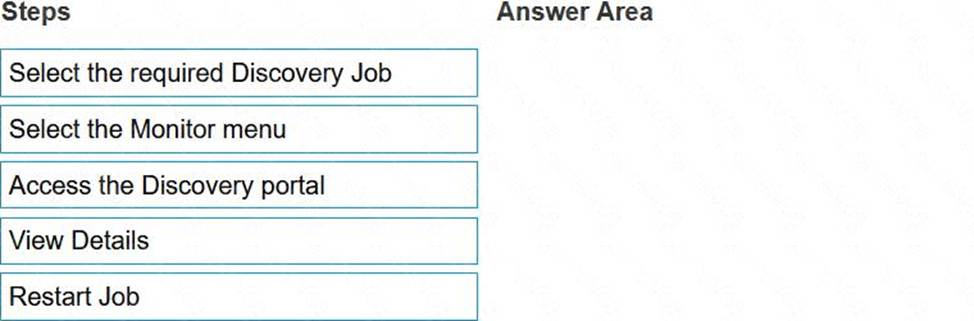
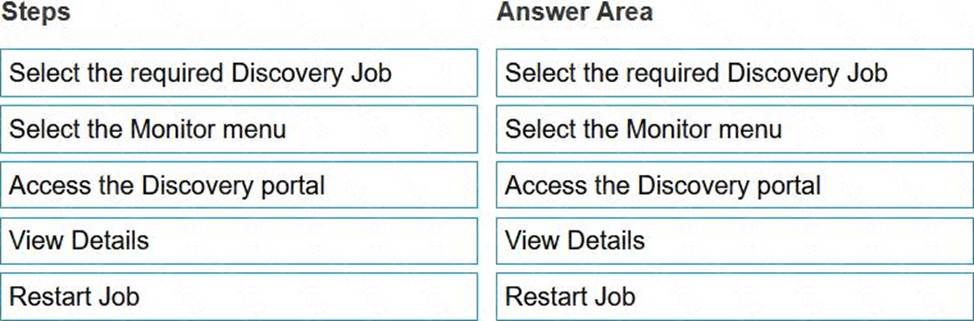
What are the steps required to restart a previously stopped Discovery Job in OpenManage Enterprise?
Explanation:
The steps required to restart a previously stopped Discovery Job in OpenManage Enterprise are:
Select the required Discovery Job: Identify and select the Discovery Job that you wish to restart.
Select the Monitor menu: Navigate to the Monitor menu within the OpenManage Enterprise interface.
Access the Discovery portal: Within the Monitor menu, find and access the Discovery portal.
View Details: In the Discovery portal, locate the specific Discovery Job and view its details.
Restart Job: Finally, use the option provided to restart the selected Discovery Job.
The process to restart a Discovery Job typically involves navigating through the OpenManage Enterprise interface to locate the specific job and initiating a restart. The steps are based on standard procedures for managing Discovery Jobs within the OpenManage Enterprise system. For detailed instructions and best practices, refer to the official Dell OpenManage Enterprise User Guide, which provides comprehensive guidance on managing Discovery Jobs, including starting, stopping, and restarting jobs as needed.
Which actions are necessary for creating server profiles for new PowerEdge servers not yet added to OpenManage Enterprise? (Choose all that apply)
- A . Edit the network settings.
- B . Increase the pool size.
- C . Run a discovery on the servers.
- D . Update the identity pool.
By default when does database synchronization occur between OpenManage Enterprise and SupportAssist Enterprise?
- A . Database synchronization is constantly running
- B . Whenever a new device is discovered in OpenManage Enterprise
- C . Only when you select the Sync Now option
- D . Frequency depends on the Update Device Inventory setting
D
Explanation:
Database synchronization between OpenManage Enterprise and SupportAssist Enterprise is not a continuous process; instead, it occurs based on specific triggers or settings. The most accurate option that reflects the default behavior is that the frequency of database synchronization depends on the “Update Device Inventory” setting.
Here’s a detailed explanation:
Constantly Running: While some processes within OpenManage Enterprise may run continuously, database synchronization with SupportAssist Enterprise typically occurs at scheduled intervals or due to specific events, rather than constantly.
New Device Discovery: Although discovering a new device in OpenManage Enterprise may trigger certain updates or checks, it does not necessarily initiate a full database synchronization with
SupportAssist Enterprise by default.
Sync Now Option: While there is likely an option to manually initiate synchronization, this would not be the default behavior but rather a manual intervention.
Update Device Inventory Setting: This is the most likely default setting that determines the synchronization frequency. It aligns with the behavior of such systems where inventory updates can trigger synchronization to ensure that the data in SupportAssist Enterprise is current and reflects the latest state of the devices managed by OpenManage Enterprise1.
For more detailed information on how database synchronization is configured and managed between OpenManage Enterprise and SupportAssist Enterprise, you can refer to the official Dell OpenManage documentation and support resources1.
How can OpenManage Enterprise be upgraded if the appliance does not have access to the Internet?
- A . From the GUI, use an NFS share that the appliance can access
- B . From the GUI, use a nSFTP share that the appliance can access
- C . From the GUI, use a CIFS share that the appliance can access
- D . From the GUI, use an SCP share that the appliance can access
A
Explanation:
To upgrade OpenManage Enterprise without Internet access, you can use a Network File System (NFS) share that the appliance can access.
Here’s how to perform the upgrade:
Prepare NFS Share: Set up an NFS share on a server that the OpenManage Enterprise appliance can access. Ensure that the NFS share is properly configured with the necessary permissions.
Download Update Packages: From a system with Internet access, download the update packages for OpenManage Enterprise from Dell’s official website1.
Transfer to NFS Share: Copy the downloaded update packages to the NFS share.
Access OpenManage Enterprise GUI: Log into the OpenManage Enterprise appliance’s graphical user interface (GUI).
Navigate to Update Section: Go to the update section within the GUI where you can manage appliance updates.
Specify NFS Share: Choose the option to upgrade from an NFS share and provide the path to the NFS share where the update packages are located.
Initiate Upgrade: Follow the prompts to initiate the upgrade process using the files from the NFS share.
This method allows you to upgrade the appliance in environments where direct Internet access is not available, ensuring that your OpenManage Enterprise appliance is running the latest version with all the security and functionality updates1.
For detailed instructions and best practices for upgrading OpenManage Enterprise using offline methods, refer to the official Dell documentation1.
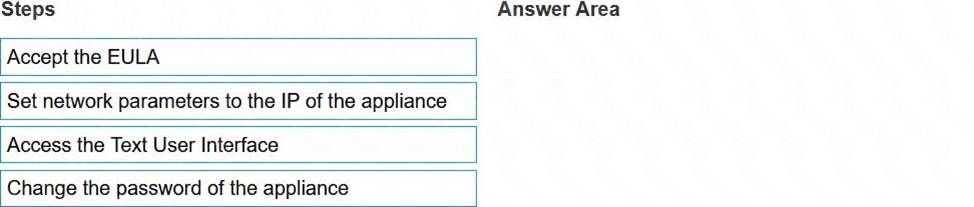
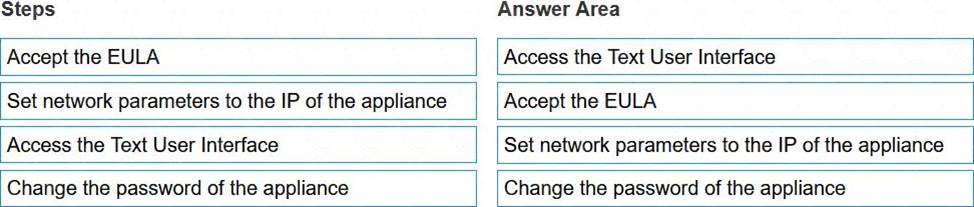
What is the correct order of actions to initially configure OpenManage Enterprise?
Explanation:
The correct order of actions to initially configure OpenManage Enterprise is:
Access the Text User Interface.
Accept the EULA.
Set network parameters to the IP of the appliance.
Change the password of the appliance.
To initially configure OpenManage Enterprise, follow these steps in order:
Access the Text User Interface (TUI): This is the first step where you interact with the OpenManage Enterprise appliance through a command-line interface to begin the configuration process1.
Accept the EULA (End-User License Agreement): Before proceeding with the configuration, you must agree to the terms and conditions of the software as outlined in the EULA1.
Set Network Parameters to the IP of the Appliance: Configure the network settings, including the IP address, subnet mask, gateway, and DNS settings, to ensure the appliance can communicate on your network1.
Change the Password of the Appliance: For security purposes, it’s important to change the default password to a strong, unique password to protect your OpenManage Enterprise appliance1.
These steps are essential to ensure that OpenManage Enterprise is properly set up and secured for use within your IT environment. For more detailed instructions, refer to the official Dell OpenManage documentation1.
An OpenManage Enterprise administrator is performing updates using the out-of-band method but the task fails. The iDRAC logs show that the job was scheduled successfully, but the firmware download task failed. The network team has determined that a firewall setting is the problem.
What is preventing the update?
- A . NFS is blocked on the internal network
- B . OME access is blocked to the Internet
- C . CIFS is blocked on the internal network
- D . iDRAC access is blocked to the Internet
D
Explanation:
When performing out-of-band updates using OpenManage Enterprise and the task fails due to a firewall setting, despite the iDRAC logs indicating that the job was scheduled successfully, it is typically because iDRAC access is blocked to the Internet. This blockage prevents the firmware download task from completing successfully.
The update process involves several steps, and here’s how the firewall setting can impact it:
Download the Updates to the Appliance: The updates are downloaded from Dell’s servers or a local share. If this step fails, it could be due to a network or firewall issue1.
Mount SMBv2 Share to the iDRAC: This step uses ports 137, 138, 139, and 445. If iDRAC cannot access these ports on the Internet due to a firewall block, the update cannot proceed1.
Copy the firmware update to the iDRAC/CMC: If this step fails, it could be due to network issues, including firewall settings that block iDRAC’s Internet access1.
The error that typically indicates a failure in this process is RED016: Unable to Mount Remote Share, which would occur if the iDRAC cannot access the necessary network resources due to a firewall blockage1. Therefore, ensuring that iDRAC has proper Internet access is crucial for the out-of-band update process to succeed.
An administrator is deploying a template with virtual identities to 5 PowerEdge R650 servers. The job is scheduled to run at 10PM the following day.
What is the status of these servers in the Identity Pool?
- A . Pending
- B . Allocated
- C . Assigned
- D . Reserved
D
Explanation:
When an administrator schedules a job to deploy a template with virtual identities to servers, the status of these servers in the Identity Pool is set to “Reserved.” This status indicates that the virtual identities have been earmarked for these servers and cannot be assigned to other devices until the job is either completed or cancelled.
Here’s the process:
Template Deployment Scheduled: The administrator schedules the deployment of the template with virtual identities.
Identity Pool Reservation: The system reserves the required virtual identities in the Identity Pool for the scheduled job.
Status Set to Reserved: The status of the servers in the Identity Pool reflects this reservation as “Reserved.”
Job Execution: At the scheduled time (10PM the following day), the job will run, and the virtual identities will be applied to the servers.
Status Update: Once the job is completed, the status will change to reflect the new state, such as “Allocated” or “Deployed,” depending on the outcome of the deployment1.
The reservation ensures that there are no conflicts or double-assignments of virtual identities, which are crucial for network communication and management within OpenManage Enterprise1. For more detailed information on virtual identity management in Dell OpenManage Operate, administrators can refer to the official documentation provided by Dell1.
=========================