
DELL EMC D-OME-OE-A-24 Practice Exams
Last updated on Oct 21,2026- Exam Code: D-OME-OE-A-24
- Exam Name: Dell OpenManage Operate Achievement
- Certification Provider: DELL EMC
- Latest update: Oct 21,2026
An OpenManage Enterprise administrator is asked to provide a listing of servers installed in a particular data center. The administrator selects the Device Overview Report, then selects Run and Email.
What export file format options are available?
- A . HTML, CSV, PDF, and XLS
- B . HTML, CSV, XML, and XLS
- C . XLS, PDF, and TXT
- D . PDF, XML, and HTML
A
Explanation:
When running and emailing a Device Overview Report in OpenManage Enterprise, the available export file format options are HTML, CSV, PDF, and XLS. This allows administrators to select the most suitable format for their needs, whether it’s for viewing in a web browser (HTML), importing into a spreadsheet (CSV or XLS), or distributing a static document (PDF).
Here’s a breakdown of the options:
HTML: HyperText Markup Language, commonly used for creating web pages and web applications.
CSV: Comma-Separated Values, a simple file format used to store tabular data, such as a spreadsheet or database.
PDF: Portable Document Format, a file format used to present documents in a manner independent of application software, hardware, and operating systems.
XLS: An Excel Spreadsheet, which is a file format used by Microsoft Excel.
These formats provide flexibility in how the report can be used and shared. For example, HTML is useful for immediate viewing, CSV for data analysis, PDF for distribution, and XLS for further manipulation in Excel.
The ability to export content of selected reports to these formats is documented in the Dell OpenManage Enterprise support resources1. This ensures that the information can be easily accessed and utilized by the administrator or other stakeholders who need to review the server listings.
What type of device health monitoring capability is implemented in OpenManage Enterprise?
- A . Real-time
- B . Scheduled
- C . On-demand
- D . Interval based
Which option is available in the Discovery portal when multiple jobs are selected simultaneously?
- A . Run
- B . Reschedule
- C . Edit
- D . Restart
B
Explanation:
In the OpenManage Enterprise Discovery portal, when multiple jobs are selected simultaneously, the option available is to Reschedule the jobs. This feature allows administrators to efficiently manage and organize discovery tasks by setting new times for them to run, without having to recreate the tasks from scratch.
Here’s a detailed explanation of the process:
Accessing the Discovery Portal: Log into the OpenManage Enterprise web console and navigate to the Discovery Portal.
Selecting Multiple Jobs: Click on the checkboxes next to the jobs you wish to manage, allowing you to select multiple jobs at once.
Rescheduling Jobs: With multiple jobs selected, the ‘Reschedule’ option becomes available. This option allows you to set a new time and date for the selected discovery jobs to run.
Confirming Changes: After setting the new schedule, confirm the changes. The selected jobs will now run at the newly specified times.
The ability to reschedule multiple jobs simultaneously streamlines the management of discovery tasks and ensures that device discovery occurs at the most appropriate times for the organization’s needs. This information is based on the functionality described in the OpenManage Enterprise documentation and user guides123.
Where are the device details saved when a device on the network is identified by the OpenManage Enterprise Discovery process?
- A . Application settings
- B . Identity pools
- C . OME database
- D . Audit logs
C
Explanation:
When a device on the network is identified by the OpenManage Enterprise Discovery process, the details of the device are saved in the OpenManage Enterprise (OME) database. The OME database is the central repository where all the information and configurations related to the discovered devices are stored. This includes hardware details, monitoring data, and any other relevant information that the OpenManage Enterprise system uses to manage and monitor the devices1.
The database is designed to handle a large amount of data efficiently, ensuring that all device details are readily accessible for management tasks, reporting, and analytics within the OpenManage Enterprise platform1.
For more information on the discovery process and data storage in OpenManage Enterprise, administrators can refer to the official Dell OpenManage documentation and support resources1.
The OpenManage Enterprise administrator has recently discovered 10 R640 servers. When they log in to SupportAssist Enterprise web console, these systems are not visible. The OpenManage
Enterprise Adapter is correctly configured with the synchronization schedule set to 12 hours.
How can the administrator immediately add the new systems into SupportAssist Enterprise?
- A . From the OpenManage Enterprise console, go to Application Settings > Adapters
Configure OpenManage Enterprise to immediately send the changes to SupportAssist Enterprise - B . From the OpenManage Enterprise console go to Monitor > Discovery Select the new discovery range and click Sync now
- C . From the SupportAssist Enterprise web console go to Extensions > Adapters
Select set up new adapter and follow the wizard to configure a new adapter for the R640 discovery job. - D . From the SupportAssist Enterprise web console, go to Extensions > Adapters Select the OpenManage Enterprise Adapter and click Sync now
D
Explanation:
Questions no: 36 Verified AnswerD. From the SupportAssist Enterprise web console, go to Extensions > Adapters Select the OpenManage Enterprise Adapter and click Sync now Step by Step Comprehensive Detailed with ReferencesTo immediately add the newly discovered R640 servers into SupportAssist Enterprise, the administrator should use the SupportAssist Enterprise web console to manually initiate a synchronization.
Here are the steps:
Log into SupportAssist Enterprise: Access the SupportAssist Enterprise web console using the appropriate credentials.
Navigate to Extensions: Go to the ‘Extensions’ section of the console.
Select Adapters: Click on ‘Adapters’ to view the list of available adapters.
Choose OpenManage Enterprise Adapter: Find and select the OpenManage Enterprise Adapter from the list.
Initiate Sync: Click on the ‘Sync now’ button to start the synchronization process immediately.
This action will force the SupportAssist Enterprise to synchronize with OpenManage Enterprise outside of the regular schedule, allowing the new systems to be added without waiting for the next automatic sync12.
For more detailed instructions on managing and synchronizing devices between OpenManage Enterprise and SupportAssist Enterprise, administrators can refer to the official Dell SupportAssist Enterprise User’s Guide2.
What advantage does the IPMI discovery protocol have over SNMP?
- A . There is an added encryption layer with IPMI
- B . Discovery timeouts increase for SNMP
- C . IPMI allows for subsystem sensor monitoring
- D . No credentials are required when using IPMI
C
Explanation:
IPMI (Intelligent Platform Management Interface) is a set of computer interface specifications for an autonomous computer subsystem that provides management and monitoring capabilities independently of the host system’s CPU, firmware, and operating system. One of the key advantages of IPMI over SNMP (Simple Network Management Protocol) is its ability to monitor and manage various subsystem sensors within the hardware.
While SNMP is widely used for network management and can gather data from various devices on the network, it is not as specialized in sensor data collection as IPMI. IPMI provides more detailed monitoring of system health and environment by allowing access to a broader range of sensor types and data. This includes temperatures, voltages, fans, power supplies, and more123.
Moreover, IPMI operates independently of the operating system, which means it can function even if the server’s OS fails or is unresponsive. This level of monitoring is crucial for maintaining system stability and preventing downtime due to hardware issues.
References:
Dell EMC OpenManage SNMP Reference Guide1
Server Fault community discussions on Dell OpenManage and IPMI2
Spiceworks Community insights on Dell OpenManage monitoring3
An OpenManage Enterprise administrator plans to deploy a previously created template on a repurposed server. They want to ensure that the server boots from an ISO once the template is applied so that the OS is installed immediately.
Which share type should the user specify for the Deploy Template wizard?
- A . HTTP
- B . SCP
- C . FTP
- D . CIFS
A
Explanation:
When deploying a template that includes booting from an ISO in OpenManage Enterprise, specifying the share type is crucial for the server to access and boot from the ISO image. The correct share type to use in the Deploy Template wizard for this purpose is HTTP.
Here’s why HTTP is the appropriate choice:
HTTP (Hypertext Transfer Protocol) is widely used for transmitting files over the internet or a network. When a server boots from an ISO, it requires a protocol that can be used to access the file over a network. HTTP is suitable for this because it allows the server to download the ISO image as if it were accessing a web page or file on the internet1.
The other options, such as SCP (Secure Copy Protocol), FTP (File Transfer Protocol), and CIFS (Common Internet File System), are also used for file transfers but may not be supported for this specific scenario within the Deploy Template wizard of OpenManage Enterprise.
For detailed instructions on deploying server templates and configuring boot from ISO, administrators should refer to the official Dell OpenManage Enterprise documentation and support resources1.
A user attempts to delete a catalog file from an OpenManage Enterprise appliance but fails.
What is the reason the catalog file cannot be deleted?
- A . The user must have Administrator privileges
- B . At least one catalog must be present
- C . Catalog is linked to a firmware baseline
- D . Online catalogs cannot be deleted
C
Explanation:
Questions no: 27 Verified AnswerC. Catalog is linked to a firmware baseline
Step by Step Comprehensive Detailed with ReferencesIn OpenManage Enterprise, a catalog file cannot be deleted if it is linked to a firmware baseline. The firmware baseline relies on the catalog file to determine the applicable updates for devices managed by OpenManage Enterprise. If a catalog is in use by a baseline, it is protected from deletion to maintain the integrity of the firmware update process.
Here’s a detailed explanation:
Administrator Privileges: While administrator privileges are required for many actions within OpenManage Enterprise, they do not prevent the deletion of a catalog file unless it is linked to a baseline.
At Least One Catalog Must Be Present: OpenManage Enterprise does not require a catalog to be present at all times; catalogs can be added or removed as needed.
Catalog is Linked to a Firmware Baseline: This is the correct reason. The system prevents the deletion of a catalog file that is currently associated with a firmware baseline to avoid disrupting any ongoing or planned update processes.
Online Catalogs Cannot Be Deleted: Online catalogs can be deleted unless they are associated with a firmware baseline.
The process and restrictions related to managing catalog files are documented in the OpenManage Enterprise User’s Guide and support resources provided by Dell123.
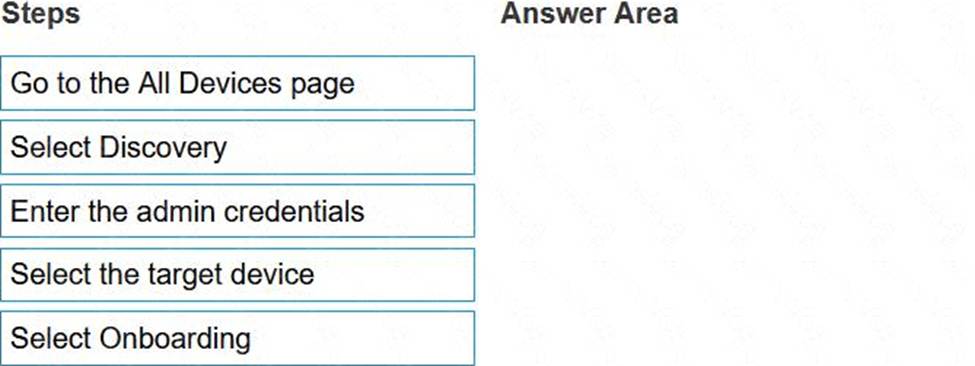
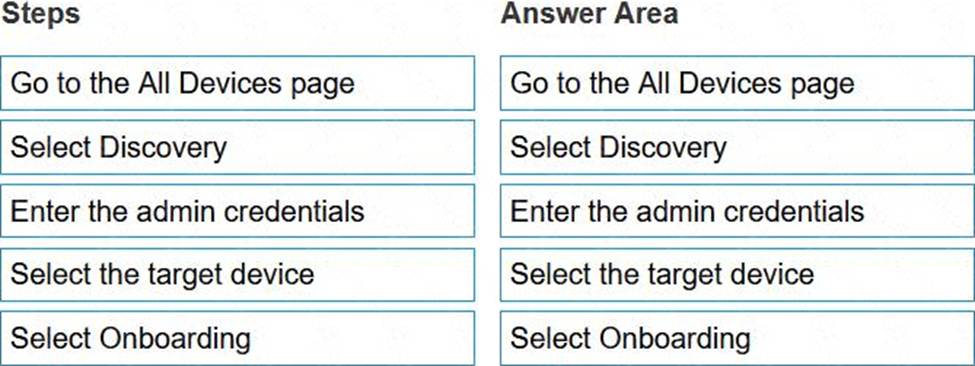
What is the correct order of steps to manually onboard a device?
Explanation:
The correct order of steps to manually onboard a device in Dell OpenManage Operate is:
Go to the IP Addresses page.
Select Discovery.
Enter the admin credentials.
Select the target device.
Select Onboarding.
To manually onboard a device using Dell OpenManage Operate, follow these steps:
Go to the IP Addresses page: This is typically where you begin by accessing your inventory of devices and their respective IP addresses within Dell OpenManage Operate.
Select Discovery: The discovery process involves scanning for devices that can be managed within your network environment.
Enter the admin credentials: For security purposes and to ensure that only authorized personnel can add devices, administrative credentials are required.
Select the target device: After discovering devices, you need to select which specific device you want
to onboard into Dell OpenManage Operate for management.
Select Onboarding: Finally, after selecting your target device, you proceed with onboarding it into your management console for monitoring and management tasks.
For verified answers according to Dell OpenManage Operate documents, please refer directly to those official documents or contact Dell support for confirmation as this information cannot be verified without access to those specific resources.
A new administrator has been tasked to monitor eight PowerEdge MX740c blades, an MX7000 chassis, and two VxRail clusters.
Following a successful discovery of these devices, in which system groups are these devices located by default?
- A . Modular Systems, HCI Appliances, and Storage Devices
- B . Modular Systems, Servers, and HCI Appliances
- C . Modular Systems, Servers, and Storage Devices
- D . Servers, HCI Appliances, and Storage Devices
B
Explanation:
When devices are discovered in OpenManage Enterprise, they are automatically categorized into system groups based on their properties.
For the devices mentioned:
PowerEdge MX740c blades and MX7000 chassis: These are considered modular systems because they are part of a modular infrastructure.
VxRail clusters: These are categorized as HCI (Hyper-Converged Infrastructure) Appliances due to their nature as integrated systems combining compute, storage, and networking.
Therefore, the eight PowerEdge MX740c blades and the MX7000 chassis would be placed in the ‘Modular Systems’ group, while the two VxRail clusters would be located in the ‘HCI Appliances’ group. The ‘Servers’ group typically includes standalone servers, which might also include the PowerEdge MX740c blades if they are considered individually.
The default system groups in OpenManage Enterprise are designed to help administrators quickly identify and manage devices based on their type and role within the infrastructure12.