
DELL EMC D-OME-OE-A-24 Practice Exams
Last updated on Oct 21,2026- Exam Code: D-OME-OE-A-24
- Exam Name: Dell OpenManage Operate Achievement
- Certification Provider: DELL EMC
- Latest update: Oct 21,2026
The storage administrator has requested the WWPN for a newly provisioned PowerEdge R650 server. The server has Virtual Identities that are applied using a template and the FCoE FIP Mac address that is assigned is 02:AC:ED:AD:FA:CE:10.
What is the assigned WWPN?
- A . 20:00:02:AC:ED:AD:FA:CE:10
- B . 02:AC:ED:AD:FA:CE:10:20:00
- C . 50:01:02:AC:ED:AD:FA:CE:10
- D . 20:01:02:AC:ED:AD:FA:CE:10
A
Explanation:
The World Wide Port Name (WWPN) is a unique identifier used in storage networking environments. For a server with Virtual Identities applied using a template and an assigned FCoE FIP MAC address, the WWPN is typically derived from the MAC address.
In this case, the FCoE FIP MAC address is 02:AC:ED:AD:FA:CE:10. The WWPN usually includes a standardized prefix, which for FCoE is often “20:00”. Therefore, the WWPN for the newly provisioned PowerEdge R650 server would be 20:00 followed by the MAC address, making the correct answer:
Which are valid user roles in OpenManage Enterprise?
- A . Domain Administrator and Device Manager
- B . Device Administrator and Viewer
- C . User and Administrator
- D . Viewer and Administrator
D
Explanation:
OpenManage Enterprise (OME) has a Role-Based Access Control (RBAC) system that defines user privileges for built-in roles.
The valid user roles in OME are:
Administrator: This role has full access to all features and functions within OME, including system configuration, management, and monitoring.
Device Manager: This role can manage and monitor devices but may have restricted access to certain system settings.
Viewer: This role is typically limited to viewing information and cannot make changes to the system or device configurations.
For the purpose of this question, the roles that are considered valid within the context of OME are Viewer and Administrator. These roles are clearly defined within the OME RBAC system and are integral to the security and management of the system1.
The process of assigning roles in OME involves:
Logging into the OME console with administrative credentials.
Navigating to the user management section.
Creating or editing a user account.
Assigning the appropriate role (Viewer or Administrator) to the user based on their responsibilities and the level of access they require.
It’s important to note that while “Device Manager” is a valid role, it is not listed as an option in the provided answers. Therefore, the correct answer from the given options is Viewer and Administrator1. This information is verified according to the official Dell OpenManage Enterprise documentation and user guides.
Which methods can be used to enforce server configuration policies on multiple servers? (Choose two)
- A . Clone an existing template.
- B . Create a new deployment job.
- C . Use a configuration script.
- D . Import settings from an external source.
- E . Modify server settings manually.
Refer to Exhibit:
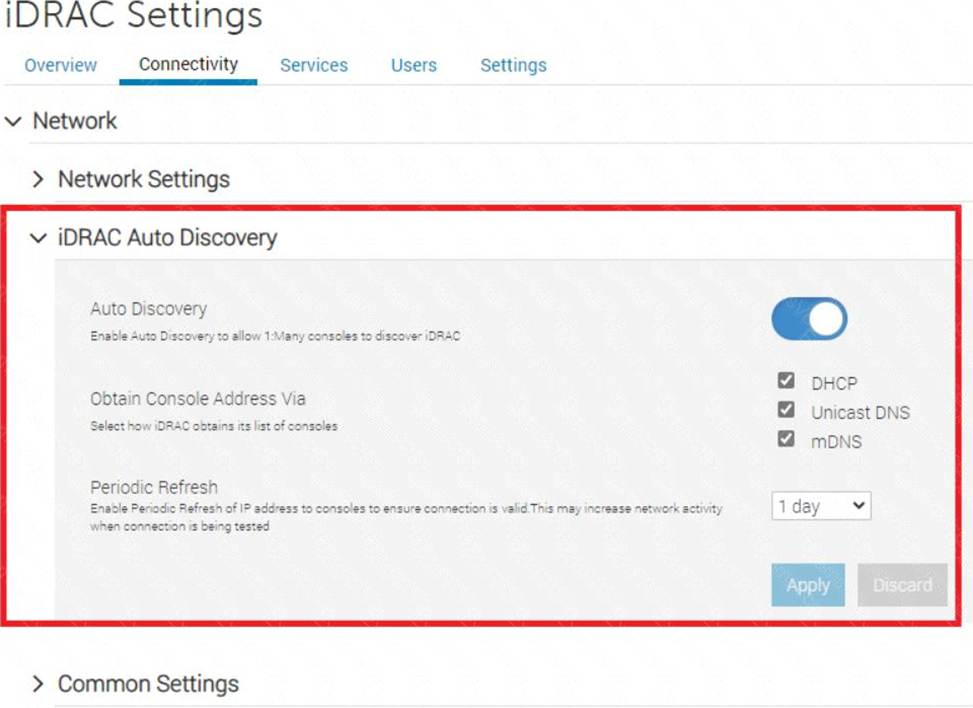
What is the corresponding OpenManage Enterprise feature used with this iDRAC setting?
- A . Redfish
- B . Automatic Discovery Jobs
- C . Server Initiated Discovery
- D . Global Exclude
C
Explanation:
The iDRAC (Integrated Dell Remote Access Controller) setting displayed in the exhibit is associated with the Server Initiated Discovery feature in OpenManage Enterprise. This feature allows servers to initiate their discovery into OpenManage Enterprise using the iDRAC Auto Discovery settings.
Here’s how it works:
iDRAC Auto Discovery: This setting, when enabled on the server’s iDRAC, allows the server to present itself to OpenManage Enterprise for discovery and management.
Server Initiated Discovery: In OpenManage Enterprise, this feature is used to automatically discover servers that have iDRAC Auto Discovery enabled. It simplifies the process of adding new servers to the management console.
Network Configuration: The network settings in iDRAC, such as obtaining an IP address via DHCP, mDNS, or Unicast DNS, are configured to ensure that the server can communicate with OpenManage Enterprise.
Periodic Refresh: The periodic refresh setting ensures that the server’s presence is consistently updated in OpenManage Enterprise, maintaining accurate and current device management.
By using Server Initiated Discovery, administrators can automate the process of integrating servers with OpenManage Enterprise, reducing the need for manual discovery jobs and streamlining the management of server infrastructure.
For more detailed information on Server Initiated Discovery and its configuration, administrators can refer to the official Dell OpenManage documentation and support resources.
In OpenManage Enterprise which type of custom group should be used for a list of devices that update based on specific properties of discovered systems?
- A . Static
- B . Discovery
- C . Dynamic
- D . Query
C
Explanation:
In OpenManage Enterprise, custom groups can be created to organize devices based on various criteria. For a list of devices that update automatically based on specific properties of discovered systems, the appropriate type of custom group to use is a Dynamic group.
Here’s a detailed explanation:
Static Groups: These groups are manually created and managed. Devices must be manually added or removed, and the group does not update based on changes to device properties.
Dynamic Groups: These groups are automatically updated based on predefined criteria or properties. When a device meets the criteria, it is automatically included in the group, and if it no longer meets the criteria, it is removed.
Discovery Groups: These are typically used for organizing devices based on the method of discovery or during the initial discovery phase.
Query Groups: While these groups can be based on specific queries, they are not automatically updated like Dynamic groups.
Therefore, for a list of devices that need to update based on specific properties, a Dynamic group is the recommended choice as it ensures the group membership remains current with the changing properties of the devices1.
This information is based on the functionalities provided by Dell EMC OpenManage Enterprise, as outlined in the official documentation. It is always recommended to refer to the latest OpenManage Enterprise documentation for the most current features and procedures.
When creating a discovery job, what scheduling options are available in OpenManage Enterprise?
- A . Daily and Weekly
- B . Hourly and Daily
- C . Weekly and Monthly
- D . Daily and Monthly
A
Explanation:
In OpenManage Enterprise, when creating a discovery job, the scheduling options available are typically Daily and Weekly. This allows administrators to set up discovery jobs to run either every day or on specific days of the week, depending on their network management needs and preferences.
Here’s a detailed explanation:
Daily: This option schedules the discovery job to run once every day. It’s useful for environments where frequent updates to the device inventory are necessary.
Weekly: This option allows the administrator to schedule the discovery job to run on specific days of the week. This is suitable for environments where weekly updates are sufficient.
These scheduling options provide flexibility in how often the discovery process is executed, ensuring that the device inventory is kept up-to-date according to the specific requirements of the organization1.
For more information on scheduling discovery jobs in OpenManage Enterprise, administrators can refer to the official Dell OpenManage Enterprise User’s Guide2.
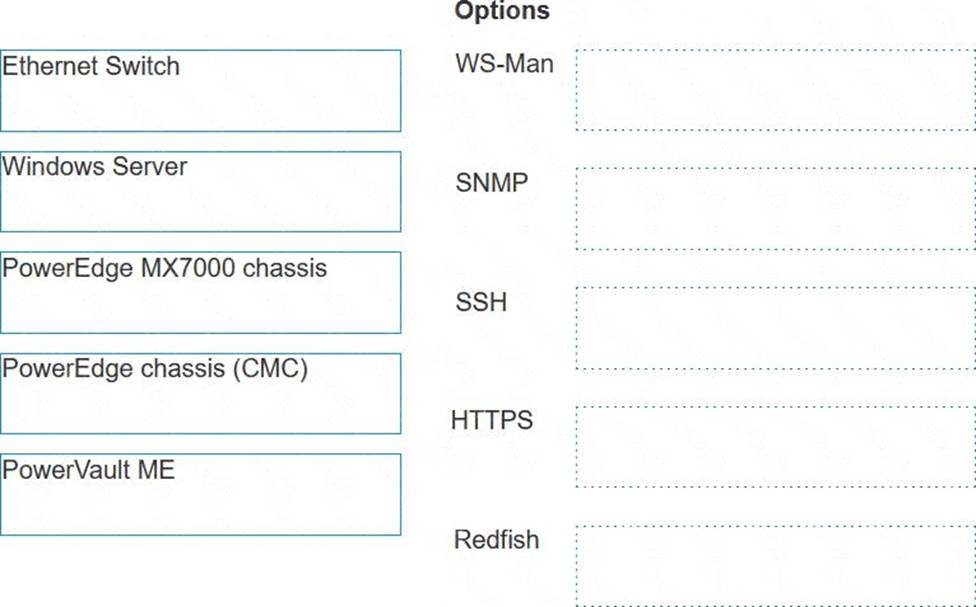
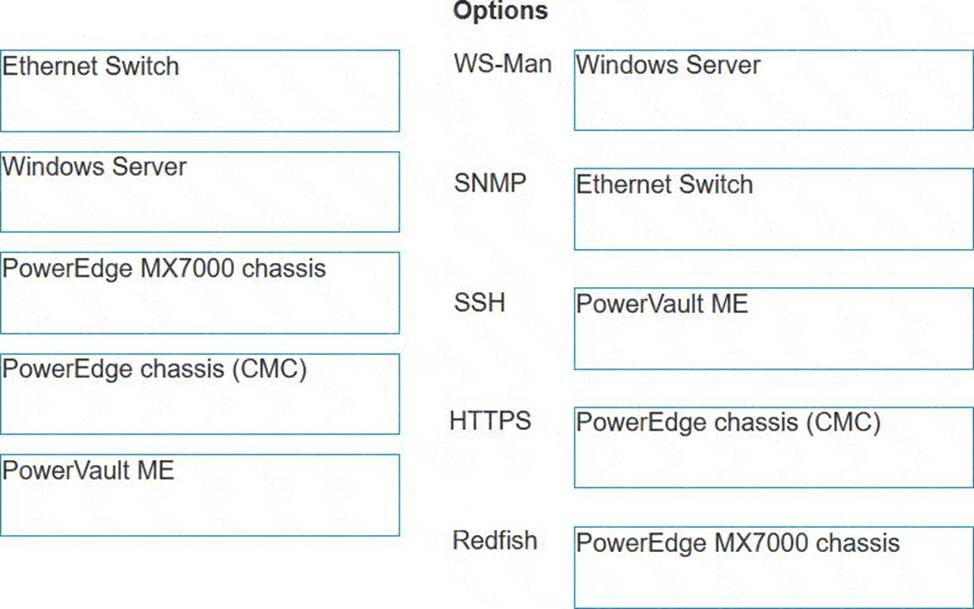
Match the device to be discovered with the correct discovery protocol.
Explanation:
Ethernet Switch – SNMP
Windows Server – WS-Man
PowerEdge MX7000 chassis – Redfish
PowerEdge chassis (iCMC) – HTTPS
PowerVault ME – SSH
Ethernet Switch: SNMP (Simple Network Management Protocol) is the standard protocol for network management. It’s used for collecting information from, and configuring, network devices, such as switches and routers.
Windows Server: WS-Man (Web Services-Management) is a protocol for managing servers and devices. It’s particularly suited for Windows Servers as it’s built into the Windows Management Framework.
PowerEdge MX7000 chassis: Redfish is a standard designed to deliver simple and secure management for hardware platforms. Given the advanced features of the PowerEdge MX7000 chassis, Redfish is the appropriate protocol for discovery and management.
PowerEdge chassis (iCMC): HTTPS (Hypertext Transfer Protocol Secure) is used for secure communication over a computer network within a web browser. It’s suitable for devices like the PowerEdge chassis with an integrated Dell Remote Access Controller (iDRAC) that supports web-based management.
PowerVault ME: SSH (Secure Shell) is a protocol for operating network services securely over an unsecured network. It’s ideal for storage systems like PowerVault, which require secure data transfer.
References for these answers can be found in the Dell OpenManage documentation, which provides detailed information on the management protocols supported by different Dell devices.
An administrator has configured a server to meet company-mandated BIOS settings and captured these settings in a Deployment Template.
They are trying to apply these settings to a new server. When the Template Deployment wizard is run, the server is not listed as a possible target.
Which of the following could cause this issue?
- A . The new server has multiple network cards.
- B . The new server does not have the required license.
- C . The new server is not part of the bare metal pool.
- D . A template can only be deployed to the server it is captured from.
C
Explanation:
When deploying a Deployment Template in OpenManage Enterprise and the target server is not listed, it could be due to the server not being part of the bare metal pool. The bare metal pool is a collection of servers that have been discovered but not yet configured or assigned to any specific group or task within OpenManage Enterprise. If a server is not part of this pool, it may not be recognized as a potential target for template deployment.
Here are the steps and considerations that might be involved in resolving this issue:
Verify Server Discovery: Ensure that the new server has been discovered by OpenManage Enterprise and is listed in the inventory.
Check Bare Metal Pool Membership: Confirm that the server is part of the bare metal pool, which is a prerequisite for deploying templates to unconfigured servers.
Review License Requirements: Make sure that the server has the necessary OpenManage Enterprise Advanced or Advanced Plus license installed, as this is required for deploying certain templates1.

Template Compatibility: Ensure that the Deployment Template is compatible with the new server’s model and configuration.
For detailed guidance on creating and deploying server templates, including troubleshooting steps for when servers are not listed as targets, you can refer to the official Dell EMC OpenManage Enterprise User’s Guide1 and support videos2.
On which virtualization platforms, other than VMware vSphere, can OpenManage Enterprise be deployed?
- A . Microsoft Hyper-V and Proxmox VE
- B . Microsoft Hyper-V and Red Hat KVM
- C . Red Hat KVM and Proxmox VE
- D . Citrix Xen and Red Hat KVM
B
Explanation:
OpenManage Enterprise can be deployed on virtualization platforms such as Microsoft Hyper-V and Red Hat KVM, in addition to VMware vSphere. These platforms are supported for the deployment of OpenManage Enterprise, providing flexibility for users to choose the virtualization environment that best fits their infrastructure.
Microsoft Hyper-V: OpenManage Enterprise can be deployed on Microsoft Hyper-V, which is a virtualization platform provided by Microsoft. It is suitable for users who are utilizing Windows Server environments1.
Red Hat KVM: Red Hat KVM (Kernel-based Virtual Machine) is another virtualization platform where OpenManage Enterprise can be deployed. It is an open-source option that is often used in Linux environments2.
These options offer robust, intuitive management capabilities and allow OpenManage Enterprise to function effectively, regardless of the form-factor or the underlying virtualization technology2.
For detailed deployment instructions and compatibility information, users can refer to the official Dell OpenManage Enterprise support resources2.
What is the maximum number of static network routes that can be configured in a single-homed OpenManage Enterprise appliance?
- A . 10
- B . 40
- C . 20
- D . 30
C
Explanation:
The maximum number of static network routes that can be configured in a single-homed OpenManage Enterprise appliance is: C. 201.
This limitation is specified in the documentation for OpenManage Enterprise, ensuring that administrators are aware of the routing capabilities and limitations when configuring network settings for the appliance1.